ECU FORD F150 2023 Repair Manual
[x] Cancel search | Manufacturer: FORD, Model Year: 2023, Model line: F150, Model: FORD F150 2023Pages: 786, PDF Size: 23.15 MB
Page 573 of 786
When driving with the full-size dissimilarspare wheel and tire assembly, do not:
•Exceed 70 mph (113 km/h).
•Use more than one dissimilar sparewheel and tire assembly at a time.
•Use snow chains on the end of thevehicle with the dissimilar spare wheeland tire assembly.
•Engage any four-wheel drive mode.See Four-Wheel Drive Limitations(page 275).
•Engage any four-wheel drive.
Using a full-size dissimilar spare wheel andtire assembly can compromise theeffectiveness of the following:
•Handling, stability and brakingperformance.
•Comfort and noise.
•Ground clearance and parking at curbs.
•Winter weather driving capability.
•Wet weather driving capability.
•Four-wheel drive capability.
When driving with the full-size dissimilarspare wheel and tire assembly, giveadditional caution to:
•Towing a trailer.
•Driving vehicles that come with acamper body.
•Driving vehicles with a load on thecargo rack.
Drive cautiously when using a full-sizedissimilar spare wheel and tire assemblyand seek service as soon as possible.
Tire Change Procedure
WARNING: To help prevent yourvehicle from moving when changing awheel, shift the transmission into park(P), set the parking brake and use anappropriate block or wheel chock tosecure the wheel diagonally opposite tothe wheel being changed. For example,when changing the front left wheel,place an appropriate block or wheelchock on the right rear wheel.
WARNING: The jack supplied withthis vehicle is only intended for changinga flat tire in an emergency. Do notattempt to do any other work on yourvehicle when it is supported by the jack,as your vehicle could slip off the jack.Failure to follow this instruction couldresult in personal injury or death.
WARNING: Do not attempt tochange a tire on the side of the vehicleclose to moving traffic. Pull far enoughoff the road to not obstruct the flow oftraffic and avoid the danger of being hitwhen operating the jack or changing thewheel.
WARNING: Only use the jackprovided as original equipment with yourvehicle.
WARNING: Do not get under avehicle that is supported by a jack.
WARNING: The jack should beused on level firm ground whereverpossible.
WARNING: Never place anythingbetween the vehicle jack and the ground.
569
2023 F-150 (TFD) Canada/United States of America, enUSA, Edition date: 202206, DOMChanging a Road Wheel
Page 574 of 786
WARNING: Never place anythingbetween the vehicle jack and yourvehicle.
WARNING: It is recommended thatthe wheels of the vehicle be chocked,and that no person should remain in avehicle that is being jacked.
WARNING: Switch off the runningboards before jacking or placing anyobject under your vehicle. Never placeyour hand between the extended runningboard and your vehicle. A moving runningboard may cause injury.
WARNING: Only use the specifiedjacking points. If you use any otherlocations you could damage vehiclecomponents, such as brake lines.
Park on a level surface, activate the hazardflashers and set the parking brake. Placethe transmission in park (P) and turn theengine off.
Note:Only use the spare tire carrier to stowthe tire and wheel combination providedwith your vehicle. Other tire and wheelcombinations can cause the tire carrier tofail.
Note:Do not use impact tools or powertools operating at over 200 RPM on thespare tire carrier, this could cause a winchmalfunction and prevent a secure fit.
Note:Passengers should not remain in thevehicle when the vehicle is being jacked.
Removing the Vehicle Jack andTool Bag
The vehicle jack and tool bag are in the rearpassenger side of your vehicle, behind thepassenger seat.
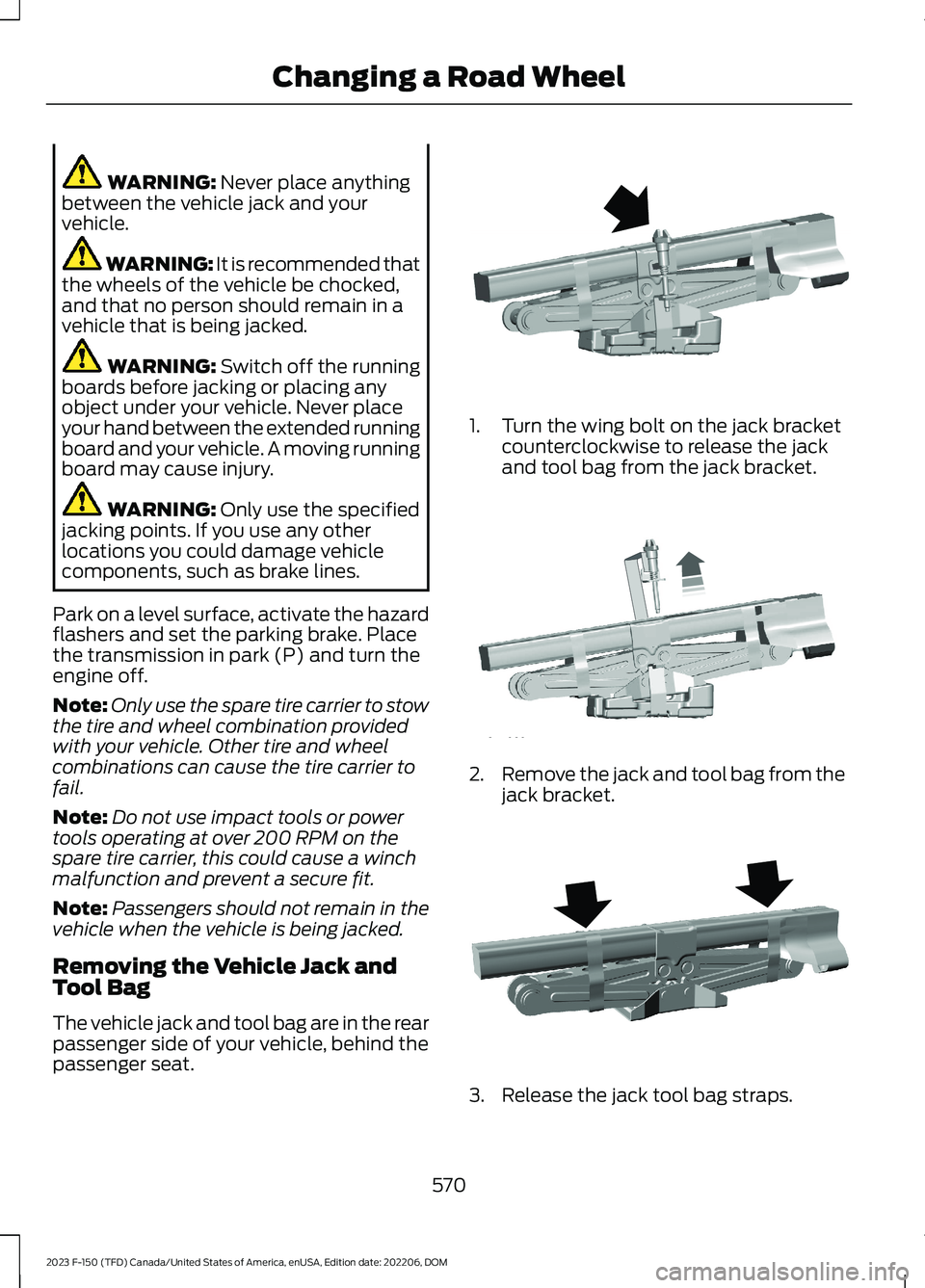
1.Turn the wing bolt on the jack bracketcounterclockwise to release the jackand tool bag from the jack bracket.
2.Remove the jack and tool bag from thejack bracket.
3.Release the jack tool bag straps.
570
2023 F-150 (TFD) Canada/United States of America, enUSA, Edition date: 202206, DOMChanging a Road WheelE323384 E327650 E323386
Page 578 of 786
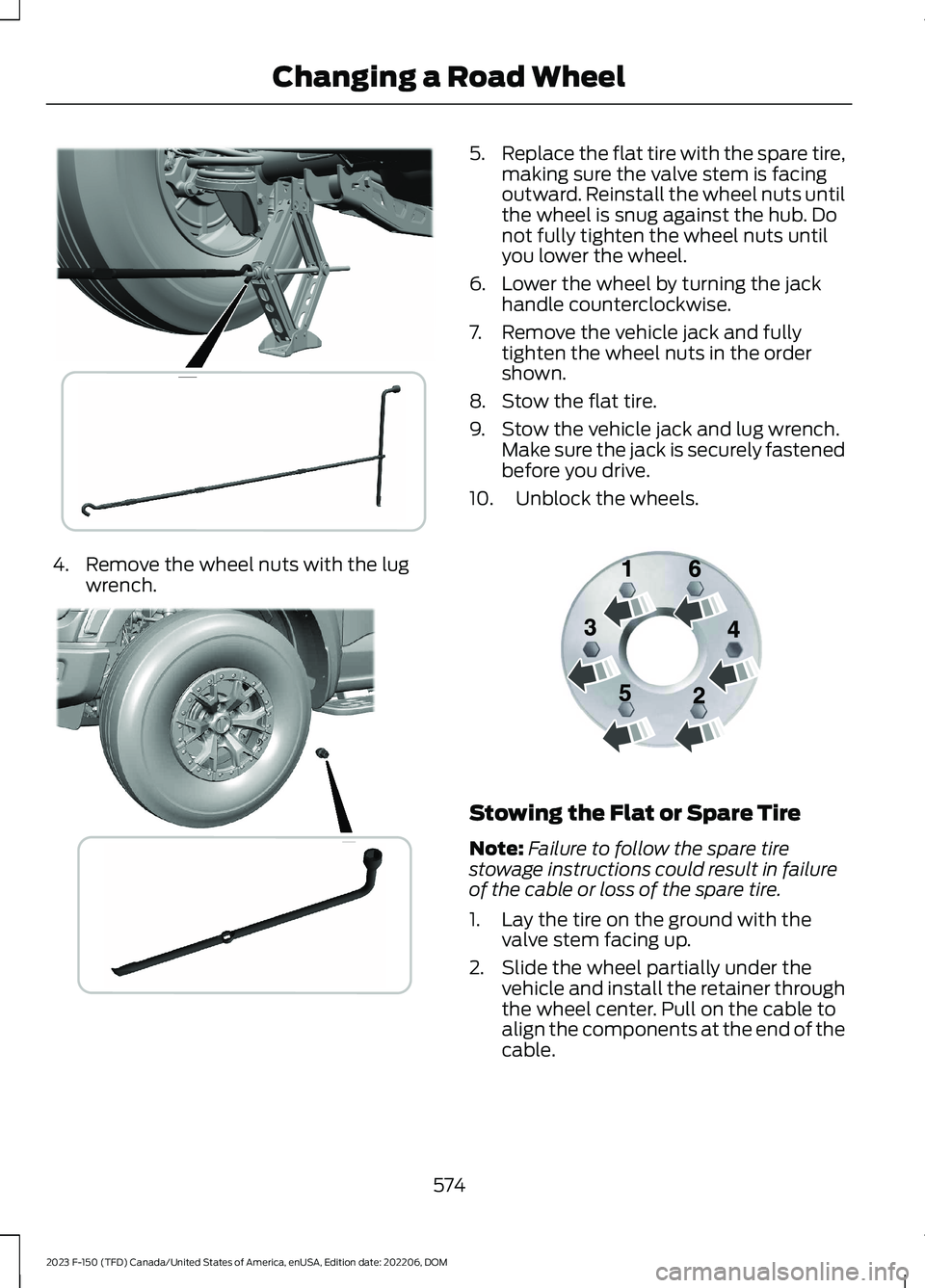
4.Remove the wheel nuts with the lugwrench.
5.Replace the flat tire with the spare tire,making sure the valve stem is facingoutward. Reinstall the wheel nuts untilthe wheel is snug against the hub. Donot fully tighten the wheel nuts untilyou lower the wheel.
6.Lower the wheel by turning the jackhandle counterclockwise.
7.Remove the vehicle jack and fullytighten the wheel nuts in the ordershown.
8.Stow the flat tire.
9.Stow the vehicle jack and lug wrench.Make sure the jack is securely fastenedbefore you drive.
10.Unblock the wheels.
Stowing the Flat or Spare Tire
Note:Failure to follow the spare tirestowage instructions could result in failureof the cable or loss of the spare tire.
1.Lay the tire on the ground with thevalve stem facing up.
2.Slide the wheel partially under thevehicle and install the retainer throughthe wheel center. Pull on the cable toalign the components at the end of thecable.
574
2023 F-150 (TFD) Canada/United States of America, enUSA, Edition date: 202206, DOMChanging a Road Wheel E376830 E376829 E166719
Page 580 of 786
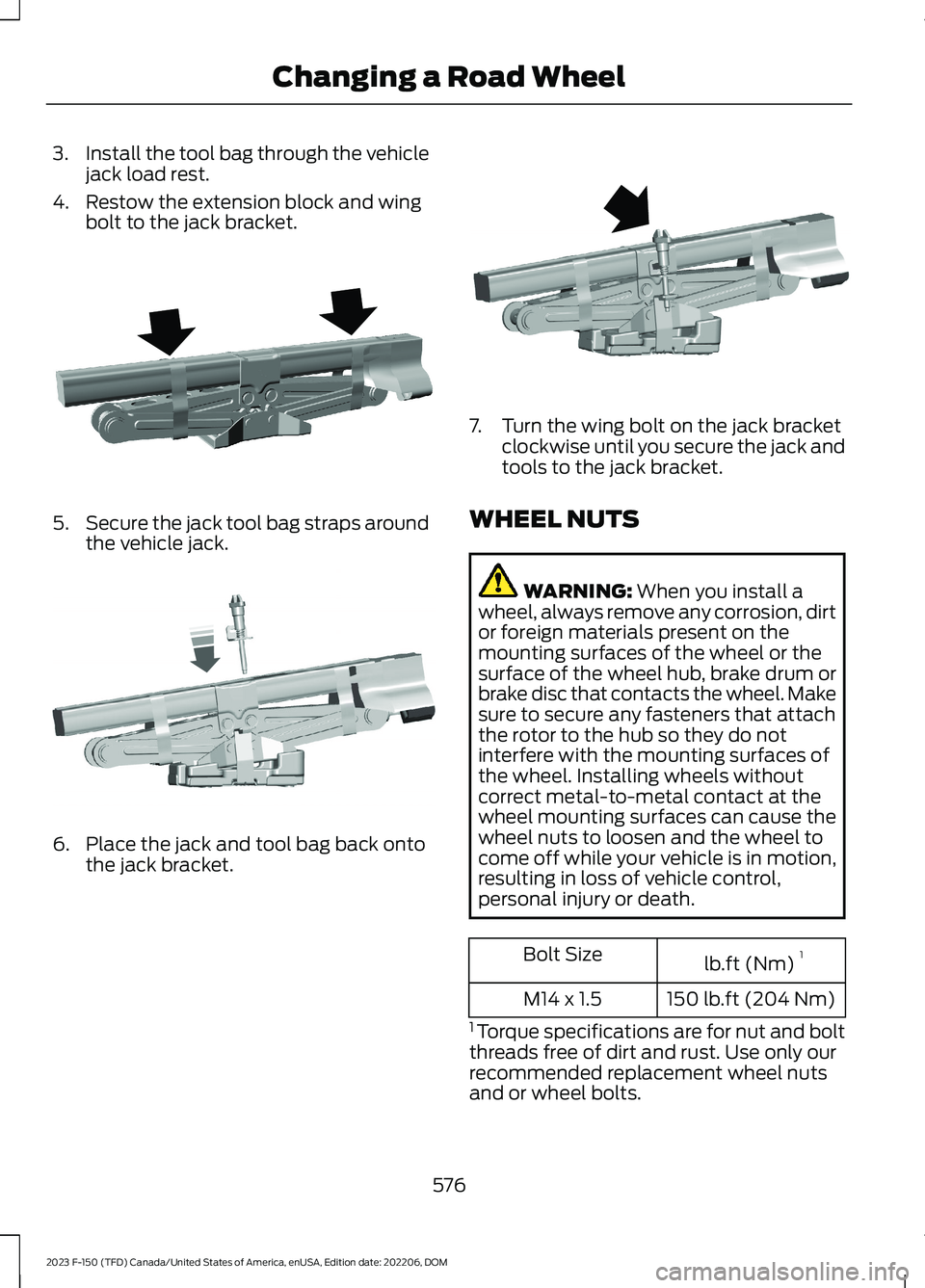
3.Install the tool bag through the vehiclejack load rest.
4.Restow the extension block and wingbolt to the jack bracket.
5.Secure the jack tool bag straps aroundthe vehicle jack.
6.Place the jack and tool bag back ontothe jack bracket.
7.Turn the wing bolt on the jack bracketclockwise until you secure the jack andtools to the jack bracket.
WHEEL NUTS
WARNING: When you install awheel, always remove any corrosion, dirtor foreign materials present on themounting surfaces of the wheel or thesurface of the wheel hub, brake drum orbrake disc that contacts the wheel. Makesure to secure any fasteners that attachthe rotor to the hub so they do notinterfere with the mounting surfaces ofthe wheel. Installing wheels withoutcorrect metal-to-metal contact at thewheel mounting surfaces can cause thewheel nuts to loosen and the wheel tocome off while your vehicle is in motion,resulting in loss of vehicle control,personal injury or death.
lb.ft (Nm)1Bolt Size
150 lb.ft (204 Nm)M14 x 1.5
1 Torque specifications are for nut and boltthreads free of dirt and rust. Use only ourrecommended replacement wheel nutsand or wheel bolts.
576
2023 F-150 (TFD) Canada/United States of America, enUSA, Edition date: 202206, DOMChanging a Road WheelE323386 E327654 E323384
Page 625 of 786
WHAT IS A CONNECTED
VEHICLE
A connected vehicle has technology thatallows your vehicle to connect to a mobilenetwork and for you to access a range offeatures. When used in conjunction withthe FordPass app, it could allow you tomonitor and control your vehicle further,for example checking the tire pressures,the fuel level and the vehicle location. Foradditional information, refer to the localFord website.
CONNECTED VEHICLE
REQUIREMENTS
Connected service and related featurefunctionality requires a compatible vehiclenetwork.
Some remote features require additionalservice activation. Log in to your Fordaccount for details. Some restrictions, thirdparty terms and message or data ratesmay apply.
CONNECTED VEHICLE
LIMITATIONS
Evolving technology, cellular networks, orregulations could affect functionality andavailability, or continued provision of somefeatures. These changes could even stopsome features from functioning.
CONNECTING THE VEHICLE TO
A MOBILE NETWORK
WHAT IS THE MODEM
The modem allows access to arange of features built into yourvehicle.
ENABLING AND DISABLING THEMODEM
1.Press Settings.
2.Press Connectivity.
3.Press Connected Vehicle Features.
4.Switch vehicle connectivity on or off.
CONNECTING FORDPASS TO THEMODEM
1.Make sure that the modem is enabledusing the vehicle settings menu.
2.Open the FordPass app on your deviceand log in.
3.Add your vehicle or select your vehicleif already added.
4.Select the option to activate yourvehicle.
5.Make sure that the name on the screenmatches the name shown in yourFordPass account.
6.Confirm that FordPass account isconnected to the modem.
CONNECTING THE VEHICLE TO
A WI-FI NETWORK
Select the settings option on thefeature bar.
1.Press Connectivity.
2.Press Manage Wi-Fi Networks.
3.Switch Wi-Fi on.
4.Press View Available Networks.
5.Select an available Wi-Fi network.
Note:Enter the network password toconnect to a secure network.
621
2023 F-150 (TFD) Canada/United States of America, enUSA, Edition date: 202206, DOMConnected Vehicle E280315
Page 627 of 786
Why can I not see a network Iexpect to see in the list of availablenetworks?
•The network is hidden. Make thenetwork visible and try again, ormanually add a network in the Wi-Fisettings menu.
•Some network security types are notsupported, for example WEP.
Why do software downloads taketoo long?
•The network signal is weak. Move yourvehicle closer to the Wi-Fi router or toa place where the network signal is notobstructed.
•Wi-Fi network is in high demand or hasa slow Internet connection. Use a morereliable Wi-Fi network.
Why does the software not updatewhen the system seems to connectto a Wi-Fi network and the signalstrength is excellent?
•No software update is available at thistime.
•Select automatic updates option in thesettings menu to enable automaticsoftware update or contact anauthorized dealer.
•There could be a connection problem.Test the network using another device.
623
2023 F-150 (TFD) Canada/United States of America, enUSA, Edition date: 202206, DOMConnected Vehicle
Page 628 of 786
CREATING A VEHICLE WI-FI
HOTSPOT
You can create a Wi-Fi hotspot in yourvehicle and allow devices to connect to itfor access to the Internet.
Select the settings option on thefeature bar.
1.Press Vehicle Hotspot.
Note:The vehicle hotspot default settingis on.
2.Press Settings.
3.Press Edit.
4.Press Hotspot visibility.
Note:The hotspot visibility default settingis on.
Finding the Wi-Fi Hotspot Nameand Password
Select the settings option on thefeature bar.
1.Press Vehicle Hotspot.
2.Press Settings.
Note:The network name is the hotspotname.
3.Press View Password.
Connecting a Device to the Wi-FiHotspot
1.On your device, switch Wi-Fi on andselect the hotspot from the list ofavailable Wi-Fi networks.
2.When prompted, enter the password.
Purchasing a Data Plan
1.Connect a device to the hotspot.
Note:The vehicle network carrier’s portalopens on your device.
2.If the portal does not open on yourdevice, open a website and it redirectsto the vehicle network carrier’s portal.
Note:Secure websites do not redirect.
3.Follow the instructions on the carrierportal to purchase a plan.
Note:If you have an active plan, the systemdoes not redirect to the vehicle networkcarrier’s portal when you connect a device.Visit the vehicle network carrier’s websiteto purchase more data.
Note:If data usage information is availablein the vehicle hotspot menu, it isapproximate.
Note:If you carry out a master reset, thesystem does not remove your vehicle fromyour vehicle network carrier’s account. Toremove your vehicle from the account,contact your vehicle network carrier.
Note:The vehicle network carrier providesVehicle Hotspot services, subject to yourvehicle network carrier agreement, coverageand availability.
CHANGING THE VEHICLE WI-
FI HOTSPOT NAME OR
PASSWORD
Select the settings option on thefeature bar.
1.Press Vehicle Hotspot.
2.Press Settings.
3.Press Edit.
4.Press Change Network Name.
5.Enter your required network name.
6.Press Done.
7.Press Change Password.
8.Enter your required password.
9.Press Done.
624
2023 F-150 (TFD) Canada/United States of America, enUSA, Edition date: 202206, DOMVehicle Wi-Fi HotspotE280315 E280315 E280315
Page 634 of 786
Depending on the station quality, you couldhear a slight sound change when thestation changes between analog anddigital audio.
You cannot access a saved HD station ifyour vehicle is outside the station’sreception area.
SWITCHING DIGITAL RADIORECEPTION ON AND OFF
1.Press Settings on the touchscreen.
2.Press Radio Settings.
3.Switch AM HD Radio or FM HD Radioon or off.
DIGITAL RADIO INDICATORS
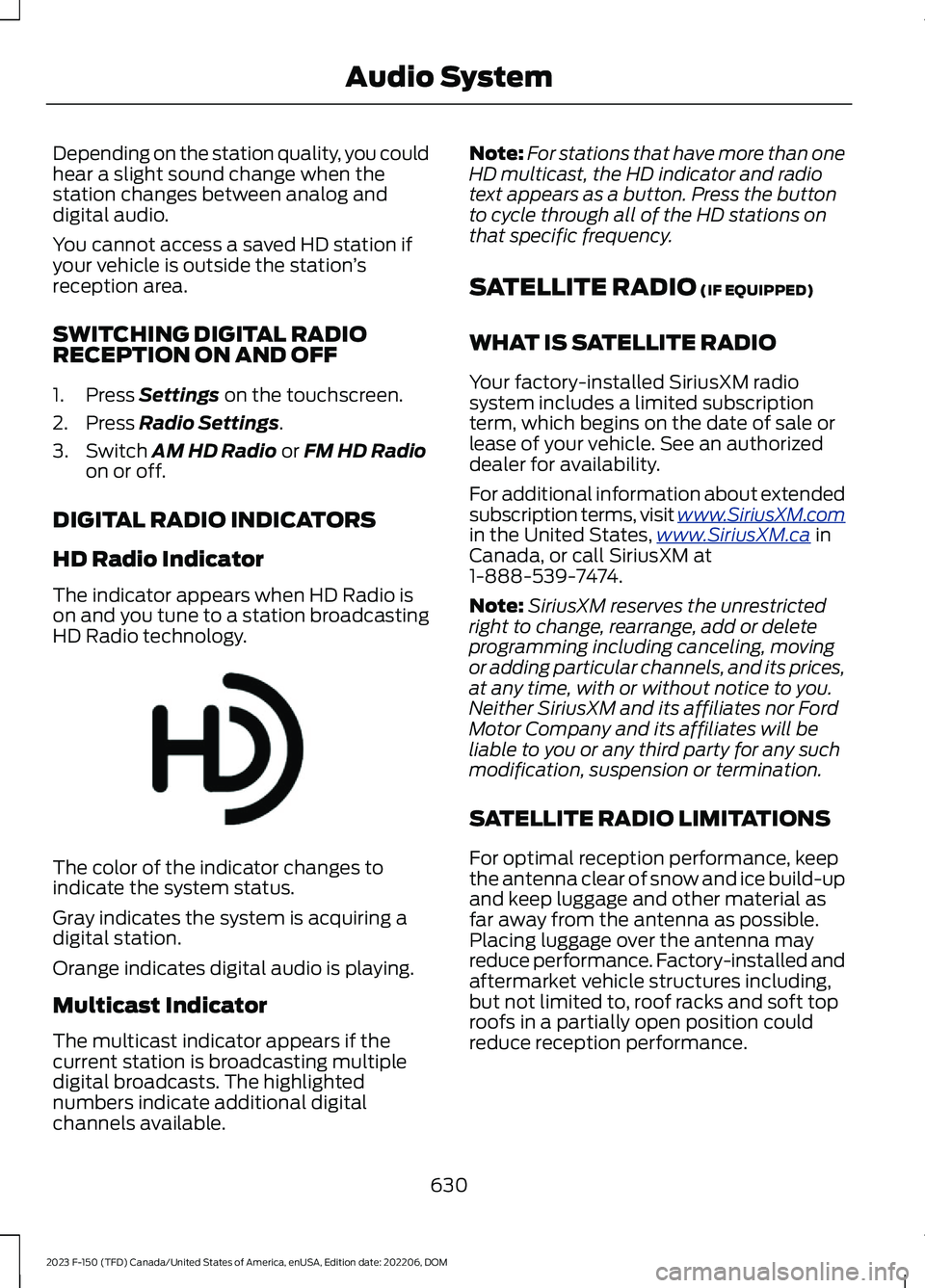
HD Radio Indicator
The indicator appears when HD Radio ison and you tune to a station broadcastingHD Radio technology.
The color of the indicator changes toindicate the system status.
Gray indicates the system is acquiring adigital station.
Orange indicates digital audio is playing.
Multicast Indicator
The multicast indicator appears if thecurrent station is broadcasting multipledigital broadcasts. The highlightednumbers indicate additional digitalchannels available.
Note:For stations that have more than oneHD multicast, the HD indicator and radiotext appears as a button. Press the buttonto cycle through all of the HD stations onthat specific frequency.
SATELLITE RADIO (IF EQUIPPED)
WHAT IS SATELLITE RADIO
Your factory-installed SiriusXM radiosystem includes a limited subscriptionterm, which begins on the date of sale orlease of your vehicle. See an authorizeddealer for availability.
For additional information about extendedsubscription terms, visit www.SiriusXM.comin the United States,www.SiriusXM.ca inCanada, or call SiriusXM at1-888-539-7474.
Note:SiriusXM reserves the unrestrictedright to change, rearrange, add or deleteprogramming including canceling, movingor adding particular channels, and its prices,at any time, with or without notice to you.Neither SiriusXM and its affiliates nor FordMotor Company and its affiliates will beliable to you or any third party for any suchmodification, suspension or termination.
SATELLITE RADIO LIMITATIONS
For optimal reception performance, keepthe antenna clear of snow and ice build-upand keep luggage and other material asfar away from the antenna as possible.Placing luggage over the antenna mayreduce performance. Factory-installed andaftermarket vehicle structures including,but not limited to, roof racks and soft toproofs in a partially open position couldreduce reception performance.
630
2023 F-150 (TFD) Canada/United States of America, enUSA, Edition date: 202206, DOMAudio SystemE142616
Page 635 of 786
Hills, mountains, tall buildings, bridges,tunnels, freeway overpasses, parkinggarages, dense tree foliage andthunderstorms can interfere with yourreception.
When you pass a ground-basedbroadcast-repeating tower, a strongersignal may overtake a weaker one andcould result in the audio system muting.Your display could show an error messageto indicate the interference.
LOCATING THE SATELLITE RADIOIDENTIFICATION NUMBER
1.Select SiriusXM as the audio source.
2.Tune to channel 0.
SELECTING A CHANNEL
Manually Selecting a Channel
Press the button to find theprevious or next available radiochannel.
Linear Tuner
The linear tuner is displayed whenmanually selecting a channel. You canswipe left or right on the linear tunercarousel to navigate through the channellist. Tap on a channel title to listen to it.
Using Direct Tune
1.Press the channel up or down buttonto open the linear tuner screen.
2.Press Direct Tune to open the numberpad.
3.Enter the channel you prefer.
Using Browse
1.Press Browse.
2.Select a channel.
SATELLITE RADIO SETTINGS
Subscription
Your subscription status is displayed. Youcan subscribe or manage your subscriptiondirectly from the touchscreen.
Listener Add/Switch
You can create up to five listener profilesper SiriusXM account. Each listener profilecan be personalized with a name andprofile image.
Note:Requires a trial or active subscriptionto use.
Note:A default profile is available when nolistener profiles are created.
SiriusXM Favorites
SiriusXM Favorites are shown for the activelistener profile. While you are listening toSiriusXM, you can save favorites by:
•Tapping the currently tuned channelor show logo on the SiriusXM audioscreen. A favorite icon appears next tothe logo when it is saved as a favorite.
•Tuning to a channel or show you wantto save as a favorite. Navigate to theSiriusXM Favorites screen and pressthe Add Current button. The currentlytuned channel or show is saved as afavorite.
•Saving a radio preset. This saves thecurrently tuned SiriusXM channel orshow as a favorite.
Note:Requires a trial or active subscriptionto use.
631
2023 F-150 (TFD) Canada/United States of America, enUSA, Edition date: 202206, DOMAudio SystemE328569 E328570
Page 637 of 786
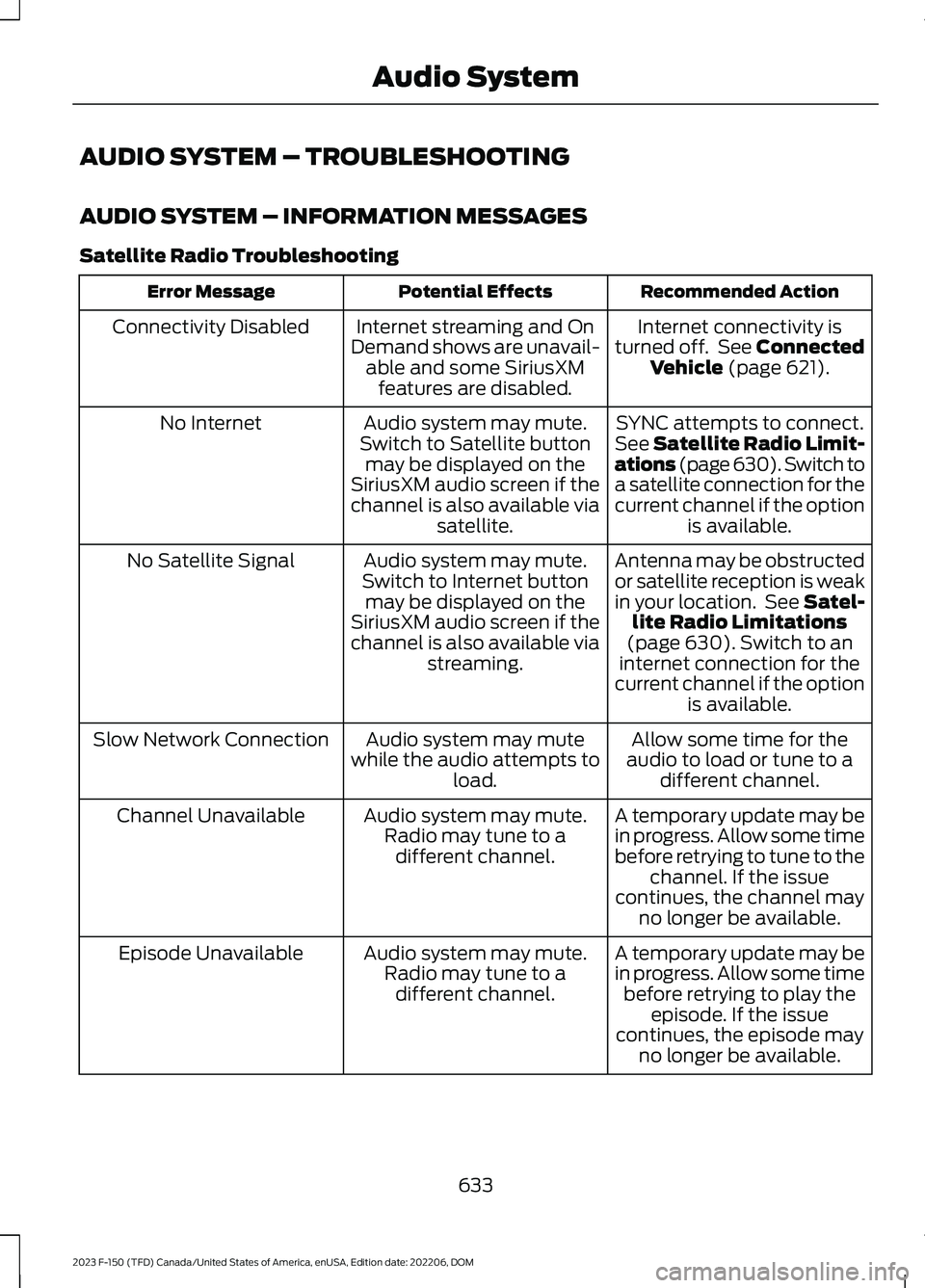
AUDIO SYSTEM – TROUBLESHOOTING
AUDIO SYSTEM – INFORMATION MESSAGES
Satellite Radio Troubleshooting
Recommended ActionPotential EffectsError Message
Internet connectivity isturned off. See ConnectedVehicle (page 621).
Internet streaming and OnDemand shows are unavail-able and some SiriusXMfeatures are disabled.
Connectivity Disabled
SYNC attempts to connect.See Satellite Radio Limit-ations (page 630).Switch toa satellite connection for thecurrent channel if the optionis available.
Audio system may mute.Switch to Satellite buttonmay be displayed on theSiriusXM audio screen if thechannel is also available viasatellite.
No Internet
Antenna may be obstructedor satellite reception is weakin your location. See Satel-lite Radio Limitations(page 630).Switch to aninternet connection for thecurrent channel if the optionis available.
Audio system may mute.Switch to Internet buttonmay be displayed on theSiriusXM audio screen if thechannel is also available viastreaming.
No Satellite Signal
Allow some time for theaudio to load or tune to adifferent channel.
Audio system may mutewhile the audio attempts toload.
Slow Network Connection
A temporary update may bein progress. Allow some timebefore retrying to tune to thechannel. If the issuecontinues, the channel mayno longer be available.
Audio system may mute.Radio may tune to adifferent channel.
Channel Unavailable
A temporary update may bein progress. Allow some timebefore retrying to play theepisode. If the issuecontinues, the episode mayno longer be available.
Audio system may mute.Radio may tune to adifferent channel.
Episode Unavailable
633
2023 F-150 (TFD) Canada/United States of America, enUSA, Edition date: 202206, DOMAudio System