display FORD F250 SUPER DUTY 2016 Owners Manual
[x] Cancel search | Manufacturer: FORD, Model Year: 2016, Model line: F250 SUPER DUTY, Model: FORD F250 SUPER DUTY 2016Pages: 507, PDF Size: 8.13 MB
Page 384 of 507
Action and DescriptionMenu Item
In this mode the system providesdetailed interaction and guidance.NoviceInteraction Mode
This mode has less audible interac-tion and more tone prompts.Advanced
The system uses these short questions to confirm your voicecommand. If turned off, the system simply makes a best guessas to what you requested. The system may still occasionallyask you to confirm a voice command.
Confirmation Prompts
Candidate lists are lists of possible results from your voicecommands. The system creates these lists when it has thesame confidence level of several options based on your voicecommand
Phone Candidate Lists
Media Candidate Lists
Using the touchscreen, press thesettings icon, then press:
Menu Item
Voice Settings
Voice Control
Select from the following:
Interaction Mode
Confirmation Prompts
Media Candidate Lists
Phone Candidate Lists
Voice Control Volume
Using Voice Commands with theTouchscreen Options
The voice command system has a dualmode feature which allows you to switchbetween using voice commands andmaking on-screen selections. This isavailable only when the system displays alist of candidates generated during a voicecommand session. For example, this canbe used when entering a street address ortrying to call a contact from a cell phonepaired to the system.
381
Super Duty (TFA) Canada/United States of America, enUSA, First Printing
MyFord Touch™ (If Equipped)
Page 385 of 507
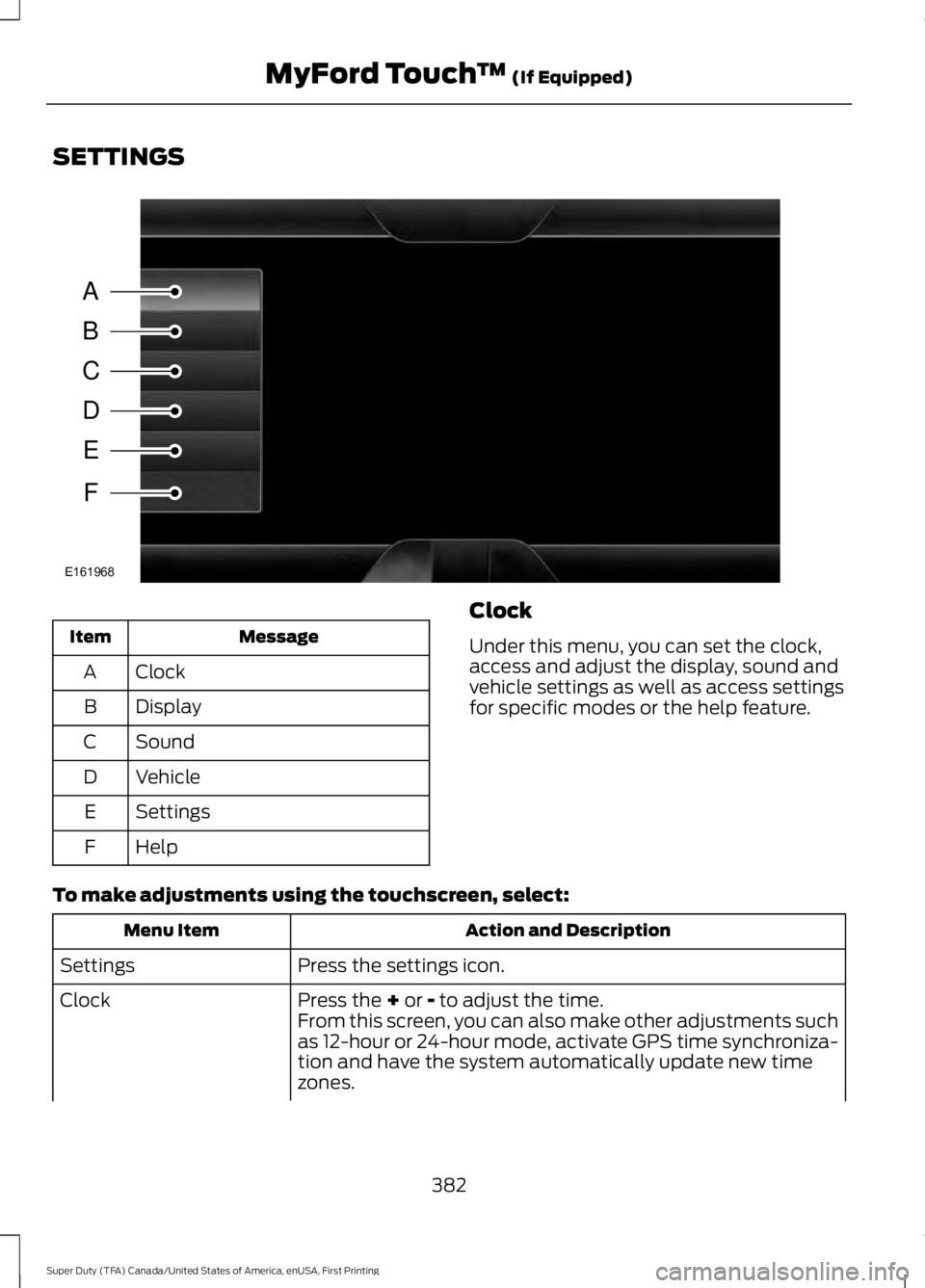
SETTINGS
MessageItem
ClockA
DisplayB
SoundC
VehicleD
SettingsE
HelpF
Clock
Under this menu, you can set the clock,access and adjust the display, sound andvehicle settings as well as access settingsfor specific modes or the help feature.
To make adjustments using the touchscreen, select:
Action and DescriptionMenu Item
Press the settings icon.Settings
Press the + or - to adjust the time.ClockFrom this screen, you can also make other adjustments suchas 12-hour or 24-hour mode, activate GPS time synchroniza-tion and have the system automatically update new timezones.
382
Super Duty (TFA) Canada/United States of America, enUSA, First Printing
MyFord Touch™ (If Equipped)A
B
C
D
E
F
E161968
Page 386 of 507
Action and DescriptionMenu Item
You can also switch the outside air temperature display offand on. It appears at the top center of the touchscreen, nextto the time and date.
Note:You cannot manually set the date. Your vehicle’s GPS does this for you.
Note:If the battery has been disconnected, your vehicle needs to acquire a GPS signal toupdate the clock. Once your vehicle acquires the signal, it may take a few minutes for theupdate to display the correct time.
Display
You can adjust the display using thetouchscreen or the voice button on thesteering wheel controls.
To make adjustments using the touchscreen, select:
Action and DescriptionMenu Item
Press the settings icon.Settings
Display
Then select from the following:
When set to On, lets you use the automatic dimming feature.Auto DimWhen set to Off you are able to adjust the brightness of the screen.
Make the screen display brighter or dimmer.Brightness
Allows you to switch the display off. It also allows you to set the screento a certain brightness or have the system automatically change basedon the outside light level.
Mode
If you also select:
These features will allow you to adjust the dimming ofyour screen.Auto
Night
Allows you to adjust screen dimming as the outside lighting conditionschange from day to night.Auto DimManual Offset
Allows you to display the default photo or upload your own.Edit Wallpaper
383
Super Duty (TFA) Canada/United States of America, enUSA, First Printing
MyFord Touch™ (If Equipped)
Page 387 of 507
To make adjustments using the voicebutton, press the button and whenprompted, say:
Voice command
Display Settings
Uploading Photos for Your HomeScreen Wallpaper
Note:You cannot load photos directly fromyour camera. You must access the photoseither from your USB mass storage deviceor from an SD card.
Note:Photographs with extremely largedimensions (such as 2048 x 1536) may notbe compatible and appear as a blank(black) image on the display.
The system allows you to upload and viewup to 32 photos.
To upload your photos, select:
Action and DescriptionMenu Item
Press the settings icon.Settings
Display
Follow the system prompts to upload your photographs.Edit Wallpaper
Only the photograph(s), which meets thefollowing conditions display:
•Compatible file formats are as follows:JPG, GIF, PNG, BMP.
•Each file must be 1.5 MB or less.
•Recommended dimensions: 800 x 384.
Sound
To make adjustments using thetouchscreen, select:
Message
Settings
Sound
Then select from the following:
Bass
Midrange
Treble
Message
Set Balance and Fade
Occupancy Mode
Speed Compensated Volume
DSP
Note: Your vehicle may not have all ofthese sound settings.
Vehicle
To make adjustments using thetouchscreen, select:
Message
Settings
Vehicle
Then select from the following:
Ambient Lighting
384
Super Duty (TFA) Canada/United States of America, enUSA, First Printing
MyFord Touch™ (If Equipped)E142599
Page 390 of 507
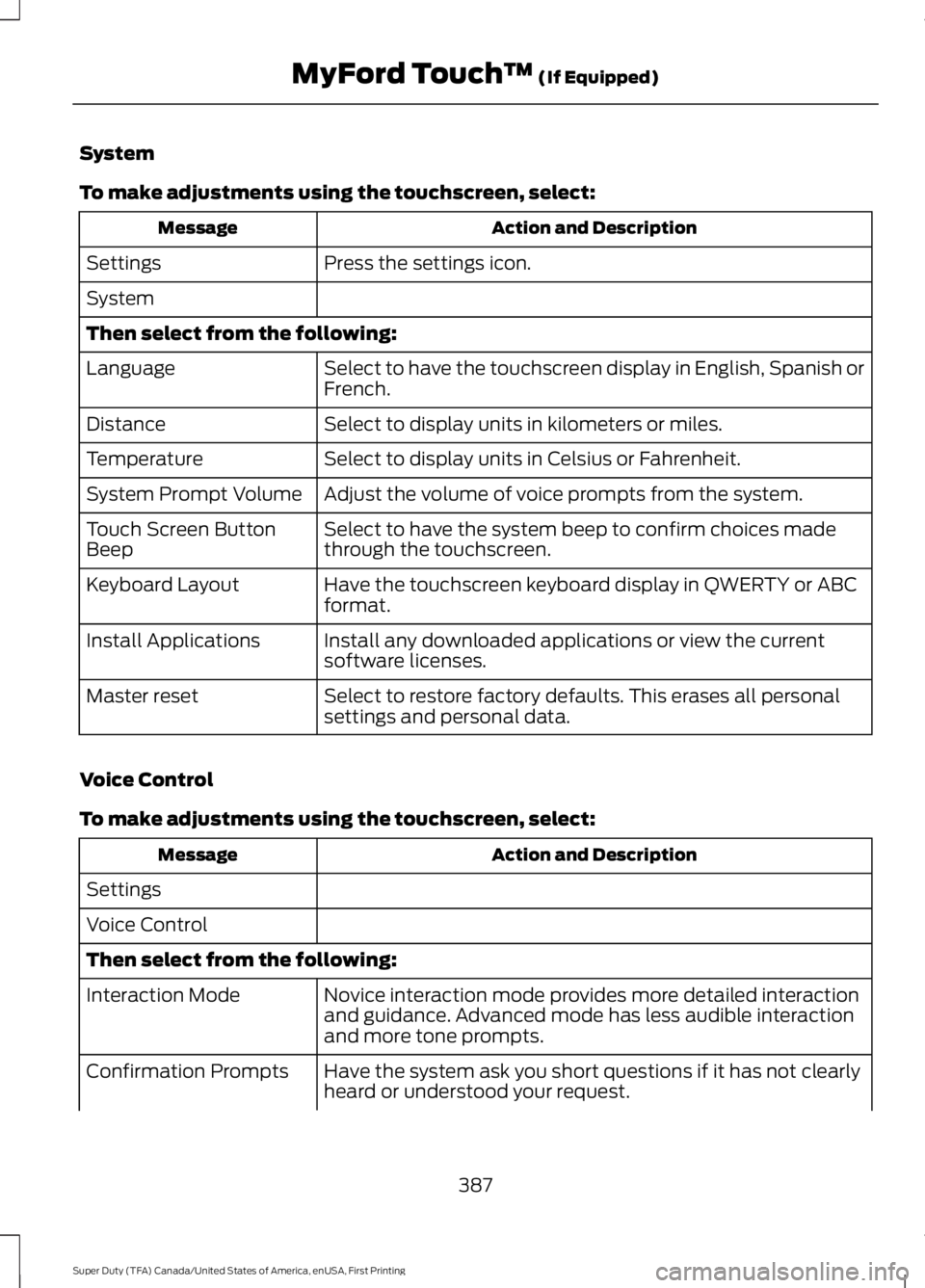
System
To make adjustments using the touchscreen, select:
Action and DescriptionMessage
Press the settings icon.Settings
System
Then select from the following:
Select to have the touchscreen display in English, Spanish orFrench.Language
Select to display units in kilometers or miles.Distance
Select to display units in Celsius or Fahrenheit.Temperature
Adjust the volume of voice prompts from the system.System Prompt Volume
Select to have the system beep to confirm choices madethrough the touchscreen.Touch Screen ButtonBeep
Have the touchscreen keyboard display in QWERTY or ABCformat.Keyboard Layout
Install any downloaded applications or view the currentsoftware licenses.Install Applications
Select to restore factory defaults. This erases all personalsettings and personal data.Master reset
Voice Control
To make adjustments using the touchscreen, select:
Action and DescriptionMessage
Settings
Voice Control
Then select from the following:
Novice interaction mode provides more detailed interactionand guidance. Advanced mode has less audible interactionand more tone prompts.
Interaction Mode
Have the system ask you short questions if it has not clearlyheard or understood your request.Confirmation Prompts
387
Super Duty (TFA) Canada/United States of America, enUSA, First Printing
MyFord Touch™ (If Equipped)
Page 392 of 507
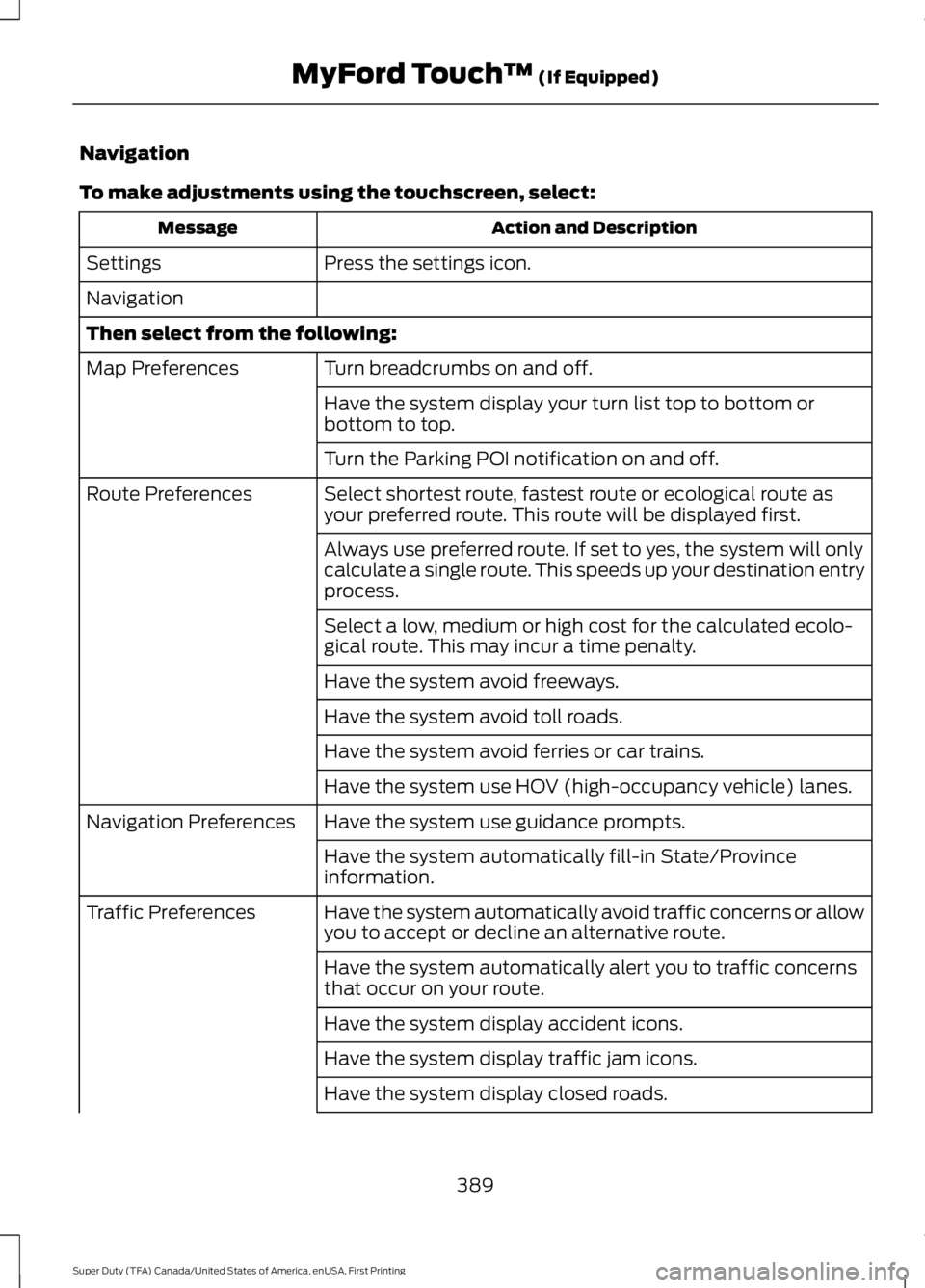
Navigation
To make adjustments using the touchscreen, select:
Action and DescriptionMessage
Press the settings icon.Settings
Navigation
Then select from the following:
Turn breadcrumbs on and off.Map Preferences
Have the system display your turn list top to bottom orbottom to top.
Turn the Parking POI notification on and off.
Select shortest route, fastest route or ecological route asyour preferred route. This route will be displayed first.Route Preferences
Always use preferred route. If set to yes, the system will onlycalculate a single route. This speeds up your destination entryprocess.
Select a low, medium or high cost for the calculated ecolo-gical route. This may incur a time penalty.
Have the system avoid freeways.
Have the system avoid toll roads.
Have the system avoid ferries or car trains.
Have the system use HOV (high-occupancy vehicle) lanes.
Have the system use guidance prompts.Navigation Preferences
Have the system automatically fill-in State/Provinceinformation.
Have the system automatically avoid traffic concerns or allowyou to accept or decline an alternative route.Traffic Preferences
Have the system automatically alert you to traffic concernsthat occur on your route.
Have the system display accident icons.
Have the system display traffic jam icons.
Have the system display closed roads.
389
Super Duty (TFA) Canada/United States of America, enUSA, First Printing
MyFord Touch™ (If Equipped)
Page 393 of 507
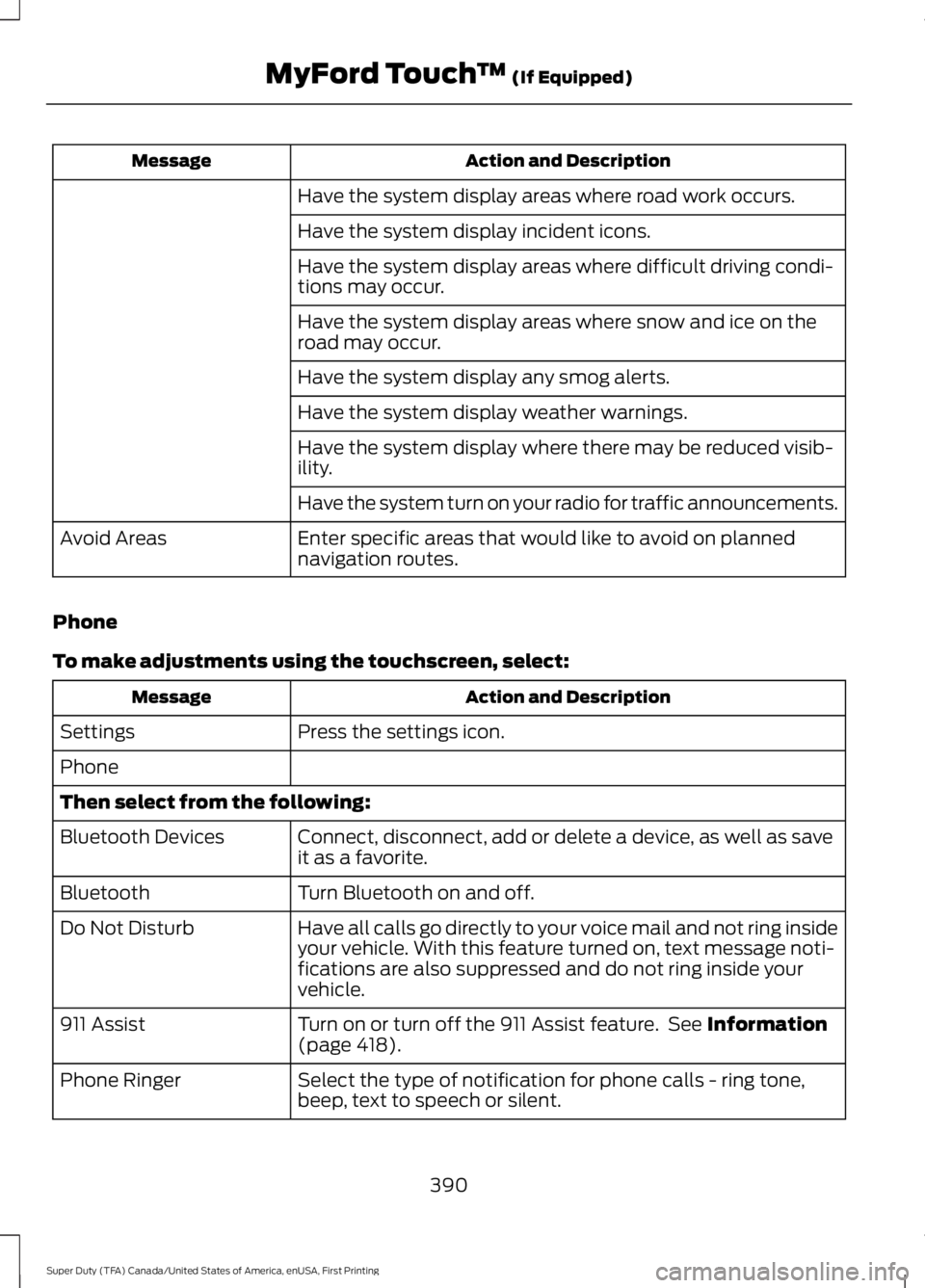
Action and DescriptionMessage
Have the system display areas where road work occurs.
Have the system display incident icons.
Have the system display areas where difficult driving condi-tions may occur.
Have the system display areas where snow and ice on theroad may occur.
Have the system display any smog alerts.
Have the system display weather warnings.
Have the system display where there may be reduced visib-ility.
Have the system turn on your radio for traffic announcements.
Enter specific areas that would like to avoid on plannednavigation routes.Avoid Areas
Phone
To make adjustments using the touchscreen, select:
Action and DescriptionMessage
Press the settings icon.Settings
Phone
Then select from the following:
Connect, disconnect, add or delete a device, as well as saveit as a favorite.Bluetooth Devices
Turn Bluetooth on and off.Bluetooth
Have all calls go directly to your voice mail and not ring insideyour vehicle. With this feature turned on, text message noti-fications are also suppressed and do not ring inside yourvehicle.
Do Not Disturb
Turn on or turn off the 911 Assist feature. See Information(page 418).911 Assist
Select the type of notification for phone calls - ring tone,beep, text to speech or silent.Phone Ringer
390
Super Duty (TFA) Canada/United States of America, enUSA, First Printing
MyFord Touch™ (If Equipped)
Page 395 of 507
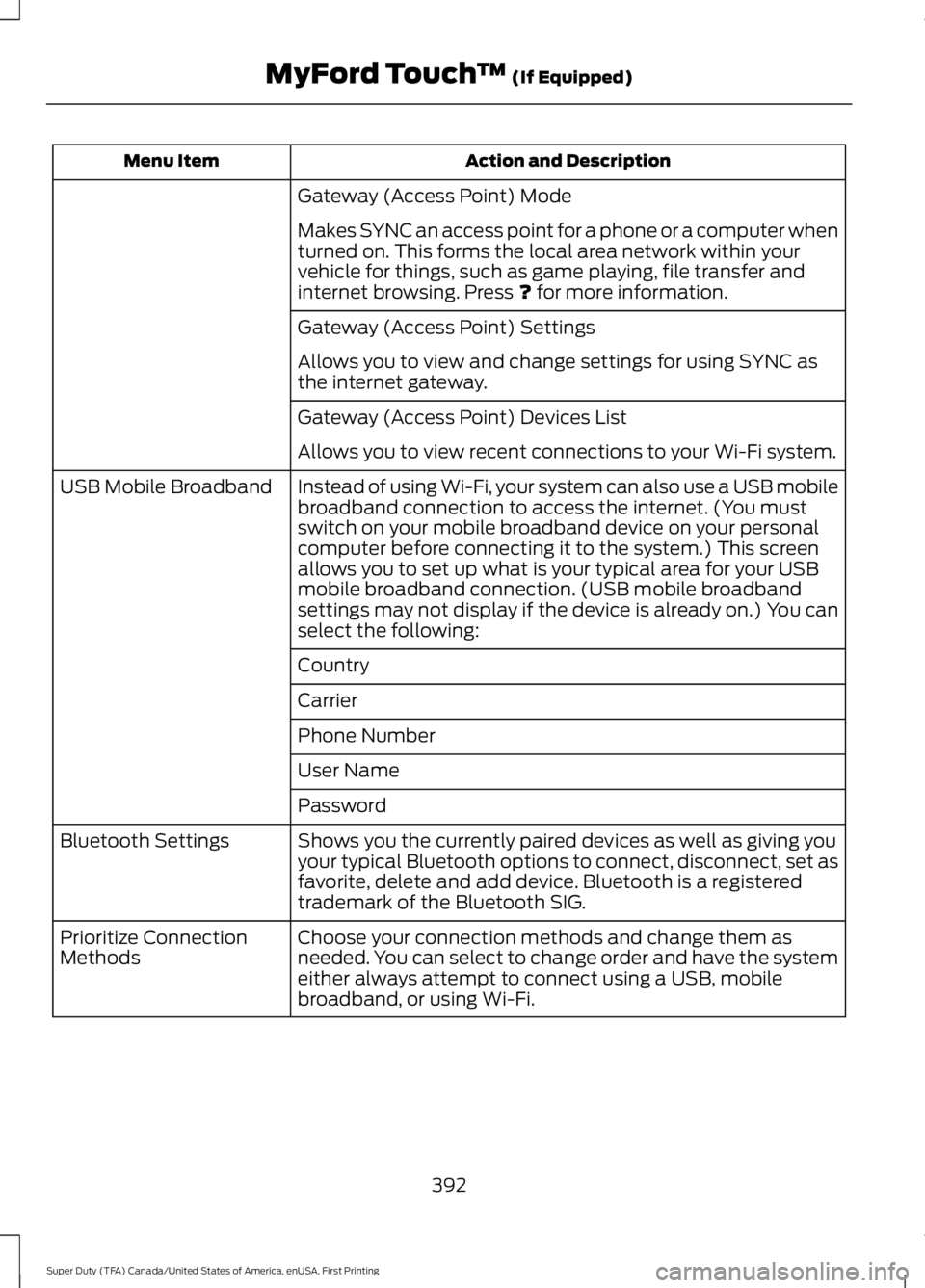
Action and DescriptionMenu Item
Gateway (Access Point) Mode
Makes SYNC an access point for a phone or a computer whenturned on. This forms the local area network within yourvehicle for things, such as game playing, file transfer andinternet browsing. Press ? for more information.
Gateway (Access Point) Settings
Allows you to view and change settings for using SYNC asthe internet gateway.
Gateway (Access Point) Devices List
Allows you to view recent connections to your Wi-Fi system.
Instead of using Wi-Fi, your system can also use a USB mobilebroadband connection to access the internet. (You mustswitch on your mobile broadband device on your personalcomputer before connecting it to the system.) This screenallows you to set up what is your typical area for your USBmobile broadband connection. (USB mobile broadbandsettings may not display if the device is already on.) You canselect the following:
USB Mobile Broadband
Country
Carrier
Phone Number
User Name
Password
Shows you the currently paired devices as well as giving youyour typical Bluetooth options to connect, disconnect, set asfavorite, delete and add device. Bluetooth is a registeredtrademark of the Bluetooth SIG.
Bluetooth Settings
Choose your connection methods and change them asneeded. You can select to change order and have the systemeither always attempt to connect using a USB, mobilebroadband, or using Wi-Fi.
Prioritize ConnectionMethods
392
Super Duty (TFA) Canada/United States of America, enUSA, First Printing
MyFord Touch™ (If Equipped)
Page 400 of 507
Action and DescriptionMenu Item
This allows you to view the information broadcast by FM stations.RDS TextDisplay
AST (Autostore) allows you to have the system automatically storethe six strongest stations in your current location.AST
This feature is available when HD Radio is on, and allows you to tag asong to download later. When you select On,TAG appears on-screenwhen HD Radio is active. You can touch TAG to save the informationof the song that is playing. When you plug in your portable music player,the information transfers, if supported by your device. When you areconnected to iTunes, the tags appear to remind you of the songs youwould like to download. See HD Radio information later in this chapter.
TAG Button
Note:Your vehicle may not have all these sound settings.
HD Radio™ Information (If Available)
Note:HD Radio broadcasts are notavailable in all markets.
HD Radio technology is the digitalevolution of analog AM/FM radio. Yoursystem has a special receiver that allowsit to receive digital broadcasts (whereavailable) in addition to the analogbroadcasts, it already receives. Digitalbroadcasts provide a better sound qualitythan analog broadcasts with free,crystal-clear audio and no static ordistortion. For more information, and aguide to available stations andprogramming, please visitwww.hdradio.com.
When HD Radio is on and you tune to astation broadcasting HD Radio technology,you may notice the following indicators onyour screen:
The HD logo either blinks when acquiringa digital station, and then stays solid whendigital audio is playing, or is grey whenacquiring a digital station, and thenchanges to orange when digital audio isplaying. When this logo is available, youmay also see Title and Artist fieldson-screen.
The multicast indicator appears in FMmode (only) if the current station isbroadcasting multiple digital broadcasts.The highlighted numbers signify availabledigital channels where new or differentcontent is available. HD1 signifies the mainprogramming status and is available inanalog and digital broadcasts. Othermulticast stations (HD2 through HD7) areonly available digitally.
397
Super Duty (TFA) Canada/United States of America, enUSA, First Printing
MyFord Touch™ (If Equipped)E142616
Page 407 of 507
SIRIUS Satellite Radio Reception Factors and Troubleshooting
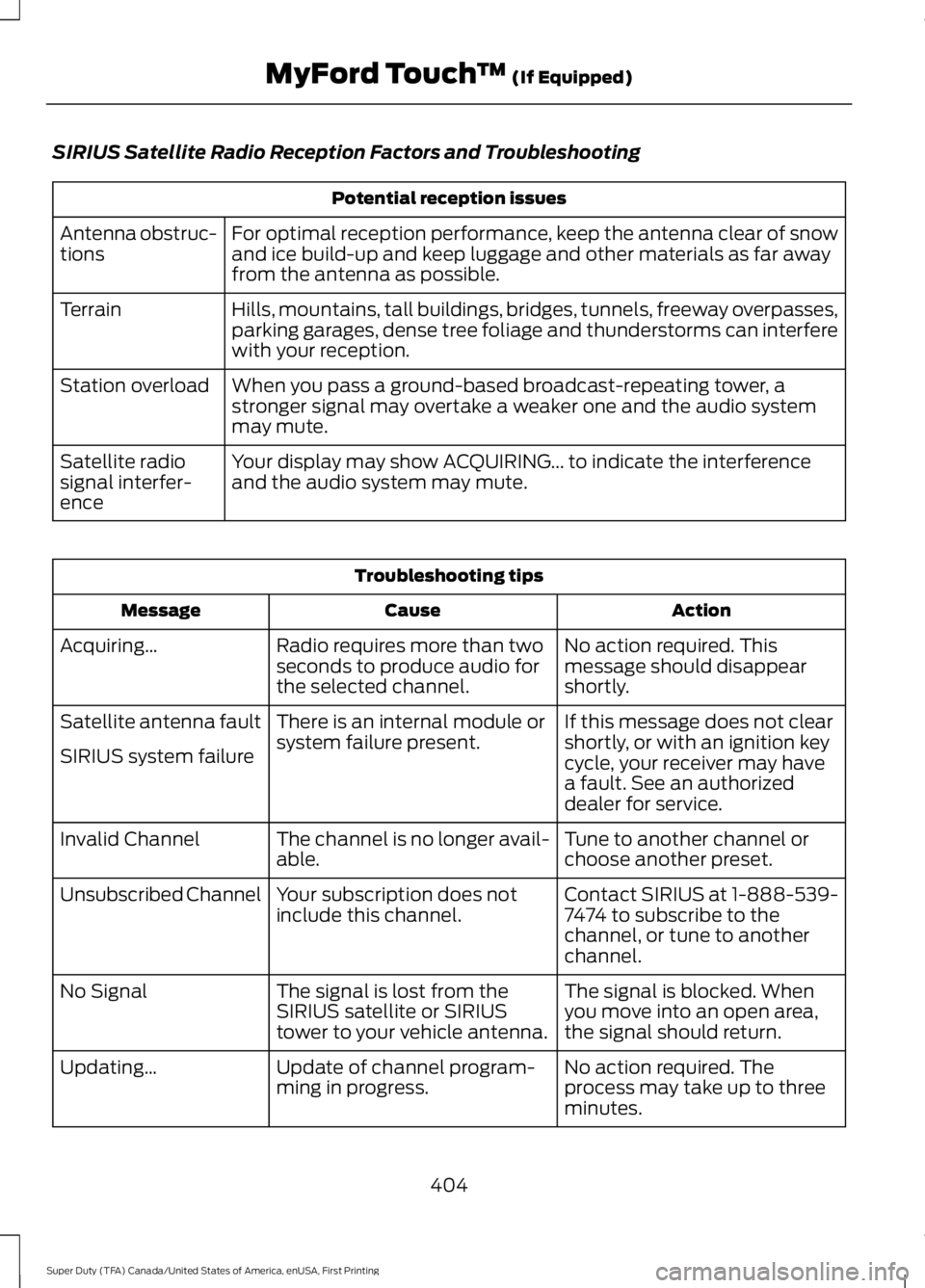
Potential reception issues
For optimal reception performance, keep the antenna clear of snowand ice build-up and keep luggage and other materials as far awayfrom the antenna as possible.
Antenna obstruc-tions
Hills, mountains, tall buildings, bridges, tunnels, freeway overpasses,parking garages, dense tree foliage and thunderstorms can interferewith your reception.
Terrain
When you pass a ground-based broadcast-repeating tower, astronger signal may overtake a weaker one and the audio systemmay mute.
Station overload
Your display may show ACQUIRING... to indicate the interferenceand the audio system may mute.Satellite radiosignal interfer-ence
Troubleshooting tips
ActionCauseMessage
No action required. Thismessage should disappearshortly.
Radio requires more than twoseconds to produce audio forthe selected channel.
Acquiring…
If this message does not clearshortly, or with an ignition keycycle, your receiver may havea fault. See an authorizeddealer for service.
There is an internal module orsystem failure present.Satellite antenna fault
SIRIUS system failure
Tune to another channel orchoose another preset.The channel is no longer avail-able.Invalid Channel
Contact SIRIUS at 1-888-539-7474 to subscribe to thechannel, or tune to anotherchannel.
Your subscription does notinclude this channel.Unsubscribed Channel
The signal is blocked. Whenyou move into an open area,the signal should return.
The signal is lost from theSIRIUS satellite or SIRIUStower to your vehicle antenna.
No Signal
No action required. Theprocess may take up to threeminutes.
Update of channel program-ming in progress.Updating…
404
Super Duty (TFA) Canada/United States of America, enUSA, First Printing
MyFord Touch™ (If Equipped)