sync FORD FIESTA 2015 Workshop Manual
[x] Cancel search | Manufacturer: FORD, Model Year: 2015, Model line: FIESTA, Model: FORD FIESTA 2015Pages: 423, PDF Size: 5.5 MB
Page 306 of 423
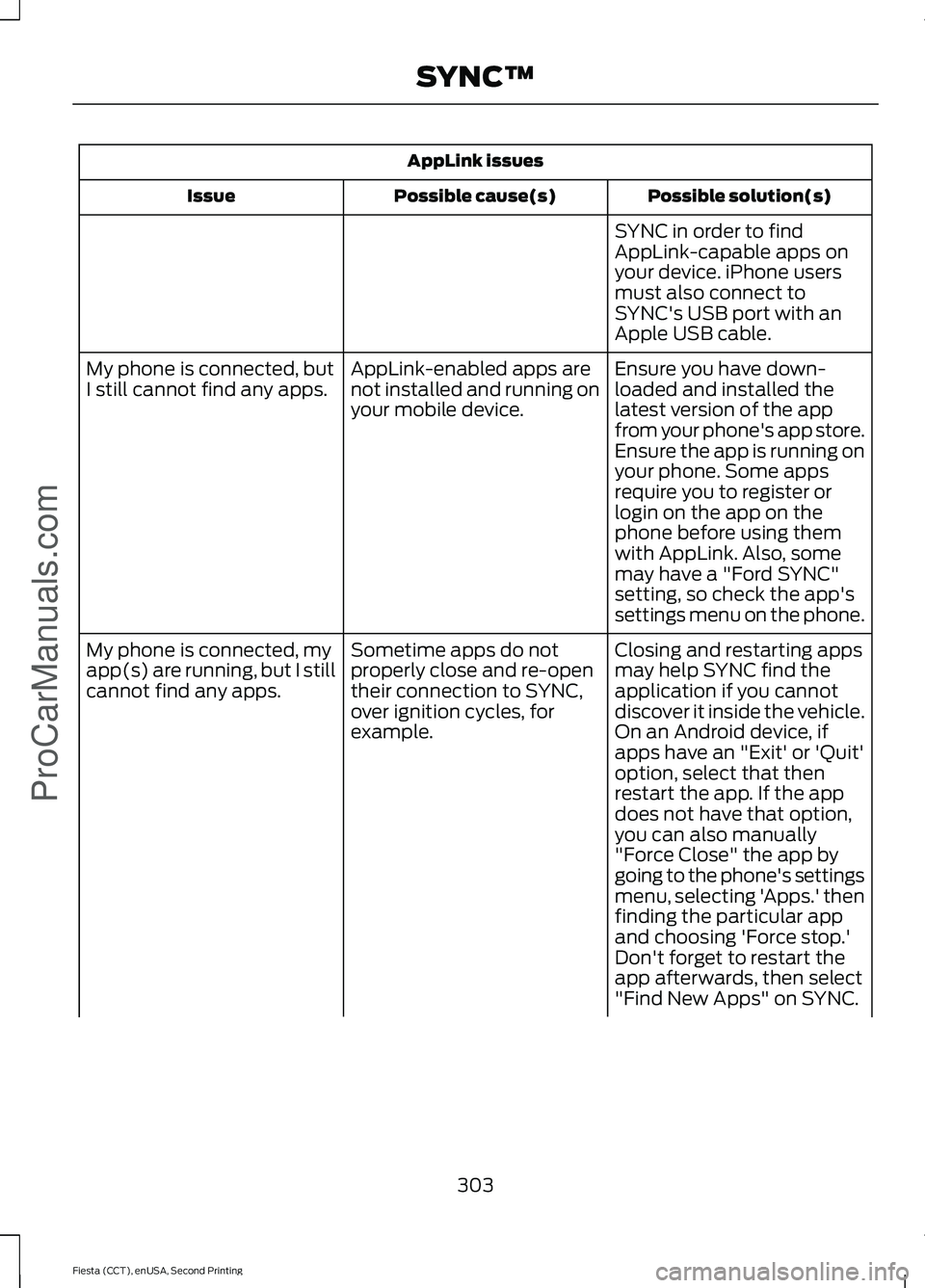
AppLink issues
Possible solution(s)
Possible cause(s)
Issue
SYNC in order to find
AppLink-capable apps on
your device. iPhone users
must also connect to
SYNC's USB port with an
Apple USB cable.
Ensure you have down-
loaded and installed the
latest version of the app
from your phone's app store.
Ensure the app is running on
your phone. Some apps
AppLink-enabled apps are
not installed and running on
your mobile device.
My phone is connected, but
I still cannot find any apps.
require you to register or
login on the app on the
phone before using them
with AppLink. Also, some
may have a "Ford SYNC"
setting, so check the app's
settings menu on the phone.
Closing and restarting apps
may help SYNC find the
application if you cannot
discover it inside the vehicle.
On an Android device, if
apps have an "Exit' or 'Quit'
Sometime apps do not
properly close and re-open
their connection to SYNC,
over ignition cycles, for
example.
My phone is connected, my
app(s) are running, but I still
cannot find any apps.
option, select that then
restart the app. If the app
does not have that option,
you can also manually
"Force Close" the app by
going to the phone's settings
menu, selecting 'Apps.' then
finding the particular app
and choosing 'Force stop.'
Don't forget to restart the
app afterwards, then select
"Find New Apps" on SYNC.
303
Fiesta (CCT), enUSA, Second Printing SYNC™ProCarManuals.com
Page 307 of 423
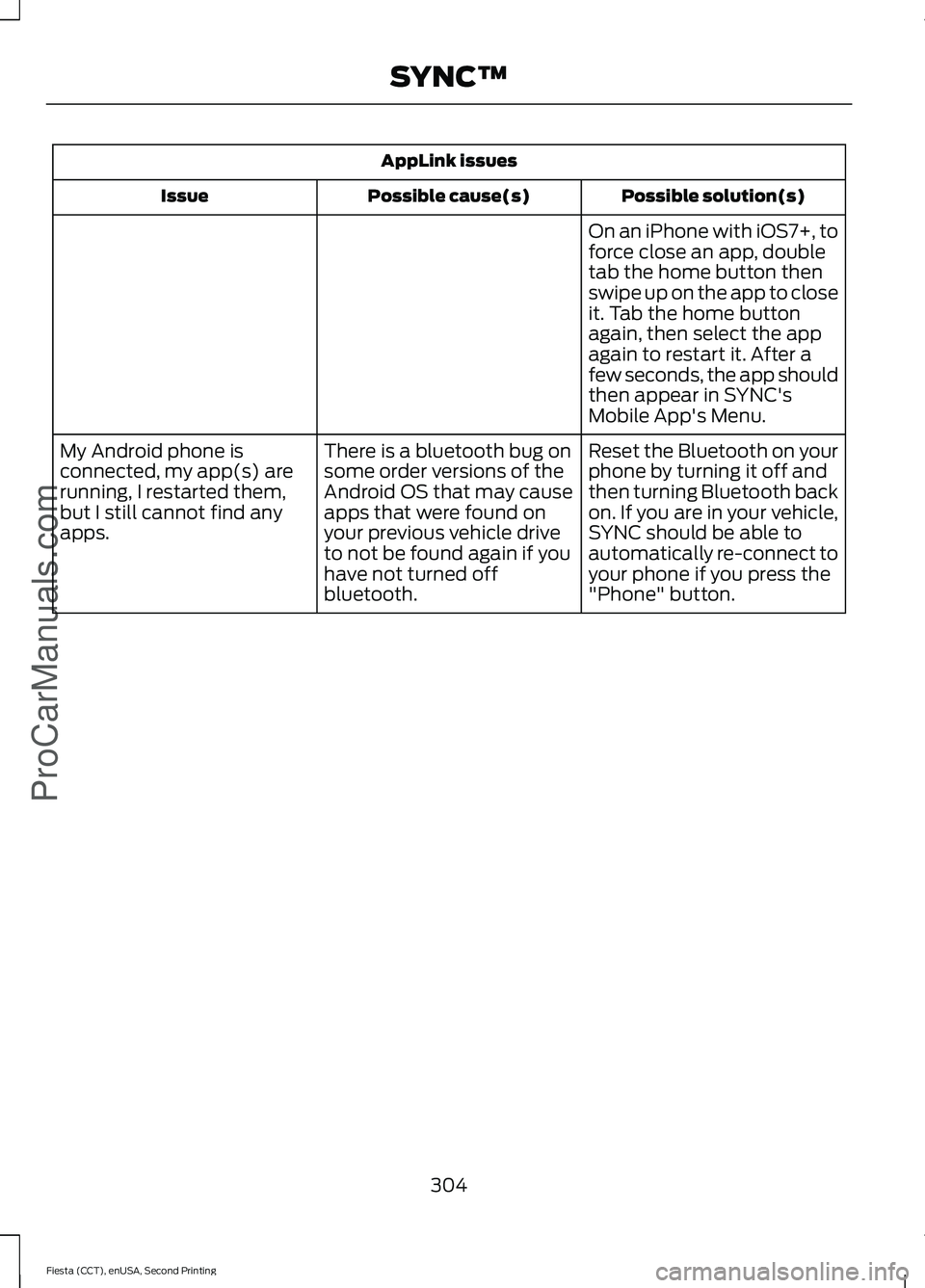
AppLink issues
Possible solution(s)
Possible cause(s)
Issue
On an iPhone with iOS7+, to
force close an app, double
tab the home button then
swipe up on the app to close
it. Tab the home button
again, then select the app
again to restart it. After a
few seconds, the app should
then appear in SYNC's
Mobile App's Menu.
Reset the Bluetooth on your
phone by turning it off and
then turning Bluetooth back
on. If you are in your vehicle,
SYNC should be able to
automatically re-connect to
your phone if you press the
"Phone" button.
There is a bluetooth bug on
some order versions of the
Android OS that may cause
apps that were found on
your previous vehicle drive
to not be found again if you
have not turned off
bluetooth.
My Android phone is
connected, my app(s) are
running, I restarted them,
but I still cannot find any
apps.
304
Fiesta (CCT), enUSA, Second Printing SYNC™ProCarManuals.com
Page 308 of 423
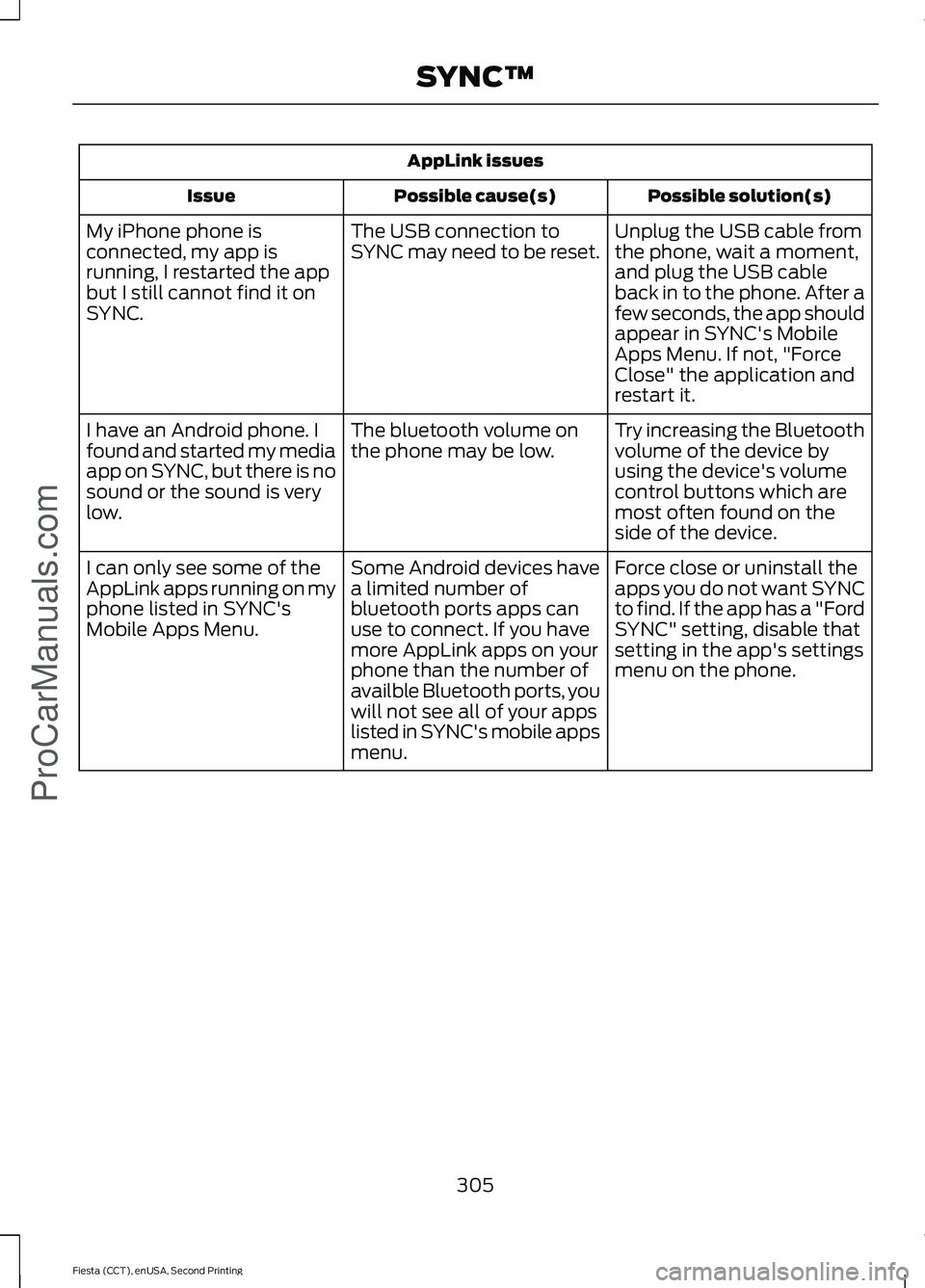
AppLink issues
Possible solution(s)
Possible cause(s)
Issue
Unplug the USB cable from
the phone, wait a moment,
and plug the USB cable
back in to the phone. After a
few seconds, the app should
appear in SYNC's Mobile
Apps Menu. If not, "Force
Close" the application and
restart it.
The USB connection to
SYNC may need to be reset.
My iPhone phone is
connected, my app is
running, I restarted the app
but I still cannot find it on
SYNC.
Try increasing the Bluetooth
volume of the device by
using the device's volume
control buttons which are
most often found on the
side of the device.
The bluetooth volume on
the phone may be low.
I have an Android phone. I
found and started my media
app on SYNC, but there is no
sound or the sound is very
low.
Force close or uninstall the
apps you do not want SYNC
to find. If the app has a "Ford
SYNC" setting, disable that
setting in the app's settings
menu on the phone.
Some Android devices have
a limited number of
bluetooth ports apps can
use to connect. If you have
more AppLink apps on your
phone than the number of
availble Bluetooth ports, you
will not see all of your apps
listed in SYNC's mobile apps
menu.
I can only see some of the
AppLink apps running on my
phone listed in SYNC's
Mobile Apps Menu.
305
Fiesta (CCT), enUSA, Second Printing SYNC™ProCarManuals.com
Page 312 of 423
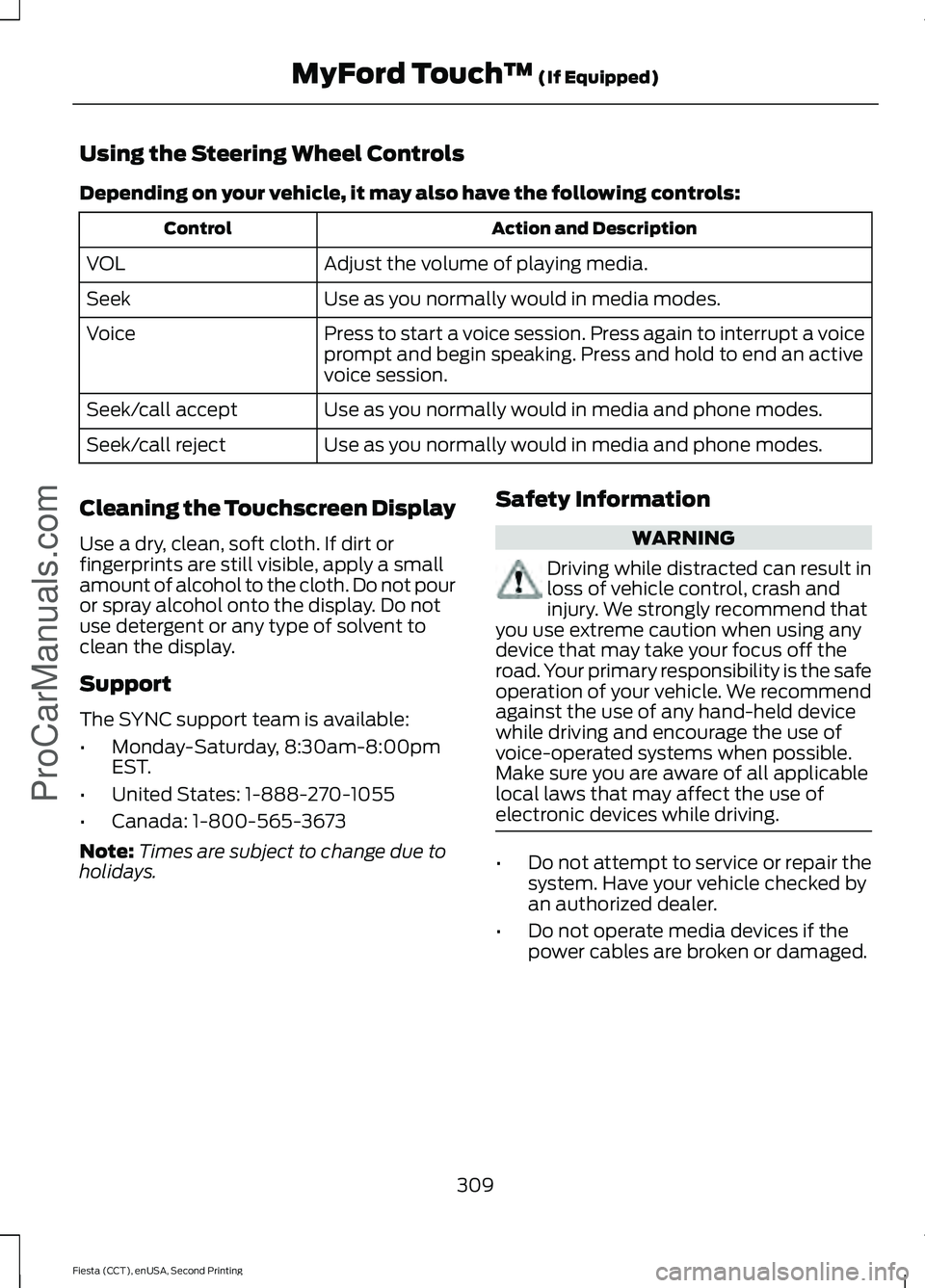
Using the Steering Wheel Controls
Depending on your vehicle, it may also have the following controls:
Action and Description
Control
Adjust the volume of playing media.
VOL
Use as you normally would in media modes.
Seek
Press to start a voice session. Press again to interrupt a voice
prompt and begin speaking. Press and hold to end an active
voice session.
Voice
Use as you normally would in media and phone modes.
Seek/call accept
Use as you normally would in media and phone modes.
Seek/call reject
Cleaning the Touchscreen Display
Use a dry, clean, soft cloth. If dirt or
fingerprints are still visible, apply a small
amount of alcohol to the cloth. Do not pour
or spray alcohol onto the display. Do not
use detergent or any type of solvent to
clean the display.
Support
The SYNC support team is available:
• Monday-Saturday, 8:30am-8:00pm
EST.
• United States: 1-888-270-1055
• Canada: 1-800-565-3673
Note: Times are subject to change due to
holidays. Safety Information WARNING
Driving while distracted can result in
loss of vehicle control, crash and
injury. We strongly recommend that
you use extreme caution when using any
device that may take your focus off the
road. Your primary responsibility is the safe
operation of your vehicle. We recommend
against the use of any hand-held device
while driving and encourage the use of
voice-operated systems when possible.
Make sure you are aware of all applicable
local laws that may affect the use of
electronic devices while driving. •
Do not attempt to service or repair the
system. Have your vehicle checked by
an authorized dealer.
• Do not operate media devices if the
power cables are broken or damaged.
309
Fiesta (CCT), enUSA, Second Printing MyFord Touch
™ (If Equipped)
ProCarManuals.com
Page 313 of 423
•
Make sure the power cables do not
interfere with the safe operation of your
vehicle's controls or affect your safe
driving abilities.
• Some SYNC functions are
speed-dependent. Their use is limited
to when your vehicle is traveling at
speeds below 3 mph (5 km/h).
Make sure that you review your device's
manual before using it with SYNC. Speed-restricted Features
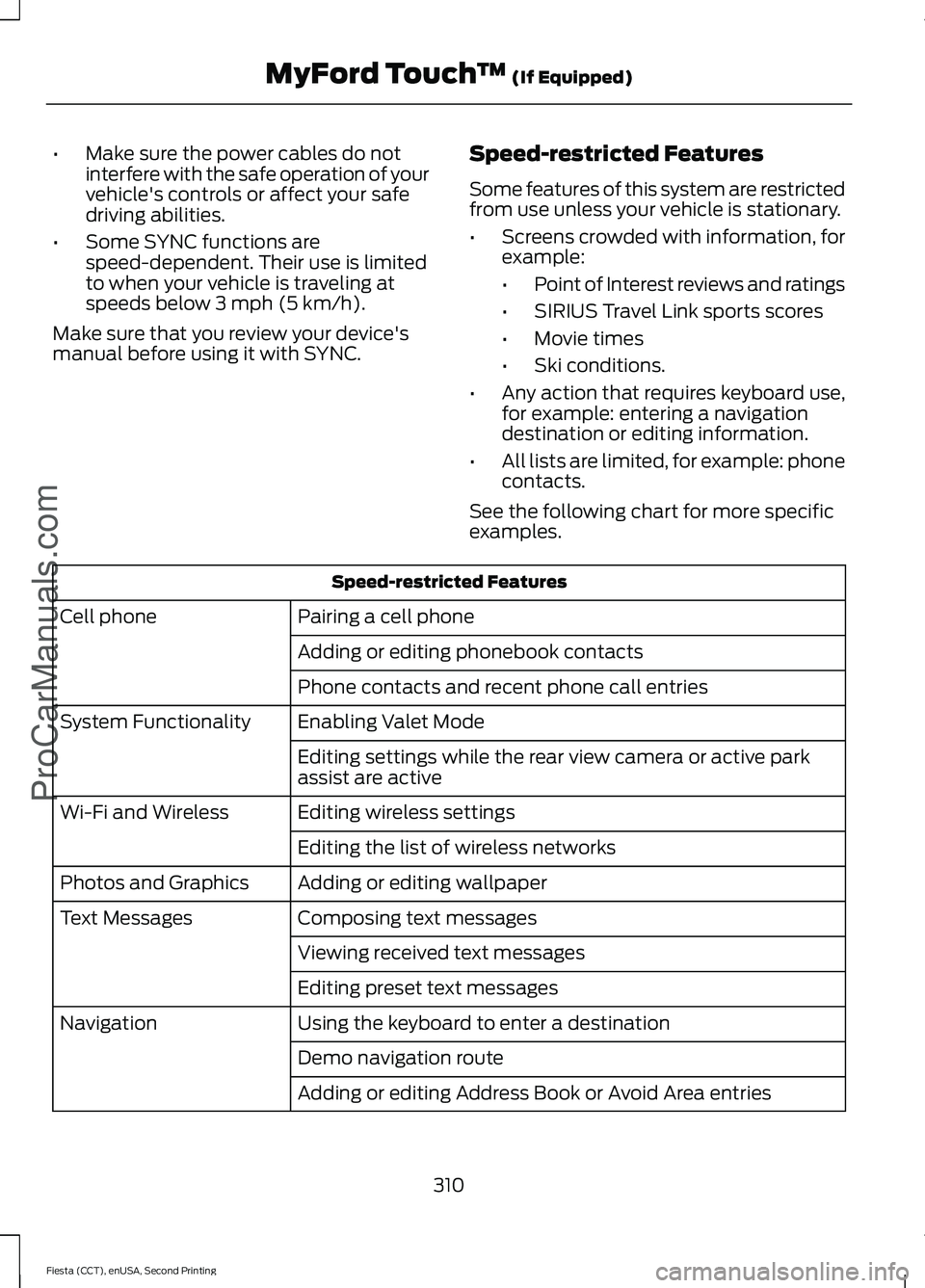
Some features of this system are restricted
from use unless your vehicle is stationary.
•
Screens crowded with information, for
example:
•Point of Interest reviews and ratings
• SIRIUS Travel Link sports scores
• Movie times
• Ski conditions.
• Any action that requires keyboard use,
for example: entering a navigation
destination or editing information.
• All lists are limited, for example: phone
contacts.
See the following chart for more specific
examples. Speed-restricted Features
Pairing a cell phone
Cell phone
Adding or editing phonebook contacts
Phone contacts and recent phone call entries
Enabling Valet Mode
System Functionality
Editing settings while the rear view camera or active park
assist are active
Editing wireless settings
Wi-Fi and Wireless
Editing the list of wireless networks
Adding or editing wallpaper
Photos and Graphics
Composing text messages
Text Messages
Viewing received text messages
Editing preset text messages
Using the keyboard to enter a destination
Navigation
Demo navigation route
Adding or editing Address Book or Avoid Area entries
310
Fiesta (CCT), enUSA, Second Printing MyFord Touch
™ (If Equipped)
ProCarManuals.com
Page 314 of 423
Privacy Information
When you connect a cell phone to SYNC,
the system creates a profile within your
vehicle that links to that cell phone. This
profile helps in offering you more cellular
features and operating more efficiently.
Among other things, this profile may
contain data about your cell phone book,
text messages (read and unread), and call
history, including history of calls when your
cell phone was not connected to the
system. In addition, if you connect a media
device, the system creates and retains an
index of supported media content. The
system also records a short development
log of approximately 10 minutes of all
recent system activity. The log profile and
other system data may be used to improve
the system and help diagnose any
problems that may occur.
The cellular profile, media device index,
and development log remain in your
vehicle unless you delete them, and are
generally accessible only in your vehicle
when your cell phone or media player is
connected. If you no longer plan to use the
system or your vehicle, we recommend you
carry out a Master Reset to erase all stored
information.
System data cannot be accessed without
special equipment and access to your
vehicle's SYNC module. Ford Motor
Company and Ford of Canada do not
access the system data for any purpose
other than as described without consent,
a court order, or where required by law
enforcement, other government
authorities, or other third parties acting
with lawful authority. Other parties may
seek to access the information
independently of Ford Motor Company and
Ford of Canada. For further privacy
information, see the sections on 911
Assist®, Vehicle Health Report, and Traffic,
Directions and Information.
Using Voice Commands
This system helps you control many
features using voice commands. This
allows you to keep your hands on the
wheel and focus on what is in front of you.
The system provides feedback through
audible tones, prompts, questions and
spoken confirmations depending on the
situation and the chosen level of
interaction (voice settings).
The system also asks short questions
(confirmation prompts) when it is not sure
of your request or when there are multiple
possible responses to your request.
When using voice commands, words and
icons may appear in the lower left status
bar indicating the status of the voice
command session (such as Listening,
Success, Failed, Paused or Try Again).
How to Use Voice Commands
The following voice commands
can be said at any time during a
voice command session.
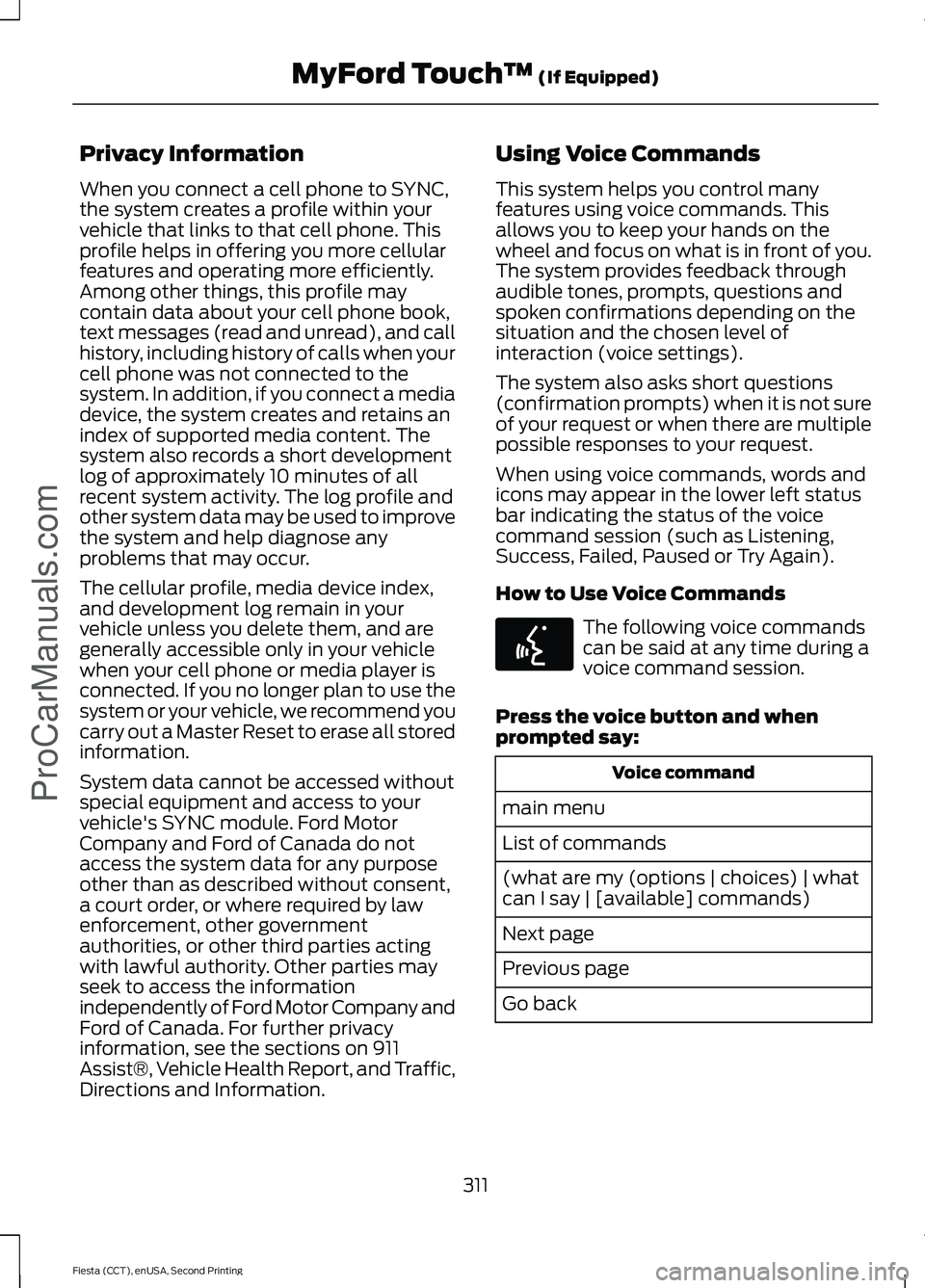
Press the voice button and when
prompted say: Voice command
main menu
List of commands
(what are my (options | choices) | what
can I say | [available] commands)
Next page
Previous page
Go back
311
Fiesta (CCT), enUSA, Second Printing MyFord Touch
™ (If Equipped)
ProCarManuals.comE142599
Page 318 of 423
Message
Item
Clock
A
Display
B
Sound
C
Vehicle
D
Settings
E
Help
F Clock
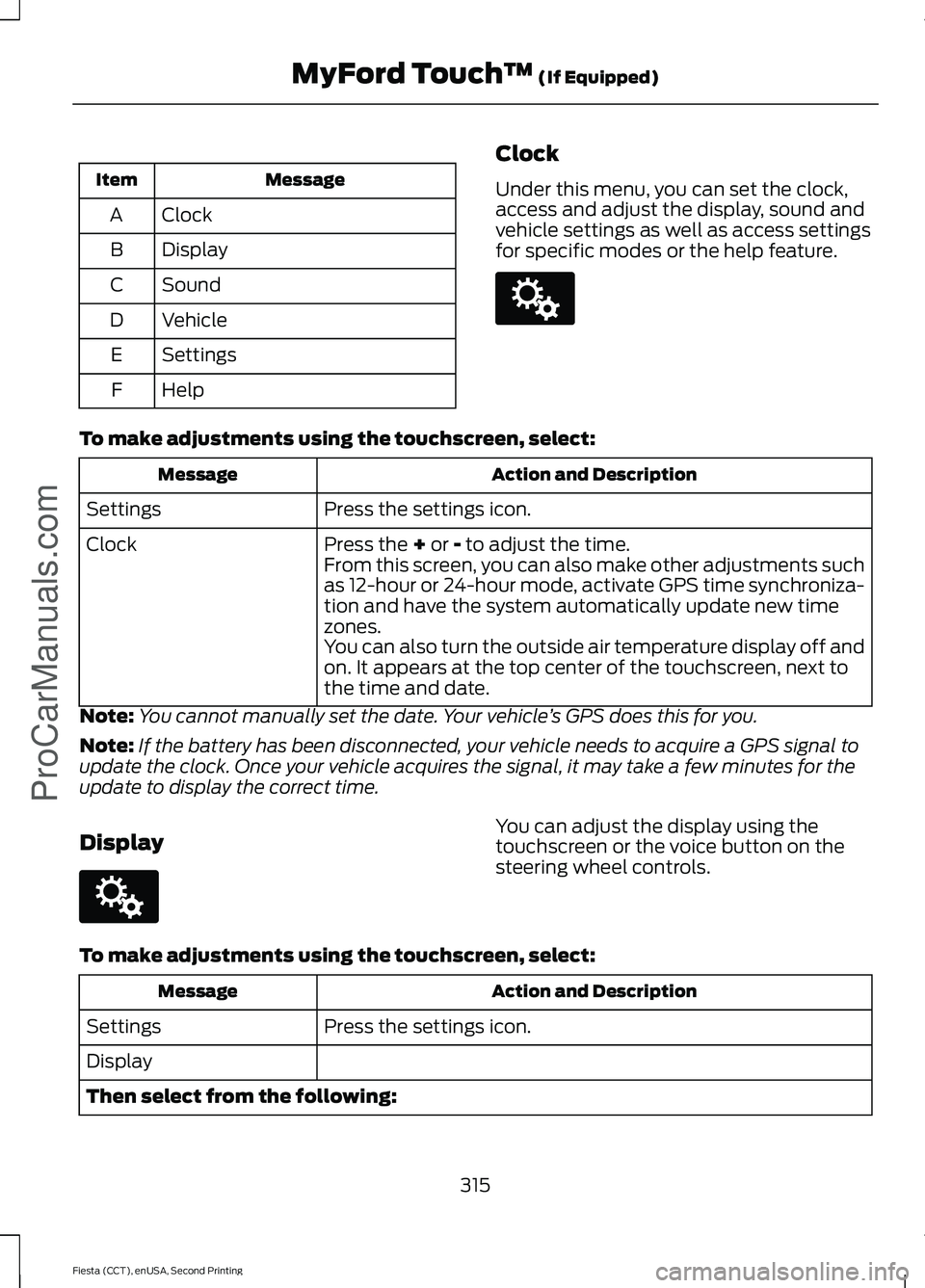
Under this menu, you can set the clock,
access and adjust the display, sound and
vehicle settings as well as access settings
for specific modes or the help feature.To make adjustments using the touchscreen, select:
Action and Description
Message
Press the settings icon.
Settings
Press the + or - to adjust the time.
Clock
From this screen, you can also make other adjustments such
as 12-hour or 24-hour mode, activate GPS time synchroniza-
tion and have the system automatically update new time
zones.
You can also turn the outside air temperature display off and
on. It appears at the top center of the touchscreen, next to
the time and date.
Note: You cannot manually set the date. Your vehicle ’s GPS does this for you.
Note: If the battery has been disconnected, your vehicle needs to acquire a GPS signal to
update the clock. Once your vehicle acquires the signal, it may take a few minutes for the
update to display the correct time.
Display You can adjust the display using the
touchscreen or the voice button on the
steering wheel controls.
To make adjustments using the touchscreen, select: Action and Description
Message
Press the settings icon.
Settings
Display
Then select from the following:
315
Fiesta (CCT), enUSA, Second Printing MyFord Touch
™
(If Equipped)
ProCarManuals.comE142607 E142607
Page 327 of 423
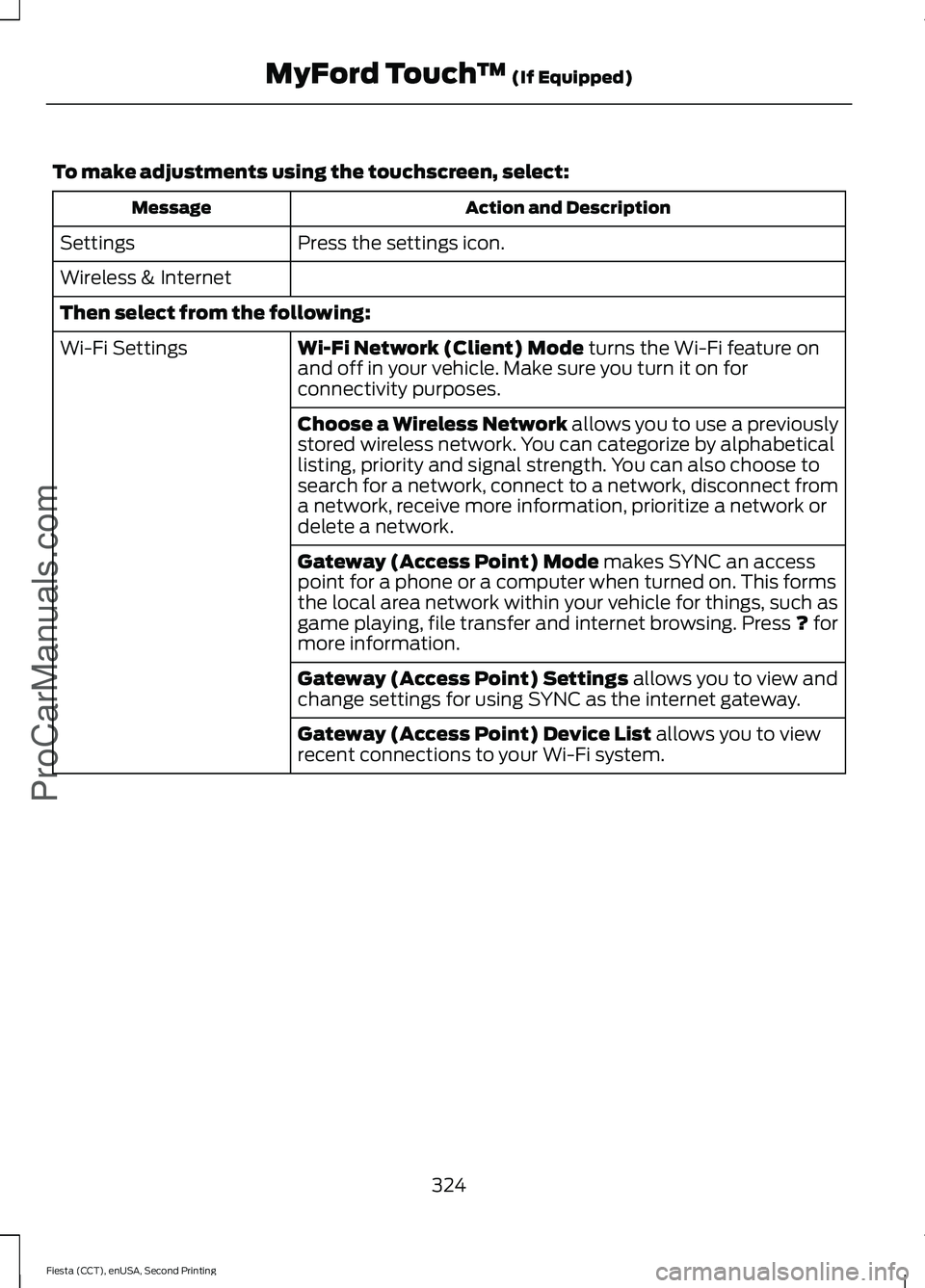
To make adjustments using the touchscreen, select:
Action and Description
Message
Press the settings icon.
Settings
Wireless & Internet
Then select from the following:
Wi-Fi Network (Client) Mode turns the Wi-Fi feature on
and off in your vehicle. Make sure you turn it on for
connectivity purposes.
Wi-Fi Settings
Choose a Wireless Network allows you to use a previously
stored wireless network. You can categorize by alphabetical
listing, priority and signal strength. You can also choose to
search for a network, connect to a network, disconnect from
a network, receive more information, prioritize a network or
delete a network.
Gateway (Access Point) Mode
makes SYNC an access
point for a phone or a computer when turned on. This forms
the local area network within your vehicle for things, such as
game playing, file transfer and internet browsing. Press
? for
more information.
Gateway (Access Point) Settings
allows you to view and
change settings for using SYNC as the internet gateway.
Gateway (Access Point) Device List
allows you to view
recent connections to your Wi-Fi system.
324
Fiesta (CCT), enUSA, Second Printing MyFord Touch
™
(If Equipped)
ProCarManuals.com
Page 333 of 423
The HD logo either blinks when acquiring
a digital station, and then stays solid when
digital audio is playing, or is grey when
acquiring a digital station, and then
changes to orange when digital audio is
playing. When this logo is available, you
may also see Title and Artist fields
on-screen.
The multicast indicator appears in FM
mode (only) if the current station is
broadcasting multiple digital broadcasts.
The highlighted numbers signify available
digital channels where new or different
content is available. HD1 signifies the main
programming status and is available in
analog and digital broadcasts. Other
multicast stations (HD2 through HD7) are
only available digitally.
TAG allows you to save a song to
download later when you are on an
acquired HD Radio station and the feature
is on.
To turn the feature on and use it, select
AM or FM and the select: Action and Description
Message
Options
TAG Button When you hear a song you, select:
On
The system automatically saves the song's information and
transfers it to your portable music player (if supported) when
you connect it to the system. The system automatically
transfers the tag to your player (if already connected) and a
pop-up confirms the transfer.
Tag
When you access iTunes with your portable music player, the
tags appear to you as a reminder. The system allows you to
tag up to approximately 100 songs. For a list of devices that
support tagging, see www.SYNCMyRide.com,
www.SYNCMyRide.ca or www.syncmaroute.ca
330
Fiesta (CCT), enUSA, Second Printing MyFord Touch
™
(If Equipped)
ProCarManuals.comE142616
Page 347 of 423
Voice command
*
(browse | search| show) video
playlist
Video Podcast playlist name
| Music Video playlist name>
(browse | search| show) video
podcast
Video Podcast Episode name
| Music Video Song name>
Help
* These commands are only available in
USB mode and are device-dependent.
Supported Media Players, Formats
and Metadata Information
SYNC is capable of hosting nearly any
digital media player, including iPod,
Zune ™, plays from device players, and
most USB drives. Supported audio formats
include MP3, WMA, WAV and AAC.
It is also able to organize your indexed
media from your playing device by
metadata tags. Metadata tags, which are
descriptive software identifiers embedded
in the media files, provide information
about the file.
If your indexed media files contain no
information embedded in these metadata
tags, SYNC may classify the empty
metadata tags as unknown. Bluetooth Audio
The system allows you to stream audio
over your vehicle's speakers from your
connected, Bluetooth-enabled cell phone. To access, press the lower left corner
on the touchscreen, then select:
Message
BT Stereo
Bluetooth Audio Voice Commands Press the voice button and when
prompted say:
Voice command
[play] next track
play
pause
[play] previous track
344
Fiesta (CCT), enUSA, Second Printing MyFord Touch
™ (If Equipped)
ProCarManuals.comE142611 E142599