sync FORD FIESTA 2015 Manual PDF
[x] Cancel search | Manufacturer: FORD, Model Year: 2015, Model line: FIESTA, Model: FORD FIESTA 2015Pages: 423, PDF Size: 5.5 MB
Page 363 of 423
•
You must pair and connect a
Bluetooth-enabled and compatible
phone to SYNC.
• A connected Bluetooth-enabled phone
must have the ability to make and
maintain an outgoing call at the time
of the incident.
• A connected Bluetooth-enabled phone
must have adequate network coverage,
battery power and signal strength.
• The vehicle must have battery power
and be located in the United States,
Canada or in a territory in which 911 is
the emergency number.
In the Event of a Crash
Not all crashes deploy an airbag or activate
the fuel pump shut-off (which would
trigger 911 Assist); however, SYNC tries to
contact emergency services if 911 Assist
triggers. If a connected phone sustains
damage or loses connection to SYNC,
SYNC searches for, and tries to connect
to, any available previously paired phone
and tries to make the call to 911.
Before making the call:
• SYNC provides a short window of time
(approximately 10 seconds) to cancel
the call. If you fail to cancel the call,
SYNC attempts to dial 911.
• SYNC says the following, or a similar
message: "SYNC will attempt to call
911, to cancel the call, press Cancel on
your screen or press and hold the
phone button on your steering wheel."
If you do not cancel the call, and SYNC
makes a successful call, a pre-recorded
message plays for the 911 operator, and
then the occupant(s) in your vehicle is able
to talk with the operator. Be prepared to
provide your name, phone number and
location immediately, because not all 911
systems are capable of receiving this
information electronically. 911 Assist May Not Work If:
•
Your cellular phone or 911 Assist
hardware sustains damage in a crash.
• The vehicle's battery or the SYNC
system has no power.
• The phones(s) previously paired or
connected to the system are thrown
from the vehicle.
911 Assist Privacy Notice
When you turn on 911 Assist, it may
disclose to emergency services that your
vehicle has been in a crash involving the
deployment of an airbag or activation of
the fuel pump shut-off. Certain versions or
updates to 911 Assist may also be capable
of electronically or verbally disclosing to
911 operators your vehicle location or other
details about your vehicle or crash to assist
911 operators to provide the most
appropriate emergency services. If you do
not want to disclose this information, do
not turn the feature on.
Vehicle Health Report WARNING
Always follow scheduled
maintenance instructions, regularly
inspect your vehicle, and seek repair
for any damage or problem you suspect.
Vehicle Health Report supplements, but
cannot replace, normal maintenance and
vehicle inspection. Vehicle Health Report
only monitors certain systems
electronically monitored by your vehicle
and will not monitor or report the status
of any other system, (such as brake lining
wear). Failure to perform scheduled
maintenance and regularly inspect your
vehicle may result in vehicle damage and
serious injury. Note:
This feature is only available in the
United States.
360
Fiesta (CCT), enUSA, Second Printing MyFord Touch
™ (If Equipped)
ProCarManuals.com
Page 364 of 423
Note:
Your Vehicle Health Report feature
requires activation prior to use. Visit
www.SYNCMyRide.com to register. There
is no fee or subscription associated with
Vehicle Health Report, but you must register
to use this feature.
Note: This feature may not function
properly if you have enabled caller ID
blocking on your cellular phone. Before
running a report, review the Vehicle Health
Report Privacy Notice.
Note: In order to allow a break-in period for
your vehicle, you may not be able to create
a Vehicle Health Report until your vehicle
odometer has reached 200 miles.
Note: Cellular phone and SMS charges may
apply when making a report.
Register for Vehicle Health Report and set
your report preferences at
www.SYNCMyRide.com. After registering,
you can request a Vehicle Health Report
(inside your vehicle). Return to your
account at www.SYNCMyRide.com to view
your report. You can also choose for SYNC
to remind you automatically to run reports
at specific mileage intervals. Cellular phone
airtime usage may apply when reporting.
The system allows you to check your
vehicle ’s overall health in the form of a
diagnostic report card. The Vehicle Health
Report contains valuable information, for
example:
• Vehicle diagnostic information.
• Scheduled maintenance.
• Open recalls and Field Service Actions.
• Items noted during vehicle inspections
by your authorized dealer that still need
servicing.
Making a Report If you want to run a report by using the
touchscreen, select:
Message
Apps
Vehicle Health Report You can also run a vehicle health
report by voice command.
Press the voice button and when
prompted say: Voice command
Vehicle Health Report
Vehicle Health Report Privacy Notice
When you create a Vehicle Health Report,
Ford Motor Company may collect your
cellular phone number (to process your
report request) and diagnostic information
about your vehicle. Certain versions or
updates to Vehicle Health Report may also
collect more vehicle information. Ford may
use your vehicle information it collects for
any purpose. If you do not want to disclose
your cellular phone number or vehicle
information, do not run the feature or set
up your Vehicle Health Report profile at
www.SYNCMyRide.com. See
www.SYNCMyRide.com (Vehicle Health
Report Terms and Conditions, and Privacy
Statement) for more information.
361
Fiesta (CCT), enUSA, Second Printing MyFord Touch
™ (If Equipped)
ProCarManuals.comE142608 E142599
Page 370 of 423
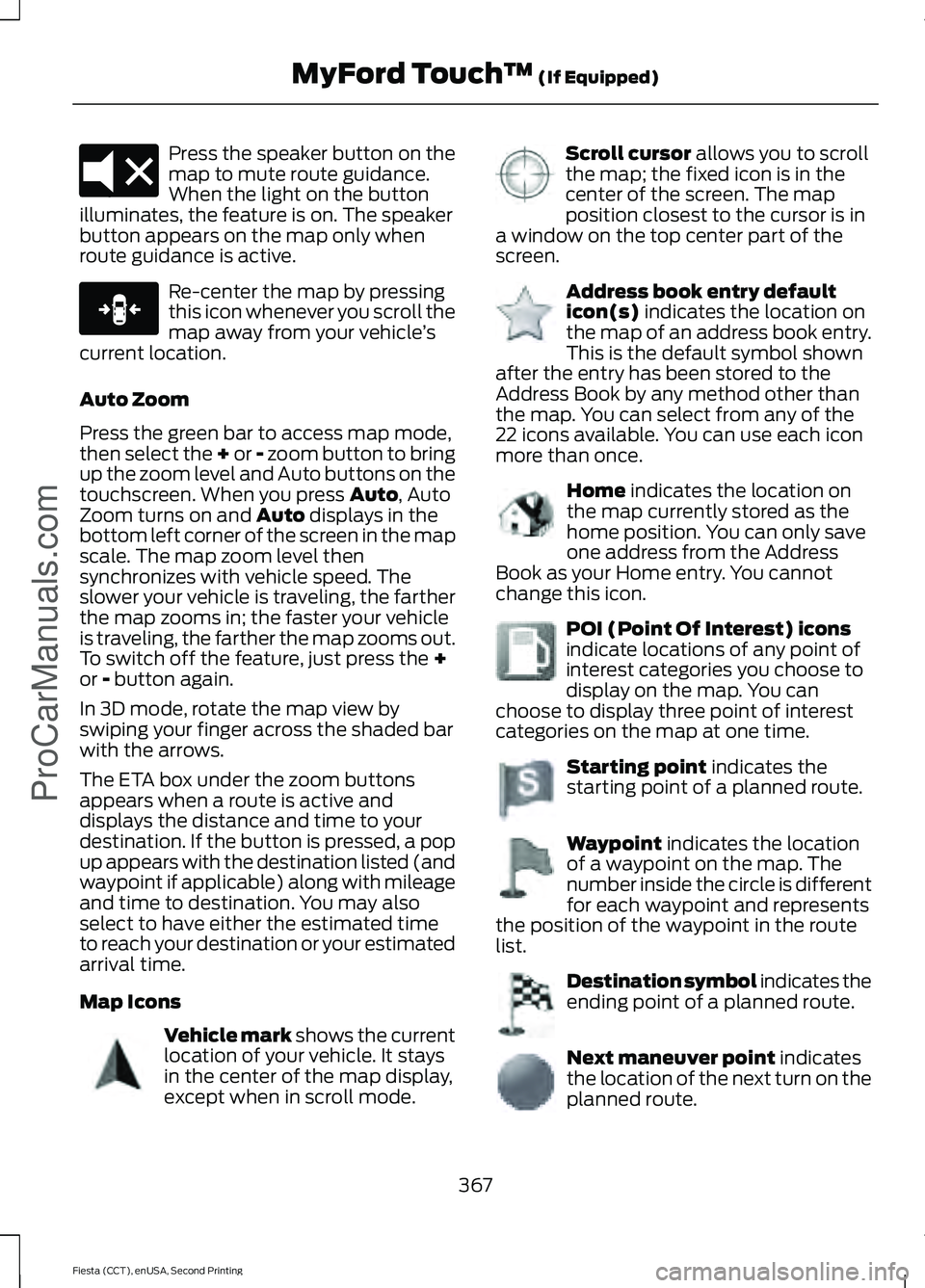
Press the speaker button on the
map to mute route guidance.
When the light on the button
illuminates, the feature is on. The speaker
button appears on the map only when
route guidance is active. Re-center the map by pressing
this icon whenever you scroll the
map away from your vehicle
’s
current location.
Auto Zoom
Press the green bar to access map mode,
then select the + or - zoom button to bring
up the zoom level and Auto buttons on the
touchscreen. When you press Auto, Auto
Zoom turns on and Auto displays in the
bottom left corner of the screen in the map
scale. The map zoom level then
synchronizes with vehicle speed. The
slower your vehicle is traveling, the farther
the map zooms in; the faster your vehicle
is traveling, the farther the map zooms out.
To switch off the feature, just press the
+
or - button again.
In 3D mode, rotate the map view by
swiping your finger across the shaded bar
with the arrows.
The ETA box under the zoom buttons
appears when a route is active and
displays the distance and time to your
destination. If the button is pressed, a pop
up appears with the destination listed (and
waypoint if applicable) along with mileage
and time to destination. You may also
select to have either the estimated time
to reach your destination or your estimated
arrival time.
Map Icons Vehicle mark
shows the current
location of your vehicle. It stays
in the center of the map display,
except when in scroll mode. Scroll cursor
allows you to scroll
the map; the fixed icon is in the
center of the screen. The map
position closest to the cursor is in
a window on the top center part of the
screen. Address book entry default
icon(s)
indicates the location on
the map of an address book entry.
This is the default symbol shown
after the entry has been stored to the
Address Book by any method other than
the map. You can select from any of the
22 icons available. You can use each icon
more than once. Home
indicates the location on
the map currently stored as the
home position. You can only save
one address from the Address
Book as your Home entry. You cannot
change this icon. POI (Point Of Interest) icons
indicate locations of any point of
interest categories you choose to
display on the map. You can
choose to display three point of interest
categories on the map at one time. Starting point
indicates the
starting point of a planned route. Waypoint
indicates the location
of a waypoint on the map. The
number inside the circle is different
for each waypoint and represents
the position of the waypoint in the route
list. Destination symbol indicates the
ending point of a planned route.
Next maneuver point
indicates
the location of the next turn on the
planned route.
367
Fiesta (CCT), enUSA, Second Printing MyFord Touch
™
(If Equipped)
ProCarManuals.comE174017 E146188 E142646 E142647 E142648 E142649 E142650 E142651 E142652 E142653 E142654
Page 371 of 423
No GPS symbol indicates that
insufficient GPS satellite signals
are available for accurate map
positioning. This icon may display
under normal operation in an area with
poor GPS access.
Quick-touch Buttons
When in map mode, touch anywhere on
the map display to access the following
options:
Set as Dest
Touch this button to select a scrolled
location on the map as your destination.
You may scroll the map by pressing your
index finger on the map display. When you
reach the desired location, simply let go
and then touch
Set as Dest.
Set as Waypoint
Touch this button to set the current
location as a waypoint.
Save to Favorites
Touch this button to save the current
location to your favorites.
POI Icons
Touch this button to select icons to display
on the map. You can select up to three
icons to display on the map at the same
time. Turn these
ON or OFF.
Cancel Route
Touch this button to cancel the active
route. View/Edit Route When a Route is
Active
Subcategories Message
View Route
Edit Destination/Waypoints
Edit Turn List
Detour
Edit Route Preferences
Edit Traffic Preferences
Cancel Route
Nokia is the digital map provider for the
navigation application. If you find map data
errors, you may report them directly to
Nokia by going to
http://mapreporter.navteq.com. Nokia
evaluates all reported map errors and
responds with the result of their
investigation by e-mail.
Navigation Map Updates
Annual navigation map updates are
available for purchase through your
dealership, by calling 1-866-4NAVTEQ
(1-866-462-8837) or going to
www.navigation.com/sync. You need to
specify the make and model of your vehicle
to determine if there is an update available.
Navigation Voice Commands When in navigation mode, press
the voice button on the steering
wheel controls. After the tone,
say any of the following commands:
368
Fiesta (CCT), enUSA, Second Printing MyFord Touch
™
(If Equipped)
ProCarManuals.comE142655 E142599
Page 373 of 423
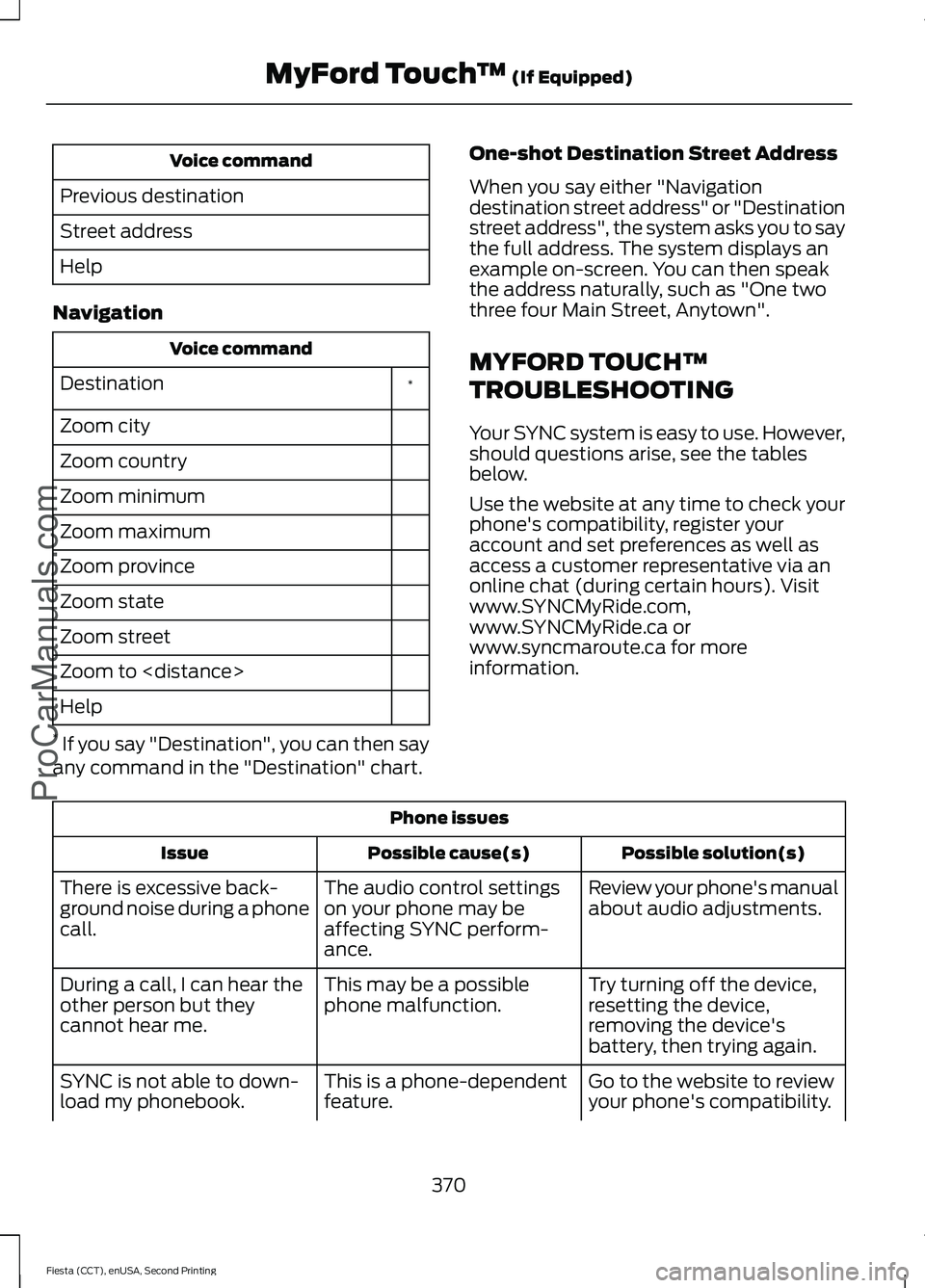
Voice command
Previous destination
Street address
Help
Navigation Voice command
*
Destination
Zoom city
Zoom country
Zoom minimum
Zoom maximum
Zoom province
Zoom state
Zoom street
Zoom to
Help
* If you say "Destination", you can then say
any command in the "Destination" chart. One-shot Destination Street Address
When you say either "Navigation
destination street address" or "Destination
street address", the system asks you to say
the full address. The system displays an
example on-screen. You can then speak
the address naturally, such as "One two
three four Main Street, Anytown".
MYFORD TOUCH™
TROUBLESHOOTING
Your SYNC system is easy to use. However,
should questions arise, see the tables
below.
Use the website at any time to check your
phone's compatibility, register your
account and set preferences as well as
access a customer representative via an
online chat (during certain hours). Visit
www.SYNCMyRide.com,
www.SYNCMyRide.ca or
www.syncmaroute.ca for more
information.
Phone issues
Possible solution(s)
Possible cause(s)
Issue
Review your phone's manual
about audio adjustments.
The audio control settings
on your phone may be
affecting SYNC perform-
ance.
There is excessive back-
ground noise during a phone
call.
Try turning off the device,
resetting the device,
removing the device's
battery, then trying again.
This may be a possible
phone malfunction.
During a call, I can hear the
other person but they
cannot hear me.
Go to the website to review
your phone's compatibility.
This is a phone-dependent
feature.
SYNC is not able to down-
load my phonebook.
370
Fiesta (CCT), enUSA, Second Printing MyFord Touch
™ (If Equipped)
ProCarManuals.com
Page 374 of 423
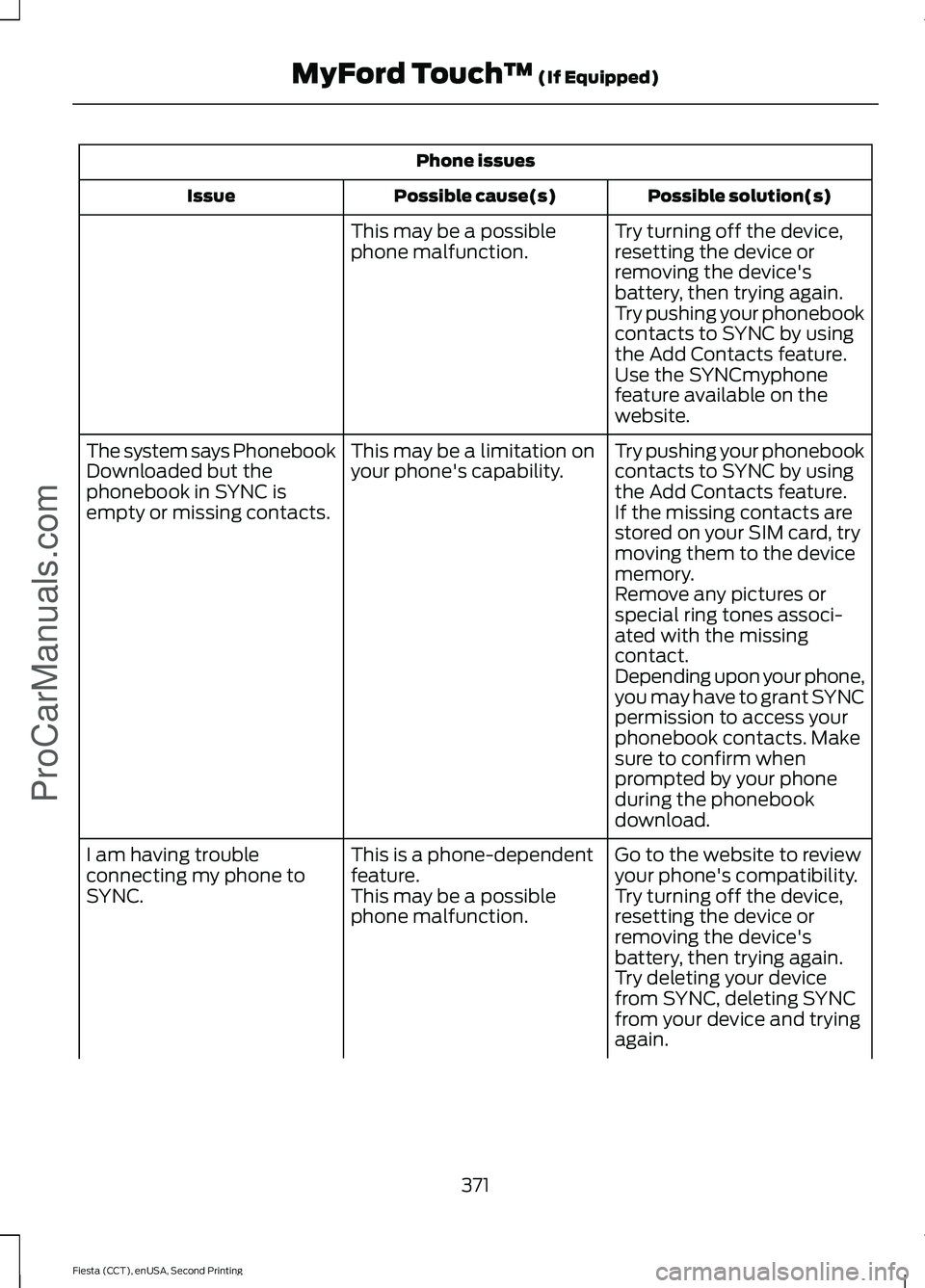
Phone issues
Possible solution(s)
Possible cause(s)
Issue
Try turning off the device,
resetting the device or
removing the device's
battery, then trying again.
This may be a possible
phone malfunction.
Try pushing your phonebook
contacts to SYNC by using
the Add Contacts feature.
Use the SYNCmyphone
feature available on the
website.
Try pushing your phonebook
contacts to SYNC by using
the Add Contacts feature.
This may be a limitation on
your phone's capability.
The system says Phonebook
Downloaded but the
phonebook in SYNC is
empty or missing contacts.
If the missing contacts are
stored on your SIM card, try
moving them to the device
memory.
Remove any pictures or
special ring tones associ-
ated with the missing
contact.
Depending upon your phone,
you may have to grant SYNC
permission to access your
phonebook contacts. Make
sure to confirm when
prompted by your phone
during the phonebook
download.
Go to the website to review
your phone's compatibility.
This is a phone-dependent
feature.
I am having trouble
connecting my phone to
SYNC.
Try turning off the device,
resetting the device or
removing the device's
battery, then trying again.
This may be a possible
phone malfunction.
Try deleting your device
from SYNC, deleting SYNC
from your device and trying
again.
371
Fiesta (CCT), enUSA, Second Printing MyFord Touch
™ (If Equipped)
ProCarManuals.com
Page 375 of 423
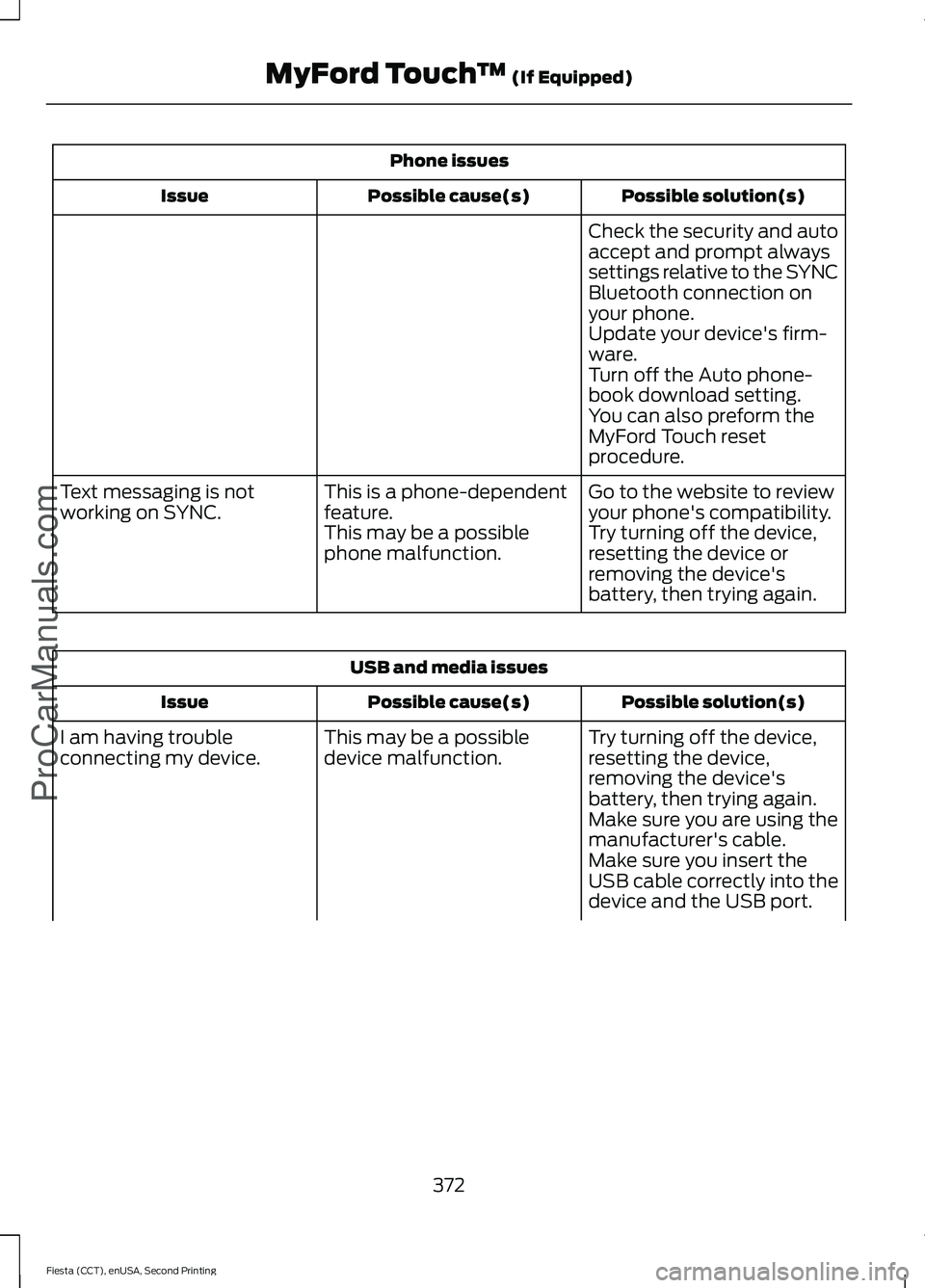
Phone issues
Possible solution(s)
Possible cause(s)
Issue
Check the security and auto
accept and prompt always
settings relative to the SYNC
Bluetooth connection on
your phone.
Update your device's firm-
ware.
Turn off the Auto phone-
book download setting.
You can also preform the
MyFord Touch reset
procedure.
Go to the website to review
your phone's compatibility.
This is a phone-dependent
feature.
Text messaging is not
working on SYNC.
Try turning off the device,
resetting the device or
removing the device's
battery, then trying again.
This may be a possible
phone malfunction. USB and media issues
Possible solution(s)
Possible cause(s)
Issue
Try turning off the device,
resetting the device,
removing the device's
battery, then trying again.
This may be a possible
device malfunction.
I am having trouble
connecting my device.
Make sure you are using the
manufacturer's cable.
Make sure you insert the
USB cable correctly into the
device and the USB port.
372
Fiesta (CCT), enUSA, Second Printing MyFord Touch
™ (If Equipped)
ProCarManuals.com
Page 376 of 423
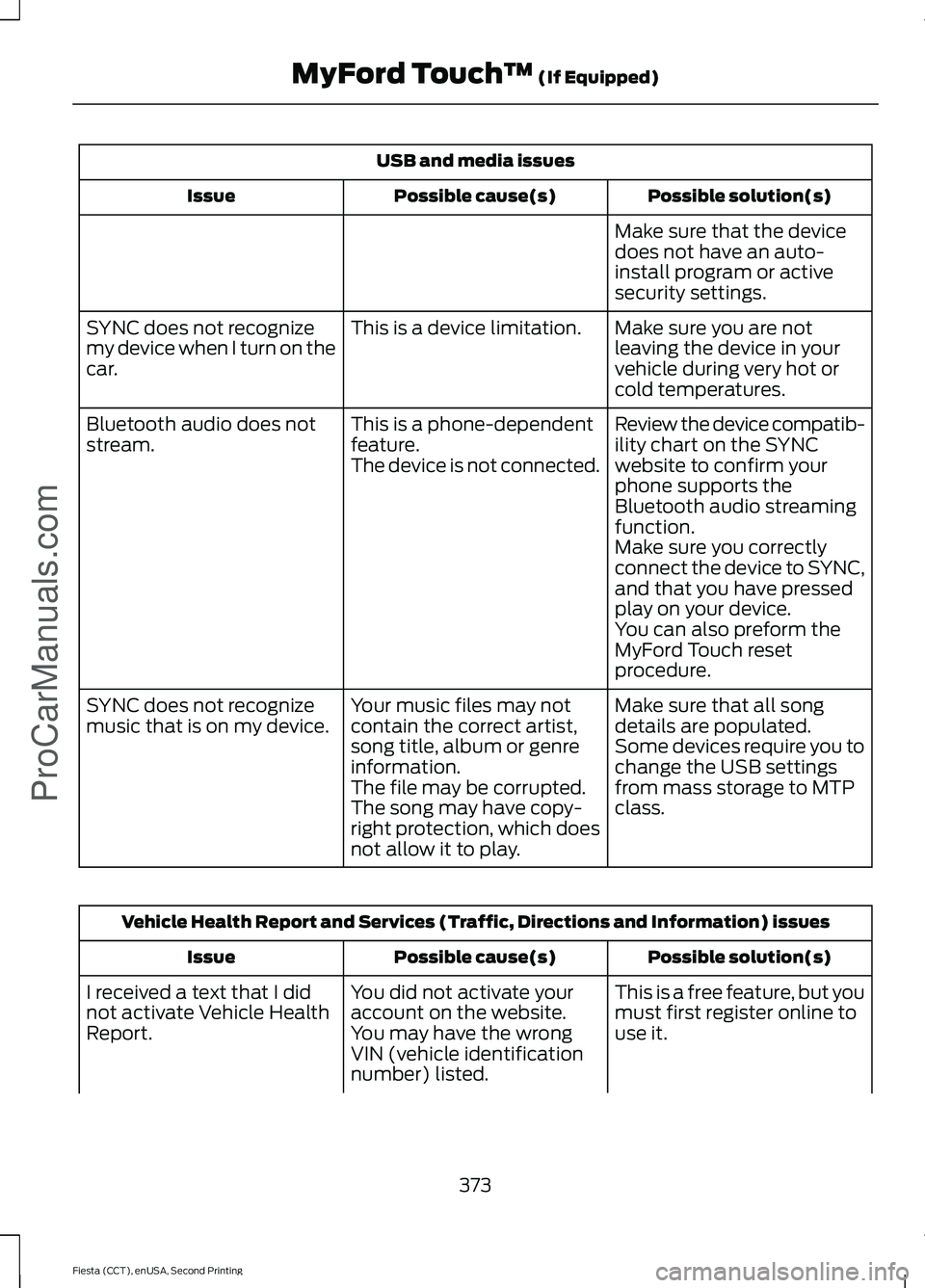
USB and media issues
Possible solution(s)
Possible cause(s)
Issue
Make sure that the device
does not have an auto-
install program or active
security settings.
Make sure you are not
leaving the device in your
vehicle during very hot or
cold temperatures.
This is a device limitation.
SYNC does not recognize
my device when I turn on the
car.
Review the device compatib-
ility chart on the SYNC
website to confirm your
phone supports the
Bluetooth audio streaming
function.
This is a phone-dependent
feature.
The device is not connected.
Bluetooth audio does not
stream.
Make sure you correctly
connect the device to SYNC,
and that you have pressed
play on your device.
You can also preform the
MyFord Touch reset
procedure.
Make sure that all song
details are populated.
Your music files may not
contain the correct artist,
song title, album or genre
information.
SYNC does not recognize
music that is on my device.
Some devices require you to
change the USB settings
from mass storage to MTP
class.
The file may be corrupted.
The song may have copy-
right protection, which does
not allow it to play. Vehicle Health Report and Services (Traffic, Directions and Information) issues
Possible solution(s)
Possible cause(s)
Issue
This is a free feature, but you
must first register online to
use it.
You did not activate your
account on the website.
You may have the wrong
VIN (vehicle identification
number) listed.
I received a text that I did
not activate Vehicle Health
Report.
373
Fiesta (CCT), enUSA, Second Printing MyFord Touch
™ (If Equipped)
ProCarManuals.com
Page 377 of 423
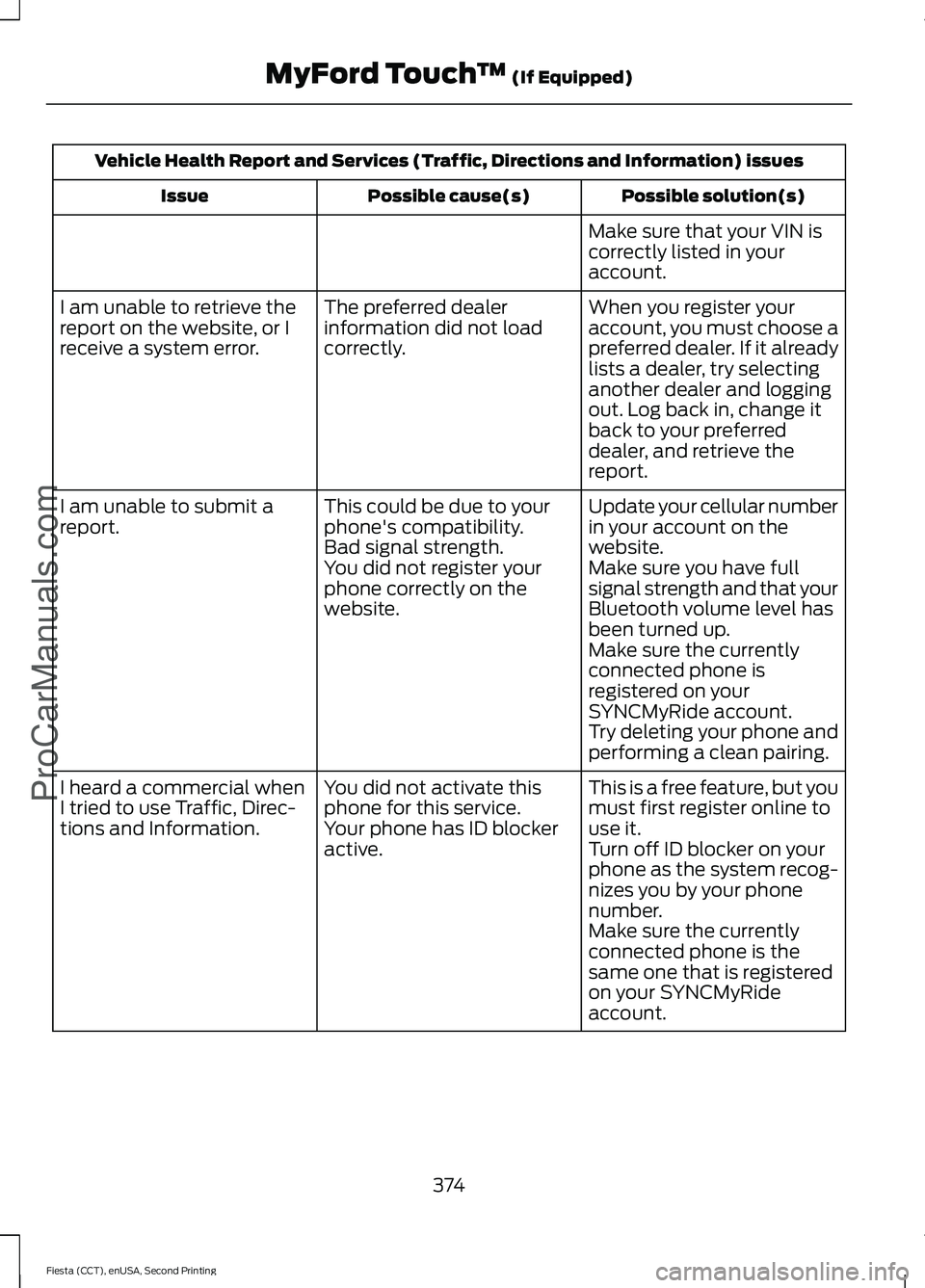
Vehicle Health Report and Services (Traffic, Directions and Information) issues
Possible solution(s)
Possible cause(s)
Issue
Make sure that your VIN is
correctly listed in your
account.
When you register your
account, you must choose a
preferred dealer. If it already
lists a dealer, try selecting
another dealer and logging
out. Log back in, change it
back to your preferred
dealer, and retrieve the
report.
The preferred dealer
information did not load
correctly.
I am unable to retrieve the
report on the website, or I
receive a system error.
Update your cellular number
in your account on the
website.
This could be due to your
phone's compatibility.
Bad signal strength.
I am unable to submit a
report.
Make sure you have full
signal strength and that your
Bluetooth volume level has
been turned up.
You did not register your
phone correctly on the
website.
Make sure the currently
connected phone is
registered on your
SYNCMyRide account.
Try deleting your phone and
performing a clean pairing.
This is a free feature, but you
must first register online to
use it.
You did not activate this
phone for this service.
Your phone has ID blocker
active.
I heard a commercial when
I tried to use Traffic, Direc-
tions and Information.
Turn off ID blocker on your
phone as the system recog-
nizes you by your phone
number.
Make sure the currently
connected phone is the
same one that is registered
on your SYNCMyRide
account.
374
Fiesta (CCT), enUSA, Second Printing MyFord Touch
™ (If Equipped)
ProCarManuals.com
Page 378 of 423
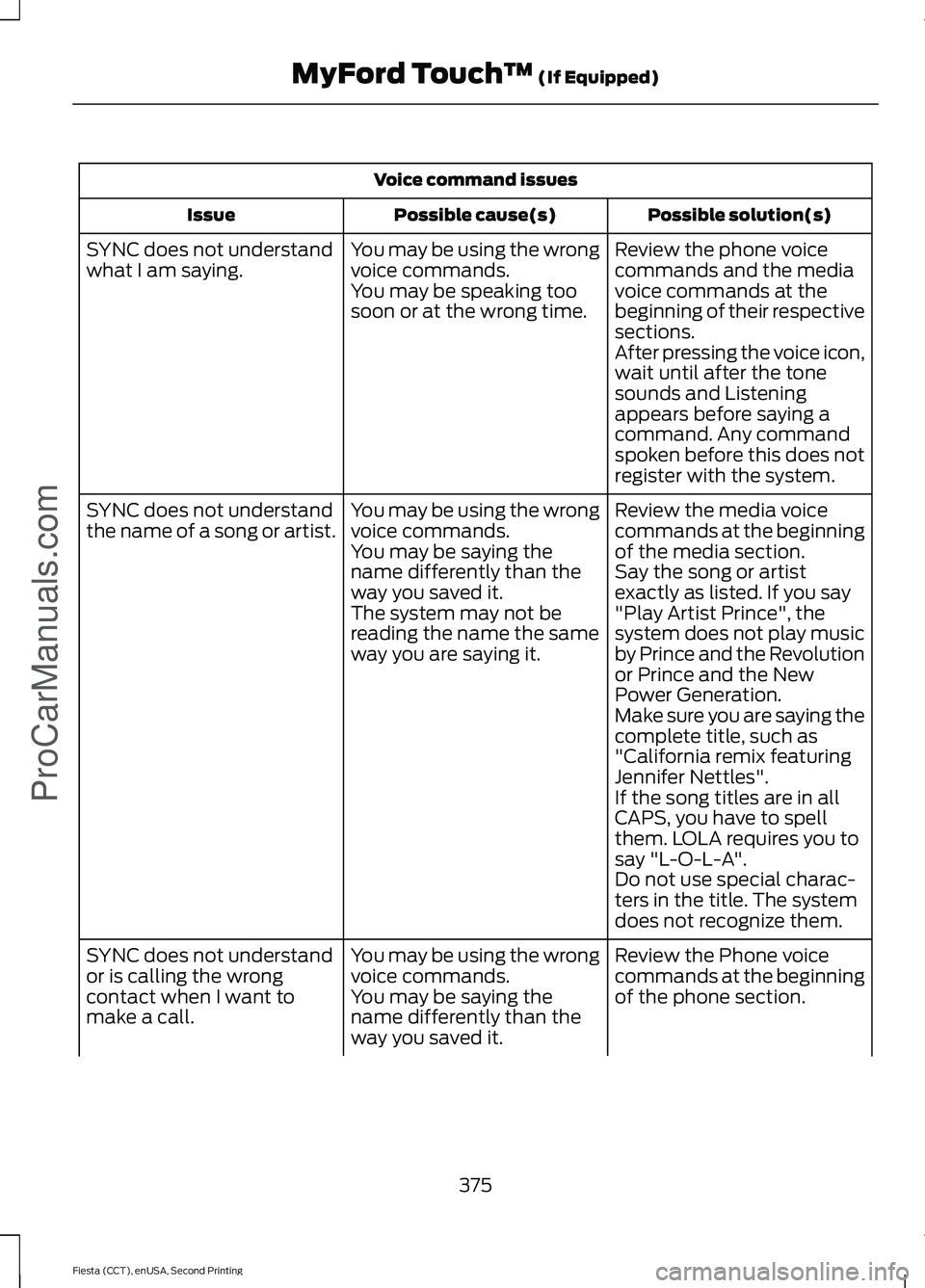
Voice command issues
Possible solution(s)
Possible cause(s)
Issue
Review the phone voice
commands and the media
voice commands at the
beginning of their respective
sections.
You may be using the wrong
voice commands.
You may be speaking too
soon or at the wrong time.
SYNC does not understand
what I am saying.
After pressing the voice icon,
wait until after the tone
sounds and Listening
appears before saying a
command. Any command
spoken before this does not
register with the system.
Review the media voice
commands at the beginning
of the media section.
You may be using the wrong
voice commands.
You may be saying the
name differently than the
way you saved it.
SYNC does not understand
the name of a song or artist.
Say the song or artist
exactly as listed. If you say
"Play Artist Prince", the
system does not play music
by Prince and the Revolution
or Prince and the New
Power Generation.
The system may not be
reading the name the same
way you are saying it.
Make sure you are saying the
complete title, such as
"California remix featuring
Jennifer Nettles".
If the song titles are in all
CAPS, you have to spell
them. LOLA requires you to
say "L-O-L-A".
Do not use special charac-
ters in the title. The system
does not recognize them.
Review the Phone voice
commands at the beginning
of the phone section.
You may be using the wrong
voice commands.
You may be saying the
name differently than the
way you saved it.
SYNC does not understand
or is calling the wrong
contact when I want to
make a call.
375
Fiesta (CCT), enUSA, Second Printing MyFord Touch
™ (If Equipped)
ProCarManuals.com