Amp FORD FOCUS 2014 3.G Owners Manual
[x] Cancel search | Manufacturer: FORD, Model Year: 2014, Model line: FOCUS, Model: FORD FOCUS 2014 3.GPages: 492, PDF Size: 7.2 MB
Page 381 of 492
Confirmation Prompts:The system uses these short questions to
confirm your voice request. If turned off, the system simply makes a best
guess as to what you requested. The system may still occasionally ask
you to confirm settings.
Phone/Media Candidate Lists:Candidate lists are lists of possible
results from your voice commands. The system creates these lists when
it has the same confidence level of several options based on your voice
command.
To access these settings using the touchscreen:
1. Press theSettings icon >Settings>Voice Control.
2. Select from:
•Interaction Mode
•Confirmation Prompts
•Media Candidate Lists
•Phone Candidate Lists
•Voice Control Volume.
To access these settings using voice commands:
Press the voice icon. Wait for the prompt “Please say a command”.
Another tone sounds to let you know the system is listening.
Voice settings using voice commands
“Interaction Mode Novice”
“Interaction Mode Advanced”
“Confirmation Prompts On”
“Confirmation Prompts Off”
“Phone Candidate Lists On”
“Phone Candidate Lists Off”
“Media Candidate Lists On”
“Media Candidate Lists Off”
“Help”
Using Voice Commands with the Touchscreen Options
Your voice system has a dual mode feature which allows you to switch
between using voice commands and making on-screen selections. This is
available only when the system displays a list of candidates generated
during a voice session. For example, when entering in a street address or
trying to call a contact from the phone you paired to the system.
380MyFord Touch® (If Equipped)
2014 Focus(foc)
Owners Guide gf, 1st Printing, October 2012
USA(fus)
Page 382 of 492
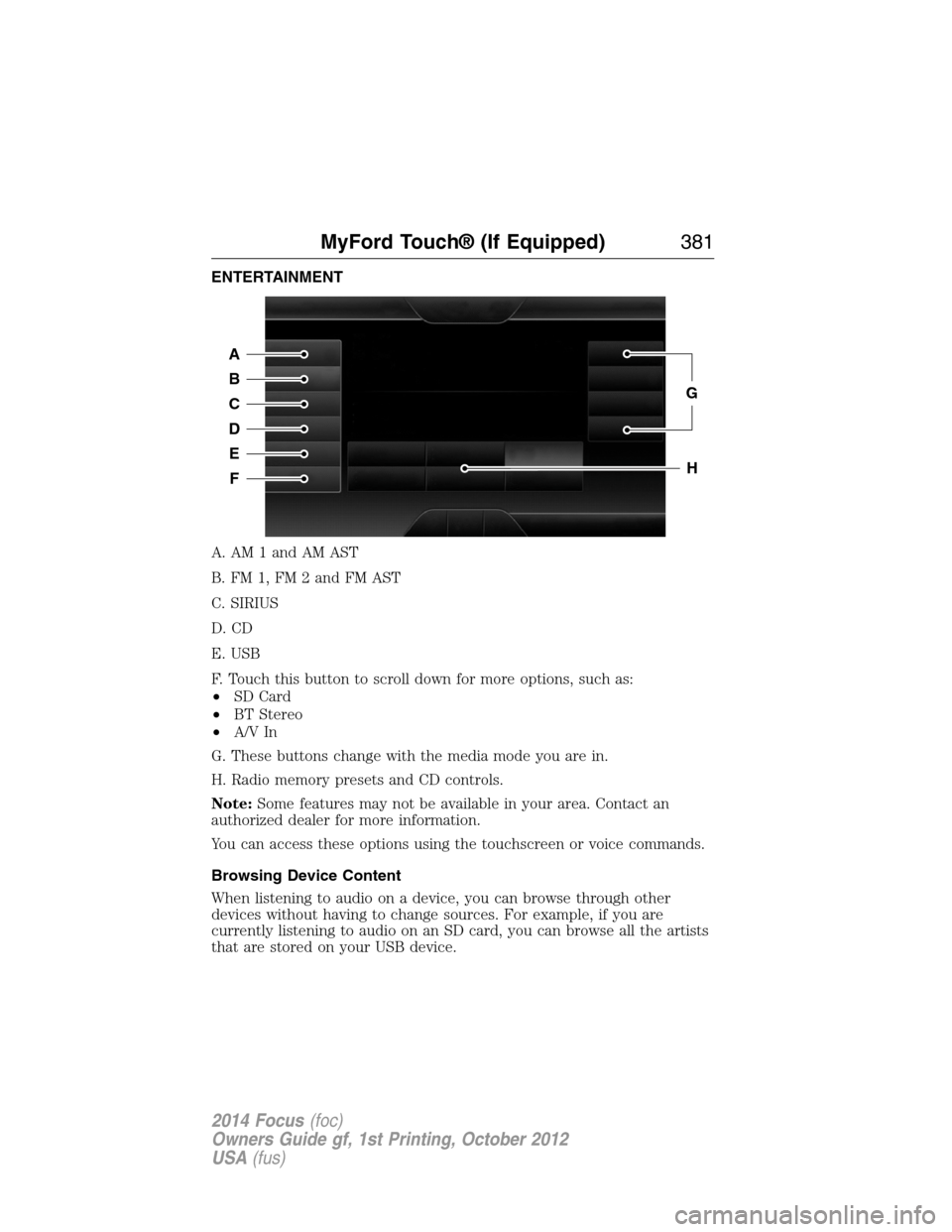
ENTERTAINMENT
A. AM 1 and AM AST
B. FM 1, FM 2 and FM AST
C. SIRIUS
D. CD
E. USB
F. Touch this button to scroll down for more options, such as:
•SD Card
•BT Stereo
•A/V In
G. These buttons change with the media mode you are in.
H. Radio memory presets and CD controls.
Note:Some features may not be available in your area. Contact an
authorized dealer for more information.
You can access these options using the touchscreen or voice commands.
Browsing Device Content
When listening to audio on a device, you can browse through other
devices without having to change sources. For example, if you are
currently listening to audio on an SD card, you can browse all the artists
that are stored on your USB device.
A
B
C
D
E
F
G
H
MyFord Touch® (If Equipped)381
2014 Focus(foc)
Owners Guide gf, 1st Printing, October 2012
USA(fus)
Page 383 of 492
Press the voice icon on the steering wheel. When prompted,
you can say:
“BROWSE” within devices
“Browse”*
“Browse
“Browse
“Browse Sirius channel guide”**
“Browse SD card”
“Browse USB”
“Help”
*If you have said “Browse”, you can then say any commands in the
following chart.
**This command is only usable if you have an active subscription to
Sirius satellite radio.
“BROWSE”
“
”
“SD card”**
“Sirius channel guide”*
“USB”**
“Help”
*This command is only usable if you have an active subscription to Sirius
satellite radio.
**For more commands in SD card or USB mode, see the “SD card and
USB Port” section of this chapter.
For a complete list of “Browse” voice commands, seeUSB and SD card
voice commandsandBluetooth audio voice commandsin the
following sections.
Your voice system allows you to change audio sources with a simple
voice command. For example, if you are listening to music on a USB
device, then want to switch to a satellite radio channel, simply press the
voice button on the steering wheel controls and say the name of the
Sirius station (such as, “the Highway”). The following voice commands
382MyFord Touch® (If Equipped)
2014 Focus(foc)
Owners Guide gf, 1st Printing, October 2012
USA(fus)
Page 384 of 492
are available at the top level of the voice session no matter which
current audio source you are listening to (such as a USB device or Sirius
satellite radio).Note:This is only available when your MyFord Touch
system language is set to North American English.
“AM <530 - 1710>” “FM <87.7 – 107.9>”
“<530 - 1710>” “<87.7 – 107.9>”
“Sirius <0-223>”
*“
“Play [genre]
“Play [artist]
“Play [album]
“Play
*
*
This command is only usable if you have an active subscription to Sirius
satellite radio.
**The commands that have[]around the word means that the word is
optional. For example, if you say, “Play Metallica”, this is the same as the
voice command, “Play [artist]
AM and FM
Touch theAMorFMtab to listen to the radio.
To change between AM and FM presets, just touch theAMor
FMtab.
Memory Presets
Save a station by pressing and holding one of the memory preset areas.
There is a brief mute while the radio saves the station. Sound returns
when finished.
HD Radio
Touch this button to turn HD Radio on. The light on the button
illuminates when the feature is on. HD Radio allows you to receive radio
broadcasts digitally, where available, providing free, crystal-clear sound.
SeeHD Radio informationlater in this chapter.
Scan
Touch this button to go to the next strong AM or FM radio station.
The light on the button illuminates when the feature is on.
MyFord Touch® (If Equipped)383
2014 Focus(foc)
Owners Guide gf, 1st Printing, October 2012
USA(fus)
Page 388 of 492
When HD Radio broadcasts are active, you can access the following
functions:
•Scanallows you to hear a brief sampling of all available stations.
This feature still works when HD Radio reception is on, although it
does not scan for HD2-HD7 channels. You may see the HD logo
appear if the station has a digital broadcast.
•Memory presetsallow you to save an active channel as a memory
preset. Touch and hold a memory preset slot until the sound returns.
There is a brief mute while the radio saves the station. Sound returns
when finished. When switching to an HD2 or HD3 memory preset, the
sound mutes before the digital audio plays, because the system has to
reacquire the digital signal.
•Note:As with any saved radio station, you cannot access the
saved station if your vehicle is outside the station’s reception area.
HD Radio Reception and Station Troubleshooting
Potential Reception Issues
Reception areaIf you are listening to a multicast station and
you are on the fringe of the reception area, the
station may mute due to weak signal strength.
If you are listening to HD1, the system switches
back to the analog broadcast until the digital
broadcast is available again. However, if you are
listening to any of the possible HD2 through
HD7 multicast channels, the station mutes and
stays muted unless it is able to connect to the
digital signal again.
Station blendingWhen the system first receives a station (aside
from HD2-HD7 multicast stations), it first plays
the station in the analog version. Once the
receiver verifies the station is an HD Radio
station, it shifts to the digital version.
Depending on the station quality, you may hear
a slight sound change when the station changes
from analog to digital. Blending is the shift
from analog to digital sound or digital back to
analog sound.
MyFord Touch® (If Equipped)387
2014 Focus(foc)
Owners Guide gf, 1st Printing, October 2012
USA(fus)
Page 390 of 492
HD Radio Technology manufactured under license from iBiquity Digital
Corp. U.S. and foreign patents. HD Radio and the HD and HD Radio
logos are proprietary trademarks of iBiquity Digital Corp. Ford Motor
Company and iBiquity Digital Corp. are not responsible for the content
sent using HD Radio technology. Content may be changed, added or
deleted at any time at the station owner’s discretion.
Sirius Satellite Radio (If Activated)
Press the lower left corner of the touchscreen, then select the
SIRIUStab.
Presets
Save a channel by pressing and holding one of the memory preset areas.
There is a brief mute while the radio saves the channel. Sound returns
when finished.
ALERT
Save the current song, artist, or team as a favorite. The system alerts
you when it plays again on any channel.
Replay
Replay audio on the current channel. You can replay approximately
45 minutes of audio as long as you have remained tuned to the current
station. Changing stations erases the previous audio.
While in replay mode:
•Press and release the seek buttons to hear the previous or next song.
•Press and hold the seek buttons to reverse or fast forward in the
current track.
•Press play or pause to play or pause the audio.
•PressReplayto return to live audio if you have been using the
feature to replay audio.
Scan
Touch this button to hear a brief sampling of channels.
Options
Sound Settingsallows you to adjust settings for:
•Bass
•Midrange
•Treble
MyFord Touch® (If Equipped)389
2014 Focus(foc)
Owners Guide gf, 1st Printing, October 2012
USA(fus)
Page 396 of 492
Scan
Touch this button to hear a brief sampling of all available tracks.
More Info
Touch this button to see disc information.
Options
Sound Settingsallows you to adjust settings for:
•Bass
•Midrange
•Treble
•Balance and Fade
•DSP (Digital Signal Processing)
•Occupancy Mode
•Speed Compensated Volume.
Note:Your vehicle may not have all these sound settings.
Compressionallows you to turn the compression feature on and off.
Browse
Touch this button to look through all available CD tracks.
CD Voice Commands
If you are listening to a CD, press the voice button on the
steering wheel control. When prompted, say any of the
commands in the following chart.
If you are not listening to a CD, press the voice button and, after the
tone, say “CD”, then any of the commands in the following chart.
“CD”
“Pause” “Repeat off”
“Play” “Repeat track”
“Play next track” “Shuffle”
“Play previous track” “Shuffle CD”
*
“Play track <1–512>” “Shuffle folder”*
“Repeat” “Shuffle off”
“Repeat folder”*“Help”
*This applies to WMA or MP3 files only.
MyFord Touch® (If Equipped)395
2014 Focus(foc)
Owners Guide gf, 1st Printing, October 2012
USA(fus)
Page 436 of 492
Climate Control Voice Commands
The following voice commands are available at the main menu
level of a voice session. For example, press the voice button
and after the prompt, “Say a command”; say any of the
following commands:
Climate control voice commands
“Climate automatic”
“Climate off”
“Climate on”
“Climate temperature <15.5–29.5> degrees”
“Climate temperature <60–85> degrees”
“Help”
There are additional climate control commands but in order to access
them, you have to say “Climate” first, then when the system is ready to
listen, you may say any of the following commands:
Additional climate control voice commands
“Automatic” “On”
“A/C off” “Panel floor on”
“A/C on” “Panel off”
“Defrost off” “Panel on”
“Defrost on” “Recirc off”
“Dual off” “Recirc on”
“Fan decrease” “Temperature”
*
“Fan increase”“Temperature <15.5–29.5> degrees”
“Floor off” “Temperature <60–85> degrees”
“Floor on” “Temperature decrease”
“Max A/C off” “Temperature high on”
“Max A/C on” “Temperature increase”
“Maximum fan” “Temperature low on”
“Maximum windshield off” “Windshield floor on”
“Maximum windshield on” “Windshield panel floor on”
“Minimum fan” “Windshield panel on”
“Off” “Help”
MyFord Touch® (If Equipped)435
2014 Focus(foc)
Owners Guide gf, 1st Printing, October 2012
USA(fus)
Page 448 of 492
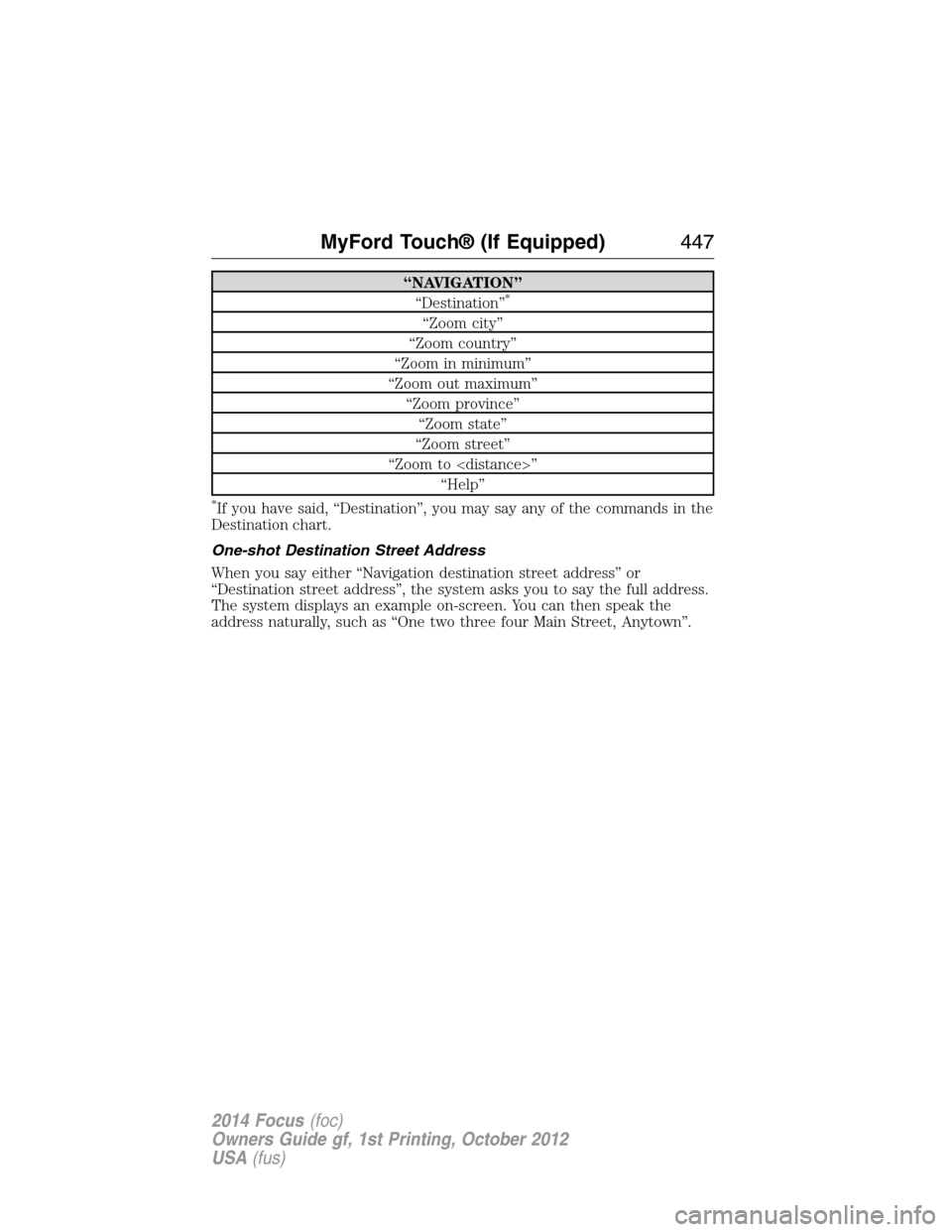
“NAVIGATION”
“Destination”*
“Zoom city”
“Zoom country”
“Zoom in minimum”
“Zoom out maximum”
“Zoom province”
“Zoom state”
“Zoom street”
“Zoom to
“Help”
*If you have said, “Destination”, you may say any of the commands in the
Destination chart.
One-shot Destination Street Address
When you say either “Navigation destination street address” or
“Destination street address”, the system asks you to say the full address.
The system displays an example on-screen. You can then speak the
address naturally, such as “One two three four Main Street, Anytown”.
MyFord Touch® (If Equipped)447
2014 Focus(foc)
Owners Guide gf, 1st Printing, October 2012
USA(fus)
Page 458 of 492
ordinance or regulation, including but not limited to laws and regulations
related to spamming, privacy, consumer and child protection, obscenity
or defamation, or (iii) is harmful, threatening, abusive, harassing,
tortuous, defamatory, vulgar, obscene, libelous, or otherwise
objectionable; and (f) lease, rent out, or otherwise permit unauthorized
access by third parties to the TeleNav Software without advanced written
permission of TeleNav.
4.Disclaimers
To the fullest extent permissible pursuant to applicable law, in no event
will TeleNav, its licensors and suppliers, or agents or employees of any
of the foregoing, be liable for any decision made or action taken by you
or anyone else in reliance on the information provided by the TeleNav
Software. TeleNav also does not warrant the accuracy of the map or
other data used for the TeleNav Software. Such data may not always
reflect reality due to, among other things, road closures, construction,
weather, new roads and other changing conditions. You are responsible
for the entire risk arising out of your use of the TeleNav Software. For
example but without limitation, you agree not to rely on the TeleNav
Software for critical navigation in areas where the well-being or survival
of you or others is dependent on the accuracy of navigation, as the maps
or functionality of the TeleNav Software are not intended to support
such high risk applications, especially in more remote geographical areas.
TELENAV EXPRESSLY DISCLAIMS AND EXCLUDES ALL WARRANTIES
IN CONNECTION WITH THE TELENAV SOFTWARE, WHETHER
STATUTORY, EXPRESS OR IMPLIED, INCLUDING ALL WARRANTIES
WHICH MAY ARISE FROM COURSE OF DEALING, CUSTOM OR TRADE
AND INCLUDING, BUT NOT LIMITED TO, THE IMPLIED WARRANTIES
OF MERCHANTABILITY, FITNESS FOR A PARTICULAR PURPOSE AND
NON-INFRINGEMENT OF THIRD PARTY RIGHTS WITH RESPECT TO
THE TELENAV SOFTWARE. Certain jurisdictions do not permit the
disclaimer of certain warranties, so this limitation may not apply to you.
5.Limitation of Liability
TO THE EXTENT PERMITTED UNDER APPLICABLE LAW, UNDER
NO CIRCUMSTANCES SHALL TELENAV OR ITS LICENSORS AND
SUPPLIERS BE LIABLE TO YOU OR TO ANY THIRD PARTY FOR ANY
INDIRECT, INCIDENTAL, CONSEQUENTIAL, SPECIAL OR EXEMPLARY
DAMAGES (INCLUDING IN EACH CASE, BUT NOT LIMITED TO,
DAMAGES FOR THE INABILITY TO USE THE EQUIPMENT OR
ACCESS DATA, LOSS OF DATA, LOSS OF BUSINESS, LOSS OF
PROFITS, BUSINESS INTERRUPTION OR THE LIKE) ARISING OUT
Appendices457
2014 Focus(foc)
Owners Guide gf, 1st Printing, October 2012
USA(fus)