reset FORD FOCUS 2014 3.G User Guide
[x] Cancel search | Manufacturer: FORD, Model Year: 2014, Model line: FOCUS, Model: FORD FOCUS 2014 3.GPages: 492, PDF Size: 7.2 MB
Page 236 of 492
Resetting the Oil Life Monitoring System
Note:Reset the oil life monitoring only after an oil change.
1. Turn the ignition key to the on position. Do not start the engine.
For vehicles with push-button start, press and hold the start button for
two seconds without pressing the brake pedal. Do not attempt to start
the engine.
2. Press both the accelerator and brake pedals at the same time.
3. Keep both pedals fully pressed.
4. After three seconds, theService: Oil reset in prog.message will be
displayed.
5. After 25 seconds, theService: Oil reset completemessage will be
displayed.
6. Release both the accelerator and brake pedals.
7.
TheService: Oil reset completemessage will no longer be displayed.
8. Rotate the key to the off position.
For vehicles with push-button start, press the start button to turn the
vehicle off completely.
ENGINE COOLANT CHECK
Checking the Engine Coolant
The concentration and level of engine coolant should be checked at the
intervals listed inscheduled maintenance information.
The coolant concentration should be maintained within 48% to 50%, which
equates to a freeze point between -30°F (-34°C) and -34°F (-37°C).
Note:For best results, coolant concentration should be tested with a
refractometer such as Rotunda tool 300-ROB75240 available from your
dealer. Ford does not recommend the use of hydrometers or coolant test
strips for measuring coolant concentrations.
Note:Make sure that the level is between the MIN and MAX marks on
the coolant reservoir.
Note:Coolant expands when it is hot. The level may extend beyond the
MAX mark.
If the level is at the MIN mark, add coolant immediately. SeeAdding
Engine Coolantin this chapter.
Note:Automotive fluids are not interchangeable; do not use engine
coolant/antifreeze or windshield washer fluid outside of its specified
function and vehicle location.
Maintenance235
2014 Focus(foc)
Owners Guide gf, 1st Printing, October 2012
USA(fus)
Page 242 of 492
It is recommended that the negative battery cable terminal be
disconnected from the battery if you plan to store your vehicle for an
extended period of time.
To ensure proper operation of the battery management system (BMS),
any electrical devices that are added to the vehicle should not have their
ground connection made directly at the negative battery post. A connection
at the negative battery post can cause inaccurate measurements of the
battery condition and potential incorrect system operation.
Note:Electrical or electronic accessories or components added to the
vehicle by the dealer or the owner may adversely affect battery
performance and durability and may also affect the performance of other
electrical systems in the vehicle.
When a battery replacement is required, the battery should only be
replaced with a Ford recommended replacement battery that matches
the electrical requirements of the vehicle.
When the battery is disconnected or a new battery installed, the
automatic transmission must relearn its adaptive strategy. As a result of
this, the transmission may shift firmly when first driven. This operation
is considered normal and will fully update transmission operation to its
optimum shift feel.
If the battery has been disconnected or a new battery has been installed,
the clock and the preset radio stations must be reset once the battery is
reconnected.
Note:Always dispose of automotive batteries in a responsible manner.
Follow your local authorized standards for disposal. Call your local
authorized recycling center to find out more about recycling automotive
batteries.
CHECKING THE WIPER BLADES
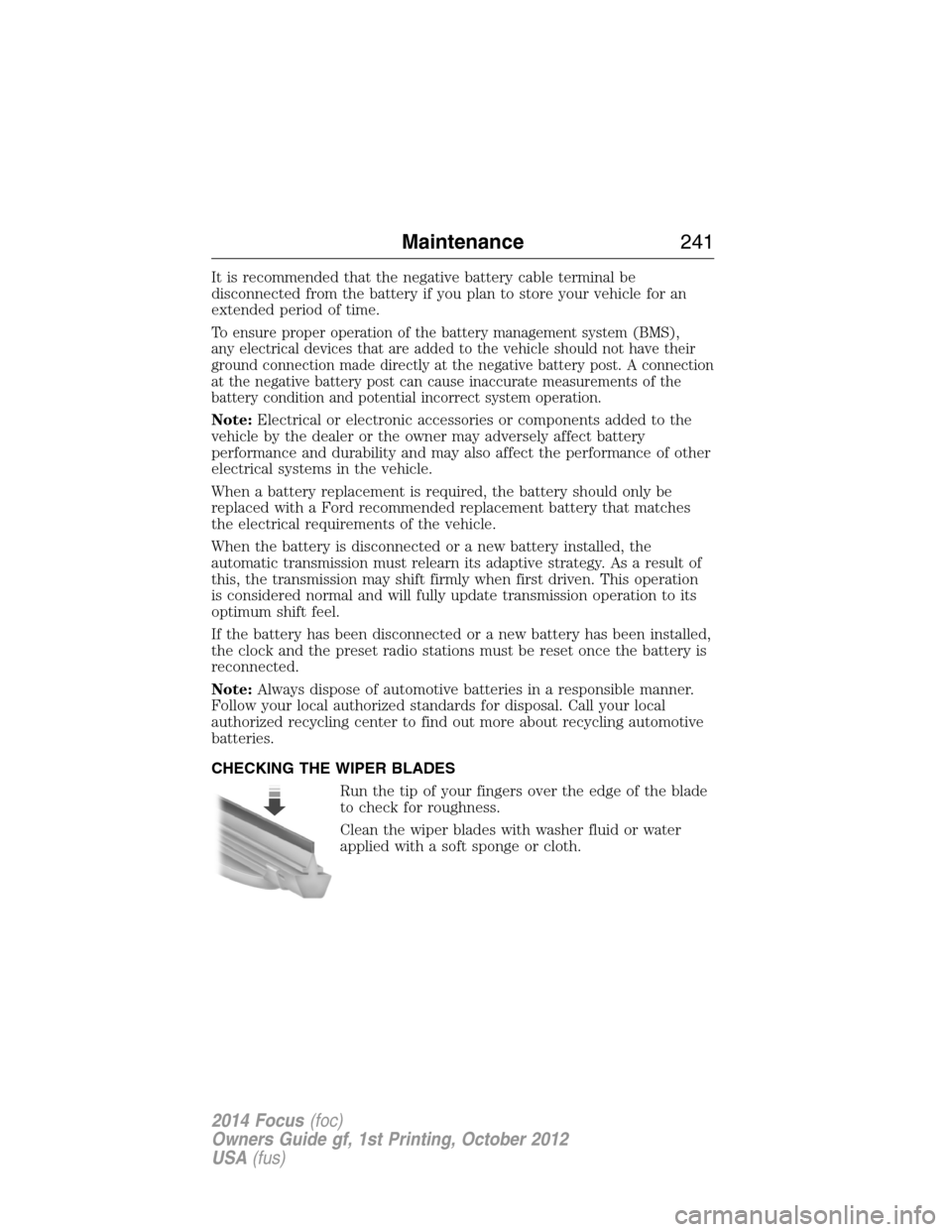
Run the tip of your fingers over the edge of the blade
to check for roughness.
Clean the wiper blades with washer fluid or water
applied with a soft sponge or cloth.
Maintenance241
2014 Focus(foc)
Owners Guide gf, 1st Printing, October 2012
USA(fus)
Page 262 of 492
•Start the engine every 15 days. Run at fast idle until it reaches normal
operating temperature.
•With your foot on the brake, shift through all the gears while the
engine is running.
Fuel system
•Fill the fuel tank with high-quality fuel until the first automatic shutoff
of the fuel pump nozzle.
Note:During extended periods of vehicle storage (30 days or more),
fuel may deteriorate due to oxidation. Add a quality gas stabilizer
product to the vehicle fuel system whenever actual or expected storage
periods exceed 30 days. Follow the instructions on the additive label.
The vehicle should then be operated at idle speed to circulate the
additive throughout the fuel system.
Cooling system
•Protect against freezing temperatures.
•When removing vehicle from storage, check coolant fluid level.
Confirm there are no cooling system leaks, and fluid is at the
recommended level.
Battery
•Check and recharge as necessary. Keep connections clean.
•If storing your vehicle for more than 30 days without recharging the
battery, it may be advisable to disconnect the battery cables to ensure
battery charge is maintained for quick starting.
Note:If battery cables are disconnected, it will be necessary to reset
memory features.
Brakes
•Make sure brakes and parking brake are fully released.
Tires
•Maintain recommended air pressure.
Miscellaneous
•Make sure all linkages, cables, levers and pins under vehicle are
covered with grease to prevent rust.
•Move vehicles at least 25 feet (8 meters) every 15 days to lubricate
working parts and prevent corrosion.
Vehicle Care261
2014 Focus(foc)
Owners Guide gf, 1st Printing, October 2012
USA(fus)
Page 305 of 492
C.OK:
•Press the up and down or left and right arrow buttons to browse
menu selections.
•PressOKto confirm menu selections.
D.Clock:Push to access clock settings.
E.TUNE:Press this button to manually search the frequency band.
F.Memory presets:
•In radio mode, store your favorite radio stations. To store a radio
station, tune to the station, then press and hold a preset button until
sound returns.
•In CD mode, press one of these buttons to select a track.
G.Seek:
•Press and release this button to go to the previous or next preset
radio station or disc track.
•Press and hold this button to fast forward to the previous or next
strong radio station, memory preset or through the current disc track.
H.ON/OFF:
•Press this button to switch the system off and on.
•Turn it to adjust the volume.
I.MENU:Press this button to access different audio system features.
SeeMenu structurelater in this section.
J.INFO:Press this button to access any available radio or CD
information.
K.SOUND:
•Press this button to access settings for Treble, Middle, Bass, Fade and
Balance.
•Use the up and down arrow buttons to select the various settings.
When you make your selection, press the left and right arrow buttons
to change the settings. PressOKto set or pressMENUto exit.
•Sound settings can be set for each audio source independently.
L.MEDIA:Press this button to switch between listening to a CD and
the SYNC-Media menu. To change the SYNC-Media device (such as
switching from a device plugged into the USB port to a Bluetooth audio
device), pressMENUand scroll toSelect Source.
M.RADIO:Press this button to listen to the radio or change radio
frequencies. Press the function buttons below the radio screen to select
different radio functions.
304Audio System
2014 Focus(foc)
Owners Guide gf, 1st Printing, October 2012
USA(fus)
Page 307 of 492
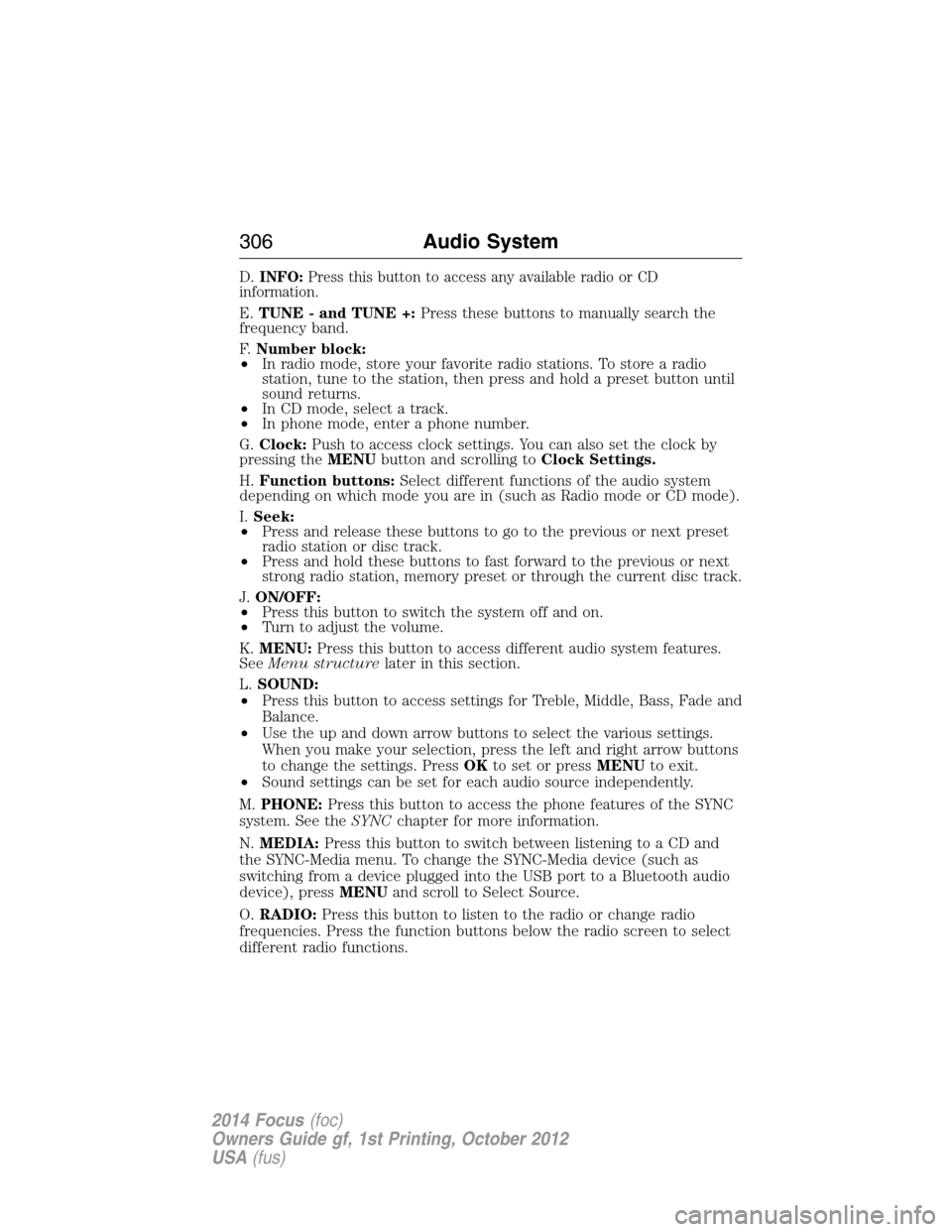
D.INFO:Press this button to access any available radio or CD
information.
E.TUNE - and TUNE +:Press these buttons to manually search the
frequency band.
F.Number block:
•In radio mode, store your favorite radio stations. To store a radio
station, tune to the station, then press and hold a preset button until
sound returns.
•In CD mode, select a track.
•In phone mode, enter a phone number.
G.Clock:Push to access clock settings. You can also set the clock by
pressing theMENUbutton and scrolling toClock Settings.
H.Function buttons:Select different functions of the audio system
depending on which mode you are in (such as Radio mode or CD mode).
I.Seek:
•Press and release these buttons to go to the previous or next preset
radio station or disc track.
•Press and hold these buttons to fast forward to the previous or next
strong radio station, memory preset or through the current disc track.
J.ON/OFF:
•Press this button to switch the system off and on.
•Turn to adjust the volume.
K.MENU:Press this button to access different audio system features.
SeeMenu structurelater in this section.
L.SOUND:
•Press this button to access settings for Treble, Middle, Bass, Fade and
Balance.
•Use the up and down arrow buttons to select the various settings.
When you make your selection, press the left and right arrow buttons
to change the settings. PressOKto set or pressMENUto exit.
•Sound settings can be set for each audio source independently.
M.PHONE:Press this button to access the phone features of the SYNC
system. See theSYNCchapter for more information.
N.MEDIA:Press this button to switch between listening to a CD and
the SYNC-Media menu. To change the SYNC-Media device (such as
switching from a device plugged into the USB port to a Bluetooth audio
device), pressMENUand scroll to Select Source.
O.RADIO:Press this button to listen to the radio or change radio
frequencies. Press the function buttons below the radio screen to select
different radio functions.
306Audio System
2014 Focus(foc)
Owners Guide gf, 1st Printing, October 2012
USA(fus)
Page 309 of 492
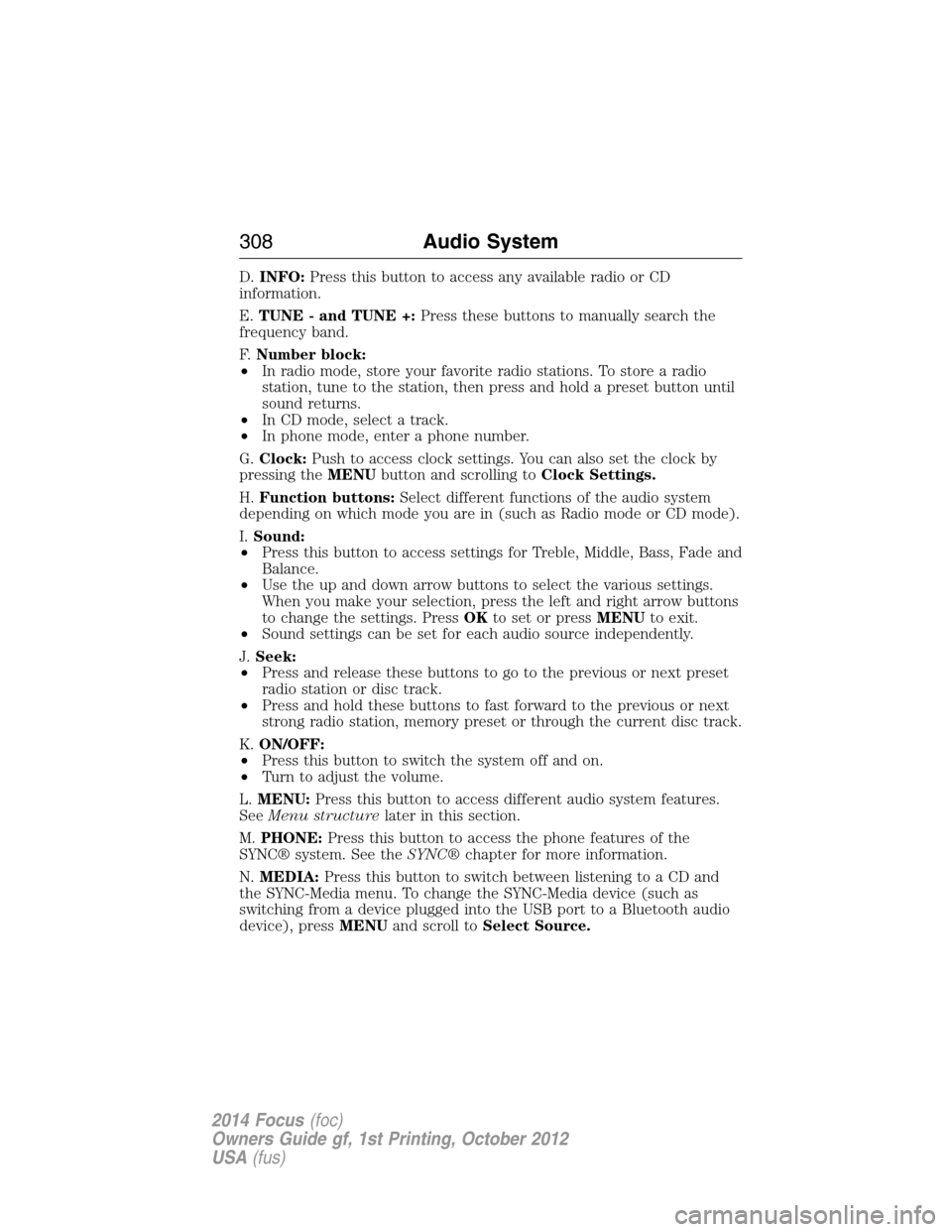
D.INFO:Press this button to access any available radio or CD
information.
E.TUNE - and TUNE +:Press these buttons to manually search the
frequency band.
F.Number block:
•In radio mode, store your favorite radio stations. To store a radio
station, tune to the station, then press and hold a preset button until
sound returns.
•In CD mode, select a track.
•In phone mode, enter a phone number.
G.Clock:Push to access clock settings. You can also set the clock by
pressing theMENUbutton and scrolling toClock Settings.
H.Function buttons:Select different functions of the audio system
depending on which mode you are in (such as Radio mode or CD mode).
I.Sound:
•Press this button to access settings for Treble, Middle, Bass, Fade and
Balance.
•Use the up and down arrow buttons to select the various settings.
When you make your selection, press the left and right arrow buttons
to change the settings. PressOKto set or pressMENUto exit.
•Sound settings can be set for each audio source independently.
J.Seek:
•Press and release these buttons to go to the previous or next preset
radio station or disc track.
•Press and hold these buttons to fast forward to the previous or next
strong radio station, memory preset or through the current disc track.
K.ON/OFF:
•Press this button to switch the system off and on.
•Turn to adjust the volume.
L.MENU:Press this button to access different audio system features.
SeeMenu structurelater in this section.
M.PHONE:Press this button to access the phone features of the
SYNC® system. See theSYNC®chapter for more information.
N.MEDIA:Press this button to switch between listening to a CD and
the SYNC-Media menu. To change the SYNC-Media device (such as
switching from a device plugged into the USB port to a Bluetooth audio
device), pressMENUand scroll toSelect Source.
308Audio System
2014 Focus(foc)
Owners Guide gf, 1st Printing, October 2012
USA(fus)
Page 315 of 492
HD RADIO™ INFORMATION (IF AVAILABLE)
Note:HD Radio broadcasts are not available in all markets.
HD Radio technology is the digital evolution of analog AM/FM radio.
Your system has a special receiver that allows it to receive digital
broadcasts (where available) in addition to the analog broadcasts, it
already receives. Digital broadcasts provide a better sound quality
than analog broadcasts with free, crystal-clear audio and no static or
distortion. For more information, and a guide to available stations and
programming, please visit www.hdradio.com.
When HD Radio is on and you tune to a station broadcasting HD Radio
technology, you may notice the HD Radio logo on your screen. When this
logo is available, you may also see Title and Artist fields on-screen.
The multicast indicator appears in FM mode (only) if the current station
is broadcasting multiple digital broadcasts. The highlighted numbers
signify available digital channels where new or different content is
available. HD1 signifies the main programming status and is available in
analog and digital broadcasts. Other multicast stations (HD2 through
HD7) are only available digitally.
When HD Radio broadcasts are active, you can access the following
functions:
When you select: You can:
ScanHear a brief sampling of all available stations.
This feature still works when HD Radio
reception is on, although it does not scan for
HD2-HD7 channels. You may see the HD logo
appear if the station has a digital broadcast.
To save a multicast
station as a presetWhen the channel is active on-screen, press
and hold a memory preset slot until the sound
returns. There is a brief mute while the radio
saves the station. Sound returns when
finished. When recalling a HD2 or HD3
memory preset, there is a mute before the
digital audio plays, as the system must once
again acquire the digital signal.
As with any saved radio station, you cannot
access the saved station if your vehicle is
outside the station’s reception area.
314Audio System
2014 Focus(foc)
Owners Guide gf, 1st Printing, October 2012
USA(fus)
Page 317 of 492
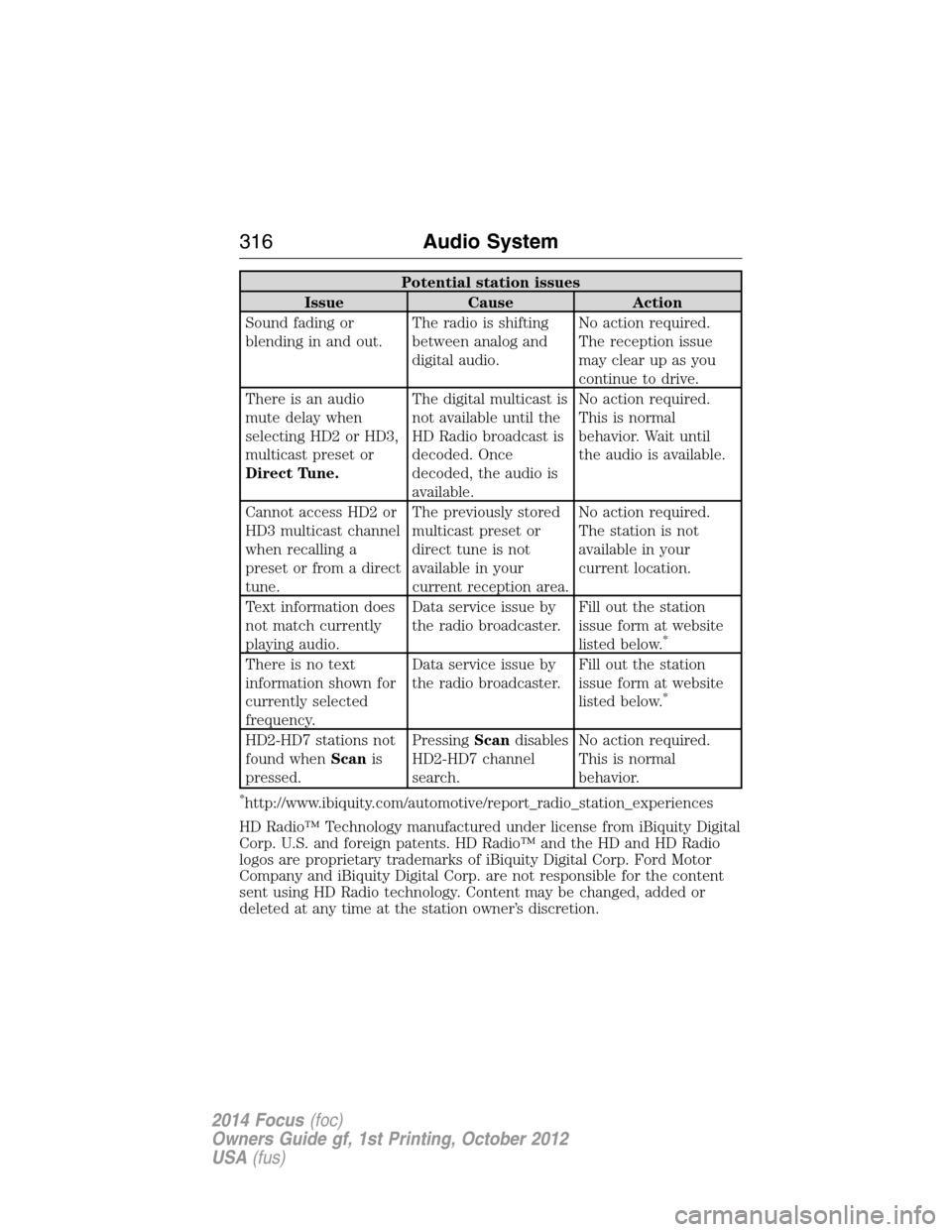
Potential station issues
Issue Cause Action
Sound fading or
blending in and out.The radio is shifting
between analog and
digital audio.No action required.
The reception issue
may clear up as you
continue to drive.
There is an audio
mute delay when
selecting HD2 or HD3,
multicast preset or
Direct Tune.The digital multicast is
not available until the
HD Radio broadcast is
decoded. Once
decoded, the audio is
available.No action required.
This is normal
behavior. Wait until
the audio is available.
Cannot access HD2 or
HD3 multicast channel
when recalling a
preset or from a direct
tune.The previously stored
multicast preset or
direct tune is not
available in your
current reception area.No action required.
The station is not
available in your
current location.
Text information does
not match currently
playing audio.Data service issue by
the radio broadcaster.Fill out the station
issue form at website
listed below.
*
There is no text
information shown for
currently selected
frequency.Data service issue by
the radio broadcaster.Fill out the station
issue form at website
listed below.
*
HD2-HD7 stations not
found whenScanis
pressed.PressingScandisables
HD2-HD7 channel
search.No action required.
This is normal
behavior.
*http://www.ibiquity.com/automotive/report_radio_station_experiences
HD Radio™ Technology manufactured under license from iBiquity Digital
Corp. U.S. and foreign patents. HD Radio™ and the HD and HD Radio
logos are proprietary trademarks of iBiquity Digital Corp. Ford Motor
Company and iBiquity Digital Corp. are not responsible for the content
sent using HD Radio technology. Content may be changed, added or
deleted at any time at the station owner’s discretion.
316Audio System
2014 Focus(foc)
Owners Guide gf, 1st Printing, October 2012
USA(fus)
Page 319 of 492
Sirius satellite radio is a
subscription-based satellite radio
service that broadcasts a variety of
music, sports, news, weather, traffic
and entertainment programming.
Your factory-installed Sirius satellite
radio system includes hardware and
a limited subscription term which begins on the date of sale or lease of
your vehicle. See an authorized dealer for availability.
For more information on extended subscription terms (a service fee is
required), the online media player and a complete list of Sirius satellite
radio channels, and other features, please visit www.siriusxm.com in the
United States, www.sirius.ca in Canada, or call Sirius at 1–888–539–7474.
Satellite Radio Electronic Serial Number (ESN)
You need your ESN to activate, modify or track your satellite radio
account. When in satellite radio mode, you can view this number by
pressingSIRIUSand memory preset 1 at the same time. To access your
ESN, press the bottom left corner of the touchscreen, thenSIRIUS>
Options.
Troubleshooting
Radio display Condition Possible action
Acquiring Radio requires more
than two seconds to
produce audio for the
selected channel.No action required.
This message should
disappear shortly.
Sat Fault/SIRIUS
system failureThere is an internal
module or system
failure present.If this message does
not clear shortly, or
with an ignition key
cycle, your receiver
may have a fault. See
an authorized dealer
for service.
318Audio System
2014 Focus(foc)
Owners Guide gf, 1st Printing, October 2012
USA(fus)
Page 320 of 492
Radio display Condition Possible action
Invalid Channel The channel is no
longer available.Tune to another
channel or choose
another preset.
Unsubscribed Channel Your subscription
does not include this
channel.Contact Sirius at
1–888–539–7474 to
subscribe to the
channel, or tune to
another channel.
No Signal The signal is lost from
the Sirius satellite or
Sirius tower to your
vehicle antenna.The signal is blocked.
When you move into
an open area, the
signal should return.
Updating Update of channel
programming in
progress.No action required.
The process may take
up to three minutes.
Call SIRIUS
1–888–539–7474Your satellite service is
no longer available.Call Sirius at
1–888–539–7474 to
resolve subscription
issues.
None Found. Check
Channel Guide.All the channels in the
selected category are
either skipped or
locked.Use the channel guide
to turn off the Lock or
Skip function on that
station.
Subscription Updated Sirius has updated the
channels available for
your vehicle.No action required.
Audio System319
2014 Focus(foc)
Owners Guide gf, 1st Printing, October 2012
USA(fus)