wheel FORD FOCUS 2015 3.G Manual PDF
[x] Cancel search | Manufacturer: FORD, Model Year: 2015, Model line: FOCUS, Model: FORD FOCUS 2015 3.GPages: 453, PDF Size: 5.32 MB
Page 335 of 453
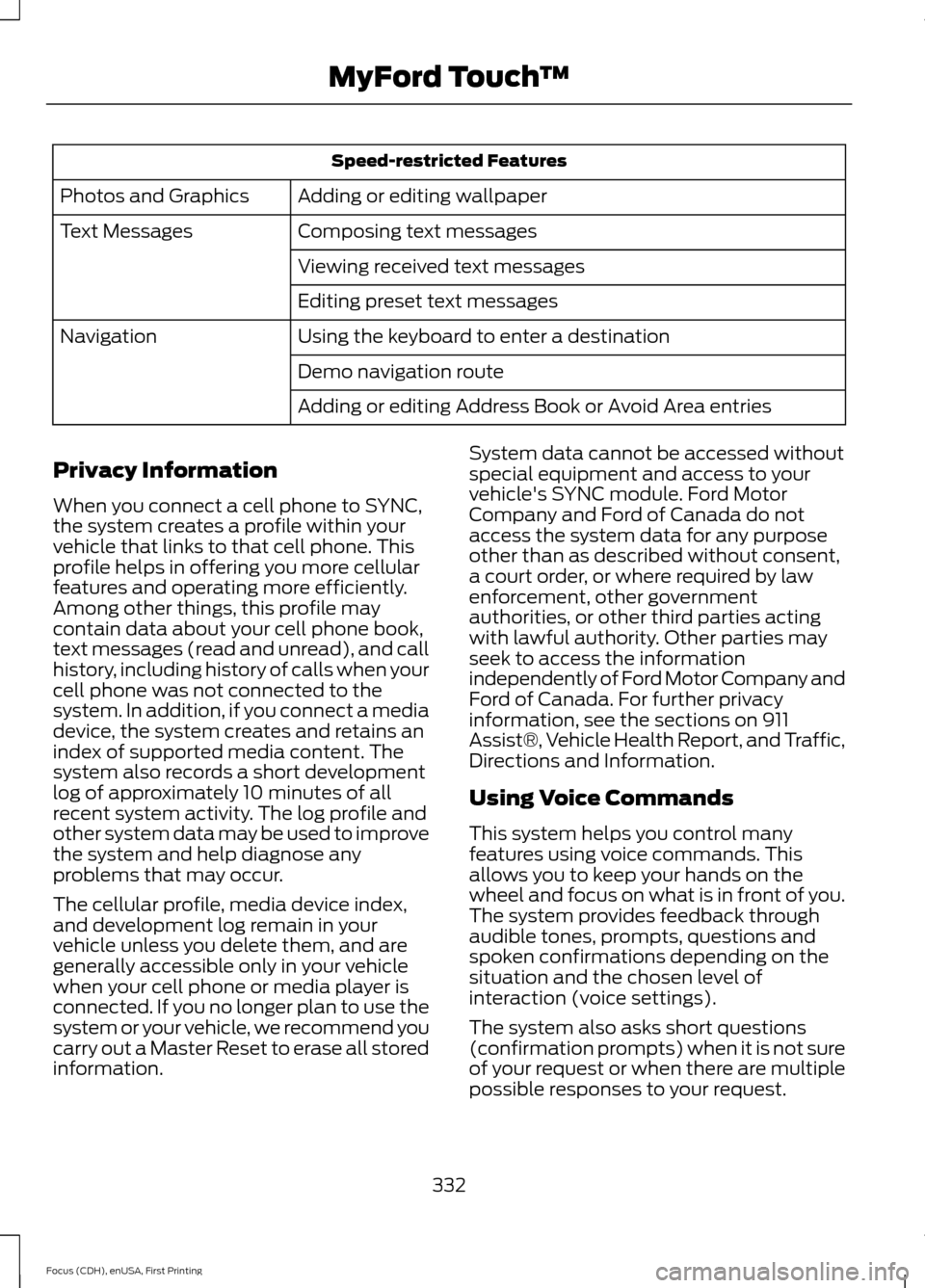
Speed-restricted Features
Adding or editing wallpaper
Photos and Graphics
Composing text messages
Text Messages
Viewing received text messages
Editing preset text messages
Using the keyboard to enter a destination
Navigation
Demo navigation route
Adding or editing Address Book or Avoid Area entries
Privacy Information
When you connect a cell phone to SYNC,
the system creates a profile within your
vehicle that links to that cell phone. This
profile helps in offering you more cellular
features and operating more efficiently.
Among other things, this profile may
contain data about your cell phone book,
text messages (read and unread), and call
history, including history of calls when your
cell phone was not connected to the
system. In addition, if you connect a media
device, the system creates and retains an
index of supported media content. The
system also records a short development
log of approximately 10 minutes of all
recent system activity. The log profile and
other system data may be used to improve
the system and help diagnose any
problems that may occur.
The cellular profile, media device index,
and development log remain in your
vehicle unless you delete them, and are
generally accessible only in your vehicle
when your cell phone or media player is
connected. If you no longer plan to use the
system or your vehicle, we recommend you
carry out a Master Reset to erase all stored
information. System data cannot be accessed without
special equipment and access to your
vehicle's SYNC module. Ford Motor
Company and Ford of Canada do not
access the system data for any purpose
other than as described without consent,
a court order, or where required by law
enforcement, other government
authorities, or other third parties acting
with lawful authority. Other parties may
seek to access the information
independently of Ford Motor Company and
Ford of Canada. For further privacy
information, see the sections on 911
Assist®, Vehicle Health Report, and Traffic,
Directions and Information.
Using Voice Commands
This system helps you control many
features using voice commands. This
allows you to keep your hands on the
wheel and focus on what is in front of you.
The system provides feedback through
audible tones, prompts, questions and
spoken confirmations depending on the
situation and the chosen level of
interaction (voice settings).
The system also asks short questions
(confirmation prompts) when it is not sure
of your request or when there are multiple
possible responses to your request.
332
Focus (CDH), enUSA, First Printing MyFord Touch
™
Page 336 of 453
When using voice commands, words and
icons may appear in the lower left status
bar indicating the status of the voice
command session (such as Listening,
Success, Failed, Paused or Try Again).
How to Use Voice Commands
The following are some of the
voice commands that you can
say at any time during a voice
command session.
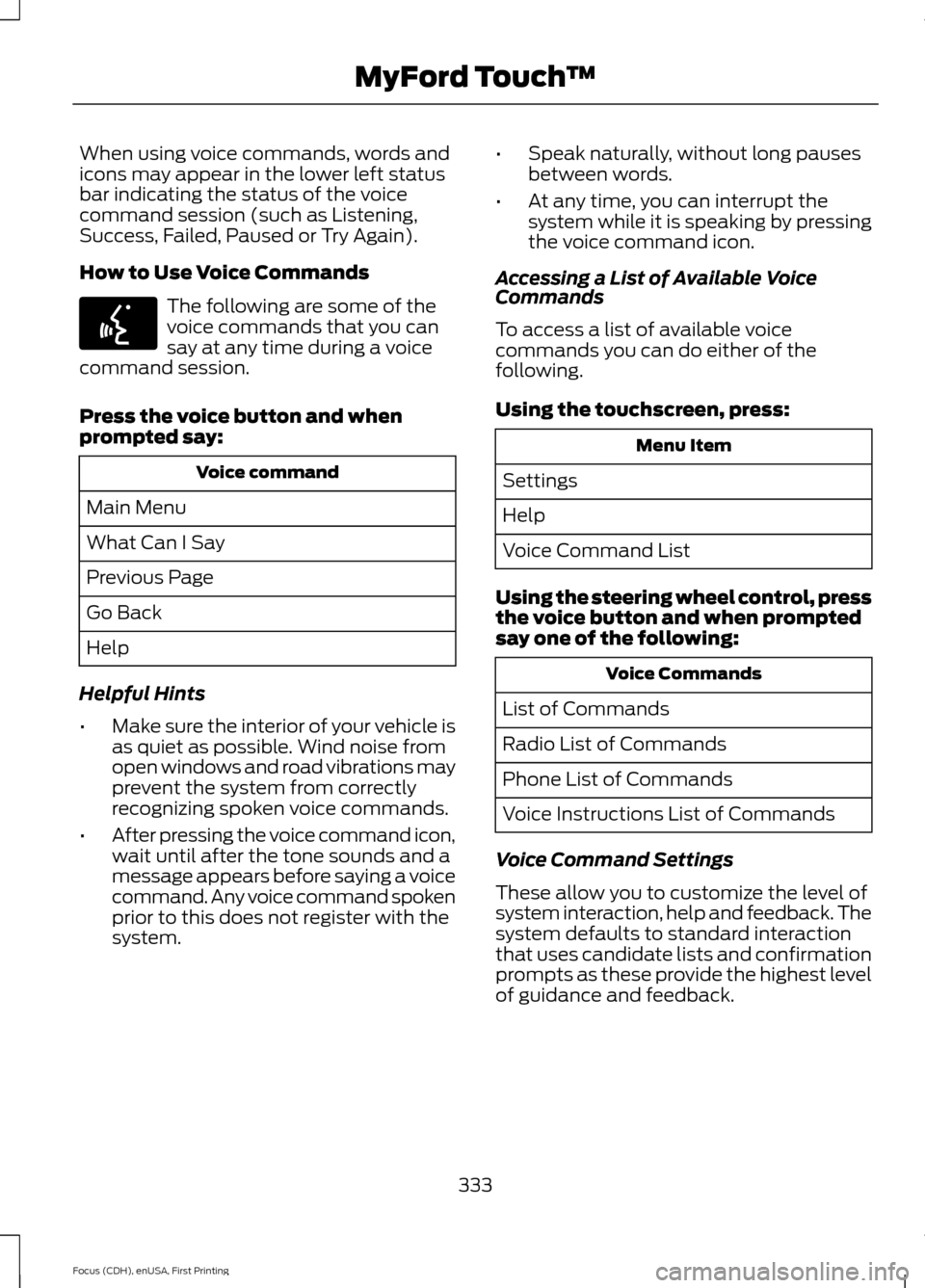
Press the voice button and when
prompted say: Voice command
Main Menu
What Can I Say
Previous Page
Go Back
Help
Helpful Hints
• Make sure the interior of your vehicle is
as quiet as possible. Wind noise from
open windows and road vibrations may
prevent the system from correctly
recognizing spoken voice commands.
• After pressing the voice command icon,
wait until after the tone sounds and a
message appears before saying a voice
command. Any voice command spoken
prior to this does not register with the
system. •
Speak naturally, without long pauses
between words.
• At any time, you can interrupt the
system while it is speaking by pressing
the voice command icon.
Accessing a List of Available Voice
Commands
To access a list of available voice
commands you can do either of the
following.
Using the touchscreen, press: Menu Item
Settings
Help
Voice Command List
Using the steering wheel control, press
the voice button and when prompted
say one of the following: Voice Commands
List of Commands
Radio List of Commands
Phone List of Commands
Voice Instructions List of Commands
Voice Command Settings
These allow you to customize the level of
system interaction, help and feedback. The
system defaults to standard interaction
that uses candidate lists and confirmation
prompts as these provide the highest level
of guidance and feedback.
333
Focus (CDH), enUSA, First Printing MyFord Touch
™E142599
Page 339 of 453
Action and Description
Menu Item
You can also switch the outside air temperature display off
and on. It appears at the top center of the touchscreen, next
to the time and date.
Note: You cannot manually set the date. Your vehicle ’s GPS does this for you.
Note: If the battery has been disconnected, your vehicle needs to acquire a GPS signal to
update the clock. Once your vehicle acquires the signal, it may take a few minutes for the
update to display the correct time.
Display You can adjust the display using
the touchscreen or the voice
button on the steering wheel
controls.
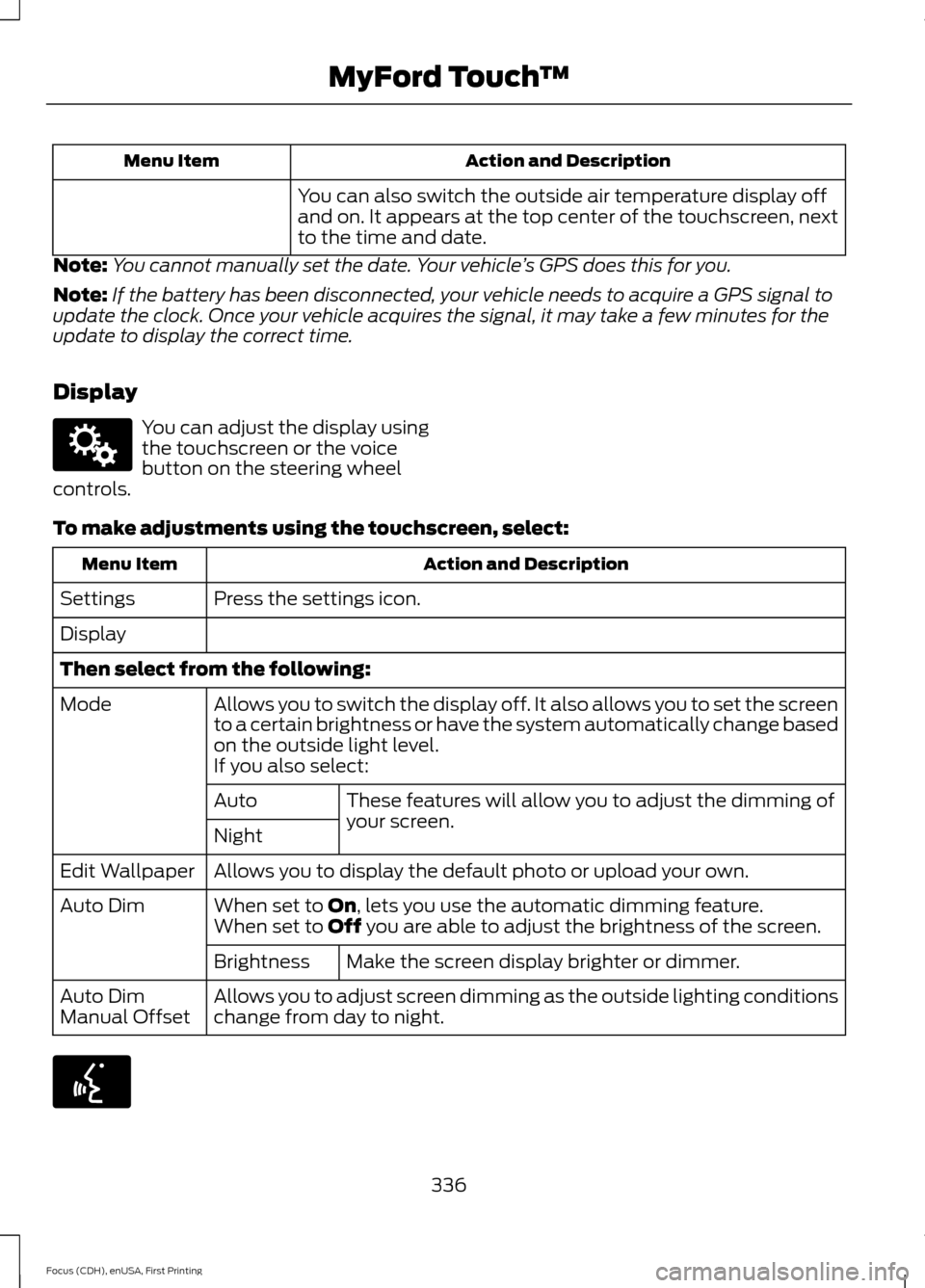
To make adjustments using the touchscreen, select: Action and Description
Menu Item
Press the settings icon.
Settings
Display
Then select from the following:
Allows you to switch the display off. It also allows you to set the screen
to a certain brightness or have the system automatically change based
on the outside light level.
Mode
If you also select:These features will allow you to adjust the dimming of
your screen.
Auto
Night
Allows you to display the default photo or upload your own.
Edit Wallpaper
When set to On, lets you use the automatic dimming feature.
Auto Dim
When set to Off you are able to adjust the brightness of the screen.
Make the screen display brighter or dimmer.
Brightness
Allows you to adjust screen dimming as the outside lighting conditions
change from day to night.
Auto Dim
Manual Offset 336
Focus (CDH), enUSA, First Printing MyFord Touch
™E142607 E142599
Page 360 of 453
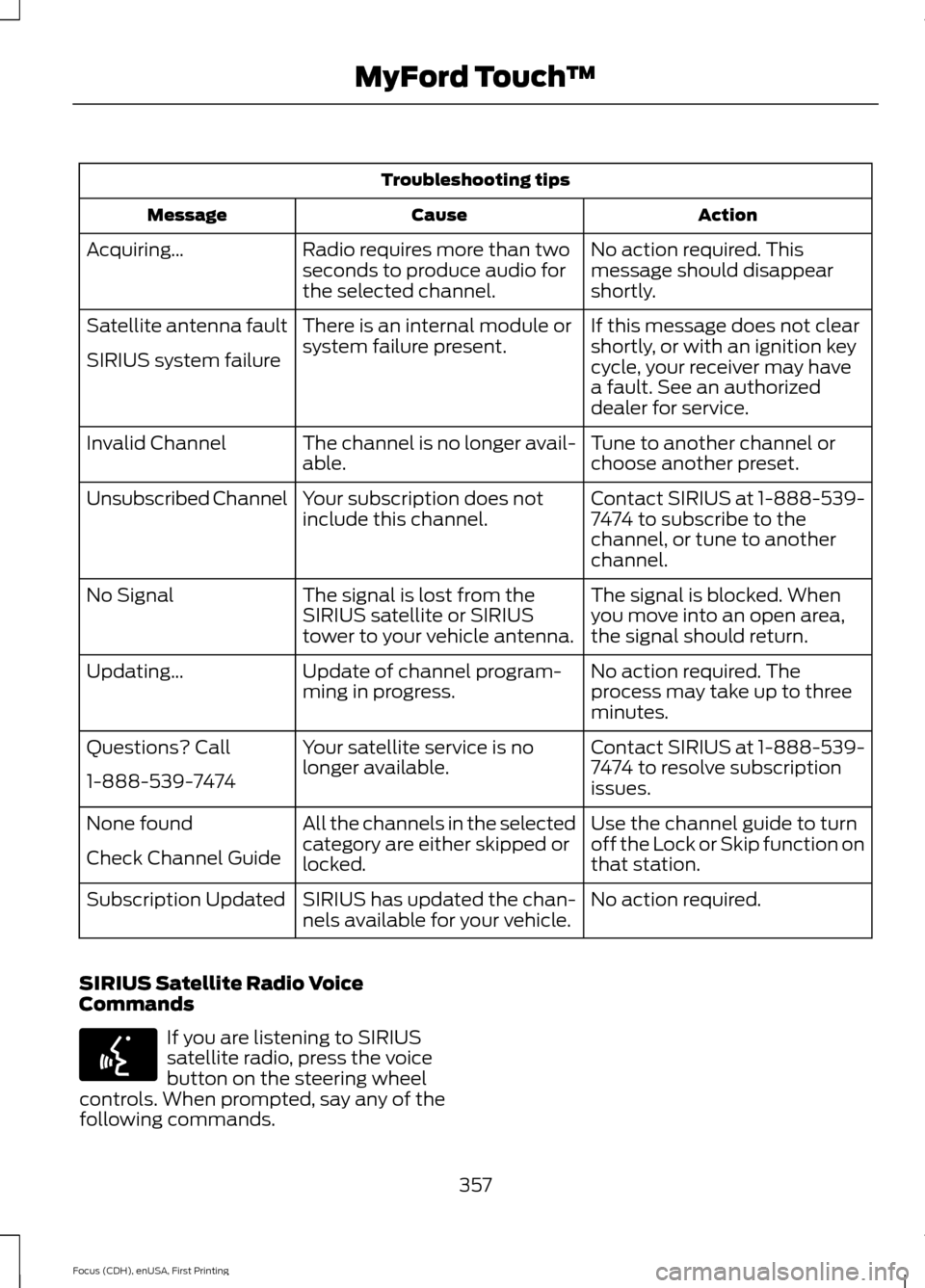
Troubleshooting tips
Action
Cause
Message
No action required. This
message should disappear
shortly.
Radio requires more than two
seconds to produce audio for
the selected channel.
Acquiring…
If this message does not clear
shortly, or with an ignition key
cycle, your receiver may have
a fault. See an authorized
dealer for service.
There is an internal module or
system failure present.
Satellite antenna fault
SIRIUS system failure
Tune to another channel or
choose another preset.
The channel is no longer avail-
able.
Invalid Channel
Contact SIRIUS at 1-888-539-
7474 to subscribe to the
channel, or tune to another
channel.
Your subscription does not
include this channel.
Unsubscribed Channel
The signal is blocked. When
you move into an open area,
the signal should return.
The signal is lost from the
SIRIUS satellite or SIRIUS
tower to your vehicle antenna.
No Signal
No action required. The
process may take up to three
minutes.
Update of channel program-
ming in progress.
Updating…
Contact SIRIUS at 1-888-539-
7474 to resolve subscription
issues.
Your satellite service is no
longer available.
Questions? Call
1-888-539-7474
Use the channel guide to turn
off the Lock or Skip function on
that station.
All the channels in the selected
category are either skipped or
locked.
None found
Check Channel Guide
No action required.
SIRIUS has updated the chan-
nels available for your vehicle.
Subscription Updated
SIRIUS Satellite Radio Voice
Commands If you are listening to SIRIUS
satellite radio, press the voice
button on the steering wheel
controls. When prompted, say any of the
following commands.
357
Focus (CDH), enUSA, First Printing MyFord Touch
™E142599
Page 362 of 453
CD Voice Commands
If you are listening to a CD, press
the voice button on the steering
wheel controls. When prompted,
say any of the following commands.
If you are not listening to a CD, press
the voice button and, after the tone,
say: Voice command
CD Player
When listening to a CD you can say
many commands. Following are a few
examples of what you can say. Voice command
Play
Pause
Next Track
Previous Track
Help
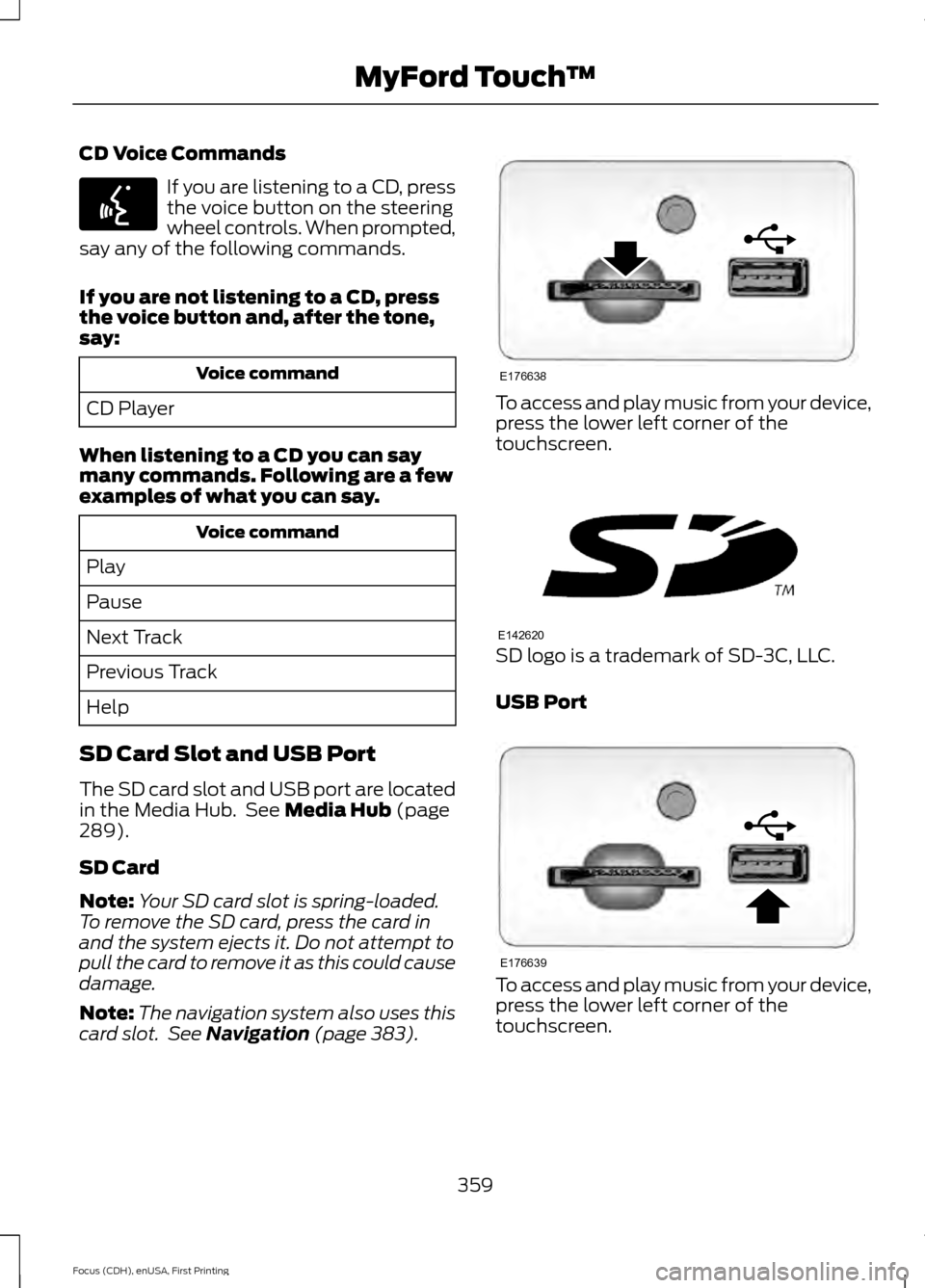
SD Card Slot and USB Port
The SD card slot and USB port are located
in the Media Hub. See Media Hub (page
289).
SD Card
Note: Your SD card slot is spring-loaded.
To remove the SD card, press the card in
and the system ejects it. Do not attempt to
pull the card to remove it as this could cause
damage.
Note: The navigation system also uses this
card slot. See
Navigation (page 383). To access and play music from your device,
press the lower left corner of the
touchscreen.
SD logo is a trademark of SD-3C, LLC.
USB Port
To access and play music from your device,
press the lower left corner of the
touchscreen.
359
Focus (CDH), enUSA, First Printing MyFord Touch
™E142599 E176638 E142620 E176639
Page 370 of 453
To accept the call, select:
Message
Accept
Note: You can also accept the call by
pressing the phone button on the steering
wheel. To reject the call, select:
Message
Reject
Note: You can also reject the call by
pressing the phone button on the steering
wheel.
Ignore the call by doing nothing. SYNC logs
it as a missed call.
Phone Menu Options
Press the top left corner on the
touchscreen to select from the following
options: Action and Description
Menu Item
Touch this button to access the on-screen numerical pad to
enter a number and place a call. During an active call, you can
also choose any of these options:
Phone
Mute Call
Hold Call
Privacy
Join Calls
End
Select to call stored contacts.
Quick Dial
Touch this button to access and call any contacts in your
previously downloaded phonebook. The system places the
entries in alphabetical categories summarized at the top of
the screen
Phonebook
To turn on contact picture settings, if your device supports this
feature, select:
Phone
Settings
Manage Phonebook
Display Photos from Phonebook367
Focus (CDH), enUSA, First Printing MyFord Touch
™E142632
Page 378 of 453
Disconnecting from SYNC Services
To use the steering wheel controls, press
and hold the hang-up phone button on the
steering wheel.
To use voice commands, press the
voice button and say: Voice Command
Good-bye
SYNC Services Quick Tips Tips
You can personalize your Services feature to provide quicker
access to your most used or favorite information. You can
save address points, such as work or home. You can also
save favorite information like sports teams, for example
Detroit Lions, or a news category. You can learn more about
personalization by logging onto www.SYNCMyRide.com.
Personalizing
Press the voice button at any time (while connected to SYNC
Services) to interrupt a voice prompt or an audio clip (such
as a sports report) and say your voice command.
Push to interrupt
Your subscription is associated with your Bluetooth-enabled
cellular phone number, not your VIN (Vehicle Identification
Number). You can pair and connect your phone to any vehicle
equipped with SYNC Services and continue enjoying your
personalized services.
Portable
SYNC Services Voice Commands If your vehicle is equipped with
Navigation, SYNC Services
downloads your requested
destination to the navigation system. The
navigation system then calculates the
route and provides driving instructions.
See Navigation (page 383).
If your vehicle is not equipped with
Navigation, when a route has been
downloaded (non-navigation systems),
you can press the voice button on the
steering wheel controls and say any of the
following commands to receive directions: Services Voice command
Cancel Route
Route Status
Route summary
Update Route
Help
375
Focus (CDH), enUSA, First Printing MyFord Touch
™E142599
Page 380 of 453
Action and Description
Menu Item
Select to choose from a listing of
weather locations.
Area
Touch this button to view scores and schedules from a variety
of sports. You can also save up to 10 favorite teams for easier
access. The score automatically refreshes when a game is in
progress.
Sports Info
Touch this button to view ski conditions for a specific area.
Ski Conditions
Sirius Travel Link Voice Commands Press the voice button on the steering
wheel controls. When prompted, say
any of the following or a similar
command:
Voice command
Show Traffic
Show Weather
Help
Alerts If your vehicle is equipped with
Navigation, touch the I
(Information) button to access
these features. If your vehicle is not
equipped with Navigation, touch the corner
of the touchscreen with the green tab.
Press Alerts, then choose from any of
the following services: Action and Description
Message
The complete message
View
The message
Delete
Messages
Delete All This screen displays any system messages
(such as an SD card fault).
Note:
The system alerts you to any
messages by turning the information icon
yellow. After you read or delete the
messages, the icon returns to white.
Calendar If your vehicle is equipped with
Navigation, touch the I
(Information) button to access
these features. If your vehicle is not
equipped with Navigation, touch the corner
of the touchscreen with the green tab.
Press
Calendar. You can view the current
calendar by day, week or month.
911 Assist WARNINGS
Unless the 911 Assist setting is set on
before a crash, the system will not
dial for help, which could delay
response time, potentially increasing the
risk of serious injury or death after a crash. Do not wait for 911 Assist to make an
emergency call if you can do it
yourself. Dial emergency services
immediately to avoid delayed response
time, which could increase the risk of
serious injury or death after a crash. If you
do not hear 911 Assist within five seconds
of the crash, the system or phone may be
damaged or non-functional.
377
Focus (CDH), enUSA, First Printing MyFord Touch
™E142599 E142608 E142608
Page 382 of 453
•
You must pair and connect a
Bluetooth-enabled and compatible
phone to SYNC.
• A connected Bluetooth-enabled phone
must have the ability to make and
maintain an outgoing call at the time
of the incident.
• A connected Bluetooth-enabled phone
must have adequate network coverage,
battery power and signal strength.
• The vehicle must have battery power
and be located in the United States,
Canada or in a territory in which 911 is
the emergency number.
In the Event of a Crash
Not all crashes deploy an airbag or activate
the fuel pump shut-off (which would
trigger 911 Assist); however, SYNC tries to
contact emergency services if 911 Assist
triggers. If a connected phone sustains
damage or loses connection to SYNC,
SYNC searches for, and tries to connect
to, any available previously paired phone
and tries to make the call to 911.
Before making the call:
• SYNC provides a short window of time
(approximately 10 seconds) to cancel
the call. If you fail to cancel the call,
SYNC attempts to dial 911.
• SYNC says the following, or a similar
message: "SYNC will attempt to call
911, to cancel the call, press Cancel on
your screen or press and hold the
phone button on your steering wheel."
If you do not cancel the call, and SYNC
makes a successful call, a pre-recorded
message plays for the 911 operator, and
then the occupant(s) in your vehicle is able
to talk with the operator. Be prepared to
provide your name, phone number and
location immediately, because not all 911
systems are capable of receiving this
information electronically. 911 Assist May Not Work If:
•
Your cellular phone or 911 Assist
hardware sustains damage in a crash.
• The vehicle's battery or the SYNC
system has no power.
• The phones(s) previously paired or
connected to the system are thrown
from the vehicle.
911 Assist Privacy Notice
When you turn on 911 Assist, it may
disclose to emergency services that your
vehicle has been in a crash involving the
deployment of an airbag or activation of
the fuel pump shut-off. Certain versions or
updates to 911 Assist may also be capable
of electronically or verbally disclosing to
911 operators your vehicle location or other
details about your vehicle or crash to assist
911 operators to provide the most
appropriate emergency services. If you do
not want to disclose this information, do
not turn the feature on.
Vehicle Health Report WARNING
Always follow scheduled
maintenance instructions, regularly
inspect your vehicle, and seek repair
for any damage or problem you suspect.
Vehicle Health Report supplements, but
cannot replace, normal maintenance and
vehicle inspection. Vehicle Health Report
only monitors certain systems
electronically monitored by your vehicle
and will not monitor or report the status
of any other system, (such as brake lining
wear). Failure to perform scheduled
maintenance and regularly inspect your
vehicle may result in vehicle damage and
serious injury. Note:
This feature is only available in the
United States.
379
Focus (CDH), enUSA, First Printing MyFord Touch
™
Page 386 of 453
Climate Control Voice Commands Press the voice button on the
steering wheel controls. When
prompted, say any of the
following or a similar command: Voice commands
Climate On
Climate Off Adjust the temperature to between 59 - 86°F (15.0- 30.0°C).
Set temperature
NAVIGATION (If Equipped)
Note: The navigation SD card must be in
the SD card slot to operate the navigation
system. If you need a replacement SD card,
see an authorized dealer.
Note: The SD card slot is spring-loaded. To
remove the SD card, just push the card in
and release it. Do not attempt to pull the
card out to remove it; this could cause
damage.
Your navigation system is comprised of
two main features, destination mode and
map mode.
Destination Mode
To set a destination, press the green
corner of your touchscreen, then press: Menu Item
Dest.
Choose any of the following:
My Home
Favorites
Previous Destinations
Point of Interest Menu Item
Emergency
Street Address
Intersection
City Center
Map
Edit Route
Cancel Route
To set your destination, enter the
necessary information into the highlighted
text fields (in any order).
383
Focus (CDH), enUSA, First Printing MyFord Touch
™E142599