navigation FORD FOCUS 2015 3.G Owners Manual
[x] Cancel search | Manufacturer: FORD, Model Year: 2015, Model line: FOCUS, Model: FORD FOCUS 2015 3.GPages: 453, PDF Size: 5.32 MB
Page 8 of 453
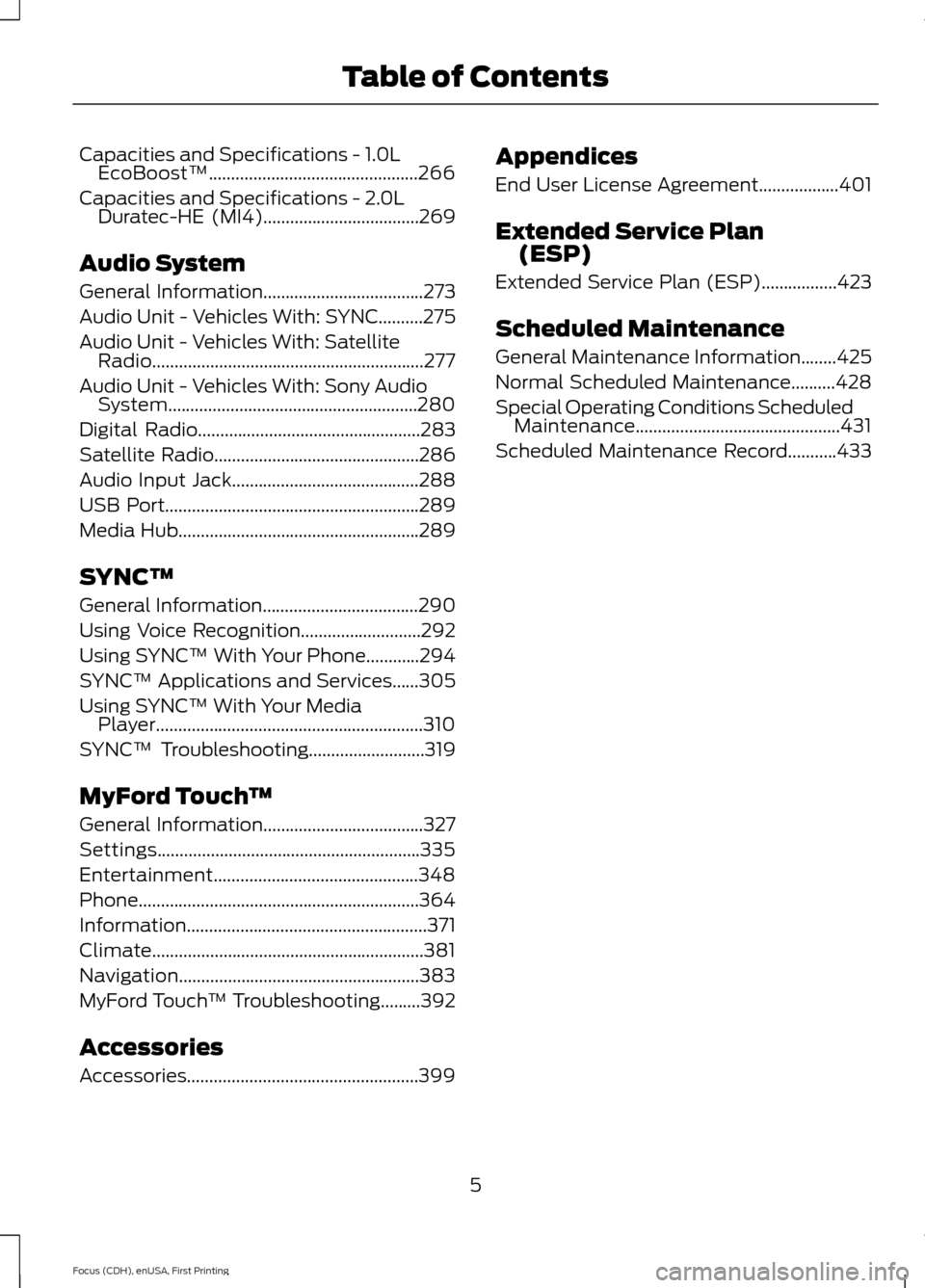
Capacities and Specifications - 1.0L
EcoBoost™...............................................266
Capacities and Specifications -
2.0L
Duratec-HE (MI4)...................................269
Audio System
General Information....................................273
Audio Unit - Vehicles With: SYNC..........275
Audio Unit -
Vehicles With: Satellite
Radio.............................................................277
Audio Unit -
Vehicles With: Sony Audio
System........................................................280
Digital Radio
..................................................283
Satellite Radio
..............................................286
Audio Input Jack..........................................288
USB Port
.........................................................289
Media Hub......................................................289
SYNC™
General Information
...................................290
Using Voice Recognition...........................292
Using SYNC™ With Your Phone............294
SYNC™ Applications and Services......305
Using SYNC™ With Your Media Player............................................................310
SYNC™ Troubleshooting
..........................319
MyFord Touch ™
General Information....................................327
Settings...........................................................335
Entertainment..............................................348
Phone...............................................................364
Information......................................................371
Climate.............................................................381
Navigation......................................................383
MyFord Touch ™ Troubleshooting
.........392
Accessories
Accessories....................................................399 Appendices
End User License Agreement..................401
Extended Service Plan
(ESP)
Extended Service Plan (ESP).................423
Scheduled Maintenance
General Maintenance Information........425
Normal Scheduled Maintenance..........428
Special Operating Conditions Scheduled Maintenance..............................................431
Scheduled Maintenance Record
...........433
5
Focus (CDH), enUSA, First Printing Table of Contents
Page 100 of 453
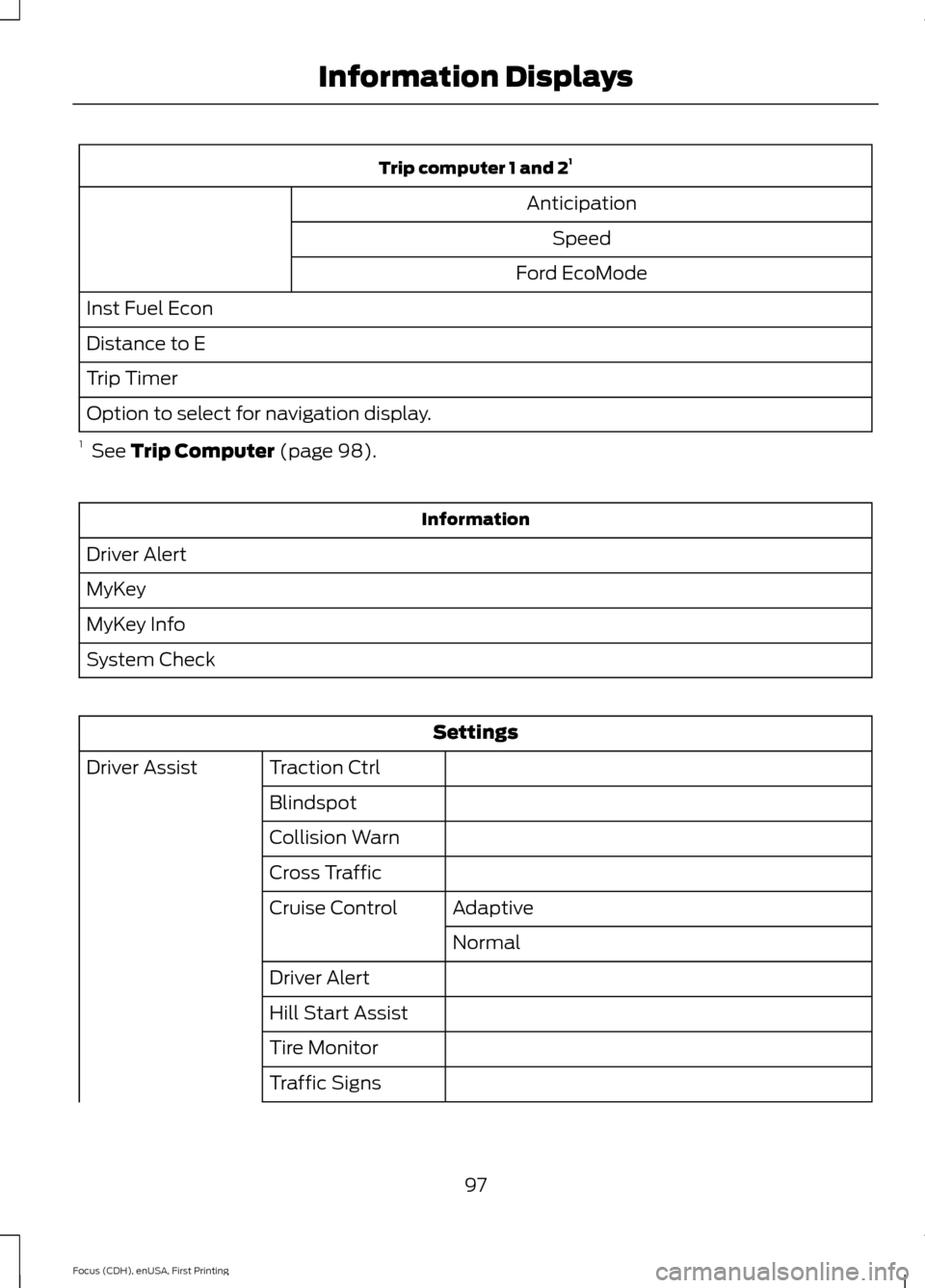
Trip computer 1 and 2
1
Anticipation Speed
Ford EcoMode
Inst Fuel Econ
Distance to E
Trip Timer
Option to select for navigation display.
1 See Trip Computer (page 98). Information
Driver Alert
MyKey
MyKey Info
System Check Settings
Traction Ctrl
Driver Assist
Blindspot
Collision Warn
Cross TrafficAdaptive
Cruise Control
Normal
Driver Alert
Hill Start Assist
Tire Monitor
Traffic Signs
97
Focus (CDH), enUSA, First Printing Information Displays
Page 277 of 453
•
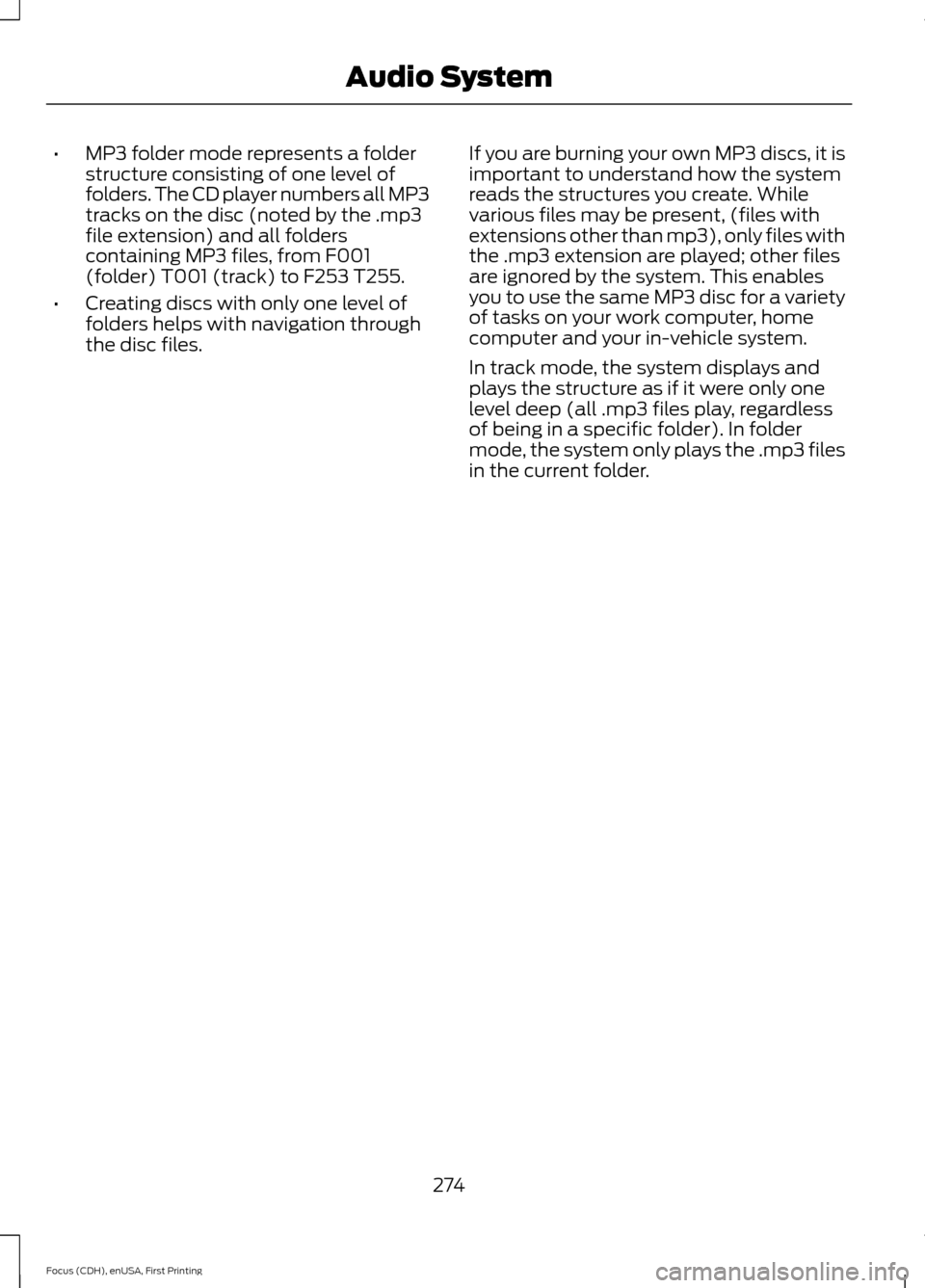
MP3 folder mode represents a folder
structure consisting of one level of
folders. The CD player numbers all MP3
tracks on the disc (noted by the .mp3
file extension) and all folders
containing MP3 files, from F001
(folder) T001 (track) to F253 T255.
• Creating discs with only one level of
folders helps with navigation through
the disc files. If you are burning your own MP3 discs, it is
important to understand how the system
reads the structures you create. While
various files may be present, (files with
extensions other than mp3), only files with
the .mp3 extension are played; other files
are ignored by the system. This enables
you to use the same MP3 disc for a variety
of tasks on your work computer, home
computer and your in-vehicle system.
In track mode, the system displays and
plays the structure as if it were only one
level deep (all .mp3 files play, regardless
of being in a specific folder). In folder
mode, the system only plays the .mp3 files
in the current folder.
274
Focus (CDH), enUSA, First Printing Audio System
Page 330 of 453
GENERAL INFORMATION WARNING
Driving while distracted can result in
loss of vehicle control, crash and
injury. We strongly recommend that
you use extreme caution when using any
device that may take your focus off the
road. Your primary responsibility is the safe
operation of your vehicle. We recommend
against the use of any hand-held device
while driving and encourage the use of
voice-operated systems when possible.
Make sure you are aware of all applicable
local laws that may affect the use of
electronic devices while driving. Message
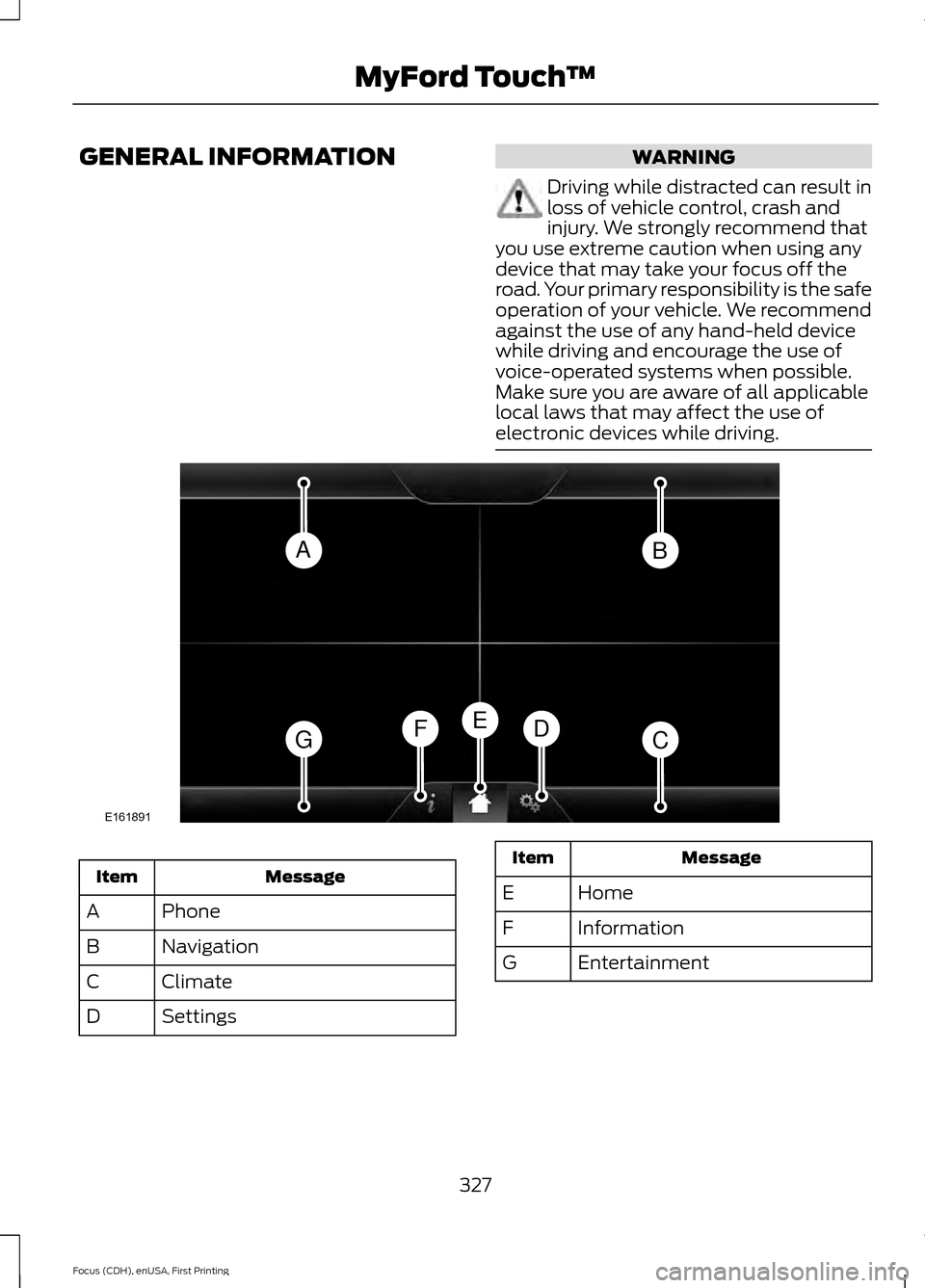
Item
Phone
A
Navigation
B
Climate
C
Settings
D Message
Item
Home
E
Information
F
Entertainment
G
327
Focus (CDH), enUSA, First Printing MyFord Touch
™AB
GCDFE
E161891
Page 331 of 453
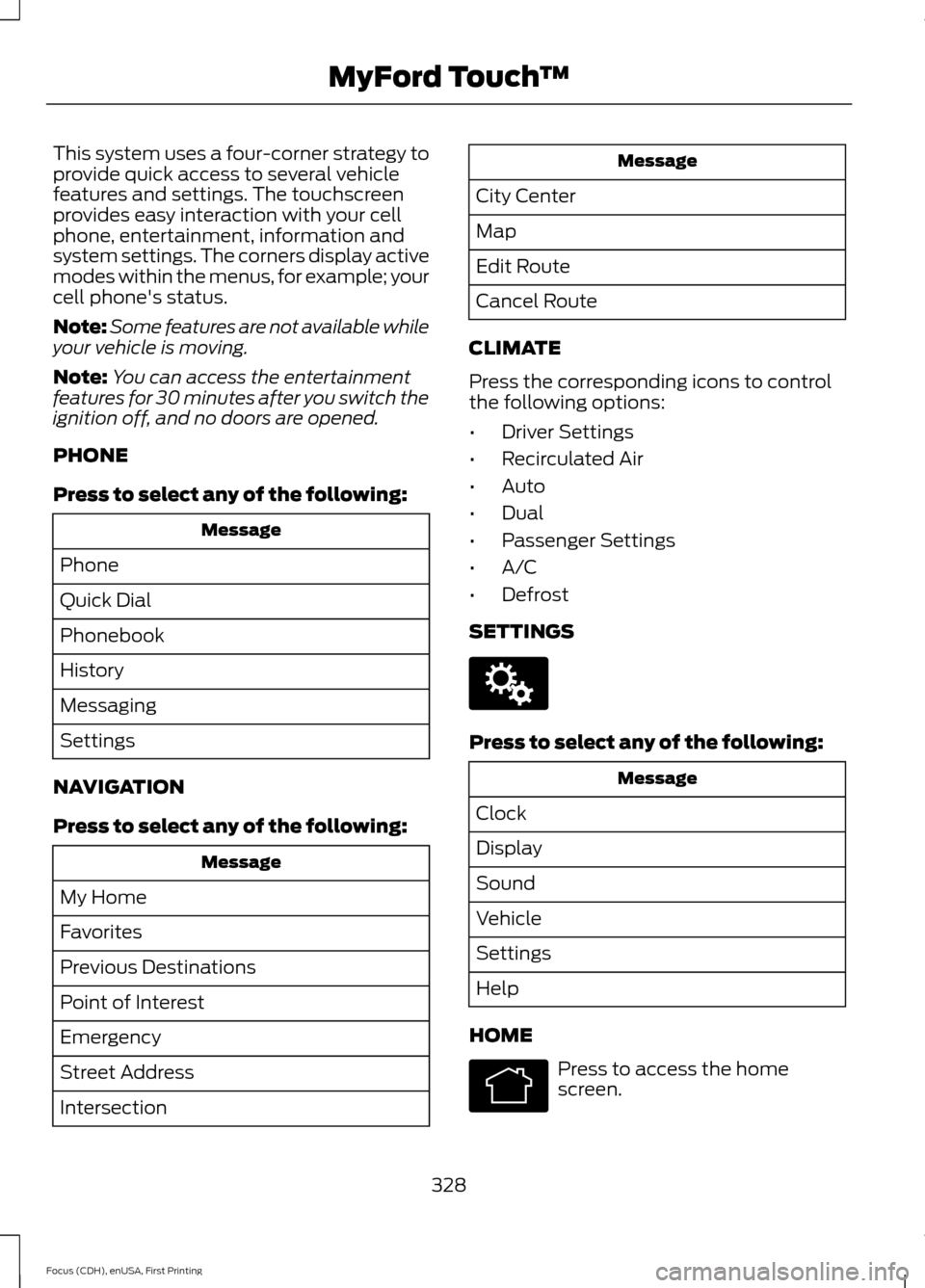
This system uses a four-corner strategy to
provide quick access to several vehicle
features and settings. The touchscreen
provides easy interaction with your cell
phone, entertainment, information and
system settings. The corners display active
modes within the menus, for example; your
cell phone's status.
Note:
Some features are not available while
your vehicle is moving.
Note: You can access the entertainment
features for 30 minutes after you switch the
ignition off, and no doors are opened.
PHONE
Press to select any of the following: Message
Phone
Quick Dial
Phonebook
History
Messaging
Settings
NAVIGATION
Press to select any of the following: Message
My Home
Favorites
Previous Destinations
Point of Interest
Emergency
Street Address
Intersection Message
City Center
Map
Edit Route
Cancel Route
CLIMATE
Press the corresponding icons to control
the following options:
• Driver Settings
• Recirculated Air
• Auto
• Dual
• Passenger Settings
• A/C
• Defrost
SETTINGS Press to select any of the following:
Message
Clock
Display
Sound
Vehicle
Settings
Help
HOME Press to access the home
screen.
328
Focus (CDH), enUSA, First Printing MyFord Touch
™E142607 E142613
Page 334 of 453
Safety Information
WARNING
Driving while distracted can result in
loss of vehicle control, crash and
injury. We strongly recommend that
you use extreme caution when using any
device that may take your focus off the
road. Your primary responsibility is the safe
operation of your vehicle. We recommend
against the use of any hand-held device
while driving and encourage the use of
voice-operated systems when possible.
Make sure you are aware of all applicable
local laws that may affect the use of
electronic devices while driving. •
Do not attempt to service or repair the
system. Have your vehicle checked by
an authorized dealer.
• Do not operate media devices if the
power cables are broken or damaged. •
Make sure the power cables do not
interfere with the safe operation of your
vehicle's controls or affect your safe
driving abilities.
• Some SYNC functions are
speed-dependent. Their use is limited
to when your vehicle is traveling at
speeds below 3 mph (5 km/h).
Make sure that you review your device's
manual before using it with SYNC.
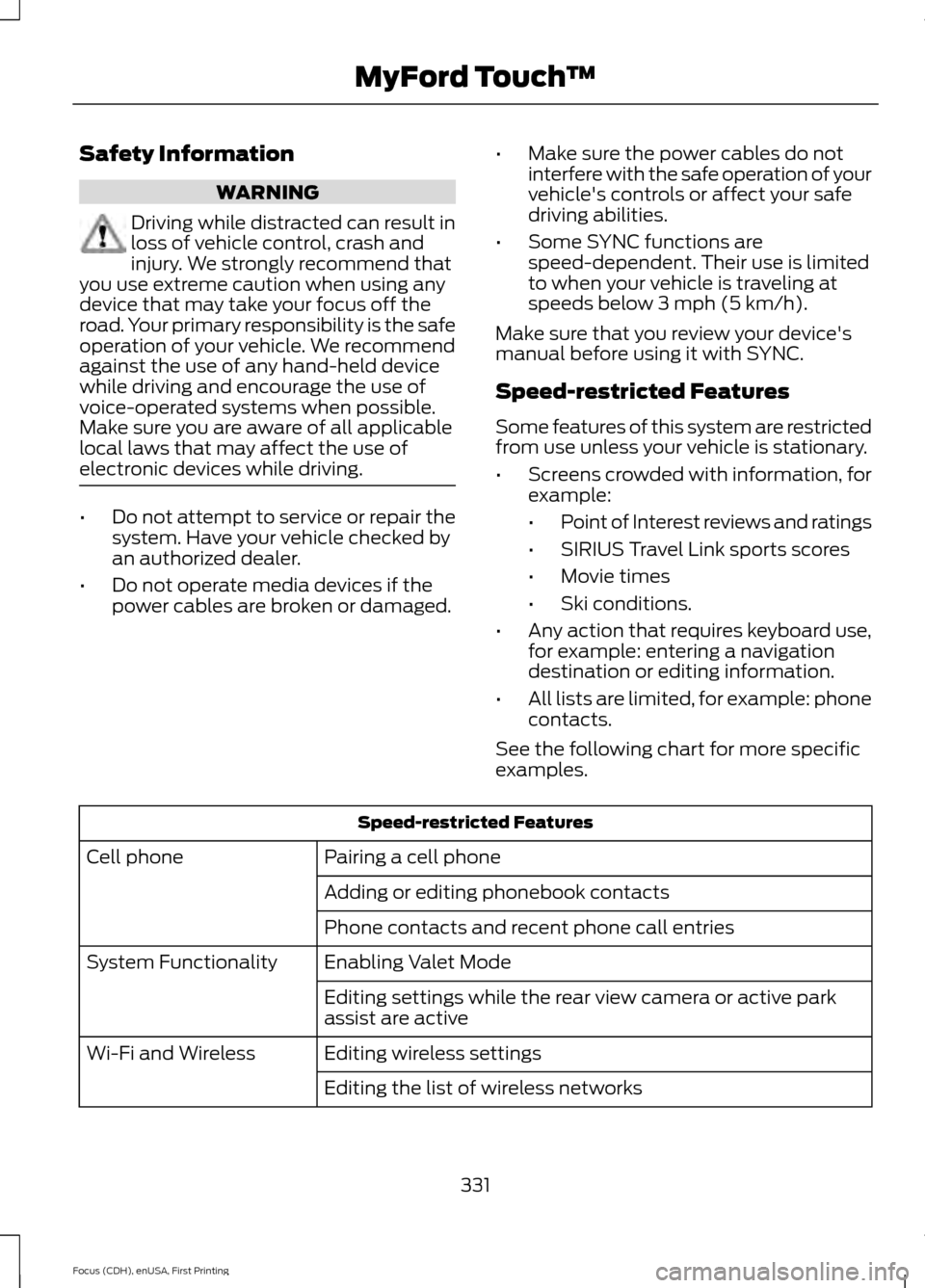
Speed-restricted Features
Some features of this system are restricted
from use unless your vehicle is stationary.
• Screens crowded with information, for
example:
•Point of Interest reviews and ratings
• SIRIUS Travel Link sports scores
• Movie times
• Ski conditions.
• Any action that requires keyboard use,
for example: entering a navigation
destination or editing information.
• All lists are limited, for example: phone
contacts.
See the following chart for more specific
examples. Speed-restricted Features
Pairing a cell phone
Cell phone
Adding or editing phonebook contacts
Phone contacts and recent phone call entries
Enabling Valet Mode
System Functionality
Editing settings while the rear view camera or active park
assist are active
Editing wireless settings
Wi-Fi and Wireless
Editing the list of wireless networks
331
Focus (CDH), enUSA, First Printing MyFord Touch
™
Page 335 of 453
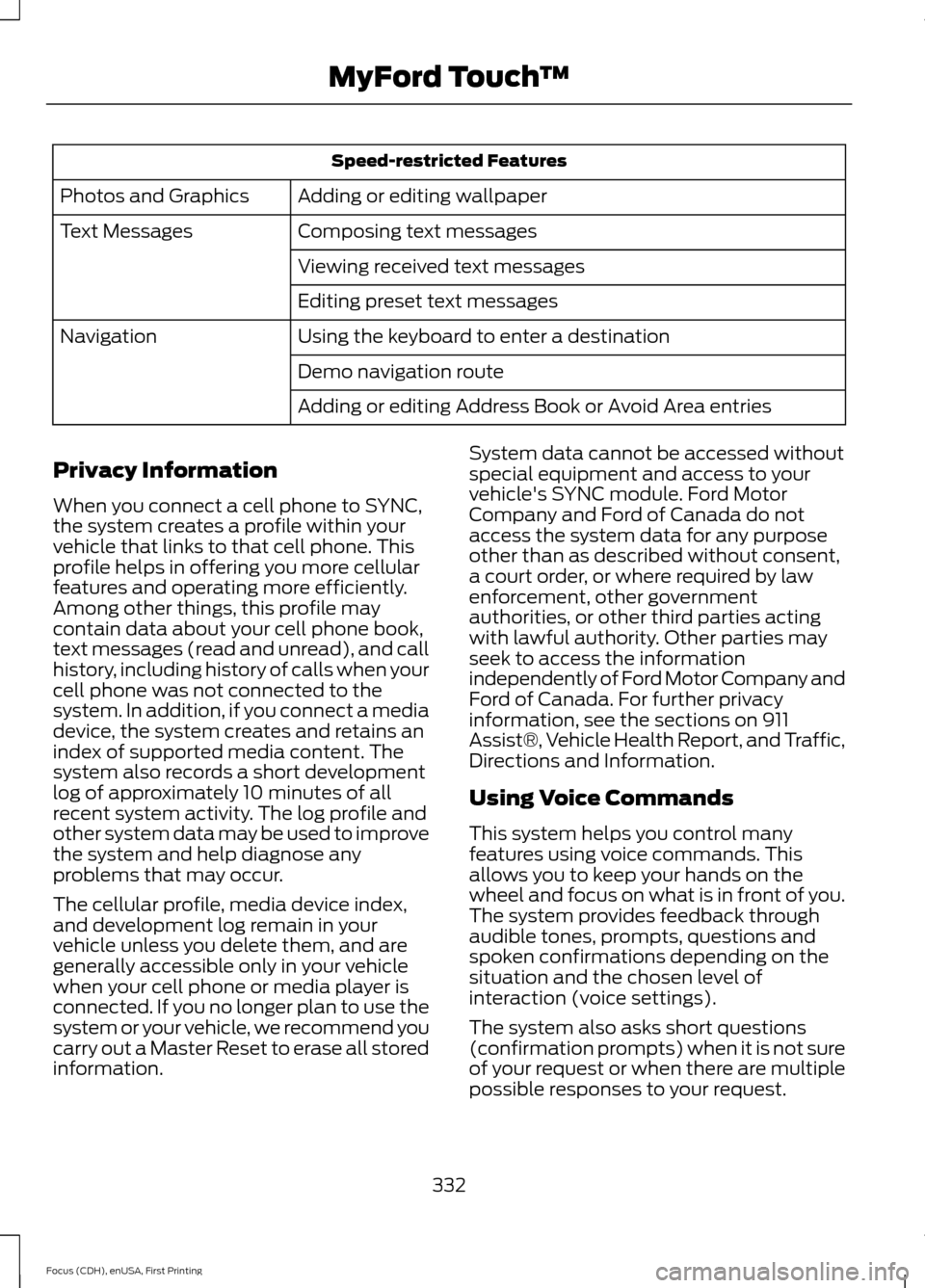
Speed-restricted Features
Adding or editing wallpaper
Photos and Graphics
Composing text messages
Text Messages
Viewing received text messages
Editing preset text messages
Using the keyboard to enter a destination
Navigation
Demo navigation route
Adding or editing Address Book or Avoid Area entries
Privacy Information
When you connect a cell phone to SYNC,
the system creates a profile within your
vehicle that links to that cell phone. This
profile helps in offering you more cellular
features and operating more efficiently.
Among other things, this profile may
contain data about your cell phone book,
text messages (read and unread), and call
history, including history of calls when your
cell phone was not connected to the
system. In addition, if you connect a media
device, the system creates and retains an
index of supported media content. The
system also records a short development
log of approximately 10 minutes of all
recent system activity. The log profile and
other system data may be used to improve
the system and help diagnose any
problems that may occur.
The cellular profile, media device index,
and development log remain in your
vehicle unless you delete them, and are
generally accessible only in your vehicle
when your cell phone or media player is
connected. If you no longer plan to use the
system or your vehicle, we recommend you
carry out a Master Reset to erase all stored
information. System data cannot be accessed without
special equipment and access to your
vehicle's SYNC module. Ford Motor
Company and Ford of Canada do not
access the system data for any purpose
other than as described without consent,
a court order, or where required by law
enforcement, other government
authorities, or other third parties acting
with lawful authority. Other parties may
seek to access the information
independently of Ford Motor Company and
Ford of Canada. For further privacy
information, see the sections on 911
Assist®, Vehicle Health Report, and Traffic,
Directions and Information.
Using Voice Commands
This system helps you control many
features using voice commands. This
allows you to keep your hands on the
wheel and focus on what is in front of you.
The system provides feedback through
audible tones, prompts, questions and
spoken confirmations depending on the
situation and the chosen level of
interaction (voice settings).
The system also asks short questions
(confirmation prompts) when it is not sure
of your request or when there are multiple
possible responses to your request.
332
Focus (CDH), enUSA, First Printing MyFord Touch
™
Page 342 of 453
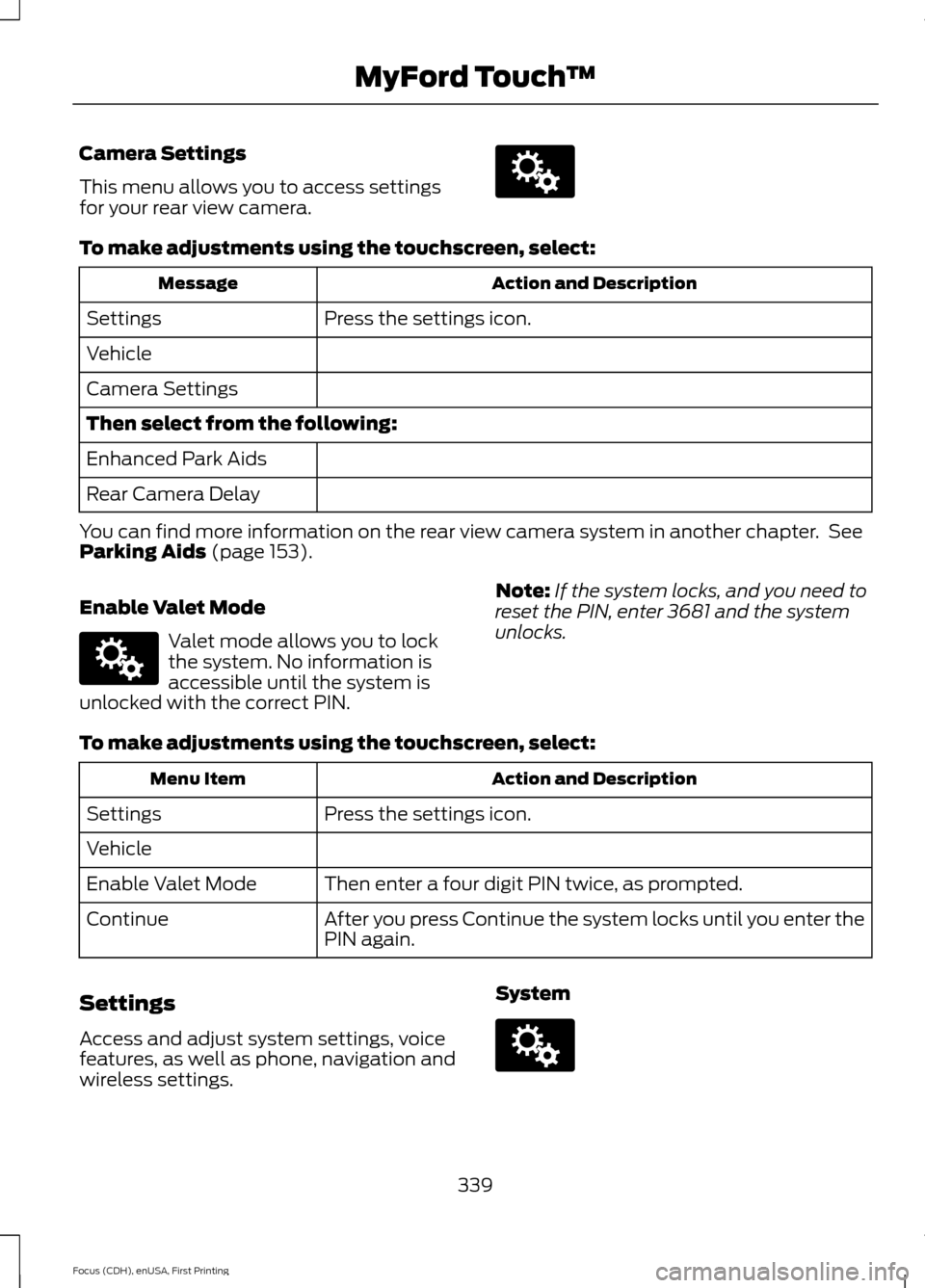
Camera Settings
This menu allows you to access settings
for your rear view camera.
To make adjustments using the touchscreen, select:
Action and Description
Message
Press the settings icon.
Settings
Vehicle
Camera Settings
Then select from the following:
Enhanced Park Aids
Rear Camera Delay
You can find more information on the rear view camera system in another chapter. See
Parking Aids (page 153).
Enable Valet Mode Valet mode allows you to lock
the system. No information is
accessible until the system is
unlocked with the correct PIN. Note:
If the system locks, and you need to
reset the PIN, enter 3681 and the system
unlocks.
To make adjustments using the touchscreen, select: Action and Description
Menu Item
Press the settings icon.
Settings
Vehicle
Then enter a four digit PIN twice, as prompted.
Enable Valet Mode
After you press Continue the system locks until you enter the
PIN again.
Continue
Settings
Access and adjust system settings, voice
features, as well as phone, navigation and
wireless settings. System
339
Focus (CDH), enUSA, First Printing MyFord Touch
™E142607 E142607 E142607
Page 345 of 453
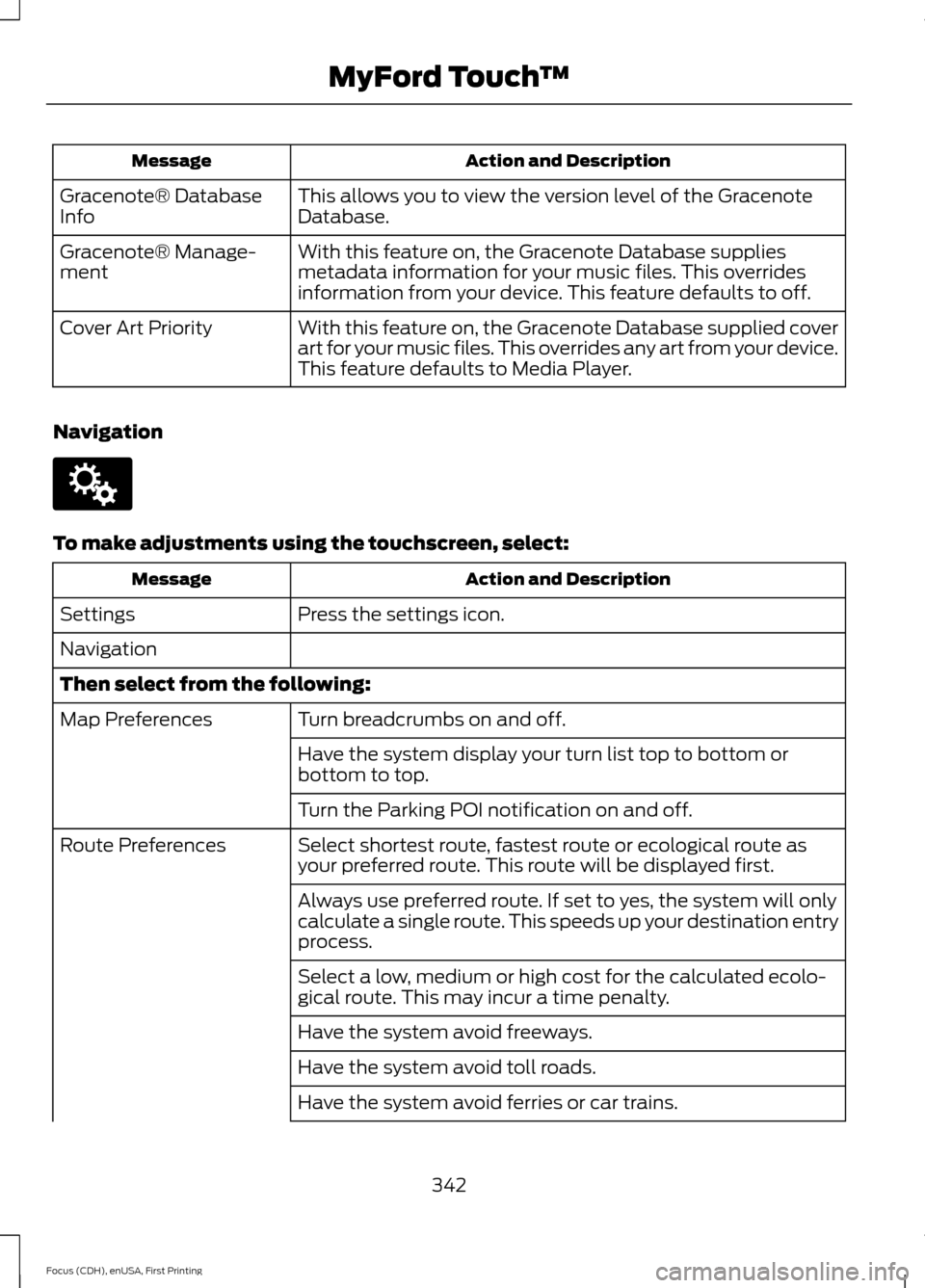
Action and Description
Message
This allows you to view the version level of the Gracenote
Database.
Gracenote® Database
Info
With this feature on, the Gracenote Database supplies
metadata information for your music files. This overrides
information from your device. This feature defaults to off.
Gracenote® Manage-
ment
With this feature on, the Gracenote Database supplied cover
art for your music files. This overrides any art from your device.
This feature defaults to Media Player.
Cover Art Priority
Navigation To make adjustments using the touchscreen, select:
Action and Description
Message
Press the settings icon.
Settings
Navigation
Then select from the following:
Turn breadcrumbs on and off.
Map Preferences
Have the system display your turn list top to bottom or
bottom to top.
Turn the Parking POI notification on and off.
Select shortest route, fastest route or ecological route as
your preferred route. This route will be displayed first.
Route Preferences
Always use preferred route. If set to yes, the system will only
calculate a single route. This speeds up your destination entry
process.
Select a low, medium or high cost for the calculated ecolo-
gical route. This may incur a time penalty.
Have the system avoid freeways.
Have the system avoid toll roads.
Have the system avoid ferries or car trains.
342
Focus (CDH), enUSA, First Printing MyFord Touch
™E142607
Page 346 of 453
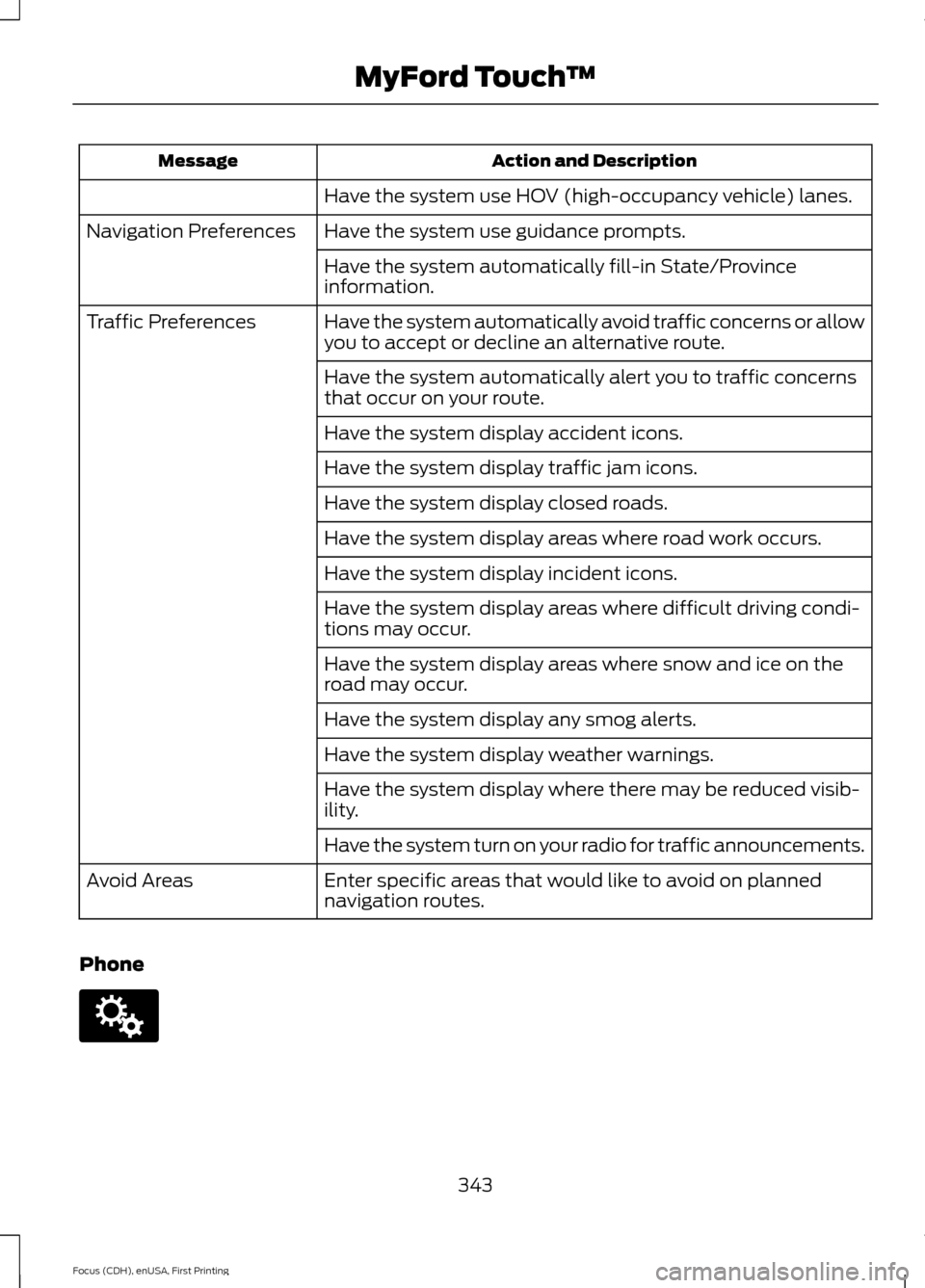
Action and Description
Message
Have the system use HOV (high-occupancy vehicle) lanes.
Have the system use guidance prompts.
Navigation Preferences
Have the system automatically fill-in State/Province
information.
Have the system automatically avoid traffic concerns or allow
you to accept or decline an alternative route.
Traffic Preferences
Have the system automatically alert you to traffic concerns
that occur on your route.
Have the system display accident icons.
Have the system display traffic jam icons.
Have the system display closed roads.
Have the system display areas where road work occurs.
Have the system display incident icons.
Have the system display areas where difficult driving condi-
tions may occur.
Have the system display areas where snow and ice on the
road may occur.
Have the system display any smog alerts.
Have the system display weather warnings.
Have the system display where there may be reduced visib-
ility.
Have the system turn on your radio for traffic announcements.
Enter specific areas that would like to avoid on planned
navigation routes.
Avoid Areas
Phone 343
Focus (CDH), enUSA, First Printing MyFord Touch
™E142607