ECO mode FORD FOCUS 2018 Workshop Manual
[x] Cancel search | Manufacturer: FORD, Model Year: 2018, Model line: FOCUS, Model: FORD FOCUS 2018Pages: 473, PDF Size: 39.91 MB
Page 294 of 473
TUNE and Play or Pause: In radio mode, turn to search the frequency bandin individual increments. Press to mute the station. In media mode, turn to selecta new track. Press to either play or pause a track. This button also mutes theradio sources.
F
Clock: Press to access the clock setting. Use the center arrow controls to changethe hours and minutes. You can also set the clock by pressing MENU andscrolling to Clock Settings. If not in phone mode, press to display the clock.
G
PHONE: Press to access the phone features of the SYNC system. See yourSYNC information.H
MENU: Press to access different audio system features. See Menu Structure.I
SOUND: Press to access settings for Treble, Midrange, Bass, Fade and Balance.Use the up and down arrow buttons to select the various settings. When youmake your selection, press the left and right arrow buttons to change thesettings. Press OK to set or press MENU to exit. Sound settings can be set foreach audio source independently.
J
Seek, Fast Forward and Reverse: In radio mode, select a frequency bandand press either button. The system stops at the first station it finds in thatdirection. In SIRIUS mode, press to select the next or previous satellite radiostation. If a specific category is selected (such as jazz, rock or news), press tofind the next or previous station in the selected category. In CD mode, press toselect the next or previous track. Press and hold to move quickly forward orbackward through the current track.
K
OK and cursor arrows: Press the up and down arrow buttons to select thevarious settings. When you make your selection, press the left and right arrowbuttons to change the settings. Press OK to set, or press MENU to exit.
L
SIRIUS: Press to listen to SIRIUS satellite radio.M
RADIO: Press to listen to the radio or change radio stations. Press the functionbuttons below the radio screen to select different radio functions.N
MEDIA: Press to open the media source menu. You can press this multipletimes to change to CD or to a SYNC-Media device or scroll through the mediasources using the arrow buttons. Press OK to select a source.
O
DIGITAL RADIO
Note:HD Radio broadcasts are notavailable in all markets.
HD Radio technology is the digitalevolution of analog AM/FM radio. Yoursystem has a special receiver that allowsit to receive digital broadcasts (whereavailable) in addition to the analogbroadcasts, it already receives. Digitalbroadcasts provide a better sound quality
2912018 Focus (CDH) Canada/United States of America, JM5J 19A321 AA enUSA, Edition date: 201706, Second PrintingAudio System
Page 295 of 473
than analog broadcasts with free,crystal-clear audio and no static ordistortion. For more information, and aguide to available stations andprogramming, please visitwww.hdradio.com.
When HD Radio is on and you tune to astation broadcasting HD Radio technology,you may notice the HD Radio logo on yourscreen. When this logo is available, youmay also see Title and Artist fieldson-screen.
The multicast indicator appears in FMmode (only) if the current station isbroadcasting multiple digital broadcasts.The highlighted numbers signify availabledigital channels where new or differentcontent is available. HD1 signifies the mainprogramming status and is available inanalog and digital broadcasts. Othermulticast stations (HD2 through HD7) areonly available digitally.
When HD Radio broadcasts are active, youcan access the following functions:
•Scan allows you to hear a briefsampling of all available stations. Thisfeature still works when HD Radioreception is on, although it does notscan for HD2-HD7 channels. You maysee the HD logo appear if the stationhas a digital broadcast.
•Memory presets allow you to save anactive channel as a memory preset.Touch and hold a memory preset slotuntil the sound returns. There is a briefmute while the radio saves the station.Sound returns when finished. Whenswitching to an HD2 or HD3 memorypreset, the sound mutes before thedigital audio plays, because the systemhas to reacquire the digital signal.
Note:As with any saved radio station, youcannot access the saved station if yourvehicle is outside the station’s receptionarea.
HD Radio Reception and Station Troubleshooting
Potential reception issues
If you are listening to a multicast station and you are onthe fringe of the reception area, the station may mute dueto weak signal strength.
Reception area
If you are listening to HD1, the system switches back tothe analog broadcast until the digital broadcast is availableagain. However, if you are listening to any of the possibleHD2-HD7 multicast channels, the station mutes and staysmuted unless it is able to connect to the digital signalagain.
When the system first receives a station (aside from HD2-HD7 multicast stations), it first plays the station in theanalog version. Once the receiver verifies the station is anHD Radio station, it shifts to the digital version. Dependingon the station quality, you may hear a slight sound changewhen the station changes from analog to digital. Blendingis the shift from analog to digital sound or digital back toanalog sound.
Station blending
2922018 Focus (CDH) Canada/United States of America, JM5J 19A321 AA enUSA, Edition date: 201706, Second PrintingAudio System
Page 298 of 473
SIRIUS satellite radio is asubscription-based satellite radio servicethat broadcasts a variety of music, sports,news, weather, traffic and entertainmentprogramming. Your factory-installedSIRIUS satellite radio system includeshardware and a limited subscription term,which begins on the date of sale or leaseof your vehicle. See an authorized dealerfor availability.
For more information on extendedsubscription terms (a service fee isrequired), the online media player and acomplete list of SIRIUS satellite radiochannels, and other features, please visitwww.siriusxm.com in the United States,www.siriusxm.ca in Canada, or call SIRIUSat 1-888-539-7474.
Satellite Radio Electronic SerialNumber (ESN)
You need your ESN to activate, modify ortrack your satellite radio account. When insatellite radio mode, tune to channel 0.
Troubleshooting
ActionConditionMessage
No action required. Thismessage should disappearshortly.
Radio requires more thantwo seconds to produceaudio for the selectedchannel.
Acquiring…
If this message does notclear shortly, or with an igni-tion key cycle, your receivermay have a fault. See anauthorized dealer for service.
There is an internal moduleor system failure present.Satellite antenna fault
SIRIUS system failure
Tune to another channel orchoose another preset.The channel is no longeravailable.Invalid Channel
Contact SIRIUS at 1-888-539-7474 to subscribe tothe channel, or tune toanother channel.
Your subscription does notinclude this channel.Unsubscribed Channel
The signal is blocked. Whenyou move into an open area,the signal should return.
The signal is lost from theSIRIUS satellite or SIRIUStower to your vehicleantenna.
No Signal
No action required. Theprocess may take up tothree minutes.
Update of channelprogramming in progress.Updating…
2952018 Focus (CDH) Canada/United States of America, JM5J 19A321 AA enUSA, Edition date: 201706, Second PrintingAudio System
Page 303 of 473
System Interaction and Feedback
The system provides feedback throughaudible tones, prompts, questions andspoken confirmations depending on thesituation and the chosen level ofinteraction. You can customize the voicerecognition system to provide more or lessinstruction and feedback.
The default setting is to a higher level ofinteraction in order to help you learn to usethe system. You can change these settingsat any time.
Adjusting the Interaction Level
Press the voice button. Whenprompted, say:
Action and DescriptionVoice Command
voice settings
Then either of the following:
Provides more detailed interaction andguidance. (Recommended for first timeusers.)
interaction mode novice
Provides less audible interaction and guid-ance.interaction mode advanced
Confirmation Prompts
Confirmation prompts are short questionsthe system asks when it is not sure of yourrequest or when there is more than onepossible response to your request.
To adjust this setting press the voice button, when prompted say:
Action and DescriptionVoice Command
voice settings
Then either of the following:
Make a best guess from the command; youmay still occasionally be asked to confirmsettings.
confirmation prompts off
Clarify your voice command with a shortquestion.confirmation prompts on
Phone Confirmation
Using phone confirmations the systemasks you to verify before placing any calls.
3002018 Focus (CDH) Canada/United States of America, JM5J 19A321 AA enUSA, Edition date: 201706, Second PrintingSYNC™E142599
Page 304 of 473
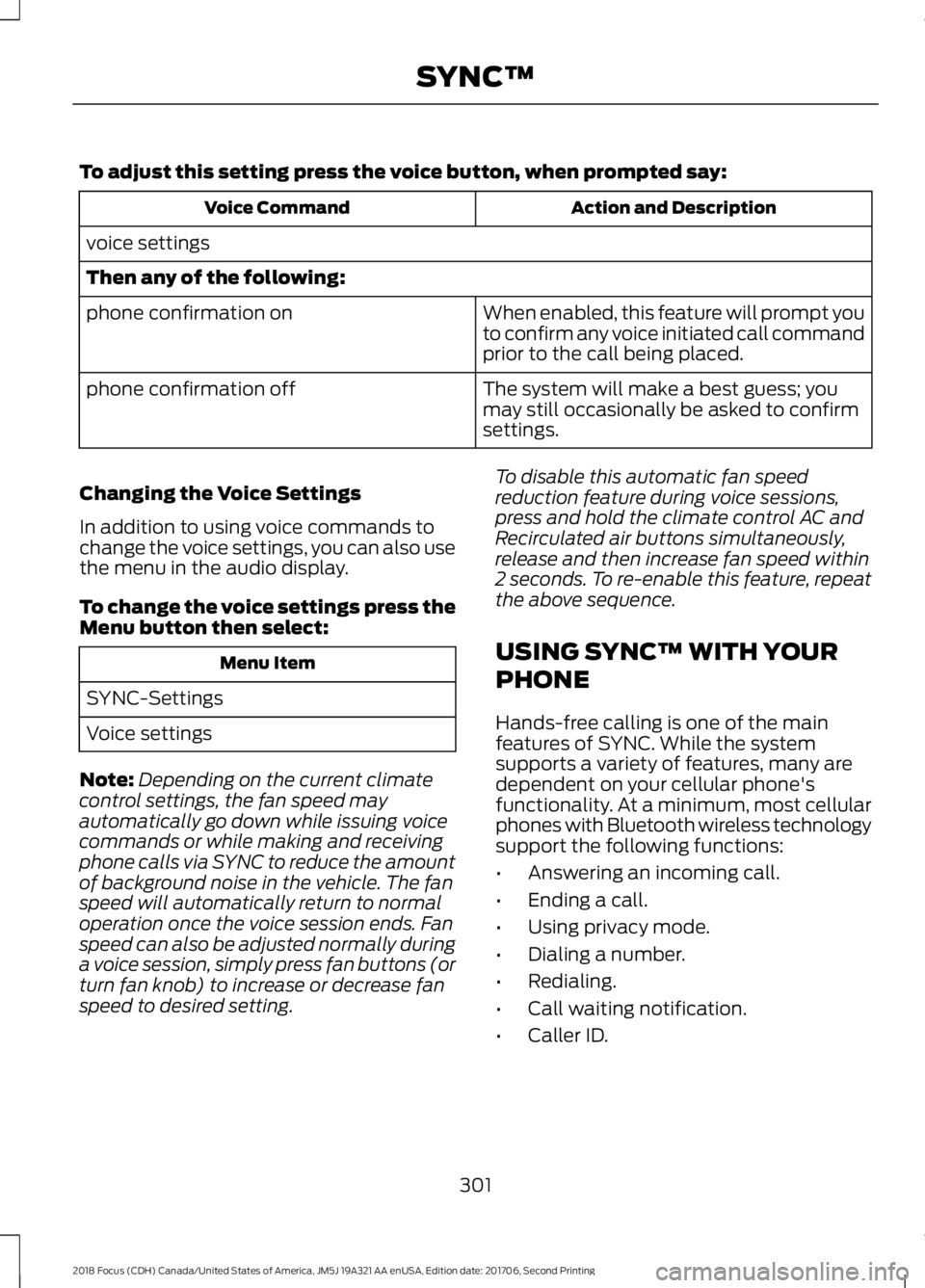
To adjust this setting press the voice button, when prompted say:
Action and DescriptionVoice Command
voice settings
Then any of the following:
When enabled, this feature will prompt youto confirm any voice initiated call commandprior to the call being placed.
phone confirmation on
The system will make a best guess; youmay still occasionally be asked to confirmsettings.
phone confirmation off
Changing the Voice Settings
In addition to using voice commands tochange the voice settings, you can also usethe menu in the audio display.
To change the voice settings press theMenu button then select:
Menu Item
SYNC-Settings
Voice settings
Note:Depending on the current climatecontrol settings, the fan speed mayautomatically go down while issuing voicecommands or while making and receivingphone calls via SYNC to reduce the amountof background noise in the vehicle. The fanspeed will automatically return to normaloperation once the voice session ends. Fanspeed can also be adjusted normally duringa voice session, simply press fan buttons (orturn fan knob) to increase or decrease fanspeed to desired setting.
To disable this automatic fan speedreduction feature during voice sessions,press and hold the climate control AC andRecirculated air buttons simultaneously,release and then increase fan speed within2 seconds. To re-enable this feature, repeatthe above sequence.
USING SYNC™ WITH YOUR
PHONE
Hands-free calling is one of the mainfeatures of SYNC. While the systemsupports a variety of features, many aredependent on your cellular phone'sfunctionality. At a minimum, most cellularphones with Bluetooth wireless technologysupport the following functions:
•Answering an incoming call.
•Ending a call.
•Using privacy mode.
•Dialing a number.
•Redialing.
•Call waiting notification.
•Caller ID.
3012018 Focus (CDH) Canada/United States of America, JM5J 19A321 AA enUSA, Edition date: 201706, Second PrintingSYNC™
Page 306 of 473
Depending on your phone's capability andyour market, the system may prompt youwith questions, such as setting the currentphone as the primary phone (the phoneSYNC automatically tries to connect withfirst upon vehicle start-up) anddownloading your phonebook.
Pairing Subsequent Phones
Note:Make sure to switch on the ignitionand the radio. Shift the transmission intopark (P) for automatic transmission or firstgear for manual transmission.
Note:To scroll through the menus, pressthe up and down arrows on your audiosystem.
1.Make sure to switch on your phone'sBluetooth feature before starting thesearch. See your device's manual ifnecessary.
2.Press the PHONE button.
3.Select the option for BluetoothDevices.
4.Press the OK button.
5.Select the option to add. This startsthe pairing process.
6.When a message to begin pairingappears in the audio display, search forSYNC on your device.
7.When prompted on your cell phone’sdisplay, confirm that the PIN providedby SYNC matches the PIN displayedon your cell phone. Your phone is nowpaired and the display indicates thatthe pairing was successful. If you areprompted to enter a PIN on your device,enter the PIN displayed on the screen.The display indicates when the pairingis successful.
SYNC may prompt you with more cellphone options. Your cell phone may alsoprompt you to give SYNC permission toaccess information. For more informationon your cell phone’s capability, see yourcell phone’s manual and visit the website.
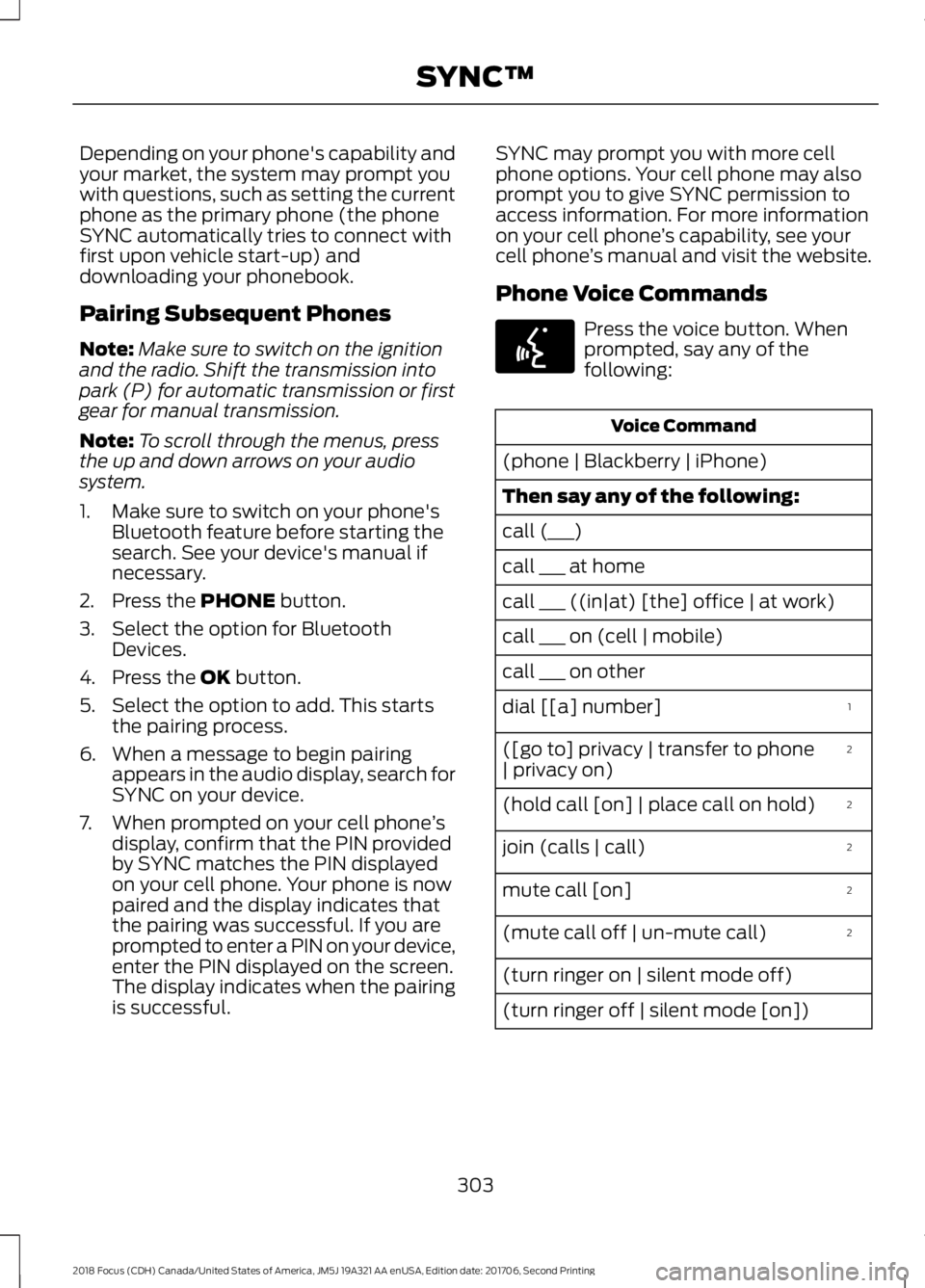
Phone Voice Commands
Press the voice button. Whenprompted, say any of thefollowing:
Voice Command
(phone | Blackberry | iPhone)
Then say any of the following:
call (___)
call ___ at home
call ___ ((in|at) [the] office | at work)
call ___ on (cell | mobile)
call ___ on other
1dial [[a] number]
2([go to] privacy | transfer to phone| privacy on)
2(hold call [on] | place call on hold)
2join (calls | call)
2mute call [on]
2(mute call off | un-mute call)
(turn ringer on | silent mode off)
(turn ringer off | silent mode [on])
3032018 Focus (CDH) Canada/United States of America, JM5J 19A321 AA enUSA, Edition date: 201706, Second PrintingSYNC™E142599
Page 307 of 473
![FORD FOCUS 2018 Workshop Manual Voice Command
3[text] (messages | message)
help
___ is a dynamic listing that should be thename of a contact in your phonebook. Forexample you could say "Call Home".1 See Dial table below.2 Th](/img/11/40765/w960_40765-306.png "FORD FOCUS 2018 Workshop Manual Voice Command
3[text] (messages | message)
help
___ is a dynamic listing that should be thename of a contact in your phonebook. Forexample you could say \"Call Home\".1 See Dial table below.2 Th")
Voice Command
3[text] (messages | message)
help
___ is a dynamic listing that should be thename of a contact in your phonebook. Forexample you could say "Call Home".1 See Dial table below.2 These commands are only valid while ina phone call.3 See the text message table below.
Dial Commands
Press the voice button and when promptedsay any of the following commands:
Voice Commands
411 (four-one-one), 911 (nine-one-one)
700 (seven hundred)
800 (eight hundred)
900 (nine hundred)
Clear (deletes all entered digits)
Delete (deletes last set of digits entered)
Number <0-9>
Plus
Pound (#)
Star (*)
Note:To exit dial mode, press and hold thephone button or press any button on theaudio system.
To access text messages say:
Voice Command
[text] (messages | message)
Then say any of the following:
(listen to | read) ([text] message)
forward (text | [text] message)
reply to (text | [text] message)
call [sender]
Phonebook Hints
To hear how the SYNC system speaks aname browse phonebook, select a contactand press:
Menu Item
Hear it
Changing Devices Using VoiceCommands
Using SYNC, you can easily access multiplephones, ipods, or USB devices. to switchdevices say:
3042018 Focus (CDH) Canada/United States of America, JM5J 19A321 AA enUSA, Edition date: 201706, Second PrintingSYNC™
Page 325 of 473
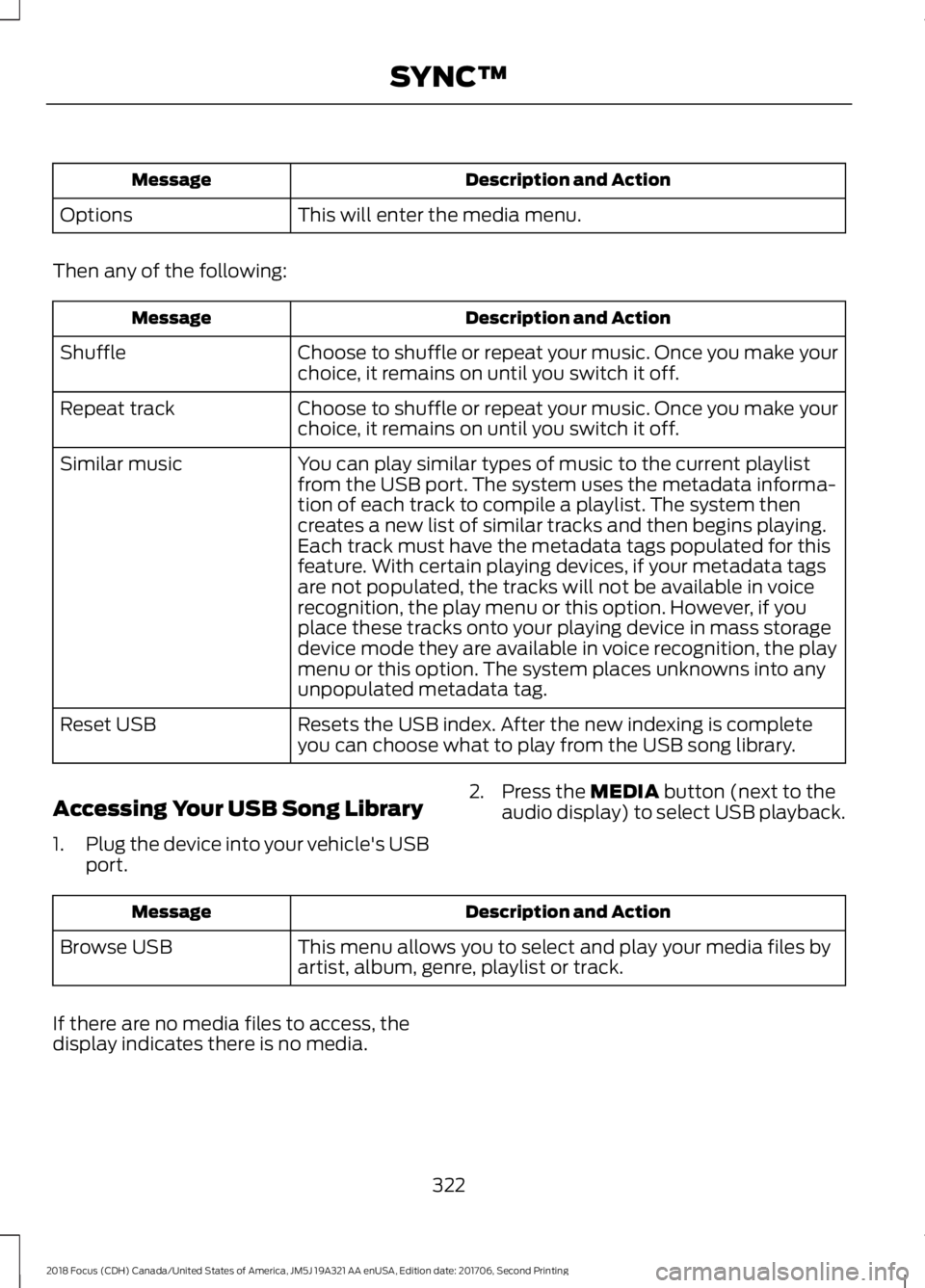
Description and ActionMessage
This will enter the media menu.Options
Then any of the following:
Description and ActionMessage
Choose to shuffle or repeat your music. Once you make yourchoice, it remains on until you switch it off.Shuffle
Choose to shuffle or repeat your music. Once you make yourchoice, it remains on until you switch it off.Repeat track
You can play similar types of music to the current playlistfrom the USB port. The system uses the metadata informa-tion of each track to compile a playlist. The system thencreates a new list of similar tracks and then begins playing.Each track must have the metadata tags populated for thisfeature. With certain playing devices, if your metadata tags
Similar music
are not populated, the tracks will not be available in voicerecognition, the play menu or this option. However, if youplace these tracks onto your playing device in mass storagedevice mode they are available in voice recognition, the playmenu or this option. The system places unknowns into anyunpopulated metadata tag.
Resets the USB index. After the new indexing is completeyou can choose what to play from the USB song library.Reset USB
Accessing Your USB Song Library
1.Plug the device into your vehicle's USBport.
2.Press the MEDIA button (next to theaudio display) to select USB playback.
Description and ActionMessage
This menu allows you to select and play your media files byartist, album, genre, playlist or track.Browse USB
If there are no media files to access, thedisplay indicates there is no media.
3222018 Focus (CDH) Canada/United States of America, JM5J 19A321 AA enUSA, Edition date: 201706, Second PrintingSYNC™
Page 342 of 473
Cleaning the Touchscreen
You can remove fingerprints with a dry,clean, soft cloth.
If dirt or fingerprints are still on the screen,apply a small amount of alcohol to thecloth and try to clean it again.
Note: Do not use detergent or any type ofsolvent to clean the touchscreen.
Note:Do not pour or spray alcohol onto thetouchscreen.
Using Voice Recognition
Using voice commands allows you to keepyour hands on the wheel and eyes on theroad. The system provides feedbackthrough audible tones, prompts, questionsand spoken confirmations depending onthe situation and the chosen level ofinteraction (voice settings).
The system also asks short questions(confirmation prompts) when it is not sureof your request or when there are multiplepossible responses to your request.
When using voice commands, words andicons may appear in the status barindicating the status of the voice commandsession. See Using Voice Recognition(page 347).
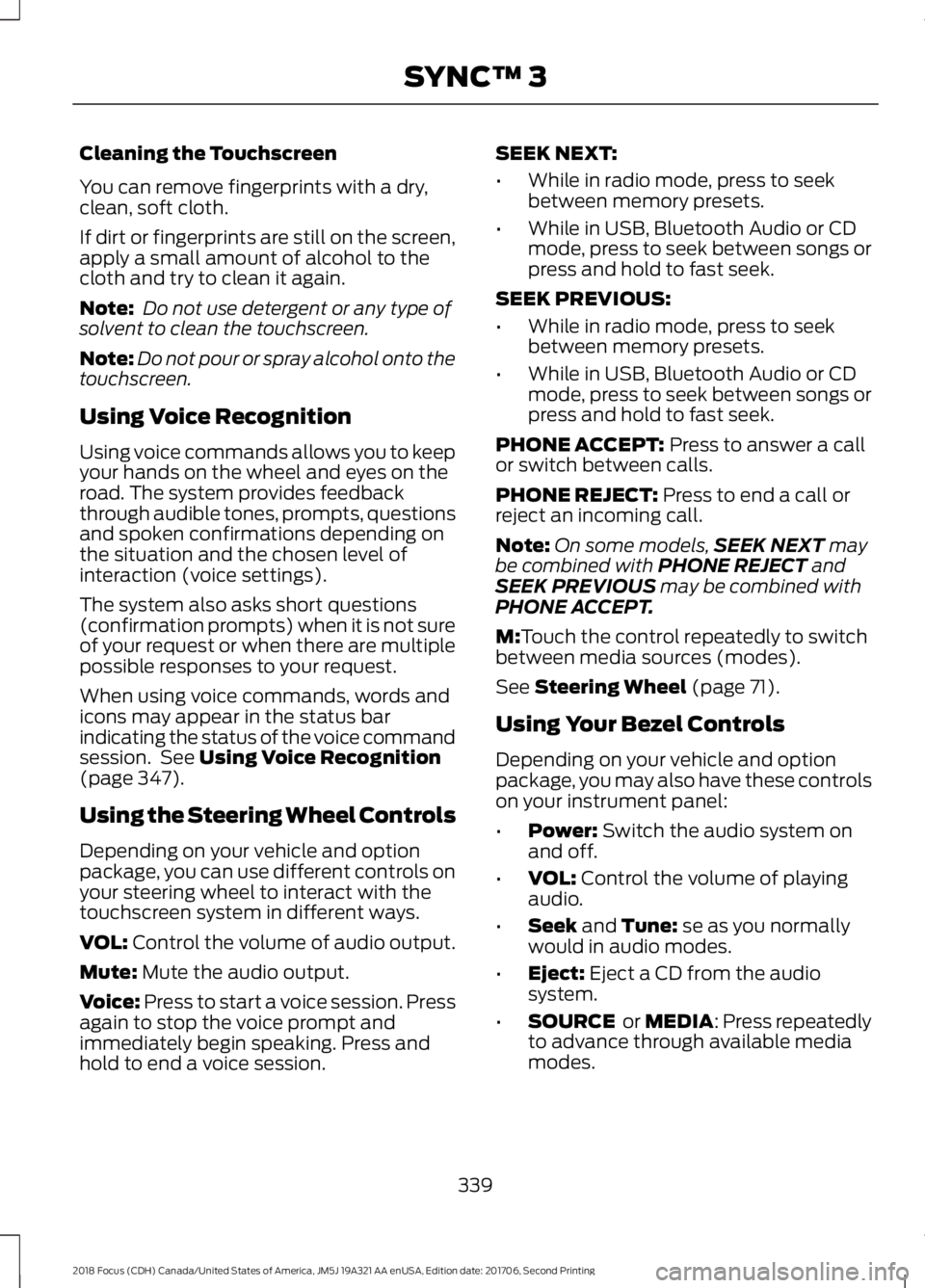
Using the Steering Wheel Controls
Depending on your vehicle and optionpackage, you can use different controls onyour steering wheel to interact with thetouchscreen system in different ways.
VOL: Control the volume of audio output.
Mute: Mute the audio output.
Voice: Press to start a voice session. Pressagain to stop the voice prompt andimmediately begin speaking. Press andhold to end a voice session.
SEEK NEXT:
•While in radio mode, press to seekbetween memory presets.
•While in USB, Bluetooth Audio or CDmode, press to seek between songs orpress and hold to fast seek.
SEEK PREVIOUS:
•While in radio mode, press to seekbetween memory presets.
•While in USB, Bluetooth Audio or CDmode, press to seek between songs orpress and hold to fast seek.
PHONE ACCEPT: Press to answer a callor switch between calls.
PHONE REJECT: Press to end a call orreject an incoming call.
Note:On some models,SEEK NEXT maybe combined with PHONE REJECT andSEEK PREVIOUS may be combined withPHONE ACCEPT.
M:Touch the control repeatedly to switchbetween media sources (modes).
See Steering Wheel (page 71).
Using Your Bezel Controls
Depending on your vehicle and optionpackage, you may also have these controlson your instrument panel:
•Power: Switch the audio system onand off.
•VOL: Control the volume of playingaudio.
•Seek and Tune: se as you normallywould in audio modes.
•Eject: Eject a CD from the audiosystem.
•SOURCE or MEDIA: Press repeatedlyto advance through available mediamodes.
3392018 Focus (CDH) Canada/United States of America, JM5J 19A321 AA enUSA, Edition date: 201706, Second PrintingSYNC™ 3
Page 345 of 473
•Do not attempt to service or repair thesystem. Have an authorized dealercheck your vehicle.
•Do not operate playing devices if thepower cords or cables are broken, splitor damaged. Place cords and cablesout of the way, so they do not interferewith the operation of pedals, seats,compartments or safe driving abilities.
•Do not leave playing devices in yourvehicle during extreme conditions as itcould cause them damage. See yourdevice's user guide for furtherinformation.
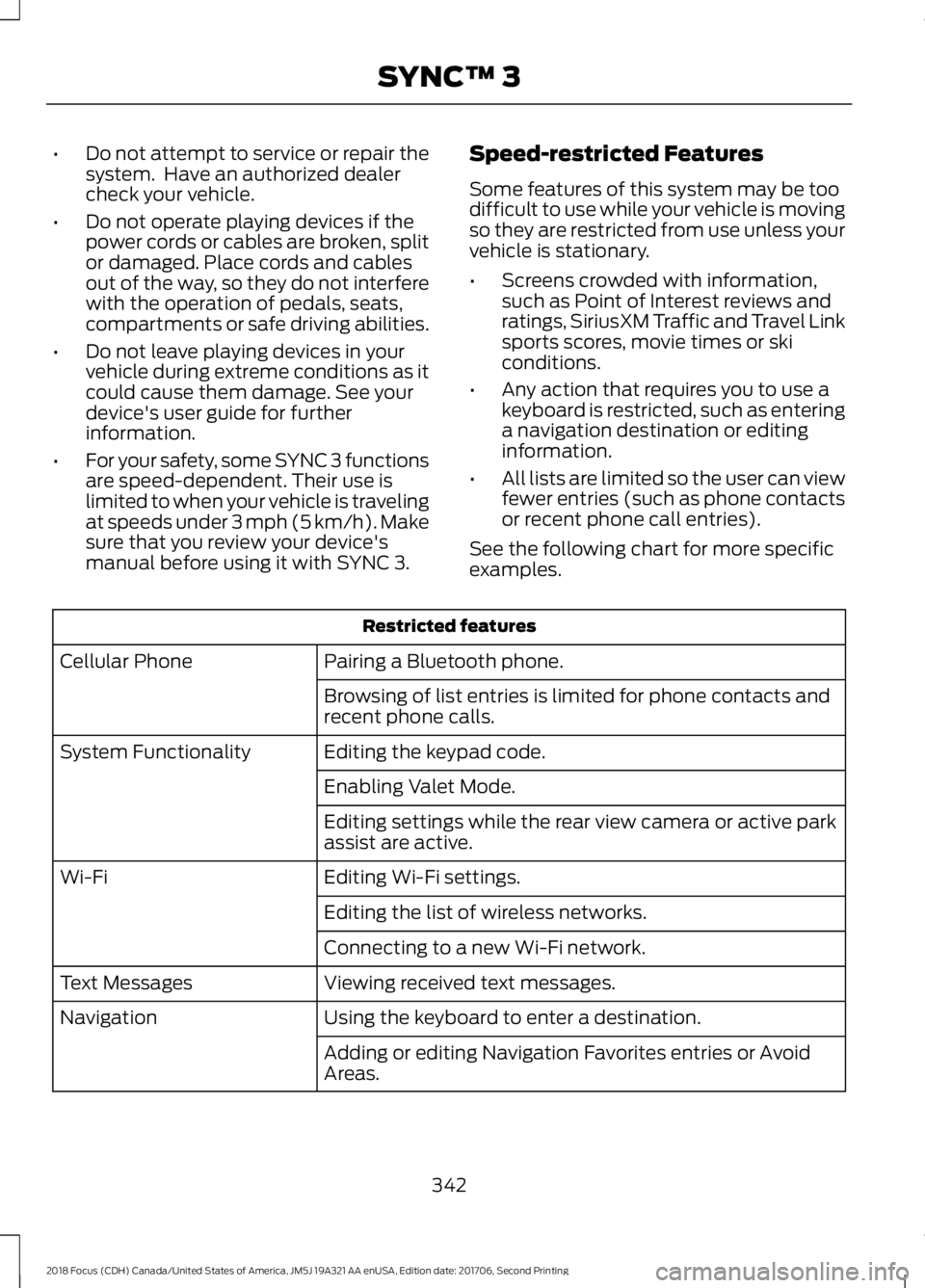
•For your safety, some SYNC 3 functionsare speed-dependent. Their use islimited to when your vehicle is travelingat speeds under 3 mph (5 km/h). Makesure that you review your device'smanual before using it with SYNC 3.
Speed-restricted Features
Some features of this system may be toodifficult to use while your vehicle is movingso they are restricted from use unless yourvehicle is stationary.
•Screens crowded with information,such as Point of Interest reviews andratings, SiriusXM Traffic and Travel Linksports scores, movie times or skiconditions.
•Any action that requires you to use akeyboard is restricted, such as enteringa navigation destination or editinginformation.
•All lists are limited so the user can viewfewer entries (such as phone contactsor recent phone call entries).
See the following chart for more specificexamples.
Restricted features
Pairing a Bluetooth phone.Cellular Phone
Browsing of list entries is limited for phone contacts andrecent phone calls.
Editing the keypad code.System Functionality
Enabling Valet Mode.
Editing settings while the rear view camera or active parkassist are active.
Editing Wi-Fi settings.Wi-Fi
Editing the list of wireless networks.
Connecting to a new Wi-Fi network.
Viewing received text messages.Text Messages
Using the keyboard to enter a destination.Navigation
Adding or editing Navigation Favorites entries or AvoidAreas.
3422018 Focus (CDH) Canada/United States of America, JM5J 19A321 AA enUSA, Edition date: 201706, Second PrintingSYNC™ 3