display FORD FOCUS 2018 Repair Manual
[x] Cancel search | Manufacturer: FORD, Model Year: 2018, Model line: FOCUS, Model: FORD FOCUS 2018Pages: 473, PDF Size: 39.91 MB
Page 282 of 473
SpecificationName
Motorcraft® Premium Quality Windshield Washer Fluid / Liquidelave-glace de haute qualité Motorcraft® (Canada)ZC-32-B2 (U.S.)CXC-37-A/B/D/F (Canada)
WSS-M17B21-AR-1234yf Refrigerant (U.S.)R-1234yf Refrigerant / Frigorigène R-1234yf (Canada)YN-33-A (U.S.)HS7Z-19B519-BA (Canada)
WSS-M2C300-A2Motorcraft® R-1234yf Refrigerant PAG Oil (U.S.)Motorcraft® R-1234yf Refrigerant PAG Oil / Huile PAG pourfrigorigène R-1234yf Motorcraft® (Canada)YN-35 (U.S. & Canada)
ESB-M1C93-BMotorcraft® Multi-Purpose Grease Spray (U.S.)Motorcraft® Multi-Purpose Grease Spray / Graisse tout usage enaérosol Motorcraft® (Canada)XL-5-A (U.S. & Canada)
-Motorcraft® Penetrating and Lock Lubricant (U.S.)Motorcraft® Penetrating Fluid / Liquide dégrippant Motorcraft®(Canada)XL-1 (U.S.)CXC-51-A (Canada)
Motor oils of the recommended viscositygrade that display the API CertificationMark for gasoline engines are alsoacceptable. Do not use oil labeled withAPI SN service category unless the labelalso displays the API certification mark.
Note:Automatic transmissions that requireMERCON® LV transmission fluid shouldonly use MERCON® LV transmission fluid.
An oil that displays this symbol conformsto current engine, emission system andfuel economy performance standards ofthe International Lubricants SpecificationAdvisory Committee (ILSAC).
Note:Do not use more than 1.1 qt (1 L) ofthe alternative engine oil betweenscheduled service intervals.
Using oil and fluids that do not meet thedefined specification and viscosity grademay lead to:
•Component damage which may not becovered by the vehicle Warranty.
•Longer engine cranking periods.
•Increased emission levels.
•Reduced engine performance.
•Reduced fuel economy.
•Reduced brake performance.
2792018 Focus (CDH) Canada/United States of America, JM5J 19A321 AA enUSA, Edition date: 201706, Second PrintingCapacities and SpecificationsE142732
Page 285 of 473
•MP3 and WMA folder mode representsa folder structure consisting of onelevel of folders. The CD player numbersall MP3 and WMA tracks on the disc(noted by the MP3 or WMA fileextension) and all folders containingMP3 and WMA files, from F001 (folder)T001 (track) to F253 T255.
•Creating discs with only one level offolders helps with navigation throughthe disc files.
If you are burning your own MP3 and WMAdiscs, it is important to understand howthe system reads the structures you create.While various files may be present (fileswith extensions other than MP3 andWMA), only files with the MP3 and WMAextension are played; other files areignored by the system. This enables you touse the same MP3 and WMA disc for avariety of tasks on your work computer,home computer and your in-vehiclesystem.
In track mode, the system displays andplays the structure as if it were only onelevel deep (all MP3 and WMA files play,regardless of being in a specific folder). Infolder mode, the system only plays theMP3 and WMA files in the current folder.
AUDIO UNIT - VEHICLES WITH:
SYNC
WARNING
Driving while distracted can result inloss of vehicle control, crash andinjury. We strongly recommend thatyou use extreme caution when using anydevice that may take your focus off theroad. Your primary responsibility is the safeoperation of your vehicle. We recommendagainst the use of any hand-held devicewhile driving and encourage the use ofvoice-operated systems when possible.Make sure you are aware of all applicablelocal laws that may affect the use ofelectronic devices while driving.
Note:Depending on your vehicle optionpackage, your system may look differentfrom what you see here.
2822018 Focus (CDH) Canada/United States of America, JM5J 19A321 AA enUSA, Edition date: 201706, Second PrintingAudio System
Page 287 of 473
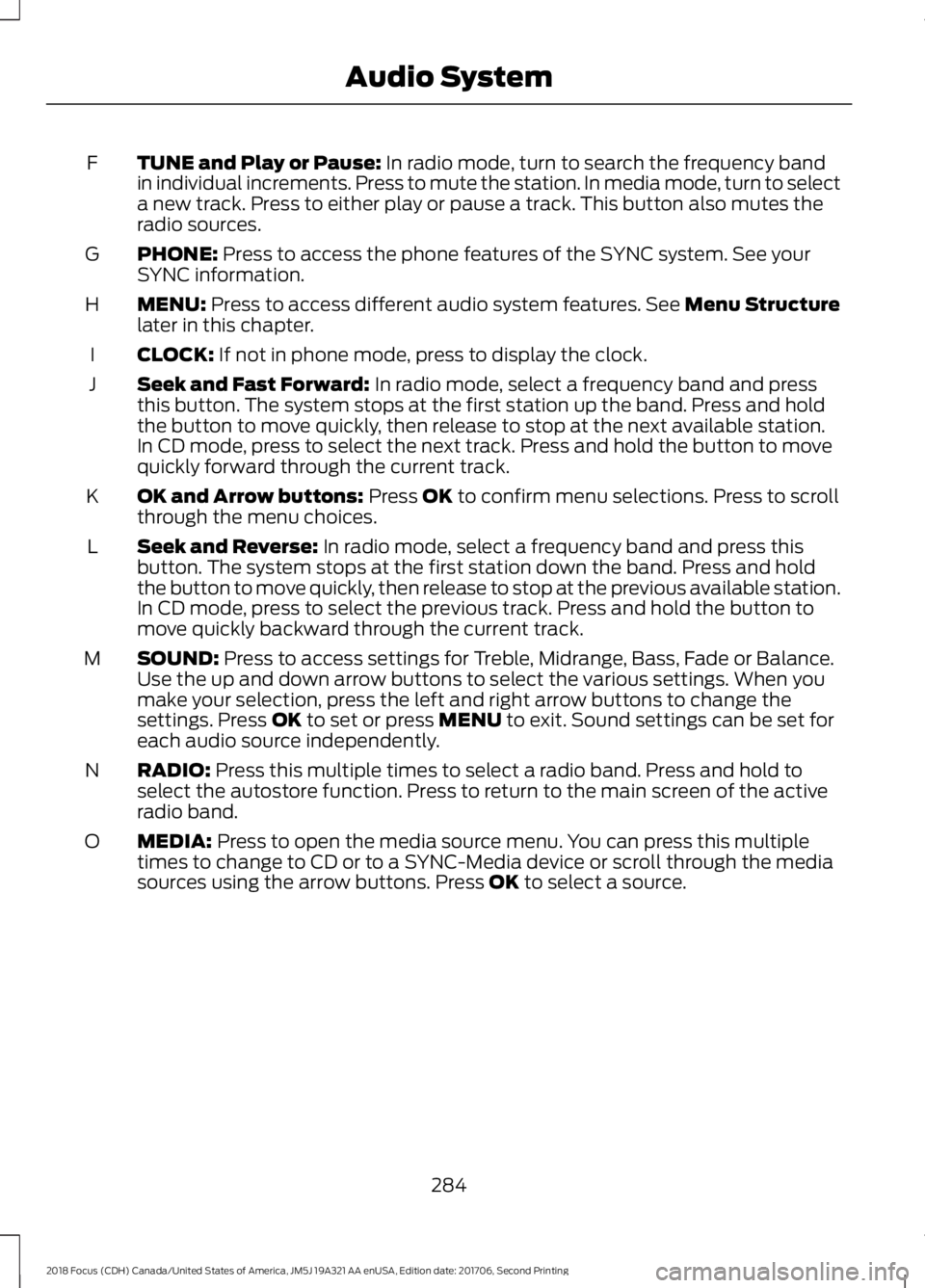
TUNE and Play or Pause: In radio mode, turn to search the frequency bandin individual increments. Press to mute the station. In media mode, turn to selecta new track. Press to either play or pause a track. This button also mutes theradio sources.
F
PHONE: Press to access the phone features of the SYNC system. See yourSYNC information.G
MENU: Press to access different audio system features. See Menu Structurelater in this chapter.H
CLOCK: If not in phone mode, press to display the clock.I
Seek and Fast Forward: In radio mode, select a frequency band and pressthis button. The system stops at the first station up the band. Press and holdthe button to move quickly, then release to stop at the next available station.In CD mode, press to select the next track. Press and hold the button to movequickly forward through the current track.
J
OK and Arrow buttons: Press OK to confirm menu selections. Press to scrollthrough the menu choices.K
Seek and Reverse: In radio mode, select a frequency band and press thisbutton. The system stops at the first station down the band. Press and holdthe button to move quickly, then release to stop at the previous available station.In CD mode, press to select the previous track. Press and hold the button tomove quickly backward through the current track.
L
SOUND: Press to access settings for Treble, Midrange, Bass, Fade or Balance.Use the up and down arrow buttons to select the various settings. When youmake your selection, press the left and right arrow buttons to change thesettings. Press OK to set or press MENU to exit. Sound settings can be set foreach audio source independently.
M
RADIO: Press this multiple times to select a radio band. Press and hold toselect the autostore function. Press to return to the main screen of the activeradio band.
N
MEDIA: Press to open the media source menu. You can press this multipletimes to change to CD or to a SYNC-Media device or scroll through the mediasources using the arrow buttons. Press OK to select a source.
O
2842018 Focus (CDH) Canada/United States of America, JM5J 19A321 AA enUSA, Edition date: 201706, Second PrintingAudio System
Page 289 of 473
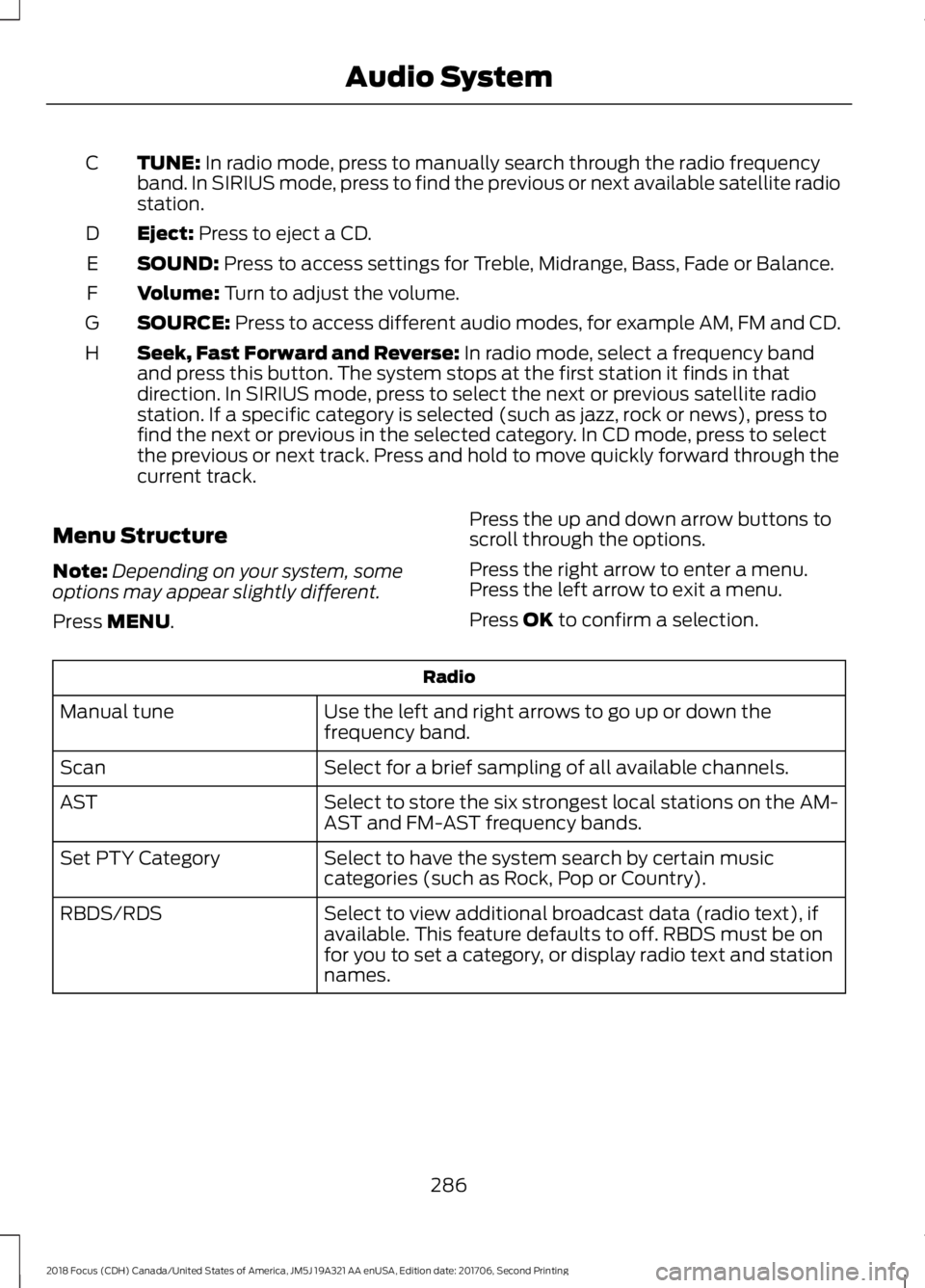
TUNE: In radio mode, press to manually search through the radio frequencyband. In SIRIUS mode, press to find the previous or next available satellite radiostation.
C
Eject: Press to eject a CD.D
SOUND: Press to access settings for Treble, Midrange, Bass, Fade or Balance.E
Volume: Turn to adjust the volume.F
SOURCE: Press to access different audio modes, for example AM, FM and CD.G
Seek, Fast Forward and Reverse: In radio mode, select a frequency bandand press this button. The system stops at the first station it finds in thatdirection. In SIRIUS mode, press to select the next or previous satellite radiostation. If a specific category is selected (such as jazz, rock or news), press tofind the next or previous in the selected category. In CD mode, press to selectthe previous or next track. Press and hold to move quickly forward through thecurrent track.
H
Menu Structure
Note:Depending on your system, someoptions may appear slightly different.
Press MENU.
Press the up and down arrow buttons toscroll through the options.
Press the right arrow to enter a menu.Press the left arrow to exit a menu.
Press OK to confirm a selection.
Radio
Use the left and right arrows to go up or down thefrequency band.Manual tune
Select for a brief sampling of all available channels.Scan
Select to store the six strongest local stations on the AM-AST and FM-AST frequency bands.AST
Select to have the system search by certain musiccategories (such as Rock, Pop or Country).Set PTY Category
Select to view additional broadcast data (radio text), ifavailable. This feature defaults to off. RBDS must be onfor you to set a category, or display radio text and stationnames.
RBDS/RDS
2862018 Focus (CDH) Canada/United States of America, JM5J 19A321 AA enUSA, Edition date: 201706, Second PrintingAudio System
Page 291 of 473
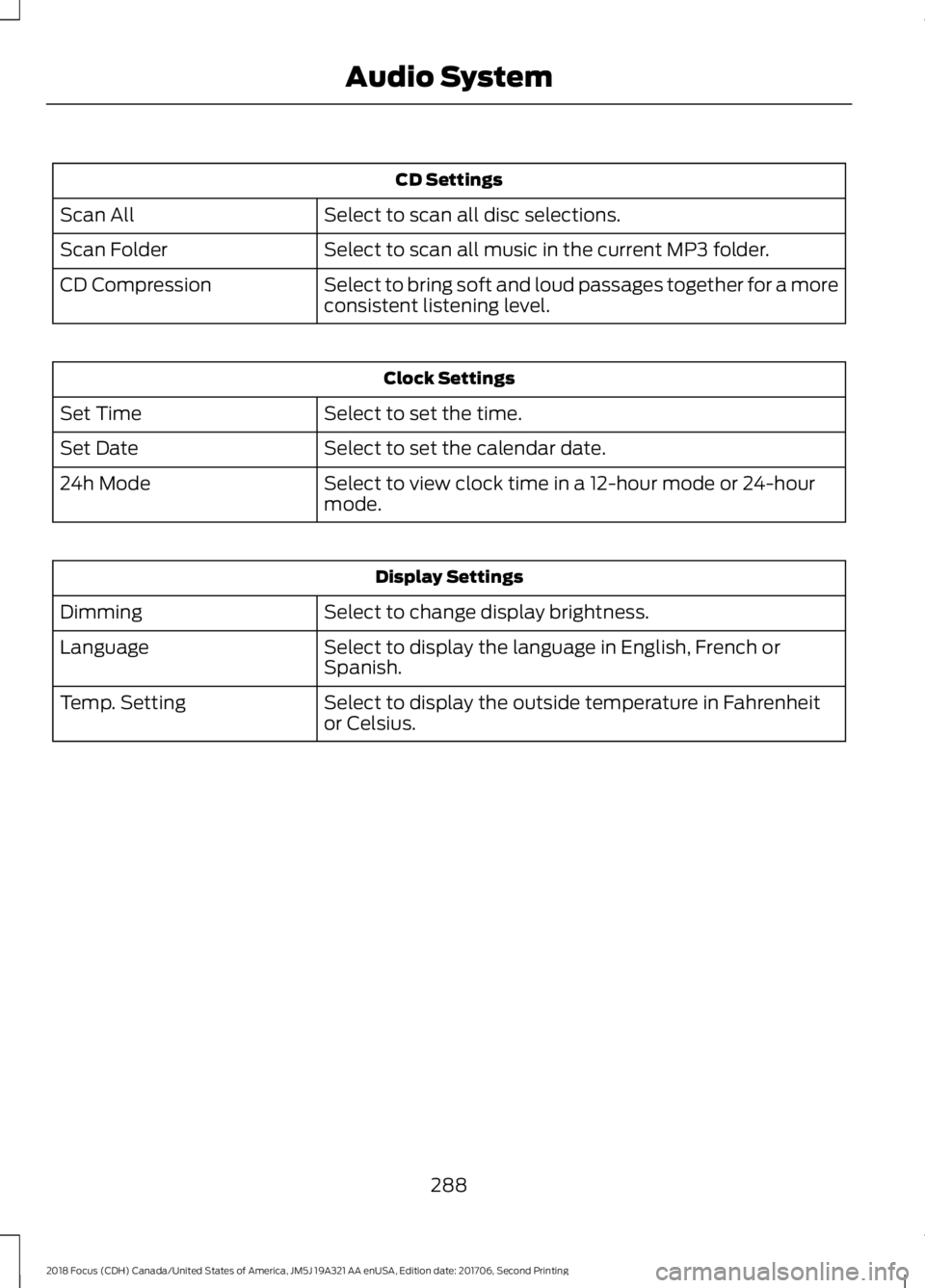
CD Settings
Select to scan all disc selections.Scan All
Select to scan all music in the current MP3 folder.Scan Folder
Select to bring soft and loud passages together for a moreconsistent listening level.CD Compression
Clock Settings
Select to set the time.Set Time
Select to set the calendar date.Set Date
Select to view clock time in a 12-hour mode or 24-hourmode.24h Mode
Display Settings
Select to change display brightness.Dimming
Select to display the language in English, French orSpanish.Language
Select to display the outside temperature in Fahrenheitor Celsius.Temp. Setting
2882018 Focus (CDH) Canada/United States of America, JM5J 19A321 AA enUSA, Edition date: 201706, Second PrintingAudio System
Page 294 of 473
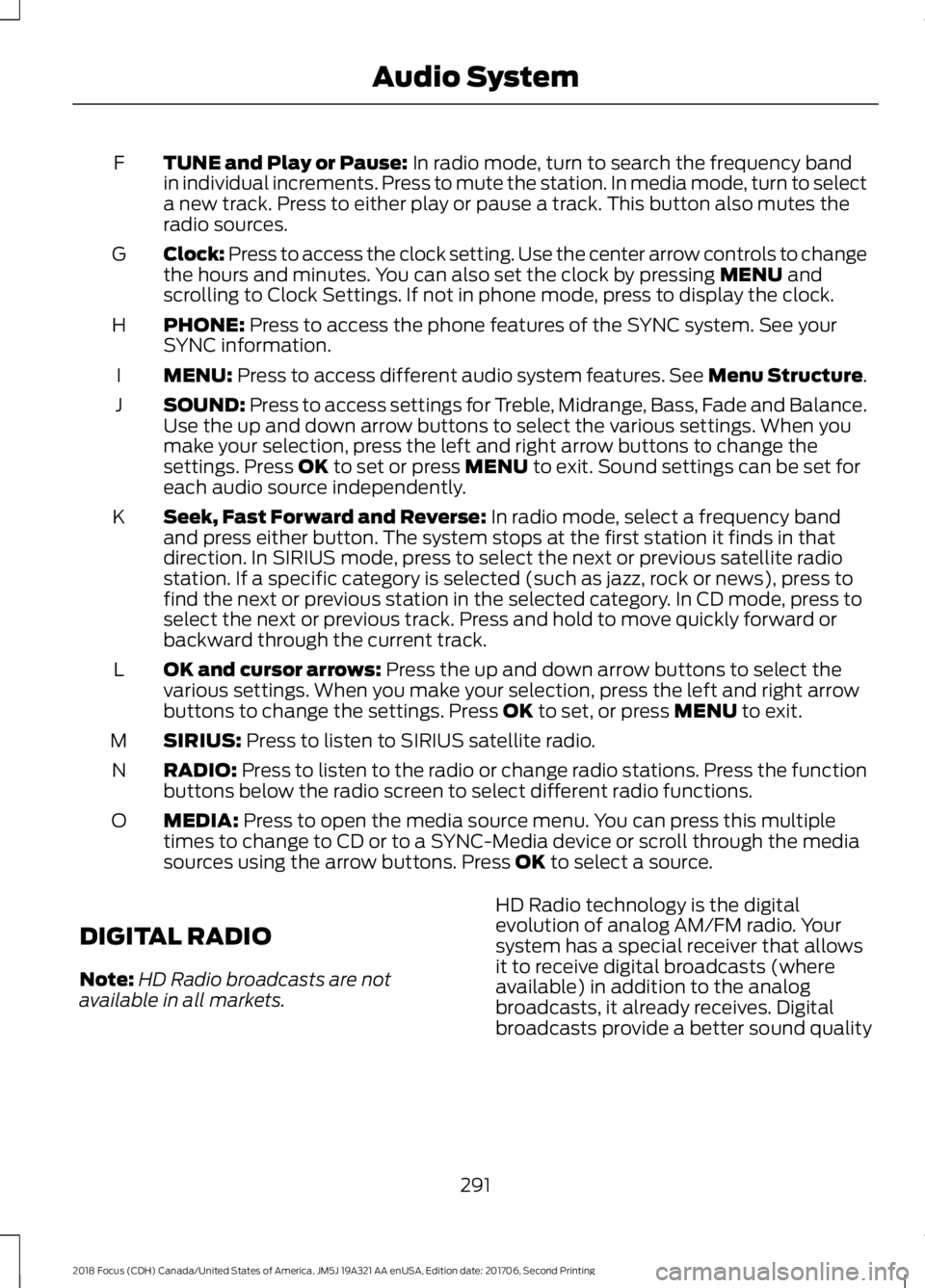
TUNE and Play or Pause: In radio mode, turn to search the frequency bandin individual increments. Press to mute the station. In media mode, turn to selecta new track. Press to either play or pause a track. This button also mutes theradio sources.
F
Clock: Press to access the clock setting. Use the center arrow controls to changethe hours and minutes. You can also set the clock by pressing MENU andscrolling to Clock Settings. If not in phone mode, press to display the clock.
G
PHONE: Press to access the phone features of the SYNC system. See yourSYNC information.H
MENU: Press to access different audio system features. See Menu Structure.I
SOUND: Press to access settings for Treble, Midrange, Bass, Fade and Balance.Use the up and down arrow buttons to select the various settings. When youmake your selection, press the left and right arrow buttons to change thesettings. Press OK to set or press MENU to exit. Sound settings can be set foreach audio source independently.
J
Seek, Fast Forward and Reverse: In radio mode, select a frequency bandand press either button. The system stops at the first station it finds in thatdirection. In SIRIUS mode, press to select the next or previous satellite radiostation. If a specific category is selected (such as jazz, rock or news), press tofind the next or previous station in the selected category. In CD mode, press toselect the next or previous track. Press and hold to move quickly forward orbackward through the current track.
K
OK and cursor arrows: Press the up and down arrow buttons to select thevarious settings. When you make your selection, press the left and right arrowbuttons to change the settings. Press OK to set, or press MENU to exit.
L
SIRIUS: Press to listen to SIRIUS satellite radio.M
RADIO: Press to listen to the radio or change radio stations. Press the functionbuttons below the radio screen to select different radio functions.N
MEDIA: Press to open the media source menu. You can press this multipletimes to change to CD or to a SYNC-Media device or scroll through the mediasources using the arrow buttons. Press OK to select a source.
O
DIGITAL RADIO
Note:HD Radio broadcasts are notavailable in all markets.
HD Radio technology is the digitalevolution of analog AM/FM radio. Yoursystem has a special receiver that allowsit to receive digital broadcasts (whereavailable) in addition to the analogbroadcasts, it already receives. Digitalbroadcasts provide a better sound quality
2912018 Focus (CDH) Canada/United States of America, JM5J 19A321 AA enUSA, Edition date: 201706, Second PrintingAudio System
Page 297 of 473
HD Radio Technology manufactured underlicense from iBiquity Digital Corp. U.S. andforeign patents. HD Radio and the HD andHD Radio logos are proprietary trademarksof iBiquity Digital Corp. Ford MotorCompany and iBiquity Digital Corp. are notresponsible for the content sent using HDRadio technology. Content may bechanged, added or deleted at any time atthe station owner's discretion.
SATELLITE RADIO
SIRIUS® broadcasts a variety of music,news, sports, weather, traffic andentertainment satellite radio channels. Formore information and a complete list ofSIRIUS satellite radio channels, visitwww.siriusxm.com in the United States,www.siriusxm.ca in Canada, or call SIRIUSat 1-888-539-7474.
Note:This receiver includes the eCosreal-time operating system. eCos ispublished under the eCos License.
Satellite Radio Reception Factors
Potential satellite radio reception issues
For optimal reception performance, keep the antennaclear of snow and ice build-up and keep luggage and othermaterial as far away from the antenna as possible.
Antenna obstructions
Hills, mountains, tall buildings, bridges, tunnels, freewayoverpasses, parking garages, dense tree foliage andthunderstorms can interfere with your reception.
Terrain
When you pass a ground-based broadcast-repeatingtower, a stronger signal may overtake a weaker one andthe audio system may mute.
Station overload
Your display may show ACQUIRING . . . to indicate theinterference and the audio system may mute.Satellite radio signal interfer-ence
SIRIUS® Satellite Radio Service
Note:SIRIUS reserves the unrestricted rightto change, rearrange, add or deleteprogramming including canceling, movingor adding particular channels, and its prices,at any time, with or without notice to you.Ford Motor Company shall not beresponsible for any such programmingchanges.
2942018 Focus (CDH) Canada/United States of America, JM5J 19A321 AA enUSA, Edition date: 201706, Second PrintingAudio SystemE142593
Page 302 of 473
System data cannot be accessed withoutspecial equipment and access to thevehicle's SYNC module. Ford MotorCompany and Ford of Canada will notaccess the system data for any purposeother than as described absent consent, acourt order, or where required by lawenforcement, other governmentauthorities, or other third parties actingwith lawful authority. Other parties mayseek to access the informationindependently of Ford Motor Company andFord of Canada. For further privacyinformation, see the section on 911 Assist.See SYNC™ Applications and Services(page 313).
USING VOICE RECOGNITION
This system helps you control manyfeatures using voice commands. Thisallows you to keep your hands on thewheel and focus on what is around you.
Initiating a Voice Session
Press the voice button. A list ofavailable voice commandsappears in the display.
Global Voice Commands
These voice commands are alwaysavailable. You can say them at any time.
Global voice commands
This command ends the voice session. Youcan also cancel a session by holding thevoice button for two or more seconds.
(cancel | exit)
This command provides you with hints,examples and instructions.help
This command restarts the voice sessionfrom the initial starting point.(main menu | start again)
You can say any of the voice commands that appear within open and close brackets thatare separated by |. For example, where; (cancel | exit) appears you say; cancel or exit.
Helpful Hints
•Make sure the interior of your vehicle isas quiet as possible. Wind noise fromopen windows and road vibrations mayprevent the system from correctlyrecognizing spoken commands.
•Before giving a voice command, waitfor the system announcement to finish,followed by a single tone. Anycommand spoken before this does notregister with the system.
•Speak naturally, without long pausesbetween words.
•You can interrupt the system at anytime while it is speaking by pressing thevoice button. You can cancel a voicesession by pressing and holding thevoice button.
2992018 Focus (CDH) Canada/United States of America, JM5J 19A321 AA enUSA, Edition date: 201706, Second PrintingSYNC™E142599
Page 304 of 473
To adjust this setting press the voice button, when prompted say:
Action and DescriptionVoice Command
voice settings
Then any of the following:
When enabled, this feature will prompt youto confirm any voice initiated call commandprior to the call being placed.
phone confirmation on
The system will make a best guess; youmay still occasionally be asked to confirmsettings.
phone confirmation off
Changing the Voice Settings
In addition to using voice commands tochange the voice settings, you can also usethe menu in the audio display.
To change the voice settings press theMenu button then select:
Menu Item
SYNC-Settings
Voice settings
Note:Depending on the current climatecontrol settings, the fan speed mayautomatically go down while issuing voicecommands or while making and receivingphone calls via SYNC to reduce the amountof background noise in the vehicle. The fanspeed will automatically return to normaloperation once the voice session ends. Fanspeed can also be adjusted normally duringa voice session, simply press fan buttons (orturn fan knob) to increase or decrease fanspeed to desired setting.
To disable this automatic fan speedreduction feature during voice sessions,press and hold the climate control AC andRecirculated air buttons simultaneously,release and then increase fan speed within2 seconds. To re-enable this feature, repeatthe above sequence.
USING SYNC™ WITH YOUR
PHONE
Hands-free calling is one of the mainfeatures of SYNC. While the systemsupports a variety of features, many aredependent on your cellular phone'sfunctionality. At a minimum, most cellularphones with Bluetooth wireless technologysupport the following functions:
•Answering an incoming call.
•Ending a call.
•Using privacy mode.
•Dialing a number.
•Redialing.
•Call waiting notification.
•Caller ID.
3012018 Focus (CDH) Canada/United States of America, JM5J 19A321 AA enUSA, Edition date: 201706, Second PrintingSYNC™
Page 305 of 473
Other features, such as text messagingusing Bluetooth and automatic phonebookdownload, are phone-dependent features.To check your phone's compatibility, seeyour phone's manual and visitwww.SYNCMyRide.com,www.SYNCMyRide.ca orwww.syncmaroute.ca.
Pairing a Phone for the First Time
Wirelessly pairing your phone with SYNCallows you to make and receive hands-freecalls.
Note:SYNC can support downloading upto approximately 4000 entries perBluetooth-enabled cellular phone.
Note:Make sure to switch on the ignitionand the radio. Shift the transmission intopark (P) for automatic transmission or firstgear for manual transmission.
Using the Audio System
Note:To scroll through the menus, pressthe up and down arrows on your audiosystem.
1.Make sure to switch on your phone'sBluetooth feature before starting thesearch. See your device's manual ifnecessary.
2.Press the PHONE button. When theaudio display indicates there is nopaired phone, select the option to add.
3.When a message to begin pairingappears in the audio display, search forSYNC on your phone to start the pairingprocess.
4.When prompted on your cell phone’sdisplay, confirm that the PIN providedby SYNC matches the PIN displayedon your cell phone. Your phone is nowpaired and the display indicates thatthe pairing was successful. If you areprompted to enter a PIN on your device,enter the PIN displayed on the screen.The display indicates when the pairingis successful.
Depending on your phone's capability andyour market, the system may prompt youwith questions, such as setting the currentphone as the primary phone (the phoneSYNC automatically tries to connect withfirst upon vehicle start-up) anddownloading your phonebook.
Using Voice Commands
Make sure to switch on yourphone's Bluetooth featurebefore starting the search. Seeyour device's manual if necessary.
Press the voice and when promptedsay:
Action and Descrip-tionVoice Command
Follow the instruc-tions on the audiodisplay.
(pair ([Bluetooth]device | phone |Bluetooth audio) |add phone)
You can say any of the voice commandsthat appear within open and close bracketsthat are separated by |. For example,where; (what's | what is) appears you say;what's or what is.
The commands that have [ ] around theword means that the word is optional.
3022018 Focus (CDH) Canada/United States of America, JM5J 19A321 AA enUSA, Edition date: 201706, Second PrintingSYNC™E142599