display FORD FOCUS 2018 Manual Online
[x] Cancel search | Manufacturer: FORD, Model Year: 2018, Model line: FOCUS, Model: FORD FOCUS 2018Pages: 473, PDF Size: 39.91 MB
Page 317 of 473
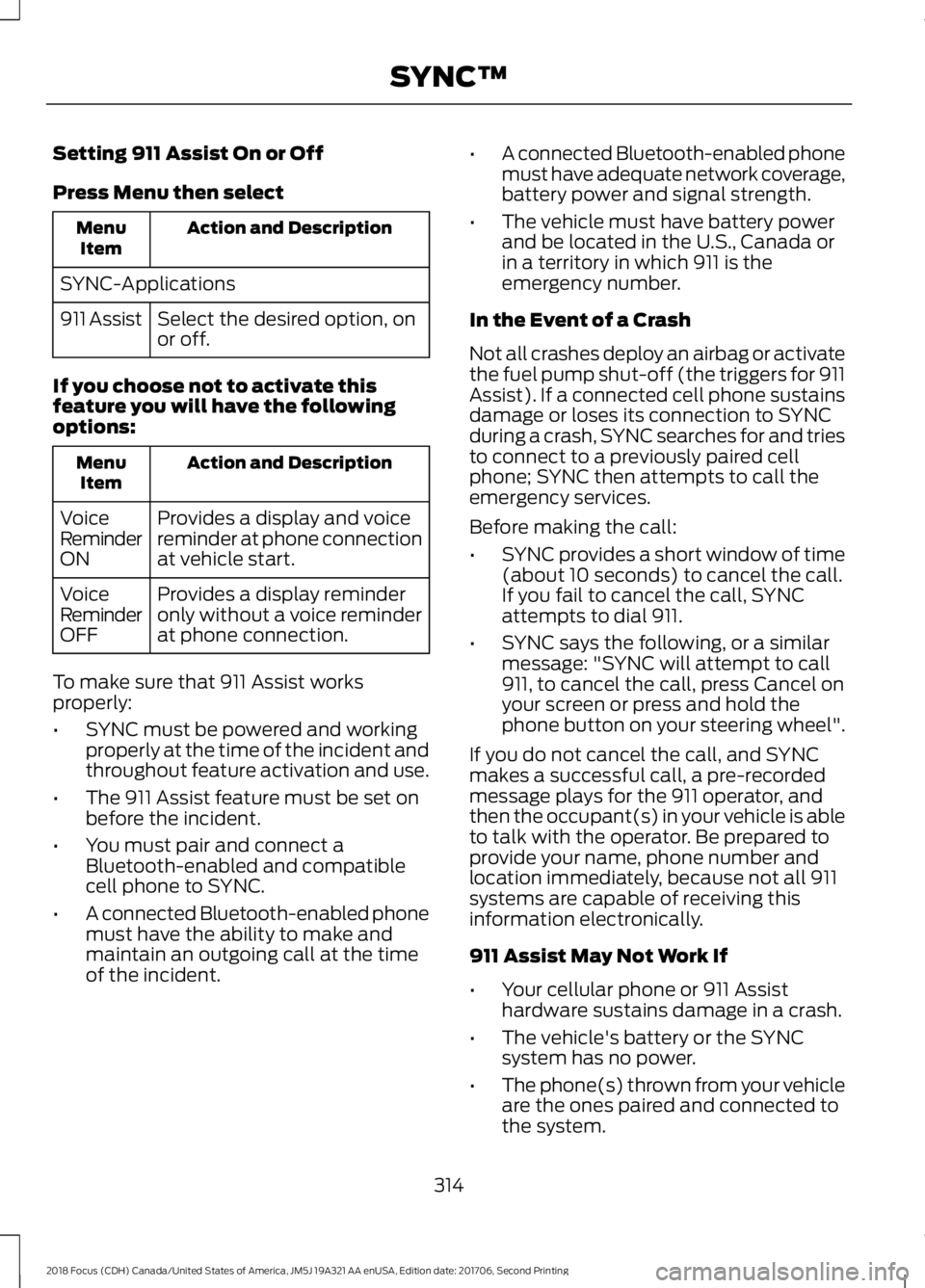
Setting 911 Assist On or Off
Press Menu then select
Action and DescriptionMenuItem
SYNC-Applications
Select the desired option, onor off.911 Assist
If you choose not to activate thisfeature you will have the followingoptions:
Action and DescriptionMenuItem
Provides a display and voicereminder at phone connectionat vehicle start.
VoiceReminderON
Provides a display reminderonly without a voice reminderat phone connection.
VoiceReminderOFF
To make sure that 911 Assist worksproperly:
•SYNC must be powered and workingproperly at the time of the incident andthroughout feature activation and use.
•The 911 Assist feature must be set onbefore the incident.
•You must pair and connect aBluetooth-enabled and compatiblecell phone to SYNC.
•A connected Bluetooth-enabled phonemust have the ability to make andmaintain an outgoing call at the timeof the incident.
•A connected Bluetooth-enabled phonemust have adequate network coverage,battery power and signal strength.
•The vehicle must have battery powerand be located in the U.S., Canada orin a territory in which 911 is theemergency number.
In the Event of a Crash
Not all crashes deploy an airbag or activatethe fuel pump shut-off (the triggers for 911Assist). If a connected cell phone sustainsdamage or loses its connection to SYNCduring a crash, SYNC searches for and triesto connect to a previously paired cellphone; SYNC then attempts to call theemergency services.
Before making the call:
•SYNC provides a short window of time(about 10 seconds) to cancel the call.If you fail to cancel the call, SYNCattempts to dial 911.
•SYNC says the following, or a similarmessage: "SYNC will attempt to call911, to cancel the call, press Cancel onyour screen or press and hold thephone button on your steering wheel".
If you do not cancel the call, and SYNCmakes a successful call, a pre-recordedmessage plays for the 911 operator, andthen the occupant(s) in your vehicle is ableto talk with the operator. Be prepared toprovide your name, phone number andlocation immediately, because not all 911systems are capable of receiving thisinformation electronically.
911 Assist May Not Work If
•Your cellular phone or 911 Assisthardware sustains damage in a crash.
•The vehicle's battery or the SYNCsystem has no power.
•The phone(s) thrown from your vehicleare the ones paired and connected tothe system.
3142018 Focus (CDH) Canada/United States of America, JM5J 19A321 AA enUSA, Edition date: 201706, Second PrintingSYNC™
Page 320 of 473
•To allow your vehicle to providelocation information, including: GPSand speed.
•To allow the app to send pushnotifications using the vehicle displayand voice capabilities while running ina background state. Push notificationsmay be particularly useful for news or
location based apps.
Note:You only need to grant permissionsthe first time you use an app with SYNC.
Note:Ford is not responsible or liable forany damages or loss of privacy relating tousage of an app, or dissemination of anyvehicle data that you approve Ford toprovide to an app.
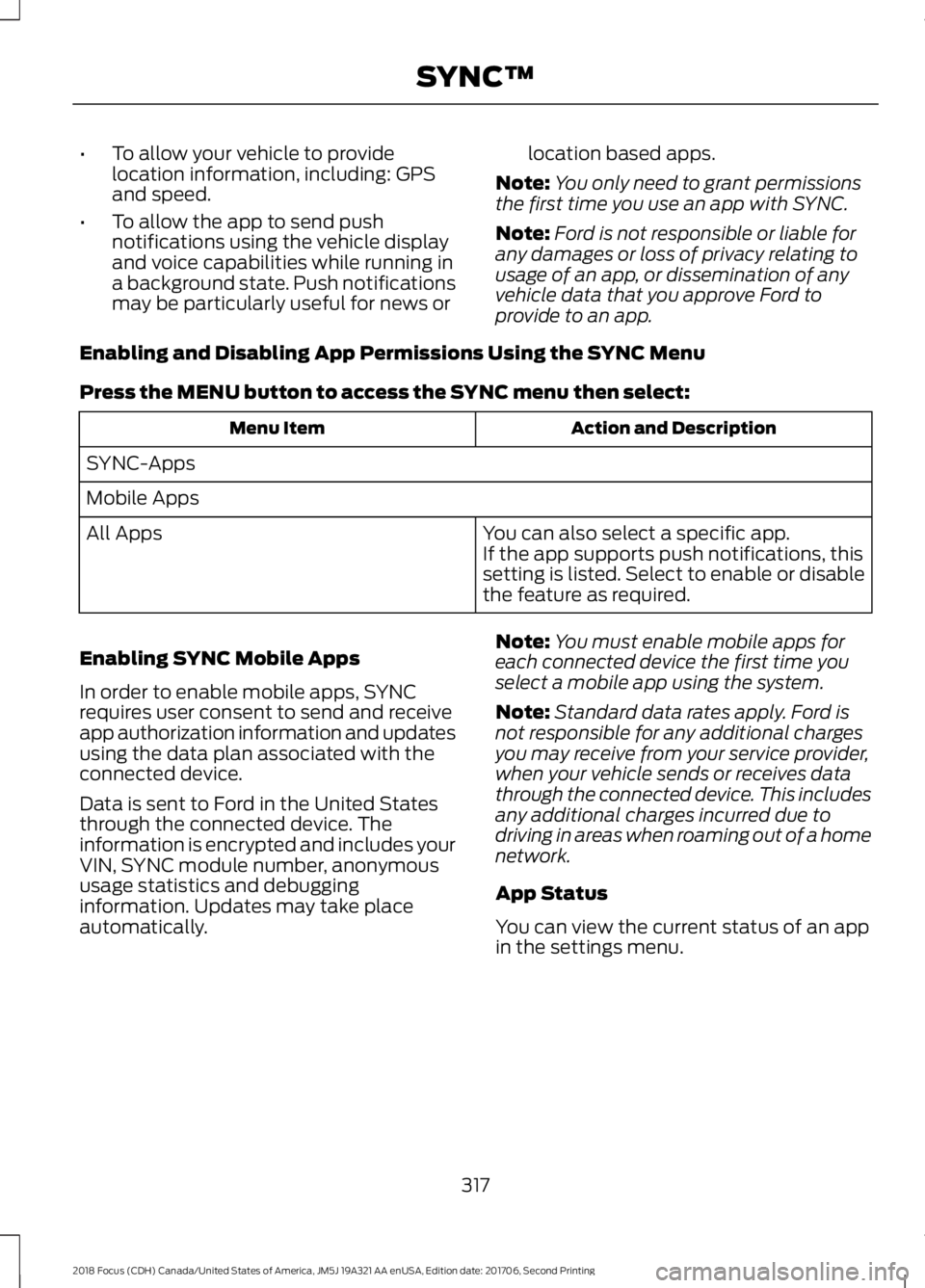
Enabling and Disabling App Permissions Using the SYNC Menu
Press the MENU button to access the SYNC menu then select:
Action and DescriptionMenu Item
SYNC-Apps
Mobile Apps
You can also select a specific app.If the app supports push notifications, thissetting is listed. Select to enable or disablethe feature as required.
All Apps
Enabling SYNC Mobile Apps
In order to enable mobile apps, SYNCrequires user consent to send and receiveapp authorization information and updatesusing the data plan associated with theconnected device.
Data is sent to Ford in the United Statesthrough the connected device. Theinformation is encrypted and includes yourVIN, SYNC module number, anonymoususage statistics and debugginginformation. Updates may take placeautomatically.
Note:You must enable mobile apps foreach connected device the first time youselect a mobile app using the system.
Note:Standard data rates apply. Ford isnot responsible for any additional chargesyou may receive from your service provider,when your vehicle sends or receives datathrough the connected device. This includesany additional charges incurred due todriving in areas when roaming out of a homenetwork.
App Status
You can view the current status of an appin the settings menu.
3172018 Focus (CDH) Canada/United States of America, JM5J 19A321 AA enUSA, Edition date: 201706, Second PrintingSYNC™
Page 322 of 473
To Connect Using Voice Commands
Plug the device into one of the vehicle'sUSB ports.
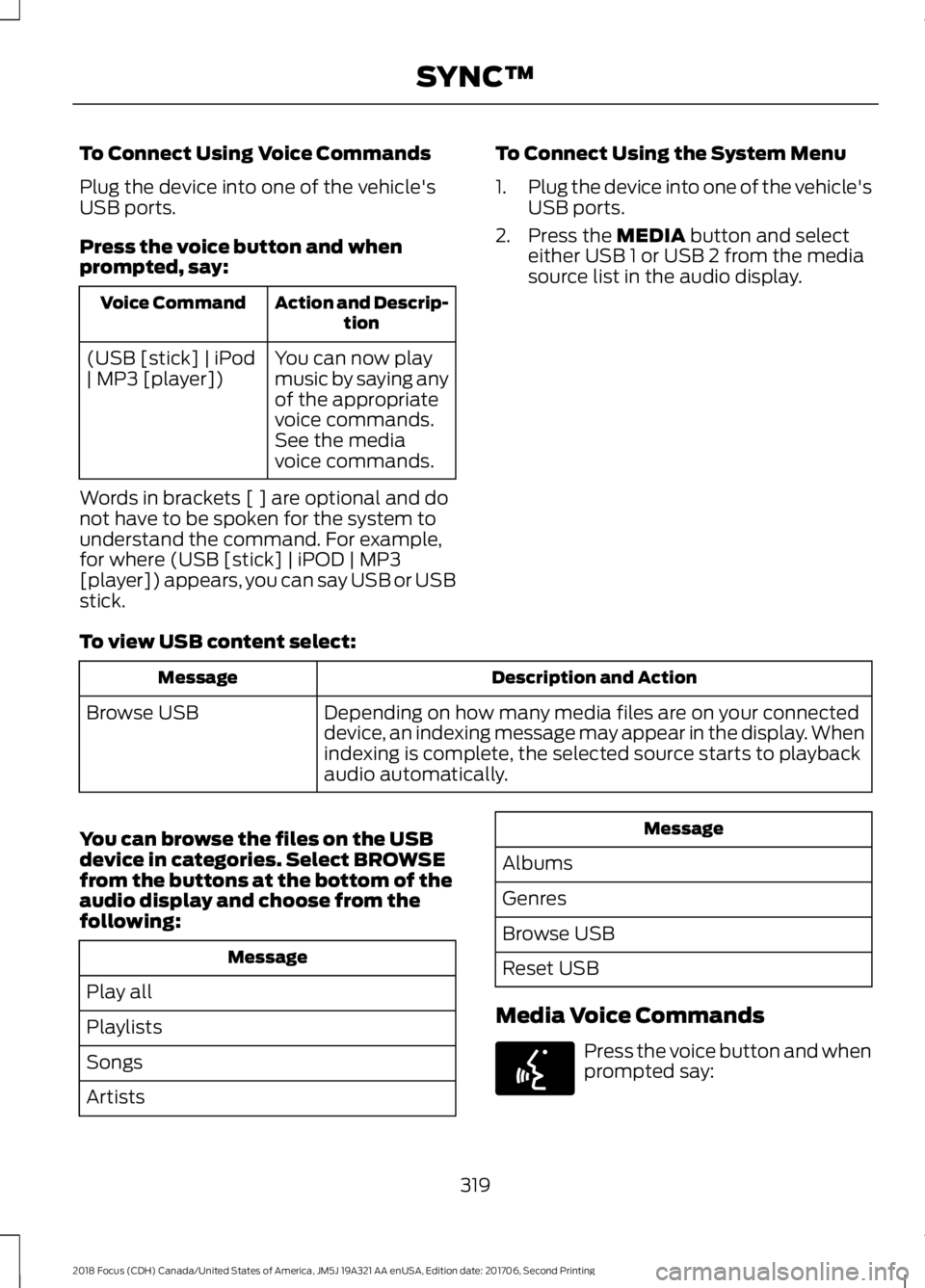
Press the voice button and whenprompted, say:
Action and Descrip-tionVoice Command
You can now playmusic by saying anyof the appropriatevoice commands.See the mediavoice commands.
(USB [stick] | iPod| MP3 [player])
Words in brackets [ ] are optional and donot have to be spoken for the system tounderstand the command. For example,for where (USB [stick] | iPOD | MP3[player]) appears, you can say USB or USBstick.
To Connect Using the System Menu
1.Plug the device into one of the vehicle'sUSB ports.
2.Press the MEDIA button and selecteither USB 1 or USB 2 from the mediasource list in the audio display.
To view USB content select:
Description and ActionMessage
Depending on how many media files are on your connecteddevice, an indexing message may appear in the display. Whenindexing is complete, the selected source starts to playbackaudio automatically.
Browse USB
You can browse the files on the USBdevice in categories. Select BROWSEfrom the buttons at the bottom of theaudio display and choose from thefollowing:
Message
Play all
Playlists
Songs
Artists
Message
Albums
Genres
Browse USB
Reset USB
Media Voice Commands
Press the voice button and whenprompted say:
3192018 Focus (CDH) Canada/United States of America, JM5J 19A321 AA enUSA, Edition date: 201706, Second PrintingSYNC™E142599
Page 324 of 473
![FORD FOCUS 2018 Manual Online Description and ActionCommand
Plays the current playlist in a random order.(Not all devices support this command.)shuffle [all] [on]
shuffle off
At any time during playback, you can pressthe voice but](/img/11/40765/w960_40765-323.png "FORD FOCUS 2018 Manual Online Description and ActionCommand
Plays the current playlist in a random order.(Not all devices support this command.)shuffle [all] [on]
shuffle off
At any time during playback, you can pressthe voice but")
Description and ActionCommand
Plays the current playlist in a random order.(Not all devices support this command.)shuffle [all] [on]
shuffle off
At any time during playback, you can pressthe voice button and ask the system what isplaying. The system reads the metadata tags(if populated) of the current track.
((who's | who is) this | who plays this |(what's | what is) playing [now] | (what| which) (song | track | artist) is this |(who's | who is) playing | (what's | whatis) this)
___ is a dynamic listing, meaning that itcould be the name of anything, such as agroup, artist or song. For example youcould say "Play artist The Beatles".
Examples of USB Commands
SYNC provides the user with many intuitiveways to find and play a song using voice.For example, if we have a song called"Penny Lane" from the album "MagicalMystery Tour" we can say the following toplay this song:
•Play song "Penny Lane".
•Play "Penny Lane".
If we wanted to play the entire album, wecan say:
•Play album "Magical Mystery Tour".
•Play "Magical Mystery Tour".
Bluetooth Audio
The system is also capable of playingmusic from your cellular phone throughBluetooth.
To switch the Bluetooth Audio on, pressthe MEDIA button and select:
Menu Item
BT audio
Then any of the following:
Voice Command
pause
play
next [track | title | song | file | podcast | chapter | episode]
previous [track | title | song | file | podcast | chapter | episode]
Media Menu Features
The media menu allows you to select howto play your music (such as by artist, genre,shuffle or repeat), find similar music orreset the index of your USB devices.
Press the MEDIA button and select eitherUSB 1 or USB 2 from the media source listin the audio display to start USB playback.
3212018 Focus (CDH) Canada/United States of America, JM5J 19A321 AA enUSA, Edition date: 201706, Second PrintingSYNC™
Page 325 of 473
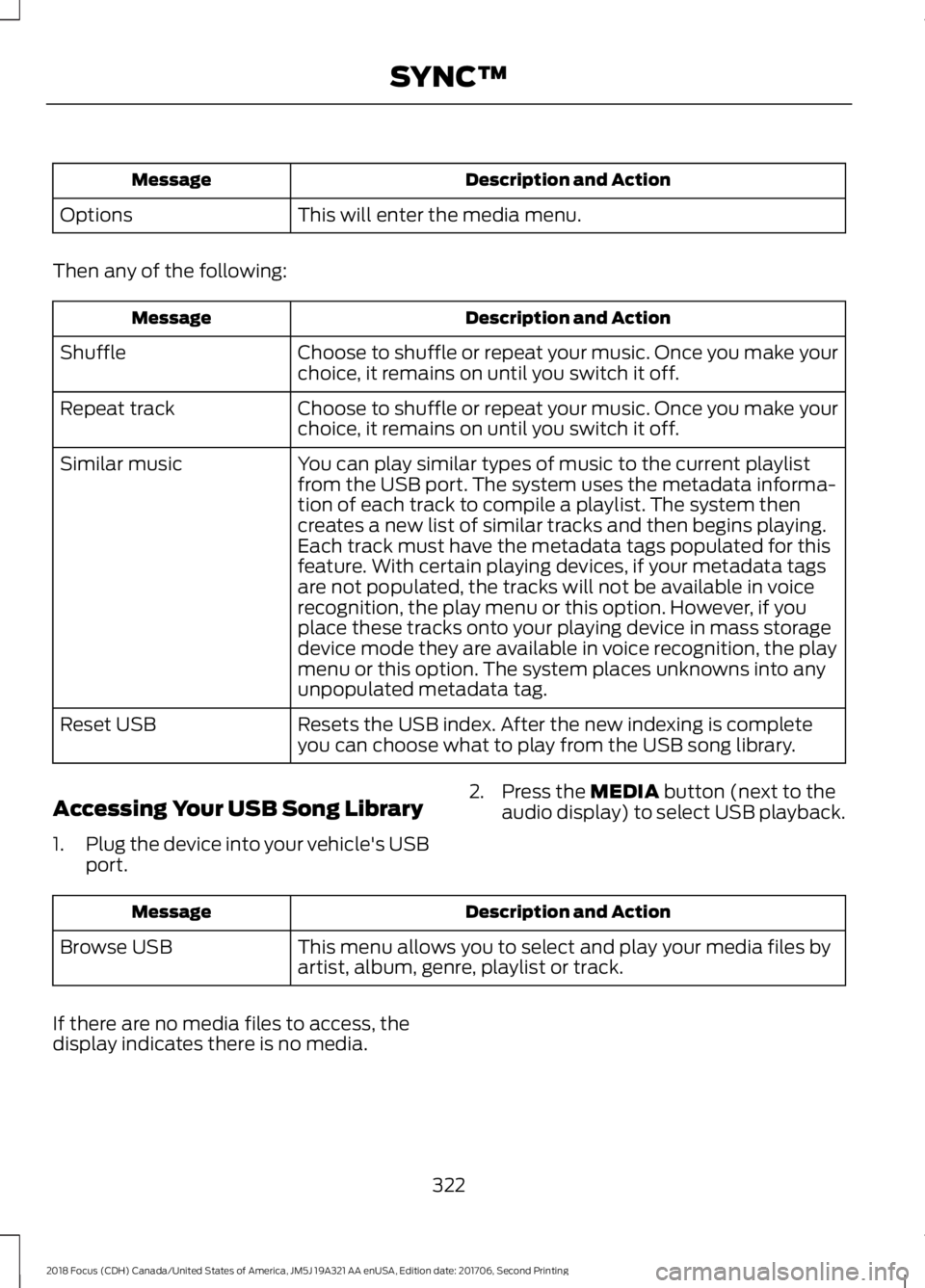
Description and ActionMessage
This will enter the media menu.Options
Then any of the following:
Description and ActionMessage
Choose to shuffle or repeat your music. Once you make yourchoice, it remains on until you switch it off.Shuffle
Choose to shuffle or repeat your music. Once you make yourchoice, it remains on until you switch it off.Repeat track
You can play similar types of music to the current playlistfrom the USB port. The system uses the metadata informa-tion of each track to compile a playlist. The system thencreates a new list of similar tracks and then begins playing.Each track must have the metadata tags populated for thisfeature. With certain playing devices, if your metadata tags
Similar music
are not populated, the tracks will not be available in voicerecognition, the play menu or this option. However, if youplace these tracks onto your playing device in mass storagedevice mode they are available in voice recognition, the playmenu or this option. The system places unknowns into anyunpopulated metadata tag.
Resets the USB index. After the new indexing is completeyou can choose what to play from the USB song library.Reset USB
Accessing Your USB Song Library
1.Plug the device into your vehicle's USBport.
2.Press the MEDIA button (next to theaudio display) to select USB playback.
Description and ActionMessage
This menu allows you to select and play your media files byartist, album, genre, playlist or track.Browse USB
If there are no media files to access, thedisplay indicates there is no media.
3222018 Focus (CDH) Canada/United States of America, JM5J 19A321 AA enUSA, Edition date: 201706, Second PrintingSYNC™
Page 326 of 473
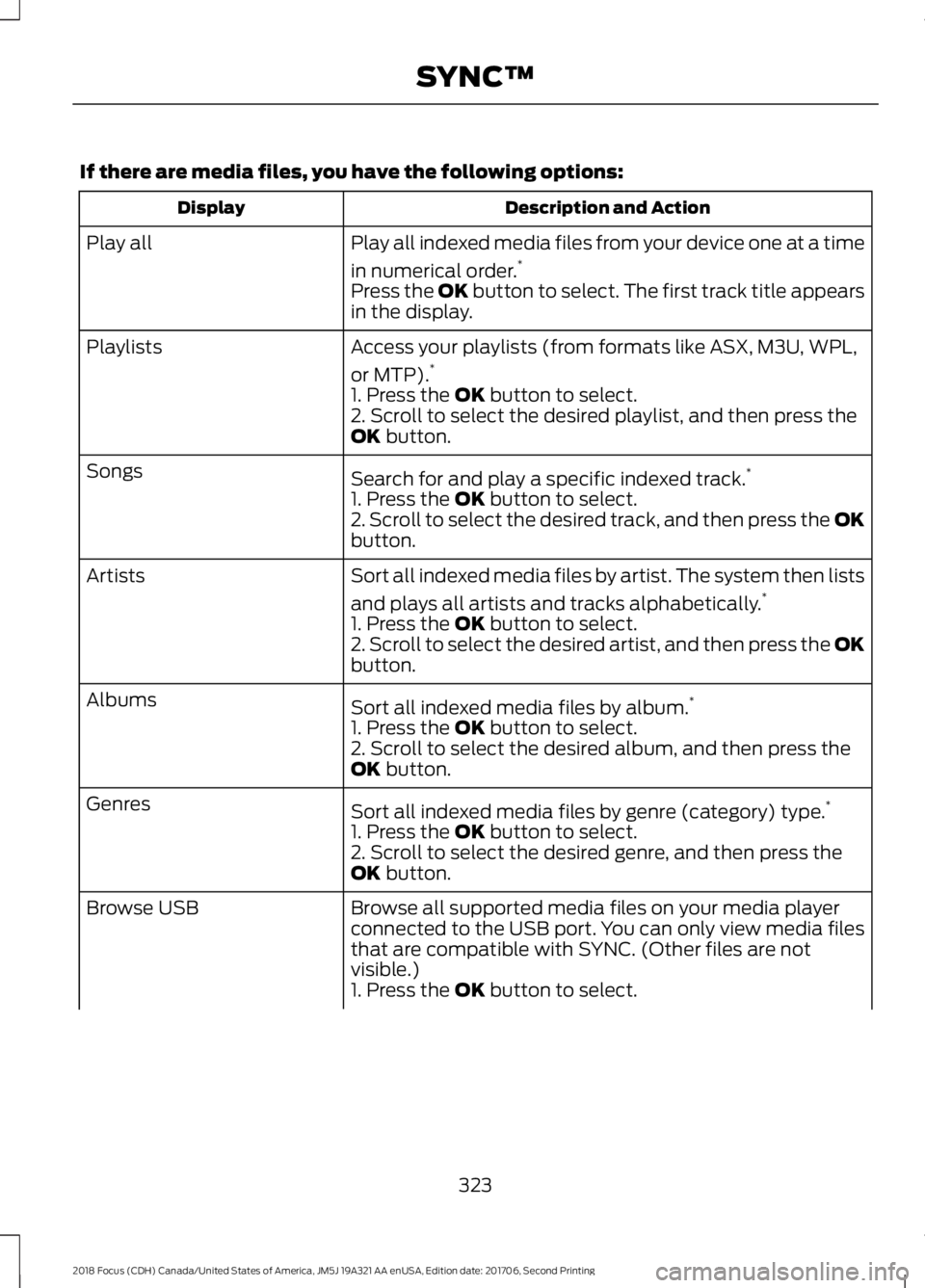
If there are media files, you have the following options:
Description and ActionDisplay
Play all indexed media files from your device one at a time
in numerical order.*Play all
Press the OK button to select. The first track title appearsin the display.
Access your playlists (from formats like ASX, M3U, WPL,
or MTP).*Playlists
1. Press the OK button to select.2. Scroll to select the desired playlist, and then press theOK button.
Search for and play a specific indexed track.*Songs
1. Press the OK button to select.2. Scroll to select the desired track, and then press the OKbutton.
Sort all indexed media files by artist. The system then lists
and plays all artists and tracks alphabetically.*Artists
1. Press the OK button to select.2. Scroll to select the desired artist, and then press the OKbutton.
Sort all indexed media files by album.*Albums
1. Press the OK button to select.2. Scroll to select the desired album, and then press theOK button.
Sort all indexed media files by genre (category) type.*Genres
1. Press the OK button to select.2. Scroll to select the desired genre, and then press theOK button.
Browse all supported media files on your media playerconnected to the USB port. You can only view media filesthat are compatible with SYNC. (Other files are notvisible.)
Browse USB
1. Press the OK button to select.
3232018 Focus (CDH) Canada/United States of America, JM5J 19A321 AA enUSA, Edition date: 201706, Second PrintingSYNC™
Page 327 of 473
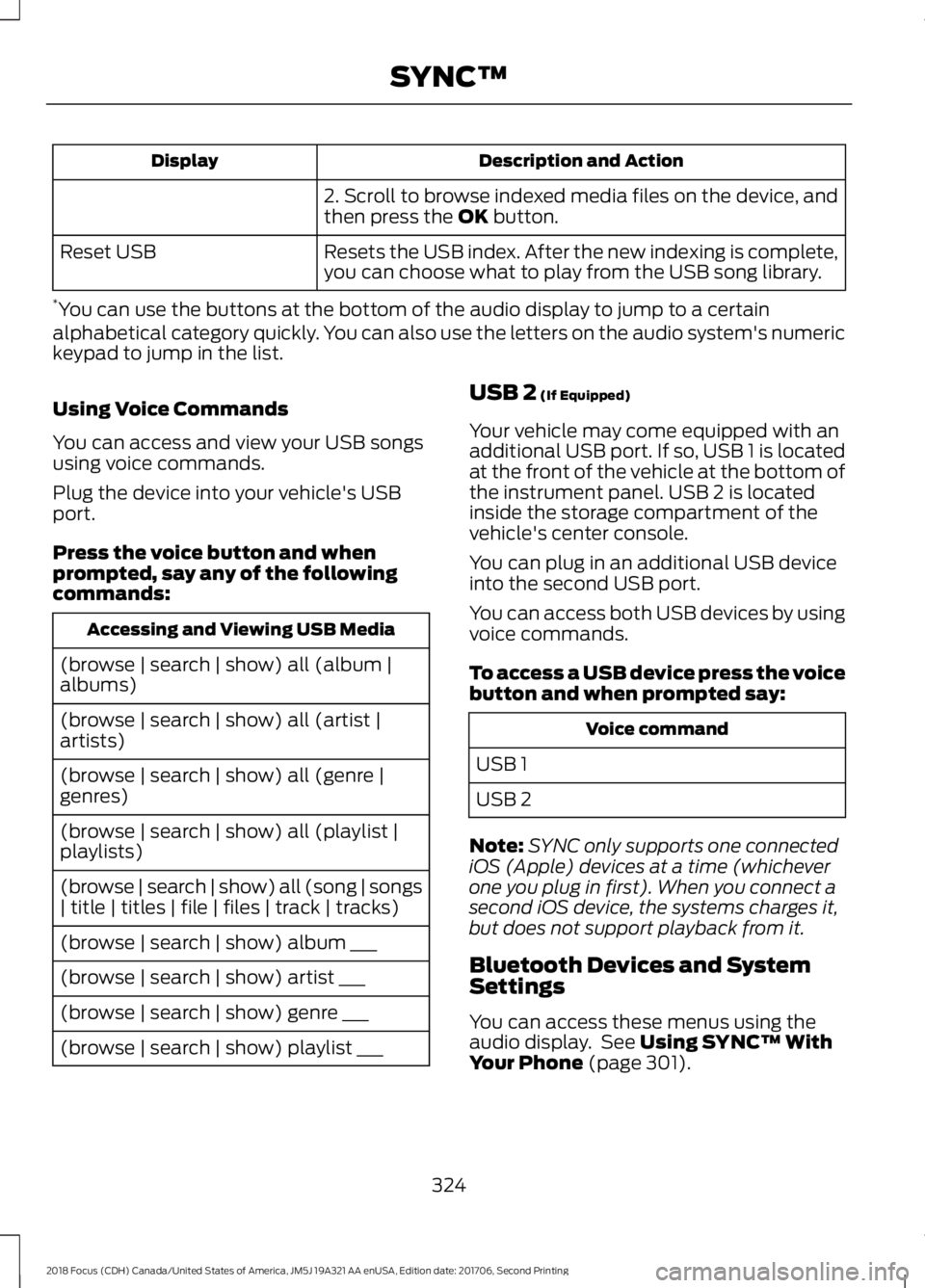
Description and ActionDisplay
2. Scroll to browse indexed media files on the device, andthen press the OK button.
Resets the USB index. After the new indexing is complete,you can choose what to play from the USB song library.Reset USB
*You can use the buttons at the bottom of the audio display to jump to a certainalphabetical category quickly. You can also use the letters on the audio system's numerickeypad to jump in the list.
Using Voice Commands
You can access and view your USB songsusing voice commands.
Plug the device into your vehicle's USBport.
Press the voice button and whenprompted, say any of the followingcommands:
Accessing and Viewing USB Media
(browse | search | show) all (album |albums)
(browse | search | show) all (artist |artists)
(browse | search | show) all (genre |genres)
(browse | search | show) all (playlist |playlists)
(browse | search | show) all (song | songs| title | titles | file | files | track | tracks)
(browse | search | show) album ___
(browse | search | show) artist ___
(browse | search | show) genre ___
(browse | search | show) playlist ___
USB 2 (If Equipped)
Your vehicle may come equipped with anadditional USB port. If so, USB 1 is locatedat the front of the vehicle at the bottom ofthe instrument panel. USB 2 is locatedinside the storage compartment of thevehicle's center console.
You can plug in an additional USB deviceinto the second USB port.
You can access both USB devices by usingvoice commands.
To access a USB device press the voicebutton and when prompted say:
Voice command
USB 1
USB 2
Note:SYNC only supports one connectediOS (Apple) devices at a time (whicheverone you plug in first). When you connect asecond iOS device, the systems charges it,but does not support playback from it.
Bluetooth Devices and SystemSettings
You can access these menus using theaudio display. See Using SYNC™ WithYour Phone (page 301).
3242018 Focus (CDH) Canada/United States of America, JM5J 19A321 AA enUSA, Edition date: 201706, Second PrintingSYNC™
Page 339 of 473
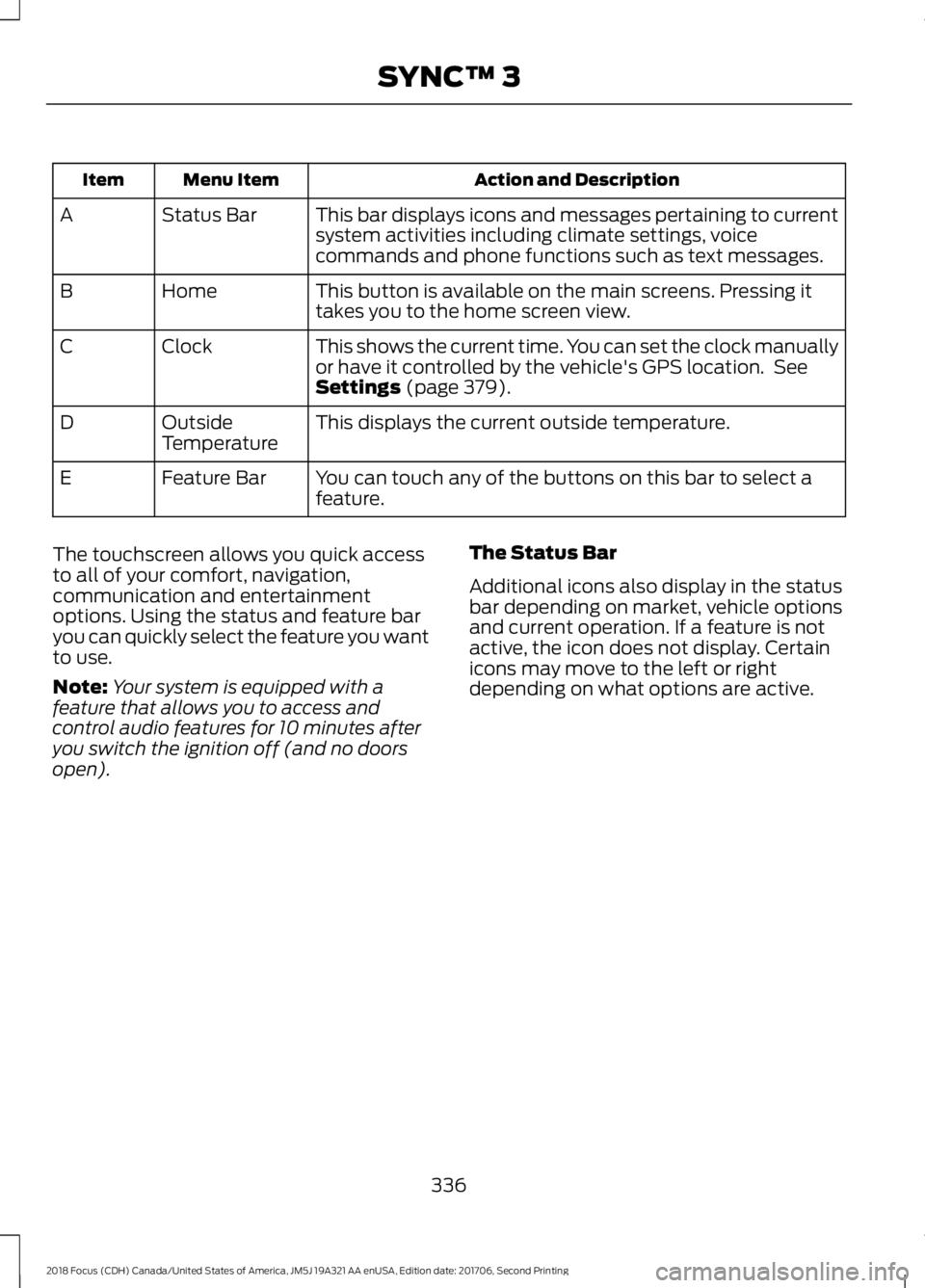
Action and DescriptionMenu ItemItem
This bar displays icons and messages pertaining to currentsystem activities including climate settings, voicecommands and phone functions such as text messages.
Status BarA
This button is available on the main screens. Pressing ittakes you to the home screen view.HomeB
This shows the current time. You can set the clock manuallyor have it controlled by the vehicle's GPS location. SeeSettings (page 379).
ClockC
This displays the current outside temperature.OutsideTemperatureD
You can touch any of the buttons on this bar to select afeature.Feature BarE
The touchscreen allows you quick accessto all of your comfort, navigation,communication and entertainmentoptions. Using the status and feature baryou can quickly select the feature you wantto use.
Note:Your system is equipped with afeature that allows you to access andcontrol audio features for 10 minutes afteryou switch the ignition off (and no doorsopen).
The Status Bar
Additional icons also display in the statusbar depending on market, vehicle optionsand current operation. If a feature is notactive, the icon does not display. Certainicons may move to the left or rightdepending on what options are active.
3362018 Focus (CDH) Canada/United States of America, JM5J 19A321 AA enUSA, Edition date: 201706, Second PrintingSYNC™ 3
Page 340 of 473
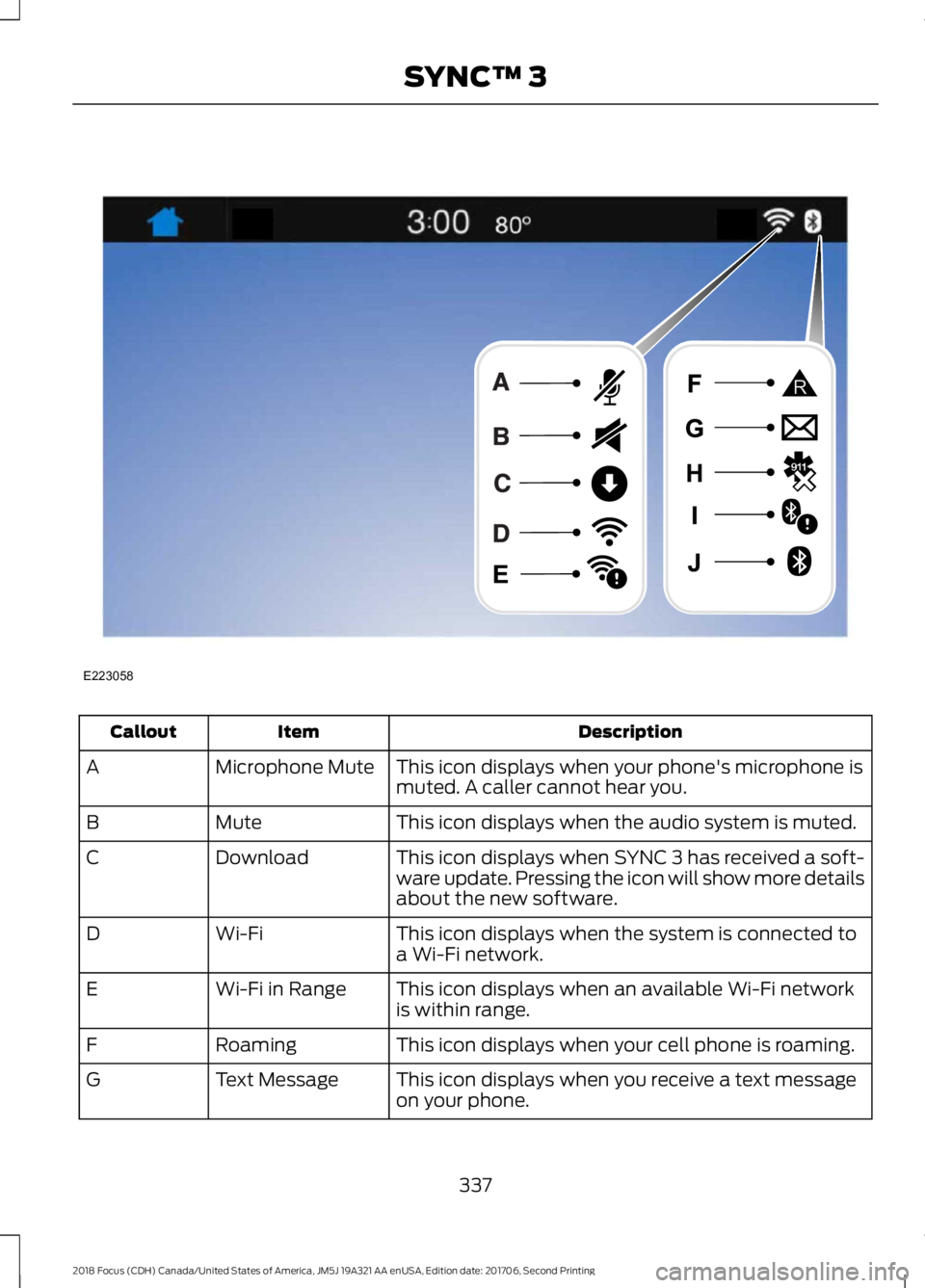
DescriptionItemCallout
This icon displays when your phone's microphone ismuted. A caller cannot hear you.Microphone MuteA
This icon displays when the audio system is muted.MuteB
This icon displays when SYNC 3 has received a soft-ware update. Pressing the icon will show more detailsabout the new software.
DownloadC
This icon displays when the system is connected toa Wi-Fi network.Wi-FiD
This icon displays when an available Wi-Fi networkis within range.Wi-Fi in RangeE
This icon displays when your cell phone is roaming.RoamingF
This icon displays when you receive a text messageon your phone.Text MessageG
3372018 Focus (CDH) Canada/United States of America, JM5J 19A321 AA enUSA, Edition date: 201706, Second PrintingSYNC™ 3E223058
Page 341 of 473
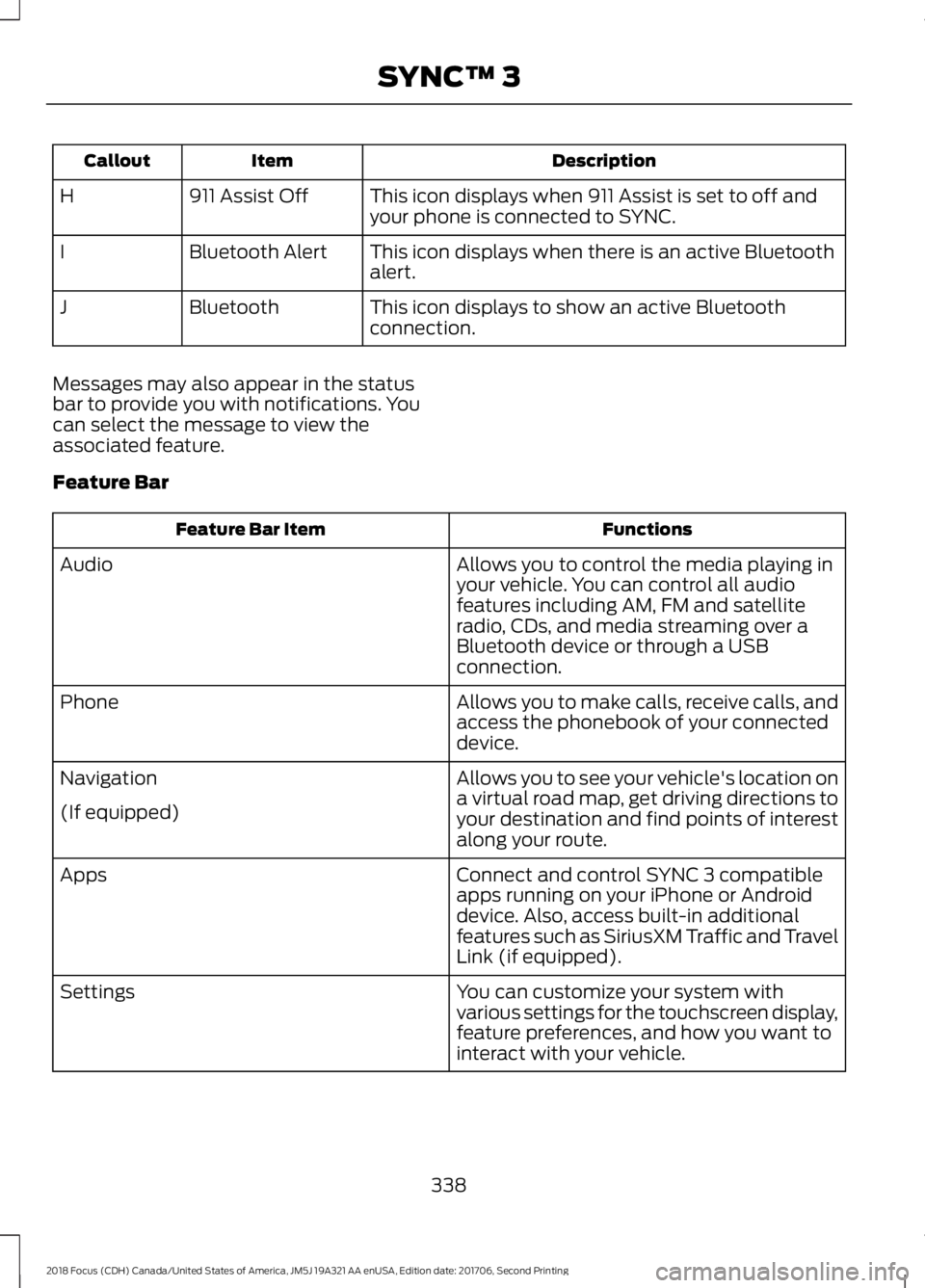
DescriptionItemCallout
This icon displays when 911 Assist is set to off andyour phone is connected to SYNC.911 Assist OffH
This icon displays when there is an active Bluetoothalert.Bluetooth AlertI
This icon displays to show an active Bluetoothconnection.BluetoothJ
Messages may also appear in the statusbar to provide you with notifications. Youcan select the message to view theassociated feature.
Feature Bar
FunctionsFeature Bar Item
Allows you to control the media playing inyour vehicle. You can control all audiofeatures including AM, FM and satelliteradio, CDs, and media streaming over aBluetooth device or through a USBconnection.
Audio
Allows you to make calls, receive calls, andaccess the phonebook of your connecteddevice.
Phone
Allows you to see your vehicle's location ona virtual road map, get driving directions toyour destination and find points of interestalong your route.
Navigation
(If equipped)
Connect and control SYNC 3 compatibleapps running on your iPhone or Androiddevice. Also, access built-in additionalfeatures such as SiriusXM Traffic and TravelLink (if equipped).
Apps
You can customize your system withvarious settings for the touchscreen display,feature preferences, and how you want tointeract with your vehicle.
Settings
3382018 Focus (CDH) Canada/United States of America, JM5J 19A321 AA enUSA, Edition date: 201706, Second PrintingSYNC™ 3