ECO mode FORD FOCUS ELECTRIC 2015 3.G Owner's Manual
[x] Cancel search | Manufacturer: FORD, Model Year: 2015, Model line: FOCUS ELECTRIC, Model: FORD FOCUS ELECTRIC 2015 3.GPages: 369, PDF Size: 4.53 MB
Page 241 of 369
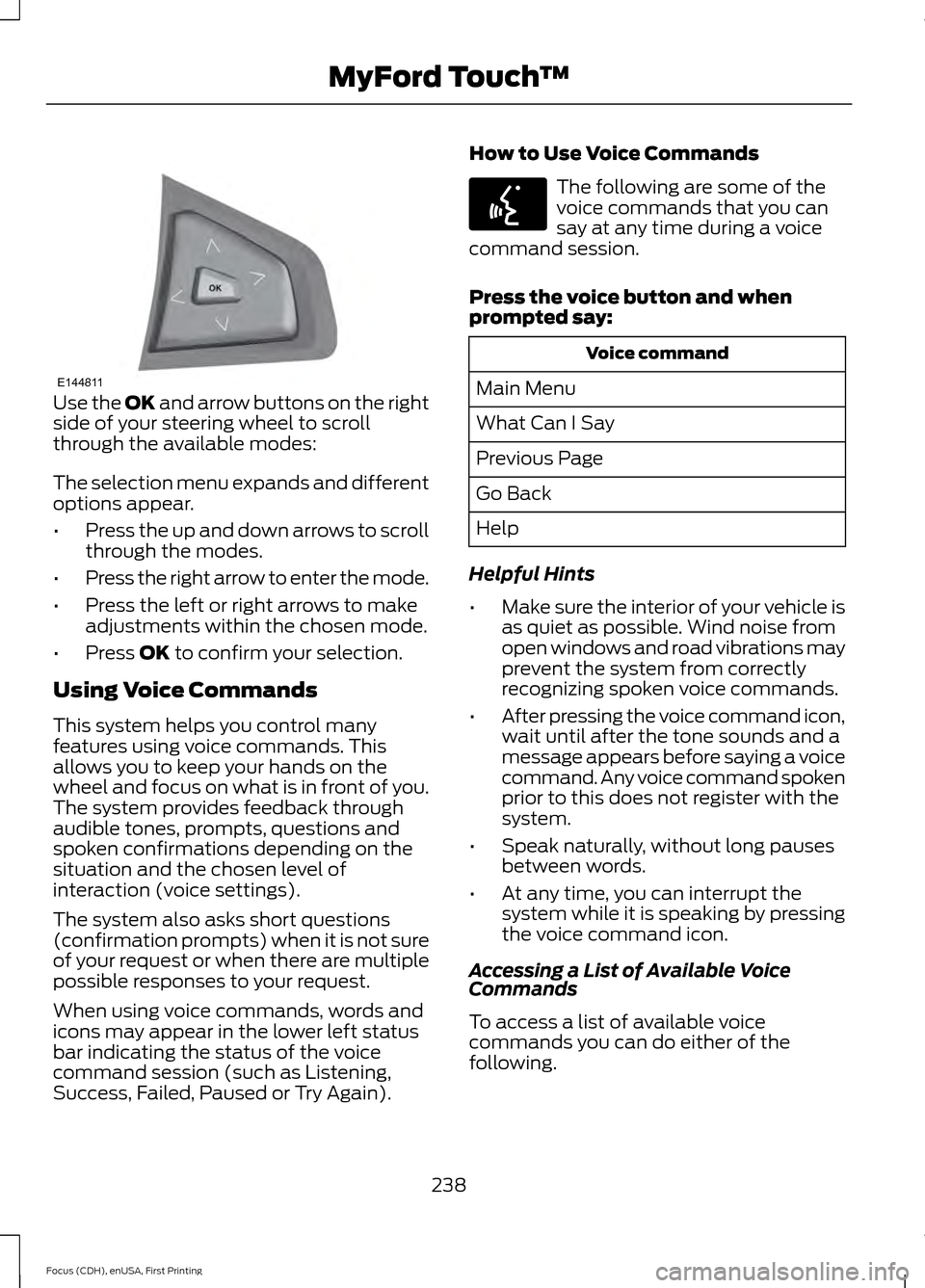
Use the OK and arrow buttons on the right
side of your steering wheel to scroll
through the available modes:
The selection menu expands and different
options appear.
• Press the up and down arrows to scroll
through the modes.
• Press the right arrow to enter the mode.
• Press the left or right arrows to make
adjustments within the chosen mode.
• Press
OK to confirm your selection.
Using Voice Commands
This system helps you control many
features using voice commands. This
allows you to keep your hands on the
wheel and focus on what is in front of you.
The system provides feedback through
audible tones, prompts, questions and
spoken confirmations depending on the
situation and the chosen level of
interaction (voice settings).
The system also asks short questions
(confirmation prompts) when it is not sure
of your request or when there are multiple
possible responses to your request.
When using voice commands, words and
icons may appear in the lower left status
bar indicating the status of the voice
command session (such as Listening,
Success, Failed, Paused or Try Again). How to Use Voice Commands The following are some of the
voice commands that you can
say at any time during a voice
command session.
Press the voice button and when
prompted say: Voice command
Main Menu
What Can I Say
Previous Page
Go Back
Help
Helpful Hints
• Make sure the interior of your vehicle is
as quiet as possible. Wind noise from
open windows and road vibrations may
prevent the system from correctly
recognizing spoken voice commands.
• After pressing the voice command icon,
wait until after the tone sounds and a
message appears before saying a voice
command. Any voice command spoken
prior to this does not register with the
system.
• Speak naturally, without long pauses
between words.
• At any time, you can interrupt the
system while it is speaking by pressing
the voice command icon.
Accessing a List of Available Voice
Commands
To access a list of available voice
commands you can do either of the
following.
238
Focus (CDH), enUSA, First Printing MyFord Touch
™E144811 E142599
Page 246 of 369
To upload your photos, select:
Action and Description
Message
Press the settings icon.
Settings
Display
Follow the system prompts to upload your photographs.
Edit Wallpaper
Only the photograph(s), which meet the
following conditions display:
• Compatible file formats are as follows:
JPEG, GIF, PNG, BPM.
• Each file must be 1.5 MB or less.
• Recommended dimensions: 800 x 384. SoundTo make adjustments using the touchscreen, select:
Menu Item
Settings
Sound
Then select from the following:
Bass
Midrange
Treble
Set Balance and Fade
Occupancy Mode
EQ Mode
Speed Compensated Volume
Note: Your vehicle may not have all of these sound settings.
Vehicle 243
Focus (CDH), enUSA, First Printing MyFord Touch
™E142607 E142607
Page 270 of 369
This feature allows you to plug in media
playing devices, memory sticks, flash drives
or thumb drives, and charge devices if they
support this feature.
Playing Music from Your Device
Note:
The system is capable of indexing up
to 30,000 songs. Insert your device and select:
Action and Description
Message
Once the system recognizes your USB or SD card you can then select
from the following options:
USB
SD Card
This feature replays the currently playing song or album.
Repeat
Touch this button to play music on the selected album or folder in
random order.
Shuffle
This feature allows you to choose music similar to what is currently
playing.
Similar Music
Touch this button to see disc information, for example current track,
artist name, album and genre.
More Info
Touch this button to view and adjust various media settings.
Options
Sound
You can adjust the settings for: Action and Description
Message
Bass
Sound Settings
Midrange
Treble
Set Balance and Fade
DSP
EQ Mode
Speed Compensated Volume
Allows you to select more settings, which is under Media Player. See
Settings (page 240).
Media Player
Settings
267
Focus (CDH), enUSA, First Printing MyFord Touch
™E142611
Page 275 of 369
Pairing Your Cell Phone for the
First Time
WARNING
Driving while distracted can result in
loss of vehicle control, crash and
injury. We strongly recommend that
you use extreme caution when using any
device that may take your focus off the
road. Your primary responsibility is the safe
operation of your vehicle. We recommend
against the use of any hand-held device
while driving and encourage the use of
voice-operated systems when possible.
Make sure you are aware of all applicable
local laws that may affect the use of
electronic devices while driving. The first thing you must do to use the
phone features of SYNC is to pair your
Bluetooth-enabled cell phone with SYNC.
This allows you to use your cell phone in a
hands-free manner.
Note:
Switch off the radio. Apply the
parking brake and shift the transmission into
park (P) for automatic transmission or first
gear for manual transmission. Switch the
ignition off.
Touch the upper left corner of the touchscreen: Action and Description
Message
Add phone Follow the on-screen instructions.
Find SYNC
Make sure that Bluetooth is set to On and that your cell phone
is in the correct mode. See your cell phone ’s manual if
necessary.
Select
SYNC and a six-digit PIN appears on your device.
If you are prompted to enter a PIN on your device, it does not
support Secure Simple Pairing. To pair, enter the PIN
displayed on the touchscreen. Skip the next step.
When prompted on your cell phone ’s display, confirm that
the PIN provided by SYNC matches the PIN displayed on your
cell phone.
The display indicates when the pairing is successful.
SYNC may prompt you with more cell phone options. For
more information on your cell phone's capability, see your
cell phone's manual and visit the website.
Pairing Subsequent Cell Phones
Note: Switch off the radio. Apply the
parking brake and shift the transmission into
park (P) for automatic transmission or first
gear for manual transmission. Switch the
ignition off. Make sure that Bluetooth is set to
On and
that your cell phone is in the correct mode.
See your device's manual if necessary.
272
Focus (CDH), enUSA, First Printing MyFord Touch
™
Page 288 of 369
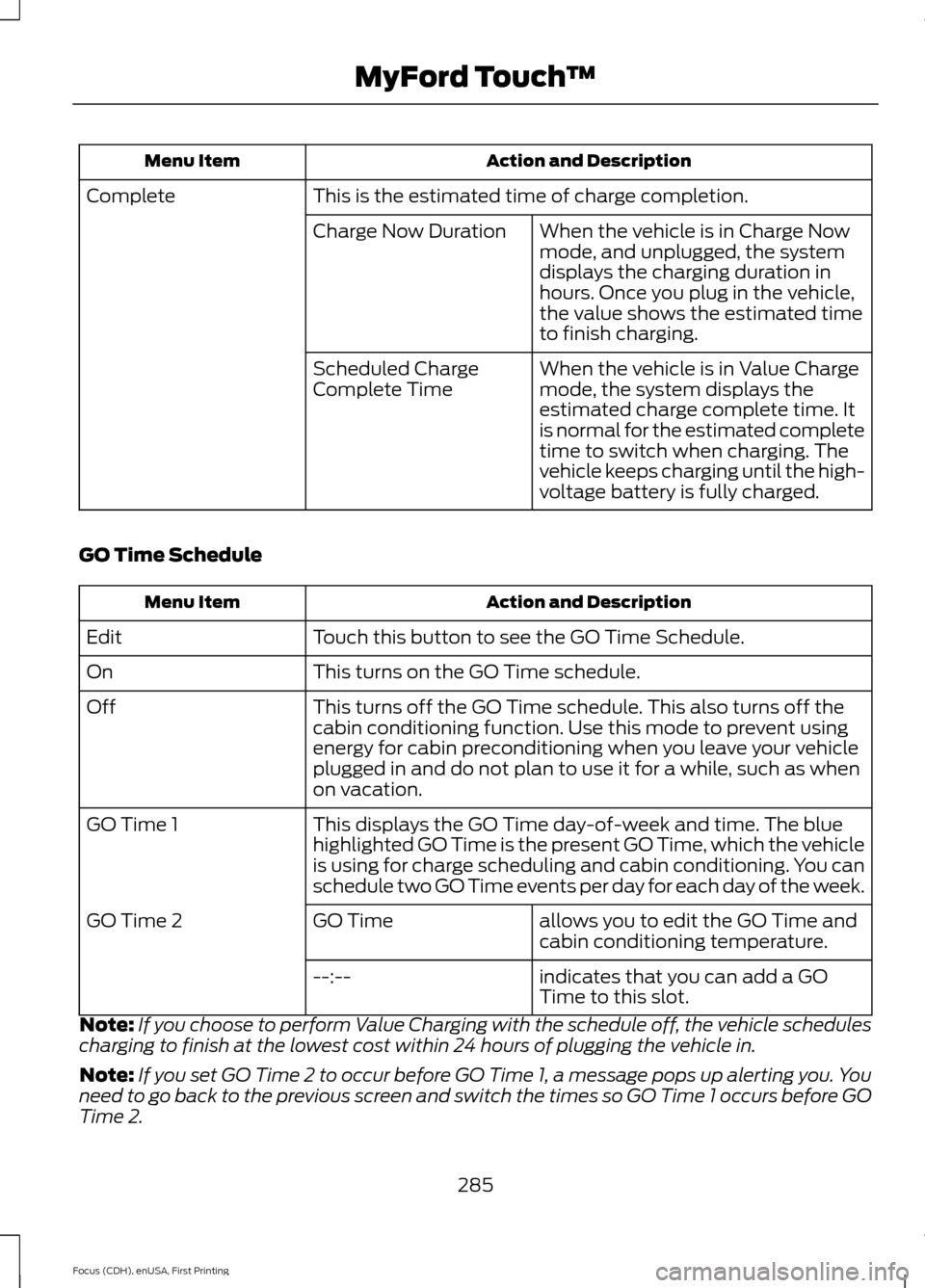
Action and Description
Menu Item
This is the estimated time of charge completion.
Complete
When the vehicle is in Charge Now
mode, and unplugged, the system
displays the charging duration in
hours. Once you plug in the vehicle,
the value shows the estimated time
to finish charging.
Charge Now Duration
When the vehicle is in Value Charge
mode, the system displays the
estimated charge complete time. It
is normal for the estimated complete
time to switch when charging. The
vehicle keeps charging until the high-
voltage battery is fully charged.
Scheduled Charge
Complete Time
GO Time Schedule Action and Description
Menu Item
Touch this button to see the GO Time Schedule.
Edit
This turns on the GO Time schedule.
On
This turns off the GO Time schedule. This also turns off the
cabin conditioning function. Use this mode to prevent using
energy for cabin preconditioning when you leave your vehicle
plugged in and do not plan to use it for a while, such as when
on vacation.
Off
This displays the GO Time day-of-week and time. The blue
highlighted GO Time is the present GO Time, which the vehicle
is using for charge scheduling and cabin conditioning. You can
schedule two GO Time events per day for each day of the week.
GO Time 1
allows you to edit the GO Time and
cabin conditioning temperature.
GO Time
GO Time 2
indicates that you can add a GO
Time to this slot.
--:--
Note: If you choose to perform Value Charging with the schedule off, the vehicle schedules
charging to finish at the lowest cost within 24 hours of plugging the vehicle in.
Note: If you set GO Time 2 to occur before GO Time 1, a message pops up alerting you. You
need to go back to the previous screen and switch the times so GO Time 1 occurs before GO
Time 2.
285
Focus (CDH), enUSA, First Printing MyFord Touch
™
Page 294 of 369
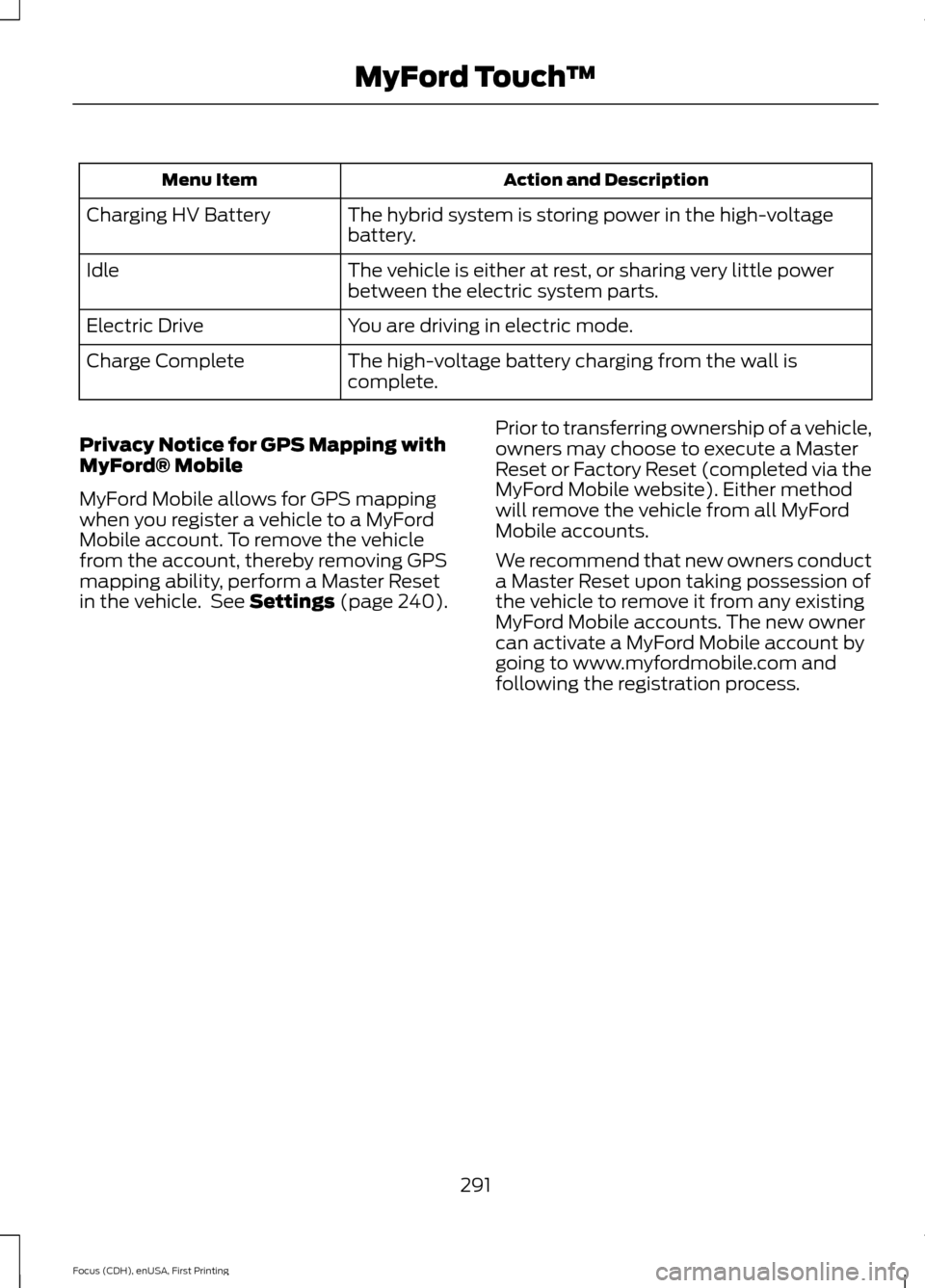
Action and Description
Menu Item
The hybrid system is storing power in the high-voltage
battery.
Charging HV Battery
The vehicle is either at rest, or sharing very little power
between the electric system parts.
Idle
You are driving in electric mode.
Electric Drive
The high-voltage battery charging from the wall is
complete.
Charge Complete
Privacy Notice for GPS Mapping with
MyFord® Mobile
MyFord Mobile allows for GPS mapping
when you register a vehicle to a MyFord
Mobile account. To remove the vehicle
from the account, thereby removing GPS
mapping ability, perform a Master Reset
in the vehicle. See Settings (page 240). Prior to transferring ownership of a vehicle,
owners may choose to execute a Master
Reset or Factory Reset (completed via the
MyFord Mobile website). Either method
will remove the vehicle from all MyFord
Mobile accounts.
We recommend that new owners conduct
a Master Reset upon taking possession of
the vehicle to remove it from any existing
MyFord Mobile accounts. The new owner
can activate a MyFord Mobile account by
going to www.myfordmobile.com and
following the registration process.
291
Focus (CDH), enUSA, First Printing MyFord Touch
™
Page 305 of 369
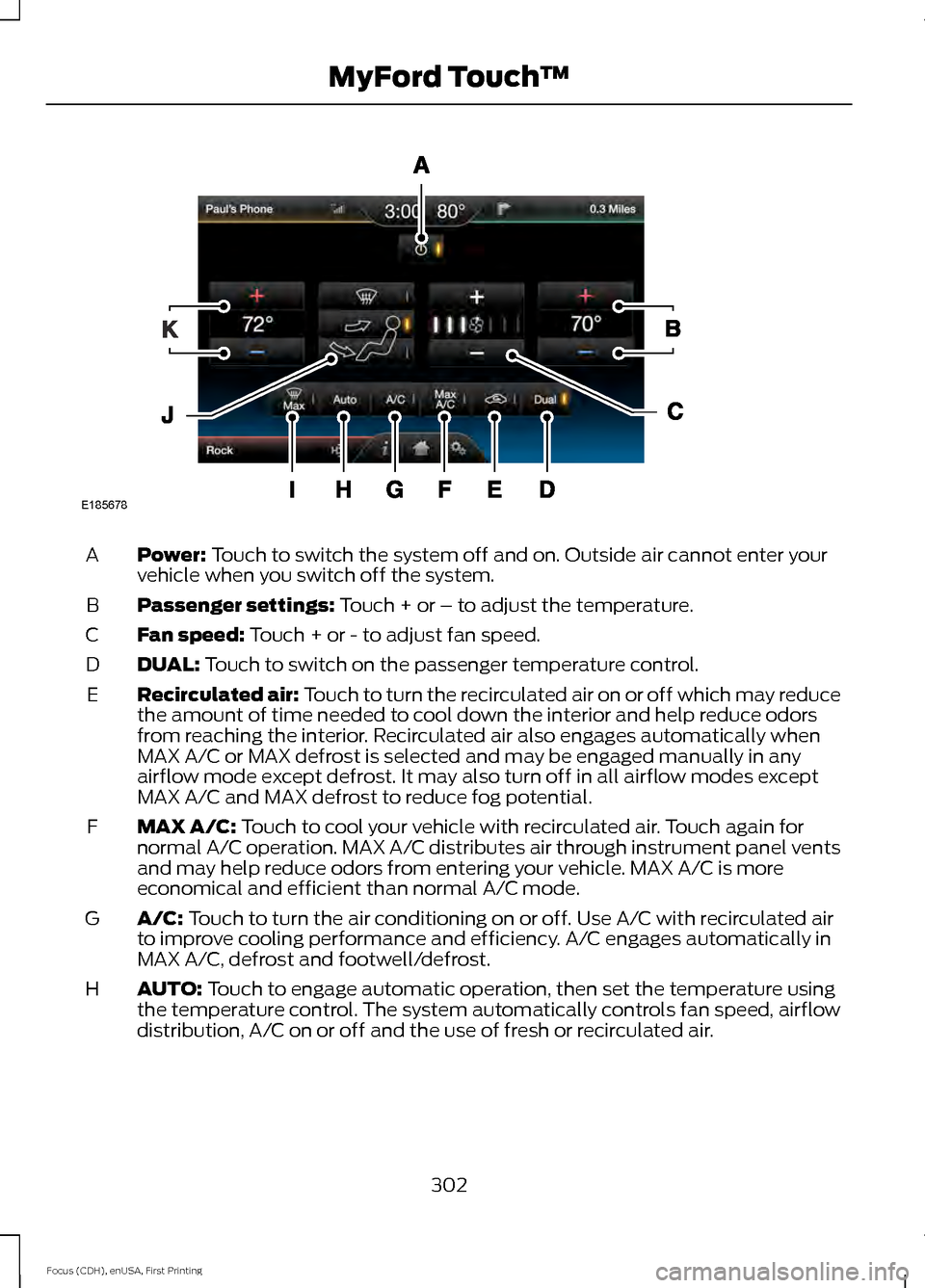
Power: Touch to switch the system off and on. Outside air cannot enter your
vehicle when you switch off the system.
A
Passenger settings:
Touch + or – to adjust the temperature.
B
Fan speed:
Touch + or - to adjust fan speed.
C
DUAL:
Touch to switch on the passenger temperature control.
D
Recirculated air: Touch to turn the recirculated air on or off which may reduce
the amount of time needed to cool down the interior and help reduce odors
from reaching the interior. Recirculated air also engages automatically when
MAX A/C or MAX defrost is selected and may be engaged manually in any
airflow mode except defrost. It may also turn off in all airflow modes except
MAX A/C and MAX defrost to reduce fog potential.
E
MAX A/C:
Touch to cool your vehicle with recirculated air. Touch again for
normal A/C operation. MAX A/C distributes air through instrument panel vents
and may help reduce odors from entering your vehicle. MAX A/C is more
economical and efficient than normal A/C mode.
F
A/C:
Touch to turn the air conditioning on or off. Use A/C with recirculated air
to improve cooling performance and efficiency. A/C engages automatically in
MAX A/C, defrost and footwell/defrost.
G
AUTO:
Touch to engage automatic operation, then set the temperature using
the temperature control. The system automatically controls fan speed, airflow
distribution, A/C on or off and the use of fresh or recirculated air.
H
302
Focus (CDH), enUSA, First Printing MyFord Touch
™E185678
Page 314 of 369
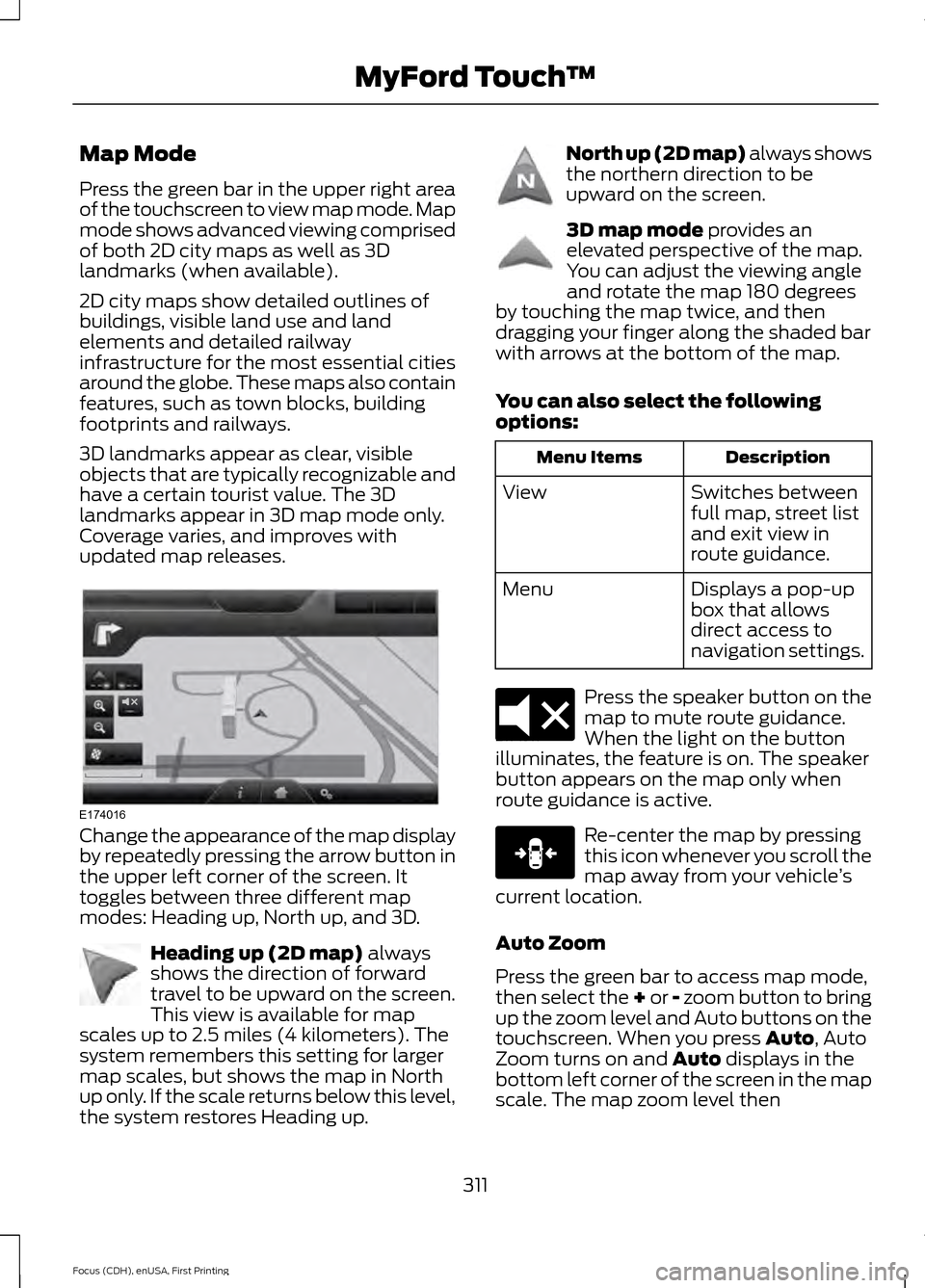
Map Mode
Press the green bar in the upper right area
of the touchscreen to view map mode. Map
mode shows advanced viewing comprised
of both 2D city maps as well as 3D
landmarks (when available).
2D city maps show detailed outlines of
buildings, visible land use and land
elements and detailed railway
infrastructure for the most essential cities
around the globe. These maps also contain
features, such as town blocks, building
footprints and railways.
3D landmarks appear as clear, visible
objects that are typically recognizable and
have a certain tourist value. The 3D
landmarks appear in 3D map mode only.
Coverage varies, and improves with
updated map releases.
Change the appearance of the map display
by repeatedly pressing the arrow button in
the upper left corner of the screen. It
toggles between three different map
modes: Heading up, North up, and 3D.
Heading up (2D map) always
shows the direction of forward
travel to be upward on the screen.
This view is available for map
scales up to 2.5 miles (4 kilometers). The
system remembers this setting for larger
map scales, but shows the map in North
up only. If the scale returns below this level,
the system restores Heading up. North up (2D map) always shows
the northern direction to be
upward on the screen.
3D map mode
provides an
elevated perspective of the map.
You can adjust the viewing angle
and rotate the map 180 degrees
by touching the map twice, and then
dragging your finger along the shaded bar
with arrows at the bottom of the map.
You can also select the following
options: Description
Menu Items
Switches between
full map, street list
and exit view in
route guidance.
View
Displays a pop-up
box that allows
direct access to
navigation settings.
Menu Press the speaker button on the
map to mute route guidance.
When the light on the button
illuminates, the feature is on. The speaker
button appears on the map only when
route guidance is active. Re-center the map by pressing
this icon whenever you scroll the
map away from your vehicle
’s
current location.
Auto Zoom
Press the green bar to access map mode,
then select the + or - zoom button to bring
up the zoom level and Auto buttons on the
touchscreen. When you press
Auto, Auto
Zoom turns on and Auto displays in the
bottom left corner of the screen in the map
scale. The map zoom level then
311
Focus (CDH), enUSA, First Printing MyFord Touch
™E174016 E142642 E142643 E142644 E174017 E146188
Page 364 of 369
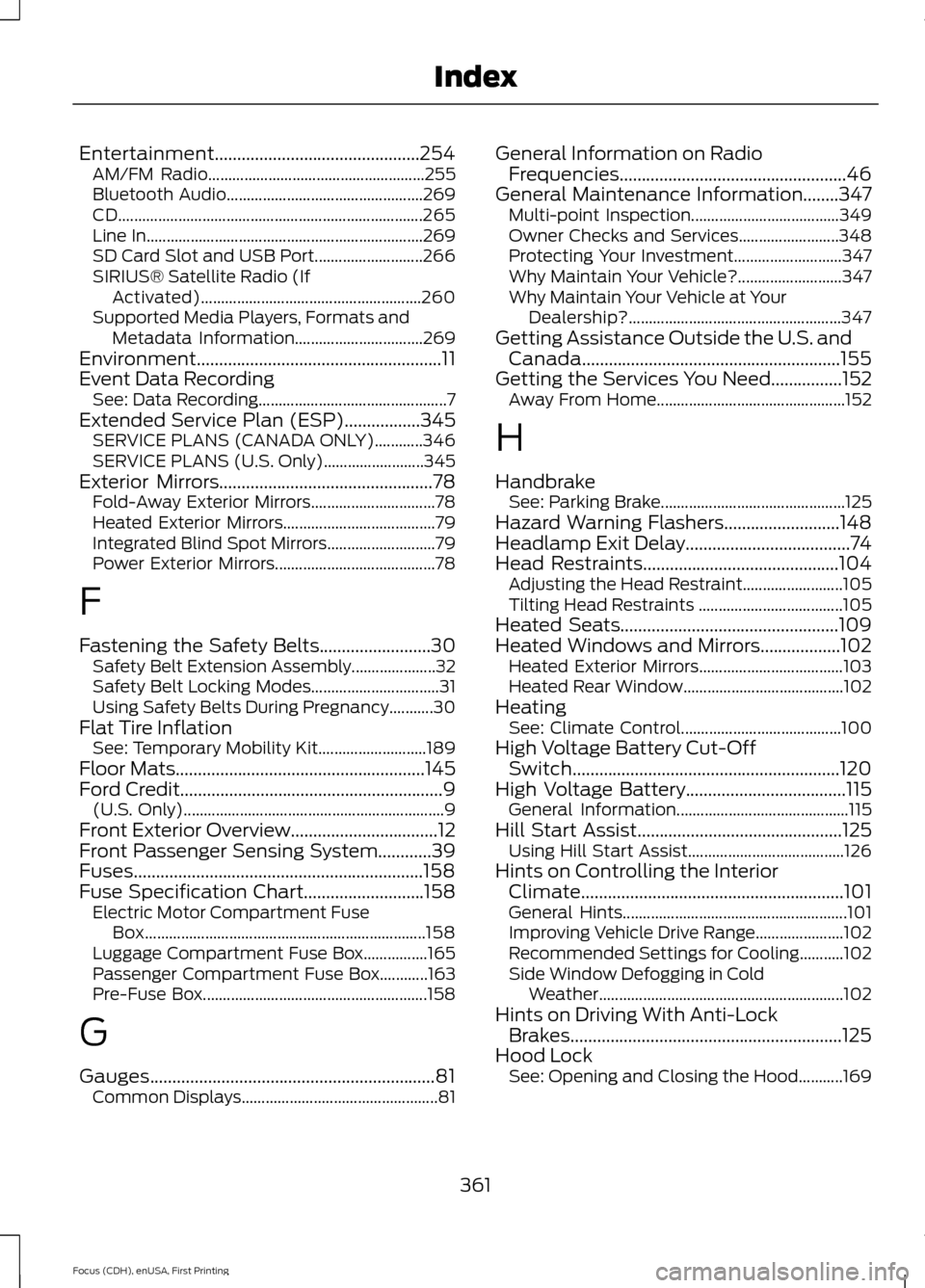
Entertainment..............................................254
AM/FM Radio...................................................... 255
Bluetooth Audio................................................. 269
CD........................................................................\
.... 265
Line In..................................................................... 269
SD Card Slot and USB Port........................... 266
SIRIUS® Satellite Radio (If Activated)....................................................... 260
Supported Media Players, Formats and Metadata Information................................ 269
Environment.......................................................11
Event Data Recording See: Data Recording............................................... 7
Extended Service Plan (ESP).................345 SERVICE PLANS (CANADA ONLY)............346
SERVICE PLANS (U.S. Only)......................... 345
Exterior Mirrors
................................................78
Fold-Away Exterior Mirrors............................... 78
Heated Exterior Mirrors...................................... 79
Integrated Blind Spot Mirrors........................... 79
Power Exterior Mirrors........................................ 78
F
Fastening the Safety Belts
.........................30
Safety Belt Extension Assembly..................... 32
Safety Belt Locking Modes................................ 31
Using Safety Belts During Pregnancy...........30
Flat Tire Inflation See: Temporary Mobility Kit........................... 189
Floor Mats
........................................................145
Ford Credit...........................................................9
(U.S. Only)................................................................. 9
Front Exterior Overview.................................12
Front Passenger Sensing System............39
Fuses.................................................................158
Fuse Specification Chart...........................158 Electric Motor Compartment Fuse
Box...................................................................... 158
Luggage Compartment Fuse Box................165
Passenger Compartment Fuse Box............163
Pre-Fuse Box........................................................ 158
G
Gauges................................................................81 Common Displays................................................. 81General Information on Radio
Frequencies...................................................46
General Maintenance Information........347 Multi-point Inspection..................................... 349
Owner Checks and Services......................... 348
Protecting Your Investment........................... 347
Why Maintain Your Vehicle?.......................... 347
Why Maintain Your Vehicle at Your Dealership?..................................................... 347
Getting Assistance Outside the U.S. and Canada..........................................................155
Getting the Services You Need
................152
Away From Home............................................... 152
H
Handbrake See: Parking Brake.............................................. 125
Hazard Warning Flashers..........................148
Headlamp Exit Delay.....................................74
Head Restraints............................................104 Adjusting the Head Restraint......................... 105
Tilting Head Restraints .................................... 105
Heated Seats.................................................109
Heated Windows and Mirrors..................102 Heated Exterior Mirrors.................................... 103
Heated Rear Window........................................ 102
Heating See: Climate Control........................................ 100
High Voltage Battery Cut-Off Switch
............................................................120
High Voltage Battery....................................115 General Information........................................... 115
Hill Start Assist
..............................................125
Using Hill Start Assist....................................... 126
Hints on Controlling the Interior Climate...........................................................101
General Hints........................................................ 101
Improving Vehicle Drive Range...................... 102
Recommended Settings for Cooling...........102
Side Window Defogging in Cold Weather............................................................. 102
Hints on Driving With Anti-Lock Brakes.............................................................125
Hood Lock See: Opening and Closing the Hood...........169
361
Focus (CDH), enUSA, First Printing Index