steering FORD MAVERICK 2022 Manual PDF
[x] Cancel search | Manufacturer: FORD, Model Year: 2022, Model line: MAVERICK, Model: FORD MAVERICK 2022Pages: 533, PDF Size: 9.58 MB
Page 349 of 533
CHANGING A FLAT TIRE
WARNING: If the tire pressure
monitor sensor becomes damaged it
may not function.
Note: The use of tire sealant may damage
your tire pressure monitoring system and
should only be used in roadside
emergencies.
Note: The tire pressure monitoring system
indicator light illuminates when the spare
tire is in use. To restore the full function of
the monitoring system, all road wheels
equipped with tire pressure monitoring
sensors must be mounted on this vehicle.
If you get a flat tire when driving, do not
apply the brake heavily. Instead, gradually
decrease your speed. Hold the steering
wheel firmly and slowly move to a safe
place on the side of the road.
Have a flat serviced by an authorized
dealer to prevent damage to the system
sensors.
See Tire Pressure Monitoring
System Precautions (page 343). Replace
the spare tire with a road tire as soon as
possible. During repairing or replacing the
flat tire, have the authorized dealer inspect
the system sensor for damage. WARNING:
Never place anything
between the vehicle jack and the ground. WARNING:
Never place anything
between the vehicle jack and your
vehicle. WARNING:
To help prevent your
vehicle from moving when changing a
wheel, shift the transmission into park
(P), set the parking brake and use an
appropriate block or wheel chock to
secure the wheel diagonally opposite to
the wheel being changed. For example,
when changing the front left wheel,
place an appropriate block or wheel
chock on the right rear wheel. WARNING: It is recommended that
the wheels of the vehicle be chocked,
and that no person should remain in a
vehicle that is being jacked. WARNING:
Always use the jack
provided as original equipment with your
vehicle. If using a jack other than the one
provided, make sure the jack capacity is
adequate for the vehicle weight,
including any vehicle cargo or
modifications. If you are unsure if the jack
capacity is adequate, contact the
authorized dealer. WARNING:
The jack supplied with
this vehicle is only intended for changing
wheels. Do not use the vehicle jack other
than when you are changing a wheel in
an emergency. WARNING: Check that the vehicle
jack is not damaged or deformed and
the thread is lubricated and clean. WARNING:
The jack should be
used on level firm ground wherever
possible. WARNING:
Use only the specified
jacking points. If you use other locations,
you could damage the body, steering,
suspension, engine, braking system or
the fuel lines.
346
2022 Maverick (CFE) Canada/United States of America, enUSA, Edition date: 202106, First-Printing Changing a Road Wheel
Page 385 of 533
Possible Cause and Resolution
Symptom
I have an Android device
that is correctly connected,
I have restarted my apps
and they are running but the
system still cannot find
them. –
An issue on some older versions of the Android oper-
ating system could result in apps not being found.
•Switch Bluetooth® off and on again to force the
system to reconnect to your device.
I have an iOS device that is
correctly connected, I have
restarted my apps and they
are running but the system
still cannot find them. –
Cable connection issue.
•Disconnect the cable from your device, wait for a
moment and then connect it again to force the
system to reconnect to your device.
I have an Android device
running a media app which
the system has found but I
cannot hear the sound or
the sound is very quiet. –
Device volume is low.
•Turn the volume up on your device.
I have an Android device
running a number of
compatible apps but the
system cannot find all of
them. –
Device limitation. Some Android devices have a limited
number of
Bluetooth® ports that apps can use to
connect. If you have more apps running on your device
than the number of available
Bluetooth® ports, the
system cannot find all of them.
• Close some of the apps to allow the system to find
those that you want to use.
USING VOICE RECOGNITION
Phone Voice Service
This system allows you to use the voice
recognition features of your phone and
focus on your driving. Press the voice control button
on the steering wheel.
Note:
This only works when connected via
Bluetooth®
. See Connecting a
Bluetooth® Device (page 377).
Note: When using voice recognition use the
language set on the device.
Note: We recommend that you check your
data plan before using your phone voice
service through the system. Using them
could result in additional charges.
382
2022 Maverick (CFE) Canada/United States of America, enUSA, Edition date: 202106, First-Printing Audio System - Vehicles Without: SYNC 3E142599
Page 388 of 533
Note:
The audio mutes briefly while the
system saves the preset and returns once it
is stored.
Note: You can save presets from multiple
sources to the memory preset bar.
MUTING THE AUDIO Press the button on the steering
wheel to mute the audio.
Press to mute the signal. Press
again to restore the signal.
ADJUSTING THE SOUND
SETTINGS
Balance and Fade (If Equipped)
1. Access the vehicle drawer on the touchscreen.
2. Press
SETTINGS.
3. Press
Sound.
4. Press
Balance / Fade.
5. Press the arrows to adjust the settings.
Tone Settings
1. Access the vehicle drawer on the touchscreen.
2. Press
SETTINGS.
3. Press
Sound.
4. Press
Tone Settings.
5. Use the slider bar to adjust the settings.
Speed Compensated Volume
1. Access the vehicle drawer on the touchscreen.
2. Press
SETTINGS.
3. Press
Sound.
4. Press
Speed Compensated Volume. 5. Press a setting.
Occupancy Mode
(If Equipped)
1. Access the vehicle drawer on the touchscreen.
2. Press
SETTINGS.
3. Press
Sound.
4. Press
Occupancy Mode.
5. Press a setting.
Sound Mode
(If Equipped)
1. Access the vehicle drawer on the touchscreen.
2. Press
SETTINGS.
3. Press
Sound.
4. Press
Sound Mode.
5. Press a setting.
SETTING THE CLOCK AND
DATE
1. Access the vehicle drawer on the touchscreen.
2. Press
SETTINGS.
3. Press
Clock.
4. Set the time.
Note: The
AM and PM options are not
available if 24-hour mode is on.
5. Press the arrows to adjust the settings.
Switching Automatic Time
Updates On and Off
1. Access the vehicle drawer on the touchscreen.
2. Press
SETTINGS.
3. Press
Clock.
4. Switch
Automatic time zone update
on or off.
385
2022 Maverick (CFE) Canada/United States of America, enUSA, Edition date: 202106, First-Printing Audio System - Vehicles With: SYNC 3
Page 394 of 533
Switching Automatic System Updates
On
Select the settings option on the
feature bar.
1. Select Automatic Updates.
2. Switch
Automatic System Updates
on.
The system is now set to check for and
receive system updates when it is
connected to a Wi-Fi network.
Note: You can use the system when a
download is in progress.
Note: If the system is disconnected from
the Wi-Fi network when a download is in
progress, the download continues the next
time the system is connected to a Wi-Fi
network.
Additional Information and
Assistance
For additional information and assistance,
we recommend that you contact an
authorized dealer or refer to the local Ford
website. USING VOICE RECOGNITION
The SYNC 3 system allows you to use voice
commands to control features like audio
and climate controls. By using voice
commands, you can keep your hands on
the wheel and your eyes on the road.
You can access each feature controlled by
SYNC 3 through a variety of commands. To activate the SYNC 3 voice
commands push the voice
button on the steering wheel and
wait for the prompt.
___ is a dynamic listing, meaning that it can
be the name of anything, such as artist, the
name of contact or number. The context
and the description of the command tell
you what to say for this dynamic option.
There are some commands that work for
every feature, these commands are: Action and Description
Voice Command
Brings you to the main menu.
Main Menu
Returns you to the previous screen.
Go back
Ends the voice session.
Cancel
Gives you a list of possible voice commands.
List of Commands
You can name any feature and the system gives a list of
commands available for the feature. For example, you could
say:
___ List of Commands
Phone List of Commands
Navigation List of Commands
391
2022 Maverick (CFE) Canada/United States of America, enUSA, Edition date: 202106, First-Printing SYNC™ 3
(If Equipped)E280315 E142599
Page 419 of 533
•
Drive Power: The engine is on due to
accelerator pedal pressure or speed
control activation. Reduce pressure on
the accelerator pedal or switch off the
speed control to return to full electric
mode.
• High Speed: The engine is on because
the vehicle speed exceeds the level for
full electric operation. Reduce the
speed to return to electric operation.
• Heater Setting: The engine is on
because of the heater setting. Reduce
or turn off the heater setting to return
to electric operation.
• Neutral Gear: The engine is on because
the vehicle is in Neutral (N). Shift out
of neutral gear to return to electric
operation.
• Engine Cold: The engine is on because
it is cold. The vehicle returns to electric
operation once the engine is sufficiently
warm.
• Battery Charging: The engine is on to
charge the high-voltage battery. The
vehicle returns to electric operation
once the battery is charged.
• Low Gear: The engine is on because
the vehicle is in low gear. Shift out of
low gear to return to electric operation.
• Normal Operation: The engine is on to
optimize vehicle operation. The vehicle
returns to electric operation when
possible.
• Engine Braking Active: The engine is on
to provide increased powertrain
braking. This can occur when you turn
on the grade assist feature, when
speed control is on or when driving with
your foot off the accelerator pedal.
Turning off grade assist or speed
control may allow the vehicle to return
to electric operation. •
Battery Temperature: The engine is on
due to high or low high-voltage battery
temperature. This is a normal operating
condition. The vehicle returns to
electric operation when possible.
• Drive Mode: The engine is on due to the
drive mode selection. Select an
appropriate drive mode for electric only
operation.
APPS
The system allows you interact with select
mobile apps while keeping your eyes on
the road. Voice commands, your steering
wheel buttons, or a quick tap on your
touchscreen give you advanced control of
compatible mobile apps. You can also
stream your favorite music or podcasts,
share your time of arrival with friends, and
keep connected safely.
When you start an app through the system
for the first time, you could be asked to
grant certain permissions. You can review
and change the permissions that you have
granted at any time when your vehicle is
not moving. We recommend that you
check your data plan before using your
apps through the system. Using them
could result in additional charges. We also
recommend that you check the app
provider's terms and conditions and
privacy policy before using their app. Make
sure that you have an active account for
apps that you want to use through the
system. Some apps will work with no
setup. Others require you to configure
some personal settings before you can use
them.
Note: For more information about available
apps, visit catalog.ford.com.
Using Apps on an iOS Device Select the apps option on the
feature bar.
416
2022 Maverick (CFE) Canada/United States of America, enUSA, Edition date: 202106, First-Printing SYNC™ 3 (If Equipped)
Page 423 of 533
SYNC™ 3 TROUBLESHOOTING
Voice Recognition
Possible Cause and Resolution
Symptom
The system does not under-
stand what I am saying. –
You might not be using supported voice commands.
•See Using Voice Recognition (page 391).
• For a complete list of voice commands, refer to our
website.
– You might be speaking too soon.
•Wait for the voice prompt before you speak.
The system does not under-
stand the name of a track or
artist. –
Device limitation. Bluetooth®
does not support voice
commands.
• Connect your device to a USB port.
• If you have an iOS device, press and hold the voice
control button on the steering wheel to use Siri to
play specific tracks.
– You might not be using supported voice commands.
•See
Using Voice Recognition (page 391).
• For a complete list of voice commands, refer to our
website.
– You might not be saying the name exactly as it appears
on your device.
•Say the name of the track or artist exactly as it
appears on your device. Spell out any abbreviations
in the name.
– The name contains special characters, for example *,
- or +.
•Rename the files on your device or use the touch-
screen to select and play the track.
The system does not under-
stand the name of a contact
in the phonebook on my
device and calls the wrong
contact. –
You might not be saying the name exactly as it appears
on your device.
•Say the first and last name of the contact exactly
as it appears on your device. Spell out any abbrevi-
ations in the name.
– The name contains special characters, for example *,
- or +.
•Rename the contact on your device or use the
touchscreen to select and call the contact.
420
2022 Maverick (CFE) Canada/United States of America, enUSA, Edition date: 202106, First-Printing SYNC™ 3
(If Equipped)
Page 425 of 533
Possible Cause and Resolution
Symptom
–Incorrect device settings.
•Make sure that your device does not have an auto-
install program or active security settings.
• Check that your device is not set only to charge.
– Device lock screen enabled.
•Unlock your device before connecting it.
The system does not recog-
nize my device. –
Device limitation.
•Do not leave your device in your vehicle during very
hot or very cold weather conditions.
– Cable connection issue.
•Correctly connect the cable to your device and the
vehicle USB port.
– Incompatible cable.
•Use the cable recommended by the manufacturer
of your device.
The system does not under-
stand the name of a track or
artist. –
Device limitation. Bluetooth® does not support voice
commands.
• Connect your device to a USB port.
• If you have an iOS device, press and hold the voice
control button on the steering wheel to use Siri to
play specific tracks.
I cannot stream audio from
my
Bluetooth® device. –
Incompatible device.
•Check the compatibility of your device on our
website.
– Device not connected.
•Pair your device. See
Phone (page 408).
– Media player not running.
•Start the media player on your device.
The system does not recog-
nize the music on my device. –
Missing or incorrect audio file metadata, for example
artist, song title, album or genre.
•Repair the files on your device.
– Corrupt files.
•Repair the files on your device.
422
2022 Maverick (CFE) Canada/United States of America, enUSA, Edition date: 202106, First-Printing SYNC™ 3
(If Equipped)
Page 441 of 533
Check Every Six Months
The battery connections. Clean if necessary.
The body and door drain holes for obstructions. Clean if necessary. The cooling system fluid level and the coolant system strength. The door weatherstrips for wear. Lubricate if necessary.
The hinges, latches and outside locks for proper operation. Lubricate if necessary. The parking brake for proper operation.
The seatbelts and seat latches for wear and function.
Safety warning lamps, brake, ABS, airbag and seatbelt for operation.
The washer spray and wiper operation. Clean or replace blades as necessary.
Multi-Point Inspection
It is important to have the systems on your
vehicle regularly checked. This can help
identify potential issues and prevent major
problems. We recommend having the
following multi-point inspection performed
at every scheduled maintenance interval
to help make sure your vehicle keeps
running great. Multi-Point Inspection
Hazard warning system operation
Accessory drive belt or belts
Horn operation
Battery performance
Radiator, cooler, heater and air conditioninghoses
Engine air filter
Suspension components for leaks ordamage
Exhaust system
Steering and linkage
Exterior lamps operation
Tires including the spare for wear andproper pressure 2
Fluid levels 1
; fill if necessary
438
2022 Maverick (CFE) Canada/United States of America, enUSA, Edition date: 202106, First-Printing Scheduled Maintenance
Page 443 of 533
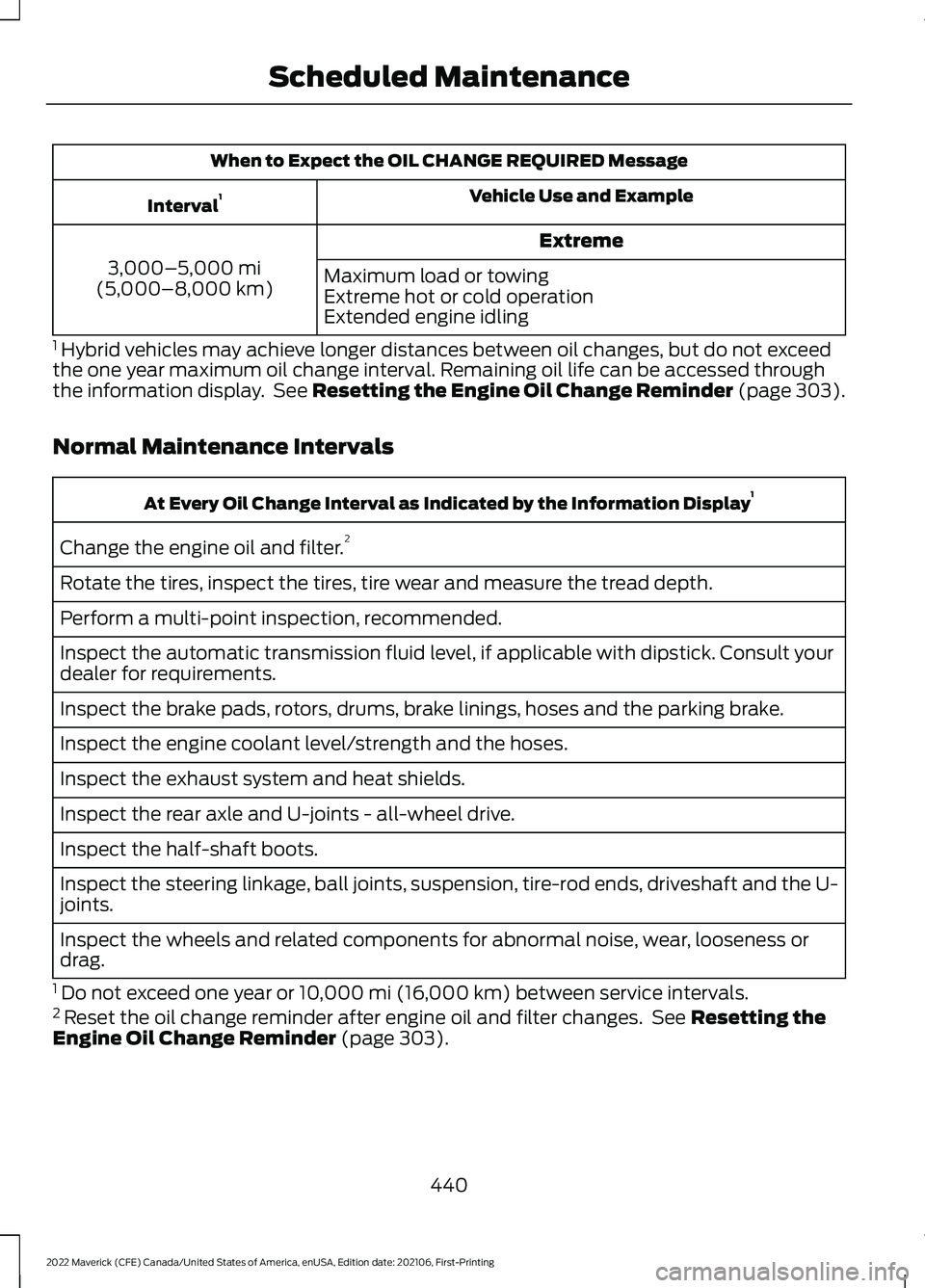
When to Expect the OIL CHANGE REQUIRED Message
Vehicle Use and Example
Interval 1
Extreme
3,000–5,000 mi
(5,000–8,000 km) Maximum load or towing
Extreme hot or cold operation
Extended engine idling
1 Hybrid vehicles may achieve longer distances between oil changes, but do not exceed
the one year maximum oil change interval. Remaining oil life can be accessed through
the information display. See Resetting the Engine Oil Change Reminder (page 303).
Normal Maintenance Intervals At Every Oil Change Interval as Indicated by the Information Display
1
Change the engine oil and filter. 2
Rotate the tires, inspect the tires, tire wear and measure the tread depth.
Perform a multi-point inspection, recommended.
Inspect the automatic transmission fluid level, if applicable with dipstick. Consult your
dealer for requirements.
Inspect the brake pads, rotors, drums, brake linings, hoses and the parking brake.
Inspect the engine coolant level/strength and the hoses.
Inspect the exhaust system and heat shields.
Inspect the rear axle and U-joints - all-wheel drive.
Inspect the half-shaft boots.
Inspect the steering linkage, ball joints, suspension, tire-rod ends, driveshaft and the U-
joints.
Inspect the wheels and related components for abnormal noise, wear, looseness or
drag.
1 Do not exceed one year or 10,000 mi (16,000 km) between service intervals.
2 Reset the oil change reminder after engine oil and filter changes. See
Resetting the
Engine Oil Change Reminder (page 303).
440
2022 Maverick (CFE) Canada/United States of America, enUSA, Edition date: 202106, First-Printing Scheduled Maintenance
Page 448 of 533
ROLLOVER WARNING
WARNING: Utility vehicles have a
significantly higher rollover rate than
other types of vehicles. WARNING:
Vehicles with a higher
center of gravity (utility and four-wheel
drive vehicles) handle differently than
vehicles with a lower center of gravity
(passenger cars). Avoid sharp turns,
excessive speed and abrupt steering in
these vehicles. Failure to drive cautiously
increases the risk of losing control of your
vehicle, vehicle rollover, personal injury
and death. WARNING:
In a rollover crash, an
unbelted person is significantly more
likely to die than a person wearing a
seatbelt. WARNING:
Do not become
overconfident in the ability of four-wheel
drive vehicles. Although a four-wheel
drive vehicle may accelerate better than
a two-wheel drive vehicle in low traction
situations, it won't stop any faster than
two-wheel drive vehicles. Always drive
at a safe speed.
Utility vehicles and trucks handle
differently than passenger cars in the
various driving conditions that are
encountered on streets, highways and
off-road. Utility vehicles and trucks are not
designed for cornering at speeds as high
as passenger cars any more than low-slung
sports cars are designed to perform
satisfactorily under off-road conditions. THE BETTER BUSINESS
BUREAU AUTO LINE
PROGRAM
Your satisfaction is important to Ford
Motor Company and to your dealer. If a
warranty concern has not been resolved
using the three-step procedure outlined
earlier in this chapter in the Getting the
Services you need section, you may be
eligible to participate in the BBB AUTO
LINE program.
The BBB AUTO LINE program consists of
two parts – mediation and arbitration.
During mediation, a representative of the
BBB will contact both you and Ford Motor
Company to explore options for settlement
of the claim. If an agreement is not reached
during mediation or you do not want to
participate in mediation, and if your claim
is eligible, you may participate in the
arbitration process. An arbitration hearing
will be scheduled so that you can present
your case in an informal setting before an
impartial person. The arbitrator considers
the testimony provided and makes a
decision after the hearing.
Disputes submitted to the BBB AUTO LINE
program are usually decided within 40
days after you file your claim with the BBB.
You are not bound by the decision, and
may reject the decision and proceed to
court where all findings of the BBB Auto
Line dispute, and decision, are admissible
in the court action. Should you choose to
accept the BBB AUTO LINE decision, Ford
is then bound by the decision, and must
comply with the decision within 30 days
of receipt of your acceptance letter.
BBB AUTO LINE Application: Using the
information that follows, please call or
write to request a program application.
You will be asked for your name and
address, general information about your
new vehicle, information about your
warranty concerns, and any steps you have
445
2022 Maverick (CFE) Canada/United States of America, enUSA, Edition date: 202106, First-Printing Customer Information