remote start FORD MAVERICK 2022 Owners Manual
[x] Cancel search | Manufacturer: FORD, Model Year: 2022, Model line: MAVERICK, Model: FORD MAVERICK 2022Pages: 533, PDF Size: 9.58 MB
Page 5 of 533
Locating Your Vehicle
...................................61
Changing the Remote Control Battery - Vehicles Without: Push Button Start
........................................................................\
..
62
Changing the Remote Control Battery - Vehicles With: Push Button Start .......
63
Replacing a Lost Key or Remote Control ........................................................................\
..
64
Programming the Remote Control .........
65
Keys and Remote Controls – Troubleshooting ........................................
65
MyKey ™
What Is MyKey ...............................................
66
MyKey Settings ..............................................
66
Creating a MyKey - Vehicles Without: Push Button Start .....................................
67
Creating a MyKey - Vehicles With: Push Button Start ................................................
68
Programming a MyKey ...............................
68
Clearing All MyKeys ......................................
69
Checking MyKey System Status .............
69
Using MyKey With Remote Start Systems ........................................................
70
MyKey – Troubleshooting ..........................
70
Doors and Locks
Operating the Doors From Outside Your Vehicle ...........................................................
73
Operating the Doors From Inside Your Vehicle ...........................................................
73
Autounlock .......................................................
74
Autolock ............................................................
74
Mislock ...............................................................
74
Doors and Locks Audible Warnings ........
75
Doors and Locks – Troubleshooting ........................................................................\
...
75
Keyless Entry
Keyless Entry Limitations ............................
77
Keyless Entry Settings ..................................
77
Using Keyless Entry .......................................
77Keyless Entry – Troubleshooting
.............
78
Keyless Entry Keypad
What Is the Keyless Entry Keypad ..........
79
Keyless Entry Keypad Limitations ...........
79
Locating the Keyless Entry Keypad ........
79
Keyless Entry Keypad Master Access Code ...............................................................
79
Keyless Entry Keypad Personal Access Codes .............................................................
79
Using the Keyless Entry Keypad .............
80
Keyless Entry Keypad – Troubleshooting ........................................................................\
...
81
Tailgate
Tailgate Precautions ....................................
82
Opening the Tailgate ...................................
82
Locking and Unlocking the Tailgate .......
83
Removing and Installing the Tailgate ........................................................................\
..
83
Security
Passive Anti-Theft System .......................
85
Anti-Theft Alarm System ..........................
85
Anti-Theft Alarm System Settings ........
86
Security – Troubleshooting .......................
87
Steering Wheel
Adjusting the Steering Wheel ..................
89
Horn ...................................................................
89
Switching the Heated Steering Wheel On and Off ..................................................
89
Wipers and Washers
Wipers ...............................................................
90
Checking the Wiper Blades ......................
90
Replacing the Front Wiper Blades .........
90
Washers .............................................................
91
Wipers and Washers – Troubleshooting ........................................................................\
..
92
2
2022 Maverick (CFE) Canada/United States of America, enUSA, Edition date: 202106, First-Printing Table of Contents
Page 7 of 533
Customizing the Instrument Cluster
Display - Vehicles With: 6.5 Inch
Screen ...........................................................117
Personalized Settings .................................
118
Fuel Economy Display - Gasoline ...........
119
Fuel Economy Display - Hybrid Electric Vehicle (HEV) ............................................
119
EV Coach - Hybrid Electric Vehicle (HEV) ........................................................................\
..
119
What Is Brake Coach - Hybrid Electric Vehicle (HEV) ...........................................
120
What Is the Trip Summary - Hybrid Electric Vehicle (HEV) ...........................
120
Trip Computer
Accessing the Trip Computer - Vehicles With: 4.2 Inch Screen ..............................
121
Accessing the Trip Computer - Vehicles With: 6.5 Inch Screen ..............................
121
Resetting the Trip Computer ....................
121
Resetting the Individual Trip Values - Vehicles With: 4.2 Inch Screen .............
121
Configuring the Trip Computer - Vehicles With: 4.2 Inch Screen ..............................
121
Trip Data ...........................................................
121
Remote Start
What Is Remote Start ................................
123
Remote Start Precautions ........................
123
Remote Start Limitations .........................
123
Enabling Remote Start ..............................
123
Remotely Starting and Stopping the Vehicle .........................................................
123
Extending the Remote Start Duration ........................................................................\
.
123
Remote Start Remote Control Indicators ........................................................................\
.
124
Remote Start Settings - Vehicles With: SYNC 3 .........................................................
124Climate Control - Vehicles
With: Dual Automatic
Temperature Control
(DATC)
Identifying the Climate Control Unit .....
126
Switching Climate Control On and Off ........................................................................\
.
126
Switching Recirculated Air On and Off ........................................................................\
.
126
Switching Air Conditioning On and Off ........................................................................\
.
126
Switching Maximum Defrost On and Off ........................................................................\
.
126
Switching Maximum Cooling On and Off ........................................................................\
.
126
Switching the Heated Wiper Park On and Off .................................................................
126
Switching the Heated Mirrors On and Off ........................................................................\
.
126
Setting the Blower Motor Speed ............
127
Setting the Temperature ...........................
127
Directing the Flow of Air ............................
127
Auto Mode ......................................................
127
Climate Control – Troubleshooting ......
129
Climate Control - Vehicles With: Electronic Automatic
Temperature Control
(EATC)
Identifying the Climate Control Unit .....
130
Switching Climate Control On and Off ........................................................................\
.
130
Switching Recirculated Air On and Off ........................................................................\
.
130
Switching Air Conditioning On and Off ........................................................................\
.
130
Switching Maximum Defrost On and Off ........................................................................\
.
130
Switching Maximum Cooling On and Off ........................................................................\
.
130
Switching the Heated Wiper Park On and Off .................................................................
130
4
2022 Maverick (CFE) Canada/United States of America, enUSA, Edition date: 202106, First-Printing Table of Contents
Page 63 of 533
REMOTE CONTROL
LIMITATIONS
WARNING: Changes or
modifications not expressively approved
by the party responsible for compliance
could void the user's authority to operate
the equipment. The term "IC:" before the
radio certification number only signifies
that Industry Canada technical
specifications were met.
This device complies with Part 15 of the
FCC Rules and with Industry Canada
license-exempt RSS standard(s).
Operation is subject to the following two
conditions: (1) This device may not cause
harmful interference, and (2) This device
must accept any interference received,
including interference that may cause
undesired operation.
Make sure a valid remote control is within
5 ft (1.5 m)
from the front door handles
and rear of vehicle.
The system may not function if:
• The remote control remains stationary
for about a minute.
• The vehicle battery has no charge.
• The remote control battery has no
charge.
• There is interference causing issues
with the remote control frequencies.
• The remote control is too close to
metal objects or electronic devices, for
example keys or a cell phone.
USING THE REMOTE CONTROL
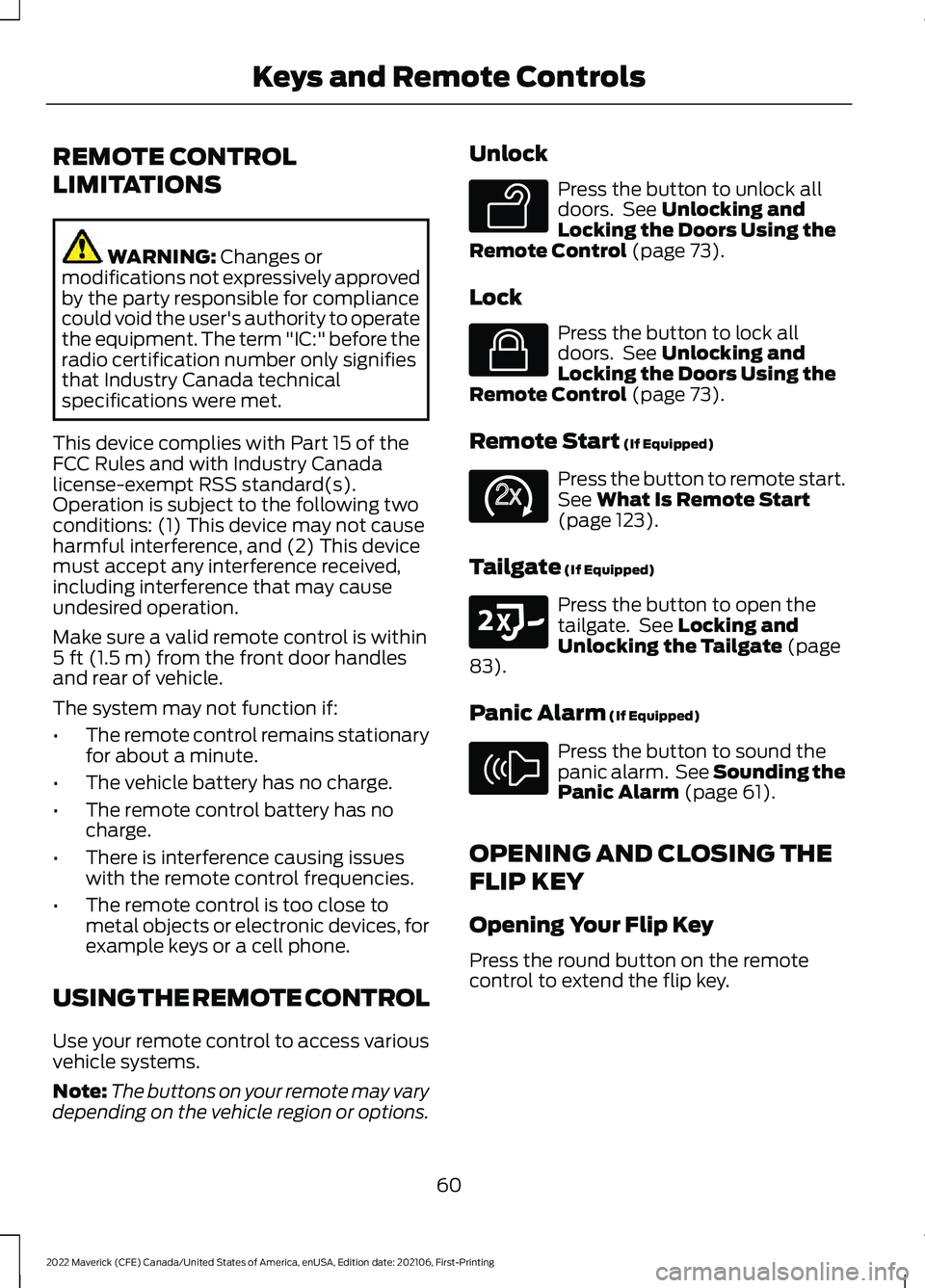
Use your remote control to access various
vehicle systems.
Note: The buttons on your remote may vary
depending on the vehicle region or options. Unlock Press the button to unlock all
doors. See
Unlocking and
Locking the Doors Using the
Remote Control
(page 73).
Lock Press the button to lock all
doors. See
Unlocking and
Locking the Doors Using the
Remote Control
(page 73).
Remote Start
(If Equipped) Press the button to remote start.
See
What Is Remote Start
(page 123).
Tailgate
(If Equipped) Press the button to open the
tailgate. See
Locking and
Unlocking the Tailgate (page
83).
Panic Alarm
(If Equipped) Press the button to sound the
panic alarm. See Sounding the
Panic Alarm
(page 61).
OPENING AND CLOSING THE
FLIP KEY
Opening Your Flip Key
Press the round button on the remote
control to extend the flip key.
60
2022 Maverick (CFE) Canada/United States of America, enUSA, Edition date: 202106, First-Printing Keys and Remote ControlsE138629 E138623 E138625 E191530 E138624
Page 65 of 533
CHANGING THE REMOTE
CONTROL BATTERY -
VEHICLES WITHOUT: PUSH
BUTTON START
WARNING: Keep batteries away
from children to prevent ingestion.
Failure to follow this instruction could
result in personal injury or death. If
ingested, immediately seek medical
attention. WARNING:
If the battery
compartment does not securely close,
stop using the remote control and
replace it as soon as possible. In the
meantime, keep the remote control away
from children. Failure to follow this
instruction could result in personal injury
or death.
Battery Replacement Procedure
The remote control uses one coin-type
3-volt lithium battery CR2032 or
equivalent.
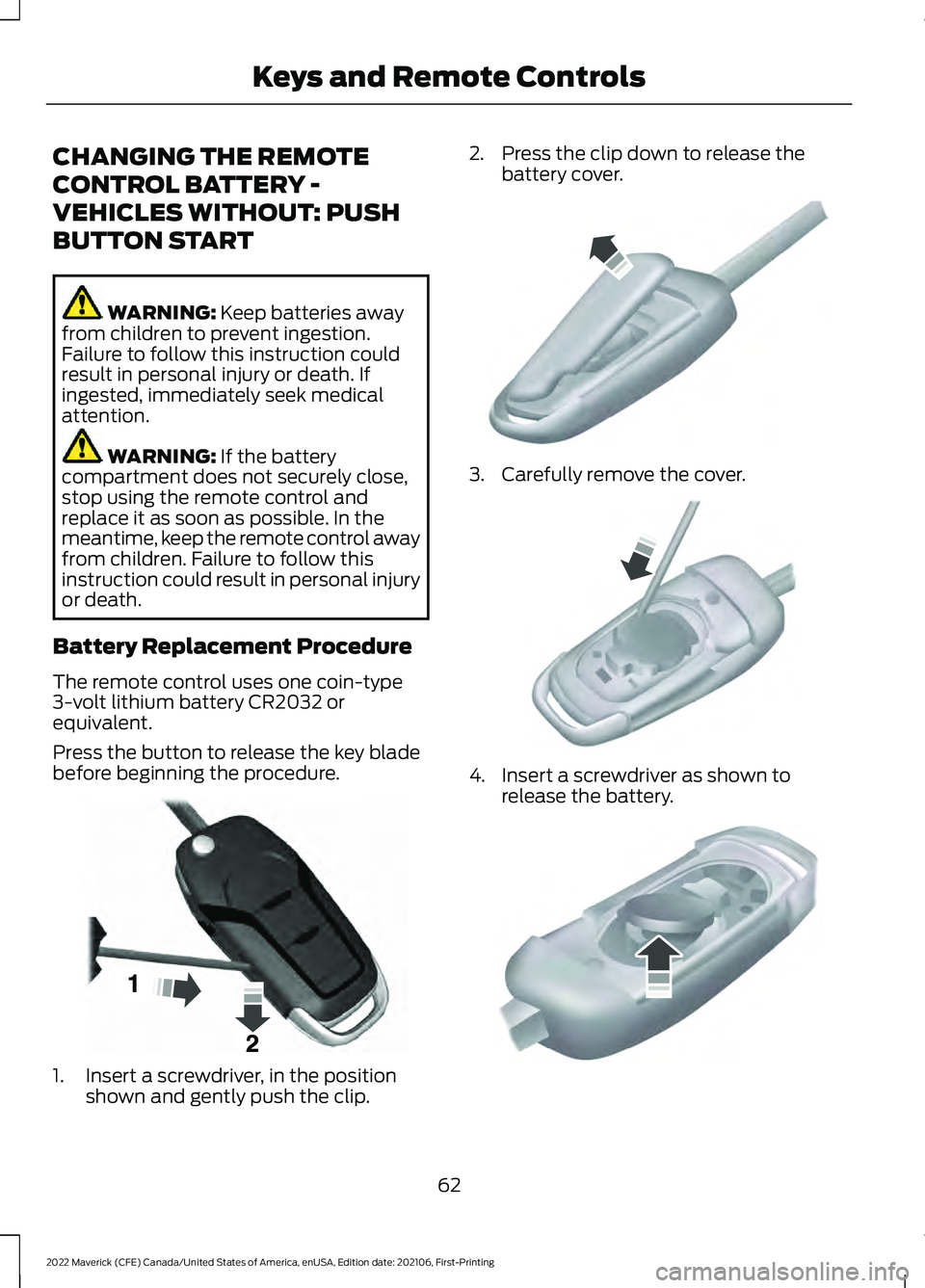
Press the button to release the key blade
before beginning the procedure. 1. Insert a screwdriver, in the position
shown and gently push the clip. 2. Press the clip down to release the
battery cover. 3. Carefully remove the cover.
4. Insert a screwdriver as shown to
release the battery. 62
2022 Maverick (CFE) Canada/United States of America, enUSA, Edition date: 202106, First-Printing Keys and Remote ControlsE191533 E151799 E151800 E151801
Page 66 of 533
Note:
Do not touch the battery contacts or
the printed circuit board with the
screwdriver.
5. Remove the battery.
6. Install a new battery with the + facing
up.
7. Replace the battery cover. Dispose of old batteries in an
environmentally friendly way.
Seek advice from your local
authority about recycling old batteries.
Note: Do not wipe off any grease on the
battery terminals or on the back surface of
the circuit board.
Note: Replacing the battery does not erase
the programmed key from your vehicle. The
remote control should operate normally.
CHANGING THE REMOTE
CONTROL BATTERY -
VEHICLES WITH: PUSH
BUTTON START WARNING:
Keep batteries away
from children to prevent ingestion.
Failure to follow this instruction could
result in personal injury or death. If
ingested, immediately seek medical
attention. WARNING:
If the battery
compartment does not securely close,
stop using the remote control and
replace it as soon as possible. In the
meantime, keep the remote control away
from children. Failure to follow this
instruction could result in personal injury
or death.
The remote control uses one coin-type
3-volt lithium battery CR2450 or
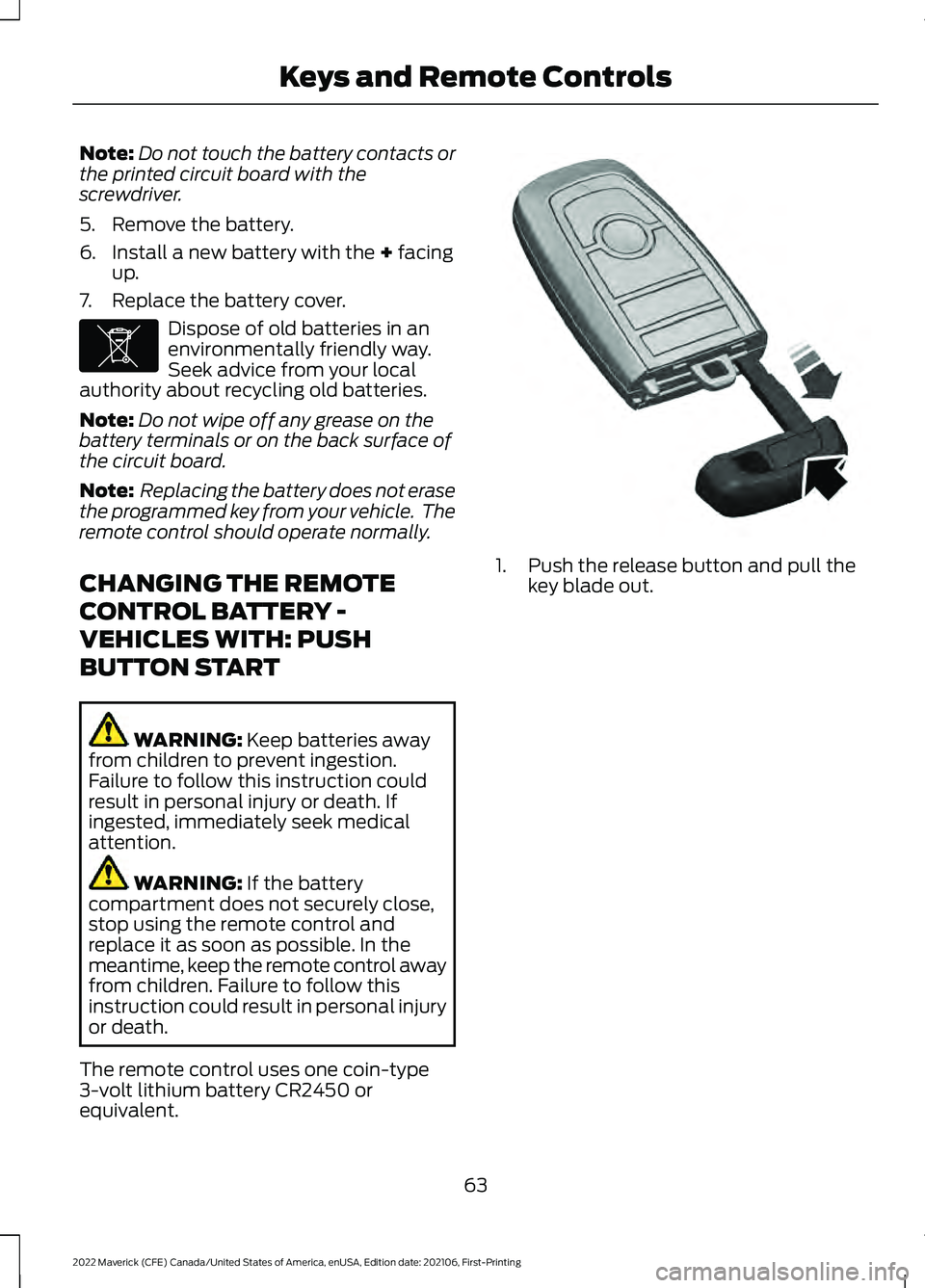
equivalent. 1. Push the release button and pull the
key blade out.
63
2022 Maverick (CFE) Canada/United States of America, enUSA, Edition date: 202106, First-Printing Keys and Remote ControlsE107998 E322866
Page 70 of 533
Emergency Assistance
If you set emergency assistance to always
on, you cannot switch it off with a MyKey.
Do Not Disturb
If you set do not disturb to always on, you
cannot switch it off with a MyKey.
Note:
If a phone is connected using Apple
CarPlay or Android Auto while driving with
a MyKey, the driver can receive phone calls
and text messages even if the do not disturb
restriction is on, and if the vehicle comes
with satellite radio, there is no restriction on
the adult content.
Traction and Stability Control
If you set traction control or stability
control to always on, you cannot switch it
off with a MyKey.
CREATING A MYKEY -
VEHICLES WITHOUT: PUSH
BUTTON START
1. Switch the ignition on using an admin key.
Note: You can program the restrictions to
all keys but one. Any keys that you did not
program are administrator keys or admin
keys.
2. Access the main menu in the information display and then scroll
through the menus to change the
settings of your MyKey. From the
MyKey menu select the option Create
MyKey. See Instrument Cluster
Display (page 116). 3. When prompted, hold the OK button
until you see a message informing you
to label this key as a MyKey. The
programmed restrictions apply when
you switch the vehicle off, open and
close the driver door and restart your
vehicle with the programmed key or
remote control.
4. Switch the ignition off.
You successfully created a MyKey.
You can also program configurable
settings for the keys.
Note: We recommend that you label this
key.
67
2022 Maverick (CFE) Canada/United States of America, enUSA, Edition date: 202106, First-Printing MyKey
™
Page 71 of 533
CREATING A MYKEY -
VEHICLES WITH: PUSH
BUTTON START
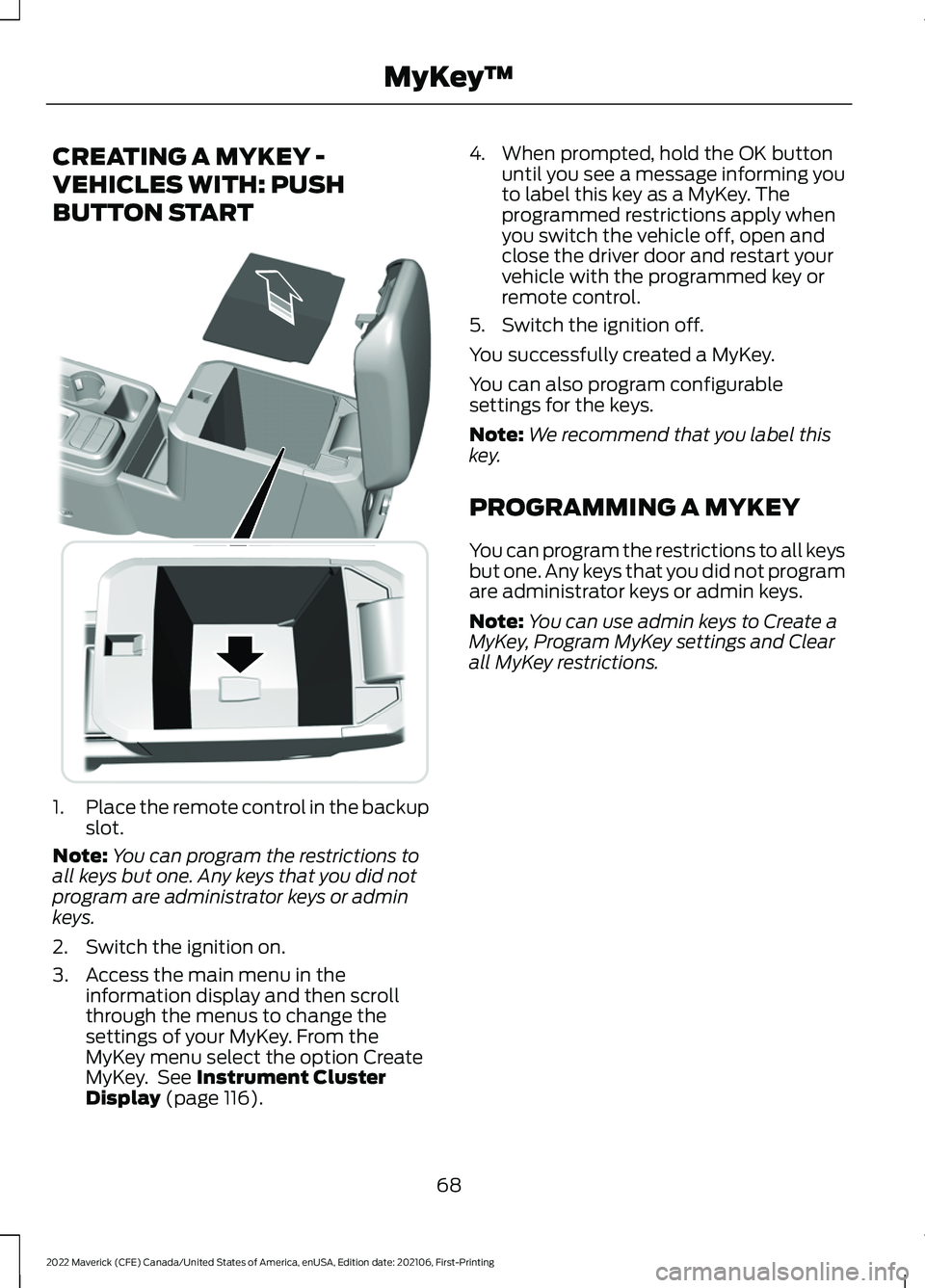
1.
Place the remote control in the backup
slot.
Note: You can program the restrictions to
all keys but one. Any keys that you did not
program are administrator keys or admin
keys.
2. Switch the ignition on.
3. Access the main menu in the information display and then scroll
through the menus to change the
settings of your MyKey. From the
MyKey menu select the option Create
MyKey. See Instrument Cluster
Display (page 116). 4. When prompted, hold the OK button
until you see a message informing you
to label this key as a MyKey. The
programmed restrictions apply when
you switch the vehicle off, open and
close the driver door and restart your
vehicle with the programmed key or
remote control.
5. Switch the ignition off.
You successfully created a MyKey.
You can also program configurable
settings for the keys.
Note: We recommend that you label this
key.
PROGRAMMING A MYKEY
You can program the restrictions to all keys
but one. Any keys that you did not program
are administrator keys or admin keys.
Note: You can use admin keys to Create a
MyKey, Program MyKey settings and Clear
all MyKey restrictions.
68
2022 Maverick (CFE) Canada/United States of America, enUSA, Edition date: 202106, First-Printing MyKey
™E349250
Page 72 of 533
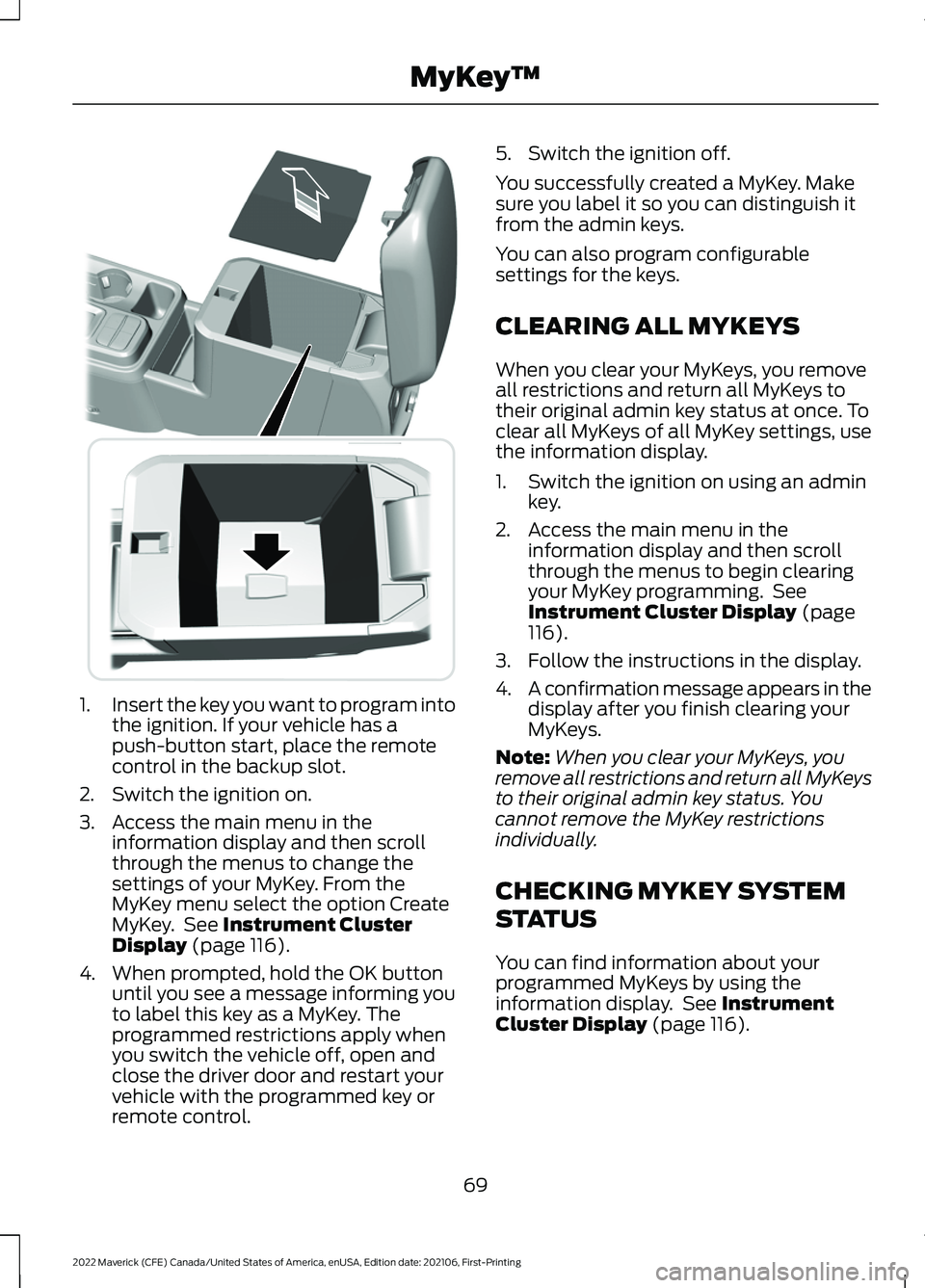
1.
Insert the key you want to program into
the ignition. If your vehicle has a
push-button start, place the remote
control in the backup slot.
2. Switch the ignition on.
3. Access the main menu in the information display and then scroll
through the menus to change the
settings of your MyKey. From the
MyKey menu select the option Create
MyKey. See Instrument Cluster
Display (page 116).
4. When prompted, hold the OK button until you see a message informing you
to label this key as a MyKey. The
programmed restrictions apply when
you switch the vehicle off, open and
close the driver door and restart your
vehicle with the programmed key or
remote control. 5. Switch the ignition off.
You successfully created a MyKey. Make
sure you label it so you can distinguish it
from the admin keys.
You can also program configurable
settings for the keys.
CLEARING ALL MYKEYS
When you clear your MyKeys, you remove
all restrictions and return all MyKeys to
their original admin key status at once. To
clear all MyKeys of all MyKey settings, use
the information display.
1. Switch the ignition on using an admin
key.
2. Access the main menu in the information display and then scroll
through the menus to begin clearing
your MyKey programming. See
Instrument Cluster Display
(page
116).
3. Follow the instructions in the display.
4. A confirmation message appears in the
display after you finish clearing your
MyKeys.
Note: When you clear your MyKeys, you
remove all restrictions and return all MyKeys
to their original admin key status. You
cannot remove the MyKey restrictions
individually.
CHECKING MYKEY SYSTEM
STATUS
You can find information about your
programmed MyKeys by using the
information display. See
Instrument
Cluster Display (page 116).
69
2022 Maverick (CFE) Canada/United States of America, enUSA, Edition date: 202106, First-Printing MyKey
™E349250
Page 73 of 533
MyKey Distance
Tracks the distance when drivers use a
MyKey. The only way to delete the
accumulated distance is by using an admin
key to clear all MyKeys. If the distance does
not accumulate as expected, then the
intended user is not using the MyKey, or an
admin key user recently cleared and then
recreated a MyKey.
Number of MyKeys
Indicates the number of MyKeys
programmed to your vehicle. Use this
feature to detect how many MyKeys you
have for your vehicle and determine when
all MyKeys have been deleted.
Number of Admin Keys
Indicates how many admin keys are
programmed to your vehicle. Use this
feature to determine how many admin
keys you have for your vehicle, and detect
if an additional MyKey has been
programmed.
USING MYKEY WITH REMOTE
START SYSTEMS
MyKey is not compatible with unapproved,
aftermarket remote start systems. If you
choose to install a remote start system,
see an authorized dealer for an approved
remote start system.
MYKEY – TROUBLESHOOTING
MYKEY – INFORMATION MESSAGES - VEHICLES WITHOUT: PUSH
BUTTON START Description
Message
Displays when trying to create a MyKey with a key already
designated as a MyKey.
Key is Already a MyKey
Displays to confirm that the key is restricted after you switch
the ignition off.
This Key restricted at
Next Key Cycle. Label
Key as MyKey
70
2022 Maverick (CFE) Canada/United States of America, enUSA, Edition date: 202106, First-Printing MyKey
™
Page 88 of 533
PASSIVE ANTI-THEFT
SYSTEM
WHAT IS THE PASSIVE ANTI-
THEFT SYSTEM
The passive anti-theft system prevents
someone from starting the vehicle with an
incorrectly coded key.
Note:
Do not leave a duplicate coded key
in your vehicle. Always take the keys and
lock all the doors when leaving your vehicle.
HOW DOES THE PASSIVE ANTI-
THEFT SYSTEM WORK
The passive anti-theft system arms when
you switch the ignition off.
It disarms when the ignition is switched on
with a correctly coded key.
Note: The system is not compatible with
non-Ford aftermarket remote start systems.
Note: Do not leave a duplicate coded key
in your vehicle. Always take the keys and
lock all doors when leaving your vehicle.
ANTI-THEFT ALARM SYSTEM
(IF EQUIPPED)
WHAT IS THE ANTI-THEFT ALARM
SYSTEM
The Anti-Theft Alarm System warns you
of an unauthorized entry to your vehicle. HOW DOES THE ANTI-THEFT
ALARM SYSTEM WORK
When armed, the anti-theft alarm is
triggered in any of the following ways:
•
If someone opens a door, the liftgate
or the hood without a correctly coded
key or remote control.
• If you turn the power on without a
correctly coded key.
• If the interior sensors detect movement
inside your vehicle.
• If the inclination sensors detect an
attempt to raise your vehicle.
• If someone disconnects the vehicle
battery or the battery backup alarm.
If the anti-theft alarm is triggered, the
alarm horn sounds for 30 seconds and the
direction indicators flash for 5 minutes.
Any further attempts to carry out one of
the above sounds the alarm again.
WHAT IS THE PERIMETER ALARM
The perimeter alarm is designed to detect
unauthorized access to your vehicle.
WHAT ARE THE INTERIOR
SENSORS
The interior sensors are designed to detect
any movement inside your vehicle.
The interior sensors are in the overhead
console.
Note: Do not cover the interior sensors.
WHAT ARE THE INCLINATION
SENSORS
The inclination sensor is designed to detect
an attempt to raise your vehicle, for
example to remove a wheel or to tow it
away.
85
2022 Maverick (CFE) Canada/United States of America, enUSA, Edition date: 202106, First-Printing Security