phone FORD MAVERICK 2023 Owner's Manual
[x] Cancel search | Manufacturer: FORD, Model Year: 2023, Model line: MAVERICK, Model: FORD MAVERICK 2023Pages: 556, PDF Size: 14.79 MB
Page 394 of 556
Possible Cause and ResolutionSymptom
I have an Android devicethat is correctly connected,I have restarted my appsand they are running but thesystem still cannot findthem.
–An issue on some older versions of the Android oper-ating system could result in apps not being found.
•Switch Bluetooth® off and on again to force thesystem to reconnect to your device.
I have an iOS device that iscorrectly connected, I haverestarted my apps and theyare running but the systemstill cannot find them.
–Cable connection issue.
•Disconnect the cable from your device, wait for amoment and then connect it again to force thesystem to reconnect to your device.
I have an Android devicerunning a media app whichthe system has found but Icannot hear the sound orthe sound is very quiet.
–Device volume is low.
•Turn the volume up on your device.
I have an Android devicerunning a number ofcompatible apps but thesystem cannot find all ofthem.
–Device limitation. Some Android devices have a limitednumber of Bluetooth® ports that apps can use toconnect. If you have more apps running on your devicethan the number of available Bluetooth® ports, thesystem cannot find all of them.
•Close some of the apps to allow the system to findthose that you want to use.
USING VOICE RECOGNITION
Phone Voice Service
This system allows you to use the voicerecognition features of your phone andfocus on your driving.
Press the voice control buttonon the steering wheel.
Note: This only works when connected viaBluetooth®. See Connecting aBluetooth® Device (page 385).
Note:When using voice recognition use thelanguage set on the device.
Note:We recommend that you check yourdata plan before using your phone voiceservice through the system. Using themcould result in additional charges.
390
2023 Maverick (CFE) Canada/United States of America, enUSA, Edition date: 202208, First-PrintingAudio System - Vehicles Without: SYNC 3E142599
Page 405 of 556
GENERAL INFORMATION
WARNING: Driving while distractedcan result in loss of vehicle control, crashand injury. We strongly recommend thatyou use extreme caution when using anydevice that may take your focus off theroad. Your primary responsibility is thesafe operation of your vehicle. Werecommend against the use of anyhand-held device while driving andencourage the use of voice-operatedsystems when possible. Make sure youare aware of all applicable local lawsthat may affect the use of electronicdevices while driving.
About SYNC
The system allows you to interact with theentertainment, information andcommunication systems on your vehicleusing voice commands and a touchscreen.The system provides easy interaction withaudio, phone, navigation, mobile apps andsettings.
Note:You can switch the system on anduse it for up to an hour without switchingthe ignition on.
Note:You can use the system after youswitch the ignition off for up to 10 minutesor until you open a door.
Note:For your safety, some features arespeed-dependent. Their use is limited towhen your vehicle speed is less than 3 mph(5 km/h).
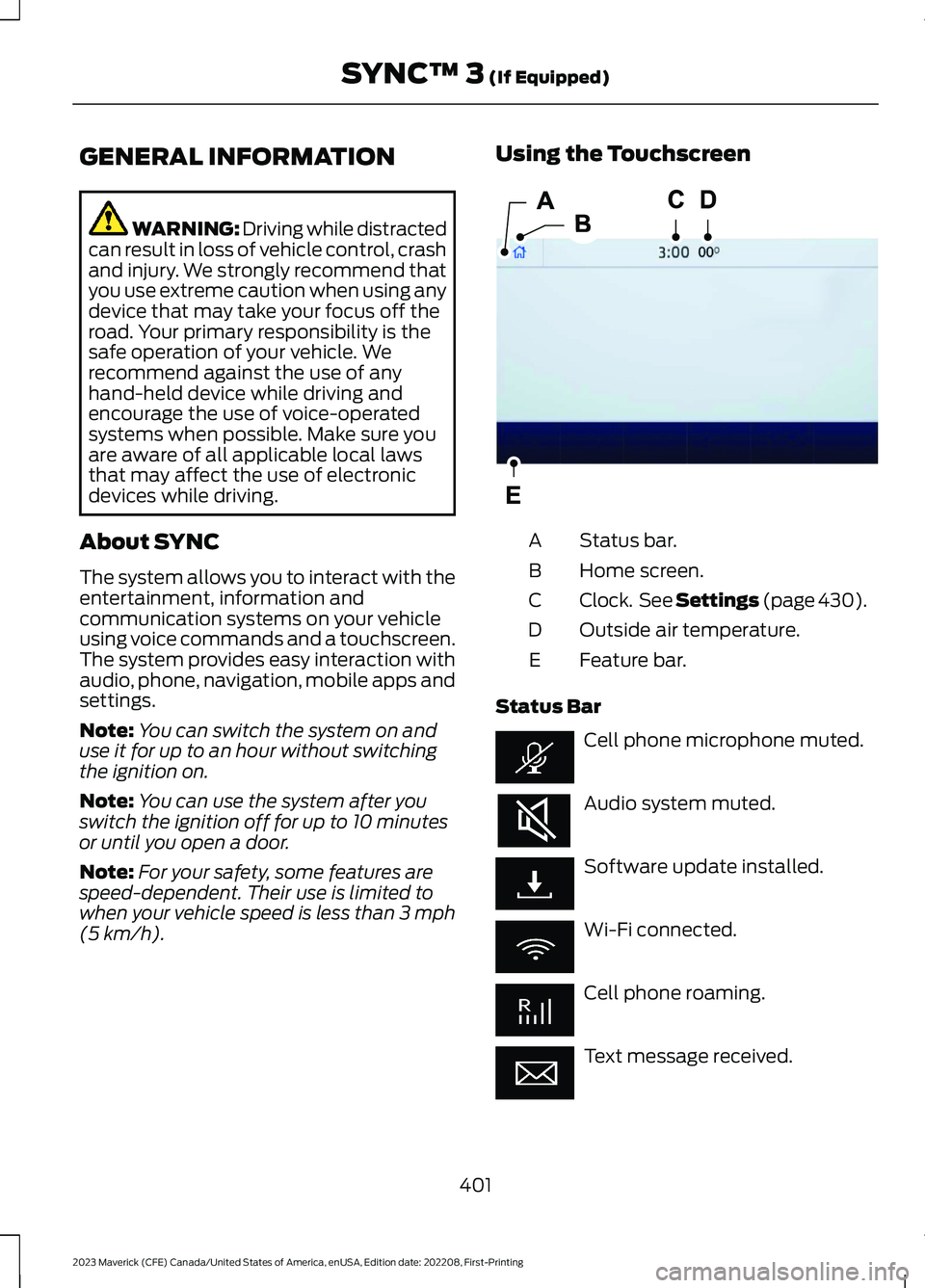
Using the Touchscreen
Status bar.A
Home screen.B
Clock. See Settings (page 430).C
Outside air temperature.D
Feature bar.E
Status Bar
Cell phone microphone muted.
Audio system muted.
Software update installed.
Wi-Fi connected.
Cell phone roaming.
Text message received.
401
2023 Maverick (CFE) Canada/United States of America, enUSA, Edition date: 202208, First-PrintingSYNC™ 3 (If Equipped)E293823
Page 406 of 556
Automatic crash notificationsystem off.
Cell phone network signalstrength.
Vehicle data sharing on.
Vehicle location sharing on.
Vehicle data and vehicle locationsharing on.
Wireless charger active.
Feature Bar
Select to use the radio, a USB, amedia player or a Bluetooth®device. See Entertainment(page 410).
Select to adjust climate settings
Select to make calls and accessthe phonebook on your cellphone. See Phone (page 420).
Select to use the navigationsystem.
Select to search for and usecompatible apps on your iOS orAndroid device. See Apps (page428).
Select to adjust system settings.See Settings (page 430).
Cleaning the Touchscreen
See Cleaning Displays and Screens(page 330).
Updating the System
Updating the System Using a USB Drive
Downloading an Update
1.Go to the SYNC update page on thelocal Ford website.
2.Download the update.
Note:The website notifies you if an updateis available.
3.Insert a USB drive into your computer.
Note:The USB drive needs to be empty andmeet the minimum requirements detailedon the website.
4.Follow the instructions provided todownload the update to the USB drive.
Installing an Update
Note:You can use the system when aninstallation is in progress.
1.Disconnect all other USB devices fromthe USB ports.
2.Connect the USB drive with the updateto a USB port.
Note:Installation starts automaticallywithin 10 minutes.
Updating the System Using a Wi-FiNetwork Connection
Connecting to a Wi-Fi Network
Select the settings option on thefeature bar.
1.Select Automatic Updates.
2.Select System Wi-Fi.
3.Switch System Wi-Fi on.
4.Select Available Wi-Fi Networks.
5.Select an available Wi-Fi network.
Note:Enter the network password toconnect to a secure network.
402
2023 Maverick (CFE) Canada/United States of America, enUSA, Edition date: 202208, First-PrintingSYNC™ 3 (If Equipped) E263583 E100027 E283811 E280315 E280315
Page 407 of 556
Switching Automatic System UpdatesOn
Select the settings option on thefeature bar.
1.Select Automatic Updates.
2.Switch Automatic System Updateson.
The system is now set to check for andreceive system updates when it isconnected to a Wi-Fi network.
Note:You can use the system when adownload is in progress.
Note:If the system is disconnected fromthe Wi-Fi network when a download is inprogress, the download continues the nexttime the system is connected to a Wi-Finetwork.
Additional Information andAssistance
For additional information and assistance,we recommend that you contact anauthorized dealer or refer to the local Fordwebsite.
USING VOICE RECOGNITION
The SYNC 3 system allows you to use voicecommands to control features like audioand climate controls. By using voicecommands, you can keep your hands onthe wheel and your eyes on the road.
You can access each feature controlled bySYNC 3 through a variety of commands.
To activate the SYNC 3 voicecommands push the voicebutton on the steering wheel andwait for the prompt.
___ is a dynamic listing, meaning that it canbe the name of anything, such as artist, thename of contact or number. The contextand the description of the command tellyou what to say for this dynamic option.
There are some commands that work forevery feature, these commands are:
Action and DescriptionVoice Command
Brings you to the main menu.Main Menu
Returns you to the previous screen.Go back
Ends the voice session.Cancel
Gives you a list of possible voice commands.List of Commands
You can name any feature and the system gives a list ofcommands available for the feature. For example, you couldsay:
___ List of Commands
Phone List of Commands
Navigation List of Commands
403
2023 Maverick (CFE) Canada/United States of America, enUSA, Edition date: 202208, First-PrintingSYNC™ 3 (If Equipped)E280315 E142599
Page 409 of 556
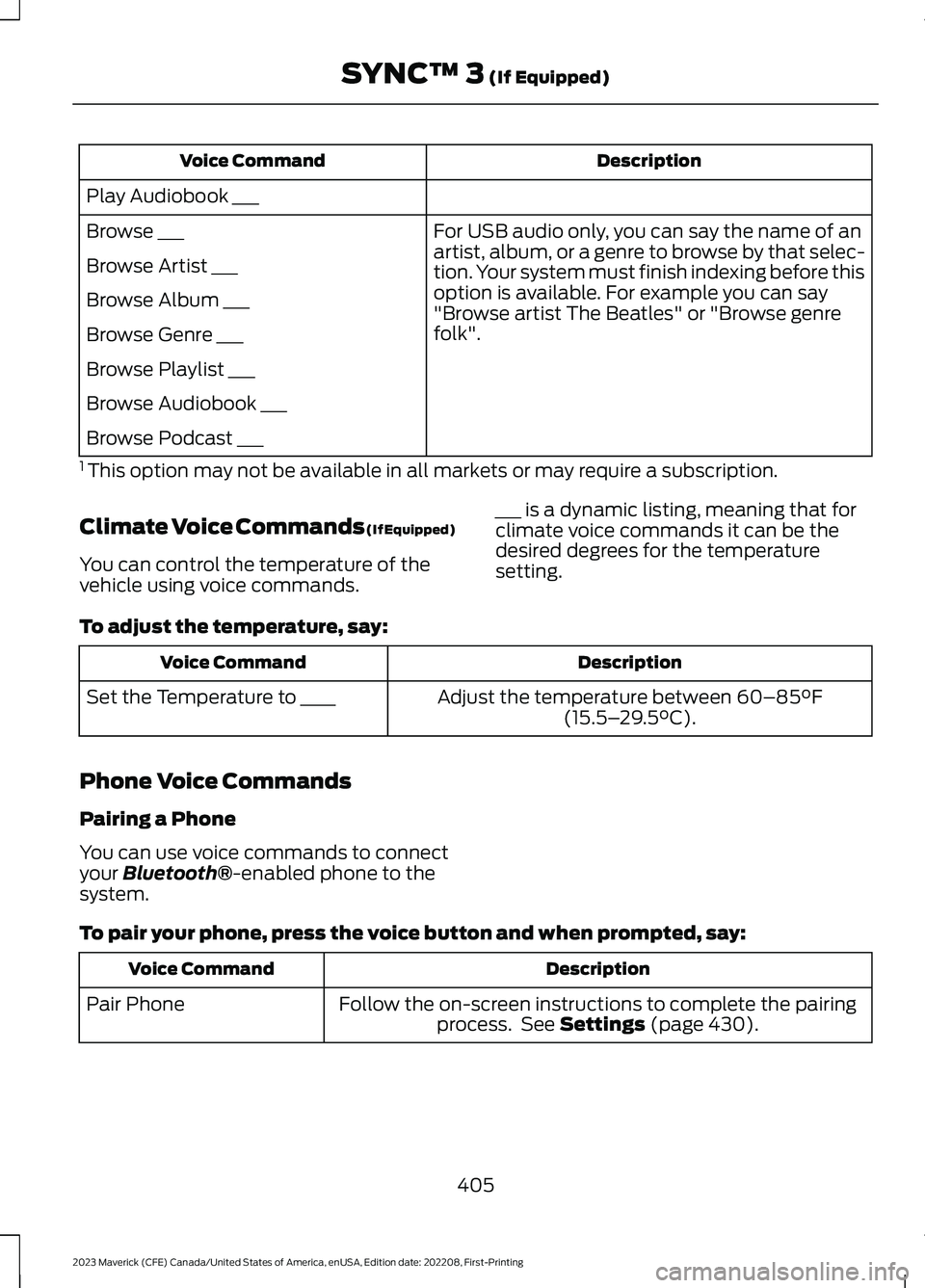
DescriptionVoice Command
Play Audiobook ___
For USB audio only, you can say the name of anartist, album, or a genre to browse by that selec-tion. Your system must finish indexing before thisoption is available. For example you can say"Browse artist The Beatles" or "Browse genrefolk".
Browse ___
Browse Artist ___
Browse Album ___
Browse Genre ___
Browse Playlist ___
Browse Audiobook ___
Browse Podcast ___
1 This option may not be available in all markets or may require a subscription.
Climate Voice Commands (If Equipped)
You can control the temperature of thevehicle using voice commands.
___ is a dynamic listing, meaning that forclimate voice commands it can be thedesired degrees for the temperaturesetting.
To adjust the temperature, say:
DescriptionVoice Command
Adjust the temperature between 60–85°F(15.5–29.5°C).Set the Temperature to ____
Phone Voice Commands
Pairing a Phone
You can use voice commands to connectyour Bluetooth®-enabled phone to thesystem.
To pair your phone, press the voice button and when prompted, say:
DescriptionVoice Command
Follow the on-screen instructions to complete the pairingprocess. See Settings (page 430).Pair Phone
405
2023 Maverick (CFE) Canada/United States of America, enUSA, Edition date: 202208, First-PrintingSYNC™ 3 (If Equipped)
Page 410 of 556
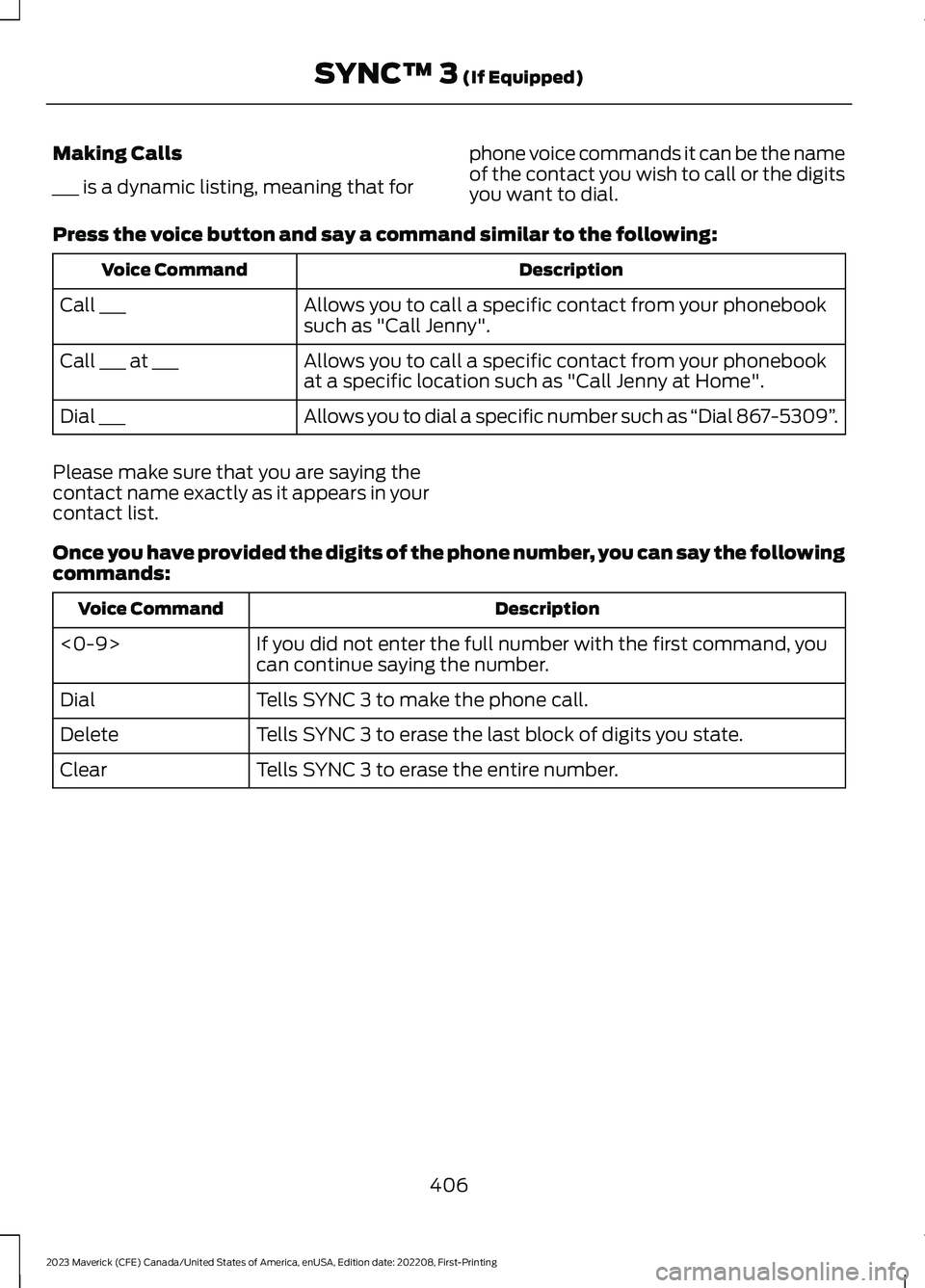
Making Calls
___ is a dynamic listing, meaning that for
phone voice commands it can be the nameof the contact you wish to call or the digitsyou want to dial.
Press the voice button and say a command similar to the following:
DescriptionVoice Command
Allows you to call a specific contact from your phonebooksuch as "Call Jenny".Call ___
Allows you to call a specific contact from your phonebookat a specific location such as "Call Jenny at Home".Call ___ at ___
Allows you to dial a specific number such as “Dial 867-5309”.Dial ___
Please make sure that you are saying thecontact name exactly as it appears in yourcontact list.
Once you have provided the digits of the phone number, you can say the followingcommands:
DescriptionVoice Command
If you did not enter the full number with the first command, youcan continue saying the number.<0-9>
Tells SYNC 3 to make the phone call.Dial
Tells SYNC 3 to erase the last block of digits you state.Delete
Tells SYNC 3 to erase the entire number.Clear
406
2023 Maverick (CFE) Canada/United States of America, enUSA, Edition date: 202208, First-PrintingSYNC™ 3 (If Equipped)
Page 413 of 556
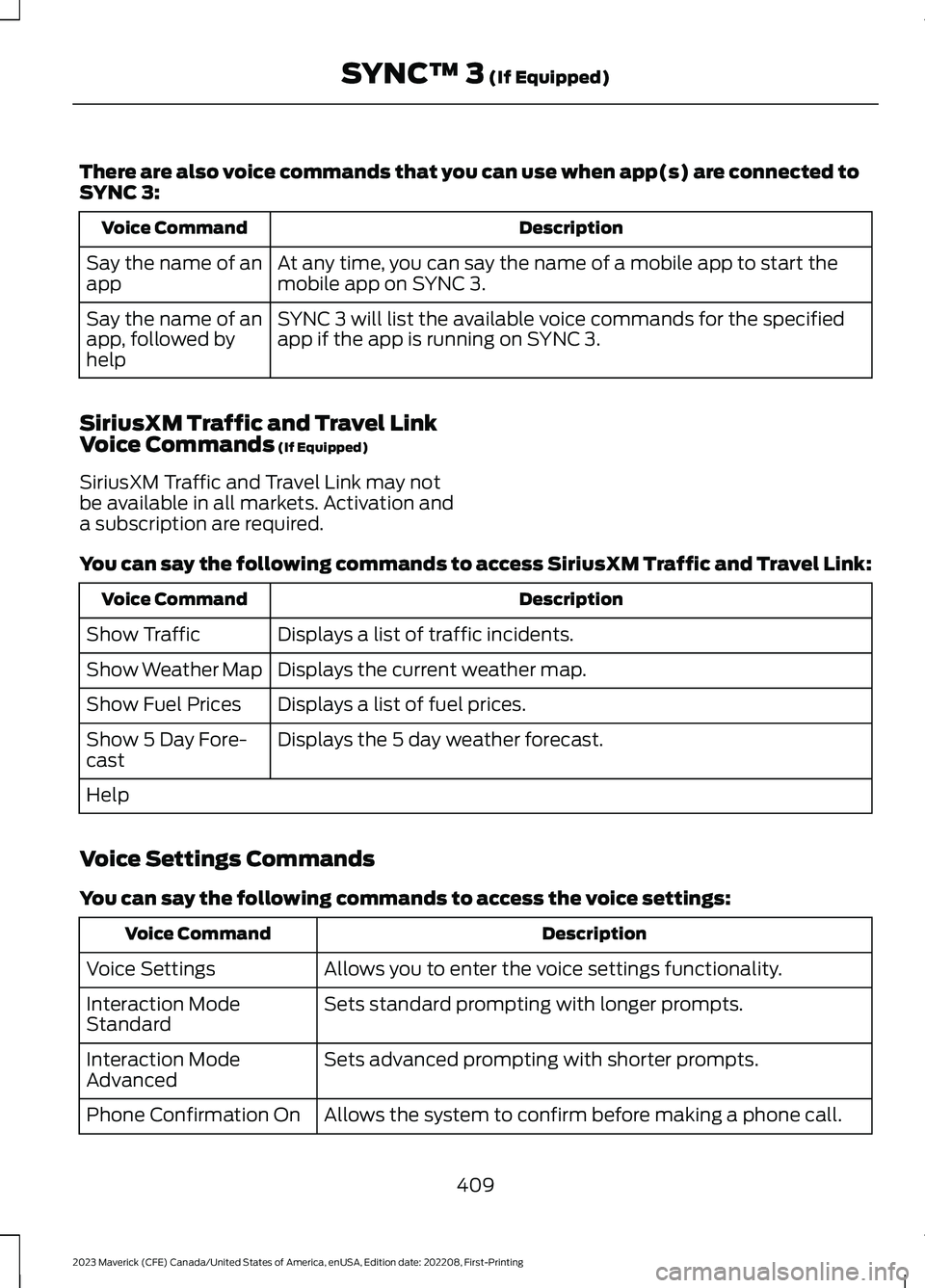
There are also voice commands that you can use when app(s) are connected toSYNC 3:
DescriptionVoice Command
At any time, you can say the name of a mobile app to start themobile app on SYNC 3.Say the name of anapp
SYNC 3 will list the available voice commands for the specifiedapp if the app is running on SYNC 3.Say the name of anapp, followed byhelp
SiriusXM Traffic and Travel LinkVoice Commands (If Equipped)
SiriusXM Traffic and Travel Link may notbe available in all markets. Activation anda subscription are required.
You can say the following commands to access SiriusXM Traffic and Travel Link:
DescriptionVoice Command
Displays a list of traffic incidents.Show Traffic
Displays the current weather map.Show Weather Map
Displays a list of fuel prices.Show Fuel Prices
Displays the 5 day weather forecast.Show 5 Day Fore-cast
Help
Voice Settings Commands
You can say the following commands to access the voice settings:
DescriptionVoice Command
Allows you to enter the voice settings functionality.Voice Settings
Sets standard prompting with longer prompts.Interaction ModeStandard
Sets advanced prompting with shorter prompts.Interaction ModeAdvanced
Allows the system to confirm before making a phone call.Phone Confirmation On
409
2023 Maverick (CFE) Canada/United States of America, enUSA, Edition date: 202208, First-PrintingSYNC™ 3 (If Equipped)
Page 414 of 556
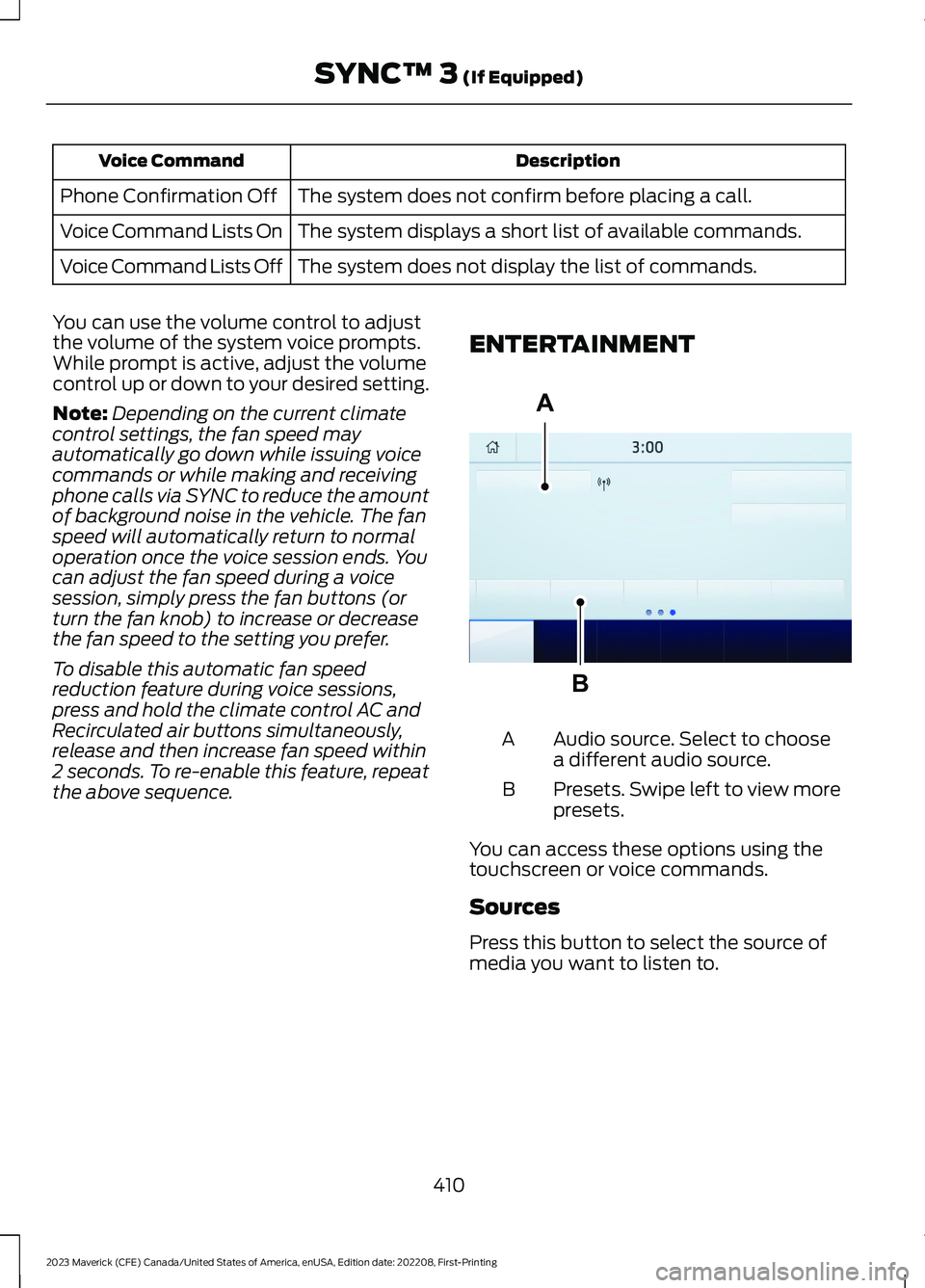
DescriptionVoice Command
The system does not confirm before placing a call.Phone Confirmation Off
The system displays a short list of available commands.Voice Command Lists On
The system does not display the list of commands.Voice Command Lists Off
You can use the volume control to adjustthe volume of the system voice prompts.While prompt is active, adjust the volumecontrol up or down to your desired setting.
Note:Depending on the current climatecontrol settings, the fan speed mayautomatically go down while issuing voicecommands or while making and receivingphone calls via SYNC to reduce the amountof background noise in the vehicle. The fanspeed will automatically return to normaloperation once the voice session ends. Youcan adjust the fan speed during a voicesession, simply press the fan buttons (orturn the fan knob) to increase or decreasethe fan speed to the setting you prefer.
To disable this automatic fan speedreduction feature during voice sessions,press and hold the climate control AC andRecirculated air buttons simultaneously,release and then increase fan speed within2 seconds. To re-enable this feature, repeatthe above sequence.
ENTERTAINMENT
Audio source. Select to choosea different audio source.A
Presets. Swipe left to view morepresets.B
You can access these options using thetouchscreen or voice commands.
Sources
Press this button to select the source ofmedia you want to listen to.
410
2023 Maverick (CFE) Canada/United States of America, enUSA, Edition date: 202208, First-PrintingSYNC™ 3 (If Equipped)ABE293491
Page 415 of 556
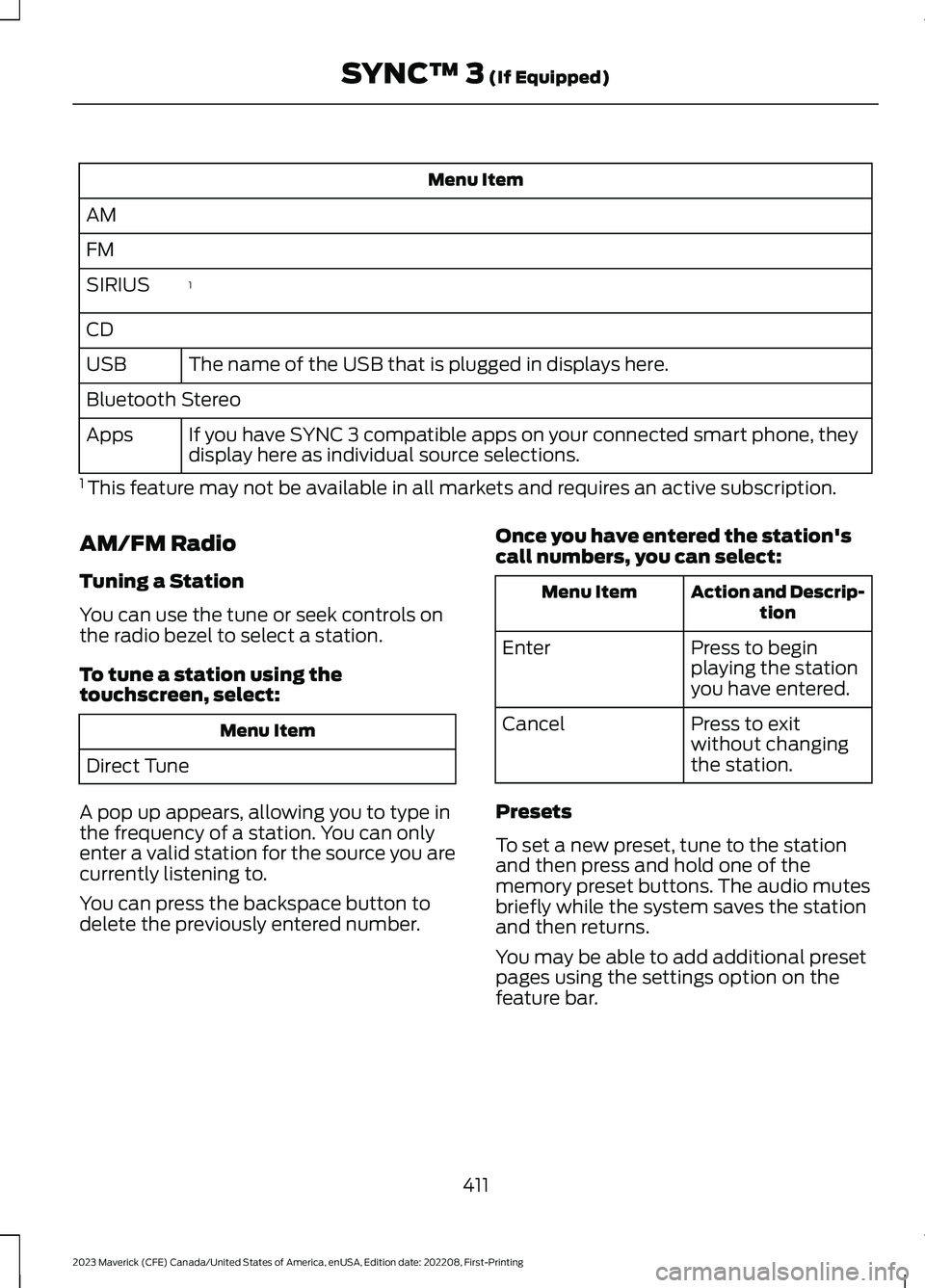
Menu Item
AM
FM
1SIRIUS
CD
The name of the USB that is plugged in displays here.USB
Bluetooth Stereo
If you have SYNC 3 compatible apps on your connected smart phone, theydisplay here as individual source selections.Apps
1 This feature may not be available in all markets and requires an active subscription.
AM/FM Radio
Tuning a Station
You can use the tune or seek controls onthe radio bezel to select a station.
To tune a station using thetouchscreen, select:
Menu Item
Direct Tune
A pop up appears, allowing you to type inthe frequency of a station. You can onlyenter a valid station for the source you arecurrently listening to.
You can press the backspace button todelete the previously entered number.
Once you have entered the station'scall numbers, you can select:
Action and Descrip-tionMenu Item
Press to beginplaying the stationyou have entered.
Enter
Press to exitwithout changingthe station.
Cancel
Presets
To set a new preset, tune to the stationand then press and hold one of thememory preset buttons. The audio mutesbriefly while the system saves the stationand then returns.
You may be able to add additional presetpages using the settings option on thefeature bar.
411
2023 Maverick (CFE) Canada/United States of America, enUSA, Edition date: 202208, First-PrintingSYNC™ 3 (If Equipped)
Page 423 of 556
FunctionButton
Playlists
Artist
Albums
Songs
Genres
Podcasts
Audio books
Composers
This button allows you to choose a specificletter to view within the category you arebrowsing.
A-Z Jump
If available, this allows you to browse thefolders and files on your USB device.Explore Device
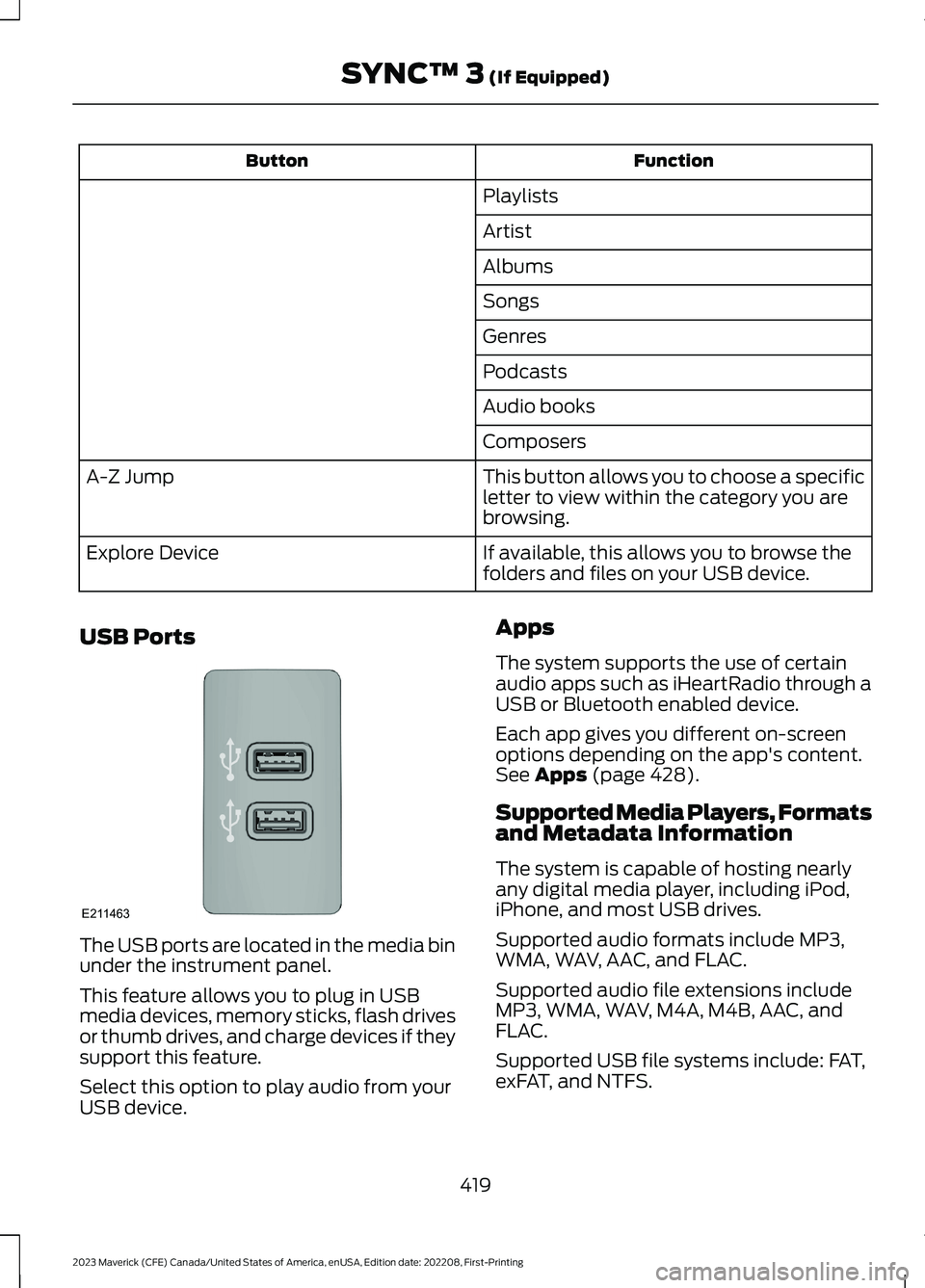
USB Ports
The USB ports are located in the media binunder the instrument panel.
This feature allows you to plug in USBmedia devices, memory sticks, flash drivesor thumb drives, and charge devices if theysupport this feature.
Select this option to play audio from yourUSB device.
Apps
The system supports the use of certainaudio apps such as iHeartRadio through aUSB or Bluetooth enabled device.
Each app gives you different on-screenoptions depending on the app's content.See Apps (page 428).
Supported Media Players, Formatsand Metadata Information
The system is capable of hosting nearlyany digital media player, including iPod,iPhone, and most USB drives.
Supported audio formats include MP3,WMA, WAV, AAC, and FLAC.
Supported audio file extensions includeMP3, WMA, WAV, M4A, M4B, AAC, andFLAC.
Supported USB file systems include: FAT,exFAT, and NTFS.
419
2023 Maverick (CFE) Canada/United States of America, enUSA, Edition date: 202208, First-PrintingSYNC™ 3 (If Equipped)E211463