radio FORD MUSTANG 2002 4.G Owner's Manual
[x] Cancel search | Manufacturer: FORD, Model Year: 2002, Model line: MUSTANG, Model: FORD MUSTANG 2002 4.GPages: 264, PDF Size: 2.56 MB
Page 51 of 264
Setting memory preset stations
1. Select the frequency band with the AM/FM select
control. Press the AM/FM control to toggle between
AM, FM1, or FM2.
2. Press the SEEK control to access the next
listenable station up or down the frequency band.
Press the TUNE control to go up or down the
listening band in individual increments.
3. Select a station. Refer toSeek functionfor more
information on selecting a station.
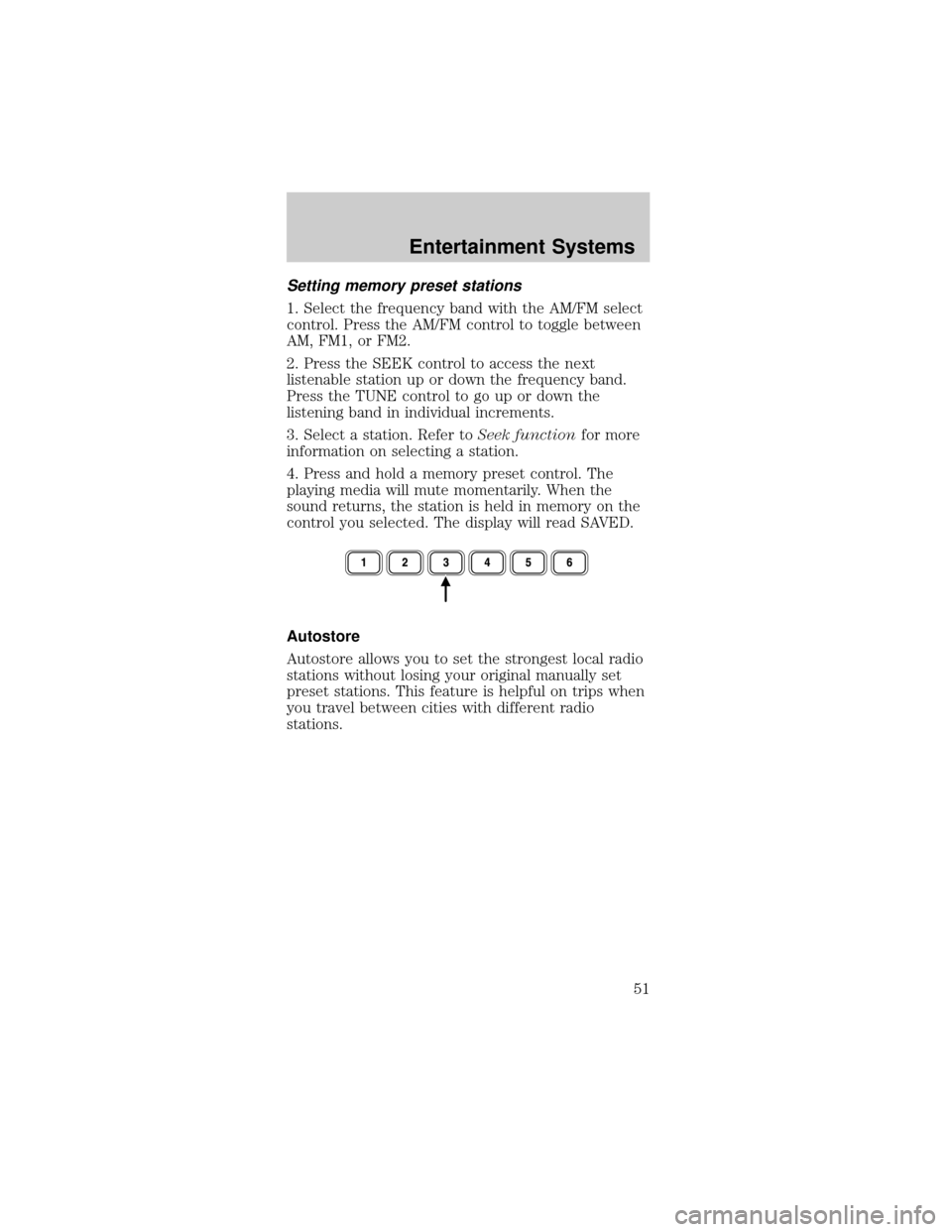
4. Press and hold a memory preset control. The
playing media will mute momentarily. When the
sound returns, the station is held in memory on the
control you selected. The display will read SAVED.
Autostore
Autostore allows you to set the strongest local radio
stations without losing your original manually set
preset stations. This feature is helpful on trips when
you travel between cities with different radio
stations.
Entertainment Systems
51
Page 52 of 264
Starting autostore
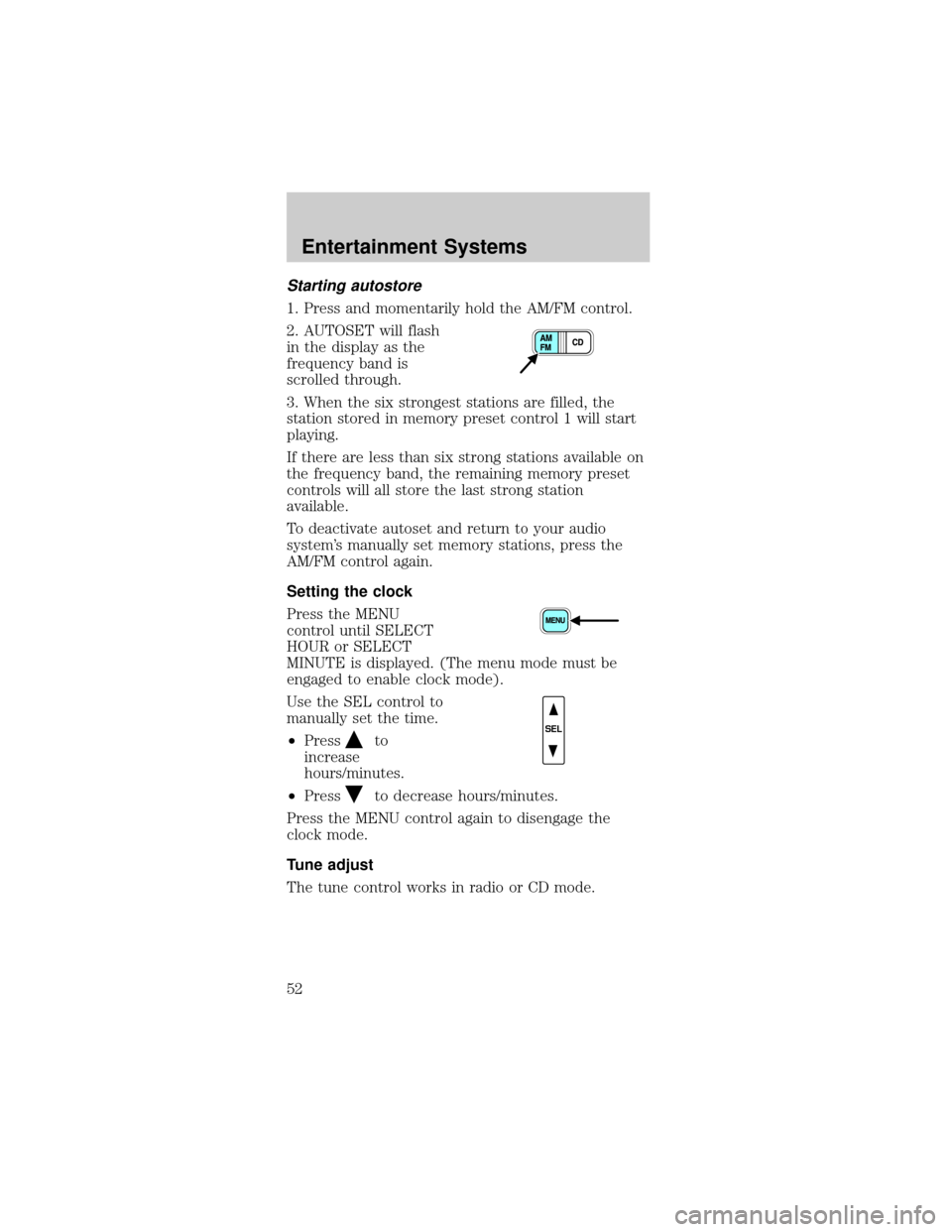
1. Press and momentarily hold the AM/FM control.
2. AUTOSET will flash
in the display as the
frequency band is
scrolled through.
3. When the six strongest stations are filled, the
station stored in memory preset control 1 will start
playing.
If there are less than six strong stations available on
the frequency band, the remaining memory preset
controls will all store the last strong station
available.
To deactivate autoset and return to your audio
system's manually set memory stations, press the
AM/FM control again.
Setting the clock
Press the MENU
control until SELECT
HOUR or SELECT
MINUTE is displayed. (The menu mode must be
engaged to enable clock mode).
Use the SEL control to
manually set the time.
²Press
to
increase
hours/minutes.
²Press
to decrease hours/minutes.
Press the MENU control again to disengage the
clock mode.
Tune adjust
The tune control works in radio or CD mode.
SEL
Entertainment Systems
52
Page 53 of 264
Tune adjust in radio mode
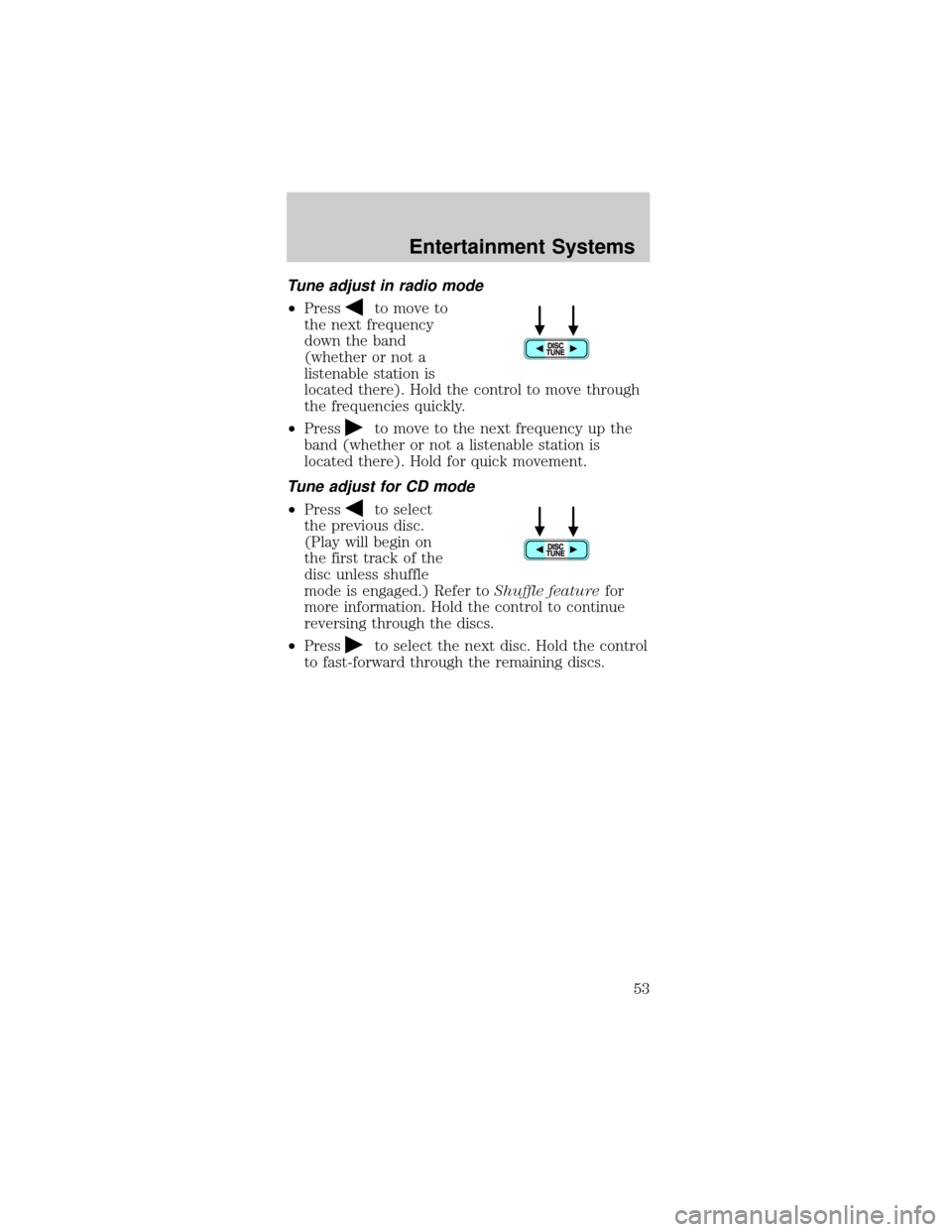
²Pressto move to
the next frequency
down the band
(whether or not a
listenable station is
located there). Hold the control to move through
the frequencies quickly.
²Press
to move to the next frequency up the
band (whether or not a listenable station is
located there). Hold for quick movement.
Tune adjust for CD mode
²Pressto select
the previous disc.
(Play will begin on
the first track of the
disc unless shuffle
mode is engaged.) Refer toShuffle featurefor
more information. Hold the control to continue
reversing through the discs.
²Press
to select the next disc. Hold the control
to fast-forward through the remaining discs.
Entertainment Systems
53
Page 55 of 264
Rewind
The rewind control
works in CD modes.
Press and hold the
REW control until the desired selection is reached. If
the beginning of the disc is reached, the CD will
begin play at the first track. Release the control to
disengage rewind mode.
When in rewind mode, your audio system will
automatically lower the volume level of the playing
media.
Fast forward
The fast forward
control works in CD
modes.
Press and hold the FF control until the desired
selection is reached. If the end of the disc is
reached, the CD will return to the first track.
Release the control to disengage fast forward mode.
When in fast forward mode, your audio system will
automatically lower the volume level of the playing
media.
Load
The load feature allows
you to load single CDs
into the player internal
to the radio.
This six disc CD player is equipped with a CD
door. Compact discs should only be inserted
into the player after the door has been opened
by the player. Do not attempt to force the door
open. Compact discs should only be loaded by
pressing the LOAD control.
Press the LOAD control. (You can choose which slot
will be loaded by pressing the desired preset
number. If you do not choose a slot, the system will
Entertainment Systems
55
Page 56 of 264
choose the next available one.) Wait until the CD
door opens. Load the CD into the player. LOADING
CD# is displayed. When the CD has been loaded, the
door will close and the CD will begin to play. For
example, to load a CD into slot 2, press the LOAD
control and then press preset 2.
Auto load
This feature allows you
to autoload up to 6
discs into the multi
disc CD player internal to the radio.
Press and hold the LOAD control until AUTOLOAD
# is displayed. The CD door will open. Load the
desired disc, one at a time. The CD is loaded into
position and the audio system will display CD#. Each
time the CD door opens, INSERT CD# is displayed.
The door will close and the player will move to the
next slot after each disc has been loaded. The
process is repeated until all 6 slots are full. The
audio system plays the last CD loaded and the
display is updated. If some slots are already full and
autoload is activated, the system will fill all empty
slots.
Eject
Press the EJ control to
stop and eject a CD.
You can choose which
CD will be ejected by pressing the EJ control and
the desired preset number (1±6). For example, to
eject CD 2, press the EJ control and then press the
preset 2 control. If you do not choose a specific CD,
the player will eject the current CD.
If a CD is ejected and not removed from the door of
the CD player, the player will automatically reload
the CD. This feature may be used when the ignition
is ON or OFF.
Entertainment Systems
56
Page 58 of 264
Menu mode
The MENU control
allows you to access
many different features
within your audio
system. There are
three sets of menus
available depending
upon which mode or feature is activated.
While in FM mode, two menus are available.If RDS
is turned OFF, you can access the following:
²SELECT HOURS Ð Refer toSetting the clock.
²SELECT MINUTES Ð Refer toSetting the clock.
²RDS OFF Ð Refer toRadio data system feature.
If RDS is turned ON, you can access the following:
²TRAFFIC ON/OFF-Refer toTraffic
announcements.
²FIND type-Refer toProgram type.
²SHOW (NAME, TYPE, NONE)- Refer toRadio
data system feature.
²RDS ONÐ Refer toRadio data system feature.
²SELECT HOURS Ð Refer toSetting the clock.
²SELECT MINUTES ÐRefer toSetting the clock.
When in CD mode, you can access: SELECT HOURS,
SELECT MINUTES or COMP ON/OFF.
SELECT HOURS, SELECT MINUTESÐ Allows you
to adjust the hours and minutes. Refer toSetting
the clock.
TRAFFIC ON/OFFÐ Traffic announcements can be
programmed as local or distant. Refer toTraffic
announcements.
RDS ON/OFFÐ This feature allows your audio
system to receive text information from
RDS-equipped FM radio stations. Refer toRadio
Data System feature.
MENU
Entertainment Systems
58
Page 59 of 264
FIND type Ð Allows you to select your desired FM
program type and search for that selection.
SHOW Ð Allows you to select from NAME (displays
the name of the radio station), TYPE (displays the
RDS program type: rock, jazz, etc.), or NONE
(deactivates the RDS display).
Radio data system (RDS) feature
This feature allows
your audio system to
receive text
information from
RDS-equipped FM
radio stations.
To activate RDS:
²When in FM mode, press the MENU control until
RDS OFF displays.
²Press the SEL control to engage this feature (RDS
ON).
RDS features:
Once the RDS feature is on, press the MENU control
to scroll through the following selections:
Traffic announcements
This feature allows you to hear traffic
announcements while in CD mode. These
announcements are broadcast by traffic capable RDS
stations.
When in this mode, traffic announcements will
interrupt radio and CD play.
²Press the MENU control until TRAFFIC is
displayed.
²Press the SEL control to engage the feature. The
display will read TRAFFIC ON.
This feature also allows you to control the volume of
traffic announcements. With the display reading
TRAFFIC ON, adjust the volume using the volume
control to the desired level. The volume level will
SEL+MENU
Entertainment Systems
59
Page 61 of 264
Show
This feature allows you
to select the type of
RDS broadcast
information the radio
will regularly show in
the display.
With RDS activated,
press the MENU
control until SHOW is
displayed.
Use the SEL control to select TYPE (displays the
RDS program type: rock, jazz, etc), NAME (displays
the name of the radio station) or NONE (deactivates
the RDS display).
Digital signal processing
The digital signal processing (DSP) feature allows
you to change the signal mode to suit your listening
tastes.
Press the DSP control
to access the DSP
menu.
Use the SEL control to select the desired signal
mode (the selected mode will appear in the display).
The following can be selected:
²DSP
OFFÐdisengages
the feature
²STADIUMÐoutdoor
stadium with a capacity of about 30 000
²CHURCHÐchurch with a high vault
²HALLÐrectangular concert hall capacity of about
2 000
²JAZZ CLUBÐjazz club with clearly reflected
sounds
SEL+MENU
SEL
+MENU
DSP
SEL+
SEL
Entertainment Systems
61
Page 65 of 264
²Do not disassemble the player. The laser used in
disc playback is extremely harmful to the eyes.
Do not insert any promotional (odd shaped or
sized) discs, or discs with removable labels into
the CD player as jamming may occur. Damage
incurred by adhesive materials of any kind or
non-standard discs may void the warranty.
CLEANING CASSETTE PLAYER (IF EQUIPPED)
Clean the tape player head with a cassette cleaning
cartridge after 10 to 12 hours of play in order to
maintain the best sound and operation.
CASSETTE AND CASSETTE PLAYER CARE
²Use only cassettes that are 90 minutes long or
less.
²Do not expose tapes to direct sunlight, high
humidity, extreme heat or extreme cold. Allow
tapes that may have been exposed to extreme
temperatures to reach a moderate temperature
before playing.
²Tighten very loose tapes by inserting a finger or
pencil into the hole and turning the hub.
²Remove loose labels before inserting tapes.
²Do not leave tapes in the cassette player for a
long time when not being played.
RADIO FREQUENCY INFORMATION
The Federal Communications Commission (FCC)
and the Canadian Radio and Telecommunications
Commission(CRTC) establish the frequencies AM
and FM stations may use for their broadcasts.
Allowable frequencies are:
AM 530, 540±1600, 1610 kHz
FM 87.7, 87.9±107.7, 107.9 MHz
Not all frequencies are used in a given area.
Entertainment Systems
65
Page 66 of 264
RADIO RECEPTION FACTORS
Three factors can affect radio reception:
²Distance/strength.The further an FM signal
travels, the weaker it is. The listenable range of
the average FM station is approximately 40 km
(24 miles). This range can be affected by ªsignal
modulation.º Signal modulation is a process radio
stations use to increase their strength/volume
relative to other stations.
²Terrain.Hills, mountains and tall buildings
between your vehicle's antenna and the radio
station signal can cause FM reception problems.
Static can be caused on AM stations by power
lines, electric fences, traffic lights and
thunderstorms. Moving away from an interfering
structure (out of its ªshadowº) returns your
reception to normal.
²Station overload.Weak signals are sometimes
captured by stronger signals when you pass a
broadcast tower. A stronger signal may
temporarily overtake a weaker signal and play
while the weak station frequency is displayed.
The audio system automatically switches to single
channel reception if it will improve the reception of
a station normally received in stereo.
AUDIO SYSTEM WARRANTIES AND SERVICE
Refer to theWarranty Guidefor audio system
warranty information.
If service is necessary, see your dealer or a qualified
technician.
Entertainment Systems
66