radio FORD MUSTANG 2002 4.G User Guide
[x] Cancel search | Manufacturer: FORD, Model Year: 2002, Model line: MUSTANG, Model: FORD MUSTANG 2002 4.GPages: 264, PDF Size: 2.56 MB
Page 36 of 264
To scan tracks in another directory, pressor
on the TUNE DIR control to select the desired
directory. The scan function will be disabled when
you change directories.
Press the SCN control again to enable the scan
function for the selected directory.
Radio station memory preset
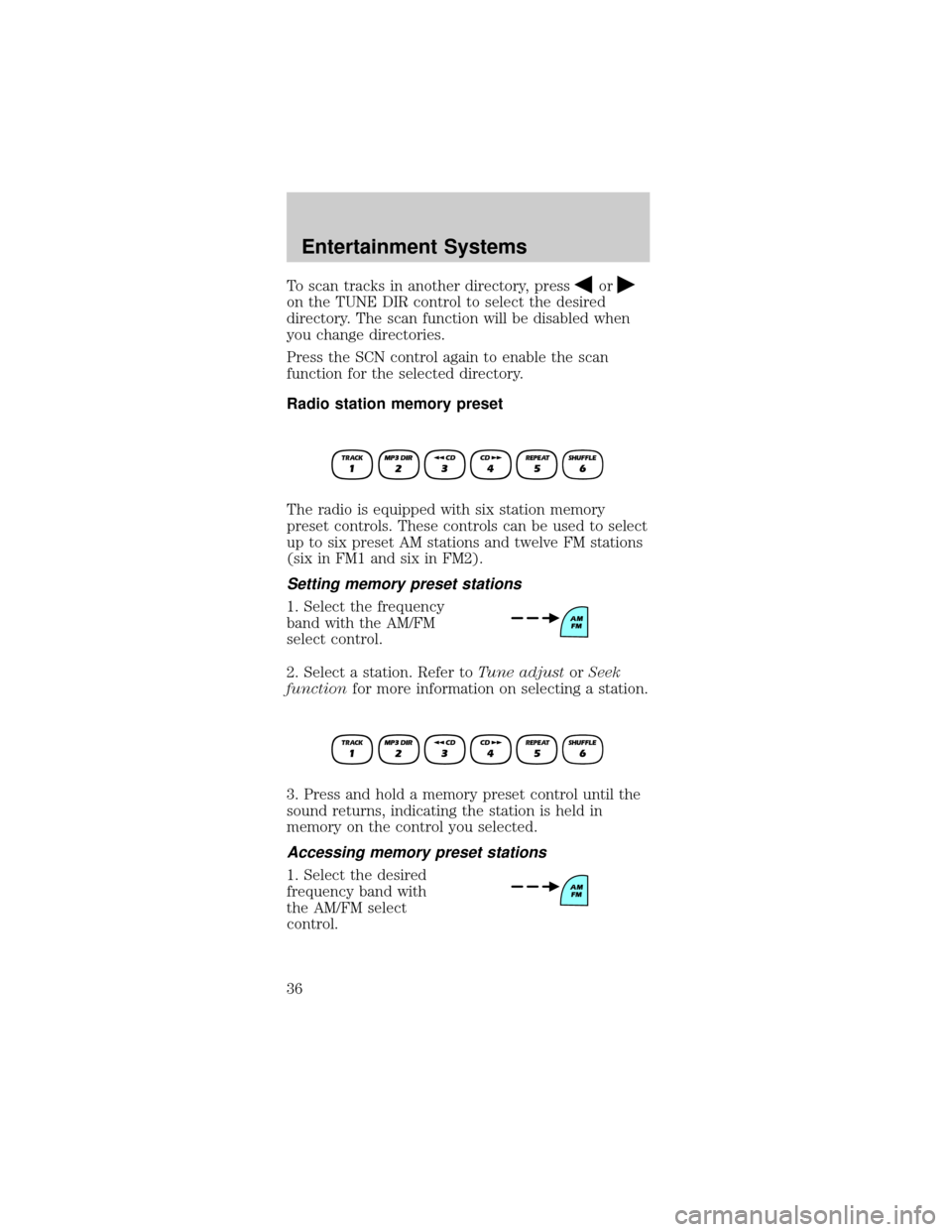
The radio is equipped with six station memory
preset controls. These controls can be used to select
up to six preset AM stations and twelve FM stations
(six in FM1 and six in FM2).
Setting memory preset stations
1. Select the frequency
band with the AM/FM
select control.
2. Select a station. Refer toTune adjustorSeek
functionfor more information on selecting a station.
3. Press and hold a memory preset control until the
sound returns, indicating the station is held in
memory on the control you selected.
Accessing memory preset stations
1. Select the desired
frequency band with
the AM/FM select
control.
Entertainment Systems
36
Page 37 of 264
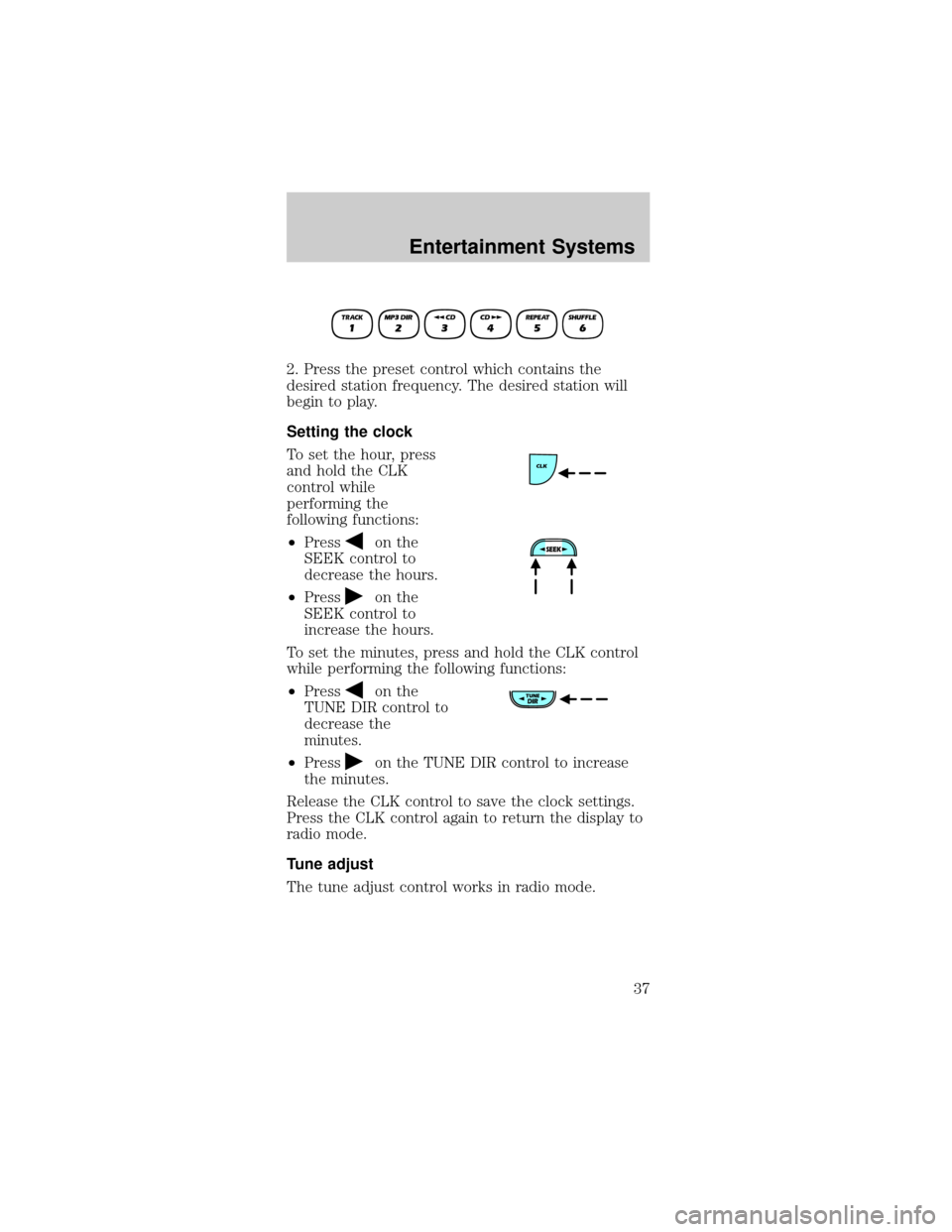
2. Press the preset control which contains the
desired station frequency. The desired station will
begin to play.
Setting the clock
To set the hour, press
and hold the CLK
control while
performing the
following functions:
²Press
on the
SEEK control to
decrease the hours.
²Press
on the
SEEK control to
increase the hours.
To set the minutes, press and hold the CLK control
while performing the following functions:
²Press
on the
TUNE DIR control to
decrease the
minutes.
²Press
on the TUNE DIR control to increase
the minutes.
Release the CLK control to save the clock settings.
Press the CLK control again to return the display to
radio mode.
Tune adjust
The tune adjust control works in radio mode.
Entertainment Systems
37
Page 38 of 264
Tune adjust in radio mode
²Pressto move to
the next frequency
down the band. Hold
for quick movement through the frequencies.
²Press
to move to the next frequency up the
band. Hold for quick movement through the
frequencies. When the top of the band is reached,
the tuner will continue to select from the lowest
frequency upward.
When a radio frequency is in tune, the ST icon will
appear in the display for stereo broadcasts.
CD select
The CD select function allows you to play CDs.
Playing a CD
²If a CD is already
loaded, press the CD
control. CD play will
begin where it
stopped last.
²If a CD is not already loaded, insert the CD into
the system. CD will briefly appear in the display
and then the first track on the disc will begin
playing.
Playing an MP3 disc in MP3 flat file mode and
MP3 directory mode
²Insert an MP3 disc into the player. CD and LOAD
will appear in the display. Initialization may take
up to two minutes for discs containing complex
file directories.
²The display will briefly show the total number of
tracks on the disc as TXXX (XXX= number of
tracks).
Entertainment Systems
38
Page 39 of 264
²If an MP3 disc is
already present in
the player, press the
CD control to begin
play.
²Press the MP3 DIR
control to engage
MP3 directory mode,
if desired. The track
number format on the display will change from
TXXX (XXX=current track number) to XX-XX
(directory Ðtrack number).
Note:If the car's ignition is turned off and on again,
play will begin at the beginning of the last song
played. If the radio was powered off by the VOL
control, play will start where it last left off.
²To stop MP3 disc
play, eject the disc
or press the AM/FM
control. The player
will return to radio mode.
Selecting a directory in MP3 directory mode
The TUNE DIR control allows you to select a
different directory to play on the MP3 disc.
²Press
on the
TUNE DIR control to
advance to the next
directory on the MP3 disc. If the current directory
is the last directory on the disc, pressing
will
select the first directory on the disc. Press and
hold for fast selection.
²Press
on TUNE DIR to revert to the previous
directory on the MP3 disc. If the current directory
is the first directory on the disc, pressing
will
select the last directory on the disc. Press and
hold for fast selection.
Entertainment Systems
39
Page 40 of 264
Eject function
Press the control to
stop and eject a disc.
If a disc is ejected and
not removed from the player, the player will
automatically reload the disc and return to radio
mode. This feature will operate when the ignition is
on or off.
Rewind
The rewind control works in CD mode. It is not
enabled in MP3 flat file mode or MP3 directory
mode.
Press and hold the
rewind control until the
desired selection point
is reached. The display
will show the elapsed time for each track as you
reverse through it. When the beginning of the disc is
reached, the first track on the disc will begin to play.
Release the rewind control again to disengage
rewind mode.
Fast forward
The fast forward control works in CD mode. It is not
enabled in MP3 flat file mode or MP3 directory
mode.
Press and hold the
control until the
desired selection point
is reached. The display
will show the elapsed time for each track as you
fast-forward through it. When the end of the disc is
reached, the player will continue fast-forwarding
from the first track forward.
Release the control to disengage fast-forwarding.
Entertainment Systems
40
Page 45 of 264
²Always save MP3 files with the .mp3 extension.
The player recognizes an MP3 file by the .mp3
extension, so MP3 files saved with different
extensions will not be played.Never save a
non-MP3 file with the .mp3 extension as the
file will not play properly and damage may
occur to the player or your sound system.
²The player supports multi session discs. However,
be sure to import the previous session of the disc
before you add new files. If you do not import the
previous session, only the last session will be
played.
²When burning a disc, ensure that you
close/finalize the disc before playback, or the disc
may not play properly or an error message may
appear.
²The player supports DAM (Digital Automatic
Music) discs.
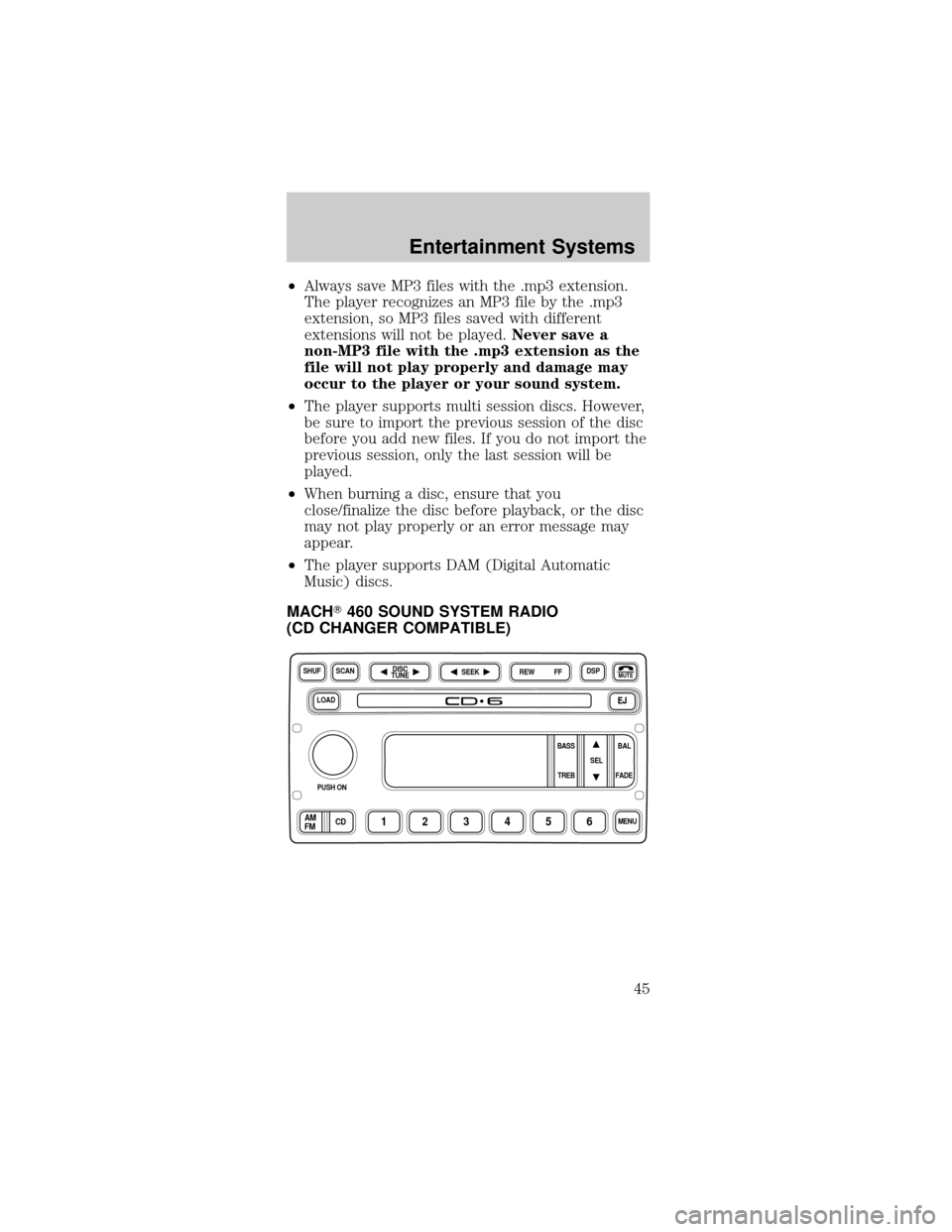
MACHT460 SOUND SYSTEM RADIO
(CD CHANGER COMPATIBLE)
LOADEJ
SHUFDSPMUTE
SELBAL BASS
FADE TREB
SCAN
PUSH ON
CD123456MENUAM
FM
SEEKREW FFDISC
TUNE
Entertainment Systems
45
Page 46 of 264
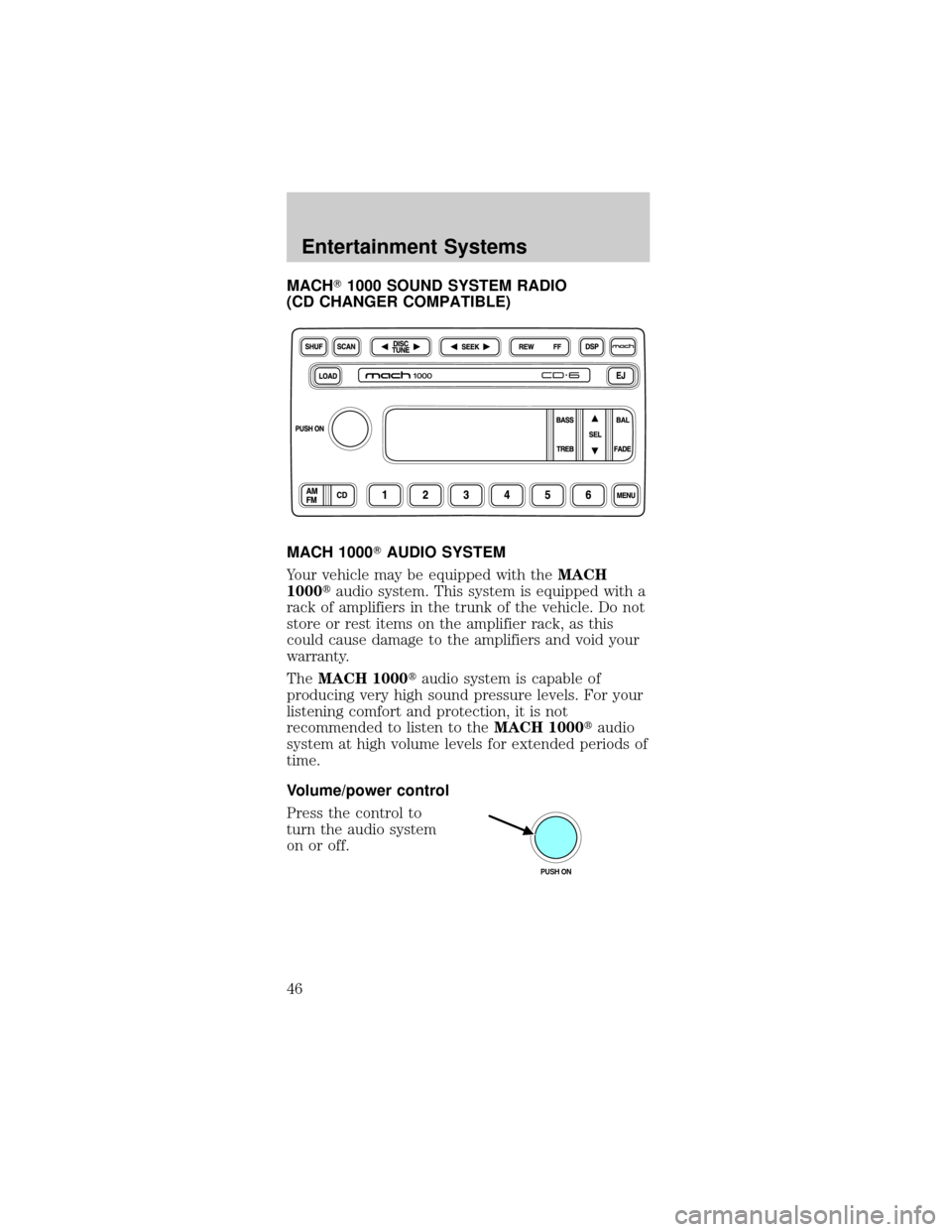
MACHT1000 SOUND SYSTEM RADIO
(CD CHANGER COMPATIBLE)
MACH 1000TAUDIO SYSTEM
Your vehicle may be equipped with theMACH
1000taudio system. This system is equipped with a
rack of amplifiers in the trunk of the vehicle. Do not
store or rest items on the amplifier rack, as this
could cause damage to the amplifiers and void your
warranty.
TheMACH 1000taudio system is capable of
producing very high sound pressure levels. For your
listening comfort and protection, it is not
recommended to listen to theMACH 1000taudio
system at high volume levels for extended periods of
time.
Volume/power control
Press the control to
turn the audio system
on or off.
PUSH ON
Entertainment Systems
46
Page 47 of 264
Turn the control to
raise or lower volume.
If the volume is set above a certain level and the
ignition is turned off, the volume will come back on
at a ªnominalº listening level when the ignition
switch is turned back on.
Speed sensitive volume
With this feature, radio volume changes
automatically and slightly with vehicle speed to
compensate for road and wind noise.
The recommended level for speed sensitive volume
is from level 1 through level 3. Level 0 turns the
speed sensitive volume off and level 7 is the
maximum setting.
To engage the speed
sensitive volume
feature, press and hold
the volume control for
five seconds (with the
radio on), then press:
²
to increase
volume
compensation.
²
to decrease or
shut off the volume
compensation.
The selected level will appear in the display.
VOL
PUSH ON
SEL
Entertainment Systems
47
Page 49 of 264
MACH mode (if equipped)
MACH mode is available with the MACH 1000 Sound
System. This mode allows you to toggle between
occupancy modes (DRIVER SEAT, ALL SEATS) and
MACH 1000 mode. MACH 1000 mode engages the
extra speakers and amplifiers that are included in
this package.
Press the MACH
control to toggle
between occupancy
modes.
Seek function
The seek function works in radio or CD mode.
Seek function in radio mode
²Pressto find the
next listenable
station down the
frequency band.
SEEK DOWN will display.
²Press
to find the next listenable station up
the frequency band. SEEK UP will display.
Seek function in CD mode
²Pressto seek to
the previous track of
the current disc. If
the beginning of the
disc is reached, the CD player seeks to the
beginning of the last track on the current disc and
begins playing.
²Press
to seek forward to the next track of the
current disc. After the last track has been
completed, the first track of the current disc will
automatically replay.
Entertainment Systems
49
Page 50 of 264
Scan function
The scan function
works in radio or CD
mode.
Scan function in radio mode
Press the SCAN control to hear a brief sampling of
all listenable stations on the frequency band. Press
the SCAN control again to stop the scan mode.
Scan function in CD mode
Press the SCAN control to hear a short sampling of
all selections on the CD. (The CD scans in a forward
direction, wrapping back to the first track at the end
of the CD.) To stop on a particular selection, press
the control again.
AM/FM select
The AM/FM select
control works in radio
and CD modes.
AM/FM select in radio mode
This control allows you to select AM or FM
frequency bands. Press the control to switch
between AM, FM1 or FM2 memory preset stations.
AM/FM select in CD mode
Press this control to stop CD play and begin radio
play.
Radio station memory preset
The radio is equipped with six station memory
preset controls. These controls can be used to select
up to six preset AM stations and twelve FM stations
(six in FM1 and six in FM2).
CD AM
FM
Entertainment Systems
50