ECO mode FORD MUSTANG 2014 5.G User Guide
[x] Cancel search | Manufacturer: FORD, Model Year: 2014, Model line: MUSTANG, Model: FORD MUSTANG 2014 5.GPages: 461, PDF Size: 5.47 MB
Page 100 of 461
GENERAL INFORMATION
WARNING:Driving while distracted can result in loss of vehicle
control, accident and injury. Ford strongly recommends that drivers
use extreme caution when using any device or feature that may take their
focus off the road. Your primary responsibility is the safe operation of the
vehicle. We recommend against the use of any handheld device while
driving and that you comply with all applicable laws.
Various systems on your vehicle can be controlled using the information
display controls located on the steering wheel. Corresponding
information is displayed in the information display.
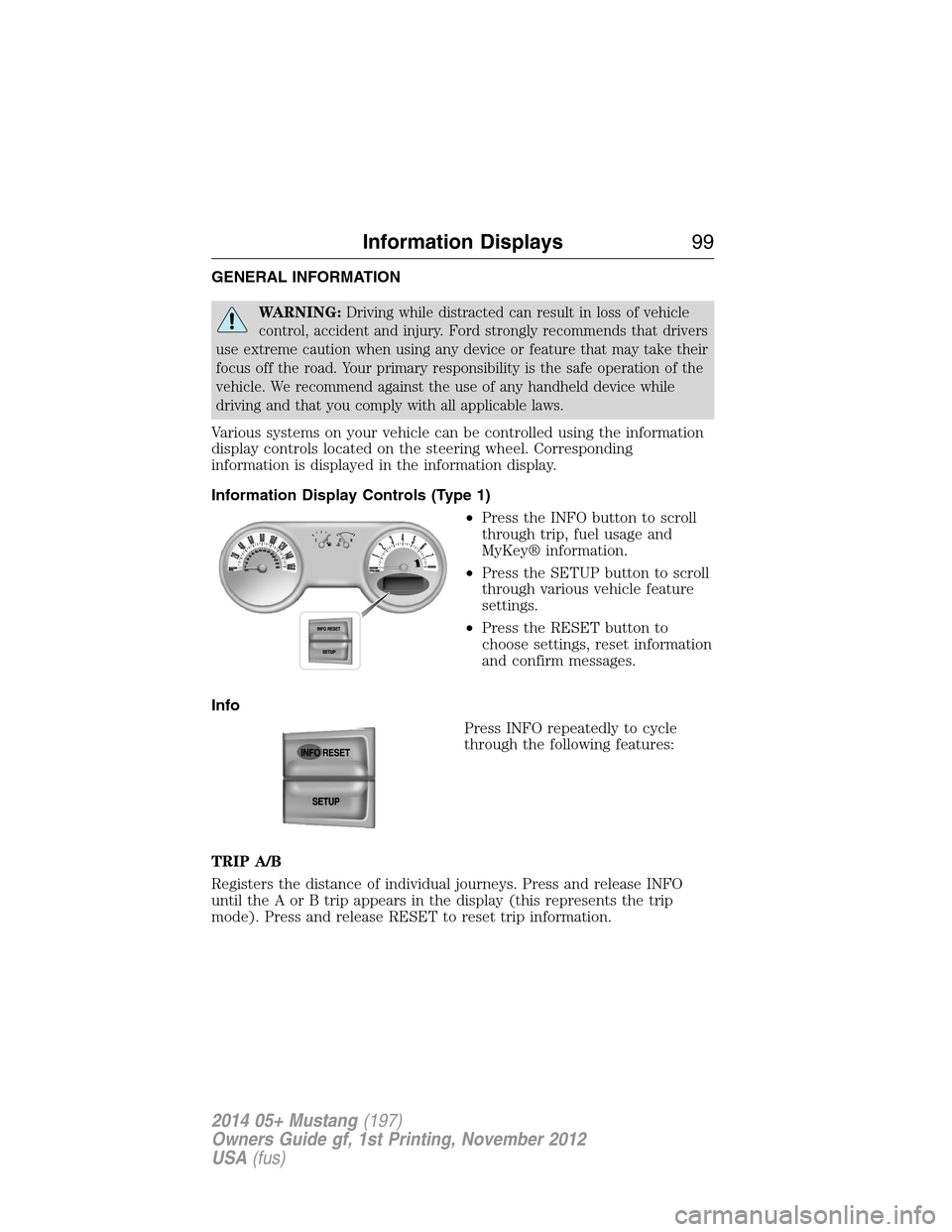
Information Display Controls (Type 1)
•Press the INFO button to scroll
through trip, fuel usage and
MyKey® information.
•Press the SETUP button to scroll
through various vehicle feature
settings.
•Press the RESET button to
choose settings, reset information
and confirm messages.
Info
Press INFO repeatedly to cycle
through the following features:
TRIP A/B
Registers the distance of individual journeys. Press and release INFO
until the A or B trip appears in the display (this represents the trip
mode). Press and release RESET to reset trip information.
Information Displays99
2014 05+ Mustang(197)
Owners Guide gf, 1st Printing, November 2012
USA(fus)
Page 105 of 461
LANGUAGE = ENGLISH / SPANISH / FRENCH
Allows you to choose which language for the information display.
Selectable languages are English, Spanish, or French.
Waiting four seconds or pressing the RESET button cycles through each
of the language choices.
Press and hold RESET for two seconds to set the language choice.
Information Messages
SeeInformation Messageslater in this chapter for more information.
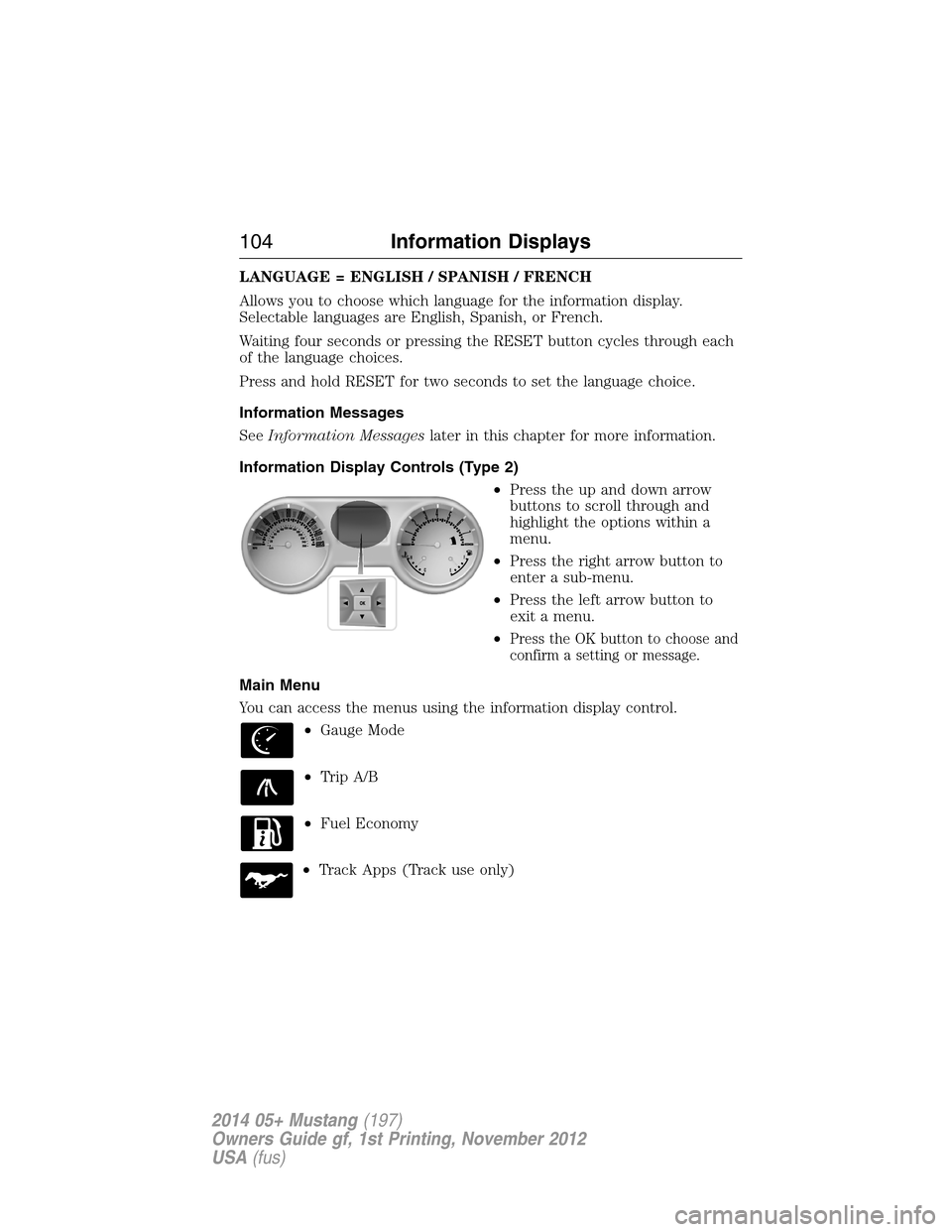
Information Display Controls (Type 2)
•Press the up and down arrow
buttons to scroll through and
highlight the options within a
menu.
•Press the right arrow button to
enter a sub-menu.
•Press the left arrow button to
exit a menu.
•
Press the OK button to choose and
confirm a setting or message.
Main Menu
You can access the menus using the information display control.
•Gauge Mode
•Trip A/B
•Fuel Economy
•Track Apps (Track use only)
104Information Displays
2014 05+ Mustang(197)
Owners Guide gf, 1st Printing, November 2012
USA(fus)
Page 122 of 461
MP3 Track and Folder Structure
Audio systems capable of recognizing and playing MP3 individual tracks
and folder structures work as follows:
•There are two different modes for MP3 disc playback: MP3 track
mode (system default) and MP3 folder mode.
•MP3 track mode ignores any folder structure on the MP3 disc. The
player numbers each MP3 track on the disc (noted by the .mp3 file
extension) from T001 to a maximum of T255.Note:The maximum
number of playable MP3 files may be less depending on the structure
of the CD and exact model of radio present.
•MP3 folder mode represents a folder structure consisting of one level
of folders. The CD player numbers all MP3 tracks on the disc (noted
by the .mp3 file extension) and all folders containing MP3 files, from
F001 (folder) T001 (track) to F253 T255.
•Creating discs with only one level of folders helps with navigation
through the disc files.
If you are burning your own MP3 discs, it is important to understand how
the system reads the structures you create. While various files may be
present, (files with extensions other than mp3), only files with the .mp3
extension are played; other files are ignored by the system. This enables
you to use the same MP3 disc for a variety of tasks on your work
computer, home computer and your in-vehicle system.
In track mode, the system displays and plays the structure as if it were
only one level deep (all .mp3 files play, regardless of being in a specific
folder). In folder mode, the system only plays the .mp3 files in the
current folder.
Audio System121
2014 05+ Mustang(197)
Owners Guide gf, 1st Printing, November 2012
USA(fus)
Page 124 of 461
Note:Autoset does not delete your original preset stations.
Note:In order to re-run the autoset features, you must first turn it off
before turning it back on.
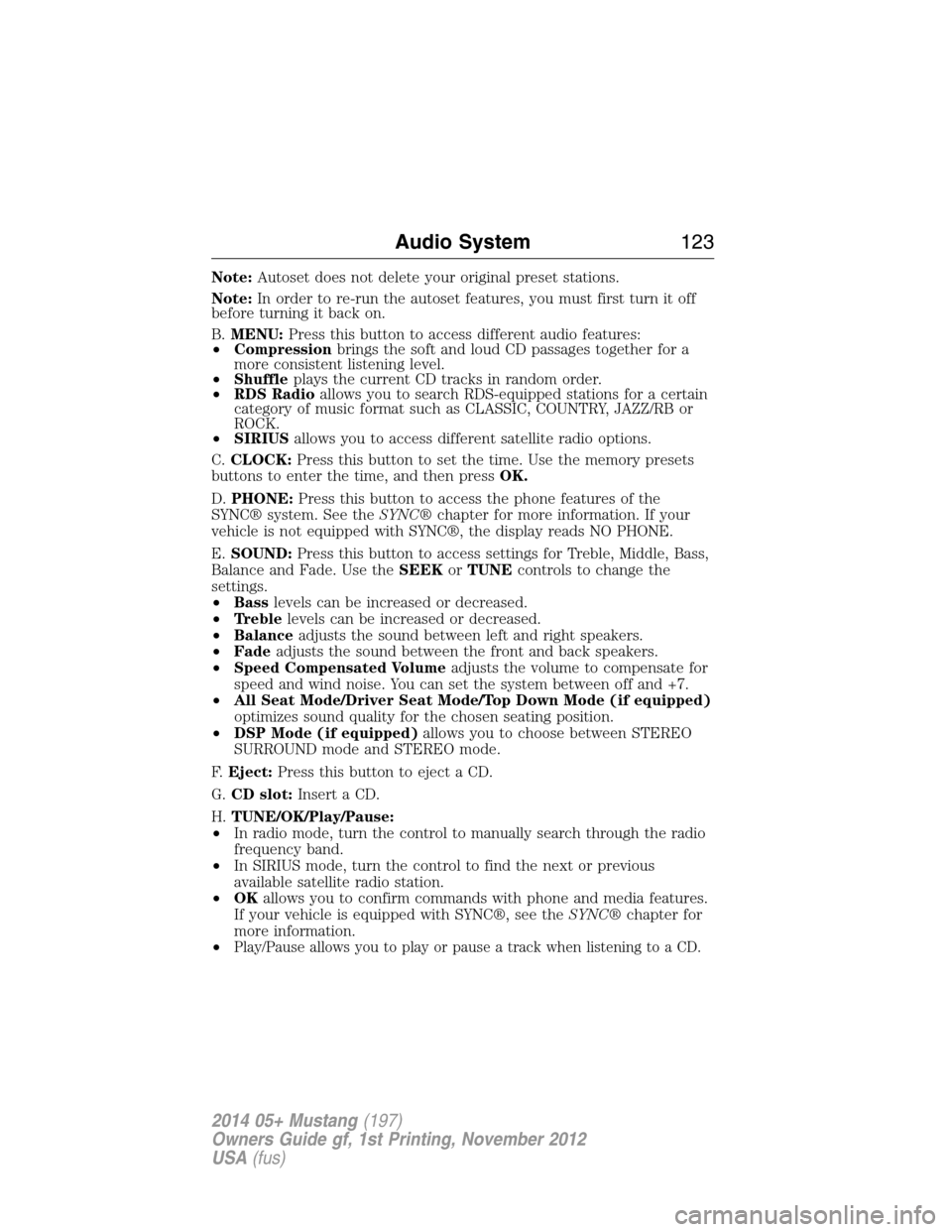
B.MENU:Press this button to access different audio features:
•Compressionbrings the soft and loud CD passages together for a
more consistent listening level.
•Shuffleplays the current CD tracks in random order.
•RDS Radioallows you to search RDS-equipped stations for a certain
category of music format such as CLASSIC, COUNTRY, JAZZ/RB or
ROCK.
•SIRIUSallows you to access different satellite radio options.
C.CLOCK:Press this button to set the time. Use the memory presets
buttons to enter the time, and then pressOK.
D.PHONE:Press this button to access the phone features of the
SYNC® system. See theSYNC®chapter for more information. If your
vehicle is not equipped with SYNC®, the display reads NO PHONE.
E.SOUND:Press this button to access settings for Treble, Middle, Bass,
Balance and Fade. Use theSEEKorTUNEcontrols to change the
settings.
•Basslevels can be increased or decreased.
•Treblelevels can be increased or decreased.
•Balanceadjusts the sound between left and right speakers.
•Fadeadjusts the sound between the front and back speakers.
•Speed Compensated Volumeadjusts the volume to compensate for
speed and wind noise. You can set the system between off and +7.
•All Seat Mode/Driver Seat Mode/Top Down Mode (if equipped)
optimizes sound quality for the chosen seating position.
•DSP Mode (if equipped)allows you to choose between STEREO
SURROUND mode and STEREO mode.
F.Eject:Press this button to eject a CD.
G.CD slot:Insert a CD.
H.TUNE/OK/Play/Pause:
•In radio mode, turn the control to manually search through the radio
frequency band.
•In SIRIUS mode, turn the control to find the next or previous
available satellite radio station.
•OKallows you to confirm commands with phone and media features.
If your vehicle is equipped with SYNC®, see theSYNC®chapter for
more information.
•
Play/Pause allows you to play or pause a track when listening to a CD.
Audio System123
2014 05+ Mustang(197)
Owners Guide gf, 1st Printing, November 2012
USA(fus)
Page 126 of 461
Q.DIRECT:
•In radio mode, press this button to select the desired radio frequency
(such as 93.9) using the memory preset numbers (0–9).
•
In SIRIUS mode, press this button to enter the desired channel (such as
002) using the memory preset buttons. If you only enter one digit, and
pressOK,the system goes to that channel. If you enter three digits,
the system automatically goes to that channel, if available. You may
cancel your entry by pressingDIRECT.If you enter an invalid station
number,INVALID CHANNELappears in the display and the system
continues playing the current station.
•In CD mode, press this button to enter the desired track number using
the memory preset buttons. The system then begins playing that track.
•In MP3 mode, press this button to enter a memory preset button of the
desired folder. The system advances to that specific folder.
R.TEXT:
•MP3 mode, press this button to view Album (AL), Folder (FL), Song
(SO) and Artist (AR) in the display, if available.
•In text mode, sometimes the display requires additional text to show.
When theindicatorison,press this button, then use theSEEK
buttons to view the additional text.
S.SEEK:
•In radio mode, select a frequency band and press one of these
buttons. The system stops at the first station it finds in that direction.
•In SIRIUS mode, press one of these buttons to select the previous or
next channel. If a specific category is selected (such as Jazz, Rock or
News), use these buttons to find the previous or next channel in the
selected category.
•In CD and MP3 modes, press one of these buttons to select the
previous or next track.
AUXILIARY INPUT JACK
WARNING:Driving while distracted can result in loss of vehicle
control, crash and injury. We strongly recommend that you use
extreme caution when using any device that may take your focus off
the road. Your primary responsibility is the safe operation of your
vehicle. We recommend against the use of any hand-held device while
driving and encourage the use of voice-operated systems when possible.
Make sure you are aware of all applicable local laws that may affect the
use of electronic devices while driving.
Audio System125
2014 05+ Mustang(197)
Owners Guide gf, 1st Printing, November 2012
USA(fus)
Page 130 of 461
SIRIUS Satellite Radio Service
Note:SIRIUS reserves the unrestricted right to change, rearrange, add
or delete programming including canceling, moving or adding particular
channels, and its prices, at any time, with or without notice to you. Ford
Motor Company shall not be responsible for any such programming
changes.
SIRIUS satellite radio is a
subscription-based satellite radio
service that broadcasts a variety of
music, sports, news, weather, traffic
and entertainment programming.
Your factory-installed SIRIUS satellite
radio system includes hardware and
a limited subscription term which begins on the date of sale or lease of
your vehicle. See an authorized dealer for availability.
For more information on extended subscription terms (a service fee is
required), the online media player and a complete list of SIRIUS satellite
radio channels, and other features, please visit www.siriusxm.com in the
United States, www.sirius.ca in Canada, or call SIRIUS at 1–888–539–7474.
Satellite Radio Electronic Serial Number (ESN)
You need your ESN to activate, modify or track your satellite radio
account. When in satellite radio mode, you can view this number by
pressingSIRIUSand memory preset 1 at the same time. To access your
ESN, press the bottom left corner of the touchscreen, thenSIRIUS>
Options.
Troubleshooting
Radio display Condition Possible action
Acquiring Radio requires more
than two seconds to
produce audio for the
selected channel.No action required.
This message should
disappear shortly.
Sat Fault/SIRIUS
system failureThere is an internal
module or system
failure present.If this message does
not clear shortly, or
with an ignition key
cycle, your receiver
may have a fault. See
an authorized dealer
for service.
Audio System129
2014 05+ Mustang(197)
Owners Guide gf, 1st Printing, November 2012
USA(fus)
Page 136 of 461
•Remove any snow, ice or leaves from the air intake area at the base of
the windshield.
•To improve the A/C cool down, drive with the windows slightly open
for 2-3 minutes after start-up or until the vehicle has been aired out.
•A small amount of air may be felt from the floor vent regardless of the
air distribution setting that is selected.
During extreme high ambient temperatures when idling stationary for
extended periods of time in gear, it is recommended to run the A/C in
the MAX A/C mode, adjust the blower fan speed to the lowest setting
and put the vehicle’s transmission into positionP(vehicles equipped
with an automatic transmission) to continue to receive cool air from
your A/C system.
For maximum cooling performance in A/C mode, pressMAX A/C.
For maximum cooling performance in panel or panel/floor modes:
1. Move temperature control to the coolest setting.
2. Select A/C and recirculated air to provide colder airflow.
3. Set the fan to the highest speed initially, then adjust to maintain
comfort.
To aid in side window defogging and demisting in cold or humid weather:
1. Select Floor/Panel.
2. Select A/C.
3. Adjust the temperature control to maintain comfort.
4. Set the fan speed to the highest setting.
5. Direct the outer instrument panel vents toward the side windows.
6. To increase airflow to the outer instrument panel vents, close the
vents located in the middle of the instrument panel.
Dual Zone Automatic Temperature Control
•To reduce fog build-up on the windshield during humid weather, select
Defrost. Temperature and fan speed can also be increased to improve
clearing.
•To reduce humidity build-up inside the vehicle, do not drive with the
system off or with recirculated air engaged.
•Do not put objects under the front seats that will interfere with the
airflow to the back seats.
•Remove any snow, ice or leaves from the air intake area at the base of
the windshield.
Climate Control135
2014 05+ Mustang(197)
Owners Guide gf, 1st Printing, November 2012
USA(fus)
Page 137 of 461
•To improve the A/C cool down, drive with the windows slightly open
for 2-3 minutes after start-up or until the vehicle has been aired out.
•A small amount of air may be felt from the floor vent regardless of the
air distribution setting that is selected.
During extreme high ambient temperatures when idling stationary for
extended periods of time in gear, it is recommended to run the A/C in
the MAX A/C mode, adjust the blower fan speed to the lowest setting
and put the vehicle’s transmission into positionP(vehicles equipped
with an automatic transmission) to continue to receive cool air from
your A/C system.
For maximum cooling performance in AUTO mode, pressMAX A/C.
For maximum cooling performance in manual override control:
1. Choose Panel, A/C, and recirc controls.
2. Set the temperature to LO.
3. Set the fan to the highest blower setting.
To aid in side window defogging and demisting in cold or humid weather:
1. Select Floor/Panel.
2. Select A/C.
3. Adjust the temperature control to maintain comfort.
4. Set the fan speed to the highest setting.
5. Direct the outer instrument panel vents toward the side windows.
6. To increase airflow to the outer instrument panel vents, close the
vents located in the middle of the instrument panel.
HEATED WINDOWS AND MIRRORS (IF EQUIPPED)
Heated Rear Window
Note:The vehicle must be running to use this feature.
Press the control to clear the rear window of thin ice and fog. Press the
control again within 15 minutes to switch it off. It turns off automatically
after approximately 15 minutes, or when you switch the ignition off.
Do not use razor blades or other sharp objects to clean the inside
of the rear window or to remove decals from the inside of the
rear window. This may cause damage to the heated grid lines.
Your warranty does not cover this damage.
136Climate Control
2014 05+ Mustang(197)
Owners Guide gf, 1st Printing, November 2012
USA(fus)
Page 151 of 461
Programming HomeLink® to a Genie Intellicode® 2 garage door
opener
Note:The Genie Intellicode® 2 transmitter must already be
programmed to operate with the garage door opener.
Programing the transmitters
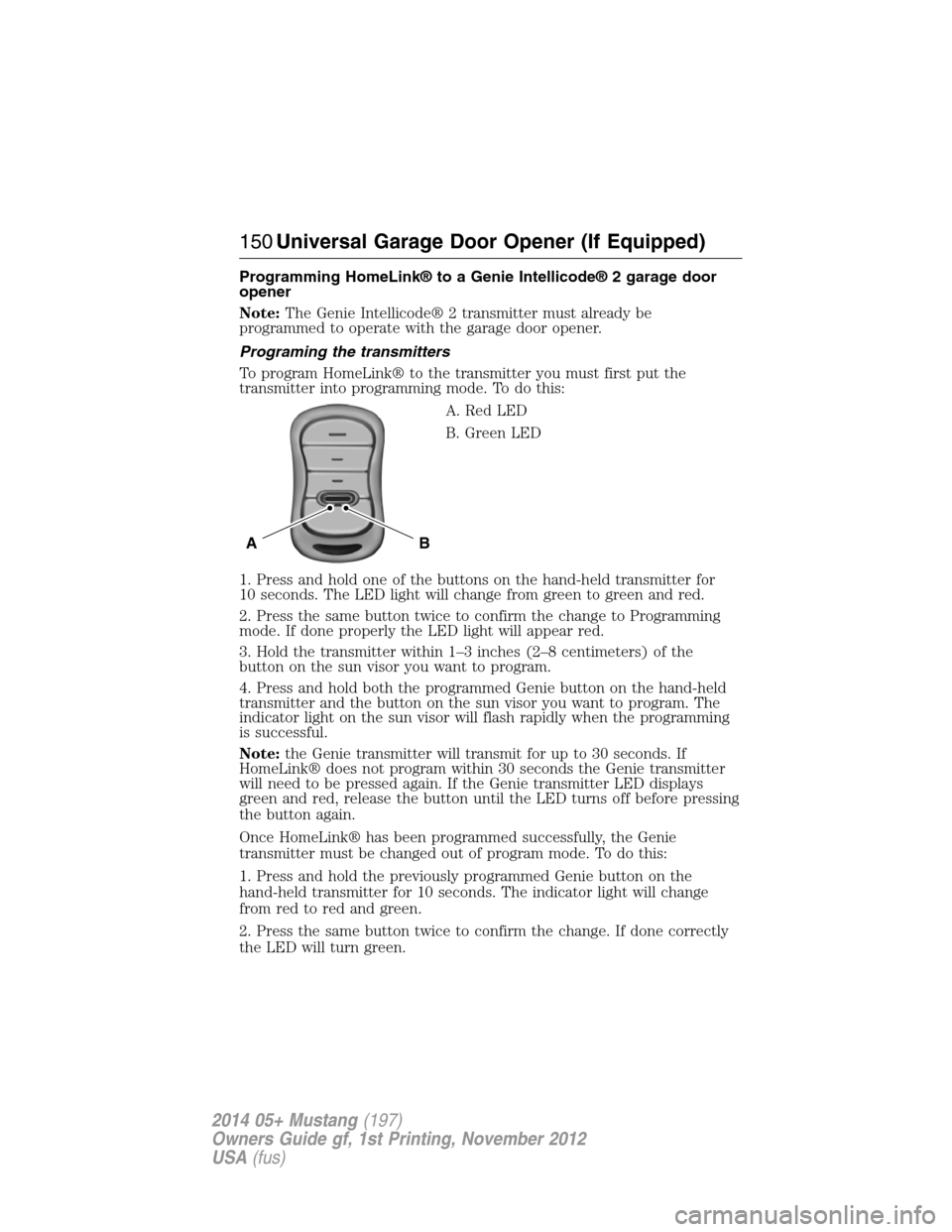
To program HomeLink® to the transmitter you must first put the
transmitter into programming mode. To do this:
A. Red LED
B. Green LED
1. Press and hold one of the buttons on the hand-held transmitter for
10 seconds. The LED light will change from green to green and red.
2. Press the same button twice to confirm the change to Programming
mode. If done properly the LED light will appear red.
3. Hold the transmitter within 1–3 inches (2–8 centimeters) of the
button on the sun visor you want to program.
4. Press and hold both the programmed Genie button on the hand-held
transmitter and the button on the sun visor you want to program. The
indicator light on the sun visor will flash rapidly when the programming
is successful.
Note:the Genie transmitter will transmit for up to 30 seconds. If
HomeLink® does not program within 30 seconds the Genie transmitter
will need to be pressed again. If the Genie transmitter LED displays
green and red, release the button until the LED turns off before pressing
the button again.
Once HomeLink® has been programmed successfully, the Genie
transmitter must be changed out of program mode. To do this:
1. Press and hold the previously programmed Genie button on the
hand-held transmitter for 10 seconds. The indicator light will change
from red to red and green.
2. Press the same button twice to confirm the change. If done correctly
the LED will turn green.
BA
150Universal Garage Door Opener (If Equipped)
2014 05+ Mustang(197)
Owners Guide gf, 1st Printing, November 2012
USA(fus)
Page 152 of 461
Programming HomeLink® to the Genie Intellicode® garage door
opener motor
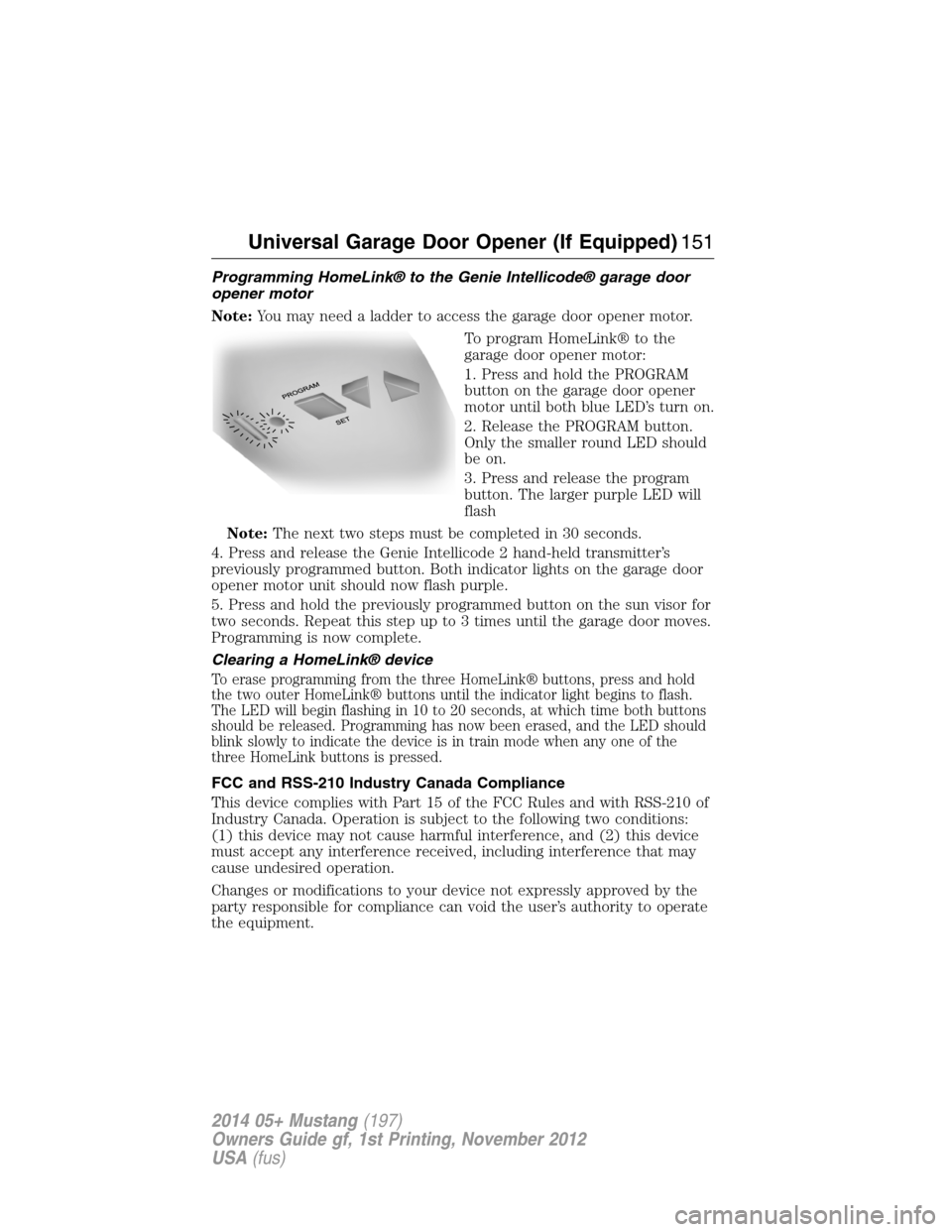
Note:You may need a ladder to access the garage door opener motor.
To program HomeLink® to the
garage door opener motor:
1. Press and hold the PROGRAM
button on the garage door opener
motor until both blue LED’s turn on.
2. Release the PROGRAM button.
Only the smaller round LED should
be on.
3. Press and release the program
button. The larger purple LED will
flash
Note:The next two steps must be completed in 30 seconds.
4. Press and release the Genie Intellicode 2 hand-held transmitter’s
previously programmed button. Both indicator lights on the garage door
opener motor unit should now flash purple.
5. Press and hold the previously programmed button on the sun visor for
two seconds. Repeat this step up to 3 times until the garage door moves.
Programming is now complete.
Clearing a HomeLink® device
To erase programming from the three HomeLink® buttons, press and hold
the two outer HomeLink® buttons until the indicator light begins to flash.
The LED will begin flashing in 10 to 20 seconds, at which time both buttons
should be released. Programming has now been erased, and the LED should
blink slowly to indicate the device is in train mode when any one of the
three HomeLink buttons is pressed.
FCC and RSS-210 Industry Canada Compliance
This device complies with Part 15 of the FCC Rules and with RSS-210 of
Industry Canada. Operation is subject to the following two conditions:
(1) this device may not cause harmful interference, and (2) this device
must accept any interference received, including interference that may
cause undesired operation.
Changes or modifications to your device not expressly approved by the
party responsible for compliance can void the user’s authority to operate
the equipment.
Universal Garage Door Opener (If Equipped)151
2014 05+ Mustang(197)
Owners Guide gf, 1st Printing, November 2012
USA(fus)