warning FORD MUSTANG 2014 5.G Workshop Manual
[x] Cancel search | Manufacturer: FORD, Model Year: 2014, Model line: MUSTANG, Model: FORD MUSTANG 2014 5.GPages: 461, PDF Size: 5.47 MB
Page 100 of 461
GENERAL INFORMATION
WARNING:Driving while distracted can result in loss of vehicle
control, accident and injury. Ford strongly recommends that drivers
use extreme caution when using any device or feature that may take their
focus off the road. Your primary responsibility is the safe operation of the
vehicle. We recommend against the use of any handheld device while
driving and that you comply with all applicable laws.
Various systems on your vehicle can be controlled using the information
display controls located on the steering wheel. Corresponding
information is displayed in the information display.
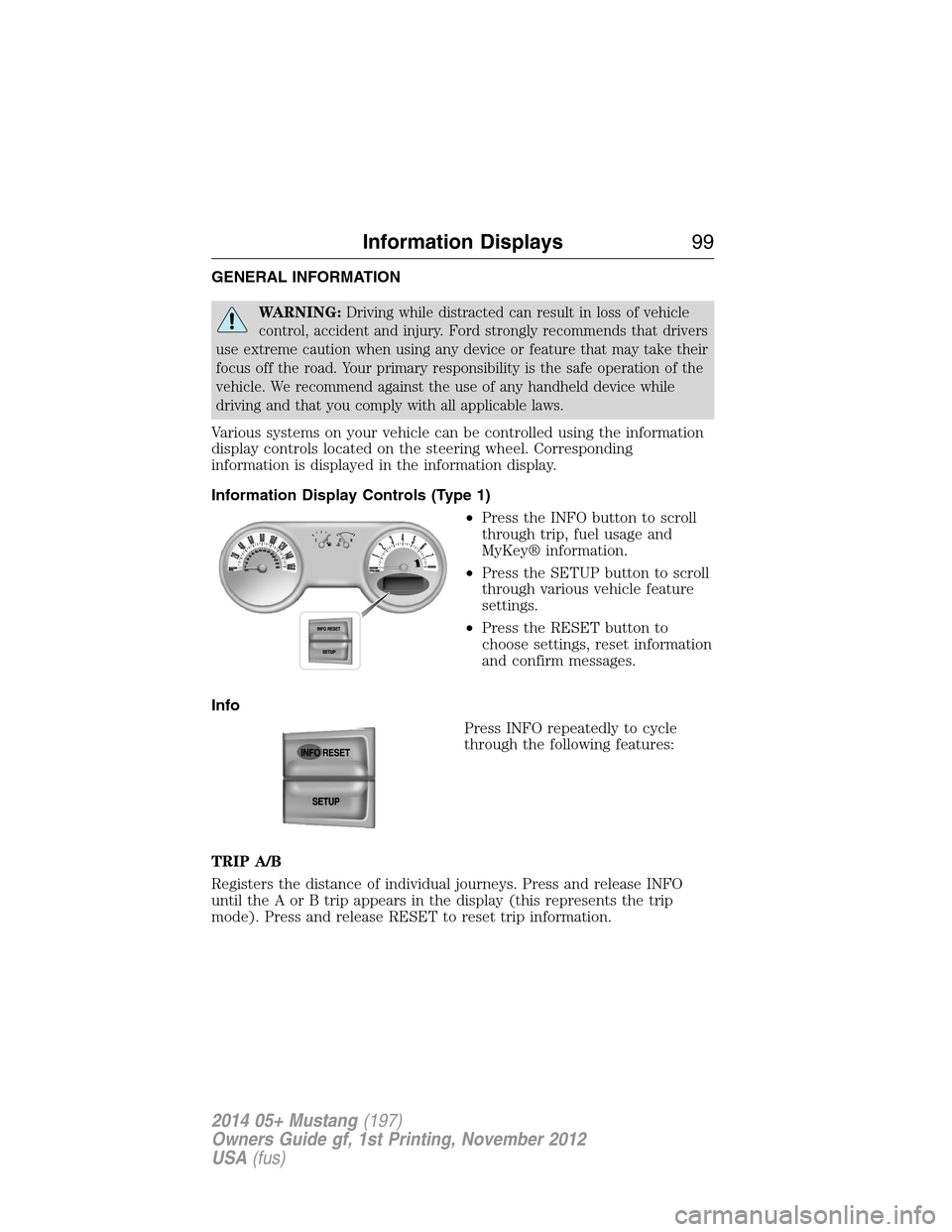
Information Display Controls (Type 1)
•Press the INFO button to scroll
through trip, fuel usage and
MyKey® information.
•Press the SETUP button to scroll
through various vehicle feature
settings.
•Press the RESET button to
choose settings, reset information
and confirm messages.
Info
Press INFO repeatedly to cycle
through the following features:
TRIP A/B
Registers the distance of individual journeys. Press and release INFO
until the A or B trip appears in the display (this represents the trip
mode). Press and release RESET to reset trip information.
Information Displays99
2014 05+ Mustang(197)
Owners Guide gf, 1st Printing, November 2012
USA(fus)
Page 103 of 461
STEERING FEEL
This feature allows three modes of steering feel.
Press RESET to cycle through the settings of:
•STANDARD–Provides a balance between a comfort and sport feel.
•SPORT–Slightly higher effort required for steering with more road
force felt through the steering wheel. See note below.
•COMFORT–Slightly less effort required for steering with less road
force felt through the steering wheel.
Note:When AdvanceTrac® sport mode is on or when AdvanceTrac®
and traction control are off, the steering feel will be locked in sport
mode. The display will show STEERING FEEL
the steering feel will not be selectable.
HALO LIGHT
Turns the halo lighting around the gauges on or off.
Press and hold RESET to turn the feature on or off.
AMBIENT LIGHT
Turns the ambient lighting on or off. Ambient lighting provides accent
lighting in various locations, such as footwell areas, cup holders and the
center console bin. The parking lamps or headlamps must be on to use
ambient lighting.
Press and hold RESET to turn the feature on or off.
AMBIENT DIM
Use this to adjust the brightness of the ambient lighting.
Press RESET to choose the various settings.
GAUGE COLOR, AMBIENT COLOR, HALO COLOR
GAUGE COLOR:The instrument cluster gauges are backlit with white
backlighting when the headlamps are off. When the headlamps are on,
you can select one of the preset colors for the nighttime gauge
backlighting.
Note:A gauge in a warning condition will be lit red when the headlamps
are on.
AMBIENT COLOR:You can select one of the preset colors for ambient
lighting.
102Information Displays
2014 05+ Mustang(197)
Owners Guide gf, 1st Printing, November 2012
USA(fus)
Page 104 of 461
HALO COLOR:You can select one of the preset colors for halo lighting.
Note:Headlamps or parking lamps must be on to set up colors.
To choose colors for the gauges, halo color or ambient lighting do the
following:
1. Press SETUP to reach the GAUGE COLOR, AMBIENT COLOR, or
HALO COLOR menu.
2. Press RESET to scroll through the following color options:
•ICE BLUE•BLUE
•WHITE•ORANGE
•GREEN•RED
•PURPLE
UNITS
Displays the current units English or Metric.
Press RESET to change from English to Metric.
AUTOLAMP (SEC)
This feature keeps your headlights on for up to three minutes after the
ignition is switched off.
Press RESET to select the new autolamp delay values of 0, 10, 20, 30,
60, 90, 120 or 180 seconds.
AUTOLOCK
This feature automatically locks all vehicle doors when the vehicle is
shifted into any gear and driven.
Press RESET to turn autolock on or off.
AUTOUNLOCK
This feature automatically unlocks all vehicle doors when the driver’s
door is opened within 10 minutes of the ignition being turned off.
Press RESET to turn autounlock on or off.
REAR PARK AID
This feature sounds a warning tone to warn the driver of obstacles near
the rear bumper, and functions only when the transmission is inR.
Press RESET to turn it off or on.
CREATE MYKEY / MYKEY SETUP/ CLEAR MYKEY
For more information, see theMyKey®chapter.
Information Displays103
2014 05+ Mustang(197)
Owners Guide gf, 1st Printing, November 2012
USA(fus)
Page 110 of 461
Settings
†MyColor
(if equipped)Gauge Color
Ice Blue, White, Green, Purple,
Blue, Orange, Red, MyColor 1, 2, 3
Halo Halo Light On/Off
Halo Color Ice Blue, White,
Green, Purple,
Blue, Orange,
Red, MyColor 1,
2, 3
Ambient Light Ambient Light On/Off
Ambient Dim High/Low
Ambient Color Ice Blue, White,
Green, Purple,
Blue, Orange,
Red, MyColor 1,
2, 3
Set MyColor 1, 2,
3 (create your
own color by
adjusting the
levels (1–5) of
the three primary
colors – red,
green, and blue)Red1–5
Green
Blue
MyKey Create MyKey Hold OK to create MyKey
*The following only display if MyKey is programmed:
*AdvanceTrac Always On / Selectable
*MAX Speed 80 MPH (130 km/h) or Off
*Speed Warning 45, 55 or 65 MPH (75, 90 or
105 km/h), or Off
*Volume Limiter On/Off
*Clear MyKey Hold OK to Clear MyKey
*Language English, Español, Français
Information Displays109
2014 05+ Mustang(197)
Owners Guide gf, 1st Printing, November 2012
USA(fus)
Page 111 of 461
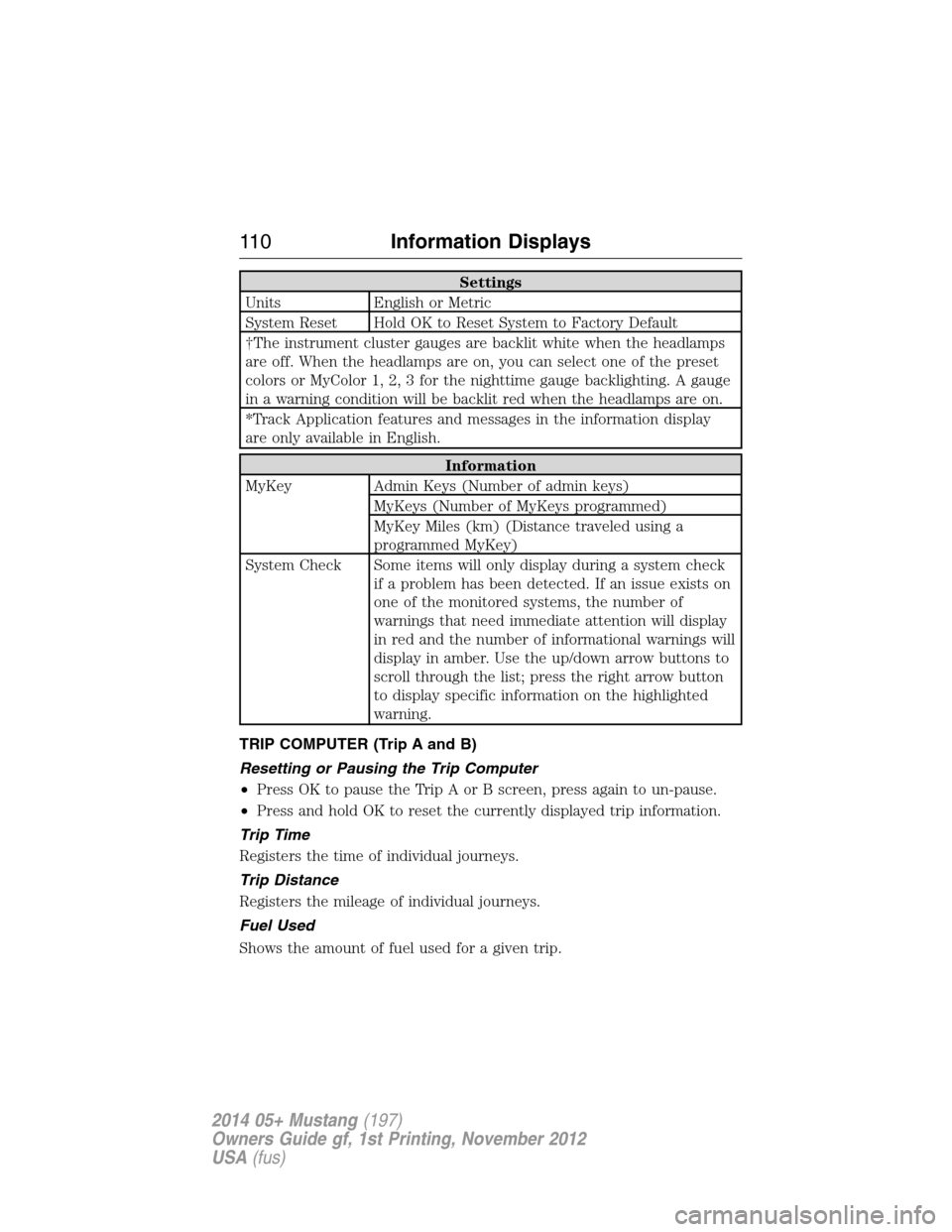
Settings
Units English or Metric
System Reset Hold OK to Reset System to Factory Default
†The instrument cluster gauges are backlit white when the headlamps
are off. When the headlamps are on, you can select one of the preset
colors or MyColor 1, 2, 3 for the nighttime gauge backlighting. A gauge
in a warning condition will be backlit red when the headlamps are on.
*Track Application features and messages in the information display
are only available in English.
Information
MyKey Admin Keys (Number of admin keys)
MyKeys (Number of MyKeys programmed)
MyKey Miles (km) (Distance traveled using a
programmed MyKey)
System Check Some items will only display during a system check
if a problem has been detected. If an issue exists on
one of the monitored systems, the number of
warnings that need immediate attention will display
in red and the number of informational warnings will
display in amber. Use the up/down arrow buttons to
scroll through the list; press the right arrow button
to display specific information on the highlighted
warning.
TRIP COMPUTER (Trip A and B)
Resetting or Pausing the Trip Computer
•Press OK to pause the Trip A or B screen, press again to un-pause.
•Press and hold OK to reset the currently displayed trip information.
Trip Time
Registers the time of individual journeys.
Trip Distance
Registers the mileage of individual journeys.
Fuel Used
Shows the amount of fuel used for a given trip.
11 0Information Displays
2014 05+ Mustang(197)
Owners Guide gf, 1st Printing, November 2012
USA(fus)
Page 114 of 461
TRACK APPS (IF EQUIPPED)
WARNING:Track Apps is for track use only. Remember that
even advanced technology cannot defy the laws of physics. It is
always possible to lose control of a vehicle due to inappropriate driver
input for the conditions. Aggressive driving on any road condition can
cause you to lose control of your vehicle increasing the risk of personal
injury or property damage.
Note:Track Apps are for track use only. They are not to be used under
any other driving conditions.
Note:Viewed or cleared results cannot be used unless the vehicle is at a
complete stop. The right arrow on the display menu will be inactive.
1/4 mile results may not be displayed if the vehicle does not reach
100 mph (160 km/h) during the track run.
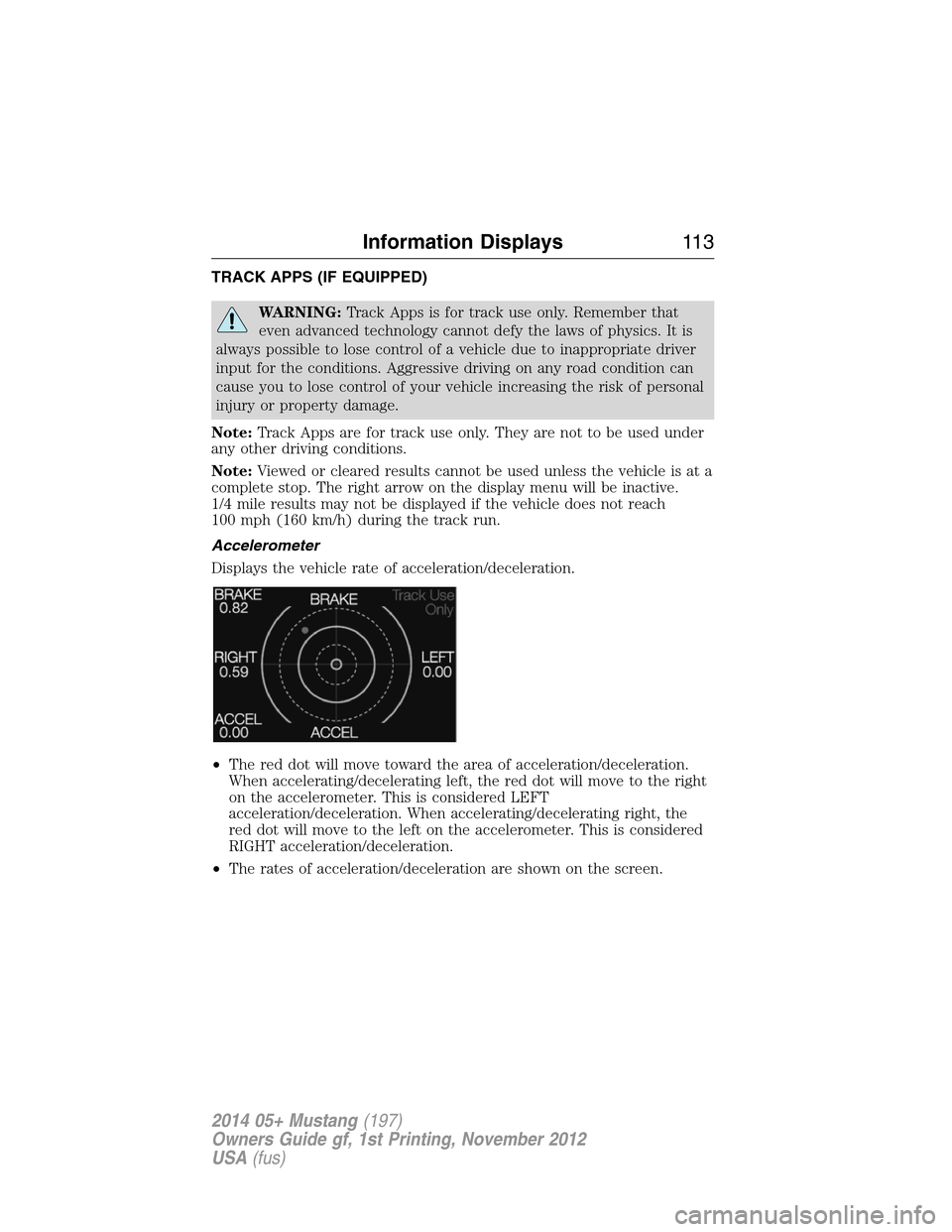
Accelerometer
Displays the vehicle rate of acceleration/deceleration.
•The red dot will move toward the area of acceleration/deceleration.
When accelerating/decelerating left, the red dot will move to the right
on the accelerometer. This is considered LEFT
acceleration/deceleration. When accelerating/decelerating right, the
red dot will move to the left on the accelerometer. This is considered
RIGHT acceleration/deceleration.
•The rates of acceleration/deceleration are shown on the screen.
Information Displays11 3
2014 05+ Mustang(197)
Owners Guide gf, 1st Printing, November 2012
USA(fus)
Page 116 of 461
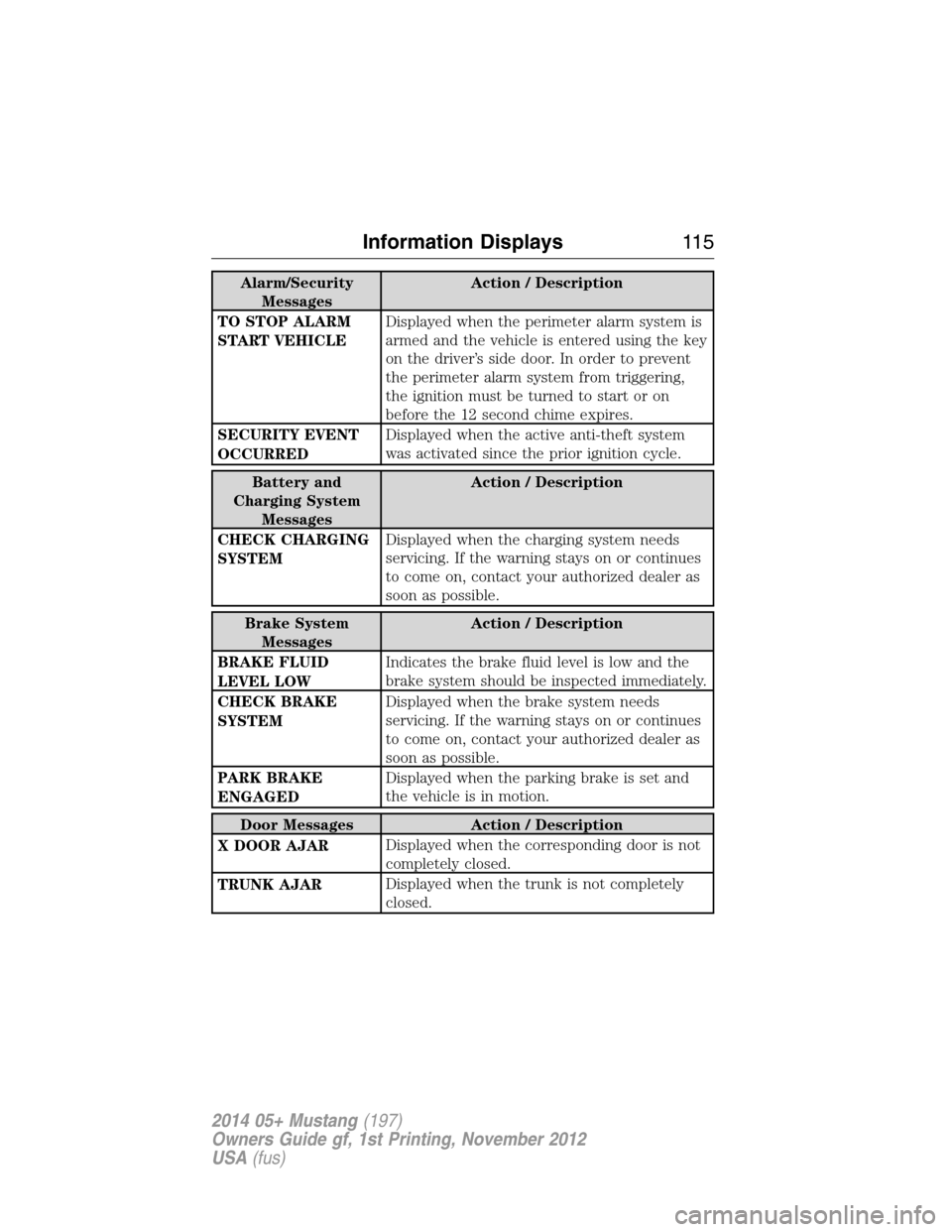
Alarm/Security
MessagesAction / Description
TO STOP ALARM
START VEHICLEDisplayed when the perimeter alarm system is
armed and the vehicle is entered using the key
on the driver’s side door. In order to prevent
the perimeter alarm system from triggering,
the ignition must be turned to start or on
before the 12 second chime expires.
SECURITY EVENT
OCCURREDDisplayed when the active anti-theft system
was activated since the prior ignition cycle.
Battery and
Charging System
MessagesAction / Description
CHECK CHARGING
SYSTEMDisplayed when the charging system needs
servicing. If the warning stays on or continues
to come on, contact your authorized dealer as
soon as possible.
Brake System
MessagesAction / Description
BRAKE FLUID
LEVEL LOWIndicates the brake fluid level is low and the
brake system should be inspected immediately.
CHECK BRAKE
SYSTEMDisplayed when the brake system needs
servicing. If the warning stays on or continues
to come on, contact your authorized dealer as
soon as possible.
PARK BRAKE
ENGAGEDDisplayed when the parking brake is set and
the vehicle is in motion.
Door Messages Action / Description
X DOOR AJARDisplayed when the corresponding door is not
completely closed.
TRUNK AJARDisplayed when the trunk is not completely
closed.
Information Displays11 5
2014 05+ Mustang(197)
Owners Guide gf, 1st Printing, November 2012
USA(fus)
Page 119 of 461
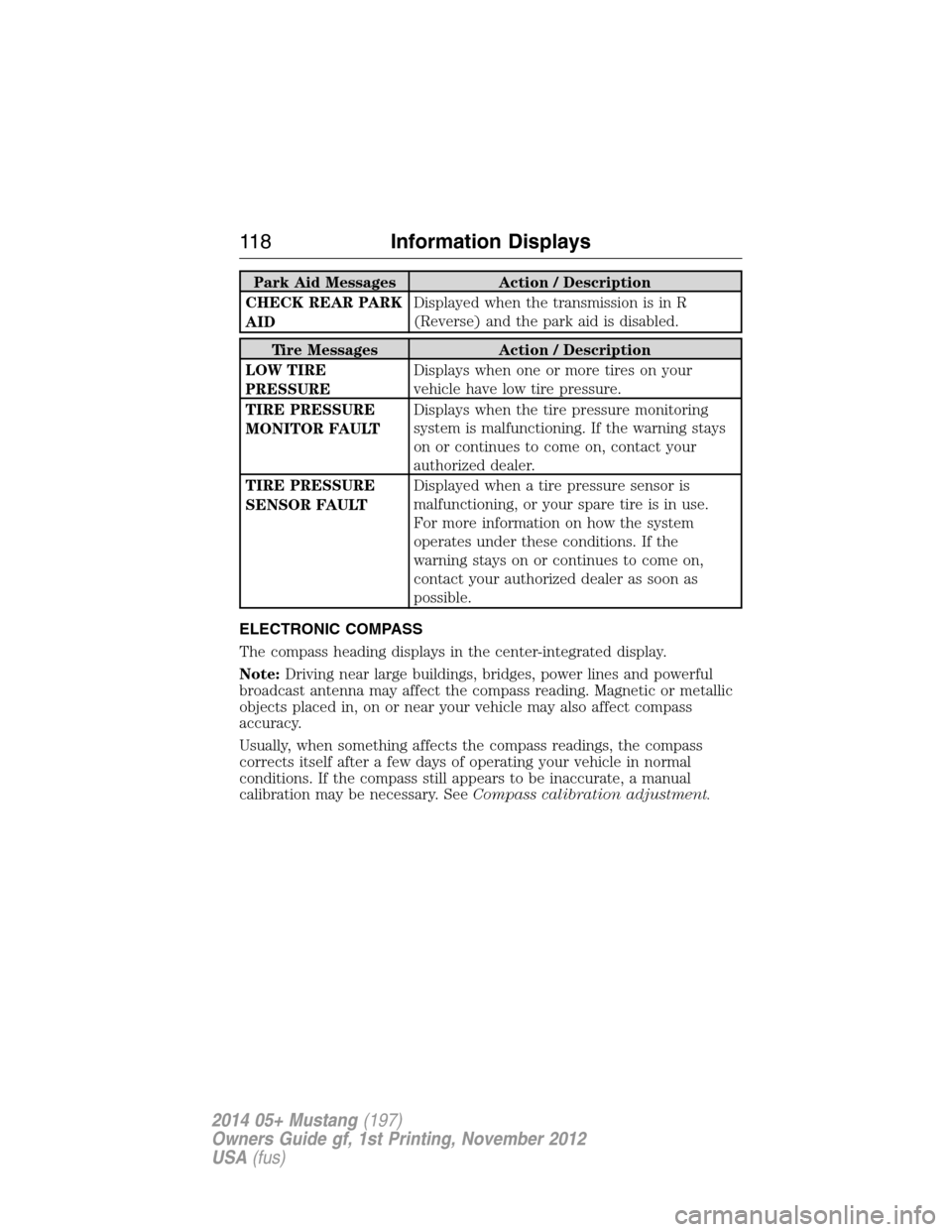
Park Aid Messages Action / Description
CHECK REAR PARK
AIDDisplayed when the transmission is in R
(Reverse) and the park aid is disabled.
Tire Messages Action / Description
LOW TIRE
PRESSUREDisplays when one or more tires on your
vehicle have low tire pressure.
TIRE PRESSURE
MONITOR FAULTDisplays when the tire pressure monitoring
system is malfunctioning. If the warning stays
on or continues to come on, contact your
authorized dealer.
TIRE PRESSURE
SENSOR FAULTDisplayed when a tire pressure sensor is
malfunctioning, or your spare tire is in use.
For more information on how the system
operates under these conditions. If the
warning stays on or continues to come on,
contact your authorized dealer as soon as
possible.
ELECTRONIC COMPASS
The compass heading displays in the center-integrated display.
Note:Driving near large buildings, bridges, power lines and powerful
broadcast antenna may affect the compass reading. Magnetic or metallic
objects placed in, on or near your vehicle may also affect compass
accuracy.
Usually, when something affects the compass readings, the compass
corrects itself after a few days of operating your vehicle in normal
conditions. If the compass still appears to be inaccurate, a manual
calibration may be necessary. SeeCompass calibration adjustment.
11 8Information Displays
2014 05+ Mustang(197)
Owners Guide gf, 1st Printing, November 2012
USA(fus)
Page 123 of 461
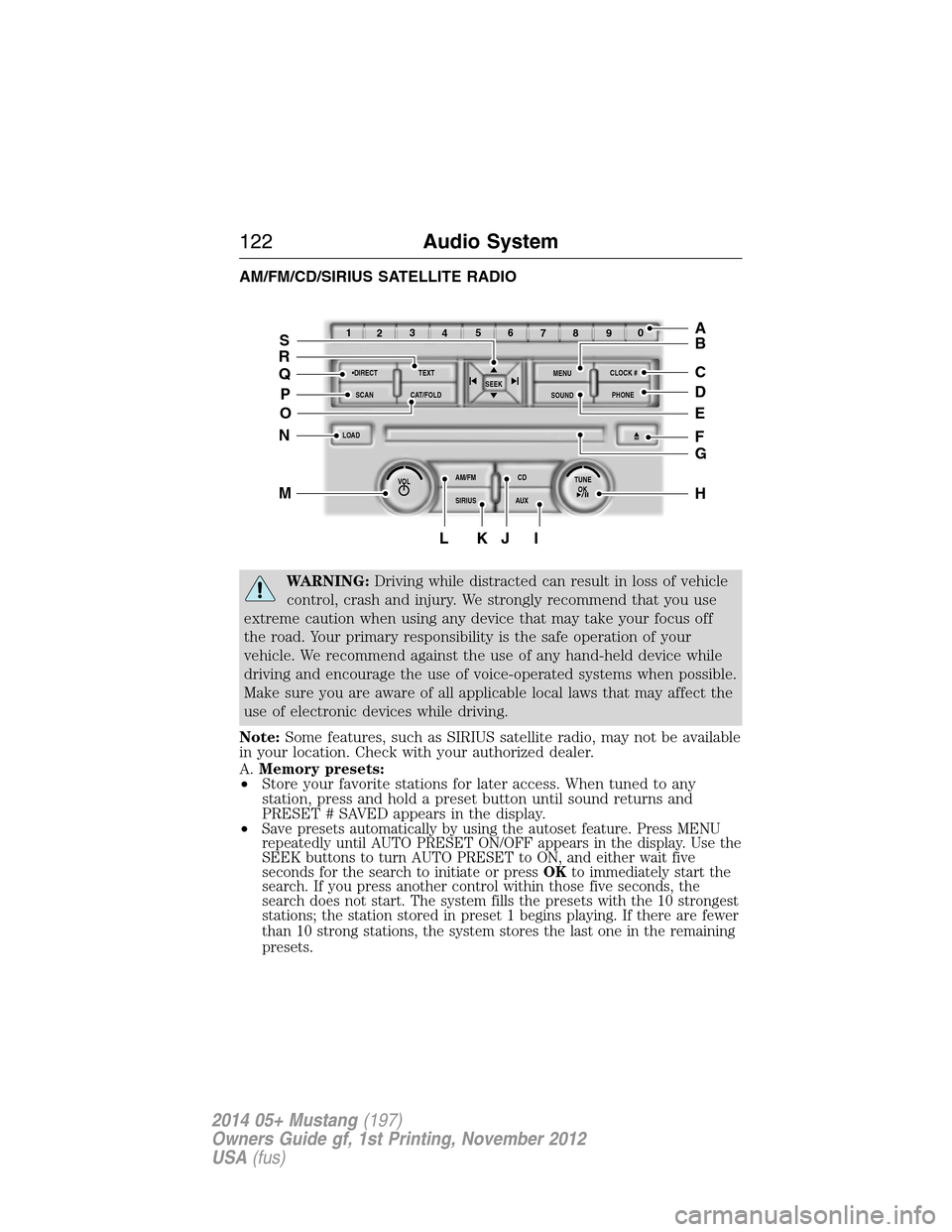
AM/FM/CD/SIRIUS SATELLITE RADIO
WARNING:Driving while distracted can result in loss of vehicle
control, crash and injury. We strongly recommend that you use
extreme caution when using any device that may take your focus off
the road. Your primary responsibility is the safe operation of your
vehicle. We recommend against the use of any hand-held device while
driving and encourage the use of voice-operated systems when possible.
Make sure you are aware of all applicable local laws that may affect the
use of electronic devices while driving.
Note:Some features, such as SIRIUS satellite radio, may not be available
in your location. Check with your authorized dealer.
A.Memory presets:
•Store your favorite stations for later access. When tuned to any
station, press and hold a preset button until sound returns and
PRESET # SAVED appears in the display.
•
Save presets automatically by using the autoset feature. Press MENU
repeatedly until AUTO PRESET ON/OFF appears in the display. Use the
SEEK buttons to turn AUTO PRESET to ON, and either wait five
seconds for the search to initiate or pressOKto immediately start the
search. If you press another control within those five seconds, the
search does not start. The system fills the presets with the 10 strongest
stations; the station stored in preset 1 begins playing. If there are fewer
than 10 strong stations, the system stores the last one in the remaining
presets.
OKTUNE LOAD
VOLCD
AUX AM/FM
SIRIUS TEXT
SCANCAT/FOLDCLOCK #
SOUNDMENU
SEEK
1
23
45
6
78
90
PHONE
BRC
D
F
IKJL
HM
N
P
Q
EO
G
A
S
122Audio System
2014 05+ Mustang(197)
Owners Guide gf, 1st Printing, November 2012
USA(fus)
Page 126 of 461
Q.DIRECT:
•In radio mode, press this button to select the desired radio frequency
(such as 93.9) using the memory preset numbers (0–9).
•
In SIRIUS mode, press this button to enter the desired channel (such as
002) using the memory preset buttons. If you only enter one digit, and
pressOK,the system goes to that channel. If you enter three digits,
the system automatically goes to that channel, if available. You may
cancel your entry by pressingDIRECT.If you enter an invalid station
number,INVALID CHANNELappears in the display and the system
continues playing the current station.
•In CD mode, press this button to enter the desired track number using
the memory preset buttons. The system then begins playing that track.
•In MP3 mode, press this button to enter a memory preset button of the
desired folder. The system advances to that specific folder.
R.TEXT:
•MP3 mode, press this button to view Album (AL), Folder (FL), Song
(SO) and Artist (AR) in the display, if available.
•In text mode, sometimes the display requires additional text to show.
When theindicatorison,press this button, then use theSEEK
buttons to view the additional text.
S.SEEK:
•In radio mode, select a frequency band and press one of these
buttons. The system stops at the first station it finds in that direction.
•In SIRIUS mode, press one of these buttons to select the previous or
next channel. If a specific category is selected (such as Jazz, Rock or
News), use these buttons to find the previous or next channel in the
selected category.
•In CD and MP3 modes, press one of these buttons to select the
previous or next track.
AUXILIARY INPUT JACK
WARNING:Driving while distracted can result in loss of vehicle
control, crash and injury. We strongly recommend that you use
extreme caution when using any device that may take your focus off
the road. Your primary responsibility is the safe operation of your
vehicle. We recommend against the use of any hand-held device while
driving and encourage the use of voice-operated systems when possible.
Make sure you are aware of all applicable local laws that may affect the
use of electronic devices while driving.
Audio System125
2014 05+ Mustang(197)
Owners Guide gf, 1st Printing, November 2012
USA(fus)