clock FORD MUSTANG 2016 6.G User Guide
[x] Cancel search | Manufacturer: FORD, Model Year: 2016, Model line: MUSTANG, Model: FORD MUSTANG 2016 6.GPages: 391, PDF Size: 8.9 MB
Page 267 of 391
4.
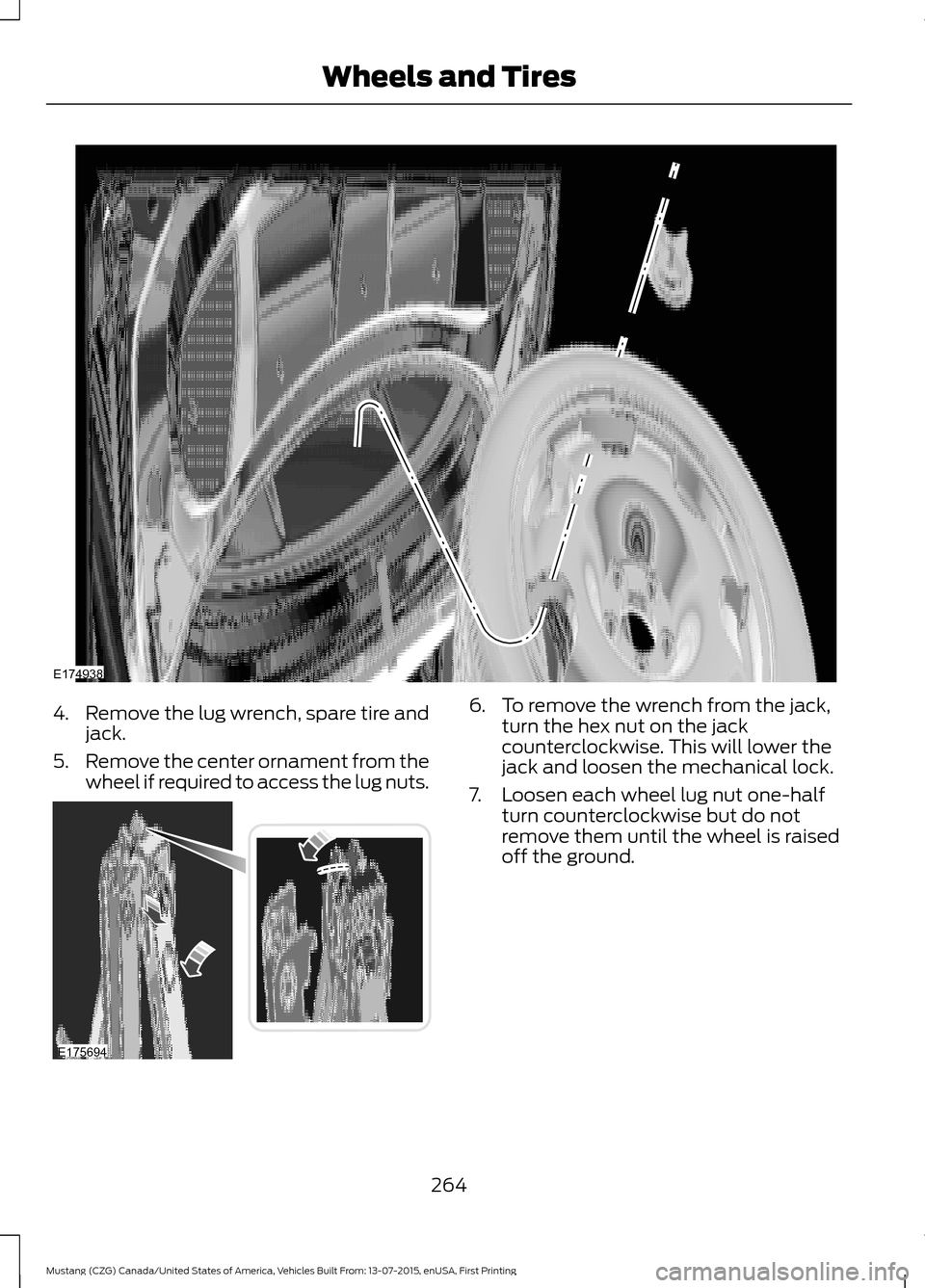
Remove the lug wrench, spare tire and
jack.
5. Remove the center ornament from the
wheel if required to access the lug nuts. 6. To remove the wrench from the jack,
turn the hex nut on the jack
counterclockwise. This will lower the
jack and loosen the mechanical lock.
7. Loosen each wheel lug nut one-half turn counterclockwise but do not
remove them until the wheel is raised
off the ground.
264
Mustang (CZG) Canada/United States of America, Vehicles Built From: 13-07-2015, enUSA, First Printing Wheels and TiresE174938 E175694
Page 268 of 391
Note:
Jack at the specified locations to
avoid damage to the vehicle.
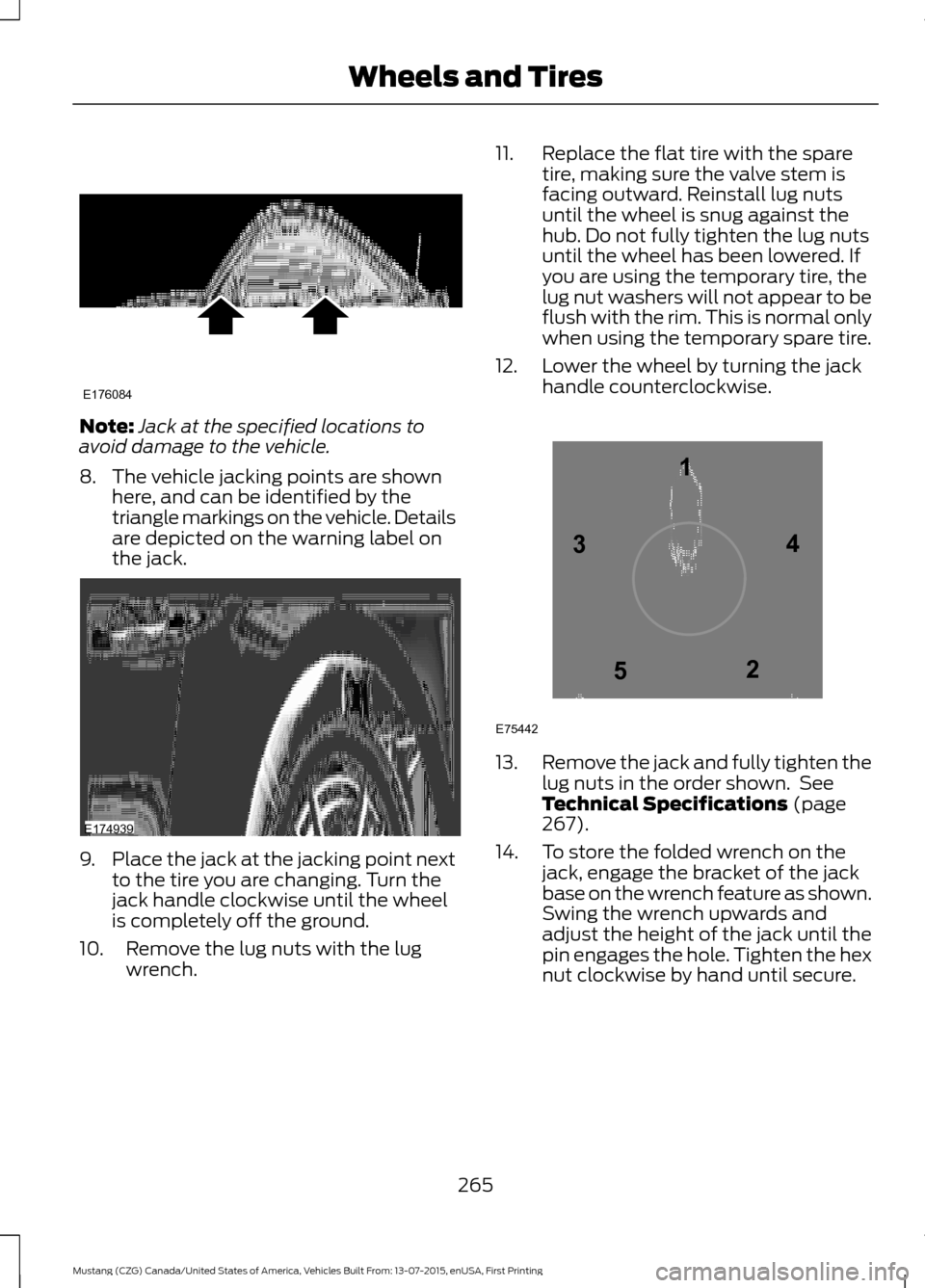
8. The vehicle jacking points are shown here, and can be identified by the
triangle markings on the vehicle. Details
are depicted on the warning label on
the jack. 9.
Place the jack at the jacking point next
to the tire you are changing. Turn the
jack handle clockwise until the wheel
is completely off the ground.
10. Remove the lug nuts with the lug wrench. 11. Replace the flat tire with the spare
tire, making sure the valve stem is
facing outward. Reinstall lug nuts
until the wheel is snug against the
hub. Do not fully tighten the lug nuts
until the wheel has been lowered. If
you are using the temporary tire, the
lug nut washers will not appear to be
flush with the rim. This is normal only
when using the temporary spare tire.
12. Lower the wheel by turning the jack handle counterclockwise. 13.
Remove the jack and fully tighten the
lug nuts in the order shown. See
Technical Specifications (page
267).
14. To store the folded wrench on the jack, engage the bracket of the jack
base on the wrench feature as shown.
Swing the wrench upwards and
adjust the height of the jack until the
pin engages the hole. Tighten the hex
nut clockwise by hand until secure.
265
Mustang (CZG) Canada/United States of America, Vehicles Built From: 13-07-2015, enUSA, First Printing Wheels and TiresE176084 E174939 12
3
4
5
E75442
Page 294 of 391
Cursor arrows and OK: Use the up and down arrow buttons to select the
various settings. When you make your selection, press the left and right arrow
buttons to change the settings. Press
OK to set or press MENU to exit.
H
Play/Pause:
Press to either play or pause a track when listening to a CD.
I
Seek:
In radio mode, select a frequency band and press this button. The system
stops at the first station down the band. Press and hold the button to move
quickly to the previous strong radio station or memory preset. In CD mode, press
this button to select the previous track. Press and hold the button to move
quickly backward through the current track.
J
VOL and Power:
Press this button to turn the system off and on. Turn it to
adjust the volume.
K
Pick-up or Make phone call:
Press this button to either pick-up an incoming
phone call or to make a phone call.
L
MENU:
Press this button to access different audio system features.
M
PHONE:
Press this button to access the phone features of the SYNC® system.
See SYNC™ (page 299).
N
Clock:
Press this button to access the clock setting. Use the center arrow
controls to change the hours and minutes. You can also set the clock by pressing
the
MENU button and scrolling to Clock Settings.
O
MEDIA:
Press this button to access your auxiliary input jack or switch between
devices you plug into the input jack or USB port.
P
RADIO:
Press this button to listen to the radio or change radio frequencies
bands. Press the function buttons below the radio screen to select different
radio functions.
Q
MUTE
or SIRIUS: Press this button to mute the playing audio, or if equipped,
listen to Sirius satellite radio.
R
CD:
Press this button to listen to a CD. Press the function buttons below the
radio screen to select on-screen options of Repeat or Shuffle.
S
Sound:
Press this button to access settings for Treble, Midrange, Bass, Fade
and Balance. Use the up and down arrow buttons to select the various settings.
When you make your selection, press the left and right arrow buttons to change
the settings. Press
OK to set or press MENU to exit. Sound settings can be set
for each audio source independently.
T
291
Mustang (CZG) Canada/United States of America, Vehicles Built From: 13-07-2015, enUSA, First Printing Audio System