buttons FORD SUPER DUTY 2015 3.G Owner's Manual
[x] Cancel search | Manufacturer: FORD, Model Year: 2015, Model line: SUPER DUTY, Model: FORD SUPER DUTY 2015 3.GPages: 470, PDF Size: 18.24 MB
Page 150 of 470
M (Manual) without Overdrive
With the gearshift lever in M (Manual), thedriver can change gears up or down asdesired. This is called SelectShiftAutomatic™ transmission (SST) mode.By moving the gearshift lever from driveposition D (Overdrive) to M (Manual) younow have control of selecting the gear youdesire using buttons on the shift lever.
To return to normal D (Overdrive) position,move the shift lever back from M to D.
The transmission will operate in gears onethrough six.
2 (Second)
Use 2 (Second) to start-up on slipperyroads or to provide additional enginebraking on downgrades.
1 (First)
•Provides maximum engine braking
•Allows upshifts by moving gearshiftlever
•The transmission will not downshiftinto 1 (First) at high speeds; it willdownshift to a lower gear and thenshift into 1 (First) when the vehiclereaches slower speeds.
Forced downshifts
•Allowed in D (Overdrive) with thetow/haul feature on or off
•Press the accelerator to the floor
•Allows transmission to select anappropriate gear
Understanding your SelectShiftAutomatic® transmission (If Equipped)
Your vehicle is equipped with a SelectShiftAutomatic transmission gearshift lever.SelectShift Automatic transmission givesyou the ability to change gears up or down(without a clutch) as desired.
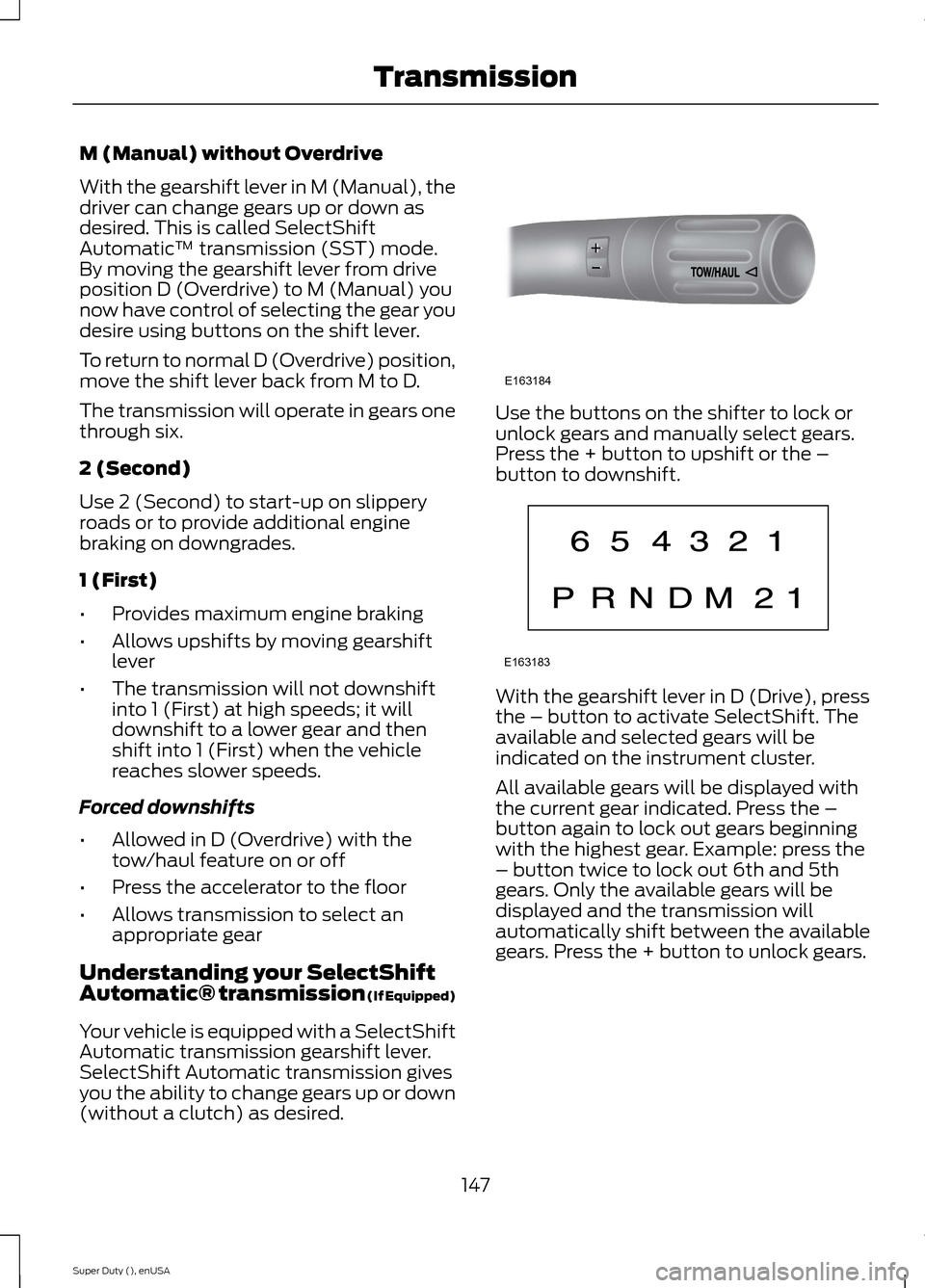
Use the buttons on the shifter to lock orunlock gears and manually select gears.Press the + button to upshift or the –button to downshift.
With the gearshift lever in D (Drive), pressthe – button to activate SelectShift. Theavailable and selected gears will beindicated on the instrument cluster.
All available gears will be displayed withthe current gear indicated. Press the –button again to lock out gears beginningwith the highest gear. Example: press the– button twice to lock out 6th and 5thgears. Only the available gears will bedisplayed and the transmission willautomatically shift between the availablegears. Press the + button to unlock gears.
147Super Duty (), enUSATransmissionE163184 E163183
Page 178 of 470
Fixed guideline: Yellow zoneD
Fixed guideline: Red zoneE
Rear bumperF
Fixed guidelines are always shown in thedisplay, but the active guidelines onlydisplay when the steering wheel is turned.To use active guidelines, turn the steeringwheel to point the guidelines toward anintended path. If the steering wheelposition is changed while reversing, thevehicle might deviate from the originalintended path.
The active guidelines fade in and outdepending on the steering wheel position.The active guidelines are not shown whenthe steering wheel position is straight.
Always use caution while reversing.Objects in the red zone are closest to yourvehicle and objects in the green zone arefarther away. Objects are getting closer toyour vehicle as they move from the greenzone to the yellow or red zones. Use theside view mirrors and rear view mirror toget better coverage on both sides and rearof your vehicle.
Enhanced Park Aids
Note:Enhanced park aids is only availablewhen the transmission is in reverse (R).
Note:The reverse sensing system is noteffective at speeds above 3 mph (5 km/h)and may not detect certain angular ormoving objects.
The system uses red, yellow and greenhighlights which appear on top of the videoimage when an object is detected by thereverse sensing system. The alert highlightsthe closest object detected. The reversesensing alert can be disabled and if visualpark aid alert is enabled, highlighted areasare still displayed.
Selectable settings for this feature are ONand OFF.
Manual Zoom
WARNING
When manual zoom is on, the fullarea behind your vehicle is notshown. Be aware of yoursurroundings when using the manual zoomfeature.
Note:Manual zoom is only available whenthe transmission is in reverse (R).
Note:When manual zoom is enabled, onlythe centerline is shown.
This feature allows you to get a closer viewof an object behind your vehicle (forexample, a trailer). The zoomed imagekeeps the bumper in the image to providea reference. The zoom is only active whilethe transmission is in reverse (R). Whenthe transmission is shifted out of reverse(R), the feature automatically turns offand must be reset when it is used again.
Selectable settings for this feature is OFF,Level 1, Level 2 and Level 3. The selectedlevel will appear between the buttons (forexample, Level 1) The default setting forthe manual zoom is OFF.
Rear Camera Delay
When shifting the transmission out ofreverse (R) and into any gear other thanpark (P), the camera image remains in thedisplay until your vehicle speed reaches 5mph (8 km/h). This occurs when the rearcamera delay feature is on or until a radiobutton is selected.
Selectable settings for this feature are ONand OFF. The default setting for the rearcamera delay is ON.
175Super Duty (), enUSAParking Aids
Page 202 of 470
You can adjust the amount ofinitial trailer brake output byselecting one of three settingsthrough the message center.
Ford has tested the trailer brakecontroller to be compatible withseveral major brands ofelectric-over-hydraulic trailerbrakes. Contact an authorizeddealer for information on whichbrands you can use.
The controller user interfaceconsists of the following:
A: + and - (Gain adjustmentbuttons): Pressing these buttonsadjusts the controller's poweroutput to the trailer brakes in 0.5increments. You can increase thegain setting to 10.0 (maximumtrailer braking) or decrease it to 0(no trailer braking). Pressing andholding a button raises or lowersthe setting continuously. The gainsetting displays in the messagecenter as follows: TBC GAIN =XX.X.
B: Manual control lever: Slide thecontrol lever to the left to switchon the trailer's electric brakesindependent of the tow vehicle's.See the following Procedure foradjusting gain section forinstructions on proper use of thisfeature. If you use the manualcontrol while the brake is alsoapplied, the greater of the twoinputs determines the power sentto the trailer brakes.
•Stop lamps: Using the manualcontrol lever lights both thetrailer brake lamps and yourvehicle brake lamps except thecenter high-mount stop lamp,if you make the properelectrical connection to thetrailer. Pressing your vehiclebrake pedal also lights bothtrailer and vehicle brake lamps.
The controller shows gain setting,output bar graph, and trailerconnectivity status in theinformation display. They appearin the information display asfollows:
•TBC GAIN = XX.X NOTRAILER: Shows the currentgain setting during a givenignition cycle and when
adjusting the gain. This alsodisplays if you use the manualcontrol lever or make gainadjustments with no trailerconnected.
•TBC GAIN = XX.XOUTPUT=/ / / / / /: Displayswhen you push your vehicle'sbrake pedal, or upon use of themanual control. Bar indicatorslight in the information displayto indicate the amount ofpower going to the trailerbrakes relative to the brakepedal or manual control input.One bar indicates the leastamount of output; six barsindicate maximum output.
199Super Duty (), enUSATowing
Page 203 of 470
•TRAILER CONNECTED:Displays when the systemsenses a correct trailer wiringconnection during a givenignition cycle.
•TRAILER DISCONNECTED:Displays, accompanied by asingle audible time, when thesystem senses a trailerconnection and then adisconnection, eitherintentional or unintentional,during a given ignition cycle. Italso displays if a truck ortrailer-wiring fault occurscausing the trailer to appeardisconnected. This messagecan also display if you use themanual control lever without atrailer connected.
Procedure for Adjusting Gain
Note:Only perform this procedurein a traffic-free environment atspeeds of approximately 20-25mph (30-40 km/h).
The gain setting sets the trailerbrake controller for the specifictowing condition. You shouldchange the setting as towingconditions change. Changes totowing conditions include trailerload, vehicle load, road conditionsand weather.
The gain should be set to providethe maximum trailer brakingassistance while making sure thetrailer wheels do not lock whenusing the brakes. Locked trailerwheels may lead to trailerinstability.
1.Make sure the trailer brakes arein good working condition,functioning normally andproperly adjusted. See yourtrailer dealer if necessary.
2.Hook up the trailer and makethe electrical connectionsaccording to the trailermanufacturer's instructions.
3.When you plug in a trailer withelectric orelectric-over-hydraulic brakes,TRAILER CONNECTEDappears in the informationdisplay.
4.Use the gain adjustment (+ and-) buttons to increase ordecrease the gain setting to thedesired starting point. A gainsetting of 6.0 is a good startingpoint for heavier loads.
5.In a traffic-free environment,tow the trailer on a dry, levelsurface at a speed of 20-25mph (30-40 km/h) andsqueeze the manual controllever completely.
6.If the trailer wheels lock up,indicated by squealing tires,reduce the gain setting. If thetrailer wheels turn freely,
increase the gain setting.Repeat Steps 5 and 6 until the
200Super Duty (), enUSATowing
Page 216 of 470
HAZARD WARNING FLASHERS
Note:The hazard warning flashers willoperate when the ignition is in any positionor if the key is not in the ignition. If usedwhen the engine is not running, the batterywill lose charge. As a result, there may beinsufficient power to restart your engine.
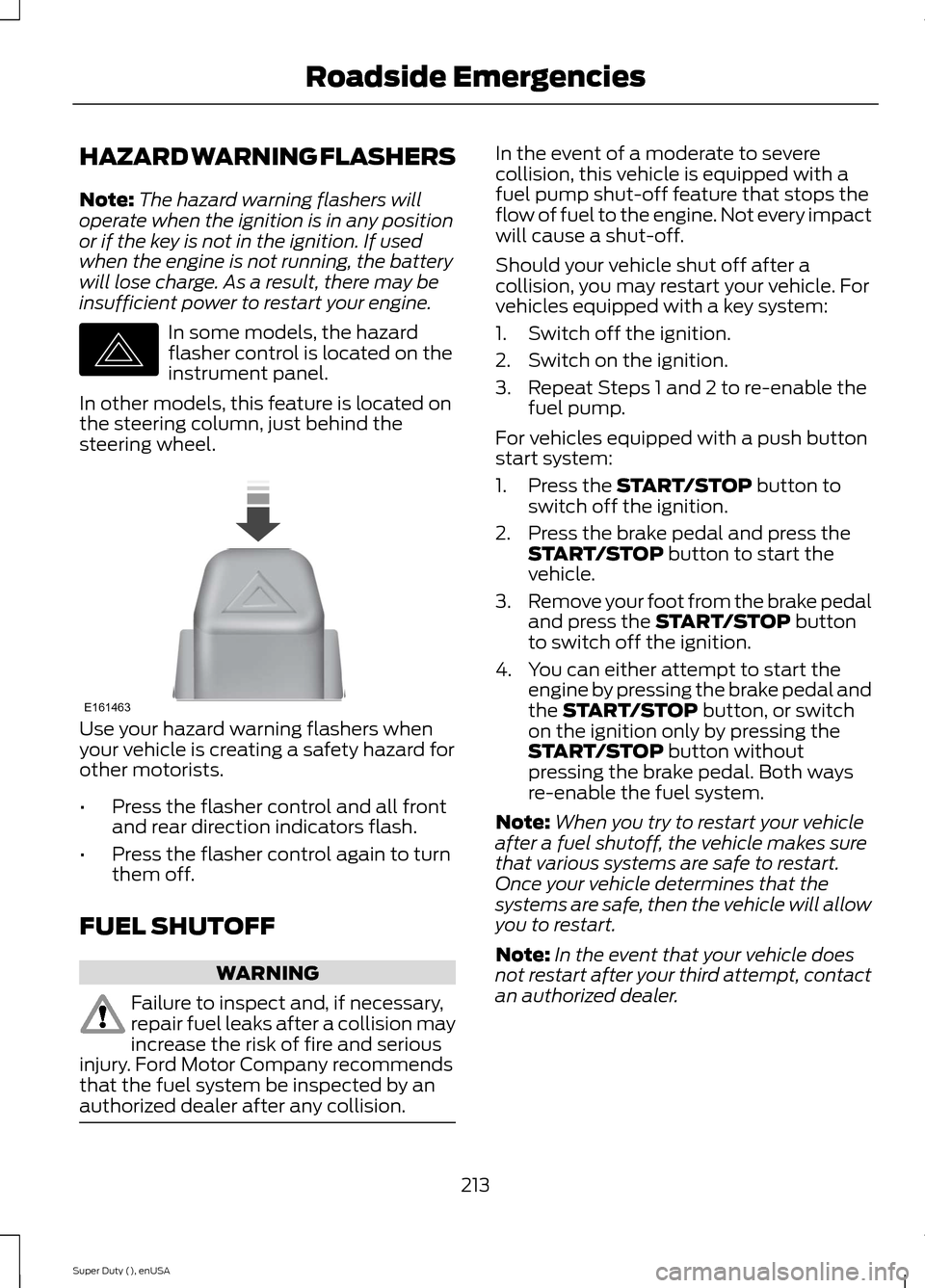
In some models, the hazardflasher control is located on theinstrument panel.
In other models, this feature is located onthe steering column, just behind thesteering wheel.
Use your hazard warning flashers whenyour vehicle is creating a safety hazard forother motorists.
•Press the flasher control and all frontand rear direction indicators flash.
•Press the flasher control again to turnthem off.
FUEL SHUTOFF
WARNING
Failure to inspect and, if necessary,repair fuel leaks after a collision mayincrease the risk of fire and seriousinjury. Ford Motor Company recommendsthat the fuel system be inspected by anauthorized dealer after any collision.
In the event of a moderate to severecollision, this vehicle is equipped with afuel pump shut-off feature that stops theflow of fuel to the engine. Not every impactwill cause a shut-off.
Should your vehicle shut off after acollision, you may restart your vehicle. Forvehicles equipped with a key system:
1.Switch off the ignition.
2.Switch on the ignition.
3.Repeat Steps 1 and 2 to re-enable thefuel pump.
For vehicles equipped with a push buttonstart system:
1.Press the START/STOP button toswitch off the ignition.
2.Press the brake pedal and press theSTART/STOP button to start thevehicle.
3.Remove your foot from the brake pedaland press the START/STOP buttonto switch off the ignition.
4.You can either attempt to start theengine by pressing the brake pedal andthe START/STOP button, or switchon the ignition only by pressing theSTART/STOP button withoutpressing the brake pedal. Both waysre-enable the fuel system.
Note:When you try to restart your vehicleafter a fuel shutoff, the vehicle makes surethat various systems are safe to restart.Once your vehicle determines that thesystems are safe, then the vehicle will allowyou to restart.
Note:In the event that your vehicle doesnot restart after your third attempt, contactan authorized dealer.
213Super Duty (), enUSARoadside EmergenciesE142663 E161463
Page 315 of 470
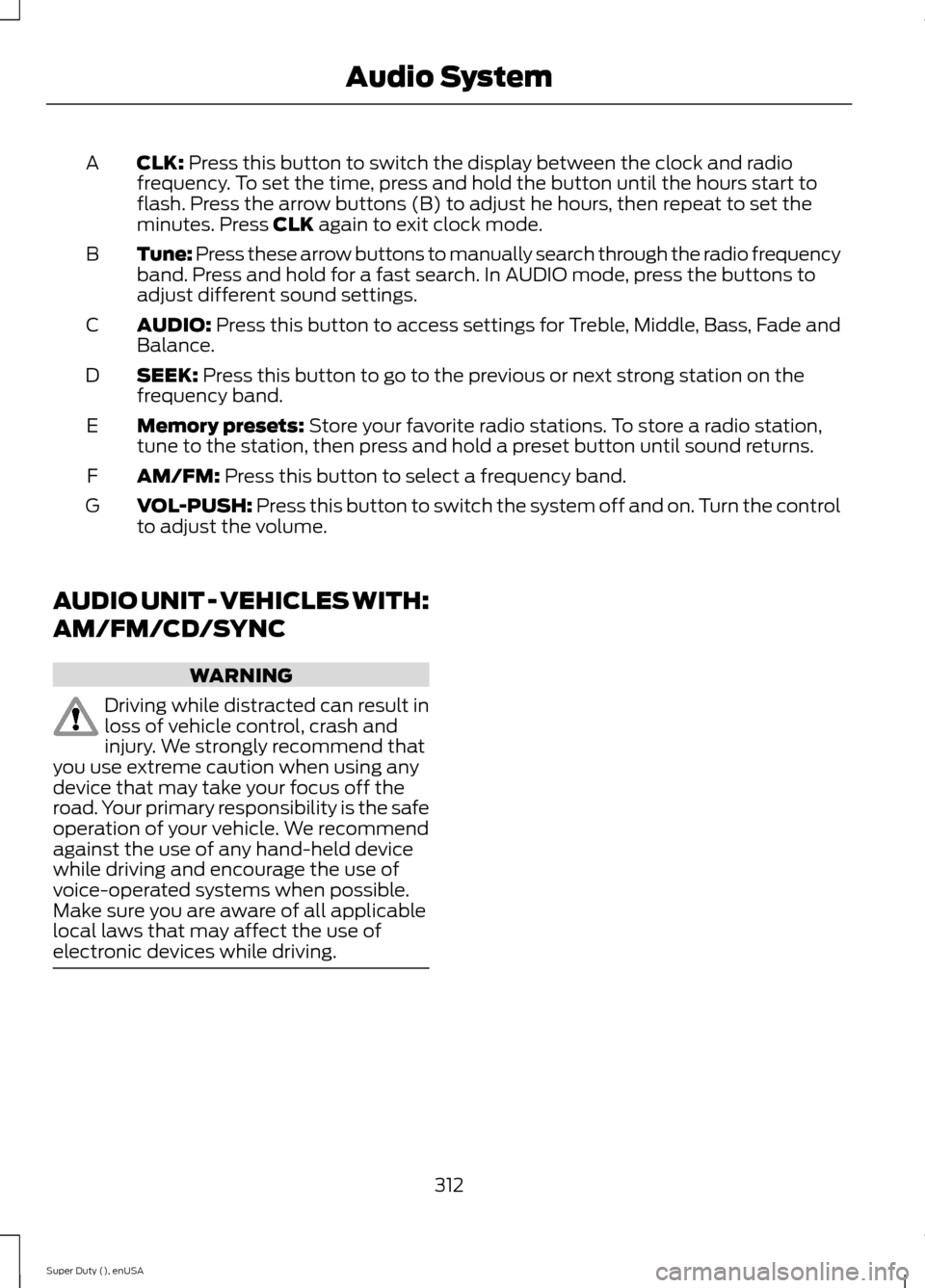
CLK: Press this button to switch the display between the clock and radiofrequency. To set the time, press and hold the button until the hours start toflash. Press the arrow buttons (B) to adjust he hours, then repeat to set theminutes. Press CLK again to exit clock mode.
A
Tune: Press these arrow buttons to manually search through the radio frequencyband. Press and hold for a fast search. In AUDIO mode, press the buttons toadjust different sound settings.
B
AUDIO: Press this button to access settings for Treble, Middle, Bass, Fade andBalance.C
SEEK: Press this button to go to the previous or next strong station on thefrequency band.D
Memory presets: Store your favorite radio stations. To store a radio station,tune to the station, then press and hold a preset button until sound returns.E
AM/FM: Press this button to select a frequency band.F
VOL-PUSH: Press this button to switch the system off and on. Turn the controlto adjust the volume.G
AUDIO UNIT - VEHICLES WITH:
AM/FM/CD/SYNC
WARNING
Driving while distracted can result inloss of vehicle control, crash andinjury. We strongly recommend thatyou use extreme caution when using anydevice that may take your focus off theroad. Your primary responsibility is the safeoperation of your vehicle. We recommendagainst the use of any hand-held devicewhile driving and encourage the use ofvoice-operated systems when possible.Make sure you are aware of all applicablelocal laws that may affect the use ofelectronic devices while driving.
312Super Duty (), enUSAAudio System
Page 316 of 470
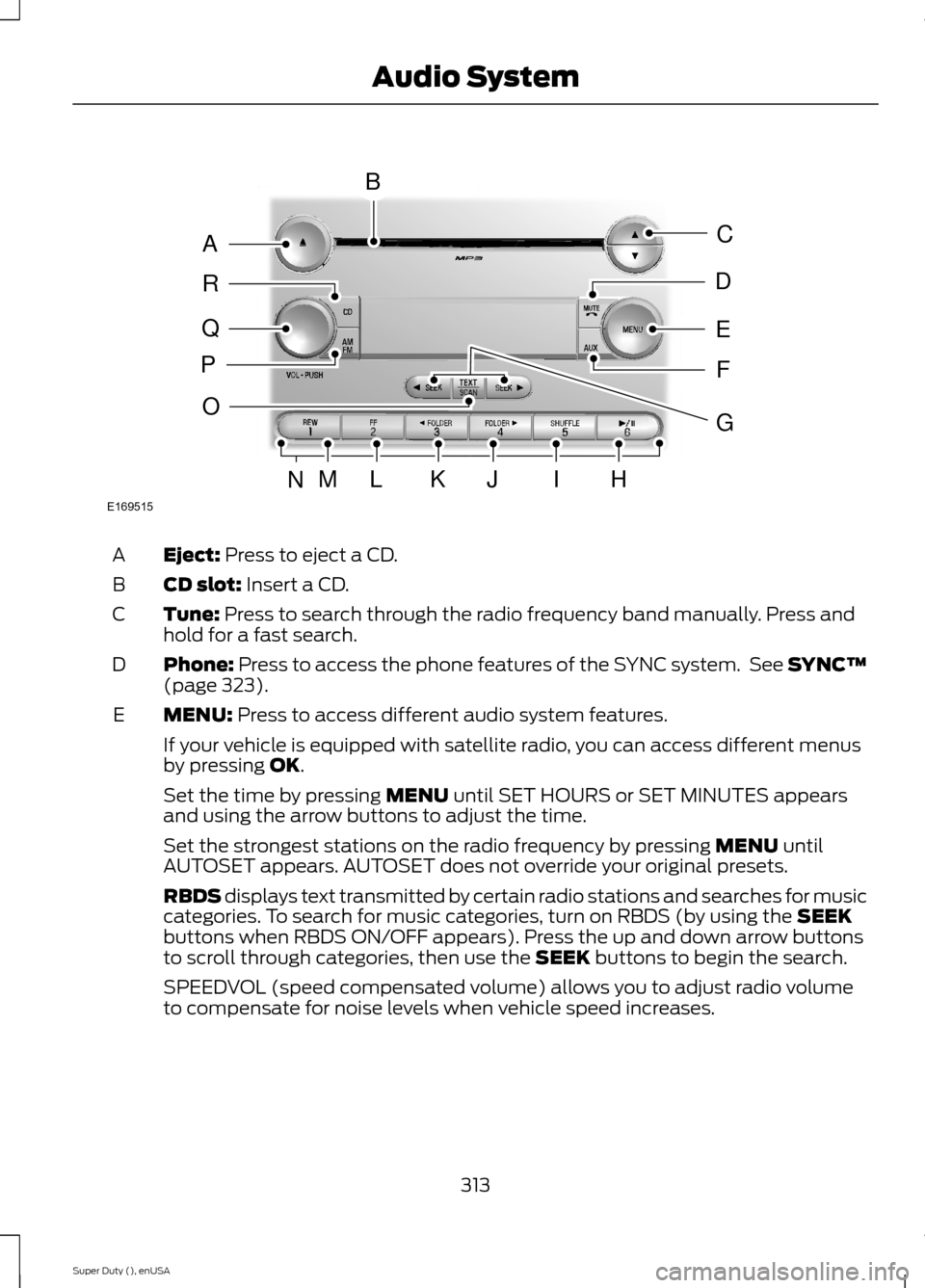
Eject: Press to eject a CD.A
CD slot: Insert a CD.B
Tune: Press to search through the radio frequency band manually. Press andhold for a fast search.C
Phone: Press to access the phone features of the SYNC system. See SYNC™(page 323).D
MENU: Press to access different audio system features.E
If your vehicle is equipped with satellite radio, you can access different menusby pressing OK.
Set the time by pressing MENU until SET HOURS or SET MINUTES appearsand using the arrow buttons to adjust the time.
Set the strongest stations on the radio frequency by pressing MENU untilAUTOSET appears. AUTOSET does not override your original presets.
RBDS displays text transmitted by certain radio stations and searches for musiccategories. To search for music categories, turn on RBDS (by using the SEEKbuttons when RBDS ON/OFF appears). Press the up and down arrow buttonsto scroll through categories, then use the SEEK buttons to begin the search.
SPEEDVOL (speed compensated volume) allows you to adjust radio volumeto compensate for noise levels when vehicle speed increases.
313Super Duty (), enUSAAudio SystemE169515BAQRPCEDFOMLKJIHNG
Page 317 of 470
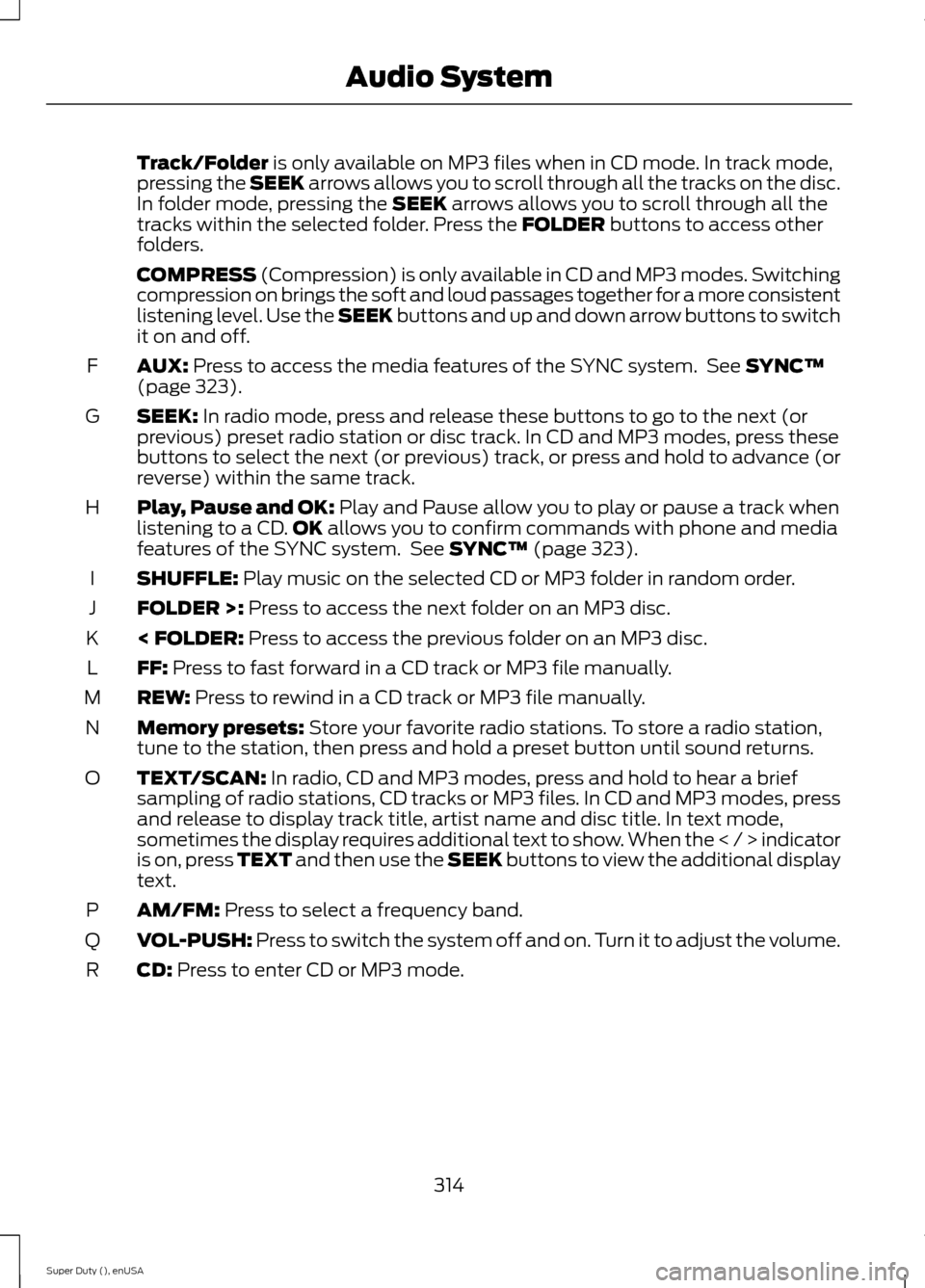
Track/Folder is only available on MP3 files when in CD mode. In track mode,pressing the SEEK arrows allows you to scroll through all the tracks on the disc.In folder mode, pressing the SEEK arrows allows you to scroll through all thetracks within the selected folder. Press the FOLDER buttons to access otherfolders.
COMPRESS (Compression) is only available in CD and MP3 modes. Switchingcompression on brings the soft and loud passages together for a more consistentlistening level. Use the SEEK buttons and up and down arrow buttons to switchit on and off.
AUX: Press to access the media features of the SYNC system. See SYNC™(page 323).F
SEEK: In radio mode, press and release these buttons to go to the next (orprevious) preset radio station or disc track. In CD and MP3 modes, press thesebuttons to select the next (or previous) track, or press and hold to advance (orreverse) within the same track.
G
Play, Pause and OK: Play and Pause allow you to play or pause a track whenlistening to a CD.OK allows you to confirm commands with phone and mediafeatures of the SYNC system. See SYNC™ (page 323).
H
SHUFFLE: Play music on the selected CD or MP3 folder in random order.I
FOLDER >: Press to access the next folder on an MP3 disc.J
< FOLDER: Press to access the previous folder on an MP3 disc.K
FF: Press to fast forward in a CD track or MP3 file manually.L
REW: Press to rewind in a CD track or MP3 file manually.M
Memory presets: Store your favorite radio stations. To store a radio station,tune to the station, then press and hold a preset button until sound returns.N
TEXT/SCAN: In radio, CD and MP3 modes, press and hold to hear a briefsampling of radio stations, CD tracks or MP3 files. In CD and MP3 modes, pressand release to display track title, artist name and disc title. In text mode,sometimes the display requires additional text to show. When the < / > indicatoris on, press TEXT and then use the SEEK buttons to view the additional displaytext.
O
AM/FM: Press to select a frequency band.P
VOL-PUSH: Press to switch the system off and on. Turn it to adjust the volume.Q
CD: Press to enter CD or MP3 mode.R
314Super Duty (), enUSAAudio System
Page 319 of 470
Seek, Reverse and Fast Forward:F
In radio mode, select a frequency band and press one of these buttons. Thesystem stops at the first station it finds in that direction.
In Sirius mode, press these buttons to select the previous or next channel. If aspecific category is selected (such as Jazz, Rock or News), use these buttonsto find the previous or next channel in the selected category.
In CD mode, press these buttons to select the previous or next track.
MEDIA: Press this button to access different audio modes, such as AM, FM andA/V Input.G
DIGITAL RADIO
Note:HD Radio broadcasts are notavailable in all markets.
HD Radio technology is the digitalevolution of analog AM/FM radio. Yoursystem has a special receiver that allowsit to receive digital broadcasts (whereavailable) in addition to the analogbroadcasts, it already receives. Digitalbroadcasts provide a better sound qualitythan analog broadcasts with free,crystal-clear audio and no static ordistortion. For more information, and aguide to available stations andprogramming, please visitwww.hdradio.com.
When HD Radio is on and you tune to astation broadcasting HD Radio technology,you may notice the HD Radio logo on yourscreen. When this logo is available, youmay also see Title and Artist fieldson-screen.
The multicast indicator appears in FMmode (only) if the current station isbroadcasting multiple digital broadcasts.The highlighted numbers signify availabledigital channels where new or differentcontent is available. HD1 signifies the mainprogramming status and is available inanalog and digital broadcasts. Othermulticast stations (HD2 through HD7) areonly available digitally.
When HD Radio broadcasts are active, youcan access the following functions:
When HD Radio broadcasts are active, youcan access the following functions:
•Scan allows you to hear a briefsampling of all available stations. Thisfeature still works when HD Radioreception is on, although it does notscan for HD2-HD7 channels. You maysee the HD logo appear if the stationhas a digital broadcast.
•Memory presets allow you to save anactive channel as a memory preset.Touch and hold a memory preset slotuntil the sound returns. There is a briefmute while the radio saves the station.Sound returns when finished. Whenswitching to an HD2 or HD3 memorypreset, the sound mutes before thedigital audio plays, because the systemhas to reacquire the digital signal.
Note:As with any saved radio station, youcannot access the saved station if yourvehicle is outside the station’s receptionarea.
316Super Duty (), enUSAAudio System
Page 333 of 470
"MENU"
"Signal"
"Text message inbox"
Words in ( ) are optional and do not haveto be spoken for the system to understandthe command.
Making Calls
Press the voice icon and when promptedsay:
1.Say "Call
2.When the system confirms the number,say, "Dial" again to initiate the call.
To erase the last spoken digit, say, "Delete"or press the left arrow button. To erase allspoken digits, say "Clear" or press and holdthe left arrow button.
To end the call, press and hold the phonebutton.
Receiving Calls
When receiving a call, you can:
•Answer the call by pressing the phonebutton.
•Reject the call by pressing and holdingthe phone button.
•Ignore the call by doing nothing.
Phone Options during an ActiveCall
During an active call, you have more menufeatures that become available, such asputting a call on hold or joining calls. Usethe arrow buttons to scroll through themenu options.
1.Press MENU during an active call.
2.After selecting Active Call Menu, pressOK.
3.Scroll to cycle through the followingoptions:
You can:When you select:
Mute the call.Mute Call?
Switch a call from an active hands-free environment toyour cellular phone for a more private conversation.Privacy
Press OK when Privacy on/off appears. (The displayindicates In Privacy and the system transfers your call.)
Put an active call on hold.Call HoldPress OK when Hold on/off appears. To answer anothercall at this time, press the phone button.
Enter "tones", such as numbers for passwords.Enter TonesScroll until the desired number appears in the display, thenpress OK; a tone sounds as confirmation. Repeat asnecessary.
Join two separate calls. (SYNC supports a maximum ofthree callers on a multiparty call or conference call.)Join Calls
1. Press the phone button.
330Super Duty (), enUSASYNC™ (If Equipped)