warning FORD TRANSIT 2015 5.G Owners Manual
[x] Cancel search | Manufacturer: FORD, Model Year: 2015, Model line: TRANSIT, Model: FORD TRANSIT 2015 5.GPages: 461, PDF Size: 5.82 MB
Page 389 of 461
![FORD TRANSIT 2015 5.G Owners Manual Press the voice button and when
prompted say:
Voice command
Next song
play
pause
[play] previous track
A/V Inputs WARNINGS
Driving while distracted can result in
loss of vehicle control, crash and
inj](/img/11/5392/w960_5392-388.png "FORD TRANSIT 2015 5.G Owners Manual Press the voice button and when
prompted say:
Voice command
Next song
play
pause
[play] previous track
A/V Inputs WARNINGS
Driving while distracted can result in
loss of vehicle control, crash and
inj")
Press the voice button and when
prompted say:
Voice command
Next song
play
pause
[play] previous track
A/V Inputs WARNINGS
Driving while distracted can result in
loss of vehicle control, crash and
injury. We strongly recommend that
you use extreme caution when using any
device that may take your focus off the
road. Your primary responsibility is the safe
operation of your vehicle. We recommend
against the use of any handheld device
while driving and encourage the use of
voice-operated systems when possible.
Make sure you are aware of all applicable
local laws that may affect the use of
electronic devices while driving. For safety reasons, do not connect
or adjust the settings on your
portable music player while your
vehicle is moving. Store the portable music player in a
secure location, for example the
center console or the glove box,
when your vehicle is moving. Hard objects
may become projectiles in a crash or
sudden stop, which may increase the risk
of serious injury. The audio extension cable
must be long enough to allow the portable
music player to be safely stored while your
vehicle is moving. The A/V inputs allow you to connect an
auxiliary audio/video source (for example
gaming systems or a personal camcorder)
by connecting RCA cords (not included)
to these input jacks. The jacks are yellow,
red and white and are located either
behind a small access door on the
instrument panel or in your center console.
You can also use the A/V inputs as an
auxiliary input jack to play music from your
portable music player over your vehicle's
speakers. Plug in your 1/8 inch (3.5
millimeter) RCA adapter into the two left
A/V input jacks (red and white).
Press the lower left corner of the
touchscreen, and then select A/V In.
To use the auxiliary input jack feature,
make sure that your portable music player
is designed for use with headphones and
that it is fully charged. You also need an
audio extension cable with stereo male
1/8-inch (3.5 millimeter) connectors at one
end and a RCA jack at the other.
1. Switch off the engine, radio and portable music player. Set the parking
brake and put the transmission in park
(P).
2. Attach one end of the audio extension
cable to the headphone output of your
player and the other end into the
adapter in one of the two left A/V input
jacks (white or red) inside the center
console.
386 Transit (TTH) Canada/United States of America, enUSA, Edition date: 03/2014 MyFord Touch
™E142622
Page 391 of 461
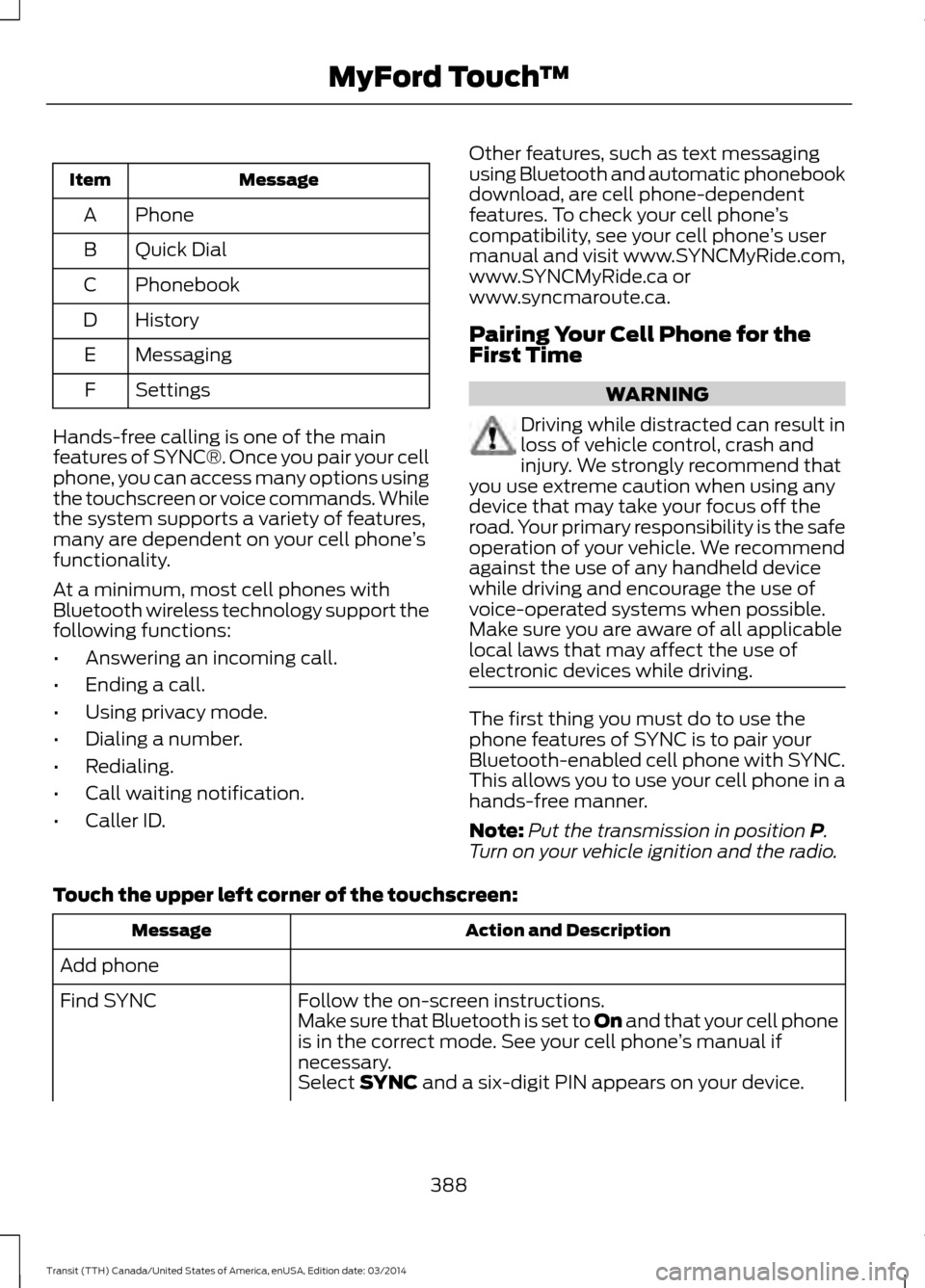
Message
Item
Phone
A
Quick Dial
B
Phonebook
C
History
D
Messaging
E
Settings
F
Hands-free calling is one of the main
features of SYNC®. Once you pair your cell
phone, you can access many options using
the touchscreen or voice commands. While
the system supports a variety of features,
many are dependent on your cell phone ’s
functionality.
At a minimum, most cell phones with
Bluetooth wireless technology support the
following functions:
• Answering an incoming call.
• Ending a call.
• Using privacy mode.
• Dialing a number.
• Redialing.
• Call waiting notification.
• Caller ID. Other features, such as text messaging
using Bluetooth and automatic phonebook
download, are cell phone-dependent
features. To check your cell phone
’s
compatibility, see your cell phone ’s user
manual and visit www.SYNCMyRide.com,
www.SYNCMyRide.ca or
www.syncmaroute.ca.
Pairing Your Cell Phone for the
First Time WARNING
Driving while distracted can result in
loss of vehicle control, crash and
injury. We strongly recommend that
you use extreme caution when using any
device that may take your focus off the
road. Your primary responsibility is the safe
operation of your vehicle. We recommend
against the use of any handheld device
while driving and encourage the use of
voice-operated systems when possible.
Make sure you are aware of all applicable
local laws that may affect the use of
electronic devices while driving. The first thing you must do to use the
phone features of SYNC is to pair your
Bluetooth-enabled cell phone with SYNC.
This allows you to use your cell phone in a
hands-free manner.
Note:
Put the transmission in position P.
Turn on your vehicle ignition and the radio.
Touch the upper left corner of the touchscreen: Action and Description
Message
Add phone Follow the on-screen instructions.
Find SYNC
Make sure that Bluetooth is set to On and that your cell phone
is in the c
orrect mode. See your cell phone ’s manual if
necessary.
Select
SYNC and a six-digit PIN appears on your device.
388 Transit (TTH) Canada/United States of America, enUSA, Edition date: 03/2014 MyFord Touch
™
Page 396 of 461
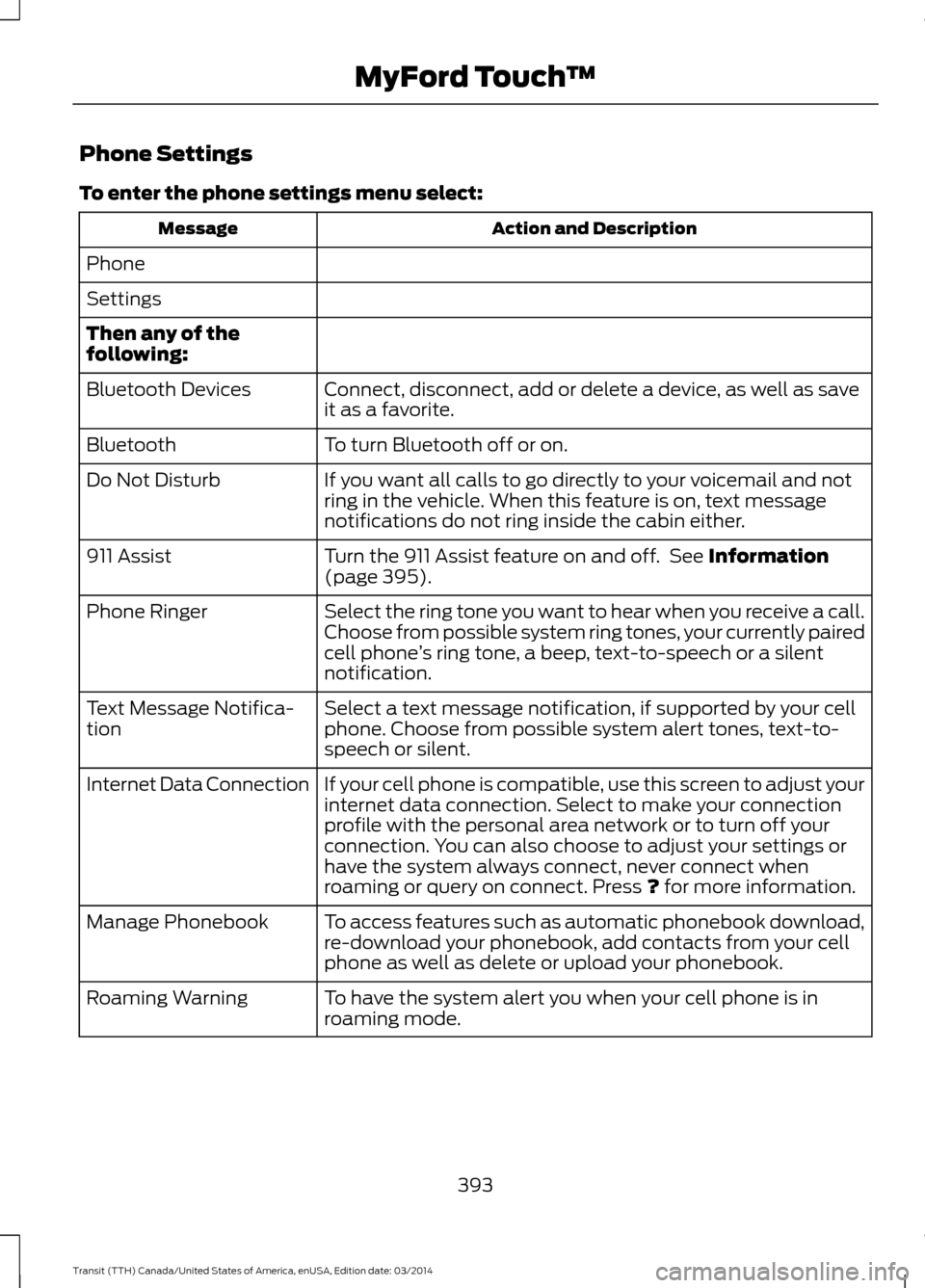
Phone Settings
To enter the phone settings menu select:
Action and Description
Message
Phone
Settings
Then any of the
following: Connect, disconnect, add or delete a device, as well as save
it as a favorite.
Bluetooth Devices
To turn Bluetooth off or on.
Bluetooth
If you want all calls to go directly to your voicemail and not
ring in the vehicle. When this feature is on, text message
notifications do not ring inside the cabin either.
Do Not Disturb
Turn the 911 Assist feature on and off. See Information
(page 395).
911 Assist
Select the ring tone you want to hear when you receive a call.
Choose from possible system ring tones, your currently paired
cell phone’s ring tone, a beep, text-to-speech or a silent
notification.
Phone Ringer
Select a text message notification, if supported by your cell
phone. Choose from possible system alert tones, text-to-
speech or silent.
Text Message Notifica-
tion
If your cell phone is compatible, use this screen to adjust your
internet data connection. Select to make your connection
profile with the personal area network or to turn off your
connection. You can also choose to adjust your settings or
have the system always connect, never connect when
roaming or query on connect. Press
? for more information.
Internet Data Connection
To access features such as automatic phonebook download,
re-download your phonebook, add contacts from your cell
phone as well as delete or upload your phonebook.
Manage Phonebook
To have the system alert you when your cell phone is in
roaming mode.
Roaming Warning
393Transit (TTH) Canada/United States of America, enUSA, Edition date: 03/2014 MyFord Touch
™
Page 401 of 461
SYNC Services Quick Tips
Action and Description
Message
You can personalize your Services feature to provide quicker
access to your most used or favorite information. You can
save address points, such as work or home. You can also save
favorite information like sports teams, for example Detroit
Lions, or a news category. You can learn more about
personalization by logging onto www.SYNCMyRide.com.
Personalizing
Press the voice button at any time (while connected to SYNC
Services) to interrupt a voice prompt or an audio clip (such
as a sports report) and say your voice command.
Push to interrupt
Your subscription is associated with your Bluetooth-enabled
cellular phone number, not your VIN (Vehicle Identification
Number). You can pair and connect your phone to any vehicle
equipped with SYNC Services and continue enjoying your
personalized services.
Portable
SYNC Services Voice Commands When a route has been
downloaded (non-navigation
systems), press the voice button
on the steering wheel controls. When
prompted, say any of the following
commands:
Services Voice command
Cancel route
Navigation voice off
Navigation voice on
Next turn
Route status
Route summary Voice command
Services
Update route
Help
Sirius Travel Link (If Equipped) WARNING
Driving while distracted can result in
loss of vehicle control, crash and
injury. We strongly recommend that
you use extreme caution when using any
device that may take your focus off the
road. Your primary responsibility is the safe
operation of your vehicle. We recommend
against the use of any handheld device
while driving and encourage the use of
voice-operated systems when possible.
Make sure you are aware of all applicable
local laws that may affect the use of
electronic devices while driving. 398
Transit (TTH) Canada/United States of America, enUSA, Edition date: 03/2014 MyFord Touch
™E142599
Page 404 of 461
Voice command
WNBA schedule
WNBA scores
Help
Alerts If your vehicle is equipped with
Navigation, touch the I
(Information) button to access
these features. If your vehicle is not
equipped with Navigation, touch the corner
of the touchscreen with the green tab.
Press Alerts, and then choose from any
of the following services: Action and Description
Message
The complete message
View
The message
Delete
Messages
Delete All
This screen displays any system messages
(such as an SD card fault).
Note: The system alerts you to any
messages by turning the information icon
yellow. After you read or delete the
messages, the icon returns to white.
Calendar If your vehicle is equipped with
Navigation, touch the I
(Information) button to access
these features. If your vehicle is not
equipped with Navigation, touch the corner
of the touchscreen with the green tab.
Press Calendar. You can view the current
calendar by day, week or month. 911 Assist
(If Equipped) WARNINGS
Unless the 911 Assist setting is set on
before a crash, the system will not
dial for help, which could delay
response time, potentially increasing the
risk of serious injury or death after a crash. Do not wait for 911 Assist to make an
emergency call if you can do it
yourself. Dial emergency services
immediately to avoid delayed response
time, which could increase the risk of
serious injury or death after a crash. If you
do not hear 911 Assist within five seconds
of the crash, the system or phone may be
damaged or non-functional. Always place your phone in a secure
location in your vehicle so it does not
become a projectile or damaged in
a crash. Failure to do so may cause serious
injury to someone or damage the phone,
which could prevent 911 Assist from
working properly. Note:
The SYNC 911 Assist feature must be
set on prior to the incident.
Note: Before setting this feature on, make
sure that you read the 911 Assist Privacy
Notice later in this section for important
information.
Note: If any user turns 911 Assist on or off,
that setting applies for all paired phones. If
911 Assist is turned off, either a voice
message plays or a display message (or
icon) comes on (or both) when your vehicle
is started after a previously paired phone
connects.
Note: Every phone operates differently.
While SYNC 911 Assist works with most
cellular phones, some may have trouble
using this feature.
401 Transit (TTH) Canada/United States of America, enUSA, Edition date: 03/2014 MyFord Touch
™E142608 E142608
Page 406 of 461
In the Event of a Crash
Not all crashes deploy an airbag or activate
the fuel pump shut-off (which would
trigger 911 Assist); however, SYNC tries to
contact emergency services if 911 Assist
triggers. If a connected phone sustains
damage or loses connection to SYNC,
SYNC searches for, and tries to connect
to, any available previously paired phone
and tries to make the call to 911.
Before making the call:
•
SYNC provides a short window of time
(approximately 10 seconds) to cancel
the call. If you fail to cancel the call,
SYNC attempts to dial 911.
• SYNC says the following, or a similar
message: "SYNC will attempt to call
911, to cancel the call, press Cancel on
your screen or press and hold the
phone button on your steering wheel."
If you do not cancel the call, and SYNC
makes a successful call, a pre-recorded
message plays for the 911 operator, and
then the occupant(s) in your vehicle is able
to talk with the operator. Be prepared to
provide your name, phone number and
location immediately, because not all 911
systems are capable of receiving this
information electronically.
911 Assist May Not Work If:
• Your cellular phone or 911 Assist
hardware sustains damage in a crash.
• The vehicle's battery or the SYNC
system has no power.
• The phones(s) previously paired or
connected to the system are thrown
from the vehicle. 911 Assist Privacy Notice
When you turn on 911 Assist, it may
disclose to emergency services that your
vehicle has been in a crash involving the
deployment of an airbag or activation of
the fuel pump shut-off. Certain versions or
updates to 911 Assist may also be capable
of electronically or verbally disclosing to
911 operators your vehicle location or other
details about your vehicle or crash to assist
911 operators to provide the most
appropriate emergency services. If you do
not want to disclose this information, do
not turn the feature on.
Vehicle Health Report
WARNING
Always follow scheduled
maintenance instructions, regularly
inspect your vehicle, and seek repair
for any damage or problem you suspect.
Vehicle Health Report supplements, but
cannot replace, normal maintenance and
vehicle inspection. Vehicle Health Report
only monitors certain systems
electronically monitored by your vehicle
and will not monitor or report the status
of any other system, (such as brake lining
wear). Failure to perform scheduled
maintenance and regularly inspect your
vehicle may result in vehicle damage and
serious injury. Note:
This feature is only available in the
United States.
Note: Your Vehicle Health Report feature
requires activation prior to use. Visit
www.SYNCMyRide.com to register. There
is no fee or subscription associated with
Vehicle Health Report, but you must register
to use this feature.
403 Transit (TTH) Canada/United States of America, enUSA, Edition date: 03/2014 MyFord Touch
™
Page 424 of 461
WARNING
Operating certain parts of this
system while driving can distract
your attention away from the road,
and possibly cause an accident or other
serious consequences. Do not change
system settings or enter data non-verbally
(using your hands) while driving. Stop the
vehicle in a safe and legal manner before
attempting these operations. This is
important since while setting up or
changing some functions you might be
required to distract your attention away
from the road and remove your hands from
the wheel. General Operation
Voice Command Control: Functions
within the Windows Automotive-based
system may be accomplished using only
voice commands. Using voice commands
while driving allows you to operate the
system without removing your hands from
the wheel.
Prolonged Views of Screen: Do not
access any function requiring a prolonged
view of the screen while you are driving.
Pull over in a safe and legal manner before
attempting to access a function of the
system requiring prolonged attention. Even
occasional short scans to the screen may
be hazardous if your attention has been
diverted away from your driving task at a
critical time.
Volume Setting: Do not raise the volume
e
xcessively. Keep the volume at a level
where you can still hear outside traffic and
emergency signals while driving. Driving
while unable to hear these sounds could
cause an accident. Use of Speech Recognition Functions:
Speech recognition software is inherently
a statistical process which is subject to
errors. It is your responsibility to monitor
any speech recognition functions included
in the system and address any errors.
Navigation Features: Any navigation
features included in the system are
intended to provide turn by turn
instructions to get you to a desired
destination. Please make certain all
persons using this system carefully read
and follow instructions and safety
information fully.
Distraction Hazard: Any navigation
features may require manual (non-verbal)
setup. Attempting to perform such set-up
or insert data while driving can seriously
distract your attention and could cause an
accident or other serious consequences.
Stop the vehicle in a safe and legal manner
before attempting these operations.
Let Your Judgment Prevail: Any
navigation features are provided only as
an aid. Make your driving decisions based
on your observations of local conditions
and existing traffic regulations. Any such
feature is not a substitute for your personal
judgment. Any route suggestions made by
this system should never replace any local
traffic regulations or your personal
judgment or knowledge of safe driving
practices.
Route Safety: Do not follow the route
suggestions if doing so would result in an
unsafe or illegal maneuver, if you would be
placed in an unsafe situation, or if you
would be directed into an area that you
consider unsafe. The driver is ultimately
responsible for the safe operation of the
vehicle and therefore, must evaluate
whether it is safe to follow the suggested
directions.
421 Transit (TTH) Canada/United States of America, enUSA, Edition date: 03/2014 Appendices
Page 433 of 461
THE GRACENOTE SOFTWARE, EACH ITEM
OF GRACENOTE DATA AND THE
GRACENOTE CONTENT ARE LICENSED
TO YOU "AS IS". NEITHER GRACENOTE
MAKES ANY REPRESENTATIONS OR
WARRANTIES, EXPRESS OR IMPLIED,
REGARDING THE ACCURACY OF ANY
GRACENOTE DATA FROM THE
GRACENOTE SERVERS OR GRACENOTE
CONTENT. GRACENOTE COLLECTIVELY
AND SEPARATELY RESERVE THE RIGHT
TO DELETE DATA AND/OR CONTENT
FROM THE COMPANIES' RESPECTIVE
SERVERS OR, IN THE CASE OF
GRACENOTE, CHANGE DATA
CATEGORIES FOR ANY CAUSE THAT
GRACENOTE DEEMS SUFFICIENT. NO
WARRANTY IS MADE THAT EITHER
GRACENOTE CONTENT OR THE
GRACENOTE SOFTWARE OR
GRACENOTE SERVERS ARE ERROR-FREE
OR THAT THE FUNCTIONING OF THE
GRACENOTE SOFTWARE OR
GRACENOTE SERVERS WILL BE
UNINTERRUPTED. GRACENOTE IS NOT
OBLIGATED TO PROVIDE YOU WITH ANY
ENHANCED OR ADDITIONAL DATA TYPES
THAT GRACENOTE MAY CHOOSE TO
PROVIDE IN THE FUTURE AND IS FREE
TO DISCONTINUE ITS ONLINE SERVICES
AT ANY TIME. GRACENOTE DISCLAIM ALL
WARRANTIES EXPRESS OR IMPLIED,
INCLUDING, BUT NOT LIMITED TO,
IMPLIED WARRANTIES OF
MERCHANTABILITY, FITNESS FOR A
PARTICULAR PURPOSE, TITLE, AND
NON-INFRINGEMENT. NEITHER
GRACENOTE WARRANTS THE RESULTS
THAT WILL BE OBTAINED BY YOUR USE
OF THE GRACENOTE SOFTWARE OR ANY
GRACENOTE SERVER. IN NO CASE WILL
GRACENOTE BE LIABLE FOR ANY
CONSEQUENTIAL OR INCIDENTAL
DAMAGES OR FOR ANY LOST PROFITS
OR LOST REVENUES FOR ANY REASON
WHATSOEVER.
© Gracenote 2007.
Vehicle with SYNC only
FCC ID: KMHSG1G1
IC: 1422A-SG1G1
Vehicle with SYNC and MyFord Touch
or MyLincoln Touch
FCC ID: KMHSYNCG2
IC: 1422A-SYNCG2
This device complies with Part 15 of the
FCC Rules and with RSS-210 of Industry
Canada. Operation is subject to the
following two conditions: (1) This device
may not cause harmful interference, and
(2) this device must accept any
interference received, including
interference that may cause undesired
operation.
WARNING
Changes or modifications not
expressively approved by the party
responsible for compliance could
void the user's authority to operate the
equipment. The term "IC" before the radio
certification number only signifies that
Industry Canada technical specifications
were met. The antenna used for this transmitter must
not be co-located or operating in
conjunction with any other antenna or
transmitter.
430 Transit (TTH) Canada/United States of America, enUSA, Edition date: 03/2014 Appendices
Page 438 of 461
Check every six months
Battery connections. Clean if necessary.
Body and door drain holes for obstruc-
tions. Clean if necessary.
Cooling system fluid level and coolant
strength.
Door weatherstrips for wear. Lubricate if
necessary.
Hinges, latches and outside locks for
correct operation. Lubricate if necessary.
Parking brake for correct operation.
Safety belts and seat latches for wear
and function.
Safety warning lamps (brake, ABS, airbag
and safety belt) for operation.
Washer spray and wiper operation. Clean
or replace blades as necessary.
Multi-point Inspection
In order to keep your vehicle running
correctly, it is important to have the
systems on your vehicle checked regularly.
This can help identify potential issues and
prevent major problems. We recommend
having the following multi-point inspection
performed at every scheduled
maintenance interval to help make sure
your vehicle keeps running correctly. Multi-point inspection
Accessory drive belt(s).
Battery performance.
Engine air filter.
Exhaust system. Multi-point inspection
Exterior lamps and hazard warning
system operation.
Fluid levels *
; fill if necessary.
For oil and fluid leaks.
Horn operation.
Radiator, cooler, heater and A/C hoses.
Suspension component for leaks or
damage.
Steering and linkage.
Tires (including spare) for wear and
correct pressure **
.
Windshield for cracks, chips or pits.
Washer spray and wiper operation.
* Brake, coolant recovery reservoir,
automatic transmission, power steering (if
equipped with hydraulic power assist
steering) and window washer.
** If your vehicle is equipped with a
temporary mobility kit, check the tire
sealant expiration Use By date on the
canister. Replace as needed.
Be sure to ask your dealership service
advisor or technician about the multi-point
vehicle inspection. It is a comprehensive
way to perform a thorough inspection of
your vehicle. Your checklist gives you
immediate feedback on the overall
condition of your vehicle.
435 Transit (TTH) Canada/United States of America, enUSA, Edition date: 03/2014 Scheduled Maintenance
Page 441 of 461
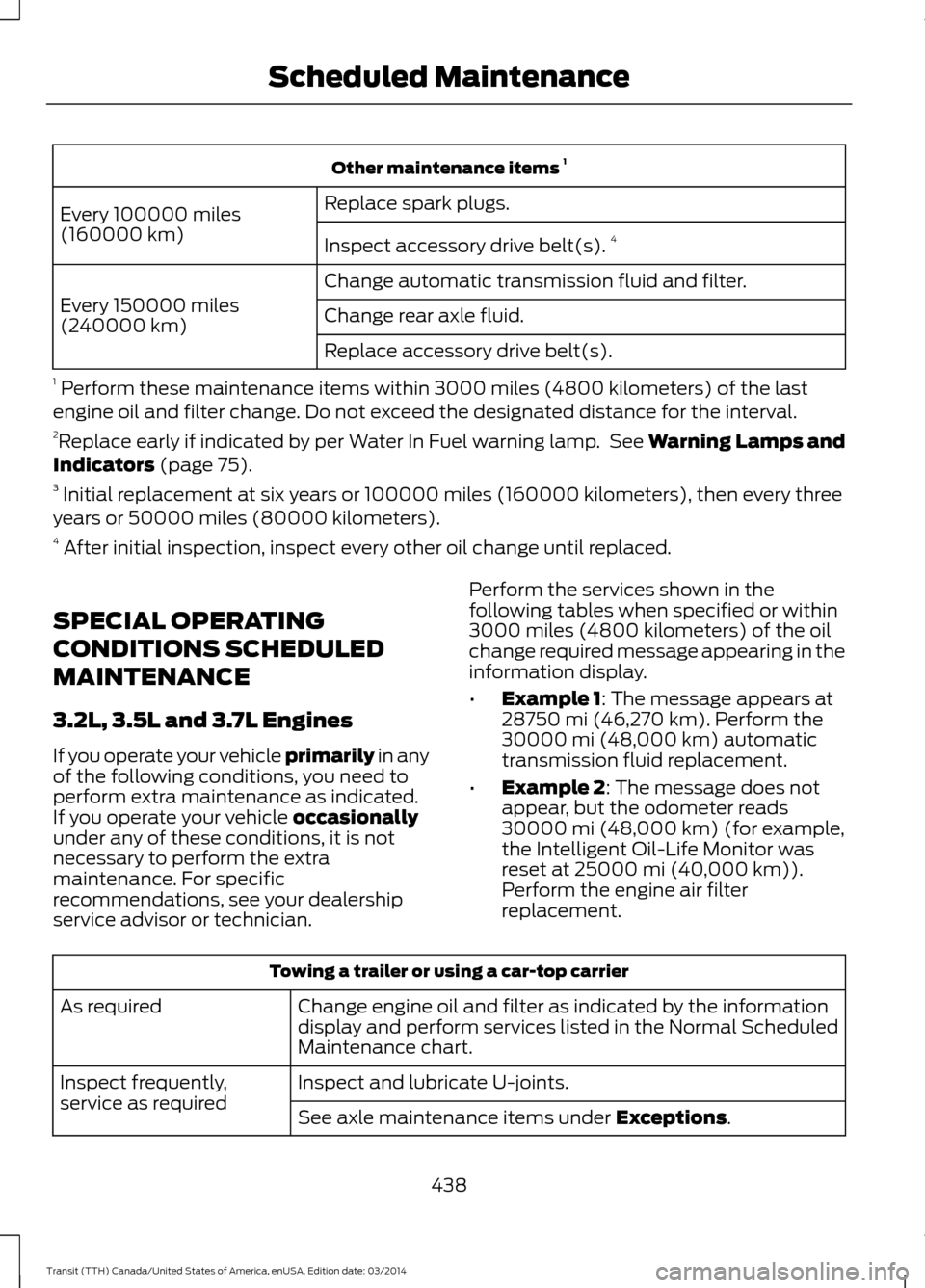
Other maintenance items
1
Replace spark plugs.
Every 100000 miles
(160000 km) Inspect accessory drive belt(s). 4
Change automatic transmission fluid and filter.
Every 150000 miles
(240000 km) Change rear axle fluid.
Replace accessory drive belt(s).
1 Perform these maintenance items within 3000 miles (4800 kilometers) of the last
engine oil and filter change. Do not exceed the designated distance for the interval.
2 Replace early if indicated by per Water In Fuel warning lamp. See Warning Lamps and
Indicators (page 75).
3 Initial replacement at six years or 100000 miles (160000 kilometers), then every three
years or 50000 miles (80000 kilometers).
4 After initial inspection, inspect every other oil change until replaced.
SPECIAL OPERATING
CONDITIONS SCHEDULED
MAINTENANCE
3.2L, 3.5L and 3.7L Engines
If you operate your vehicle primarily in any
of the f
ollowing conditions, you need to
perform extra maintenance as indicated.
If you operate your vehicle
occasionally
under any of these conditions, it is not
necessary to perform the extra
maintenance. For specific
recommendations, see your dealership
service advisor or technician. Perform the services shown in the
following tables when specified or within
3000 miles (4800 kilometers) of the oil
change required message appearing in the
information display.
•
Example 1
: The message appears at
28750 mi (46,270 km). Perform the
30000 mi (48,000 km) automatic
transmission fluid replacement.
• Example 2
: The message does not
appear, but the odometer reads
30000 mi (48,000 km)
(for example,
the Intelligent Oil-Life Monitor was
reset at
25000 mi (40,000 km)).
Perform the engine air filter
replacement. Towing a trailer or using a car-top carrier
Change engine oil and filter as indicated by the information
display and perform services listed in the Normal Scheduled
Maintenance chart.
As required
Inspect and lubricate U-joints.
Inspect frequently,
service as required
See axle maintenance items under Exceptions.
438Transit (TTH) Canada/United States of America, enUSA, Edition date: 03/2014 Scheduled Maintenance