ignition FORD TRANSIT 2015 5.G User Guide
[x] Cancel search | Manufacturer: FORD, Model Year: 2015, Model line: TRANSIT, Model: FORD TRANSIT 2015 5.GPages: 461, PDF Size: 5.82 MB
Page 51 of 461
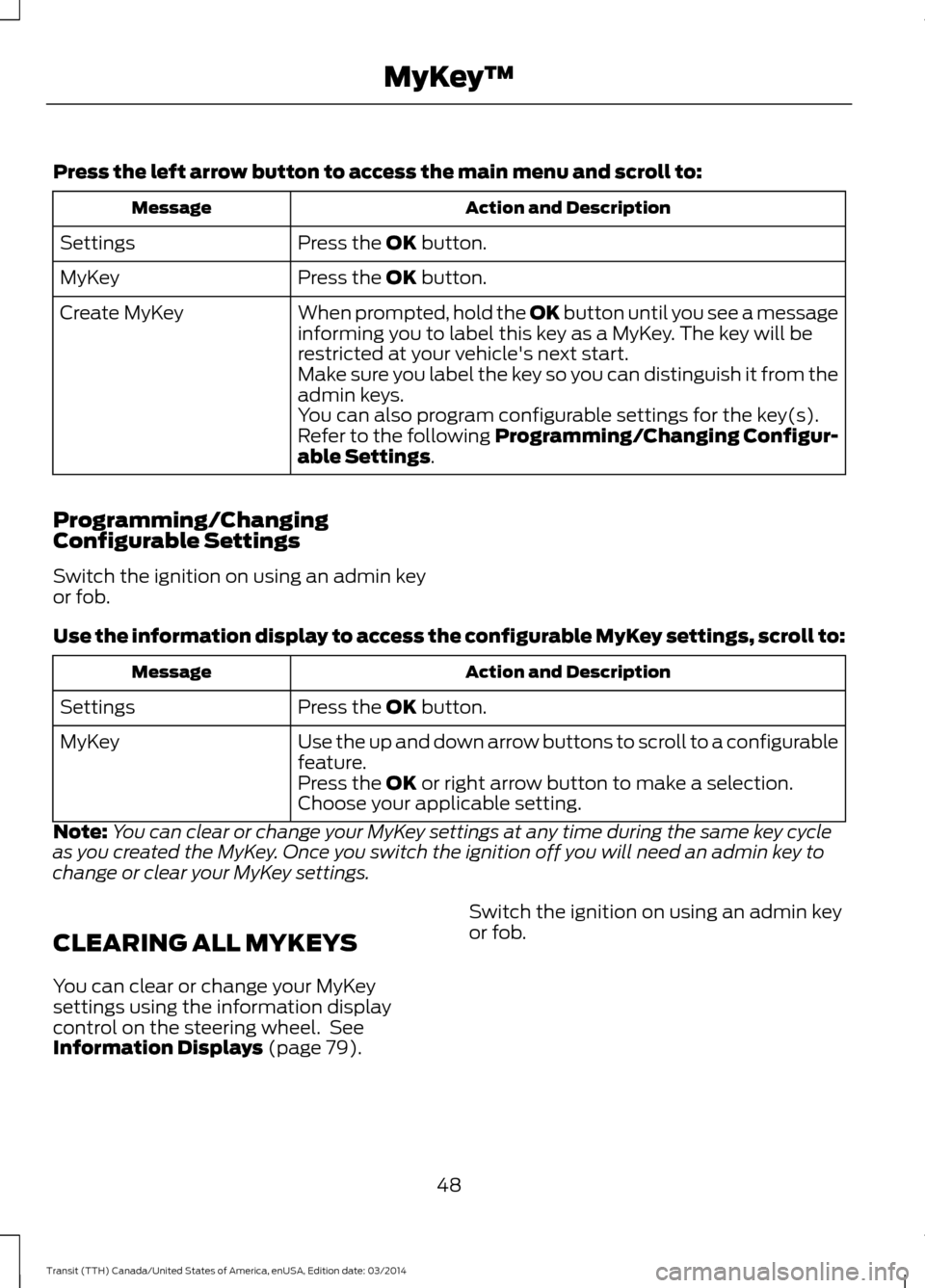
Press the left arrow button to access the main menu and scroll to:
Action and Description
Message
Press the OK button.
Settings
Press the
OK button.
MyKey
When prompted, hold the OK button until you see a message
informing you to label this key as a MyKey. The key will be
restricted at your vehicle's next start.
Create MyKey
Make sure you label the key so you can distinguish it from the
admin keys.
You can also program configurable settings for the key(s).
Refer to the following Programming/Changing Configur-
able Settings
.
Programming/Changing
Configurable Settings
Switch the ignition on using an admin key
or fob.
Use the information display to access the configurable MyKey settings, scroll to: Action and Description
Message
Press the
OK button.
Settings
Use the up and down arrow buttons to scroll to a configurable
feature.
MyKey
Press the
OK or right arrow button to make a selection.
Choose your applicable setting.
Note: You can clear or change your MyKey settings at any time during the same key cycle
as you created the MyKey. Once you switch the ignition off you will need an admin key to
change or clear your MyKey settings.
CLEARING ALL MYKEYS
You can clear or change your MyKey
settings using the information display
control on the steering wheel. See
Information Displays (page 79
). Switch the ignition on using an admin key
or fob.
48 Transit (TTH) Canada/United States of America, enUSA, Edition date: 03/2014 MyKey
™
Page 54 of 461
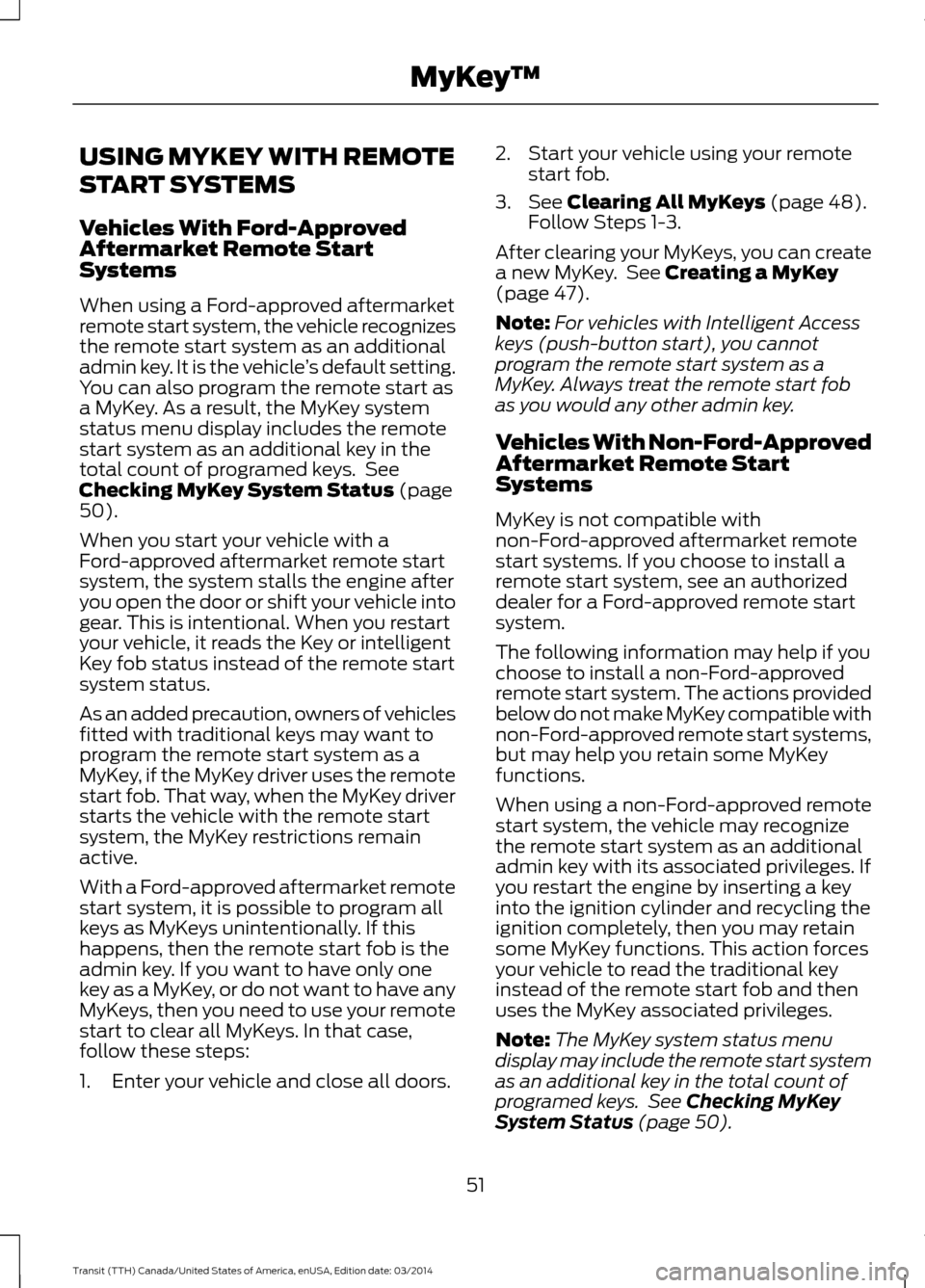
USING MYKEY WITH REMOTE
START SYSTEMS
Vehicles With Ford-Approved
Aftermarket Remote Start
Systems
When using a Ford-approved aftermarket
remote start system, the vehicle recognizes
the remote start system as an additional
admin key. It is the vehicle
’s default setting.
You can also program the remote start as
a MyKey. As a result, the MyKey system
status menu display includes the remote
start system as an additional key in the
total count of programed keys. See
Checking MyKey System Status (page
50).
When you start your vehicle with a
Ford-approved aftermarket remote start
system, the system stalls the engine after
you open the door or shift your vehicle into
gear. This is intentional. When you restart
your vehicle, it reads the Key or intelligent
Key fob status instead of the remote start
system status.
As an added precaution, owners of vehicles
fitted with traditional keys may want to
program the remote start system as a
MyKey, if the MyKey driver uses the remote
start fob. That way, when the MyKey driver
starts the vehicle with the remote start
system, the MyKey restrictions remain
active.
With a Ford-approved aftermarket remote
start system, it is possible to program all
keys as MyKeys unintentionally. If this
happens, then the remote start fob is the
admin key. If you want to have only one
key as a MyKey, or do not want to have any
MyKeys, then you need to use your remote
start to clear all MyKeys. In that case,
follow these steps:
1. Enter your vehicle and close all doors. 2. Start your vehicle using your remote
start fob.
3. See
Clearing All MyKeys (page 48).
Follow Steps 1-3.
After clearing your MyKeys, you can create
a new MyKey. See Creating a MyKey
(page 47).
Note: For vehicles with Intelligent Access
keys (push-button start), you cannot
program the remote start system as a
MyKey. Always treat the remote start fob
as you would any other admin key.
Vehicles With Non-Ford-Approved
Aftermarket Remote Start
Systems
MyKey is not compatible with
non-Ford-approved aftermarket remote
start systems. If you choose to install a
remote start system, see an authorized
dealer for a Ford-approved remote start
system.
The following information may help if you
choose to install a non-Ford-approved
remote start system. The actions provided
below do not make MyKey compatible with
non-Ford-approved remote start systems,
but may help you retain some MyKey
functions.
When using a non-Ford-approved remote
start system, the vehicle may recognize
the remote start system as an additional
admin key with its associated privileges. If
you restart the engine by inserting a key
into the ignition cylinder and recycling the
ignition completely, then you may retain
some MyKey functions. This action forces
your vehicle to read the traditional key
instead of the remote start fob and then
uses the MyKey associated privileges.
Note: The MyKey system status menu
display may include the remote start system
as an additional key in the total count of
programed keys. See Checking MyKey
System Status (page 50).
51 Transit (TTH) Canada/United States of America, enUSA, Edition date: 03/2014 MyKey
™
Page 55 of 461
As an added precaution, owners of vehicles
fitted with traditional keys may want to
program the remote start system as a
MyKey, if the MyKey driver uses the remote
start fob. That way, when the MyKey driver
starts the vehicle with the remote start
system, the MyKey restrictions remain
active.
With a non-Ford-approved aftermarket
remote start system, it is possible to
program all keys as MyKeys
unintentionally. If this happens, then the
remote start fob is the admin key. If you
want to have only one key as a MyKey, or
do not want to have any MyKeys, then you
need to use your remote start to clear all
MyKeys. In that case, follow these steps:
1. Enter your vehicle and close all doors.
2. Start your vehicle using your
non-Ford-approved remote start fob.
3. See Clearing All MyKeys (page 48).
Follow Steps 1-3.
After clearing your MyKeys, you can create
a new MyKey. See
Creating a MyKey
(page 47).
Note: For vehicles with Intelligent Access
keys (push-button start), you cannot
program the remote start system as a
MyKey. Always treat the remote start fob
as you would any other admin key.
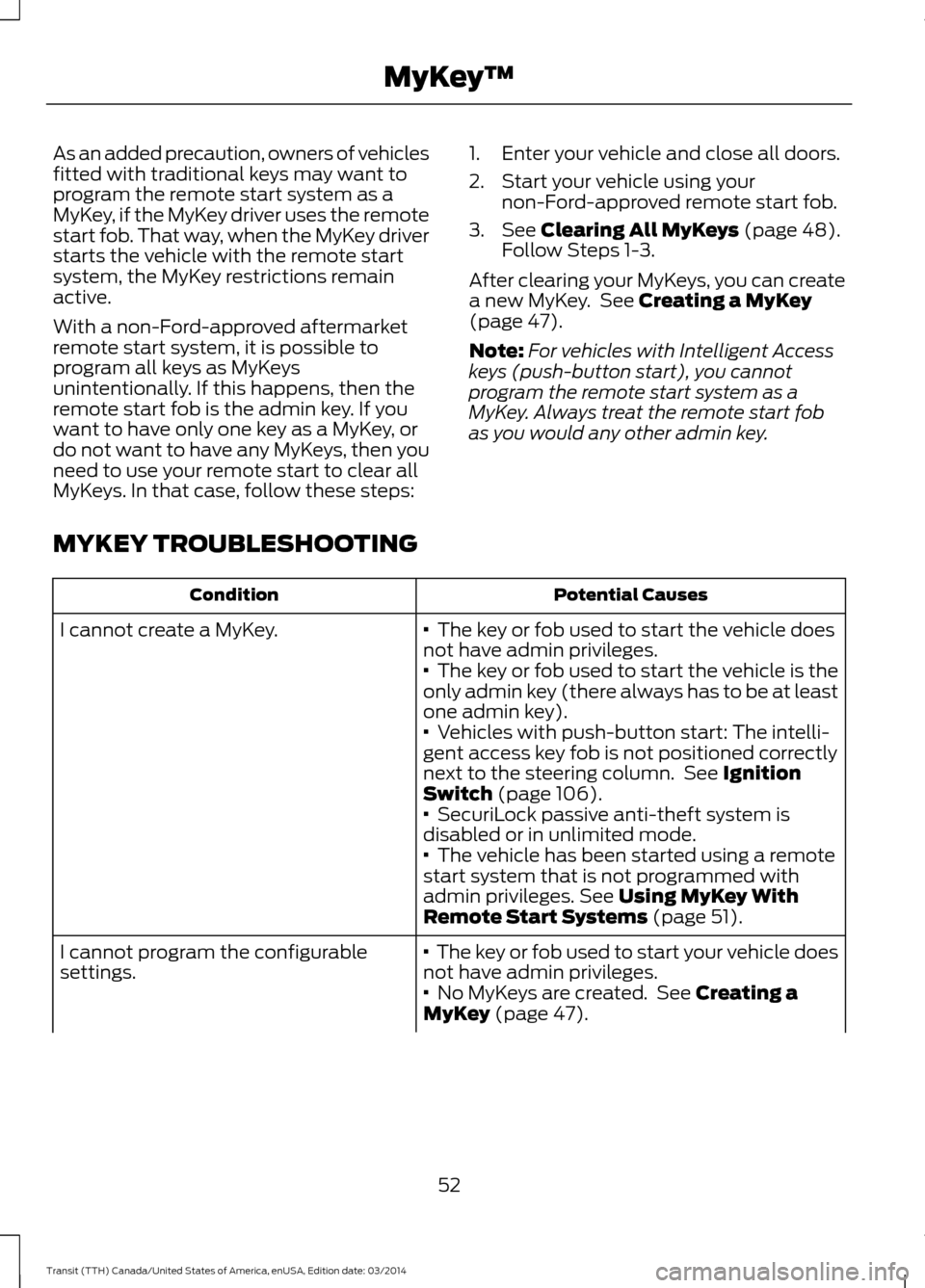
MYKEY TROUBLESHOOTING Potential Causes
Condition
· The key or fob used to start the vehicle does
not have admin privileges.
I cannot create a MyKey.
· The key or fob used to start the vehicle is the
only admin key (there always has to be at least
one admin key).
· Vehicles with push-button start: The intelli-
gent access key fob is not positioned correctly
next to the steering column. See Ignition
Switch
(page 106).
· SecuriLock passive anti-theft system is
disabled or in unlimited mode.
· The vehicle has been started using a remote
start system that is not programmed with
admin privileges. See
Using MyKey With
Remote Start Systems (page 51).
· The key or fob used to start your vehicle does
not have admin privileges.
I cannot program the configurable
settings.
· No MyKeys are created. See Creating a
MyKey (page 47).
52 Transit (TTH) Canada/United States of America, enUSA, Edition date: 03/2014 MyKey
™
Page 60 of 461
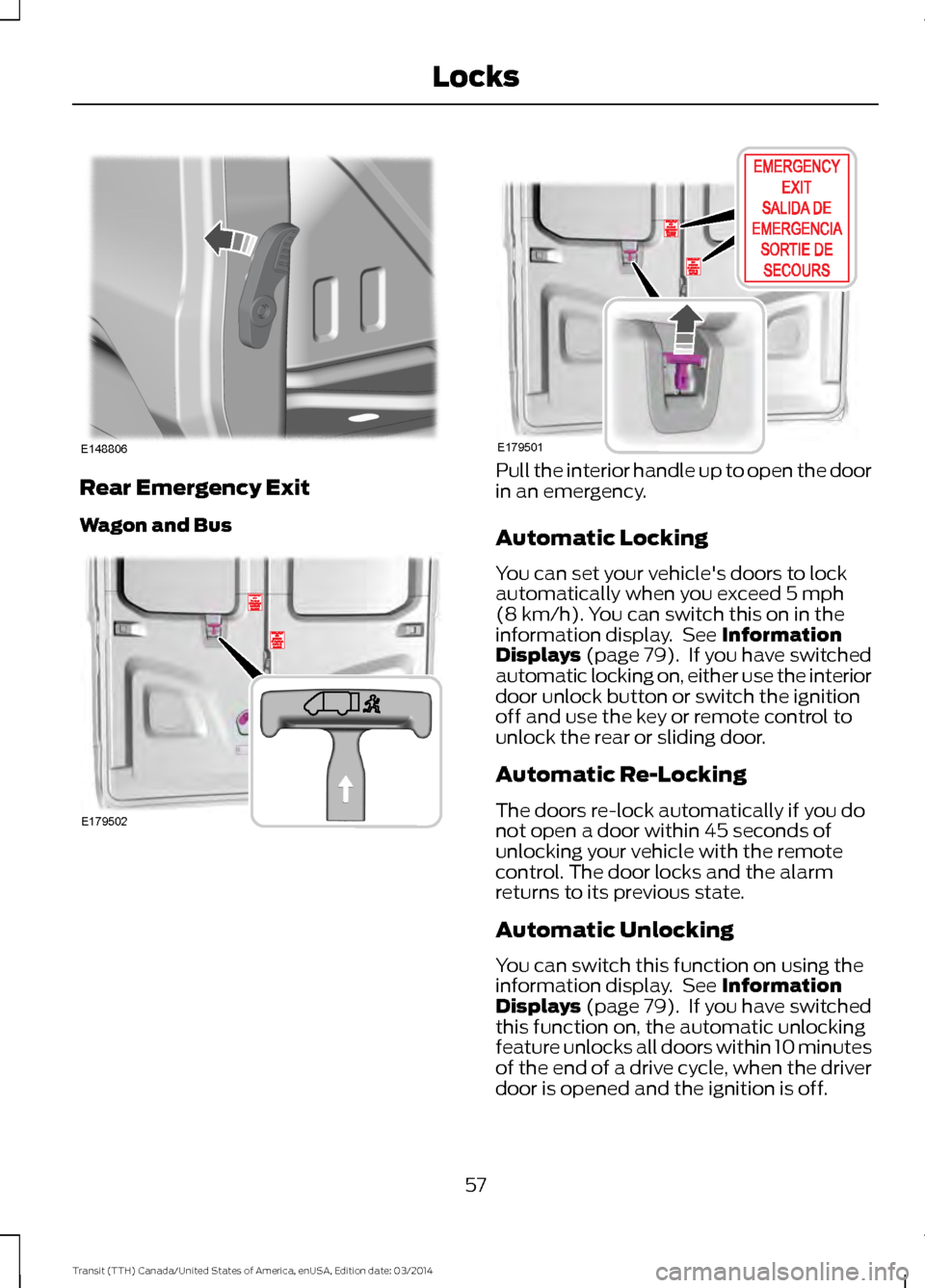
Rear Emergency Exit
Wagon and Bus Pull the interior handle up to open the door
in an emergency.
Automatic Locking
You can set your vehicle's doors to lock
automatically when you exceed 5 mph
(8 km/h). You can switch this on in the
information display. See Information
Displays (page 79). If you have switched
automatic locking on, either use the interior
door unlock button or switch the ignition
off and use the key or remote control to
unlock the rear or sliding door.
Automatic Re-Locking
The doors re-lock automatically if you do
not open a door within 45 seconds of
unlocking your vehicle with the remote
control. The door locks and the alarm
returns to its previous state.
Automatic Unlocking
You can switch this function on using the
information display. See Information
Displays (page 79). If you have switched
this function on, the automatic unlocking
feature unlocks all doors within 10 minutes
of the end of a drive cycle, when the driver
door is opened and the ignition is off.
57 Transit (TTH) Canada/United States of America, enUSA, Edition date: 03/2014 LocksE148806 E179502 E179501
Page 62 of 461
PASSIVE ANTI-THEFT
SYSTEM
Note:
The system is not compatible with
non-Ford aftermarket remote start systems.
Use of these systems may result in vehicle
starting problems and a loss of security
protection.
Note: Metallic objects, electronic devices
or a second coded key on the same key
chain may cause vehicle starting problems
if they are too close to the key when starting
the engine. Prevent these objects from
touching the coded key while starting the
engine. Switch the ignition off, move all
objects on the key chain away from the
coded key and restart the engine if a
problem occurs.
Note: Do not leave a duplicate coded key
in the vehicle. Always take your keys and
lock all doors when leaving the vehicle.
SecuriLock®
The system is an engine immobilization
system. It is designed to help prevent the
engine from being started unless a
correctly coded key for your vehicle is used.
Using an incorrectly coded key may
prevent the engine from starting. A
message may appear in the information
display.
If you are unable to start the engine with a
correctly coded key, a malfunction has
happened and a message may appear in
the information display.
Automatic Arming
The engine immobilization system arms
immediately after you switch the ignition
off. Automatic Disarming
Switching the ignition on with a correctly
coded key disarms the engine
immobilization system.
Replacement Keys
The integrated keyhead transmitter
functions as a programmed ignition key
that operates all the locks and starts your
vehicle, as well as a remote control.
If your keys are lost or stolen and you do
not have a spare correctly coded key, you
will need to have your vehicle towed to an
authorized dealer. You need to erase the
coded keys from your vehicle and program
new coded keys.
Store an extra correctly coded key away
from the vehicle in a safe place to help
prevent any inconveniences. See an
authorized dealer to purchase additional
spare or replacement keys.
Programming a Spare Integrated
Keyhead Transmitter
You can program your own integrated
keyhead transmitter or standard
SecuriLock coded keys to your vehicle. This
procedure will program both the engine
immobilizer keycode and the remote entry
portion of the remote control to your
vehicle
Only use integrated keyhead transmitters
or standard SecuriLock keys.
You must have two previously
programmed correctly coded keys and the
new unprogrammed key readily accessible.
See an authorized dealer to have the spare
key programmed if two previously
programmed correctly coded keys are not
available.
Read and understand the entire procedure
before you begin.
1.
Insert the first previously programmed
correctly coded key into the ignition.
59 Transit (TTH) Canada/United States of America, enUSA, Edition date: 03/2014 Security
Page 63 of 461
2.
Switch the ignition from off to on. Keep
the ignition on for at least three
seconds, but no more than 10 seconds.
3. Switch the ignition off and remove the
first correctly coded key from the
ignition.
4. After three seconds but within 10 seconds of switching the ignition off,
insert the second previously correctly
coded key into the ignition.
5. Switch the ignition from off to on. Keep
the ignition on for at least three
seconds, but no more than 10 seconds.
6. Switch the ignition off and remove the
second previously programmed
correctly coded key from the ignition.
7. After three seconds but within 10 seconds of switching the ignition off
and removing the previously
programmed correctly coded key,
insert the new unprogrammed key into
the ignition.
8. Switch the ignition from off to on. Keep
the ignition on for at least six seconds.
9. Remove the newly programmed correctly coded key from the ignition.
If the key has been successfully
programmed it will start the engine and
operate the remote entry system (if the
new key is an integrated keyhead
transmitter).
If the key was not successfully
programmed, wait 10 seconds and repeat
Steps 1 through 8. If you are still
unsuccessful, take your vehicle to an
authorized dealer.
Note: You can program a maximum of eight
coded keys to your vehicle. All eight can be
integrated keyhead transmitters. ANTI-THEFT ALARM (If Equipped)
Alarm System
The perimeter alarm is a deterrent against
unauthorized access to your vehicle
through the doors, luggage compartment
and the hood. It also protects the audio
unit.
Triggering the Alarm
Once armed, the alarm is triggered in any
of the following ways:
• If someone opens a door, cargo area
or the hood without a valid key or
remote control.
• If someone removes the audio or
navigation system.
• If you switch the ignition on without a
valid key.
If the alarm is triggered, the horn will sound
for 30 seconds and the hazard warning
flasher will flash for five minutes.
Any further attempts to perform one of the
above will trigger the alarm again.
Arming the Alarm
To arm the alarm, lock your vehicle. See
Locks
(page 54).
Disarming the Alarm
Disarm and silence the alarm by unlocking
the doors with the key and switching the
ignition on with a correctly coded key
within 12 seconds, or by unlocking the
doors or the cargo area with the remote
control.
60 Transit (TTH) Canada/United States of America, enUSA, Edition date: 03/2014 Security
Page 70 of 461
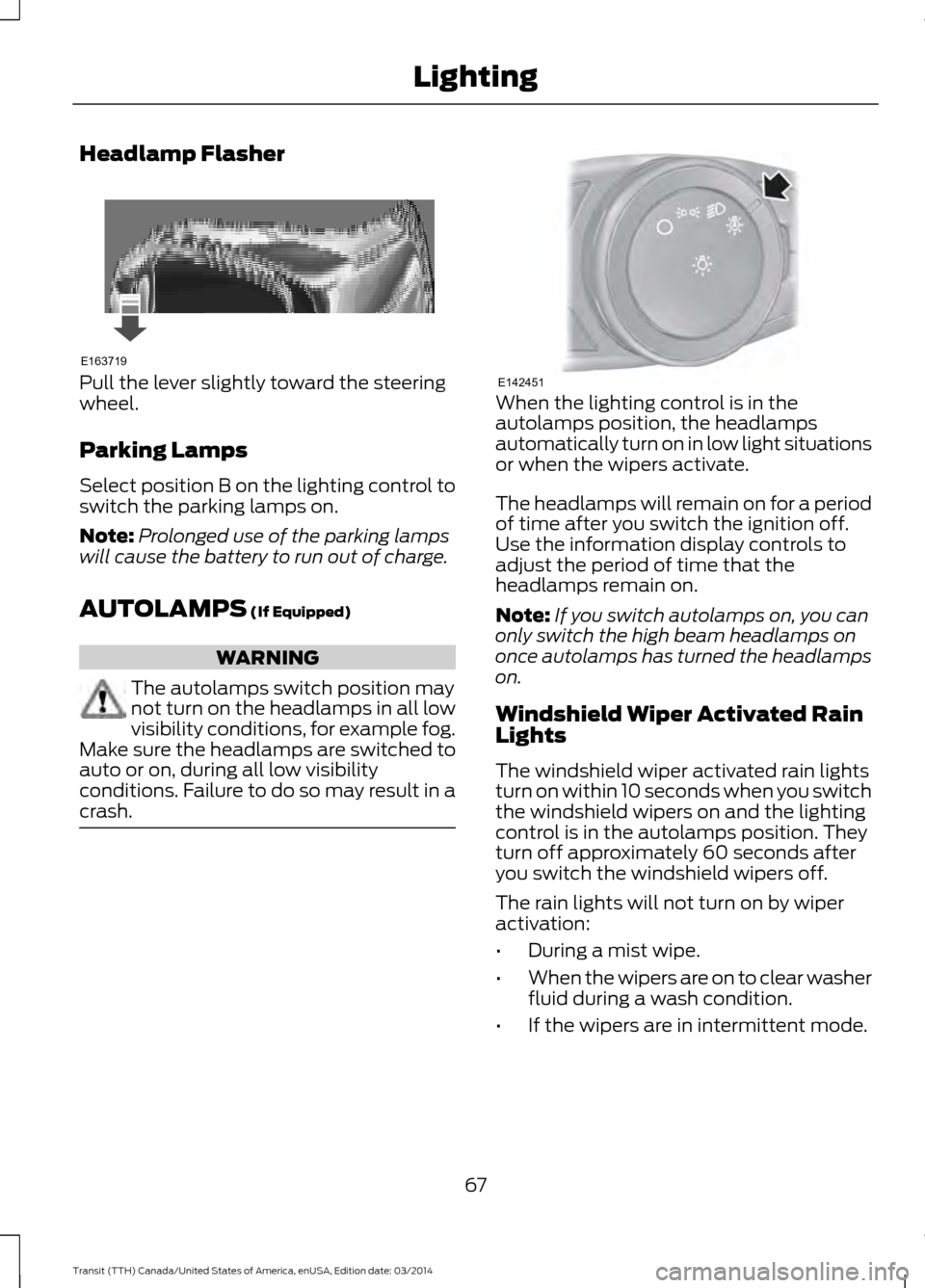
Headlamp Flasher
Pull the lever slightly toward the steering
wheel.
Parking Lamps
Select position B on the lighting control to
switch the parking lamps on.
Note:
Prolonged use of the parking lamps
will cause the battery to run out of charge.
AUTOLAMPS (If Equipped) WARNING
The autolamps switch position may
not turn on the headlamps in all low
visibility conditions, for example fog.
Make sure the headlamps are switched to
auto or on, during all low visibility
conditions. Failure to do so may result in a
crash. When the lighting control is in the
autolamps position, the headlamps
automatically turn on in low light situations
or when the wipers activate.
The headlamps will remain on for a period
of time after you switch the ignition off.
Use the information display controls to
adjust the period of time that the
headlamps remain on.
Note:
If you switch autolamps on, you can
only switch the high beam headlamps on
once autolamps has turned the headlamps
on.
Windshield Wiper Activated Rain
Lights
The windshield wiper activated rain lights
turn on within 10 seconds when you switch
the windshield wipers on and the lighting
control is in the autolamps position. They
turn off approximately 60 seconds after
you switch the windshield wipers off.
The rain lights will not turn on by wiper
activation:
• During a mist wipe.
• When the wipers are on to clear washer
fluid during a wash condition.
• If the wipers are in intermittent mode.
67 Transit (TTH) Canada/United States of America, enUSA, Edition date: 03/2014 LightingE163719 E142451
Page 71 of 461
Switching the Rain Lights On and Off
You can switch the rain light feature on
and off using the information display
control on the steering wheel. See
General Information (page 79). See
Information Messages (page 84).
To switch the rain lights feature on and off, scroll to: Action and Description
Message
Press the OK button.
Settings
Press the OK button.
Lighting
Choose your applicable setting.
Rain Light
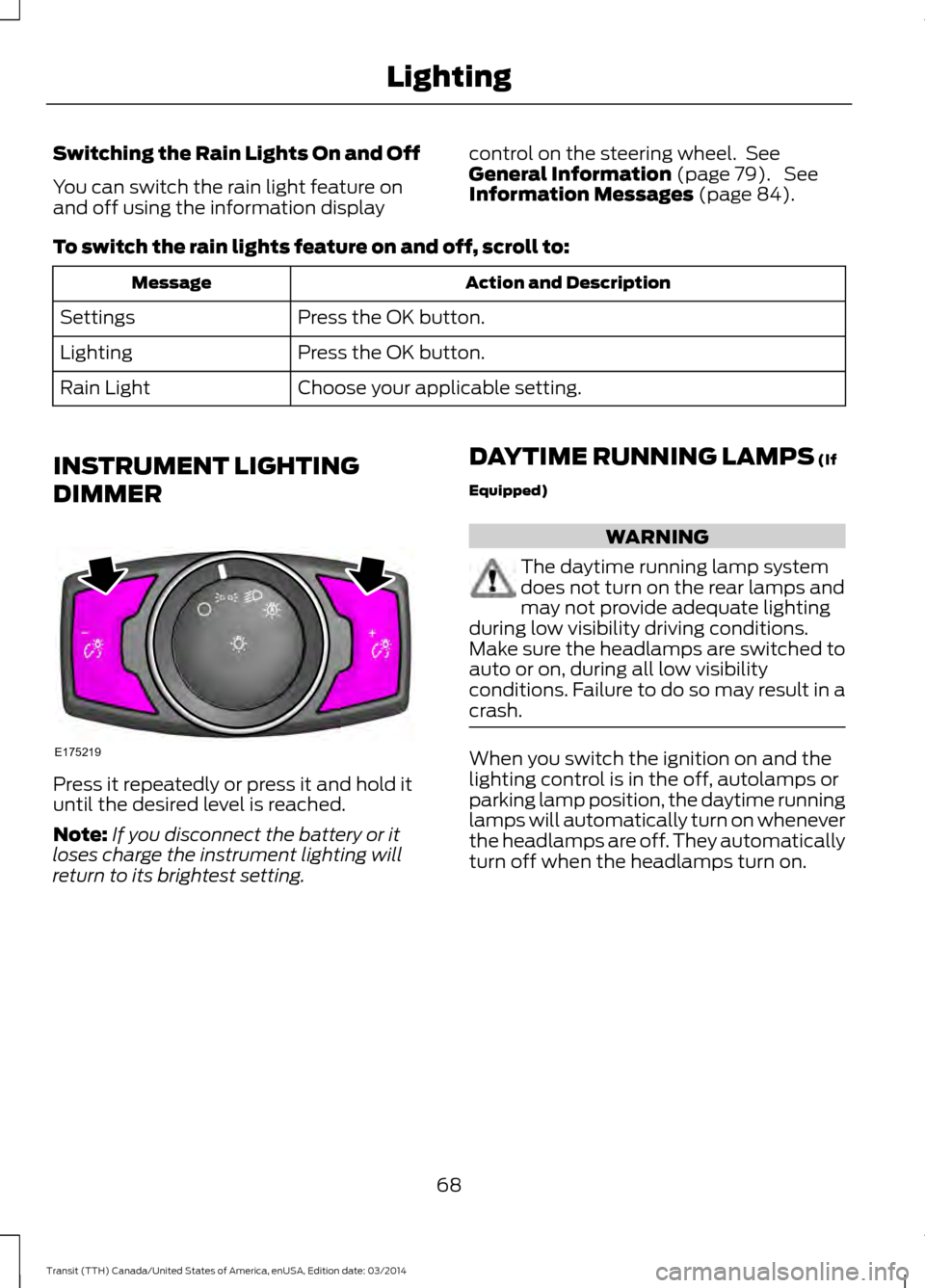
INSTRUMENT LIGHTING
DIMMER Press it repeatedly or press it and hold it
until the desired level is reached.
Note:
If you disconnect the battery or it
loses charge the instrument lighting will
return to its brightest setting. DAYTIME RUNNING LAMPS
(If
Equipped) WARNING
The daytime running lamp system
does not turn on the rear lamps and
may not provide adequate lighting
during low visibility driving conditions.
Make sure the headlamps are switched to
auto or on, during all low visibility
conditions. Failure to do so may result in a
crash. When you switch the ignition on and the
lighting control is in the off, autolamps or
parking lamp position, the daytime running
lamps will automatically turn on whenever
the headlamps are off. They automatically
turn off when the headlamps turn on.
68 Transit (TTH) Canada/United States of America, enUSA, Edition date: 03/2014 LightingE175219
Page 72 of 461
DIRECTION INDICATORS
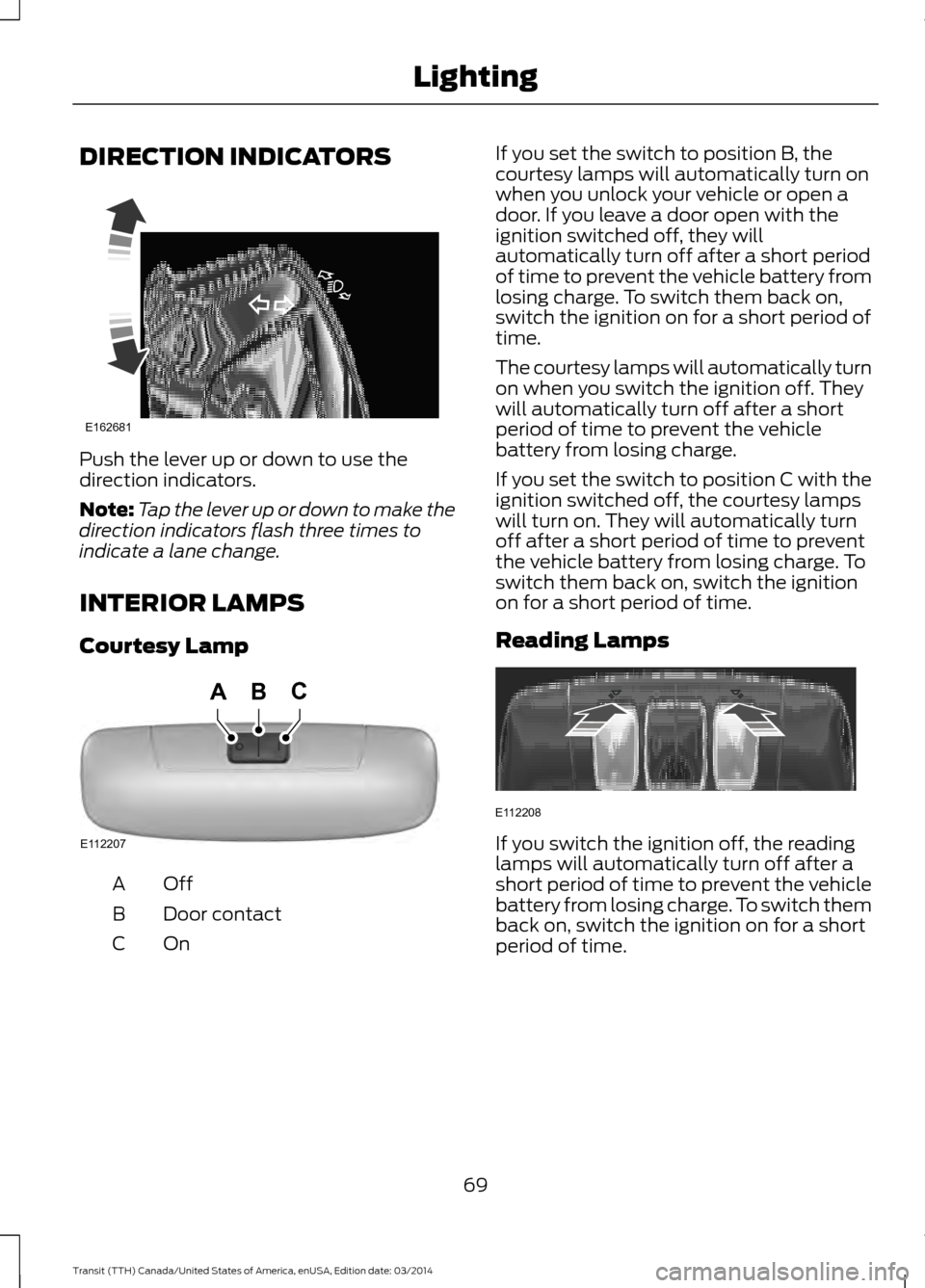
Push the lever up or down to use the
direction indicators.
Note:
Tap the lever up or down to make the
direction indicators flash three times to
indicate a lane change.
INTERIOR LAMPS
Courtesy Lamp OffA
Door contact
B
OnC If you set the switch to position B, the
courtesy lamps will automatically turn on
when you unlock your vehicle or open a
door. If you leave a door open with the
ignition switched off, they will
automatically turn off after a short period
of time to prevent the vehicle battery from
losing charge. To switch them back on,
switch the ignition on for a short period of
time.
The courtesy lamps will automatically turn
on when you switch the ignition off. They
will automatically turn off after a short
period of time to prevent the vehicle
battery from losing charge.
If you set the switch to position C with the
ignition switched off, the courtesy lamps
will turn on. They will automatically turn
off after a short period of time to prevent
the vehicle battery from losing charge. To
switch them back on, switch the ignition
on for a short period of time.
Reading Lamps
If you switch the ignition off, the reading
lamps will automatically turn off after a
short period of time to prevent the vehicle
battery from losing charge. To switch them
back on, switch the ignition on for a short
period of time.
69 Transit (TTH) Canada/United States of America, enUSA, Edition date: 03/2014 LightingE162681 E112207
BCA E112208
Page 73 of 461
POWER WINDOWS
WARNINGS
To avoid risk of injury, do not leave
children or pets unattended in your
vehicle.
When closing the power windows,
you should verify they are free of
obstructions and make sure that
children and pets are not in the proximity
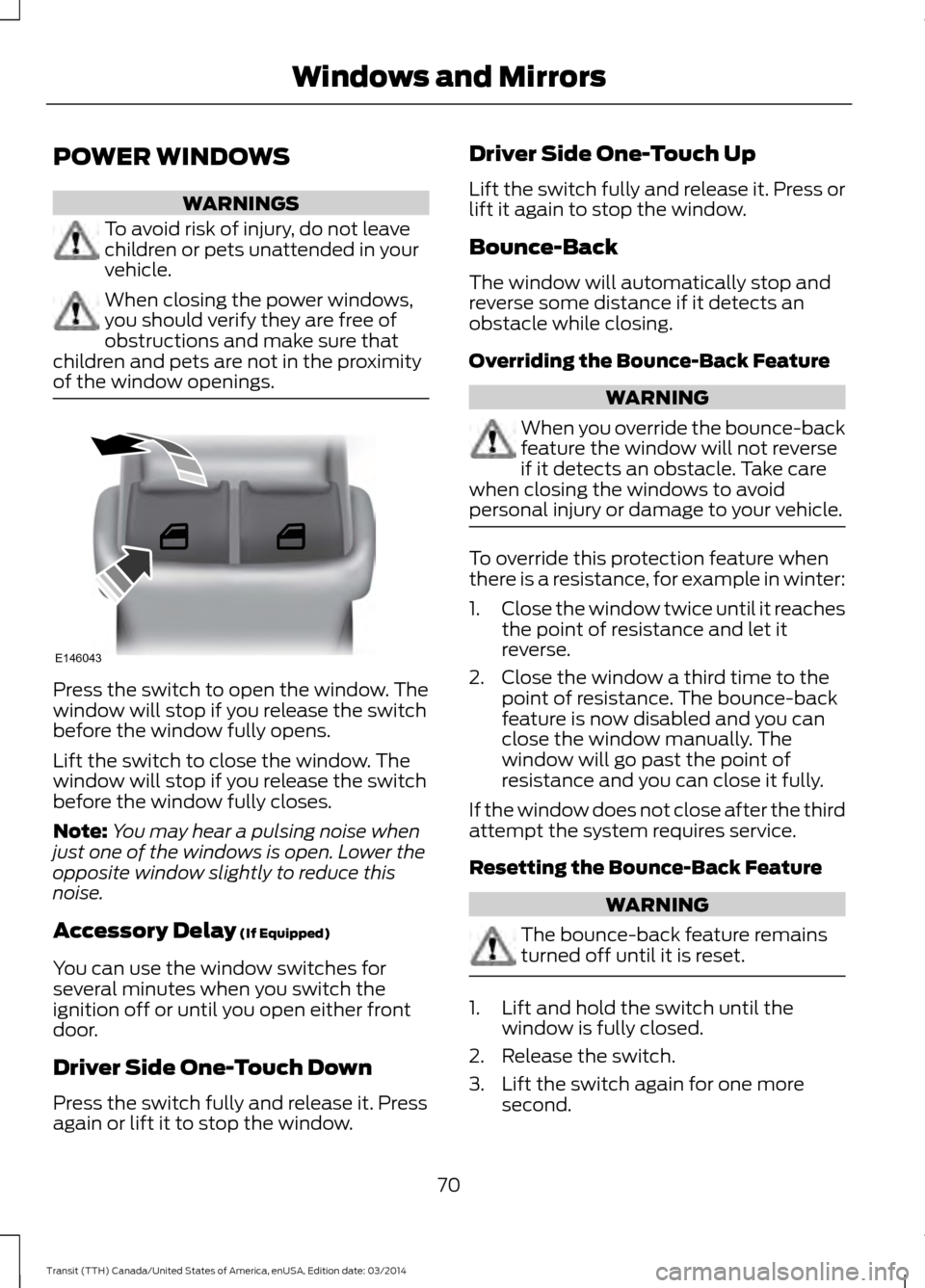
of the window openings. Press the switch to open the window. The
window will stop if you release the switch
before the window fully opens.
Lift the switch to close the window. The
window will stop if you release the switch
before the window fully closes.
Note:
You may hear a pulsing noise when
just one of the windows is open. Lower the
opposite window slightly to reduce this
noise.
Accessory Delay (If Equipped)
You can use the window switches for
several minutes when you switch the
ignition off or until you open either front
door.
Driver Side One-Touch Down
Press the switch fully and release it. Press
again or lift it to stop the window. Driver Side One-Touch Up
Lift the switch fully and release it. Press or
lift it again to stop the window.
Bounce-Back
The window will automatically stop and
reverse some distance if it detects an
obstacle while closing.
Overriding the Bounce-Back Feature
WARNING
When you override the bounce-back
feature the window will not reverse
if it detects an obstacle. Take care
when closing the windows to avoid
personal injury or damage to your vehicle. To override this protection feature when
there is a resistance, for example in winter:
1.
Close the window twice until it reaches
the point of resistance and let it
reverse.
2. Close the window a third time to the point of resistance. The bounce-back
feature is now disabled and you can
close the window manually. The
window will go past the point of
resistance and you can close it fully.
If the window does not close after the third
attempt the system requires service.
Resetting the Bounce-Back Feature WARNING
The bounce-back feature remains
turned off until it is reset.
1. Lift and hold the switch until the
window is fully closed.
2. Release the switch.
3. Lift the switch again for one more second.
70 Transit (TTH) Canada/United States of America, enUSA, Edition date: 03/2014 Windows and MirrorsE146043