ECO mode FORD TRANSIT 2015 5.G Owner's Manual
[x] Cancel search | Manufacturer: FORD, Model Year: 2015, Model line: TRANSIT, Model: FORD TRANSIT 2015 5.GPages: 461, PDF Size: 5.82 MB
Page 355 of 461
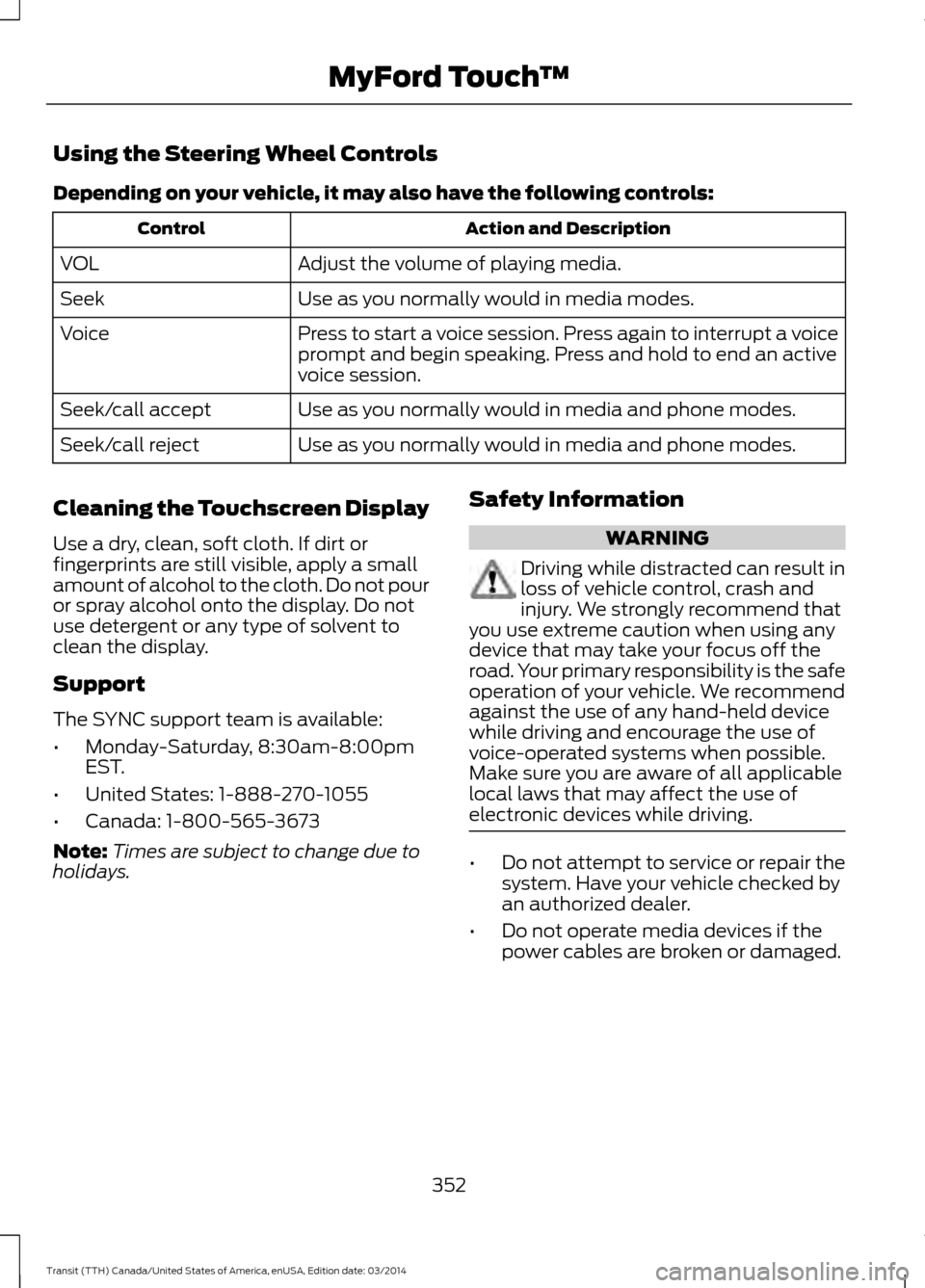
Using the Steering Wheel Controls
Depending on your vehicle, it may also have the following controls:
Action and Description
Control
Adjust the volume of playing media.
VOL
Use as you normally would in media modes.
Seek
Press to start a voice session. Press again to interrupt a voice
prompt and begin speaking. Press and hold to end an active
voice session.
Voice
Use as you normally would in media and phone modes.
Seek/call accept
Use as you normally would in media and phone modes.
Seek/call reject
Cleaning the Touchscreen Display
Use a dry, clean, soft cloth. If dirt or
fingerprints are still visible, apply a small
amount of alcohol to the cloth. Do not pour
or spray alcohol onto the display. Do not
use detergent or any type of solvent to
clean the display.
Support
The SYNC support team is available:
• Monday-Saturday, 8:30am-8:00pm
EST.
• United States: 1-888-270-1055
• Canada: 1-800-565-3673
Note: Times are subject to change due to
holidays. Safety Information WARNING
Driving while distracted can result in
loss of vehicle control, crash and
injury. We strongly recommend that
you use extreme caution when using any
device that may take your focus off the
road. Your primary responsibility is the safe
operation of your vehicle. We recommend
against the use of any hand-held device
while driving and encourage the use of
voice-operated systems when possible.
Make sure you are aware of all applicable
local laws that may affect the use of
electronic devices while driving. •
Do not attempt to service or repair the
system. Have your vehicle checked by
an authorized dealer.
• Do not operate media devices if the
power cables are broken or damaged.
352 Transit (TTH) Canada/United States of America, enUSA, Edition date: 03/2014 MyFord Touch
™
Page 362 of 461
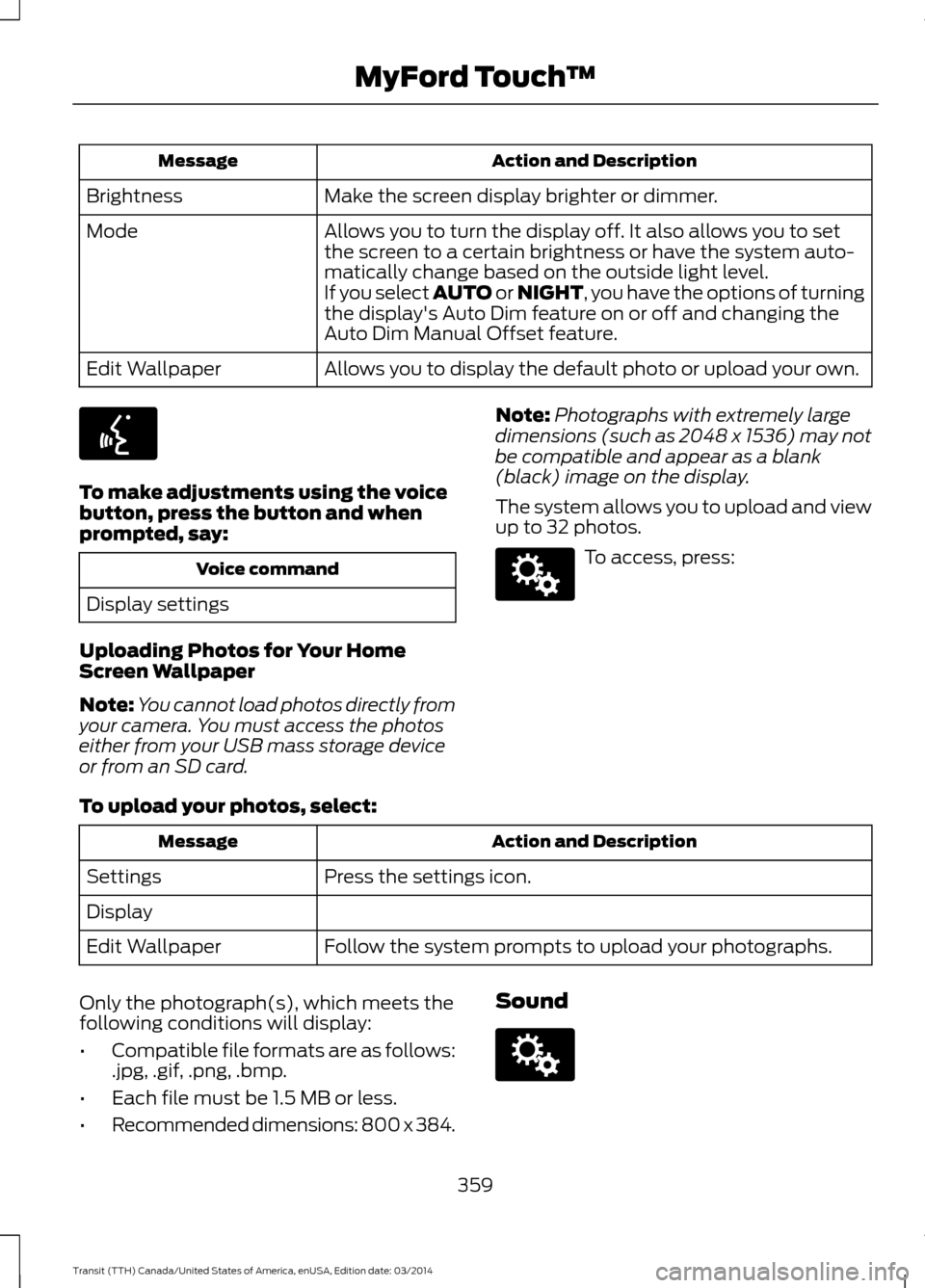
Action and Description
Message
Make the screen display brighter or dimmer.
Brightness
Allows you to turn the display off. It also allows you to set
the screen to a certain brightness or have the system auto-
matically change based on the outside light level.
Mode
If you select AUTO or NIGHT, you have the options of turning
the display's Auto Dim feature on or off and changing the
Auto Dim Manual Offset feature.
Allows you to display the default photo or upload your own.
Edit Wallpaper To make adjustments using the voice
button, press the button and when
prompted, say:
Voice command
Display settings
Uploading Photos for Your Home
Screen Wallpaper
Note: You cannot load photos directly from
your camera. You must access the photos
either from your USB mass storage device
or from an SD card. Note:
Photographs with extremely large
dimensions (such as 2048 x 1536) may not
be compatible and appear as a blank
(black) image on the display.
The system allows you to upload and view
up to 32 photos. To access, press:
To upload your photos, select: Action and Description
Message
Press the settings icon.
Settings
Display
Follow the system prompts to upload your photographs.
Edit Wallpaper
Only the photograph(s), which meets the
following conditions will display:
• Compatible file formats are as follows:
.jpg, .gif, .png, .bmp.
• Each file must be 1.5 MB or less.
• Recommended dimensions: 800 x 384. Sound
359
Transit (TTH) Canada/United States of America, enUSA, Edition date: 03/2014 MyFord Touch
™E142599 E142607 E142607
Page 385 of 461
This feature allows you to plug in media
playing devices, memory sticks, flash drives
or thumb drives, and charge devices if they
support this feature.
In order to playback video from your iPod
or iPhone, you must have a special
combination USB/RCA composite video
cable (which you can buy from Apple).
When you connect the cable to your iPod
or iPhone, plug the other end into both the
RCA jacks and the USB port.
Playing Music from Your Device
Note:
The system is capable of indexing up
to 30,000 songs. Insert your device and select:
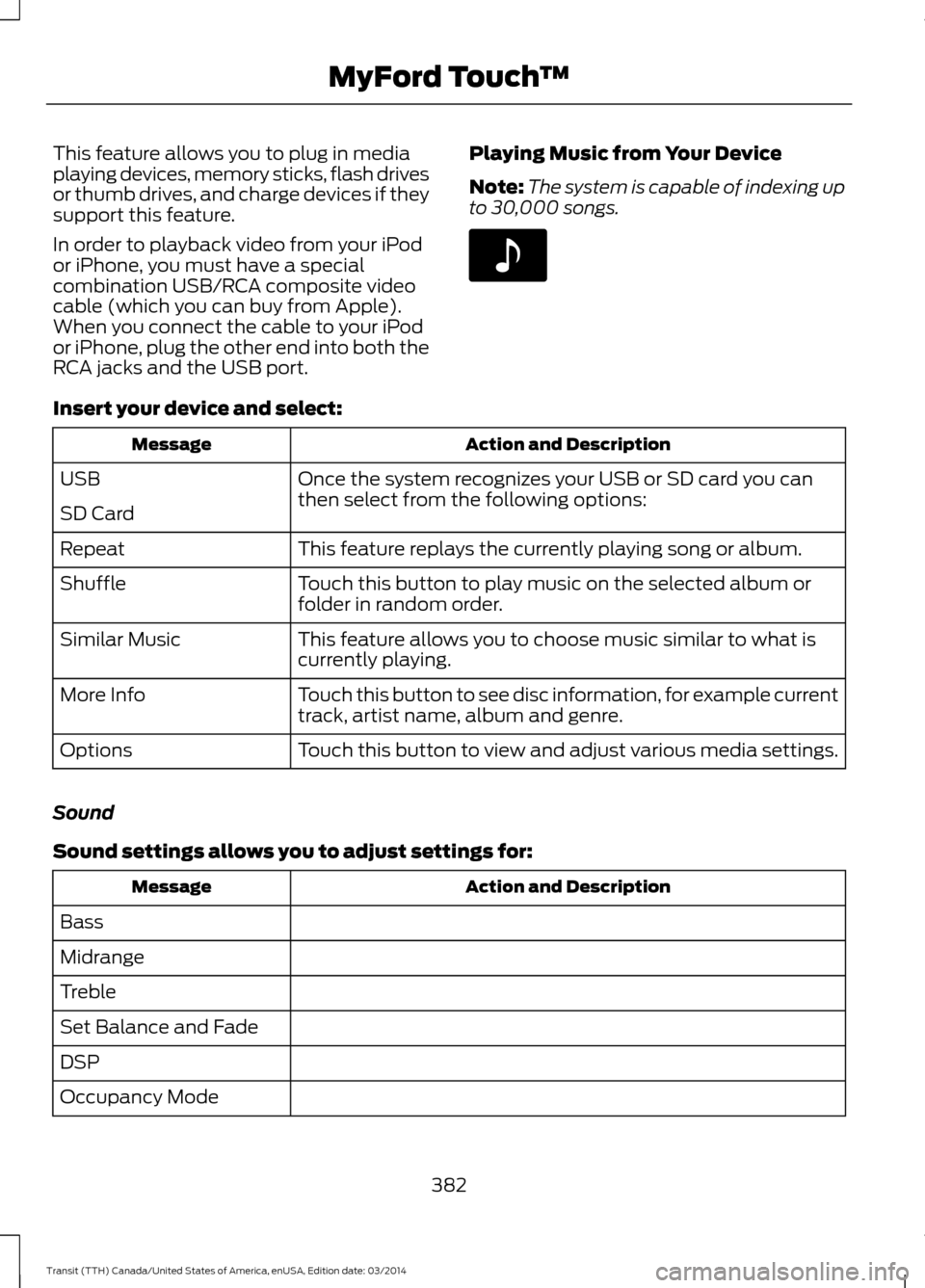
Action and Description
Message
Once the system recognizes your USB or SD card you can
then select from the following options:
USB
SD Card
This feature replays the currently playing song or album.
Repeat
Touch this button to play music on the selected album or
folder in random order.
Shuffle
This feature allows you to choose music similar to what is
currently playing.
Similar Music
Touch this button to see disc information, for example current
track, artist name, album and genre.
More Info
Touch this button to view and adjust various media settings.
Options
Sound
Sound settings allows you to adjust settings for: Action and Description
Message
Bass
Midrange
Treble
Set Balance and Fade
DSP
Occupancy Mode
382Transit (TTH) Canada/United States of America, enUSA, Edition date: 03/2014 MyFord Touch
™E142611
Page 391 of 461
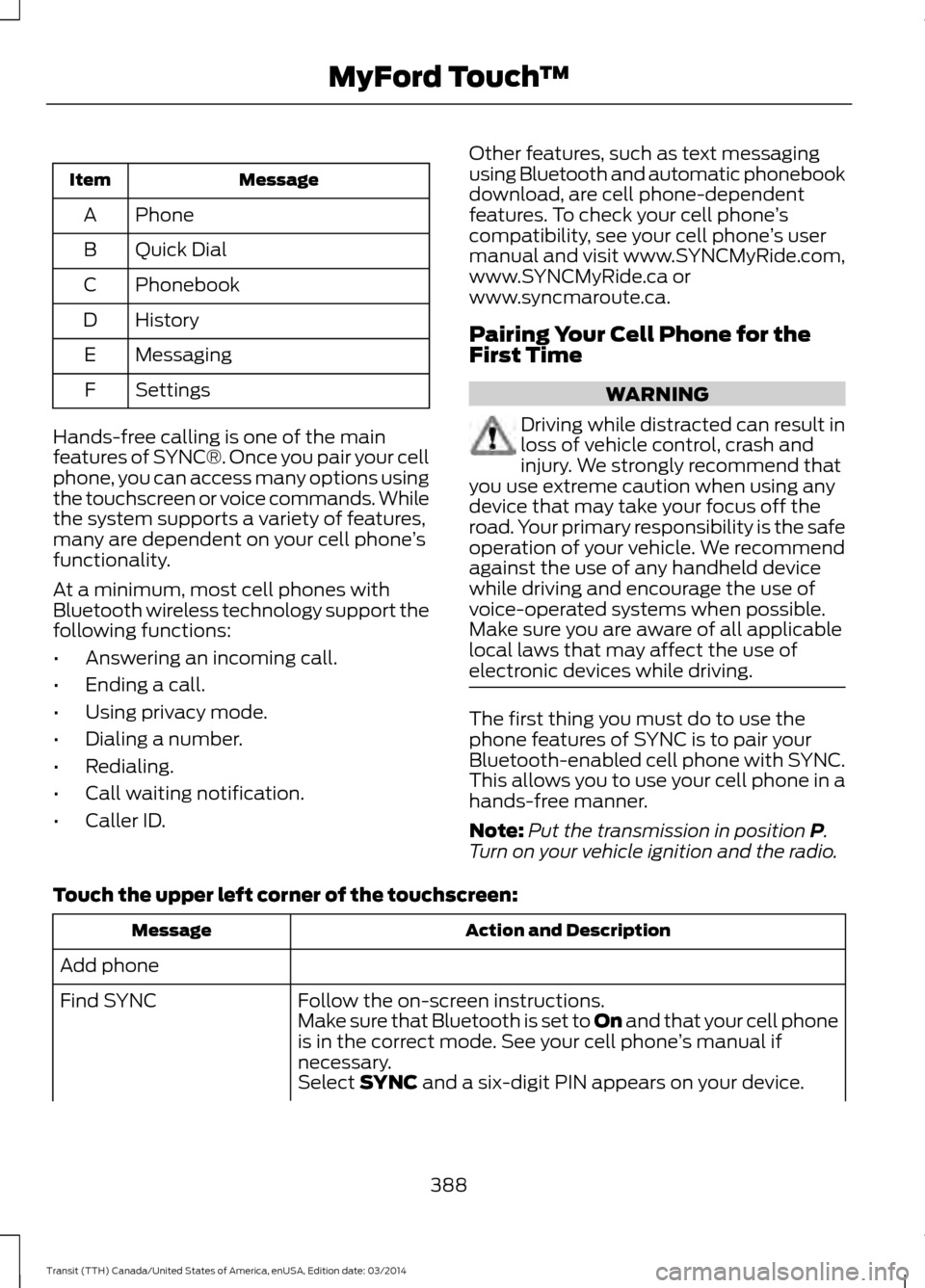
Message
Item
Phone
A
Quick Dial
B
Phonebook
C
History
D
Messaging
E
Settings
F
Hands-free calling is one of the main
features of SYNC®. Once you pair your cell
phone, you can access many options using
the touchscreen or voice commands. While
the system supports a variety of features,
many are dependent on your cell phone ’s
functionality.
At a minimum, most cell phones with
Bluetooth wireless technology support the
following functions:
• Answering an incoming call.
• Ending a call.
• Using privacy mode.
• Dialing a number.
• Redialing.
• Call waiting notification.
• Caller ID. Other features, such as text messaging
using Bluetooth and automatic phonebook
download, are cell phone-dependent
features. To check your cell phone
’s
compatibility, see your cell phone ’s user
manual and visit www.SYNCMyRide.com,
www.SYNCMyRide.ca or
www.syncmaroute.ca.
Pairing Your Cell Phone for the
First Time WARNING
Driving while distracted can result in
loss of vehicle control, crash and
injury. We strongly recommend that
you use extreme caution when using any
device that may take your focus off the
road. Your primary responsibility is the safe
operation of your vehicle. We recommend
against the use of any handheld device
while driving and encourage the use of
voice-operated systems when possible.
Make sure you are aware of all applicable
local laws that may affect the use of
electronic devices while driving. The first thing you must do to use the
phone features of SYNC is to pair your
Bluetooth-enabled cell phone with SYNC.
This allows you to use your cell phone in a
hands-free manner.
Note:
Put the transmission in position P.
Turn on your vehicle ignition and the radio.
Touch the upper left corner of the touchscreen: Action and Description
Message
Add phone Follow the on-screen instructions.
Find SYNC
Make sure that Bluetooth is set to On and that your cell phone
is in the c
orrect mode. See your cell phone ’s manual if
necessary.
Select
SYNC and a six-digit PIN appears on your device.
388 Transit (TTH) Canada/United States of America, enUSA, Edition date: 03/2014 MyFord Touch
™
Page 408 of 461
Note:
The SD card slot is spring-loaded. To
remove the SD card, just push the card in
and release it. Do not attempt to pull the
card out to remove it; this could cause
damage.
Your navigation system is comprised of
two main features, destination mode and
map mode.
To set a destination, press the green corner
of your touchscreen, then the Dest button
when it appears. See Setting a
Destination later in this chapter.
To view the navigation map and your
vehicle's current location, touch the green
bar in the upper right-hand corner of the
touchscreen, or, press Dest, then Map. See
Map mode
later in this chapter.
Setting a Destination
Press the green corner of your touchscreen,
then the
Dest button when it appears.
Choose any of the following:
Destination Message
My Home
Favorites
Previous Destinations
Point of Interest
Emergency
Street Address
Intersection
City Center
Map
Edit Route
Cancel Route 1. Enter the necessary information into
the highlighted text fields (in any
order). For address destination entry,
the Go! button appears once you enter
all the necessary information. Pressing
the
Go! button makes the address
location appear on the map. If you
choose Previous Destination, the last
20 destinations you have selected
appear.
2. Select
Set as Dest to make this your
destination. You can also choose to set
this as a waypoint (have the system
route to this point on the way to your
current destination) or save it as a
favorite. The system considers any
Avoid Areas selections in its route
calculation.
3. Choose from up to three different types
of routes, and then select Start Route.
• Fastest: Uses the fastest moving roads
possible.
• Shortest: Uses the shortest distance
possible.
• Eco Route: Uses the most fuel-efficient
route.
You can cancel the route or have the
system demo the route for you. Select
Route Prefs to set route preferences like
avoiding freeways, tollroads, ferries and
car trains as well as to use or not use
high-occupancy vehicle lanes.
(High-occupancy vehicle lanes are also
known as carpool or diamond lanes.
People who ride in buses, vanpools or
carpools use these lanes.)
Note: If your vehicle is on a recognized road
and you do not press the
Start Route
button, the system defaults to the Fastest
Route option and begins guidance.
405 Transit (TTH) Canada/United States of America, enUSA, Edition date: 03/2014 MyFord Touch
™
Page 412 of 461
Press Add to program an entry. Once you
make a selection, the system tries to avoid
the area(s) if possible for all routes. To
delete a selection, choose the listing on
the screen. When the screen changes to
Avoid Areas Edit
, you can press Delete
at the bottom right of the screen.
Map Mode
Press the green bar in the upper right area
of the touchscreen to view map mode. Map
mode shows advanced viewing comprised
of both 2D city maps as well as 3D
landmarks (when available).
2D city maps show detailed outlines of
buildings, visible land use and land
elements and detailed railway
infrastructure for the most essential cities
around the globe. These maps also contain
features, such as town blocks, building
footprints and railways.
3D landmarks appear as clear, visible
objects that are typically recognizable and
have a certain tourist value. The 3D
landmarks appear in 3D map mode only.
Coverage varies and improves with
updated map releases. Change the appearance of the map display
by repeatedly pressing the arrow button in
the upper left corner of the screen. It
toggles between three different map
modes: Heading up, North up and 3D. Heading up (2D map)
always
shows the direction of forward
travel to be upward on the screen.
This view is available for map
scales up to 2.5 miles (4 kilometers). The
system remembers this setting for larger
map scales, but shows the map in North
up only. If the scale returns below this level,
the system restores Heading up. North up (2D map) always shows
the northern direction to be
upward on the screen.
3D map mode
provides an
elevated perspective of the map.
This viewing angle can be adjusted
and the map can be rotated 180
degrees by touching the map twice, and
then dragging your finger along the shaded
bar with arrows at the bottom of the map.
View
switches between full map, street
list and exit view in route guidance.
Menu
displays a pop-up box that allows
direct access to navigation settings,
View/Edit Route, SIRIUS Travel Link,
Guidance Mute and Cancel Route. Press the speaker button on the
map to mute route guidance.
When the light on the button
illuminates, the feature is on. The speaker
button appears on the map only when
route guidance is active. Re-center the map by pressing
this icon whenever you scroll the
map away from your vehicle
’s
current location.
Auto Zoom
Press the green bar to access map mode,
then select the + or - zoom button to bring
up the zoom level and Auto buttons on the
touchscreen. When you press Auto, Auto
Zoom turns on and Auto displays in the
bottom left corner of the screen in the map
409 Transit (TTH) Canada/United States of America, enUSA, Edition date: 03/2014 MyFord Touch
™E174016 E142642 E142643 E142644 E174017 E146188
Page 455 of 461
Essential Towing Checks...........................164
Before Towing a Trailer..................................... 169
Launching or Retrieving a Boat or Personal Water Craft (PWC)........................................ 170
Safety Chains....................................................... 165
Tow Hitch............................................................... 165
Trailer Brakes........................................................ 165
Trailer Lamps....................................................... 169
Trailer Towing Connector................................ 164
When Towing a Trailer...................................... 169
Event Data Recording See: Data Recording.............................................. 9
Export Unique Options...................................11
Extended Service Plan (ESP)
..................431
SERVICE PLANS (CANADA ONLY)............432
SERVICE PLANS (U.S. Only).......................... 431
Exterior Mirrors..................................................71 Fold-Away Exterior Mirrors................................. 71
Power Exterior Mirrors.......................................... 71
F
Fastening the Safety Belts.........................28 Safety Belt Extension Assembly....................30
Safety Belt Locking Modes............................... 29
Using Safety Belts During Pregnancy...........28
Floor Mats
........................................................174
Ford Credit.........................................................10
(U.S. Only)............................................................... 10
Fuel and Refueling.........................................111
Fuel C
onsumption........................................122
Calculating Fuel Economy............................... 122
Filling the Fuel Tank........................................... 122
Fuel Filter - Gasoline....................................212
Fuel Qu
ality - Diesel......................................113
Biodiesel.................................................................. 114
Diesel Fuel Additives ......................................... 115
Fuel Requirements - Choosing The Right Fuel: Vehicles Operated Where
Ultra-Low Sulfur Diesel Fuel Is Not
Required ............................................................ 113
Fuel Requirements - Choosing the Right Fuel: Vehicles Operated Where
Ultra-Low Sulfur Diesel Fuel is Required
(United States/Canada/Puerto Rico/U.S.
Virgin Islands and Other Locales)............113 Fuel Quality - Gasoline................................112
Choosing the Right Fuel With a Flex Fuel
Vehicle (If Equipped)..................................... 112
Choosing the Right Fuel Without a Flex Fuel Vehicle (If Equipped)..................................... 112
Octane Recommendations............................. 112
Fuel Shutoff.....................................................177
Fuse Box Locations......................................187 Body Control Module Fuse Box..................... 187
Engine Compartment Fuse Box.................... 187
Passenger Compartment Fuse Box.............187
Pre-fuse Box......................................................... 187
Fuses.................................................................187
Fuse Specification Chart...........................188 Body Control Module......................................... 197
Engine Compartment Fuse Box................... 188
Passenger Compartment Fuse Panel.........192
Pre-fuse Box......................................................... 195
G
Gauges................................................................73 Engine Coolant Temperature Gauge.............73
Fuel Gauge.............................................................. 74
Information Display............................................. 73
Tripmeter Reset and Distance to Empty................................................................... 74
General Information on Radio Frequencies...................................................44
General Maintenance Information........433 Multi-point Inspection..................................... 435
Owner Checks and Services.......................... 434
Protecting Your Investment........................... 433
Why Maintain Your Vehicle?.......................... 433
Why Maintain Your Vehicle at Your Dealership?..................................................... 433
Getting Assistance Outside the U.S. and Canada..........................................................184
G
etting the Services You Need.................181
Away From Home................................................ 181
H
Handbrake See: Parking Brake............................................. 138
Hazard Warning Flashers...........................177
452 Transit (TTH) Canada/United States of America, enUSA, Edition date: 03/2014 Index