phone FORD TRANSIT 2016 5.G Workshop Manual
[x] Cancel search | Manufacturer: FORD, Model Year: 2016, Model line: TRANSIT, Model: FORD TRANSIT 2016 5.GPages: 411, PDF Size: 5.65 MB
Page 355 of 411
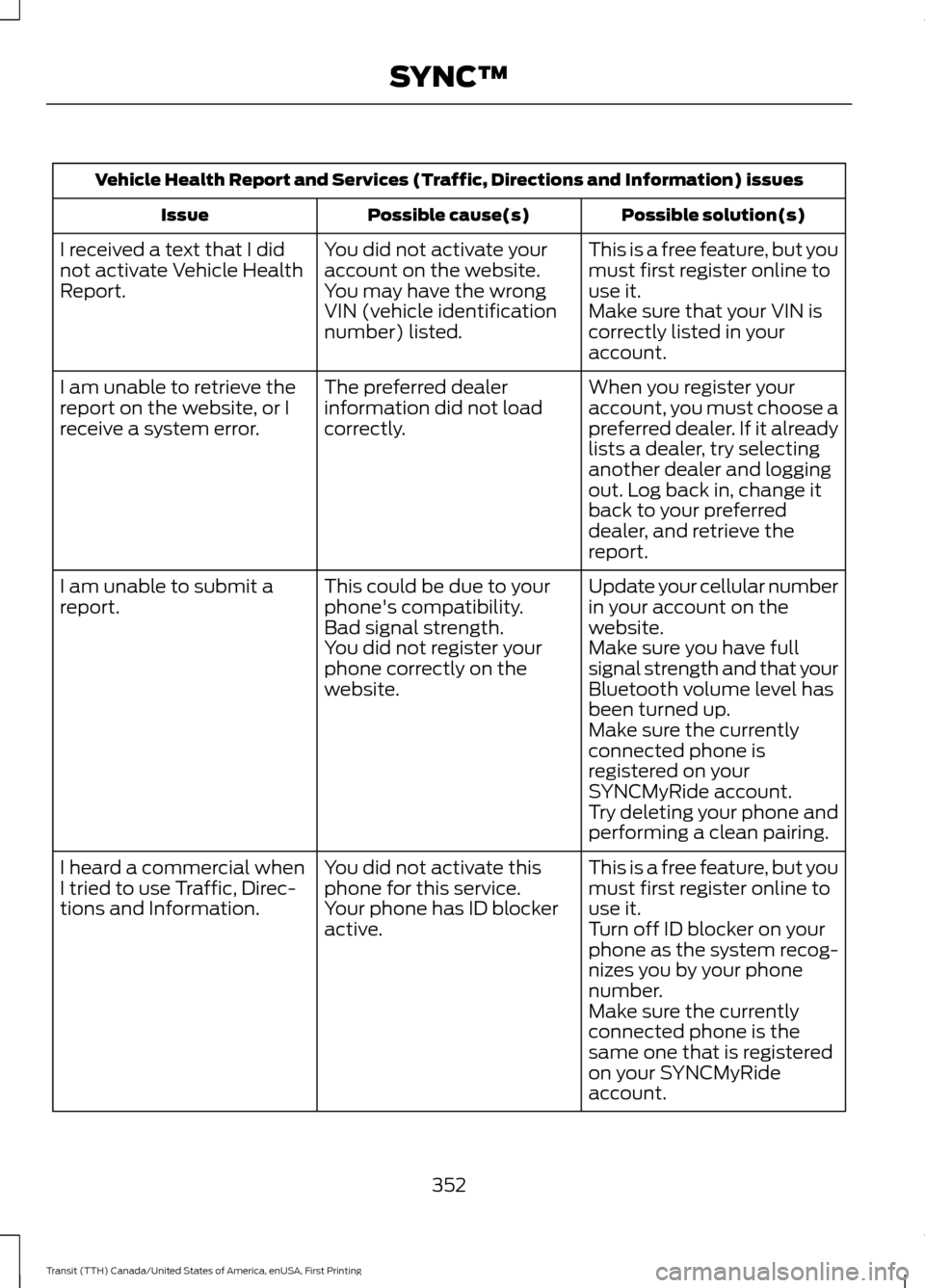
Vehicle Health Report and Services (Traffic, Directions and Information) issues
Possible solution(s)
Possible cause(s)
Issue
This is a free feature, but you
must first register online to
use it.
You did not activate your
account on the website.
You may have the wrong
VIN (vehicle identification
number) listed.
I received a text that I did
not activate Vehicle Health
Report.
Make sure that your VIN is
correctly listed in your
account.
When you register your
account, you must choose a
preferred dealer. If it already
lists a dealer, try selecting
another dealer and logging
out. Log back in, change it
back to your preferred
dealer, and retrieve the
report.
The preferred dealer
information did not load
correctly.
I am unable to retrieve the
report on the website, or I
receive a system error.
Update your cellular number
in your account on the
website.
This could be due to your
phone's compatibility.
Bad signal strength.
I am unable to submit a
report.
Make sure you have full
signal strength and that your
Bluetooth volume level has
been turned up.
You did not register your
phone correctly on the
website.
Make sure the currently
connected phone is
registered on your
SYNCMyRide account.
Try deleting your phone and
performing a clean pairing.
This is a free feature, but you
must first register online to
use it.
You did not activate this
phone for this service.
Your phone has ID blocker
active.
I heard a commercial when
I tried to use Traffic, Direc-
tions and Information.
Turn off ID blocker on your
phone as the system recog-
nizes you by your phone
number.
Make sure the currently
connected phone is the
same one that is registered
on your SYNCMyRide
account.
352
Transit (TTH) Canada/United States of America, enUSA, First Printing SYNC™
Page 356 of 411
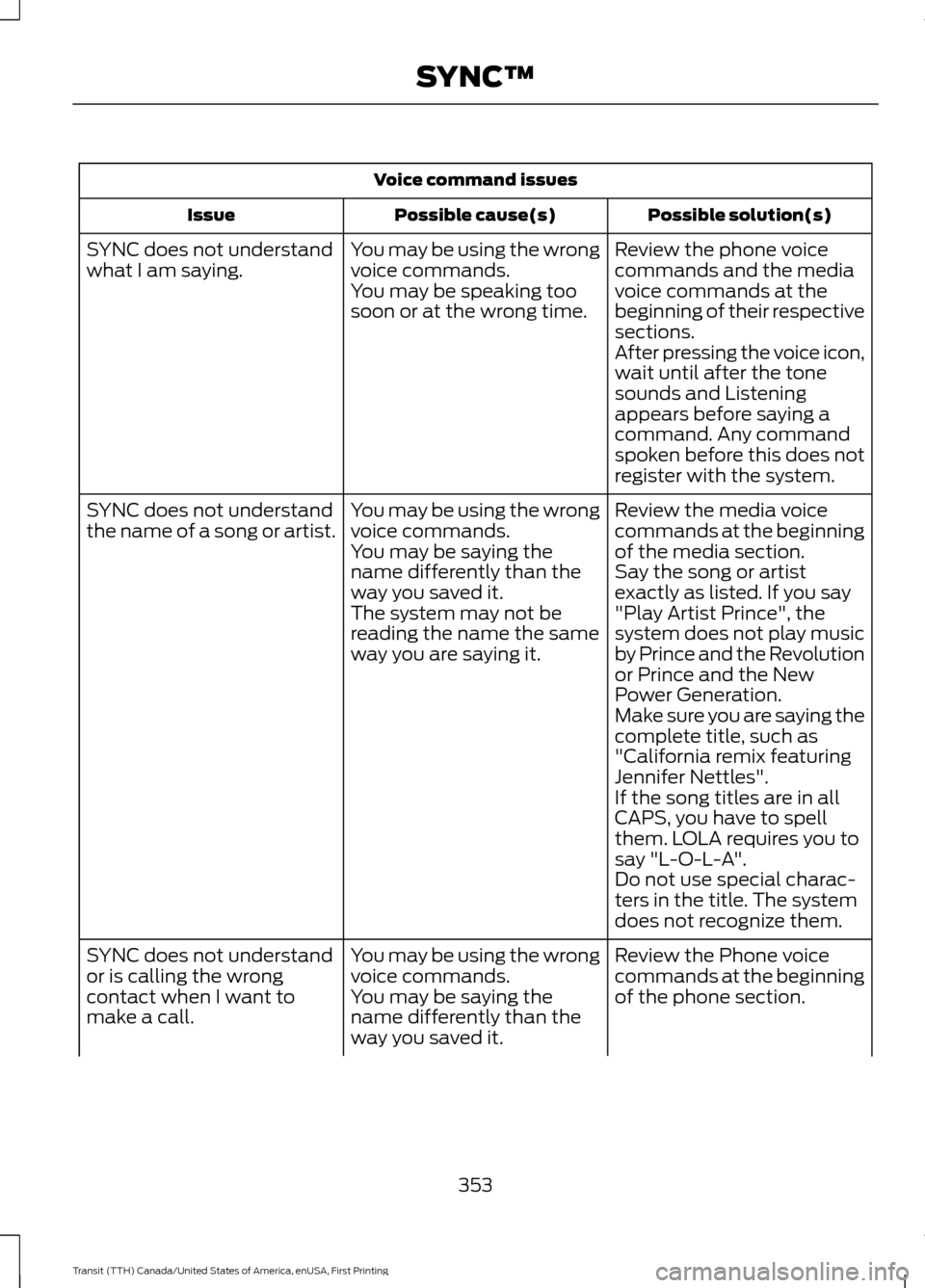
Voice command issues
Possible solution(s)
Possible cause(s)
Issue
Review the phone voice
commands and the media
voice commands at the
beginning of their respective
sections.
You may be using the wrong
voice commands.
You may be speaking too
soon or at the wrong time.
SYNC does not understand
what I am saying.
After pressing the voice icon,
wait until after the tone
sounds and Listening
appears before saying a
command. Any command
spoken before this does not
register with the system.
Review the media voice
commands at the beginning
of the media section.
You may be using the wrong
voice commands.
You may be saying the
name differently than the
way you saved it.
SYNC does not understand
the name of a song or artist.
Say the song or artist
exactly as listed. If you say
"Play Artist Prince", the
system does not play music
by Prince and the Revolution
or Prince and the New
Power Generation.
The system may not be
reading the name the same
way you are saying it.
Make sure you are saying the
complete title, such as
"California remix featuring
Jennifer Nettles".
If the song titles are in all
CAPS, you have to spell
them. LOLA requires you to
say "L-O-L-A".
Do not use special charac-
ters in the title. The system
does not recognize them.
Review the Phone voice
commands at the beginning
of the phone section.
You may be using the wrong
voice commands.
You may be saying the
name differently than the
way you saved it.
SYNC does not understand
or is calling the wrong
contact when I want to
make a call.
353
Transit (TTH) Canada/United States of America, enUSA, First Printing SYNC™
Page 357 of 411
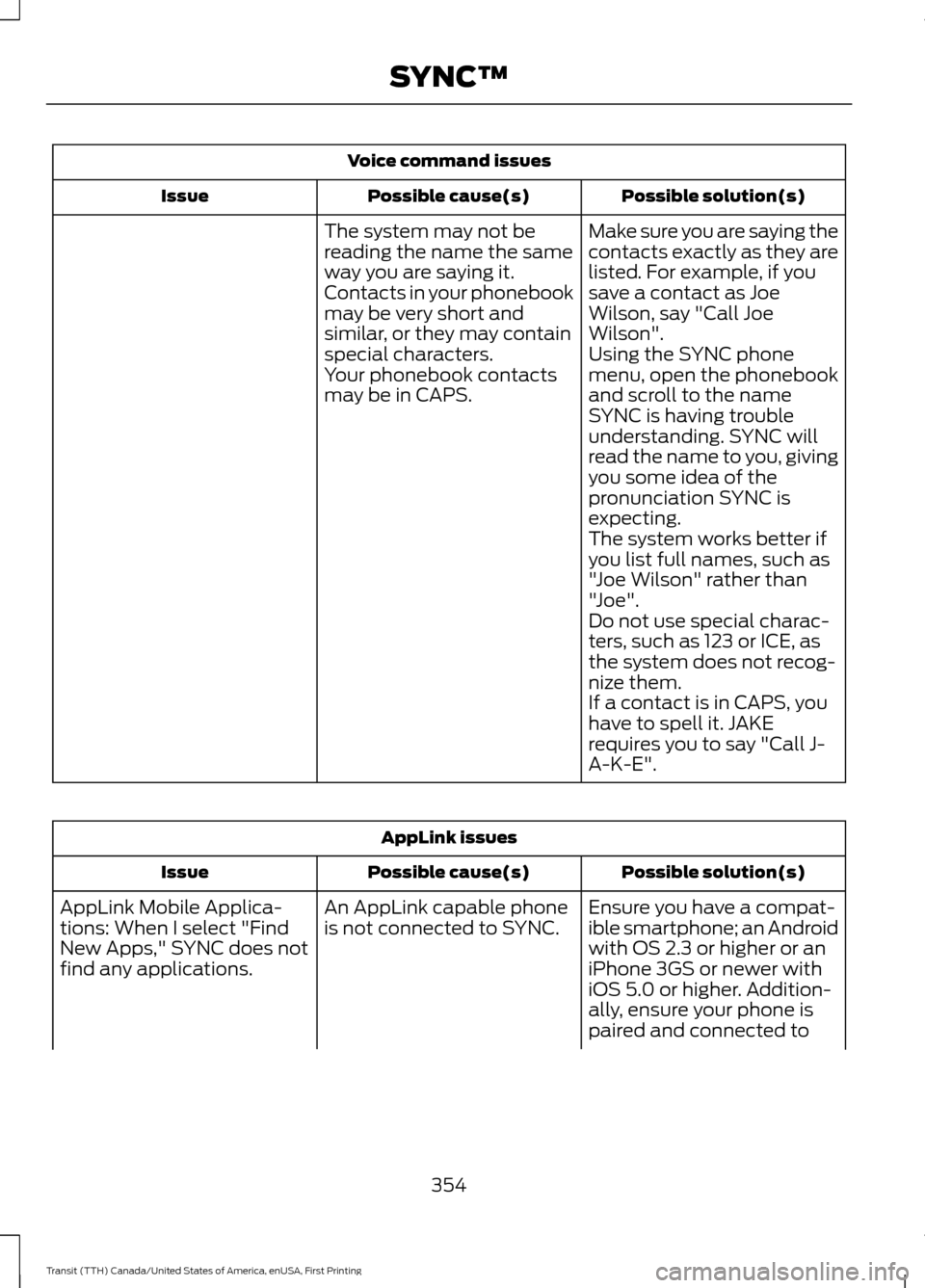
Voice command issues
Possible solution(s)
Possible cause(s)
Issue
Make sure you are saying the
contacts exactly as they are
listed. For example, if you
save a contact as Joe
Wilson, say "Call Joe
Wilson".
The system may not be
reading the name the same
way you are saying it.
Contacts in your phonebook
may be very short and
similar, or they may contain
special characters.
Using the SYNC phone
menu, open the phonebook
and scroll to the name
SYNC is having trouble
understanding. SYNC will
read the name to you, giving
you some idea of the
pronunciation SYNC is
expecting.
Your phonebook contacts
may be in CAPS.
The system works better if
you list full names, such as
"Joe Wilson" rather than
"Joe".
Do not use special charac-
ters, such as 123 or ICE, as
the system does not recog-
nize them.
If a contact is in CAPS, you
have to spell it. JAKE
requires you to say "Call J-
A-K-E". AppLink issues
Possible solution(s)
Possible cause(s)
Issue
Ensure you have a compat-
ible smartphone; an Android
with OS 2.3 or higher or an
iPhone 3GS or newer with
iOS 5.0 or higher. Addition-
ally, ensure your phone is
An AppLink capable phone
is not connected to SYNC.
AppLink Mobile Applica-
tions: When I select "Find
New Apps," SYNC does not
find any applications.
paired and connected to
354
Transit (TTH) Canada/United States of America, enUSA, First Printing SYNC™
Page 358 of 411
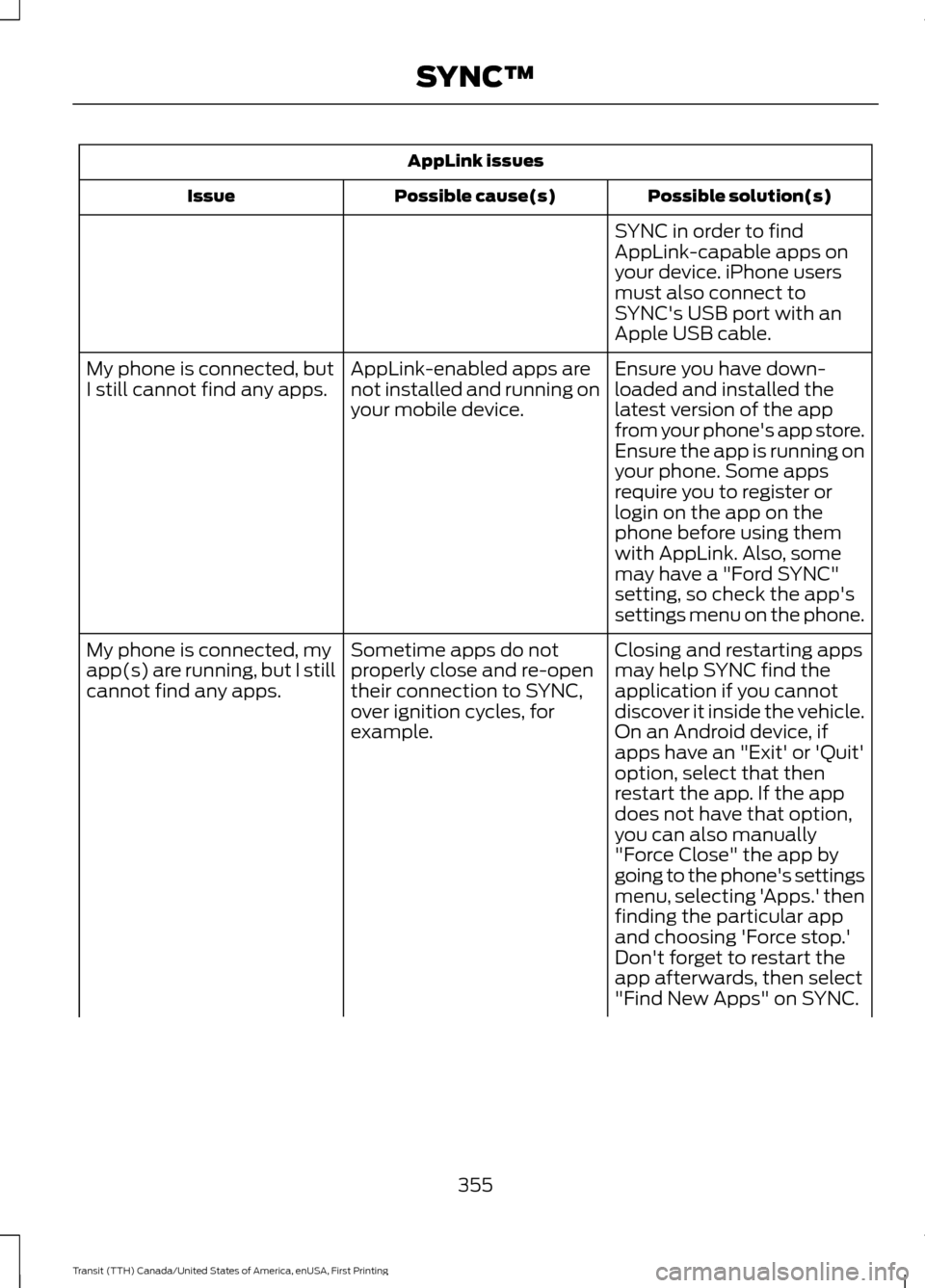
AppLink issues
Possible solution(s)
Possible cause(s)
Issue
SYNC in order to find
AppLink-capable apps on
your device. iPhone users
must also connect to
SYNC's USB port with an
Apple USB cable.
Ensure you have down-
loaded and installed the
latest version of the app
from your phone's app store.
Ensure the app is running on
your phone. Some apps
AppLink-enabled apps are
not installed and running on
your mobile device.
My phone is connected, but
I still cannot find any apps.
require you to register or
login on the app on the
phone before using them
with AppLink. Also, some
may have a "Ford SYNC"
setting, so check the app's
settings menu on the phone.
Closing and restarting apps
may help SYNC find the
application if you cannot
discover it inside the vehicle.
On an Android device, if
apps have an "Exit' or 'Quit'
Sometime apps do not
properly close and re-open
their connection to SYNC,
over ignition cycles, for
example.
My phone is connected, my
app(s) are running, but I still
cannot find any apps.
option, select that then
restart the app. If the app
does not have that option,
you can also manually
"Force Close" the app by
going to the phone's settings
menu, selecting 'Apps.' then
finding the particular app
and choosing 'Force stop.'
Don't forget to restart the
app afterwards, then select
"Find New Apps" on SYNC.
355
Transit (TTH) Canada/United States of America, enUSA, First Printing SYNC™
Page 359 of 411
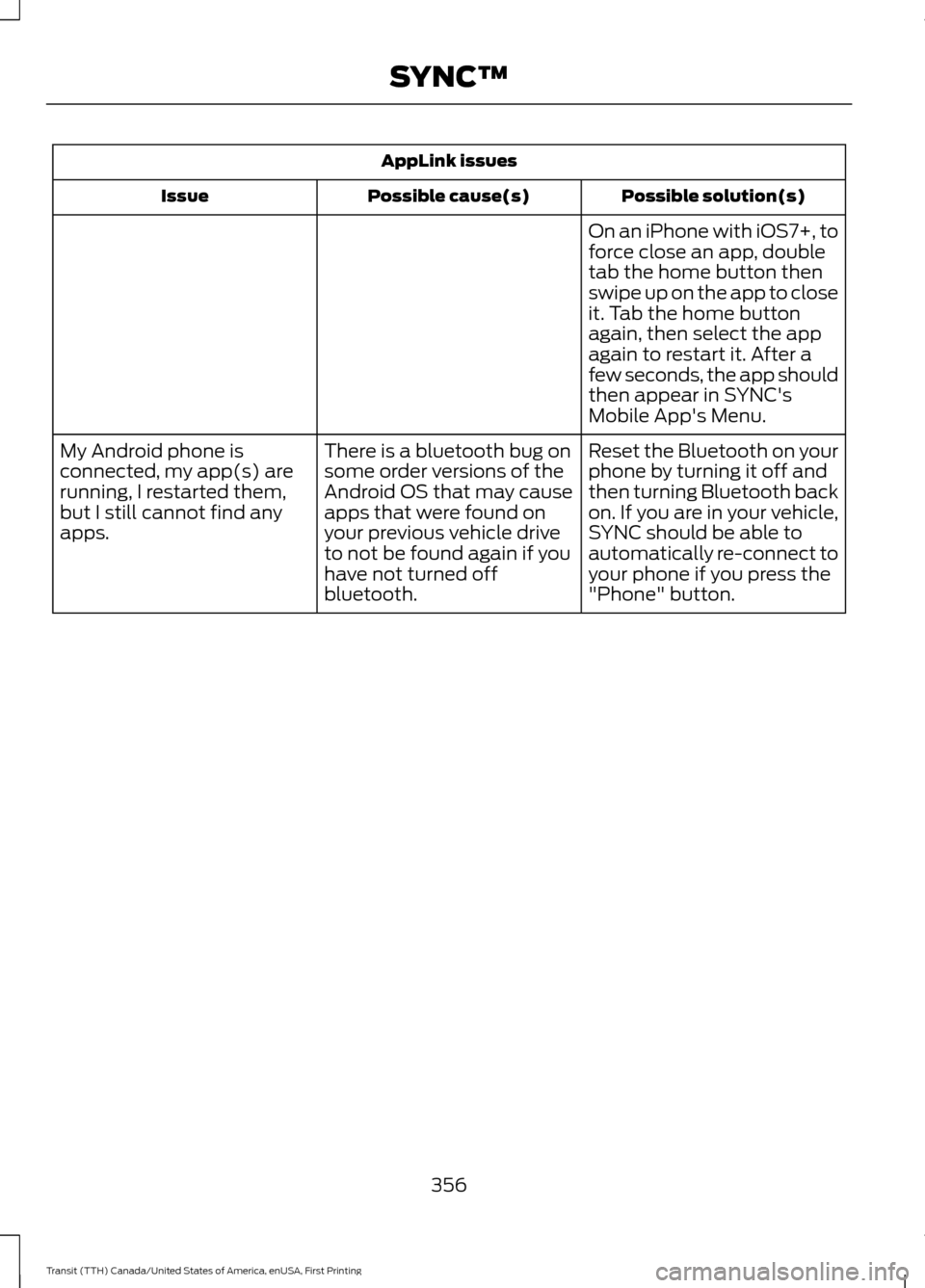
AppLink issues
Possible solution(s)
Possible cause(s)
Issue
On an iPhone with iOS7+, to
force close an app, double
tab the home button then
swipe up on the app to close
it. Tab the home button
again, then select the app
again to restart it. After a
few seconds, the app should
then appear in SYNC's
Mobile App's Menu.
Reset the Bluetooth on your
phone by turning it off and
then turning Bluetooth back
on. If you are in your vehicle,
SYNC should be able to
automatically re-connect to
your phone if you press the
"Phone" button.
There is a bluetooth bug on
some order versions of the
Android OS that may cause
apps that were found on
your previous vehicle drive
to not be found again if you
have not turned off
bluetooth.
My Android phone is
connected, my app(s) are
running, I restarted them,
but I still cannot find any
apps.
356
Transit (TTH) Canada/United States of America, enUSA, First Printing SYNC™
Page 360 of 411
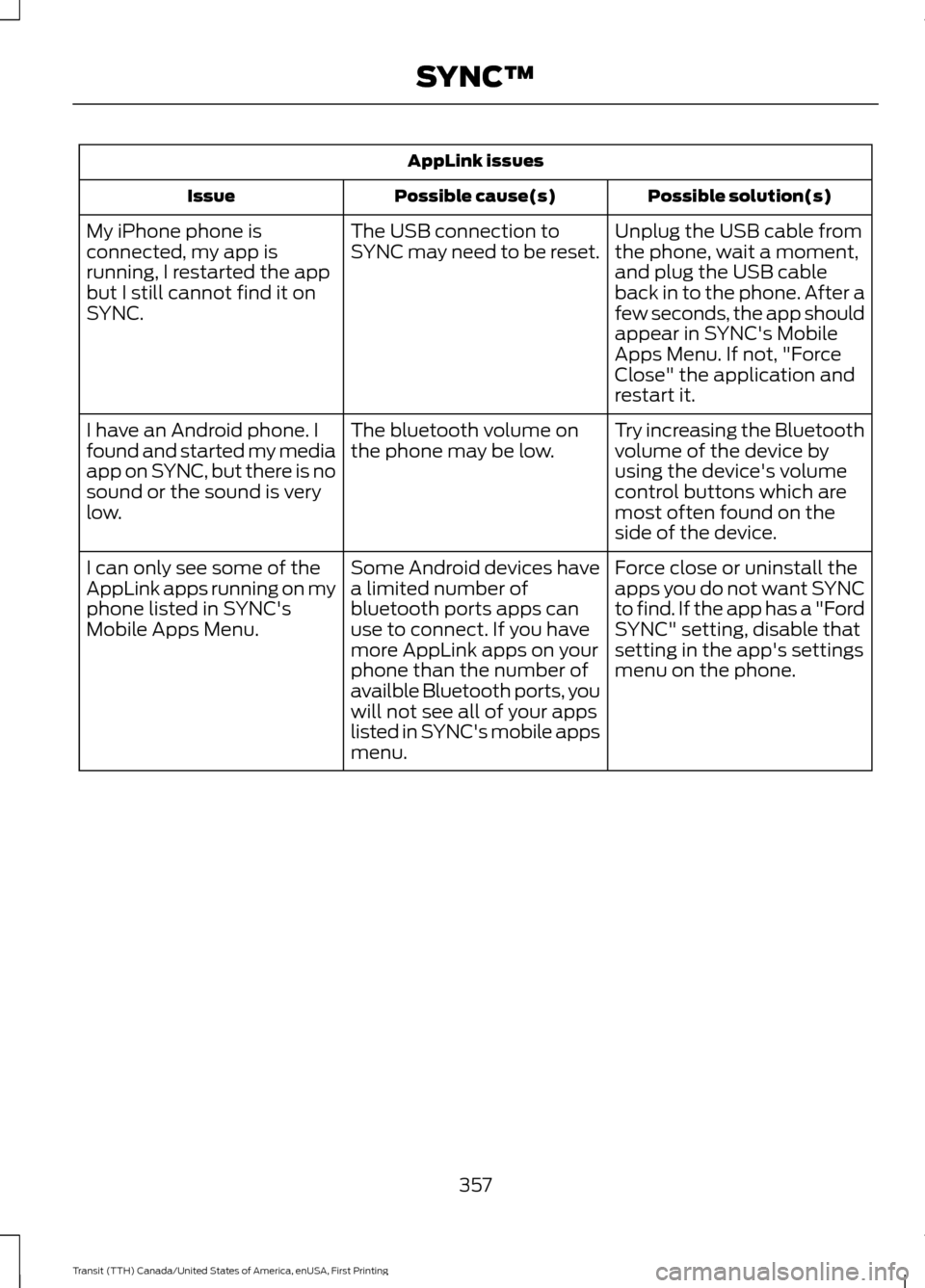
AppLink issues
Possible solution(s)
Possible cause(s)
Issue
Unplug the USB cable from
the phone, wait a moment,
and plug the USB cable
back in to the phone. After a
few seconds, the app should
appear in SYNC's Mobile
Apps Menu. If not, "Force
Close" the application and
restart it.
The USB connection to
SYNC may need to be reset.
My iPhone phone is
connected, my app is
running, I restarted the app
but I still cannot find it on
SYNC.
Try increasing the Bluetooth
volume of the device by
using the device's volume
control buttons which are
most often found on the
side of the device.
The bluetooth volume on
the phone may be low.
I have an Android phone. I
found and started my media
app on SYNC, but there is no
sound or the sound is very
low.
Force close or uninstall the
apps you do not want SYNC
to find. If the app has a "Ford
SYNC" setting, disable that
setting in the app's settings
menu on the phone.
Some Android devices have
a limited number of
bluetooth ports apps can
use to connect. If you have
more AppLink apps on your
phone than the number of
availble Bluetooth ports, you
will not see all of your apps
listed in SYNC's mobile apps
menu.
I can only see some of the
AppLink apps running on my
phone listed in SYNC's
Mobile Apps Menu.
357
Transit (TTH) Canada/United States of America, enUSA, First Printing SYNC™
Page 362 of 411
•
When adding accessories, equipment,
passengers and luggage to your
vehicle, do not exceed the total weight
capacity of the vehicle or of the front
or rear axle (GVWR or GAWR as
indicated on the Safety Compliance
Certification label). Ask an authorized
dealer for specific weight information.
• The Federal Communications
Commission (FCC) and Canadian
Radio Telecommunications
Commission (CRTC) regulate the use
of mobile communications systems
that are equipped with radio
transmitters, for example, two-way
radios, telephones and theft alarms.
Any such equipment installed in your
vehicle should comply with Federal
Communications Commission (FCC)
and Canadian Radio
Telecommunications Commission
(CRTC) regulations and should be
installed only by an authorized dealer.
• Mobile communications systems may
harm the operation of your vehicle,
particularly if they are not properly
designed for automotive use.
• If you or an authorized Ford dealer add
any non-Ford electrical or electronic
accessories or components to your
vehicle, you may adversely affect
battery performance and durability,
and may adversely affect the
performance of other electrical
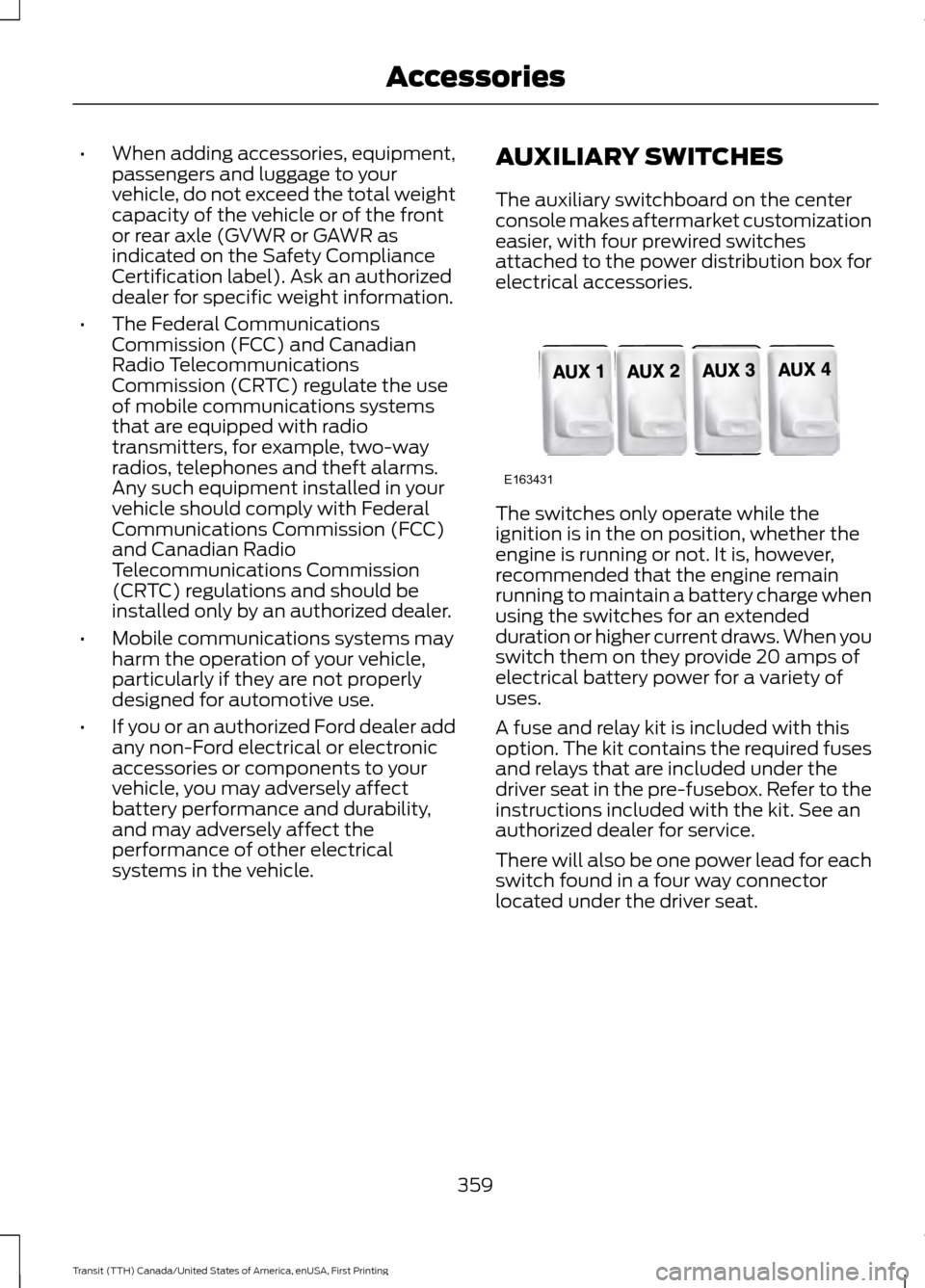
systems in the vehicle. AUXILIARY SWITCHES
The auxiliary switchboard on the center
console makes aftermarket customization
easier, with four prewired switches
attached to the power distribution box for
electrical accessories. The switches only operate while the
ignition is in the on position, whether the
engine is running or not. It is, however,
recommended that the engine remain
running to maintain a battery charge when
using the switches for an extended
duration or higher current draws. When you
switch them on they provide 20 amps of
electrical battery power for a variety of
uses.
A fuse and relay kit is included with this
option. The kit contains the required fuses
and relays that are included under the
driver seat in the pre-fusebox. Refer to the
instructions included with the kit. See an
authorized dealer for service.
There will also be one power lead for each
switch found in a four way connector
located under the driver seat.
359
Transit (TTH) Canada/United States of America, enUSA, First Printing AccessoriesE163431
Page 397 of 411
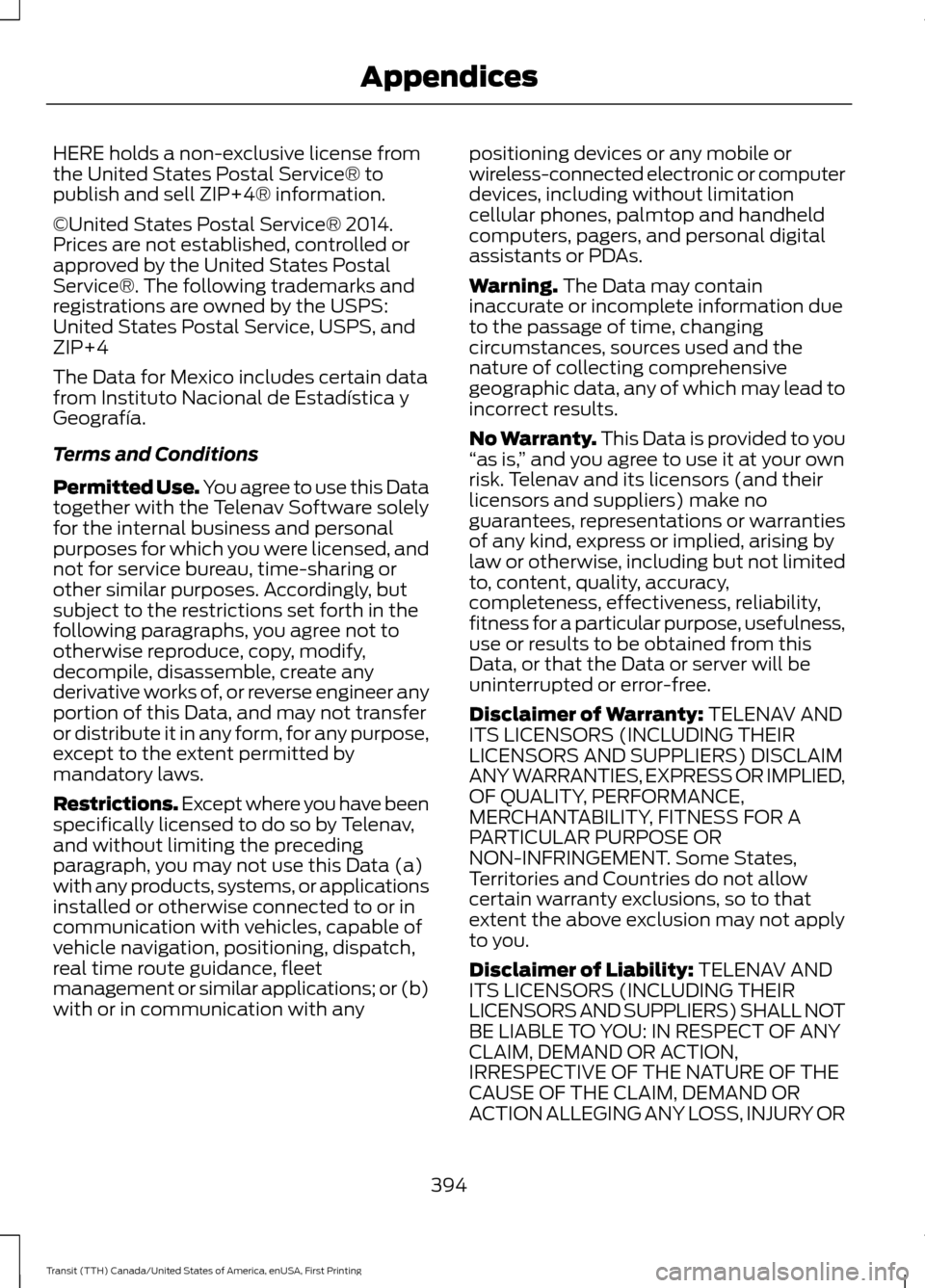
HERE holds a non-exclusive license from
the United States Postal Service® to
publish and sell ZIP+4® information.
©United States Postal Service® 2014.
Prices are not established, controlled or
approved by the United States Postal
Service®. The following trademarks and
registrations are owned by the USPS:
United States Postal Service, USPS, and
ZIP+4
The Data for Mexico includes certain data
from Instituto Nacional de Estadística y
Geografía.
Terms and Conditions
Permitted Use. You agree to use this Data
together with the Telenav Software solely
for the internal business and personal
purposes for which you were licensed, and
not for service bureau, time-sharing or
other similar purposes. Accordingly, but
subject to the restrictions set forth in the
following paragraphs, you agree not to
otherwise reproduce, copy, modify,
decompile, disassemble, create any
derivative works of, or reverse engineer any
portion of this Data, and may not transfer
or distribute it in any form, for any purpose,
except to the extent permitted by
mandatory laws.
Restrictions. Except where you have been
specifically licensed to do so by Telenav,
and without limiting the preceding
paragraph, you may not use this Data (a)
with any products, systems, or applications
installed or otherwise connected to or in
communication with vehicles, capable of
vehicle navigation, positioning, dispatch,
real time route guidance, fleet
management or similar applications; or (b)
with or in communication with any
positioning devices or any mobile or
wireless-connected electronic or computer
devices, including without limitation
cellular phones, palmtop and handheld
computers, pagers, and personal digital
assistants or PDAs.
Warning. The Data may contain
inaccurate or incomplete information due
to the passage of time, changing
circumstances, sources used and the
nature of collecting comprehensive
geographic data, any of which may lead to
incorrect results.
No Warranty.
This Data is provided to you
“ as is, ” and you agree to use it at your own
risk. Telenav and its licensors (and their
licensors and suppliers) make no
guarantees, representations or warranties
of any kind, express or implied, arising by
law or otherwise, including but not limited
to, content, quality, accuracy,
completeness, effectiveness, reliability,
fitness for a particular purpose, usefulness,
use or results to be obtained from this
Data, or that the Data or server will be
uninterrupted or error-free.
Disclaimer of Warranty:
TELENAV AND
ITS LICENSORS (INCLUDING THEIR
LICENSORS AND SUPPLIERS) DISCLAIM
ANY WARRANTIES, EXPRESS OR IMPLIED,
OF QUALITY, PERFORMANCE,
MERCHANTABILITY, FITNESS FOR A
PARTICULAR PURPOSE OR
NON-INFRINGEMENT. Some States,
Territories and Countries do not allow
certain warranty exclusions, so to that
extent the above exclusion may not apply
to you.
Disclaimer of Liability:
TELENAV AND
ITS LICENSORS (INCLUDING THEIR
LICENSORS AND SUPPLIERS) SHALL NOT
BE LIABLE TO YOU: IN RESPECT OF ANY
CLAIM, DEMAND OR ACTION,
IRRESPECTIVE OF THE NATURE OF THE
CAUSE OF THE CLAIM, DEMAND OR
ACTION ALLEGING ANY LOSS, INJURY OR
394
Transit (TTH) Canada/United States of America, enUSA, First Printing Appendices
Page 410 of 411
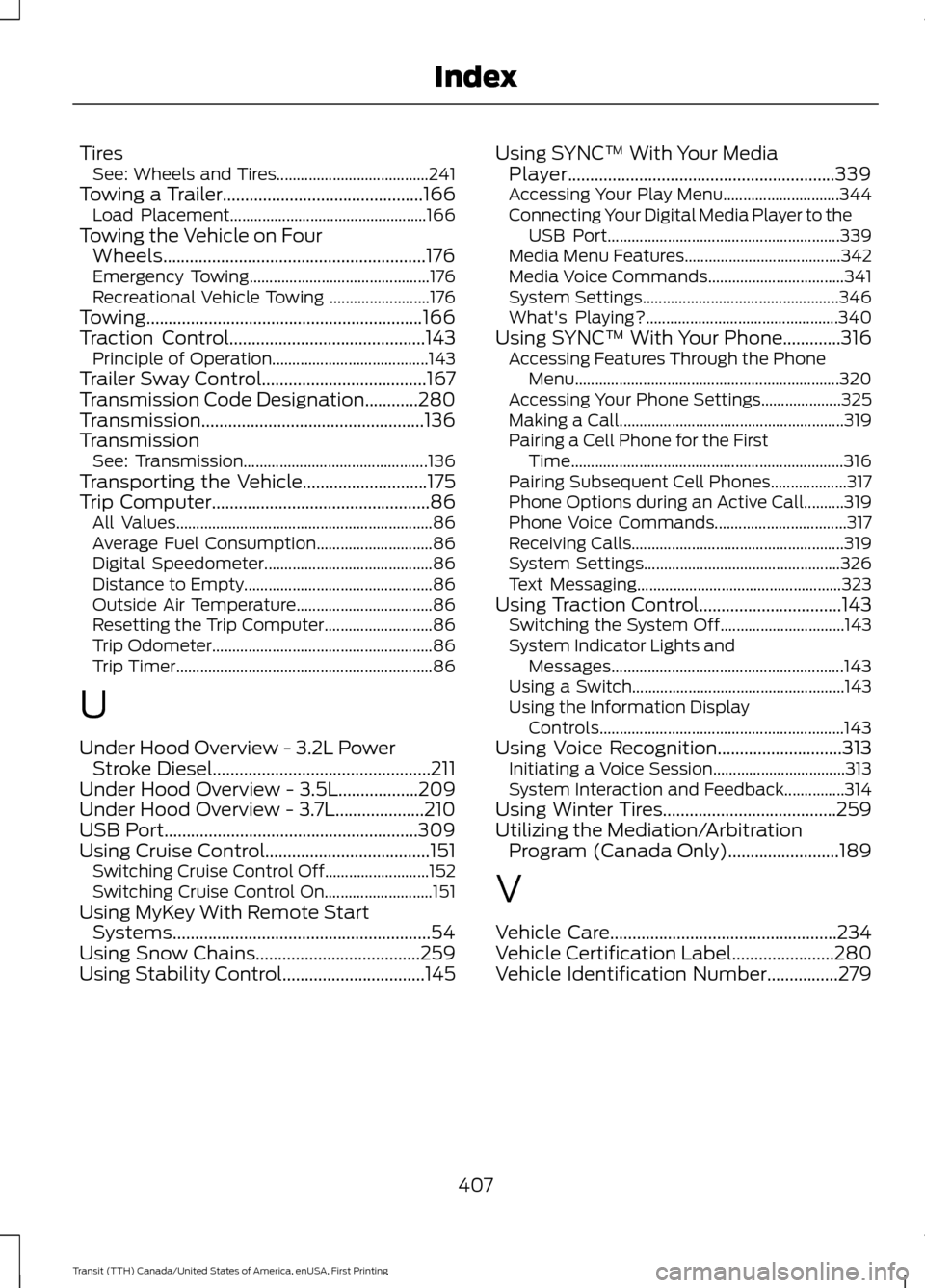
Tires
See: Wheels and Tires...................................... 241
Towing a Trailer.............................................166
Load Placement................................................. 166
Towing the Vehicle on Four Wheels...........................................................176
Emergency Towing............................................. 176
Recreational Vehicle Towing ......................... 176
Towing
..............................................................166
Traction Control............................................143 Principle of Operation....................................... 143
Trailer Sway Control
.....................................167
Transmission Code Designation............280
Transmission..................................................136
Transmission See: Transmission.............................................. 136
Transporting the Vehicle............................175
Trip Computer
.................................................86
All Values................................................................ 86
Average Fuel Consumption............................. 86
Digital Speedometer.......................................... 86
Distance to Empty............................................... 86
Outside Air Temperature.................................. 86
Resetting the Trip Computer........................... 86
Trip Odometer....................................................... 86
Trip Timer................................................................ 86
U
Under Hood Overview - 3.2L Power Stroke Diesel.................................................211
Under Hood Overview - 3.5L..................209
Under Hood Overview - 3.7L....................210
USB Port.........................................................309
Using Cruise Control.....................................151 Switching Cruise Control Off.......................... 152
Switching Cruise Control On........................... 151
Using MyKey With Remote Start Systems..........................................................54
Using Snow Chains.....................................259
Using Stability Control................................145 Using SYNC™ With Your Media
Player............................................................339
Accessing Your Play Menu............................. 344
Connecting Your Digital Media Player to the USB Port.......................................................... 339
Media Menu Features....................................... 342
Media Voice Commands.................................. 341
System Settings................................................. 346
What's Playing?................................................ 340
Using SYNC™ With Your Phone.............316 Accessing Features Through the Phone
Menu.................................................................. 320
Accessing Your Phone Settings.................... 325
Making a Call........................................................ 319
Pairing a Cell Phone for the First Time.................................................................... 316
Pairing Subsequent Cell Phones................... 317
Phone Options during an Active Call..........319
Phone Voice Commands................................. 317
Receiving Calls..................................................... 319
System Settings................................................. 326
Text Messaging................................................... 323
Using Traction Control
................................143
Switching the System Off............................... 143
System Indicator Lights and Messages.......................................................... 143
Using a Switch..................................................... 143
Using the Information Display Controls............................................................. 143
Using Voice Recognition............................313 Initiating a Voice Session................................. 313
System Interaction and Feedback...............314
Using Winter Tires.......................................259
Utilizing the Mediation/Arbitration Program (Canada Only).........................189
V
Vehicle Care
...................................................234
Vehicle Certification Label.......................280
Vehicle Identification Number................279
407
Transit (TTH) Canada/United States of America, enUSA, First Printing Index