See Manual FORD TRANSIT 2021 Owner's Manual
[x] Cancel search | Manufacturer: FORD, Model Year: 2021, Model line: TRANSIT, Model: FORD TRANSIT 2021Pages: 509, PDF Size: 8.21 MB
Page 382 of 509
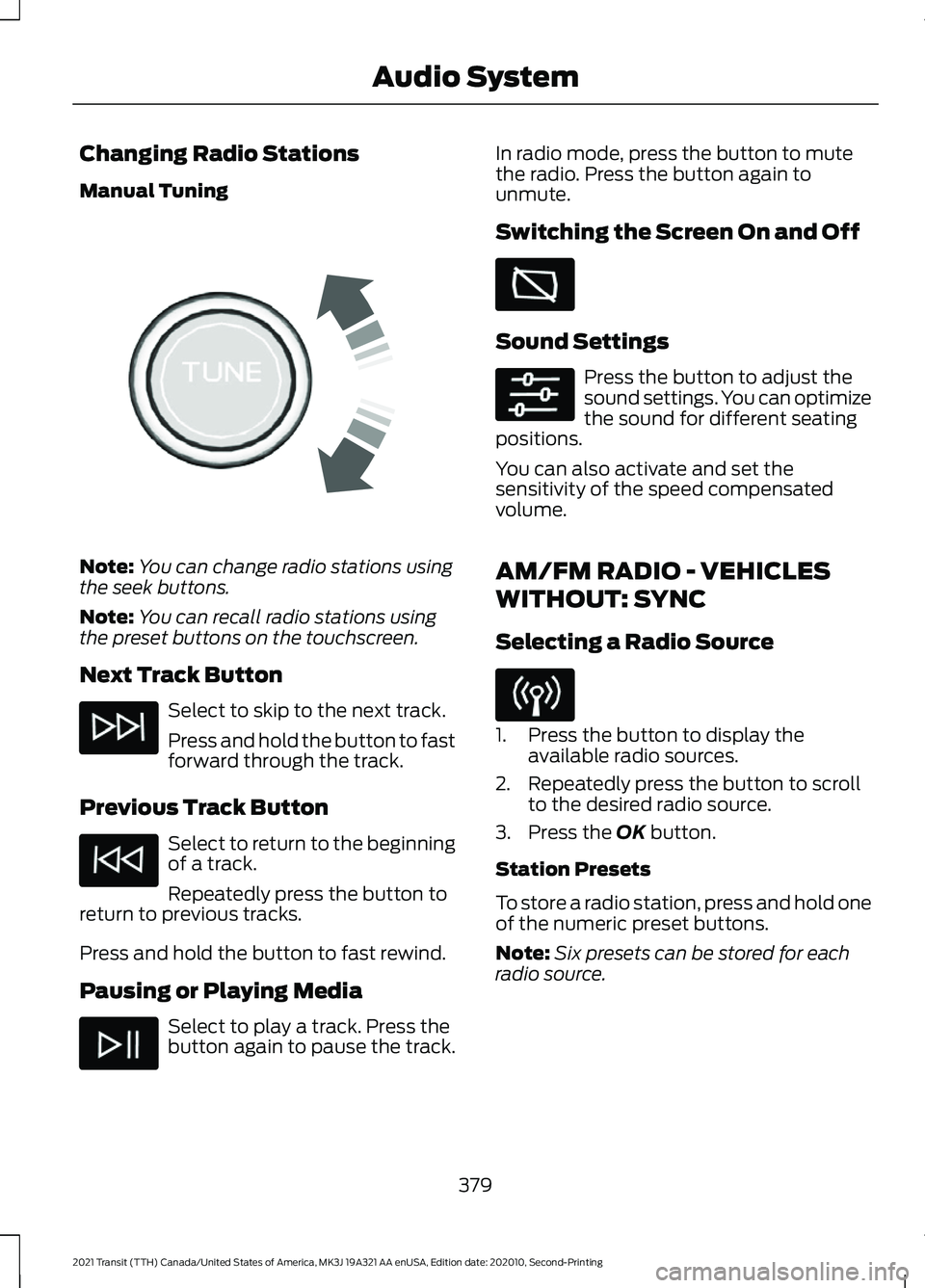
Changing Radio Stations
Manual Tuning
Note:
You can change radio stations using
the seek buttons.
Note: You can recall radio stations using
the preset buttons on the touchscreen.
Next Track Button Select to skip to the next track.
Press and hold the button to fast
forward through the track.
Previous Track Button Select to return to the beginning
of a track.
Repeatedly press the button to
return to previous tracks.
Press and hold the button to fast rewind.
Pausing or Playing Media Select to play a track. Press the
button again to pause the track. In radio mode, press the button to mute
the radio. Press the button again to
unmute.
Switching the Screen On and Off
Sound Settings
Press the button to adjust the
sound settings. You can optimize
the sound for different seating
positions.
You can also activate and set the
sensitivity of the speed compensated
volume.
AM/FM RADIO - VEHICLES
WITHOUT: SYNC
Selecting a Radio Source 1. Press the button to display the
available radio sources.
2. Repeatedly press the button to scroll to the desired radio source.
3. Press the OK button.
Station Presets
To store a radio station, press and hold one
of the numeric preset buttons.
Note: Six presets can be stored for each
radio source.
379
2021 Transit (TTH) Canada/United States of America, MK3J 19A321 AA enUSA, Edition date: 202010, Second-Printing Audio SystemE270235
Page 383 of 509
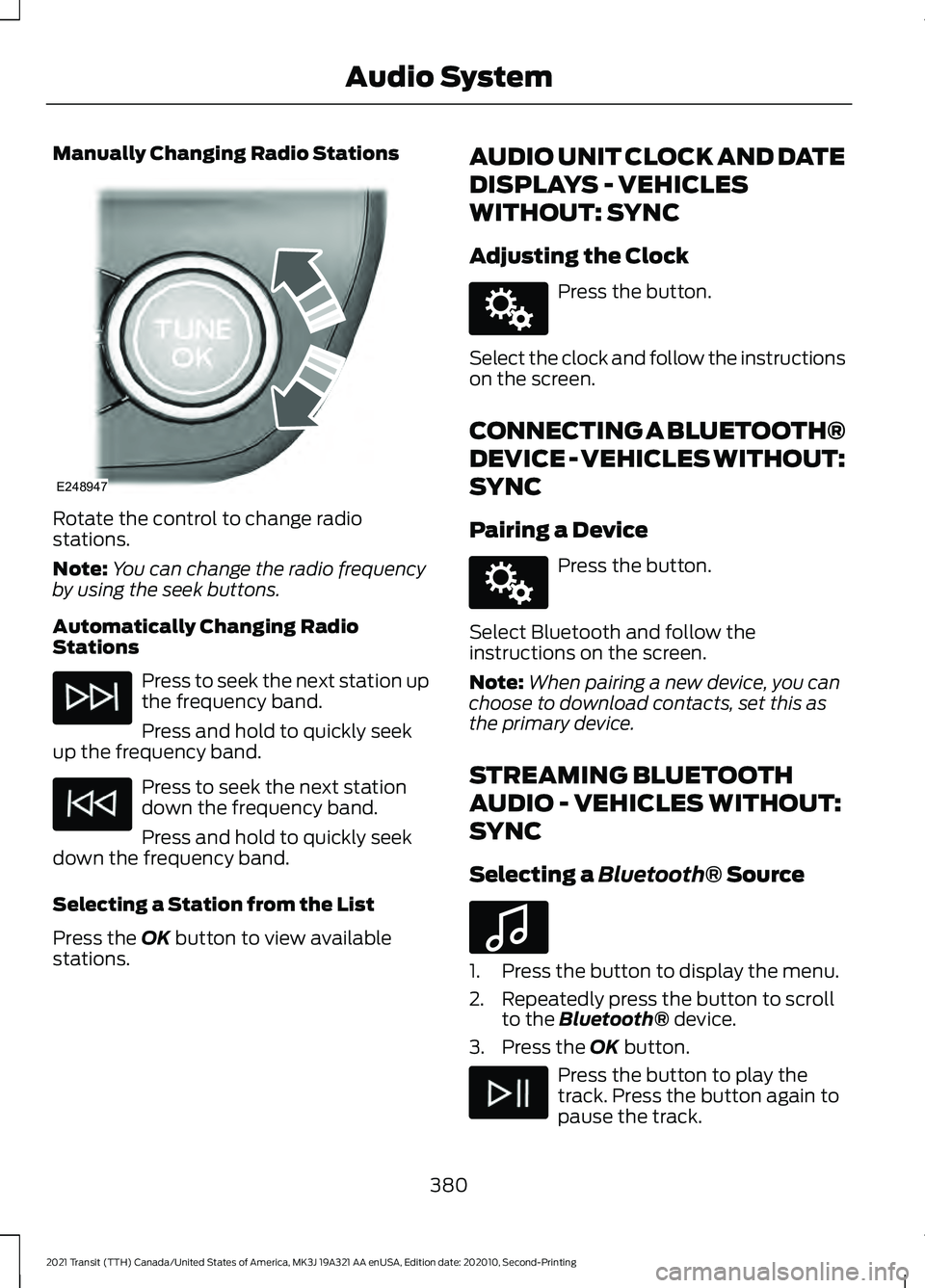
Manually Changing Radio Stations
Rotate the control to change radio
stations.
Note:
You can change the radio frequency
by using the seek buttons.
Automatically Changing Radio
Stations Press to seek the next station up
the frequency band.
Press and hold to quickly seek
up the frequency band. Press to seek the next station
down the frequency band.
Press and hold to quickly seek
down the frequency band.
Selecting a Station from the List
Press the OK button to view available
stations. AUDIO UNIT CLOCK AND DATE
DISPLAYS - VEHICLES
WITHOUT: SYNC
Adjusting the Clock Press the button.
Select the clock and follow the instructions
on the screen.
CONNECTING A BLUETOOTH®
DEVICE - VEHICLES WITHOUT:
SYNC
Pairing a Device Press the button.
Select Bluetooth and follow the
instructions on the screen.
Note: When pairing a new device, you can
choose to download contacts, set this as
the primary device.
STREAMING BLUETOOTH
AUDIO - VEHICLES WITHOUT:
SYNC
Selecting a
Bluetooth® Source 1. Press the button to display the menu.
2. Repeatedly press the button to scroll
to the
Bluetooth® device.
3. Press the
OK button. Press the button to play the
track. Press the button again to
pause the track.
380
2021 Transit (TTH) Canada/United States of America, MK3J 19A321 AA enUSA, Edition date: 202010, Second-Printing Audio SystemE248947 E142607 E142607 E100027
Page 386 of 509
GENERAL INFORMATION
SYNC is an in-vehicle communications
system that works with your Bluetooth
enabled cellular phone and portable media
player. This allows you to:
•
Make and receive calls.
• Access and play music from your
portable music player.
• Use 911 Assist or Emergency Assistance
and applications via SYNC AppLink. *
• Access phonebook contacts and music
using voice commands.
• Stream music from your connected
phone.
• Text message.
• Use the advanced voice recognition
system.
• Charge your USB device (if your device
supports this).
* These features are not available in all
markets and may require activation.
Available AppLink enabled apps vary by
market.
Make sure that you review your device's
manual before using it with SYNC.
Support
SYNC support is available at your regional
Ford website. See SYNC™
Troubleshooting (page 391).
SYNC Owner Account
Why do I need a SYNC owner account?
• Essential for keeping up with the latest
software downloads available for
SYNC.
• Access to customer support for any
questions you may have. Driving Restrictions
For your safety, certain features are
speed-dependent and restricted when your
vehicle is traveling over
3 mph (5 km/h).
Safety Information WARNING: Driving while distracted
can result in loss of vehicle control, crash
and injury. We strongly recommend that
you use extreme caution when using any
device that may take your focus off the
road. Your primary responsibility is the
safe operation of your vehicle. We
recommend against the use of any
hand-held device while driving and
encourage the use of voice-operated
systems when possible. Make sure you
are aware of all applicable local laws
that may affect the use of electronic
devices while driving.
When using SYNC:
• Do not operate playing devices if the
power cords or cables are broken, split
or damaged. Place cords and cables
out of the way, so they do not interfere
with the operation of pedals, seats,
compartments or safe driving abilities.
• Do not leave playing devices in your
vehicle during extreme conditions as it
could cause them damage. See your
device's manual for further information.
• Do not attempt to service or repair the
system. See an authorized dealer.
Privacy Information
When a cellular phone is connected to
SYNC, the system creates a profile within
your vehicle that is linked to that cellular
phone. This profile is created in order to
offer you more cellular features and to
operate more efficiently. Among other
things, this profile may contain data about
your cellular phone book, text messages
383
2021 Transit (TTH) Canada/United States of America, MK3J 19A321 AA enUSA, Edition date: 202010, Second-Printing SYNC™
Page 389 of 509
USING SYNC™ WITH YOUR
PHONE
Hands-free calling is one of the main
features of SYNC. While the system
supports a variety of features, many are
dependent on your cellular phone's
functionality. At a minimum, most cellular
phones with Bluetooth wireless technology
support the following functions:
•
Answering an incoming call.
• Ending a call.
• Dialing a number.
• Redialing.
• Call waiting notification.
• Caller identification.
Other features, such as text messaging
using Bluetooth® and automatic
phonebook download, are
phone-dependent features.
Pairing a Phone
Wirelessly pairing your phone with SYNC
allows you to make and receive hands-free
calls.
Note: Make sure to switch on the ignition
and the radio. Shift the transmission into
park (P) for automatic transmission or
neutral (N) for manual transmission.
Using the Audio System
Note: To scroll through the menus, press
the up and down arrows on your audio
system.
1. Make sure to switch on your phone's Bluetooth® feature before starting the
search. See your device's manual if
necessary.
2. Press the
Settings button.
3. Select Bluetooth from the menu.
4. Press the
OK button. 5. Select the option to add. This starts
the pairing process.
6. When a message to begin pairing appears in the audio display, search for
SYNC on your device.
Depending on your phone's capability and
your market, the system may prompt you
with questions, such as setting the current
phone as the primary phone and
downloading your phonebook.
Using Voice Commands Make sure to switch on your
phone's
Bluetooth® feature
before starting the search. See
your device's manual if necessary.
Press the voice button and when
prompted say: Action and Descrip-
tion
Voice Command
Follow the instruc-
tions on the audio
display.
Pair Phone
Phone Voice Commands Press the voice button. You can
do things like place a phone call
and access text messages.
When prompted, say a command. See the
following table for examples of
commands. Voice Command
___ List of Commands
Help
Call ___
Dial ___
Text Messages
386
2021 Transit (TTH) Canada/United States of America, MK3J 19A321 AA enUSA, Edition date: 202010, Second-Printing SYNC™E142599 E142599
Page 394 of 509
Audio Voice Commands
Press the voice button. You can
do things like play a specific song
or album, or tune to a radio
station. When prompted, say a command.
See the following table for example
commands. Not all commands may be
available on your vehicle. Command
___ List of Commands Help
Pause Play
AM ___ FM ___
CD Player Command
Sirius Channel ___ USB
Bluetooth Audio
__ is a dynamic listing, meaning that it
could be the name of anything, such as an
artist, station, or media source.
SYNC™ TROUBLESHOOTING
Your SYNC system is easy to use. However,
should questions arise, see the tables
below.
Use your local Ford website at any time to
check your phone's compatibility, register
your account and set preferences as well
as access a customer representative via
an online chat (during certain hours). Website(s)
Market
www.SYNCMyRide.com
North America
www.SYNCMyRide.cawww.syncmaroute.ca Phone Issues
Possible Solution(s)
Possible Cause(s)
Issue
Review your phone's manualabout audio adjustments.
The audio control settings
on your phone may be
affecting SYNC perform- ance.
There is excessive back-
ground noise during a phone call.
Try turning off the device,resetting the device,
removing the device's
battery, then trying again.
This may be a possible
phone malfunction.
During a call, I can hear the
other person but theycannot hear me.
Go to the website to reviewyour phone's compatibility.
This is a phone-dependent
feature.
SYNC is not able to down-
load my phonebook.
391
2021 Transit (TTH) Canada/United States of America, MK3J 19A321 AA enUSA, Edition date: 202010, Second-Printing SYNC™E142599
Page 436 of 509
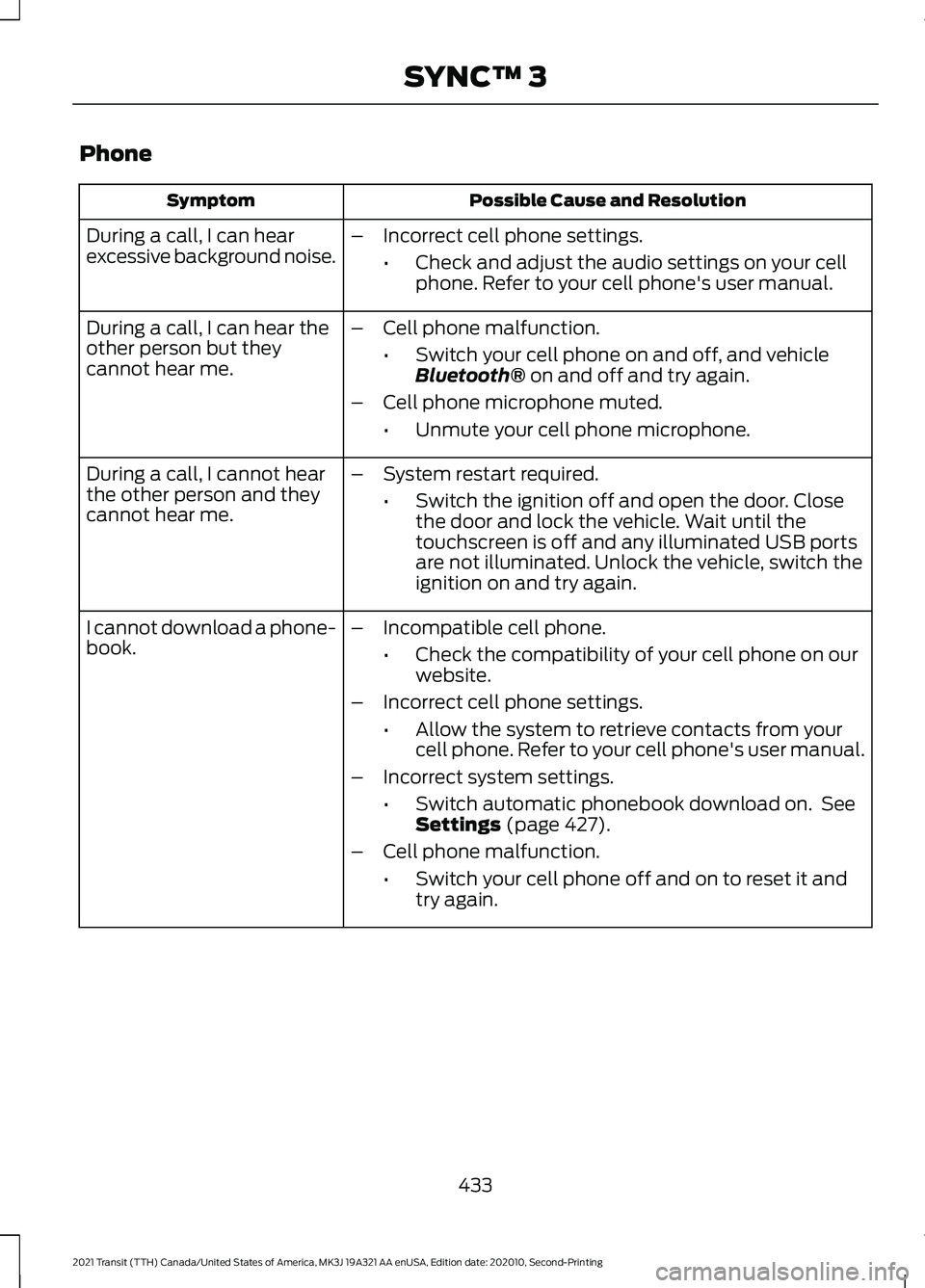
Phone
Possible Cause and Resolution
Symptom
During a call, I can hear
excessive background noise. –
Incorrect cell phone settings.
•Check and adjust the audio settings on your cell
phone. Refer to your cell phone's user manual.
– Cell phone malfunction.
•Switch your cell phone on and off, and vehicle
Bluetooth® on and off and try again.
– Cell phone microphone muted.
•Unmute your cell phone microphone.
During a call, I can hear the
other person but they
cannot hear me.
During a call, I cannot hear
the other person and they
cannot hear me.
–
System restart required.
•Switch the ignition off and open the door. Close
the door and lock the vehicle. Wait until the
touchscreen is off and any illuminated USB ports
are not illuminated. Unlock the vehicle, switch the
ignition on and try again.
I cannot download a phone-
book. –
Incompatible cell phone.
•Check the compatibility of your cell phone on our
website.
– Incorrect cell phone settings.
•Allow the system to retrieve contacts from your
cell phone. Refer to your cell phone's user manual.
– Incorrect system settings.
•Switch automatic phonebook download on. See
Settings
(page 427).
– Cell phone malfunction.
•Switch your cell phone off and on to reset it and
try again.
433
2021 Transit (TTH) Canada/United States of America, MK3J 19A321 AA enUSA, Edition date: 202010, Second-Printing SYNC™ 3
Page 437 of 509
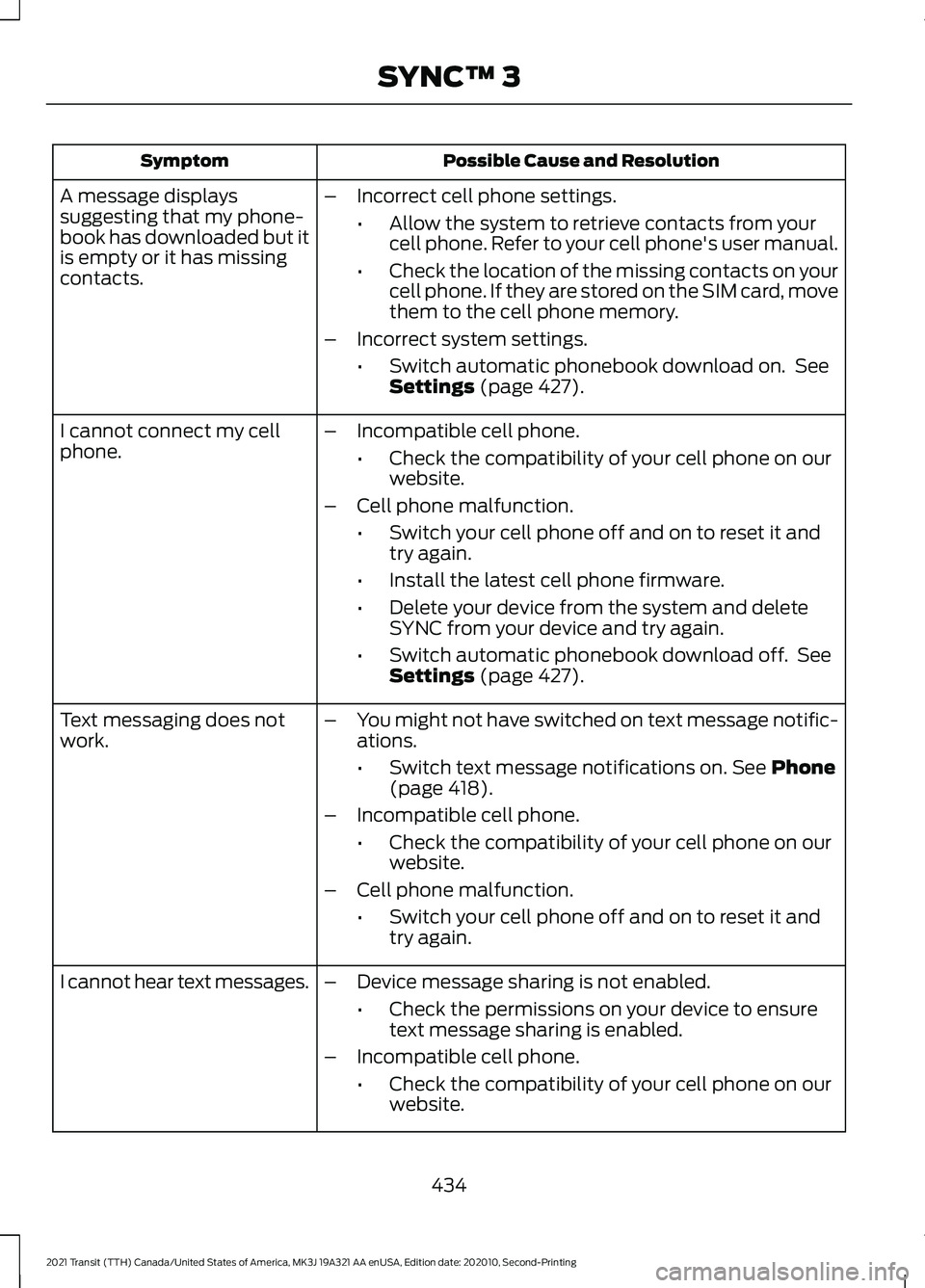
Possible Cause and Resolution
Symptom
–Incorrect cell phone settings.
•Allow the system to retrieve contacts from your
cell phone. Refer to your cell phone's user manual.
• Check the location of the missing contacts on your
cell phone. If they are stored on the SIM card, move
them to the cell phone memory.
– Incorrect system settings.
•Switch automatic phonebook download on. See
Settings (page 427).
A message displays
suggesting that my phone-
book has downloaded but it
is empty or it has missing
contacts.
–Incompatible cell phone.
•Check the compatibility of your cell phone on our
website.
– Cell phone malfunction.
•Switch your cell phone off and on to reset it and
try again.
• Install the latest cell phone firmware.
• Delete your device from the system and delete
SYNC from your device and try again.
• Switch automatic phonebook download off. See
Settings
(page 427).
I cannot connect my cell
phone.
Text messaging does not
work.
–
You might not have switched on text message notific-
ations.
•Switch text message notifications on.
See Phone
(page 418).
– Incompatible cell phone.
•Check the compatibility of your cell phone on our
website.
– Cell phone malfunction.
•Switch your cell phone off and on to reset it and
try again.
– Device message sharing is not enabled.
•Check the permissions on your device to ensure
text message sharing is enabled.
– Incompatible cell phone.
•Check the compatibility of your cell phone on our
website.
I cannot hear text messages.
434
2021 Transit (TTH) Canada/United States of America, MK3J 19A321 AA enUSA, Edition date: 202010, Second-Printing SYNC™ 3
Page 449 of 509
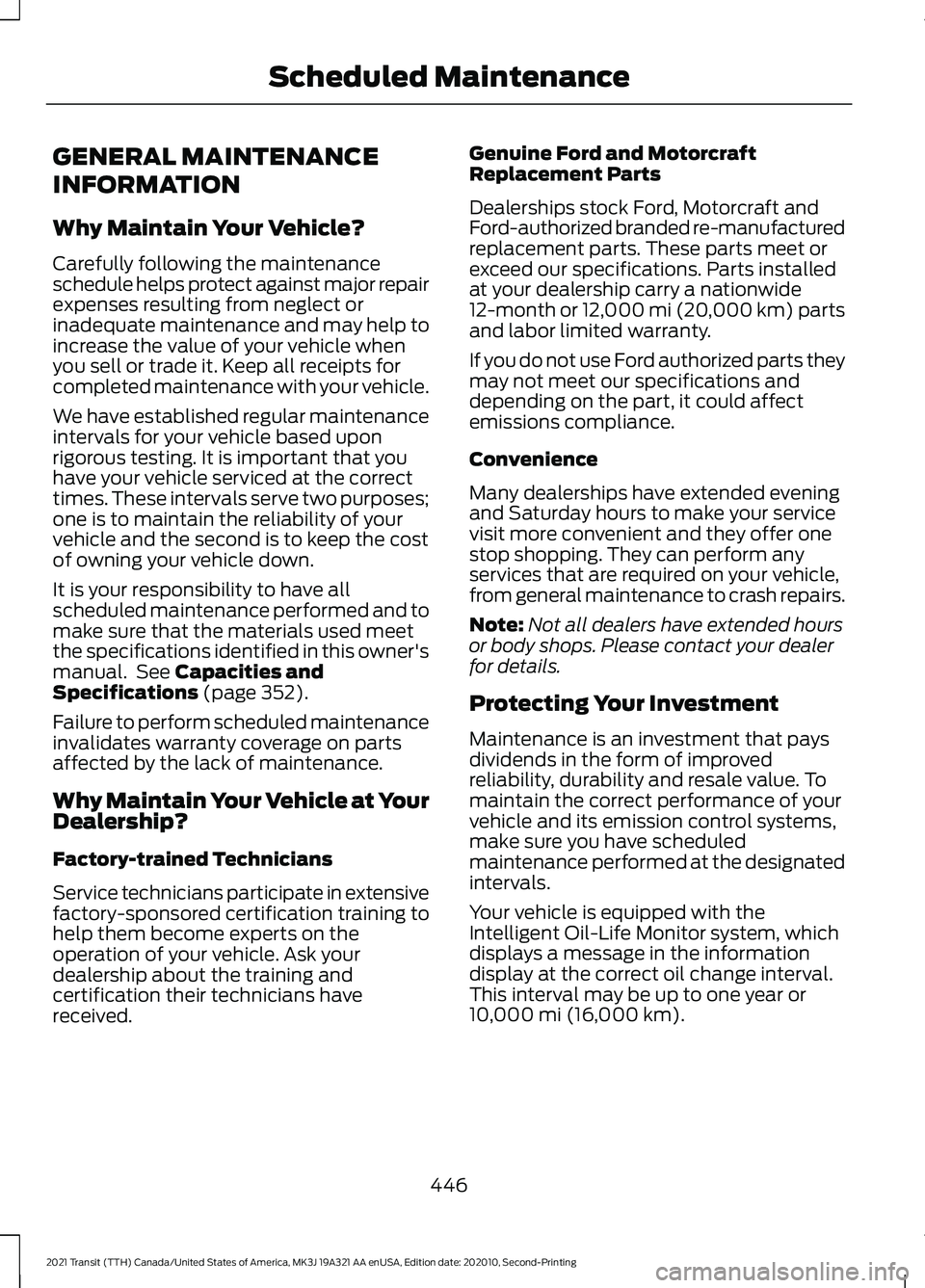
GENERAL MAINTENANCE
INFORMATION
Why Maintain Your Vehicle?
Carefully following the maintenance
schedule helps protect against major repair
expenses resulting from neglect or
inadequate maintenance and may help to
increase the value of your vehicle when
you sell or trade it. Keep all receipts for
completed maintenance with your vehicle.
We have established regular maintenance
intervals for your vehicle based upon
rigorous testing. It is important that you
have your vehicle serviced at the correct
times. These intervals serve two purposes;
one is to maintain the reliability of your
vehicle and the second is to keep the cost
of owning your vehicle down.
It is your responsibility to have all
scheduled maintenance performed and to
make sure that the materials used meet
the specifications identified in this owner's
manual. See Capacities and
Specifications (page 352).
Failure to perform scheduled maintenance
invalidates warranty coverage on parts
affected by the lack of maintenance.
Why Maintain Your Vehicle at Your
Dealership?
Factory-trained Technicians
Service technicians participate in extensive
factory-sponsored certification training to
help them become experts on the
operation of your vehicle. Ask your
dealership about the training and
certification their technicians have
received. Genuine Ford and Motorcraft
Replacement Parts
Dealerships stock Ford, Motorcraft and
Ford-authorized branded re-manufactured
replacement parts. These parts meet or
exceed our specifications. Parts installed
at your dealership carry a nationwide
12-month or 12,000 mi (20,000 km) parts
and labor limited warranty.
If you do not use Ford authorized parts they
may not meet our specifications and
depending on the part, it could affect
emissions compliance.
Convenience
Many dealerships have extended evening
and Saturday hours to make your service
visit more convenient and they offer one
stop shopping. They can perform any
services that are required on your vehicle,
from general maintenance to crash repairs.
Note:
Not all dealers have extended hours
or body shops. Please contact your dealer
for details.
Protecting Your Investment
Maintenance is an investment that pays
dividends in the form of improved
reliability, durability and resale value. To
maintain the correct performance of your
vehicle and its emission control systems,
make sure you have scheduled
maintenance performed at the designated
intervals.
Your vehicle is equipped with the
Intelligent Oil-Life Monitor system, which
displays a message in the information
display at the correct oil change interval.
This interval may be up to one year or
10,000 mi (16,000 km)
.
446
2021 Transit (TTH) Canada/United States of America, MK3J 19A321 AA enUSA, Edition date: 202010, Second-Printing Scheduled Maintenance
Page 450 of 509
When the oil change message appears in
the information display, it is time for an oil
change. Make sure you perform the oil
change within two weeks or 500 miles
(800 kilometers) of the message
appearing. Make sure you reset the
Intelligent Oil-Life Monitor after each oil
change. See Changing the Engine Oil
and Oil Filter (page 283).
If your information display resets
prematurely or becomes inoperative, you
should perform the oil change interval at
six months or
5,000 mi (8,000 km) from
your last oil change. Never exceed one year
or
10,000 mi (16,000 km) between oil
change intervals.
Your vehicle is very sophisticated and built
with multiple, complex, performance
systems. Every manufacturer develops
these systems using different
specifications and performance features.
That is why it is important to rely upon your
dealership to correctly diagnose and repair
your vehicle.
Ford Motor Company has recommended
maintenance intervals for various parts
and component systems based upon
engineering testing. Ford Motor Company
relies upon this testing to determine the
most appropriate mileage for replacement
of oils and fluids to protect your vehicle at
the lowest overall cost to you and
recommends against maintenance
schedules that deviate from the scheduled
maintenance information.
We strongly recommend the use of only
genuine Ford, Motorcraft or
Ford-authorized re-manufactured
replacement parts engineered for your
vehicle. Additives and Chemicals
This owner's manual and the Ford
Workshop Manual list the recommended
additives and chemicals for your vehicle.
We do not recommend using chemicals or
additives not approved by us as part of
your vehicle
’s normal maintenance. Please
consult your warranty information.
Oils, Fluids and Flushing
In many cases, fluid discoloration is a
normal operating characteristic and, by
itself, does not necessarily indicate a
concern or that the fluid needs to be
changed. However, a qualified expert, such
as the factory-trained technicians at your
dealership, should inspect discolored fluids
that also show signs of overheating or
foreign material contamination
immediately.
Make sure to change your vehicle ’s oils and
fluids at the specified intervals or in
conjunction with a repair. Flushing is a
viable way to change fluid for many vehicle
sub-systems during scheduled
maintenance. It is critical that systems are
flushed only with new fluid that is the same
as that required to fill and operate the
system or using a Ford-approved flushing
chemical.
Owner Checks and Services
Make sure you perform the following basic
maintenance checks and inspections every
month or at six-month intervals. Check every month
Engine oil level.
Function of all interior and exterior lights.
Tires (including spare) for wear and
correct pressure.
Windshield washer fluid level.
447
2021 Transit (TTH) Canada/United States of America, MK3J 19A321 AA enUSA, Edition date: 202010, Second-Printing Scheduled Maintenance
Page 494 of 509
1
180 Degree Camera.....................................196
Camera Views...................................................... 197
Front View Camera............................................ 196
Using the 180 degree camera system.........197
9
911 Assist
............................................................61
A
A/C See: Climate Control.......................................... 122
About This Manual...........................................9
ABS See: Brakes............................................................ 170
ABS driving hints See: Hints on Driving With Anti-Lock
Brakes................................................................. 170
Accessories....................................................442
ACC See: Using Adaptive Cruise Control............199
Active Park Assist..........................................191 Using Active Park Assist.................................... 191
Adjusting the Headlamps
.........................293
Horizontal Aim Adjustment........................... 294
Vertical Aim Adjustment................................. 293
Adjusting the Steering Wheel...................96
Airbag Disposal
..............................................60
Air Conditioning See: Climate Control.......................................... 122
Air Filter See: Changing the Engine Air Filter............284
Alarm See: Anti-Theft Alarm - Vehicles With:
Anti-Theft Alarm Horn with Integral
Battery.................................................................. 91
See: Anti-Theft Alarm - Vehicles Without: Anti-Theft Alarm Horn with Integral
Battery................................................................ 90
All-Wheel Drive.............................................165
AM/FM Radio - Vehicles Without: SYNC.............................................................379
Selecting a Radio Source................................ 379Anti-Theft Alarm - Vehicles With:
Anti-Theft Alarm Horn with Integral
Battery..............................................................91
Alarm System......................................................... 91
Arming the Alarm................................................. 92
Disarming the Alarm........................................... 92
Guard Settings....................................................... 91
Triggering the Alarm............................................. 91
Anti-Theft Alarm - Vehicles Without: Anti-Theft Alarm Horn with Integral
Battery............................................................90
Alarm System....................................................... 90
Arming the Alarm................................................ 90
Disarming the Alarm.......................................... 90
Triggering the Alarm........................................... 90
Appendices.....................................................461
Applying the Electric Parking Brake........177
Applying the Electric Parking Brake in an Emergency....................................................177
Applying the Parking Brake.......................174
Apps
..................................................................425
SiriusXM Traffic and Travel Link................... 426
Using Apps on an Android Device...............426
Using Apps on an iOS Device........................ 425
Using Mobile Navigation on an Android Device............................................................... 426
Audio System
................................................376
General Information.......................................... 376
Audio Unit Clock and Date Displays - Vehicles Without: SYNC
........................380
Adjusting the Clock.......................................... 380
Audio Unit - Vehicles With: SYNC 3.......................................................................378
Adjusting the Volume....................................... 378
Changing Radio Stations................................ 379
Next Track Button.............................................. 379
Pausing or Playing Media................................ 379
Previous Track Button...................................... 379
Sound Settings................................................... 379
Switching the Audio Unit On and Off.........378
Switching the Screen On and Off................379
Audio Unit - Vehicles Without: SYNC
..............................................................376
Adjusting the Volume....................................... 376
Changing Radio Stations................................. 377
Pausing or Playing Media................................ 378
Returning to the Previous Screen.................377
Scrolling Through the Menu Options..........377
491
2021 Transit (TTH) Canada/United States of America, MK3J 19A321 AA enUSA, Edition date: 202010, Second-Printing Index