air condition FORD TRANSIT CONNECT 2015 2.G Owner's Guide
[x] Cancel search | Manufacturer: FORD, Model Year: 2015, Model line: TRANSIT CONNECT, Model: FORD TRANSIT CONNECT 2015 2.GPages: 428, PDF Size: 6.27 MB
Page 239 of 428
The tire pressure monitoring system
complies with part 15 of the FCC rules and
with RSS-210 of Industry Canada.
Operation is subject to the following two
conditions: (1) This device may not cause
harmful interference, and (2) This device
must accept any interference received,
including interference that may cause
undesired operation.
Changing Tires With a Tire
Pressure Monitoring System
Note:
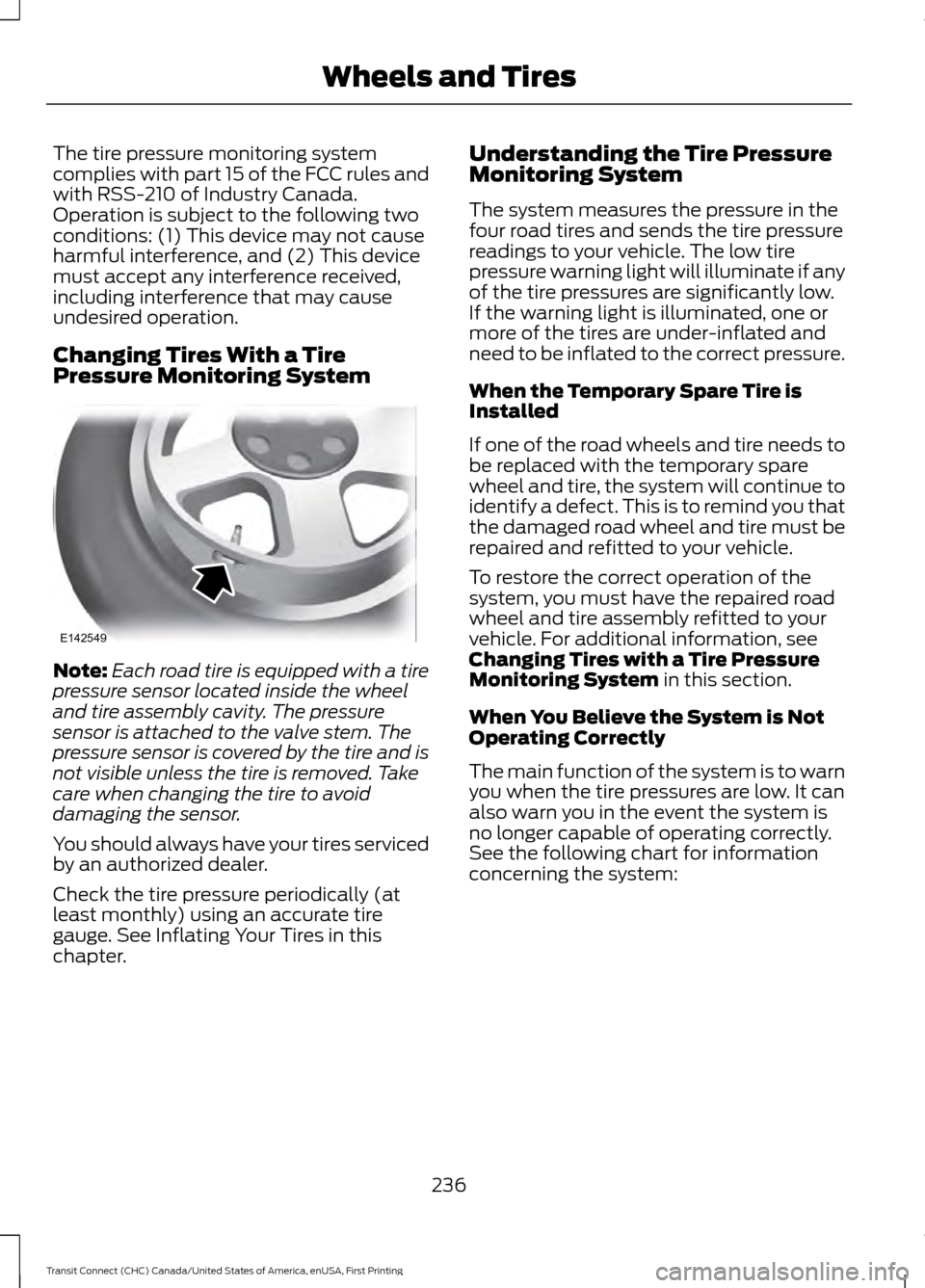
Each road tire is equipped with a tire
pressure sensor located inside the wheel
and tire assembly cavity. The pressure
sensor is attached to the valve stem. The
pressure sensor is covered by the tire and is
not visible unless the tire is removed. Take
care when changing the tire to avoid
damaging the sensor.
You should always have your tires serviced
by an authorized dealer.
Check the tire pressure periodically (at
least monthly) using an accurate tire
gauge. See Inflating Your Tires in this
chapter. Understanding the Tire Pressure
Monitoring System
The system measures the pressure in the
four road tires and sends the tire pressure
readings to your vehicle. The low tire
pressure warning light will illuminate if any
of the tire pressures are significantly low.
If the warning light is illuminated, one or
more of the tires are under-inflated and
need to be inflated to the correct pressure.
When the Temporary Spare Tire is
Installed
If one of the road wheels and tire needs to
be replaced with the temporary spare
wheel and tire, the system will continue to
identify a defect. This is to remind you that
the damaged road wheel and tire must be
repaired and refitted to your vehicle.
To restore the correct operation of the
system, you must have the repaired road
wheel and tire assembly refitted to your
vehicle. For additional information, see
Changing Tires with a Tire Pressure
Monitoring System in this section.
When You Believe the System is Not
Operating Correctly
The main function of the system is to warn
you when the tire pressures are low. It can
also warn you in the event the system is
no longer capable of operating correctly.
See the following chart for information
concerning the system:
236
Transit Connect (CHC) Canada/United States of America, enUSA, First Printing Wheels and TiresE142549
Page 271 of 428
Times are subject to change due to
holidays.
SYNC Owner Account
Why do I need a SYNC owner account?
•
Required to activate Vehicle Health
Report and to view the reports online.
• Required to activate the
subscription-based SYNC Services and
to personalize your Saved Points and
Favorites.
• Essential for keeping up with the latest
software downloads available for
SYNC.
• Access to customer support for any
questions you may have.
Driving Restrictions
For your safety, certain features are
speed-dependent and restricted when your
vehicle is traveling over 3 mph (5 km/h).
Safety Information WARNING
Driving while distracted can result in
loss of vehicle control, crash and
injury. We strongly recommend that
you use extreme caution when using any
device that may take your focus off the
road. Your primary responsibility is the safe
operation of your vehicle. We recommend
against the use of any hand-held device
while driving and encourage the use of
voice-operated systems when possible.
Make sure you are aware of all applicable
local laws that may affect the use of
electronic devices while driving. When using SYNC:
•
Do not operate playing devices if the
power cords or cables are broken, split
or damaged. Place cords and cables
out of the way, so they do not interfere
with the operation of pedals, seats,
compartments or safe driving abilities.
• Do not leave playing devices in your
vehicle during extreme conditions as it
could cause them damage. See your
device's manual for further information.
• Do not attempt to service or repair the
system. See an authorized dealer.
Privacy Information
When a cellular phone is connected to
SYNC, the system creates a profile within
your vehicle that is linked to that cellular
phone. This profile is created in order to
offer you more cellular features and to
operate more efficiently. Among other
things, this profile may contain data about
your cellular phone book, text messages
(read and unread), and call history,
including history of calls when your cellular
phone was not connected to the system.
In addition, if you connect a media device,
the system creates and retains an index of
supported media content. The system also
records a short development log of
approximately 10 minutes of all recent
system activity. The log profile and other
system data may be used to improve the
system and help diagnose any problems
that may occur.
The cellular profile, media device index,
and development log will remain in the
vehicle unless you delete them and are
generally accessible only in the vehicle
when the cellular phone or media player
is connected. If you no longer plan to use
the system or the vehicle, we recommend
you perform a Master Reset to erase all
stored information.
268
Transit Connect (CHC) Canada/United States of America, enUSA, First Printing SYNC™
Page 291 of 428
Vehicle Health Report options
Automatic Reports: Press OK to and select On or Off.
Select On to have SYNC automatically prompt you to run
a health report at certain mileage intervals. *
User Preferences: Press OK
to select and enter the
menu. Scroll to select from:
Mileage Intervals:
Press OK. Scroll to select between
5000, 7500 or 10000-mile intervals and press OK to make
your selection.
Return:
Press OK to exit the menu.
Press OK for SYNC to run a health report of your vehicle's
diagnostic systems and send the results to Ford where it
combines with scheduled maintenance information, open
recalls and other field service actions and vehicle inspec-
tion items that still need servicing from an authorized
dealer.
Run Report?
Exit the current menu.
Return
* You must first turn this feature on before you can select the desired mileage interval.
Vehicle Health Report Privacy Notice
When you create a Vehicle Health Report,
Ford Motor Company may collect your
cellular phone number (to process your
report request) and diagnostic information
about your vehicle. Certain versions or
updates to Vehicle Health Report may also
collect more vehicle information. Ford may
use your vehicle information it collects for
any purpose. If you do not want to disclose
your cellular phone number or vehicle
information, do not run the feature or set
up your Vehicle Health Report profile at
www.SYNCMyRide.com. See
www.SYNCMyRide.com (Vehicle Health
Report Terms and Conditions, and Privacy
Statement) for more information. SYNC Services: Traffic, Directions
& Information (TDI) (If Equipped,
Unites States Only)
Note:
SYNC Services varies by trim level
and model year and may require a
subscription. Traffic alerts and turn-by-turn
directions available in select markets.
Message and data rates may apply. Ford
Motor Company reserves the right to change
or discontinue this product service at any
time without prior notification or incurring
any future obligation.
Note: SYNC Services requires activation
before use. Visit www.SYNCMyRide.com to
register and check your eligibility for
complimentary services. Standard phone
and message rates may apply. Subscription
may be required. You must also have the
active SYNC Services Bluetooth-enabled
cellular phone paired and connected to the
system in order to connect to, and use,
SYNC Services. See
Using SYNC™ With
Your Phone (page 271).
288
Transit Connect (CHC) Canada/United States of America, enUSA, First Printing SYNC™
Page 292 of 428
Note:
This feature does not function
properly if you have enabled caller ID
blocking on your cellular phone. Make sure
your cellular phone is not blocking caller ID
before using SYNC Services.
Note: The driver is ultimately responsible
for the safe operation of the vehicle, and
therefore, must evaluate whether it is safe
to follow the suggested directions. Any
navigation features provided are only an aid.
Make your driving decisions based on your
observations of local conditions and existing
traffic regulations. Do not follow the route
suggestions if doing so would result in an
unsafe or illegal maneuver, place you in an
unsafe situation, or if you would be directed
into an area that you consider unsafe. Maps
used by this system may be inaccurate
because of errors, changes in roads, traffic
conditions or driving conditions.
Note: When you connect, the service uses
GPS technology and advanced vehicle
sensors to collect your vehicle's current
location, travel direction and speed to help
provide you with the directions, traffic
reports, or business searches you request.
Further, to provide the services you request,
for continuous improvement, the service
may collect and record call details and voice
communications. For more information, see
SYNC Services Terms and Conditions at
www.SYNCMyRide.com. If you do not want
Ford or its service providers to collect your
vehicle travel information or other
information identified in the Terms and
Conditions, do not subscribe or use the
service.
SYNC Services uses advanced vehicle
sensors, integrated GPS technology and
comprehensive map and traffic data, to
give you personalized traffic reports,
precise turn-by-turn directions, business
search, news, sports, weather and more.
For a complete list of services, or to learn
more, please visit www.SYNCMyRide.com. Connecting to SYNC Services Using
Voice Commands
1. Press the voice button.
2. When prompted, say "Services". This
initiates an outgoing call to SYNC
Services using your paired and
connected Bluetooth-enabled cellular
phone.
3. Once you connect to the service, follow
the voice prompts to request the
desired service, such as Traffic or
Directions. You can also say, "What are
my choices?" to receive a list of
available services from which to
choose.
4. Say, "Services" to return to the Services
main menu or for help, say, "Help".
Connecting to SYNC Services Using
the Phone Menu
1. Press the phone button to enter the phone menu.
2. Scroll to Services.
3. Press OK to confirm and enter the
Services menu. The display indicates
the system is connecting.
4. Press
OK. SYNC initiates the call to the
Services portal.
5. Once you connect to the service, follow
the voice prompts to request the
desired service, such as Traffic or
Directions. You can also say, "What are
my choices?" to receive a list of
available services from which to
choose.
6. Say, "Services" to return to the Services
main menu or for help, say, "Help".
289
Transit Connect (CHC) Canada/United States of America, enUSA, First Printing SYNC™
Page 293 of 428
Receiving Turn-by-Turn Directions
1. When connected to SYNC Services,
say "Directions" or "Business search".
To find the closest business or type of
business to your current location, just
say "Business search" and then
"Search near me". If you need further
assistance in finding a location you can
say "Operator" at any time within a
Directions or Business search to speak
with a live operator. The system may
prompt you to speak with an operator
when it has difficulty matching your
voice request. The live operator can
assist you by searching for businesses
by name or by category, residential
addresses by street address or by
name or specific street intersections.
Operator Assist is a feature of your
SYNC Services subscription. For more
information on Operator Assist, visit
www.SYNCMyRide.com/support. 2.
Follow the voice prompts to select your
destination. Once you select your
destination, the system uploads your
current vehicle location, calculates a
route based on current traffic
conditions and sends it back to your
vehicle. After the route download is
complete, the phone call automatically
ends. You then receive audible and
visual driving instructions as you travel
toward your destination.
3. While on an active route, you can select
or say "Route summary" or "Route
status" to view the Route Summary
turn list or the Route Status ETA. You
can also turn voice guidance on or off,
cancel the route or update the route.
If you miss a turn, SYNC automatically asks
if you want the route updated. Just say,
"Yes" when prompted and the system
sends a new route to your vehicle.
Disconnecting from SYNC Services
1. Press and hold the phone button on the steering wheel.
2. Say "Goodbye" from the SYNC Services main menu. SYNC Services quick tips
You can personalize your Services feature to provide
quicker access to your most used or favorite information.
You can save address points such as work or home. You
can also save favorite information like sports teams or a
news category. You can learn more about personalization
by logging onto www.SYNCMyRide.com.
Personalizing
Press the voice button at any time (while connected to
SYNC Services) to interrupt a voice prompt or an audio
clip (such as a sports report) and say your voice command.
Push to interrupt
Your subscription is associated with your Bluetooth-
enabled cellular phone number, not your VIN (Vehicle
Identification Number). You can pair and connect your
phone to any vehicle equipped with SYNC Services and
continue enjoying your personalized services.
Portable
290
Transit Connect (CHC) Canada/United States of America, enUSA, First Printing SYNC™
Page 319 of 428
Safety Information
WARNING
Driving while distracted can result in
loss of vehicle control, crash and
injury. We strongly recommend that
you use extreme caution when using any
device that may take your focus off the
road. Your primary responsibility is the safe
operation of your vehicle. We recommend
against the use of any hand-held device
while driving and encourage the use of
voice-operated systems when possible.
Make sure you are aware of all applicable
local laws that may affect the use of
electronic devices while driving. •
Do not attempt to service or repair the
system. Have your vehicle checked by
an authorized dealer.
• Do not operate media devices if the
power cables are broken or damaged.
• Make sure the power cables do not
interfere with the safe operation of your
vehicle's controls or affect your safe
driving abilities.
• Some SYNC functions are
speed-dependent. Their use is limited
to when your vehicle is traveling at
speeds below 3 mph (5 km/h). Make sure that you review your device's
manual before using it with SYNC.
Speed-restricted Features
Some features of this system are restricted
from use unless your vehicle is stationary.
•
Screens crowded with information, for
example:
•Point of Interest reviews and
ratings.
• SIRIUS Travel Link sports scores.
• Movie times.
• Ski conditions.
• Any action that requires keyboard use,
for example: entering a navigation
destination or editing information.
• All lists are limited, for example: phone
contacts.
See the following chart for more specific
examples. Speed-restricted Features
Pairing a cell phone
Cell phone
Adding or editing phonebook contacts
Phone contacts and recent phone call entries
Enabling Valet Mode
System Functionality
Editing settings while the rear view camera or active park
assist are active
Editing wireless settings
Wi-Fi and Wireless
Editing the list of wireless networks
316
Transit Connect (CHC) Canada/United States of America, enUSA, First Printing MyFord Touch
™
Page 362 of 428
Message
Item
SYNC Services
A
Travel Link
B
Alerts
C
Calendar
D
Apps
E
Where Am I?
F If your vehicle is equipped with
Navigation, press the
Information button to access
these features. If your vehicle is not
equipped with Navigation, press the corner
of the touchscreen with the green tab.
SYNC Services (If Equipped,
United States Only)
Note: SYNC Services varies by trim level
and model year and may require a
subscription. Traffic alerts and turn-by-turn
directions available in select markets.
Message and data rates may apply. Ford
Motor Company reserves the right to change
or discontinue this product service at any
time without prior notification or incurring
any future obligation.
Note: SYNC Services requires activation
before use. Visit www.SYNCMyRide.com to
register and check your eligibility for
complimentary services. Standard phone
and message rates may apply. Subscription
may be required. You must also have the
active SYNC Services Bluetooth-enabled
cellular phone paired and connected to the
system in order to connect to, and use,
SYNC Services. See
Phone (page 351). Note:
This feature does not function
properly if you have enabled caller ID
blocking on your cellular phone. Make sure
your cellular phone is not blocking caller ID
before using SYNC Services.
Note: The driver is ultimately responsible
for the safe operation of the vehicle, and
therefore, must evaluate whether it is safe
to follow the suggested directions. Any
navigation features provided are only an aid.
Make your driving decisions based on your
observations of local conditions and existing
traffic regulations. Do not follow the route
suggestions if doing so would result in an
unsafe or illegal maneuver, if you would be
placed in an unsafe situation, or if you would
be directed into an area that you consider
unsafe. Maps used by this system may be
inaccurate because of errors, changes in
roads, traffic conditions or driving
conditions.
Note: When you connect, the service uses
GPS technology and advanced vehicle
sensors to collect your vehicle's current
location, travel direction and speed to help
provide you with the directions, traffic
reports, or business searches you request.
Further, to provide the services you request,
for continuous improvement, the service
may collect and record call details and voice
communications. For more information, see
SYNC Services Terms and Conditions at
www.SYNCMyRide.com. If you do not want
Ford or its service providers to collect your
vehicle travel information or other
information identified in the Terms and
Conditions, do not subscribe or use the
service.
SYNC Services uses advanced vehicle
sensors, integrated GPS technology and
comprehensive map and traffic data, to
give you personalized traffic reports,
precise turn-by-turn directions, business
search, news, sports, weather and more.
For a complete list of services, or to learn
more, please visit www.SYNCMyRide.com.
359
Transit Connect (CHC) Canada/United States of America, enUSA, First Printing MyFord Touch
™E142608
Page 370 of 428
Note:
Your Vehicle Health Report feature
requires activation prior to use. Visit
www.SYNCMyRide.com to register. There
is no fee or subscription associated with
Vehicle Health Report, but you must register
to use this feature.
Note: This feature may not function
properly if you have enabled caller ID
blocking on your cellular phone. Before
running a report, review the Vehicle Health
Report Privacy Notice.
Note: In order to allow a break-in period for
your vehicle, you may not be able to create
a Vehicle Health Report until your vehicle
odometer has reached 200 miles.
Note: Cellular phone and SMS charges may
apply when making a report.
Register for Vehicle Health Report and set
your report preferences at
www.SYNCMyRide.com. After registering,
you can request a Vehicle Health Report
(inside your vehicle). Return to your
account at www.SYNCMyRide.com to view
your report. You can also choose for SYNC
to remind you automatically to run reports
at specific mileage intervals. Cellular phone
airtime usage may apply when reporting.
The system allows you to check your
vehicle ’s overall health in the form of a
diagnostic report card. The Vehicle Health
Report contains valuable information, for
example:
• Vehicle diagnostic information.
• Scheduled maintenance.
• Open recalls and Field Service Actions.
• Items noted during vehicle inspections
by your authorized dealer that still need
servicing.
Making a Report If you want to run a report by using the
touchscreen, select:
Message
Apps
Vehicle Health Report You can also run a vehicle health
report by voice command.
Press the voice button and when
prompted say: Voice command
Vehicle Health Report
Vehicle Health Report Privacy Notice
When you create a Vehicle Health Report,
Ford Motor Company may collect your
cellular phone number (to process your
report request) and diagnostic information
about your vehicle. Certain versions or
updates to Vehicle Health Report may also
collect more vehicle information. Ford may
use your vehicle information it collects for
any purpose. If you do not want to disclose
your cellular phone number or vehicle
information, do not run the feature or set
up your Vehicle Health Report profile at
www.SYNCMyRide.com. See
www.SYNCMyRide.com (Vehicle Health
Report Terms and Conditions, and Privacy
Statement) for more information.
367
Transit Connect (CHC) Canada/United States of America, enUSA, First Printing MyFord Touch
™E142608 E142599
Page 372 of 428
MAX A/C: Touch to cool your vehicle with recirculated air. Touch again for
normal A/C operation. MAX A/C distributes air through instrument panel vents
and may help reduce odors from entering your vehicle. MAX A/C is more
economical and efficient than normal A/C mode.
F
A/C:
Touch to switch the air conditioning on or off. Use A/C with recirculated
air to improve cooling performance and efficiency. A/C engages automatically
in MAX A/C, defrost and footwell/defrost.
G
AUTO:
Touch to engage automatic operation, then set the temperature using
the temperature control. The system automatically controls fan speed, airflow
distribution, A/C on or off and the use of fresh or recirculated air.
H
Manual airflow distribution controls:
Footwell and Defrost: Distributes
air through the windshield defroster vents, demister vents, floor vents and rear
seat floor vents, and provides outside air to reduce window fogging. Panel:
Distributes air through the instrument panel vents. Panel and Floor: Distributes
air through the instrument panel vents, demister vents, floor vents and rear seat
floor vents. Floor:
Distributes air through the demister vents, floor vents and
I
rear seat floor vents. Defrost: Touch to clear the windshield of fog and thin ice.
Touch again to return to the previous airflow selection. When on, defrost provides
outside air to reduce window fogging and distributes air through the windshield
defroster vents and demister vents. MAX Defrost:
Distributes outside air
through the windshield air vents and automatically turns the air conditioning
on. The fan is set to the highest speed and the temperature to HI. When the air
distribution is set in this position, you are unable to select recirculated air or
manually adjust the fan speed and temperature control.
Driver settings:
Touch + or – adjust the temperature.
J
Climate Control Voice Commands Press the voice button on the
steering wheel controls. When
prompted, say any of the
following commands: Voice commands
climate (automatic | auto) [on]
climate my (temp | temperature) [on]
climate [control | heater] off
climate [control | heater] on Voice commands
climate [set | change] (temp | temper-
ature) [to] (15.0-30) [degrees]
climate [set | change] (temp | temper-
ature) [to] (59-86) [degrees]
Help
There are additional climate control
commands. To access them say: Voice Commands
climate [control]
Then you can say any of the following
commands:
(AC | air (conditioner | conditioning)) off
369
Transit Connect (CHC) Canada/United States of America, enUSA, First Printing MyFord Touch
™E142599
Page 373 of 428
![FORD TRANSIT CONNECT 2015 2.G Owners Guide Voice Commands
(AC | air (conditioner | conditioning)) [on]
(automatic | auto) [on]
(decrease (fan | blower) speed | (fan |
blower) speed decrease)
([front [window]] defrost | windshield |
defog) off](/img/11/5406/w960_5406-372.png "FORD TRANSIT CONNECT 2015 2.G Owners Guide Voice Commands
(AC | air (conditioner | conditioning)) [on]
(automatic | auto) [on]
(decrease (fan | blower) speed | (fan |
blower) speed decrease)
([front [window]] defrost | windshield |
defog) off")
Voice Commands
(AC | air (conditioner | conditioning)) [on]
(automatic | auto) [on]
(decrease (fan | blower) speed | (fan |
blower) speed decrease)
([front [window]] defrost | windshield |
defog) off
([front [window]] defrost | windshield |
defog) [on]
(dual off | passenger (temperature |
temp) off)
floor [on]
(increase (fan | blower) speed | (fan |
blower) speed increase)
((max | maximum) (AC | air (conditioner
| conditioning))) off
(max AC | ((max | maximum) (AC | air
(conditioner | conditioning))) on)
my (temp | temperature) [on]
[climate [control] | heater] off
(automatic | auto) [on]
((panel | vent) [and] floor | floor [and]
(panel | vent)) [on]
(panel | vent) off
(panel | vent) [on]
rear [window] defrost off
rear [window] defrost [on]
(recirc | recirculation) off
(recirc | recirculation) [on]
[(set | change)] (temp | temperature)
[to] Voice Commands
[set] (temp | temperature) [to] (15.0-
30) [degrees]
[set] (temp | temperature) [to] (59-86)
[degrees]
((temp | temperature) (decrease | down)
| decrease (temp | temperature) | [air
(conditioning | conditioner) | AC | heater]
(cooler | colder))
(temperature high | (max | maximum)
(temp | temperature)) [on]
((temp | temperature) (increase | up) |
increase (temp | temperature) | [air
(conditioning | conditioner) | AC | heater]
(warmer | hotter))
(temperature low | (min | minimum)
(temp | temperature)) [on]
((windshield | [front | front window]
defrost | defog) [and] floor | floor [and]
(windshield | [front | front window]
defrost | defog)) [on]
Help
To access the temperature options say: Voice commands
[(set | change)] (temp | temperature) [to]
Then you can say any of the following commands:
(15.0-30) [degrees] (59-86) [degrees]
(high | maximum | max) [temperature] (low | minimum | min) [temperature] Help
370
Transit Connect (CHC) Canada/United States of America, enUSA, First Printing MyFord Touch
™