GENESIS GV70 2023 Owners Manual
Manufacturer: GENESIS, Model Year: 2023, Model line: GV70, Model: GENESIS GV70 2023Pages: 637
Page 161 of 637
05
5-25
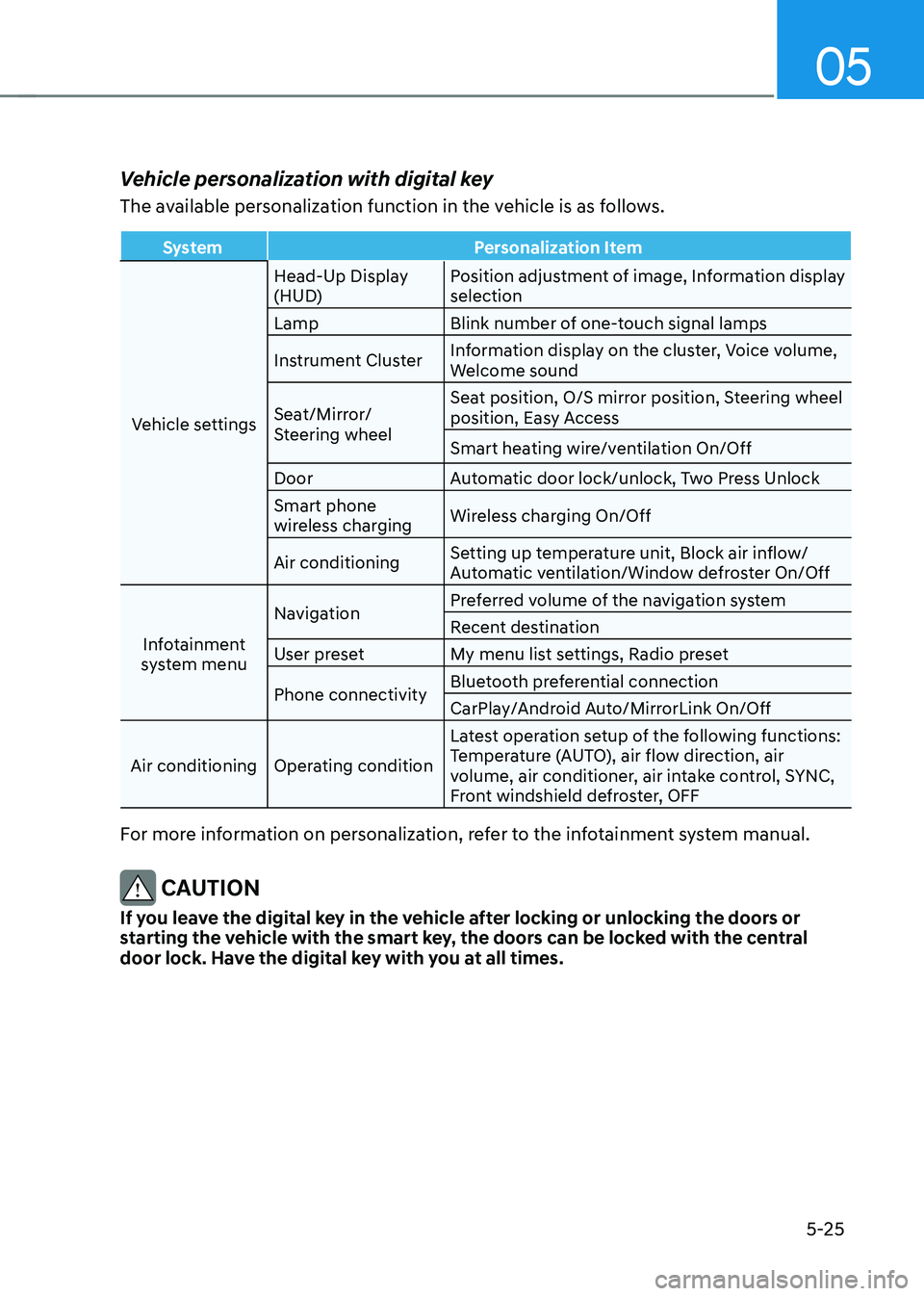
Vehicle personalization with digital key
The available personalization function in the vehicle is as follows.
SystemPersonalization Item
Vehicle settings Head-Up Display
(HUD)
Position adjustment of image, Information display
selection
Lamp Blink number of one-touch signal lamps
Instrument Cluster Information display on the cluster, Voice volume,
Welcome sound
Seat/Mirror/
Steering wheel Seat position, O/S mirror position, Steering wheel
position, Easy Access
Smart heating wire/ventilation On/Off
Door Automatic door lock/unlock, Two Press Unlock
Smart phone
wireless charging Wireless charging On/Off
Air conditioning Setting up temperature unit, Block air inflow/
Automatic ventilation/Window defroster On/Off
Infotainment
system menu Navigation
Preferred volume of the navigation system
Recent destination
User preset My menu list settings, Radio preset
Phone connectivity Bluetooth preferential connection
CarPlay/Android Auto/MirrorLink On/Off
Air conditioning Operating condition Latest operation setup of the following functions:
Temperature (AUTO), air flow direction, air
volume, air conditioner, air intake control, SYNC,
Front windshield defroster, OFF
For more information on personalization, refer to the infotainment system manual.
CAUTION
If you leave the digital key in the vehicle after locking or unlocking the doors or
starting the vehicle with the smart key, the doors can be locked with the central
door lock. Have the digital key with you at all times.
Page 162 of 637
Convenience Features
5-26
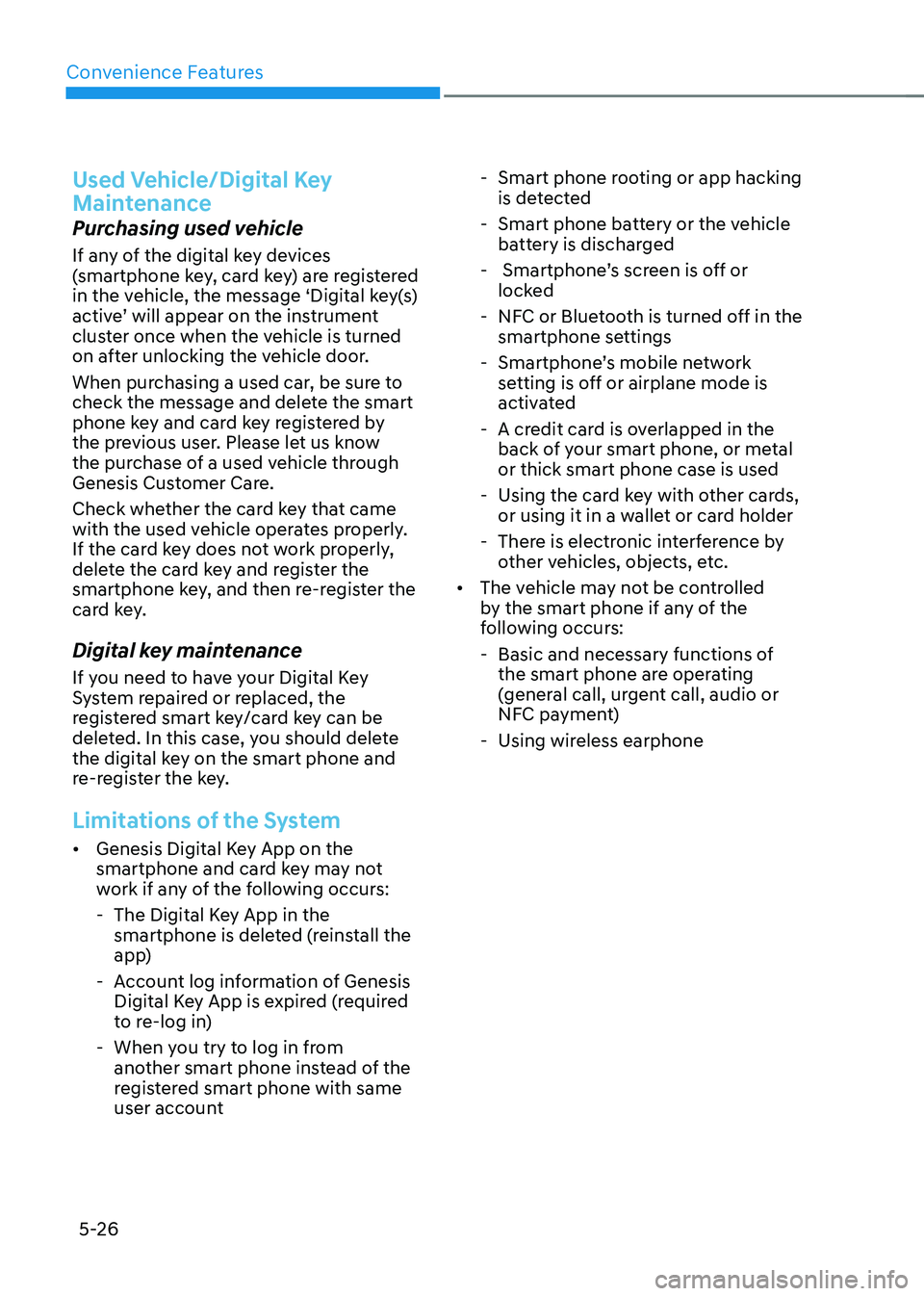
Used Vehicle/Digital Key
Maintenance
Purchasing used vehicle
If any of the digital key devices
(smartphone key, card key) are registered
in the vehicle, the message ‘Digital key(s)
active’ will appear on the instrument
cluster once when the vehicle is turned
on after unlocking the vehicle door.
When purchasing a used car, be sure to
check the message and delete the smart
phone key and card key registered by
the previous user. Please let us know
the purchase of a used vehicle through
Genesis Customer Care.
Check whether the card key that came
with the used vehicle operates properly.
If the card key does not work properly,
delete the card key and register the
smartphone key, and then re-register the
card key.
Digital key maintenance
If you need to have your Digital Key
System repaired or replaced, the
registered smart key/card key can be
deleted. In this case, you should delete
the digital key on the smart phone and
re-register the key.
Limitations of the System
• Genesis Digital Key App on the
smartphone and card key may not
work if any of the following occurs:
-The Digital Key App in the
smartphone is deleted (reinstall the
app)
-Account log information of Genesis
Digital Key App is expired (required
to re-log in)
-When you try to log in from
another smart phone instead of the
registered smart phone with same
user account
-Smart phone rooting or app hacking
is detected
-Smart phone battery or the vehicle
battery is discharged
- Smartphone’s screen is off or
locked
-NFC or Bluetooth is turned off in the
smartphone settings
-Smartphone’s mobile network
setting is off or airplane mode is
activated
-A credit card is overlapped in the
back of your smart phone, or metal
or thick smart phone case is used
-Using the card key with other cards,
or using it in a wallet or card holder
-There is electronic interference by
other vehicles, objects, etc.
• The vehicle may not be controlled
by the smart phone if any of the
following occurs:
-Basic and necessary functions of
the smart phone are operating
(general call, urgent call, audio or
NFC payment)
-Using wireless earphone
Page 163 of 637
05
5-27
FINGERPRINT AUTHENTICATION SYSTEM
Fingerprint authentication system allows
the driver to start the engine, make
electronic payments, have access to
personal information, unlock profile
and exit valet mode with a registered
fingerprint.
Fingerprint Authentication
System Settings
To use the system, the driver’s fingerprint
should be registered in the driver’s
profile. Drivers can set or delete their
fingerprint through the infotainment
system. Follow the following procedure.
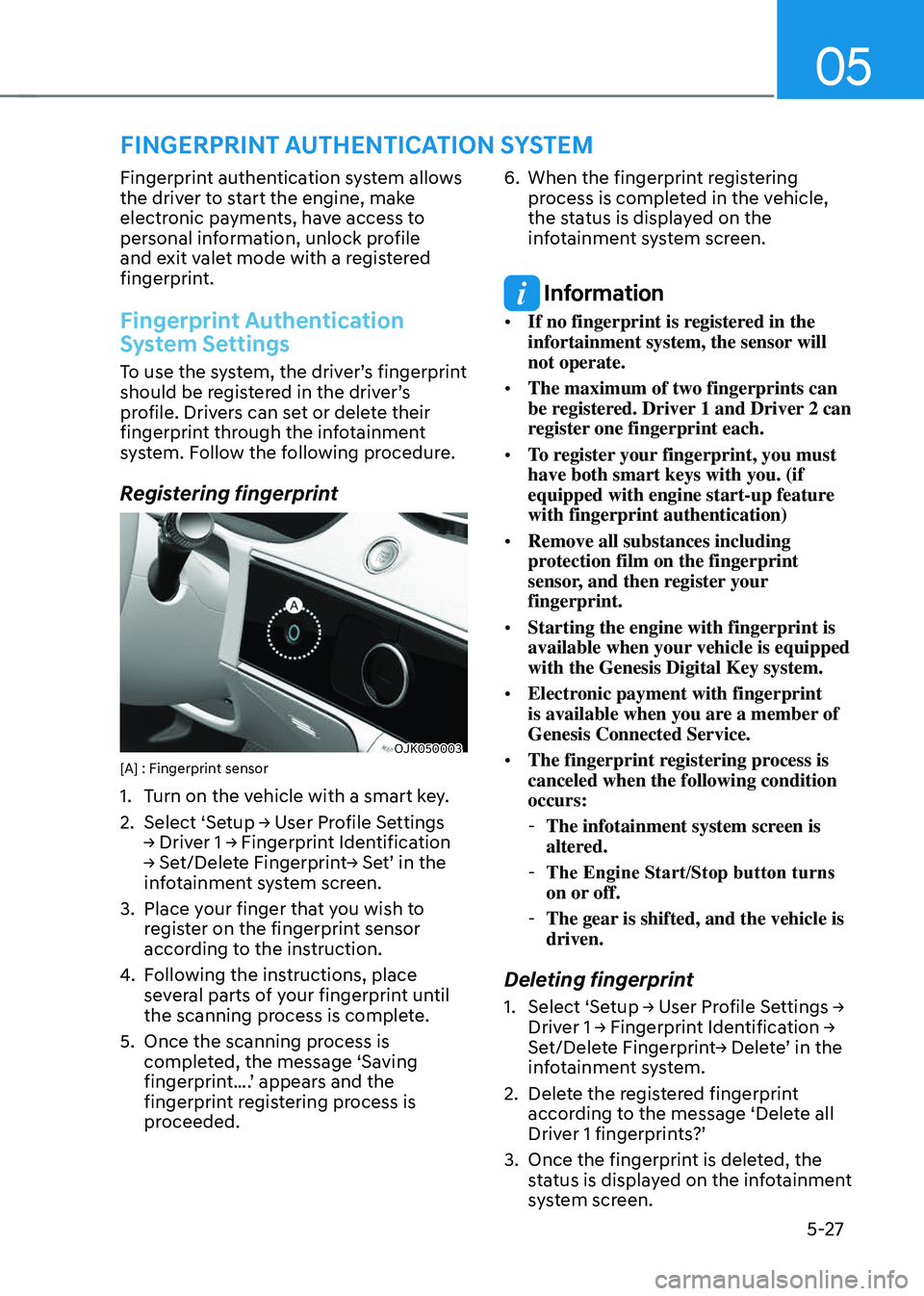
Registering fingerprint
OJK050003OJK050003[A] : Fingerprint sensor
1. Turn on the vehicle with a smart key.
2. Select ‘Setup → User Profile Settings
→ Driver 1 → Fingerprint Identification
→ Set/Delete Fingerprint→ Set’ in the
infotainment system screen.
3. Place your finger that you wish to
register on the fingerprint sensor
according to the instruction.
4. Following the instructions, place
several parts of your fingerprint until
the scanning process is complete.
5. Once the scanning process is
completed, the message ‘Saving
fingerprint….’ appears and the
fingerprint registering process is
proceeded.
6. When the fingerprint registering
process is completed in the vehicle,
the status is displayed on the
infotainment system screen.
Information
• If no fingerprint is registered in the
infortainment system, the sensor will
not operate.
• The maximum of two fingerprints can
be registered. Driver 1 and Driver 2 can
register one fingerprint each.
• To register your fingerprint, you must
have both smart keys with you. (if
equipped with engine start-up feature
with fingerprint authentication)
• Remove all substances including
protection film on the fingerprint
sensor, and then register your
fingerprint.
• Starting the engine with fingerprint is
available when your vehicle is equipped
with the Genesis Digital Key system.
• Electronic payment with fingerprint
is available when you are a member of
Genesis Connected Service.
• The fingerprint registering process is
canceled when the following condition
occurs:
-The infotainment system screen is
altered.
-The Engine Start/Stop button turns
on or off.
-The gear is shifted, and the vehicle is
driven.
Deleting fingerprint
1. Select ‘Setup → User Profile Settings →
Driver 1 → Fingerprint Identification →
Set/Delete Fingerprint→ Delete’ in the
infotainment system.
2. Delete the registered fingerprint
according to the message ‘Delete all
Driver 1 fingerprints?’
3. Once the fingerprint is deleted, the
status is displayed on the infotainment
system screen.
Page 164 of 637
Convenience Features
5-28
Information
To delete your fingerprint, at least one
smart key must be in the vehicle. (if
equipped with engine start-up feature
with fingerprint authentication)
CAUTION
Do not participate in duplicating
fingerprints with anyone.
NOTICE
Touch the fingerprint sensor gently.
Fingerprint authentication attempts
with excessive force may fail.
Fingerprint Authentication
System Operation
Using features with touch control
The convenient features such as
starting the engine, accessing personal
information, unlocking profile, exiting
valet mode, and making electronic
payment (Genesis Car pay) are available
with the fingerprint authentication
system.
When the fingerprint shape appears
on the infotainment system screen,
you should place your finger on the
fingerprint sensor in the vehicle
according to the instruction message for
authorization and then you can operate
the linked features without entering the
password.
If the fingerprint authentication system
does not work, pull your finger away
from the fingerprint authentication
sensor and then try again.
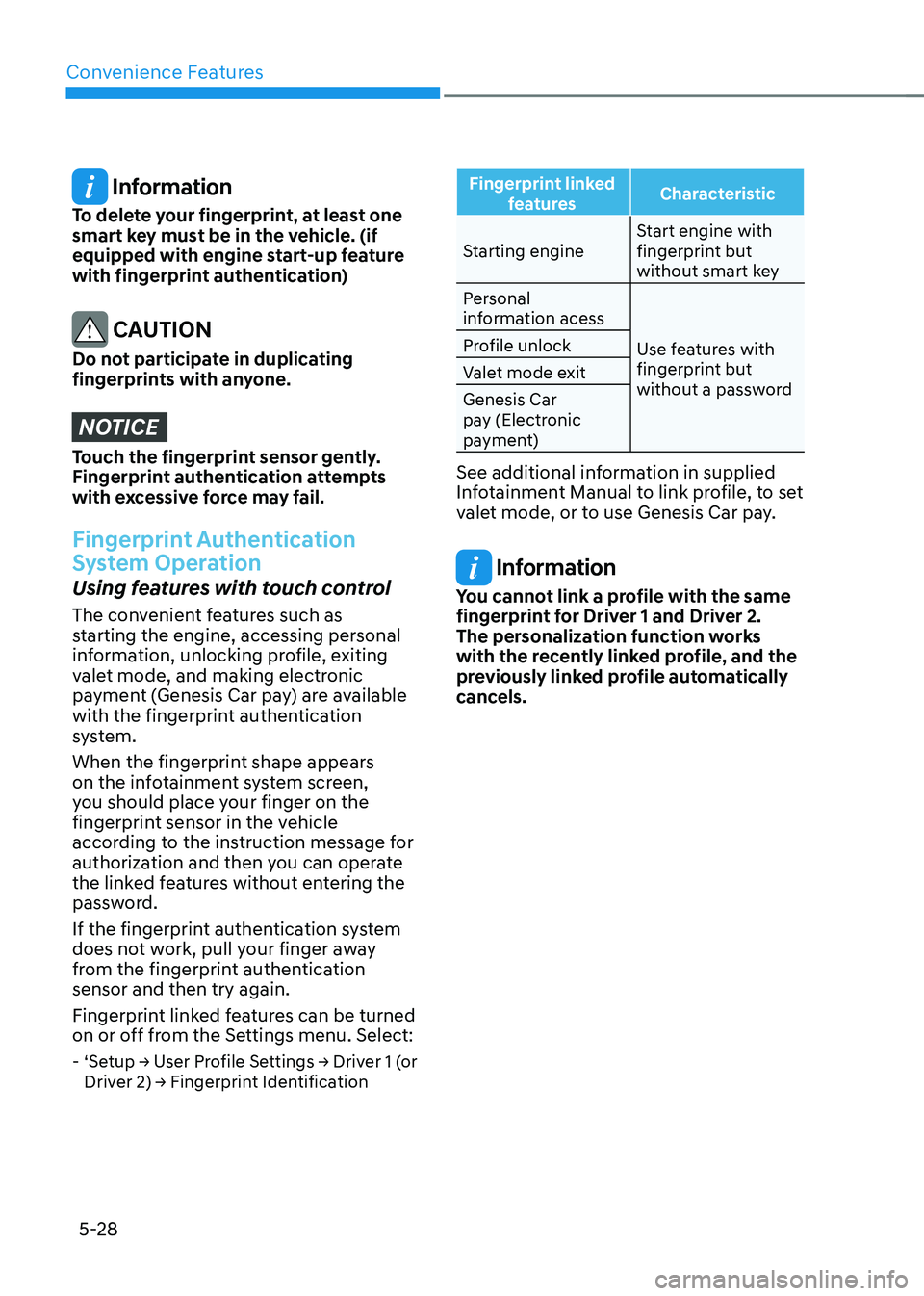
Fingerprint linked features can be turned
on or off from the Settings menu. Select:
‐‘Setup → User Profile Settings → Driver 1 (or
Driver 2) → Fingerprint Identification
Fingerprint linked
features Characteristic
Starting engine Start engine with
fingerprint but
without smart key
Personal
information acess
Use features with
fingerprint but
without a password
Profile unlock
Valet mode exit
Genesis Car
pay (Electronic
payment)
See additional information in supplied
Infotainment Manual to link profile, to set
valet mode, or to use Genesis Car pay.
Information
You cannot link a profile with the same
fingerprint for Driver 1 and Driver 2.
The personalization function works
with the recently linked profile, and the
previously linked profile automatically
cancels.
Page 165 of 637
05
5-29
Starting the engine (if equipped)
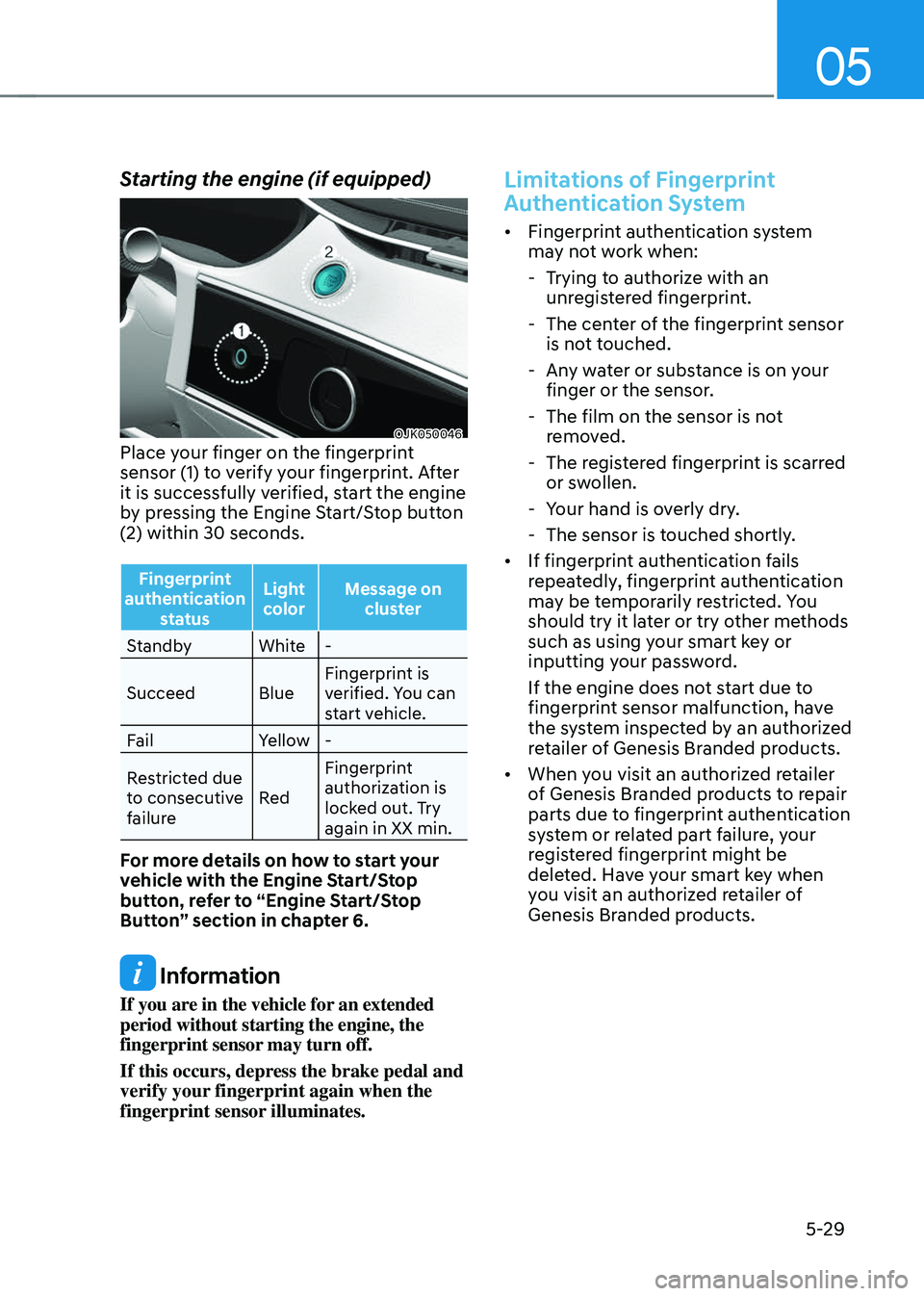
OJK050046OJK050046Place your finger on the fingerprint
sensor (1) to verify your fingerprint. After
it is successfully verified, start the engine
by pressing the Engine Start/Stop button
(2) within 30 seconds.
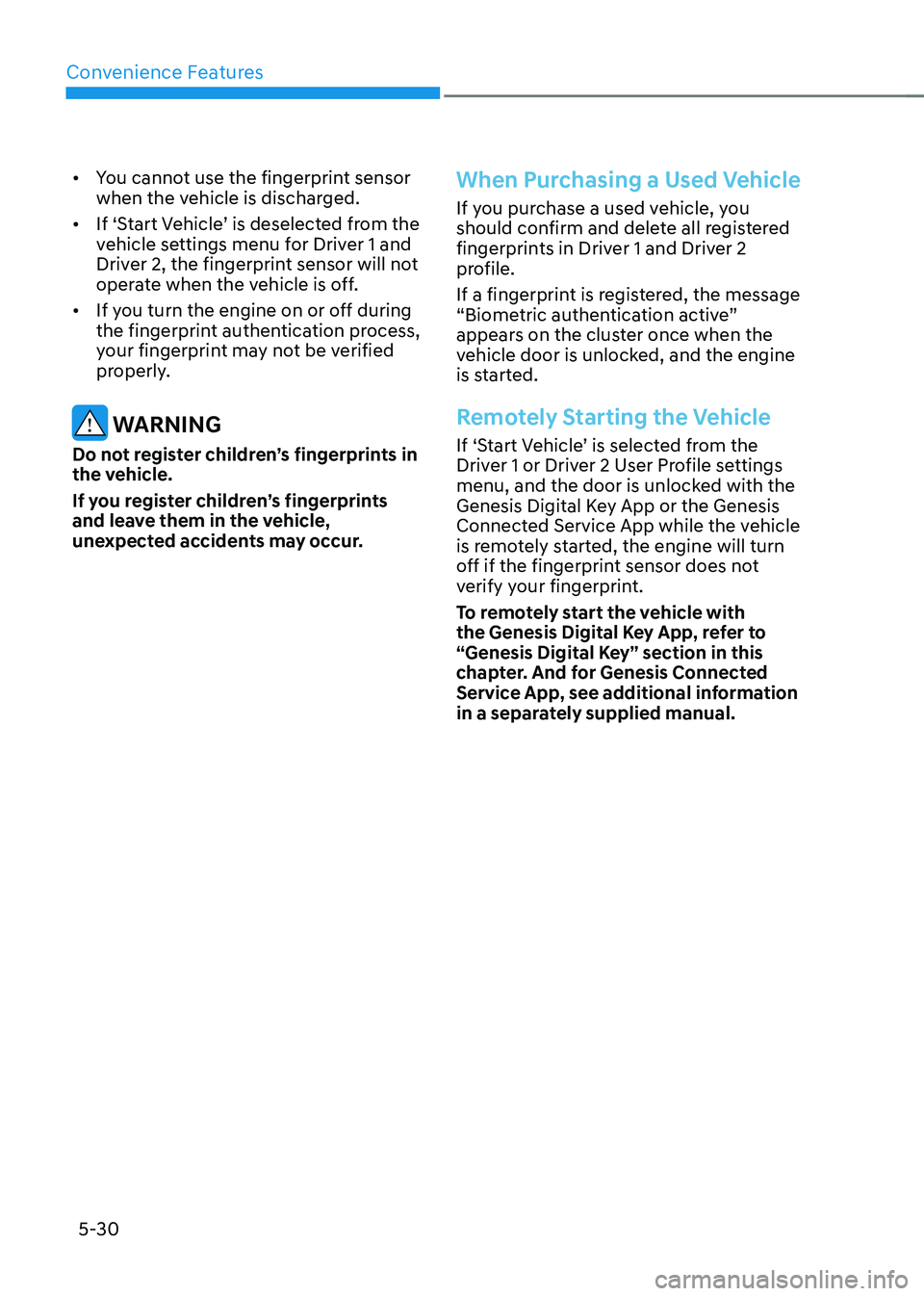
Fingerprint
authentication status Light
color Message on
cluster
Standby White-
Succeed BlueFingerprint is
verified. You can
start vehicle.
Fail Yellow-
Restricted due
to consecutive
failure RedFingerprint
authorization is
locked out. Try
again in XX min.
For more details on how to start your
vehicle with the Engine Start/Stop
button, refer to “Engine Start/Stop
Button” section in chapter 6.
Information
If you are in the vehicle for an extended
period without starting the engine, the
fingerprint sensor may turn off.
If this occurs, depress the brake pedal and
verify your fingerprint again when the
fingerprint sensor illuminates.
Limitations of Fingerprint
Authentication System
• Fingerprint authentication system
may not work when:
-
Trying to authorize with an
unregistered fingerprint.
-The center of the fingerprint sensor
is not touched.
-Any water or substance is on your
finger or the sensor.
-The film on the sensor is not
removed.
-The registered fingerprint is scarred
or swollen.
-Your hand is overly dry.
-The sensor is touched shortly.
• If fingerprint authentication fails
repeatedly, fingerprint authentication
may be temporarily restricted. You
should try it later or try other methods
such as using your smart key or
inputting your password.
If the engine does not start due to
fingerprint sensor malfunction, have
the system inspected by an authorized
retailer of Genesis Branded products.
• When you visit an authorized retailer
of Genesis Branded products to repair
parts due to fingerprint authentication
system or related part failure, your
registered fingerprint might be
deleted. Have your smart key when
you visit an authorized retailer of
Genesis Branded products.
Page 166 of 637
Convenience Features
5-30
• You cannot use the fingerprint sensor
when the vehicle is discharged.
• If ‘Start Vehicle’ is deselected from the
vehicle settings menu for Driver 1 and
Driver 2, the fingerprint sensor will not
operate when the vehicle is off.
• If you turn the engine on or off during
the fingerprint authentication process,
your fingerprint may not be verified
properly.
WARNING
Do not register children’s fingerprints in
the vehicle.
If you register children’s fingerprints
and leave them in the vehicle,
unexpected accidents may occur.
When Purchasing a Used Vehicle
If you purchase a used vehicle, you
should confirm and delete all registered
fingerprints in Driver 1 and Driver 2
profile.
If a fingerprint is registered, the message
“Biometric authentication active”
appears on the cluster once when the
vehicle door is unlocked, and the engine
is started.
Remotely Starting the Vehicle
If ‘Start Vehicle’ is selected from the
Driver 1 or Driver 2 User Profile settings
menu, and the door is unlocked with the
Genesis Digital Key App or the Genesis
Connected Service App while the vehicle
is remotely started, the engine will turn
off if the fingerprint sensor does not
verify your fingerprint.
To remotely start the vehicle with
the Genesis Digital Key App, refer to
“Genesis Digital Key” section in this
chapter. And for Genesis Connected
Service App, see additional information
in a separately supplied manual.
Page 167 of 637
05
5-31
Operating Door Locks From
Outside the Vehicle
Mechanical key
OJX1059013OJX1059013
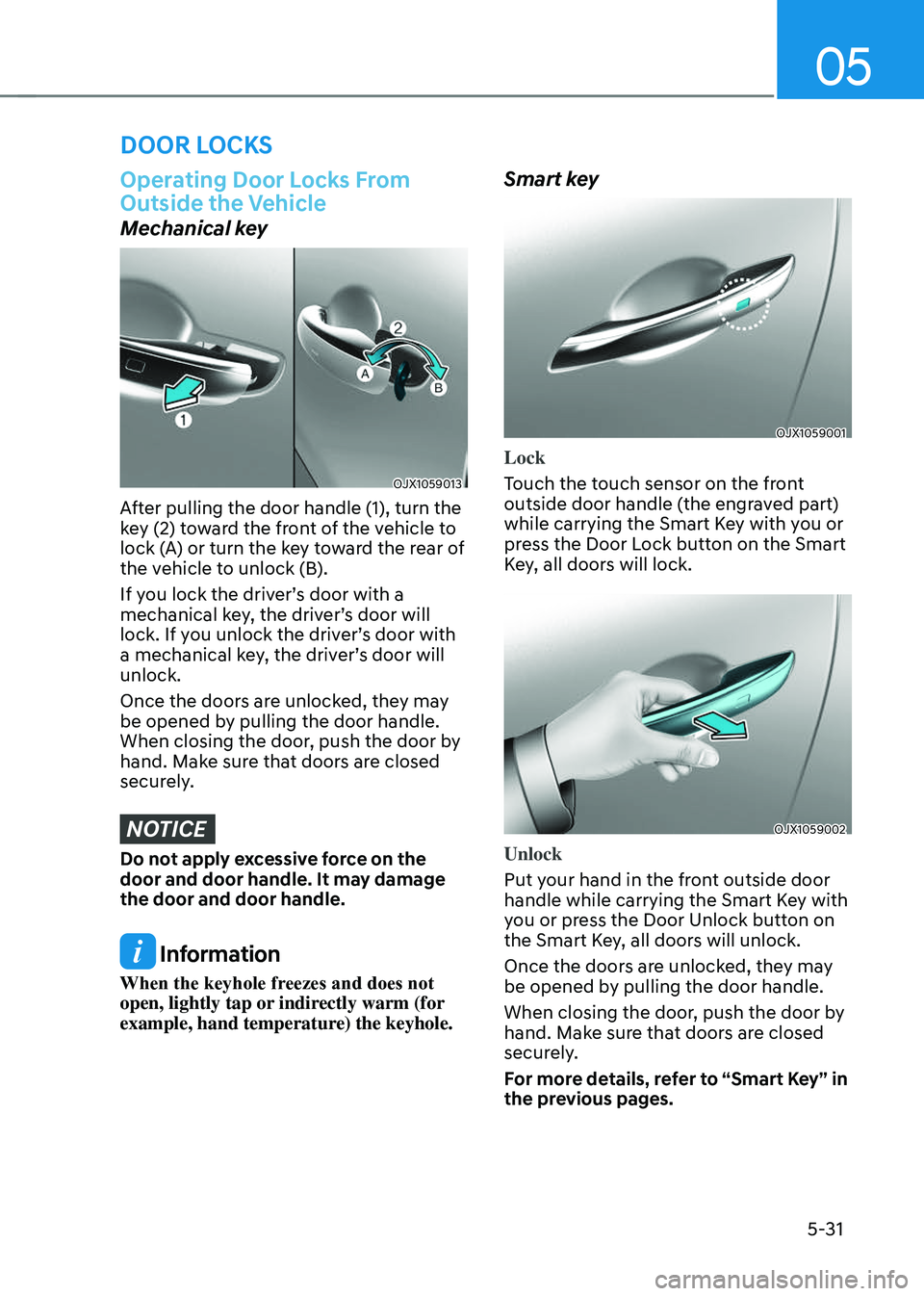
After pulling the door handle (1), turn the
key (2) toward the front of the vehicle to
lock (A) or turn the key toward the rear of
the vehicle to unlock (B).
If you lock the driver’s door with a
mechanical key, the driver’s door will
lock. If you unlock the driver’s door with
a mechanical key, the driver’s door will
unlock.
Once the doors are unlocked, they may
be opened by pulling the door handle.
When closing the door, push the door by
hand. Make sure that doors are closed
securely.
NOTICE
Do not apply excessive force on the
door and door handle. It may damage
the door and door handle.
Information
When the keyhole freezes and does not
open, lightly tap or indirectly warm (for
example, hand temperature) the keyhole.
Smart key
OJX1059001OJX1059001
Lock
Touch the touch sensor on the front
outside door handle (the engraved part)
while carrying the Smart Key with you or
press the Door Lock button on the Smart
Key, all doors will lock.
OJX1059002OJX1059002
Unlock
Put your hand in the front outside door
handle while carrying the Smart Key with
you or press the Door Unlock button on
the Smart Key, all doors will unlock.
Once the doors are unlocked, they may
be opened by pulling the door handle.
When closing the door, push the door by
hand. Make sure that doors are closed
securely.
For more details, refer to “Smart Key” in
the previous pages.
DOOR LOCKS
Page 168 of 637
Convenience Features
5-32
Information
• In cold and wet climates, door lock
and door mechanisms may not work
properly due to freezing conditions.
• If the door is locked/unlocked multiple
times in rapid succession with either
the vehicle key or door lock switch, the
system may stop operating temporarily
in order to protect the circuit and
prevent damage to system components.
Operating Door Locks From
Inside the Vehicle
With the door handle
OJK050005OJK050005
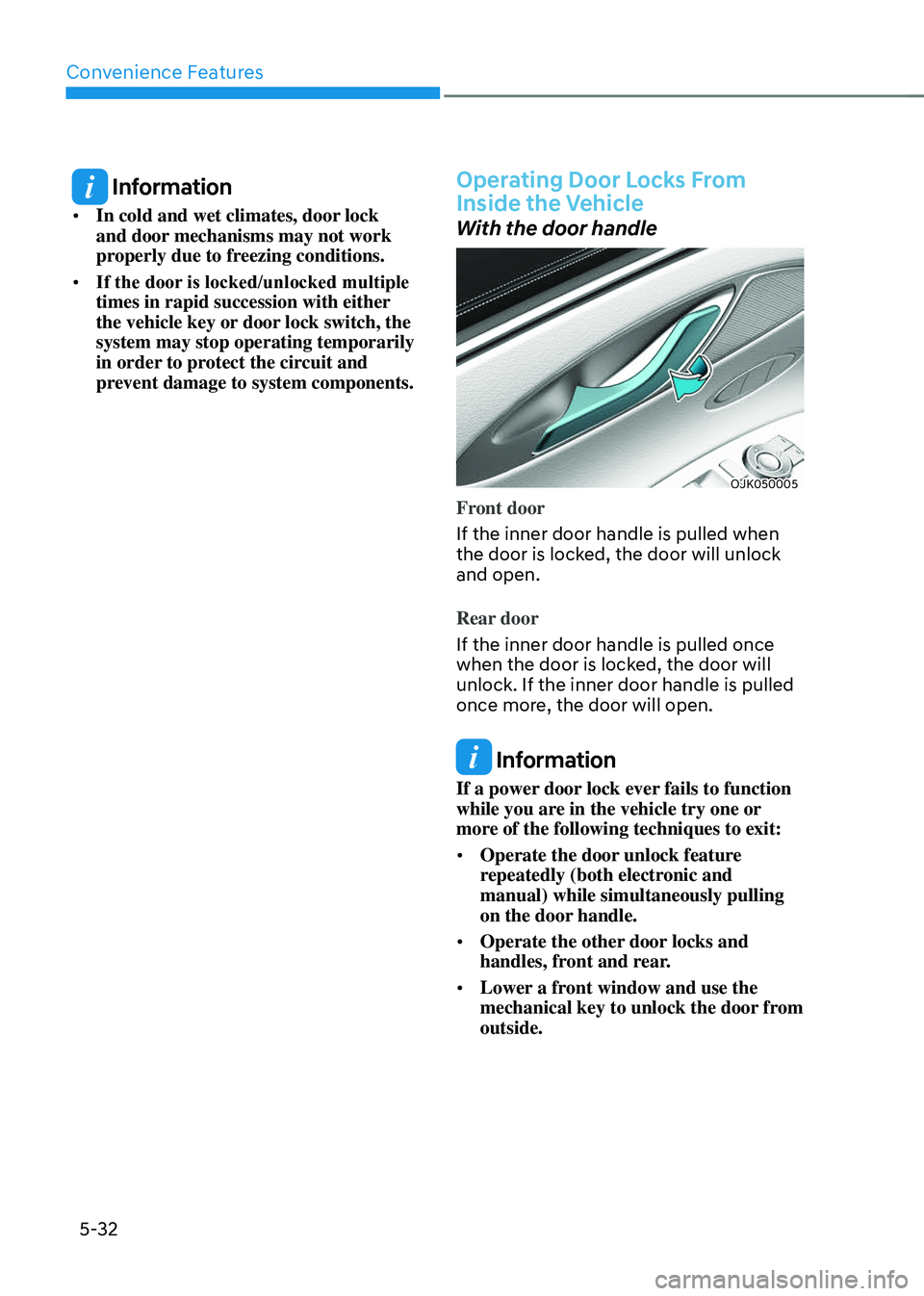
Front door
If the inner door handle is pulled when
the door is locked, the door will unlock
and open.
Rear door
If the inner door handle is pulled once
when the door is locked, the door will
unlock. If the inner door handle is pulled
once more, the door will open.
Information
If a power door lock ever fails to function
while you are in the vehicle try one or
more of the following techniques to exit:
• Operate the door unlock feature
repeatedly (both electronic and
manual) while simultaneously pulling
on the door handle.
• Operate the other door locks and
handles, front and rear.
• Lower a front window and use the
mechanical key to unlock the door from
outside.
Page 169 of 637
05
5-33
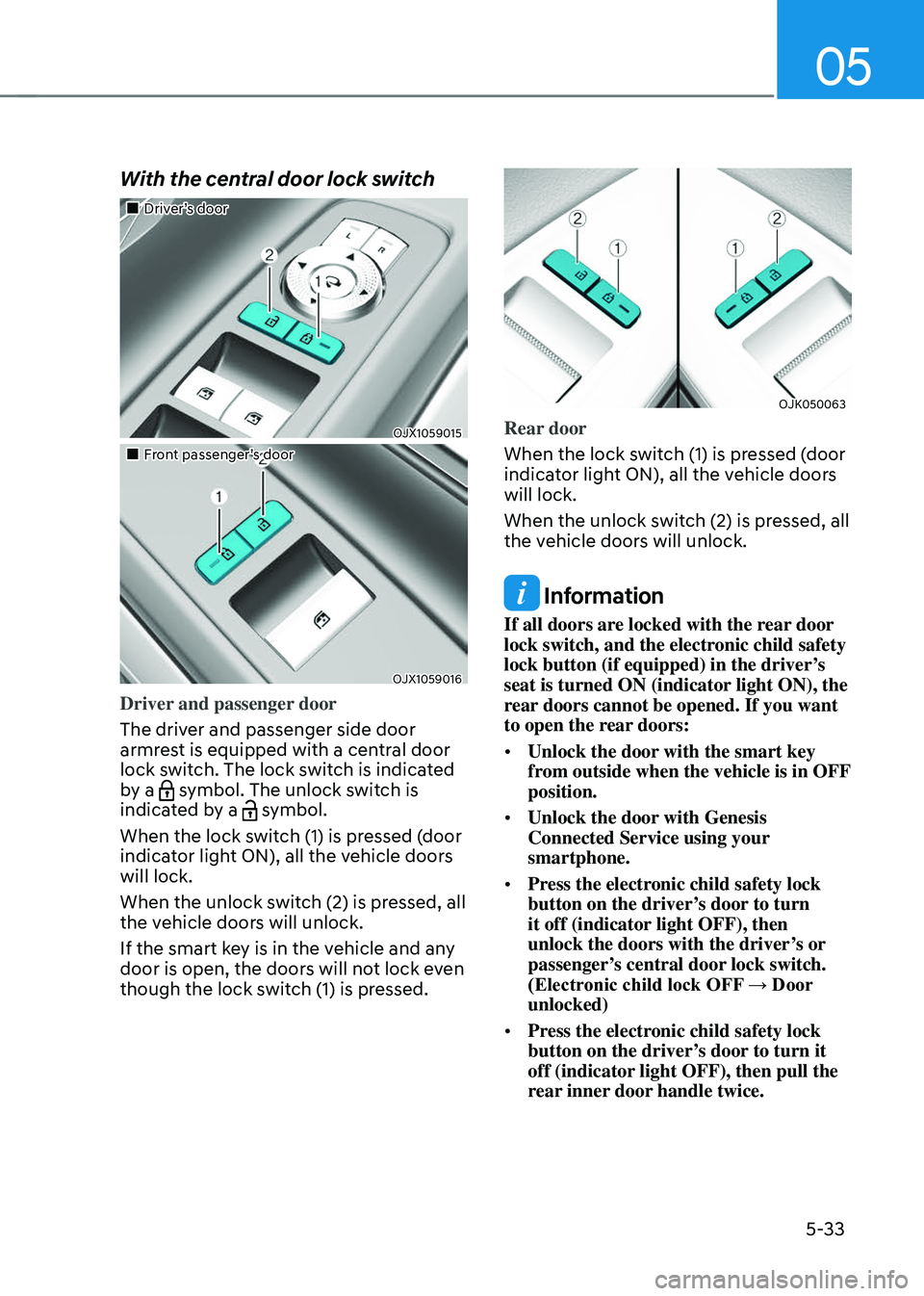
With the central door lock switch
Page 170 of 637
Convenience Features
5-34
In case of an emergency
OJK051036N OJK051036N
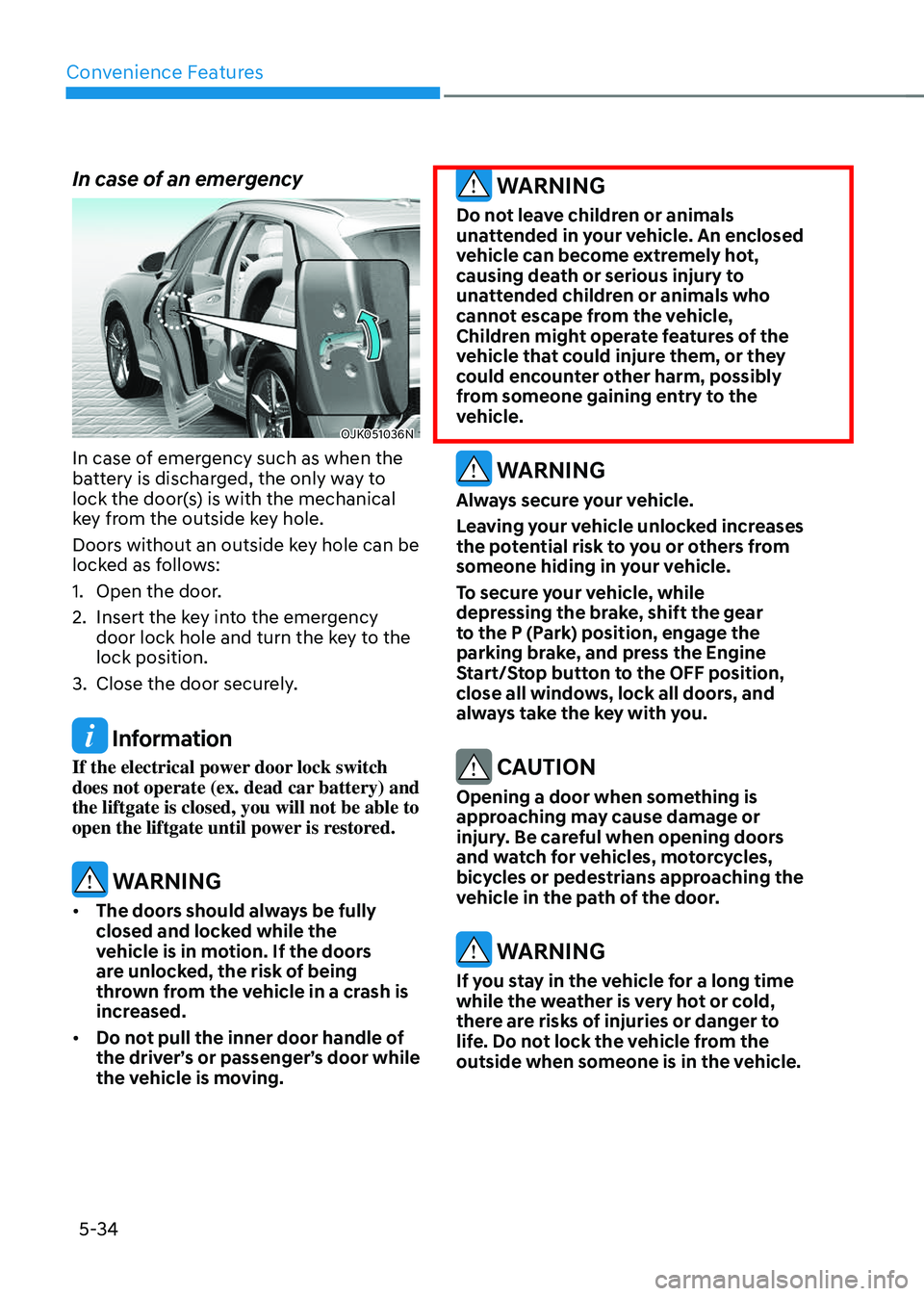
In case of emergency such as when the
battery is discharged, the only way to
lock the door(s) is with the mechanical
key from the outside key hole.
Doors without an outside key hole can be
locked as follows:
1. Open the door.
2. Insert the key into the emergency
door lock hole and turn the key to the
lock position.
3. Close the door securely.
Information
If the electrical power door lock switch
does not operate (ex. dead car battery) and
the liftgate is closed, you will not be able to
open the liftgate until power is restored.
WARNING
• The doors should always be fully
closed and locked while the
vehicle is in motion. If the doors
are unlocked, the risk of being
thrown from the vehicle in a crash is
increased.
• Do not pull the inner door handle of
the driver’s or passenger’s door while
the vehicle is moving.
WARNING
Do not leave children or animals
unattended in your vehicle. An enclosed
vehicle can become extremely hot,
causing death or serious injury to
unattended children or animals who
cannot escape from the vehicle,
Children might operate features of the
vehicle that could injure them, or they
could encounter other harm, possibly
from someone gaining entry to the
vehicle.
WARNING
Always secure your vehicle.
Leaving your vehicle unlocked increases
the potential risk to you or others from
someone hiding in your vehicle.
To secure your vehicle, while
depressing the brake, shift the gear
to the P (Park) position, engage the
parking brake, and press the Engine
Start/Stop button to the OFF position,
close all windows, lock all doors, and
always take the key with you.
CAUTION
Opening a door when something is
approaching may cause damage or
injury. Be careful when opening doors
and watch for vehicles, motorcycles,
bicycles or pedestrians approaching the
vehicle in the path of the door.
WARNING
If you stay in the vehicle for a long time
while the weather is very hot or cold,
there are risks of injuries or danger to
life. Do not lock the vehicle from the
outside when someone is in the vehicle.