GENESIS GV70 2023 Owners Manual
Manufacturer: GENESIS, Model Year: 2023, Model line: GV70, Model: GENESIS GV70 2023Pages: 637
Page 451 of 637
Driver Assistance System
7-100
Navigation-based Smart Cruise Control
helps drive at a certain speed according
to the road conditions when driving on
highways (or motorways) by using road
information from the navigation system
while Smart Cruise Control is operating.
Information
• The Navigation-based Smart Cruise
Control is available only on controlled
access road of certain highways.
ÃControlled access road indicates
roads with limited entrances and
exits that allow uninterrupted high
speed traffic flow. Only passenger
cars and motorcycles are allowed on
controlled access roads.
Available highway (Controlled access road)
USA Select Interstate Highway
and U.S. (Federal) and State Highways
Canada Select Provincial and Territorial
Highways
• Additional highways may be expanded
by future navigation updates.
Information
Navigation-based Smart Cruise Control
operates on main roads of highways (or
motorways), and does not operate on
interchanges or junctions.
Highway Curve Zone Auto Slowdown
If vehicle speed is high, Highway Curve
Zone Auto Slowdown function will
temporarily decelerate your vehicle
or limit acceleration to help you drive
safely on a curve based on the curve
information from the navigation.
Highway Set Speed Auto Change
Highway Set Speed Auto Change
function automatically changes Smart
Cruise Control set speed based on
the speed limit information from the
navigation.
Navigation-Based Smart Cruise
Control Settings
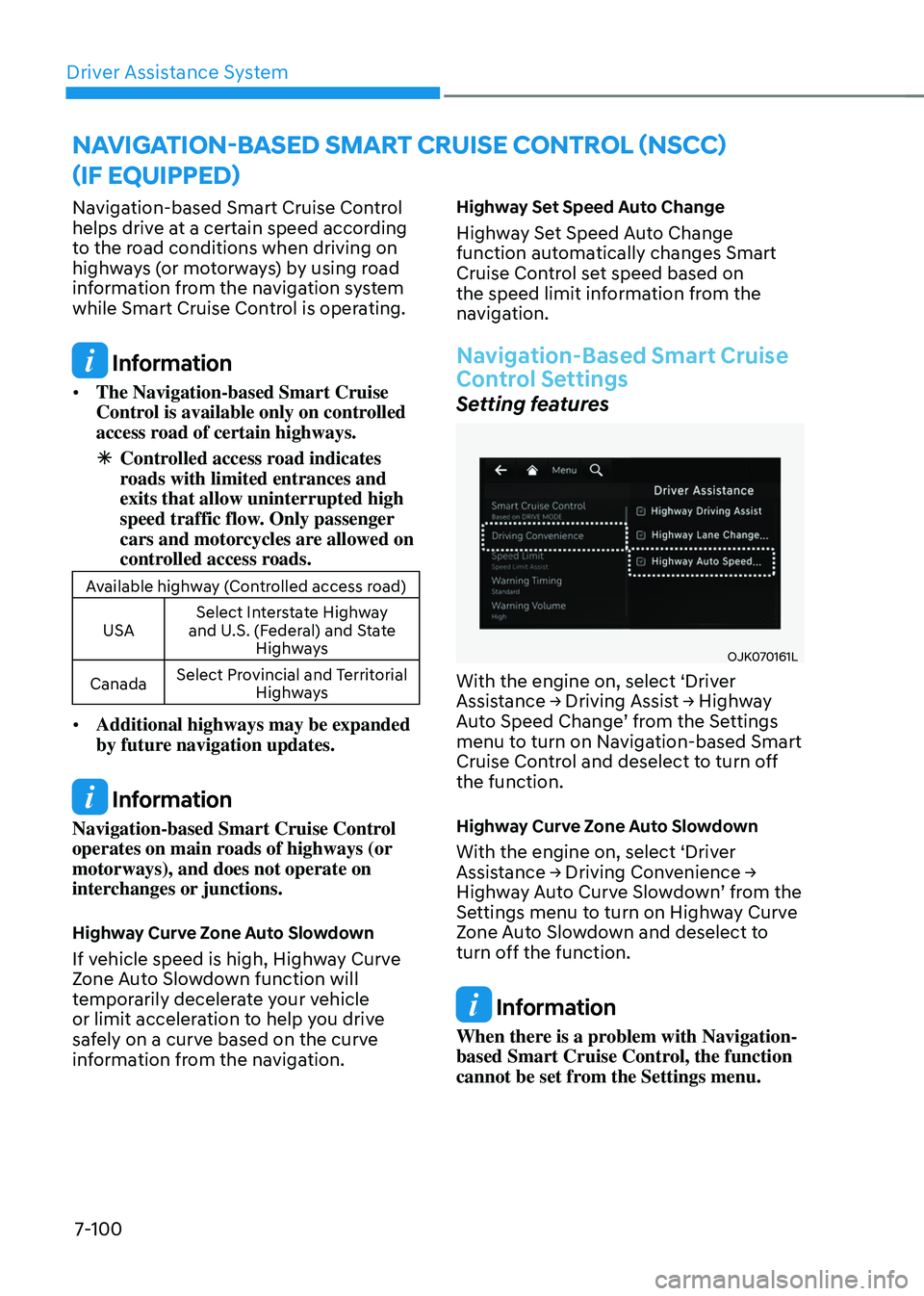
Setting features
OJK070161LOJK070161L
With the engine on, select ‘Driver
Assistance → Driving Assist → Highway
Auto Speed Change’ from the Settings
menu to turn on Navigation-based Smart
Cruise Control and deselect to turn off
the function.
Highway Curve Zone Auto Slowdown
With the engine on, select ‘Driver
Assistance → Driving Convenience →
Highway Auto Curve Slowdown’ from the
Settings menu to turn on Highway Curve
Zone Auto Slowdown and deselect to
turn off the function.
Information
When there is a problem with Navigation-
based Smart Cruise Control, the function
cannot be set from the Settings menu.
NAVIGATION-BASED SMART CRUISE CONTROL (NSCC)
(IF EQUIPPED)
Page 452 of 637
07
7-101
Navigation-Based Smart Cruise
Control Operation
Operating conditions
Navigation-based Smart Cruise Control
is ready to operate if all of the following
conditions are satisfied:
• Smart Cruise Control is operating
• Driving on main roads of highways (or
motorways)
Information
For more details on how to operate Smart
Cruise Control, refer to “Smart Cruise
Control (SCC)” section in this chapter.
Navigation-based Smart Cruise
Control display and control
When Navigation-based Smart Cruise
Control operates, it will be displayed on
the cluster as follows:
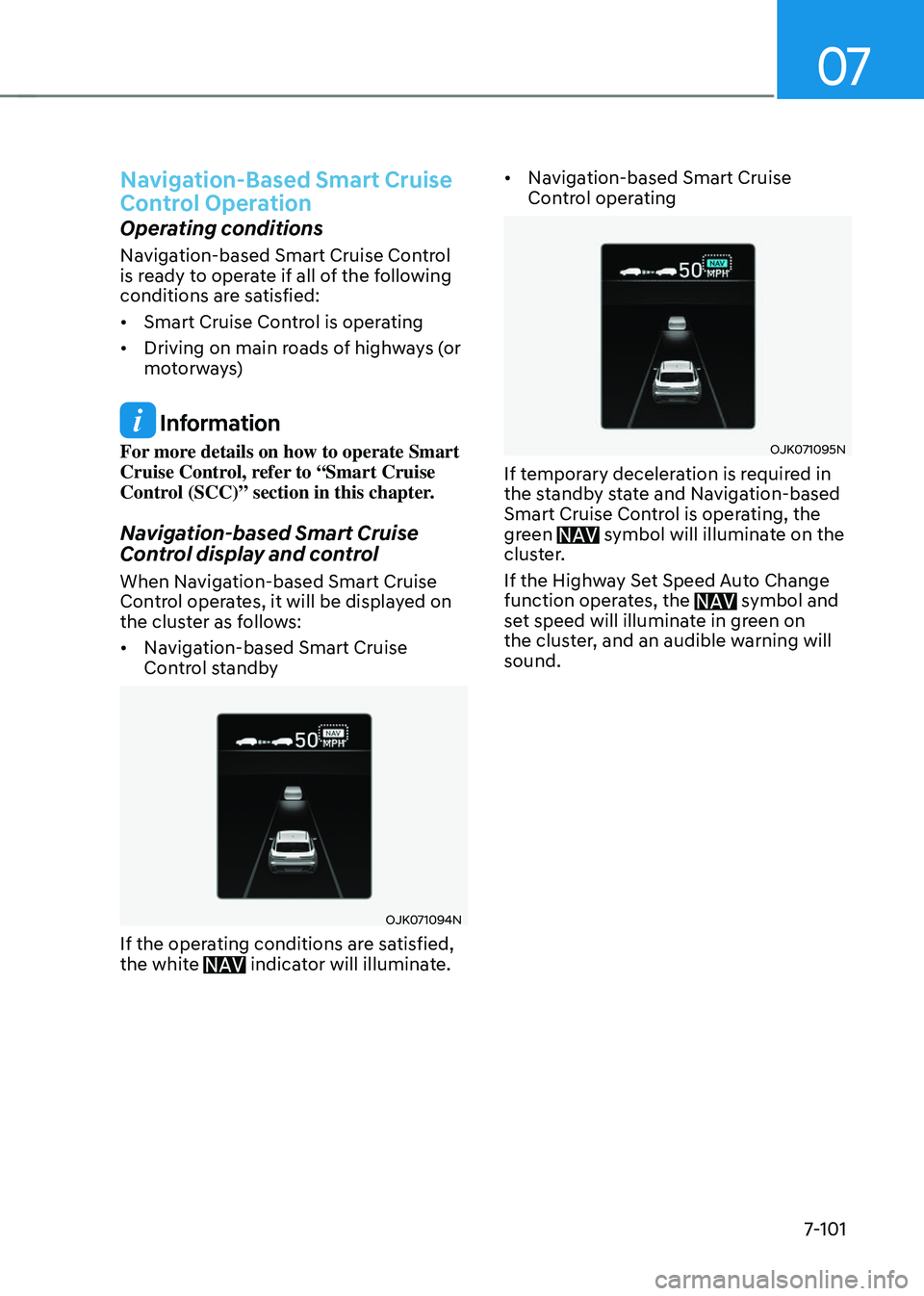
• Navigation-based Smart Cruise
Control standby
OJK071094NOJK071094N
If the operating conditions are satisfied,
the white indicator will illuminate.
• Navigation-based Smart Cruise
Control operating
OJK071095NOJK071095N
If temporary deceleration is required in
the standby state and Navigation-based
Smart Cruise Control is operating, the
green
symbol will illuminate on the cluster.
If the Highway Set Speed Auto Change
function operates, the
symbol and set speed will illuminate in green on
the cluster, and an audible warning will
sound.
Page 453 of 637
Driver Assistance System
7-102
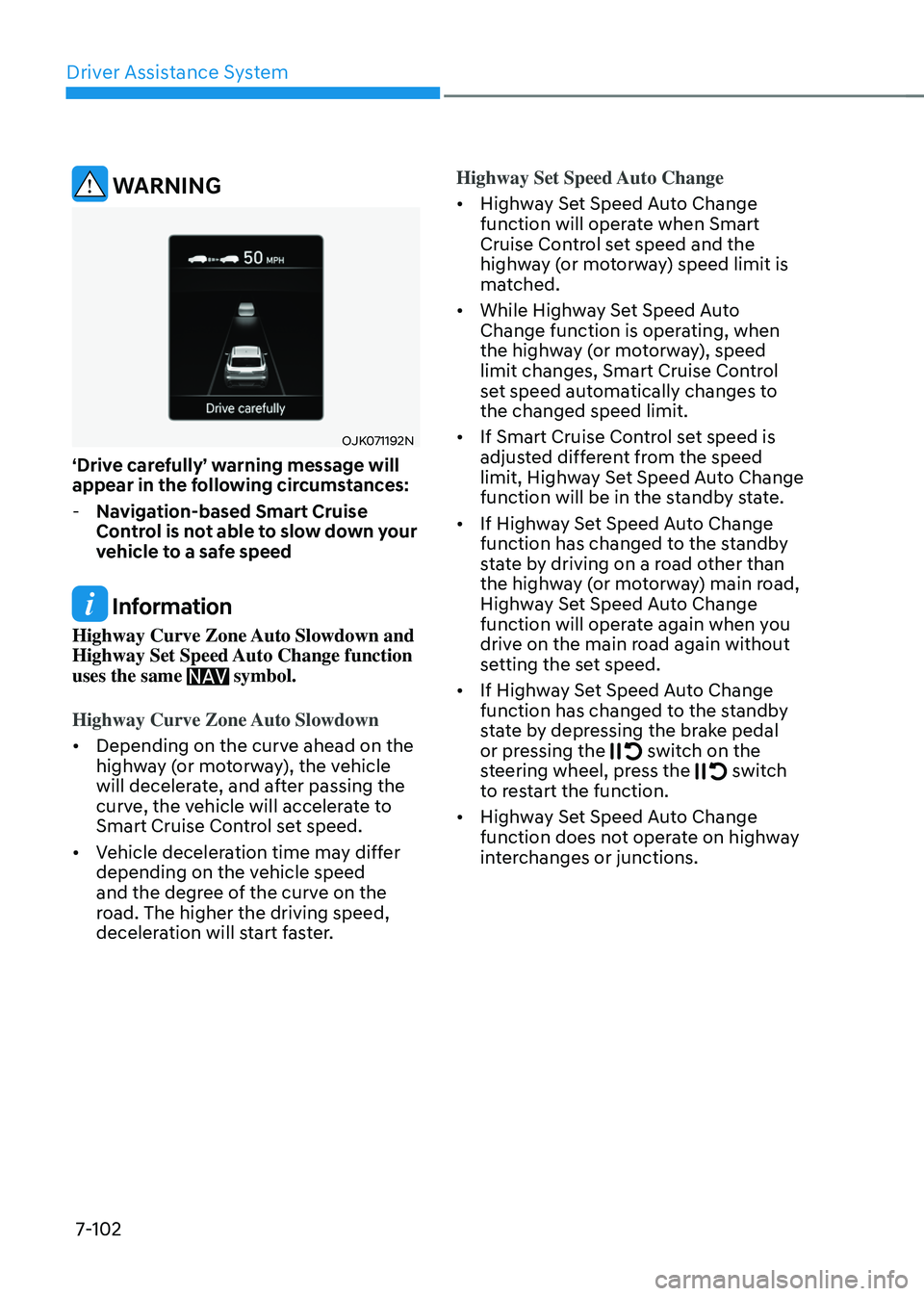
WARNING
OJK071192NOJK071192N
‘Drive carefully’ warning message will
appear in the following circumstances:
-Navigation-based Smart Cruise
Control is not able to slow down your
vehicle to a safe speed
Information
Highway Curve Zone Auto Slowdown and
Highway Set Speed Auto Change function
uses the same
symbol.
Highway Curve Zone Auto Slowdown
• Depending on the curve ahead on the
highway (or motorway), the vehicle
will decelerate, and after passing the
curve, the vehicle will accelerate to
Smart Cruise Control set speed.
• Vehicle deceleration time may differ
depending on the vehicle speed
and the degree of the curve on the
road. The higher the driving speed,
deceleration will start faster. Highway Set Speed Auto Change
• Highway Set Speed Auto Change
function will operate when Smart
Cruise Control set speed and the
highway (or motorway) speed limit is
matched.
• While Highway Set Speed Auto
Change function is operating, when
the highway (or motorway), speed
limit changes, Smart Cruise Control
set speed automatically changes to
the changed speed limit.
• If Smart Cruise Control set speed is
adjusted different from the speed
limit, Highway Set Speed Auto Change
function will be in the standby state.
• If Highway Set Speed Auto Change
function has changed to the standby
state by driving on a road other than
the highway (or motorway) main road,
Highway Set Speed Auto Change
function will operate again when you
drive on the main road again without
setting the set speed.
• If Highway Set Speed Auto Change
function has changed to the standby
state by depressing the brake pedal
or pressing the
switch on the steering wheel, press the switch to restart the function.
• Highway Set Speed Auto Change
function does not operate on highway
interchanges or junctions.
Page 454 of 637
07
7-103
Information
• Highway Set Speed Auto Change
function only operates based on
the speed limits of the highway (or
motorway), it does not work with the
speed cameras.
• When Highway Set Speed Auto Change
function is operating, the vehicle
automatically accelerates or decelerates
when the highway (or motorway) speed
limit changes.
• The maximum set speed for Highway
Set Speed Auto Change function is 86
mph (140 km/h).
• If the speed limit of a new road is not
updated in the navigation, Highway Set
Speed Auto Change function may not
operate properly.
• If the speed unit is set to a unit other
than the speed unit used in your
country, Highway Set Speed Auto
Change function may not operate
properly.
Limitations of Navigation-Based
Smart Cruise Control
Navigation-based Smart Cruise Control
may not operate properly under the
following circumstances:
• The navigation is not working properly
• Map information is not transmitted
due to infotainment system's
abnormal operation
• Speed limit and road information in
the navigation is not updated
• The map information and the actual
road is different because of real-time
GPS data or map information error
• The navigation searches for a route
while driving
• GPS signals are blocked in areas such
as a tunnel
• A road that divides into two or more
roads and joins again
• The driver goes off course the route
set in the navigation
• The route to the destination is
changed or canceled by resetting the
navigation
• The vehicle enters a service station or
rest area
• Android Auto or Car Play is operating
• The navigation cannot detect the
current vehicle position (for example,
elevated roads including overpass
adjacent to general roads or nearby
roads exist in a parallel way)
• The navigation is being updated while
driving
• The navigation is being restarted while
driving
• The speed limit of some sections
changes according to the road
situations
• Driving on a road under construction
• Driving on a road that is controlled
• There is bad weather, such as heavy
rain, heavy snow, etc.
• Driving on a road that is sharply
curved
Page 455 of 637
![GENESIS GV70 2023 Owners Manual Driver Assistance System
7-104
OJX1070280LOJX1070280L[1] : Set route, [2] : Branch line, [3] : Driving route,
[4] : Main road, [5] : Curved road section
• When there is a difference between
the na](/img/46/58827/w960_58827-454.png "GENESIS GV70 2023 Owners Manual Driver Assistance System
7-104
OJX1070280LOJX1070280L[1] : Set route, [2] : Branch line, [3] : Driving route,
[4] : Main road, [5] : Curved road section
• When there is a difference between
the na")
Driver Assistance System
7-104
OJX1070280LOJX1070280L[1] : Set route, [2] : Branch line, [3] : Driving route,
[4] : Main road, [5] : Curved road section
• When there is a difference between
the navigation set route (branch line)
and the driving route (main road),
Highway Curve Zone Auto Slowdown
function may not operate until the
driving route is recognized as the
main road.
• When the vehicle's driving route
is recognized as the main road by
maintaining the main road instead
of the navigation set route, Highway
Curve Zone Auto Slowdown function
will operate. Depending on the
distance to the curve and the current
vehicle speed, vehicle deceleration
may not be sufficient or may
decelerate rapidly.
OJX1070281LOJX1070281L[1] : Set route, [2] : Branch line, [3] : Driving route,
[4] : Main road, [5] : Curved road section
• When there is a difference between
the navigation route (main road)
and the driving route (branch line),
Highway Curve Zone Auto Slowdown
function will operate based on the
curve information on the main road.
• When it is judged that you are driving
out of the route by entering the
highway interchange or junction,
Highway Curve Zone Auto Slowdown
function will not operate.
Page 456 of 637
![GENESIS GV70 2023 Owners Manual 07
7-105
OJX1070282LOJX1070282L[1] : Driving route, [2] : Branch line,
[3] : Curved road section, [4] : Main road
• If there is no destination set on the
navigation, Highway Curve Zone Auto
Slowd](/img/46/58827/w960_58827-455.png "GENESIS GV70 2023 Owners Manual 07
7-105
OJX1070282LOJX1070282L[1] : Driving route, [2] : Branch line,
[3] : Curved road section, [4] : Main road
• If there is no destination set on the
navigation, Highway Curve Zone Auto
Slowd")
07
7-105
OJX1070282LOJX1070282L[1] : Driving route, [2] : Branch line,
[3] : Curved road section, [4] : Main road
• If there is no destination set on the
navigation, Highway Curve Zone Auto
Slowdown function will operate based
on the curve information on the main
road.
• Even if you depart from the main road,
Highway Curve Zone Auto Slowdown
function may temporarily operate
due to navigation information of the
highway curve section.
WARNING
• Navigation-based Smart Cruise
Control is not a substitute for safe
driving practices, but a convenience
function. Always have your eyes on
the road, and it is the responsibility
of the driver to avoid violating traffic
laws.
• The navigation’s speed limit
information may differ from the
actual speed limit information on the
road. It is the driver's responsibility
to check the speed limit on the
actual driving road or lane.
• Navigation-based Smart Cruise
Control will automatically be
canceled when you leave the
highway (or motorway) main road.
Always pay attention to road and
driving conditions while driving.
• Navigation-based Smart Cruise
Control may not operate due to the
existence of leading vehicles and
the driving conditions of the vehicle.
Always pay attention to road and
driving conditions while driving.
• When you are towing a trailer or
another vehicle, turn off Navigation-
based Smart Cruise Control for safety
reasons.
• After you pass through a tollgate on a
highway (or motorway), Navigation-
based Smart Cruise Control will
operate based on the first lane. If
you enter one of the other lanes,
Navigation-based Smart Cruise
Control might not operate properly.
• The vehicle will accelerate if the
driver depresses the accelerator
pedal while Navigation-based Smart
Cruise Control is operating, and
the function will not decelerate the
vehicle. However, if the accelerator
pedal is depressed insufficiently, the
vehicle may decelerate.
Page 457 of 637
Driver Assistance System
7-106
• If the driver accelerates and
releases the accelerator pedal while
Navigation-based Smart Cruise
Control is operating, the vehicle may
not decelerate sufficiently or may
rapidly decelerate to a safe speed.
• If the curve is too large or too small,
Navigation-based Smart Cruise
Control may not operate.
Information
• A time gap could occur between the
navigation’s guidance and when
Navigation-based Smart Cruise Control
operation starts and ends.
• The speed information on the cluster
and navigation may differ.
• Even if you are driving at a speed lower
than Smart Cruise Control set speed,
acceleration may be limited by the
curve sections ahead.
• If Navigation-based Smart Cruise
Control is operating while leaving the
main road to enter an interchange,
junction, rest area, etc., the function
may operate for a certain period of
time.
• Deceleration by Navigation-based
Smart Cruise Control may feel it is not
sufficient due to road conditions such
as uneven road surfaces, narrow lanes,
etc.
Information
This device complies with Part 15 of the
FCC rules.
Operation is subject to the following three
conditions:
1. This device may not cause harmful
interference, and
2. This device must accept any
interference received, including
interference that may cause undesired
operation.
3. Changes or modifications not expressly
approved by the party responsible
for compliance could void the user's
authority to operate the device.
Information
Radio frequency radiation exposure
information:
This equipment complies with FCC
radiation exposure limits set forth for an
uncontrolled environment.
This equipment should be installed and
operated with minimum distance of 8 in.
(20 cm) between the radiator (antenna)
and your body.
This transmitter must not be co-located or
operating in conjunction with any other
antenna or transmitter.
Page 458 of 637
07
7-107
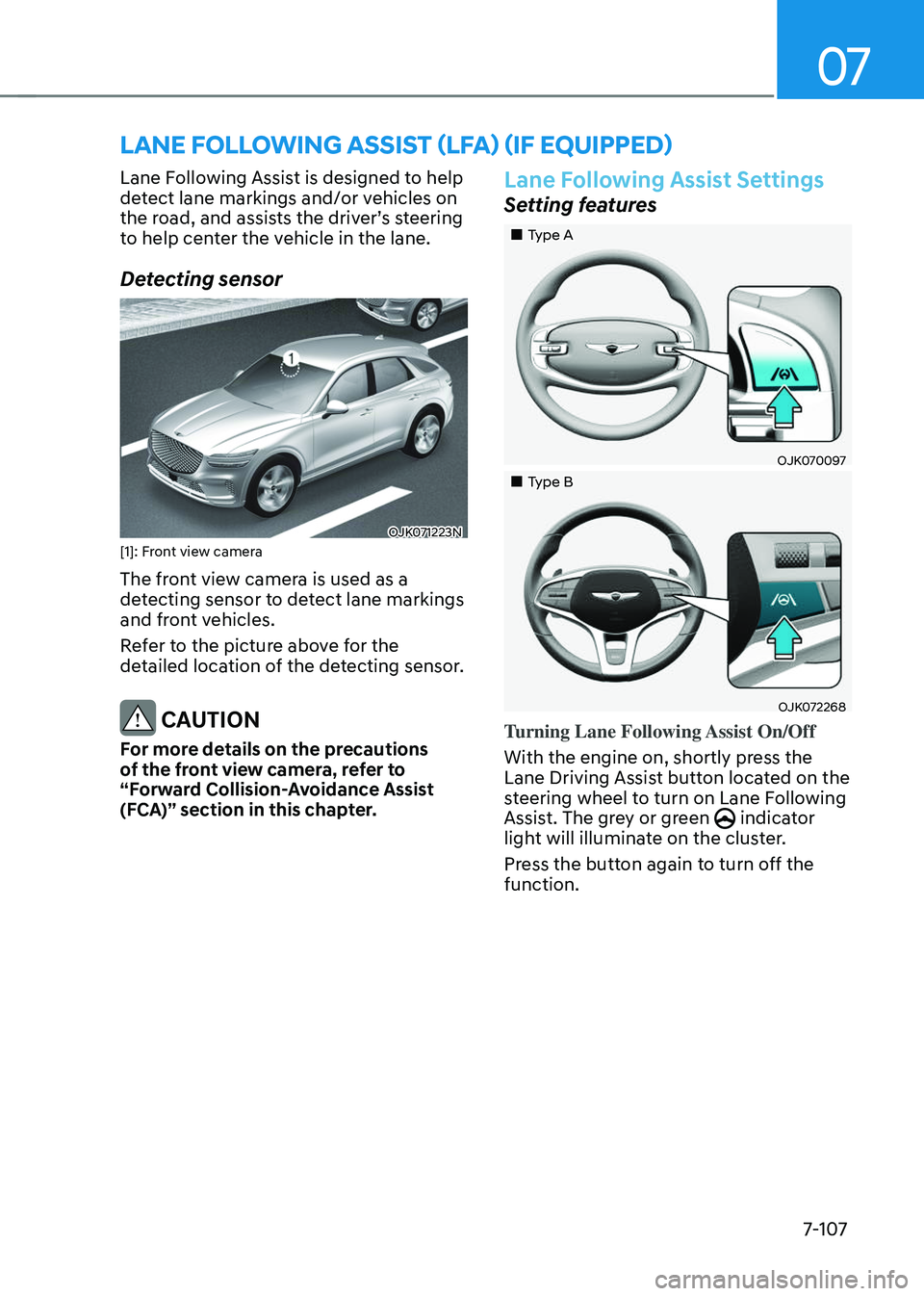
Lane Following Assist is designed to help
detect lane markings and/or vehicles on
the road, and assists the driver’s steering
to help center the vehicle in the lane.
Detecting sensor
OJK071223NOJK071223N[1]: Front view camera
The front view camera is used as a
detecting sensor to detect lane markings
and front vehicles.
Refer to the picture above for the
detailed location of the detecting sensor.
CAUTION
For more details on the precautions
of the front view camera, refer to
“Forward Collision-Avoidance Assist
(FCA)” section in this chapter.
Lane Following Assist Settings
Setting features
Page 459 of 637
Driver Assistance System
7-108
OJK071003NOJK071003N
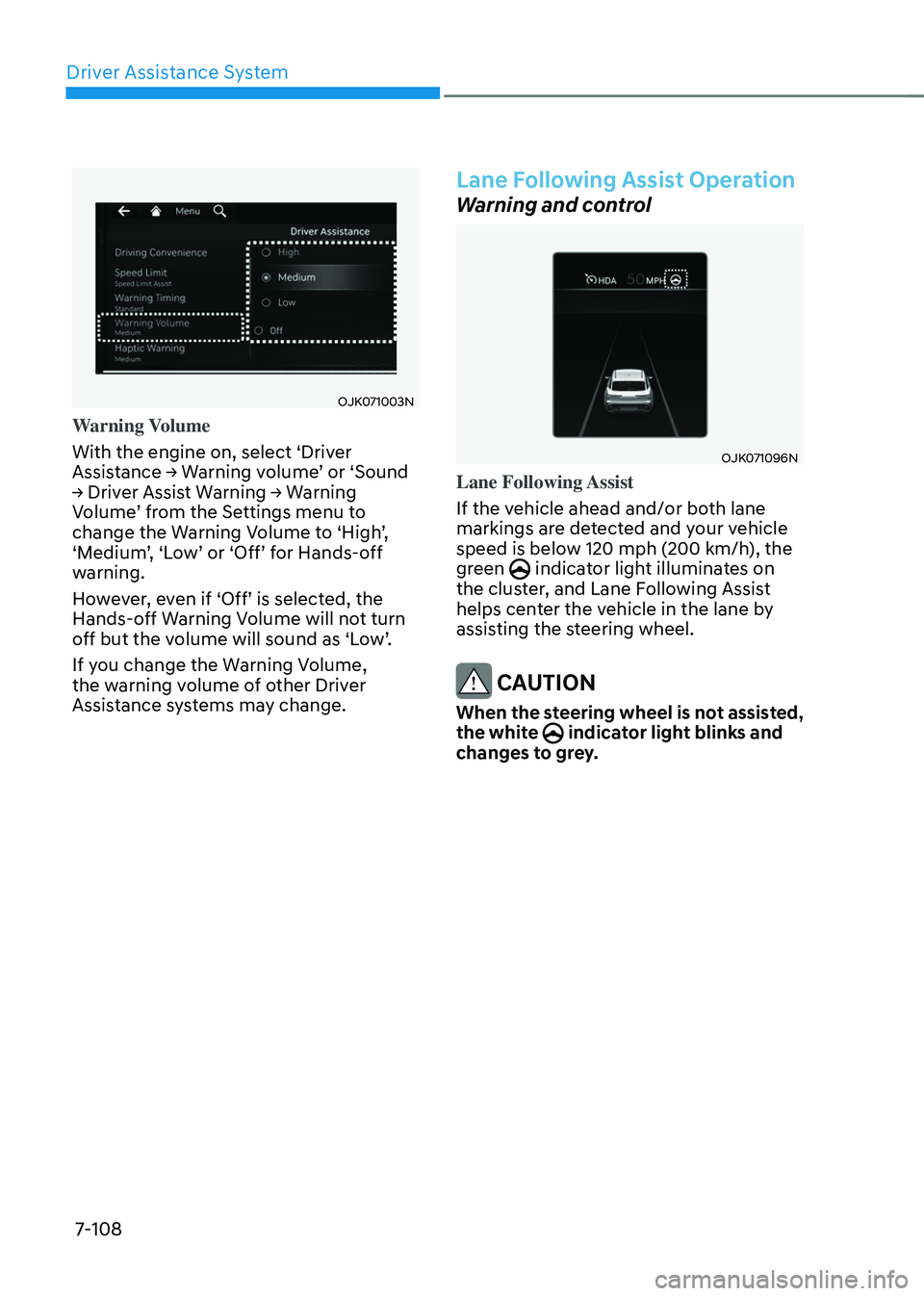
Warning Volume
With the engine on, select ‘Driver
Assistance → Warning volume’ or ‘Sound
→ Driver Assist Warning → Warning
Volume’ from the Settings menu to
change the Warning Volume to ‘High’,
‘Medium’, ‘Low’ or ‘Off’ for Hands-off
warning.
However, even if ‘Off’ is selected, the
Hands-off Warning Volume will not turn
off but the volume will sound as ‘Low’.
If you change the Warning Volume,
the warning volume of other Driver
Assistance systems may change.
Lane Following Assist Operation
Warning and control
OJK071096NOJK071096N
Lane Following Assist
If the vehicle ahead and/or both lane
markings are detected and your vehicle
speed is below 120 mph (200 km/h), the
green
indicator light illuminates on the cluster, and Lane Following Assist
helps center the vehicle in the lane by
assisting the steering wheel.
CAUTION
When the steering wheel is not assisted,
the white indicator light blinks and changes to grey.
Page 460 of 637
07
7-109
OJK070078LOJK070078L
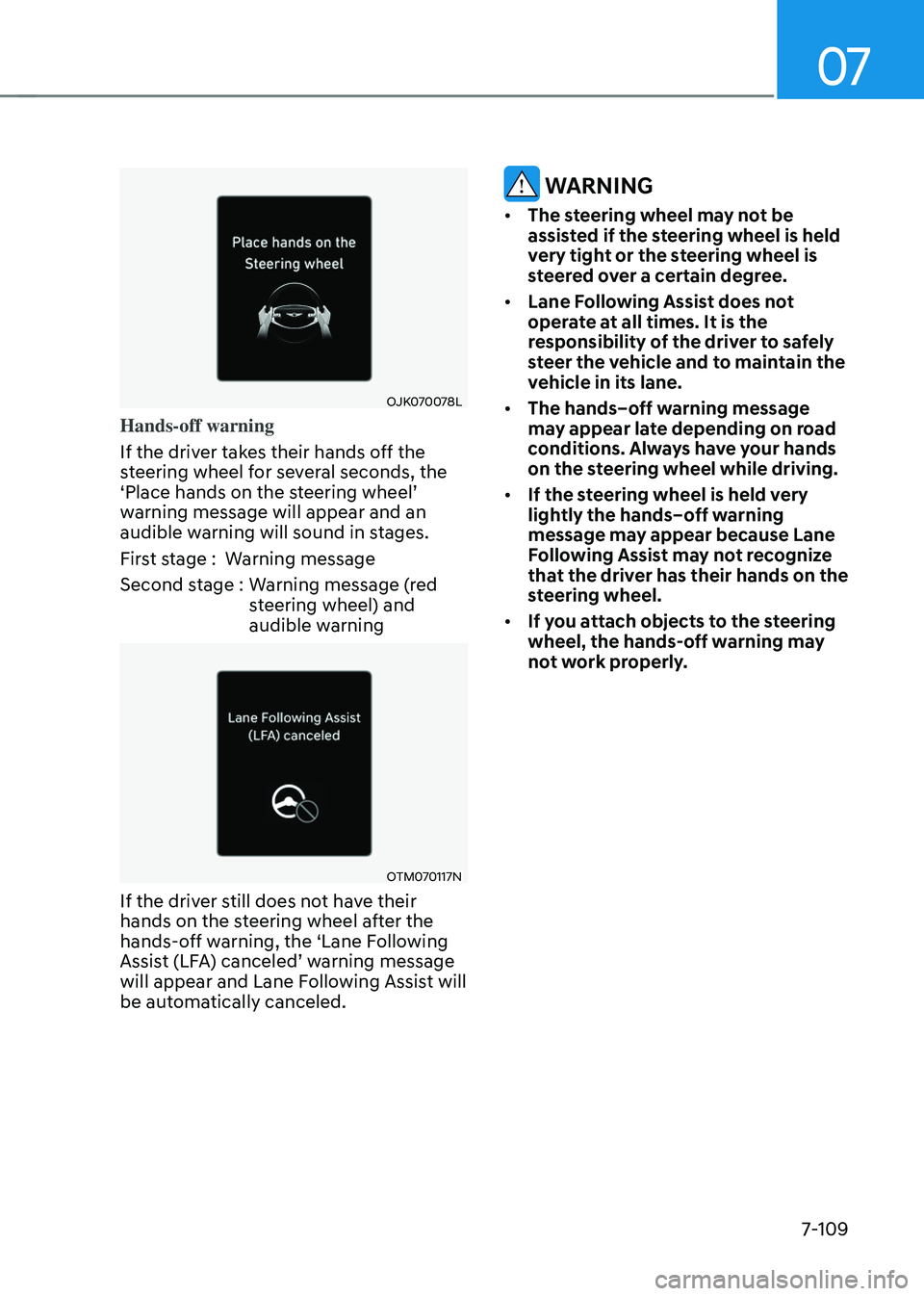
Hands-off warning
If the driver takes their hands off the
steering wheel for several seconds, the
‘Place hands on the steering wheel’
warning message will appear and an
audible warning will sound in stages.
First stage :Warning message
Second stage : Warning message (red
steering wheel) and
audible warning
OTM070117NOTM070117N
If the driver still does not have their
hands on the steering wheel after the
hands-off warning, the ‘Lane Following
Assist (LFA) canceled’ warning message
will appear and Lane Following Assist will
be automatically canceled.
WARNING
• The steering wheel may not be
assisted if the steering wheel is held
very tight or the steering wheel is
steered over a certain degree.
• Lane Following Assist does not
operate at all times. It is the
responsibility of the driver to safely
steer the vehicle and to maintain the
vehicle in its lane.
• The hands–off warning message
may appear late depending on road
conditions. Always have your hands
on the steering wheel while driving.
• If the steering wheel is held very
lightly the hands–off warning
message may appear because Lane
Following Assist may not recognize
that the driver has their hands on the
steering wheel.
• If you attach objects to the steering
wheel, the hands-off warning may
not work properly.