GENESIS GV70 2023 Owners Manual
Manufacturer: GENESIS, Model Year: 2023, Model line: GV70, Model: GENESIS GV70 2023Pages: 637
Page 471 of 637
Driver Assistance System
7-120
-Highway Lane Change Assist
function is off (The function turns
off when the function is turned off
from the settings menu, when the
road changes to a one-way road,
when there is a intersection or
crosswalk ahead, when you enter
a road with no structure, such as
a medium strip, guardrail, etc.,
or when there is a pedestrian or
cyclist on the driving lane.)
-Your vehicle speed is below 35
mph (55km/h)
• While the function is operating,
when the function is canceled,
depending on the driving conditions,
the vehicle may drive to the middle
of the driving lane or steering assist
may stop. Always pay attention to
road and driving conditions while
driving.
• The function may not operate
properly on roads with pedestrians
or cyclists, such as an intersection
or crosswalk. Always pay attention
to road and driving conditions while
driving.
Highway Driving Assist
Malfunction and Limitations
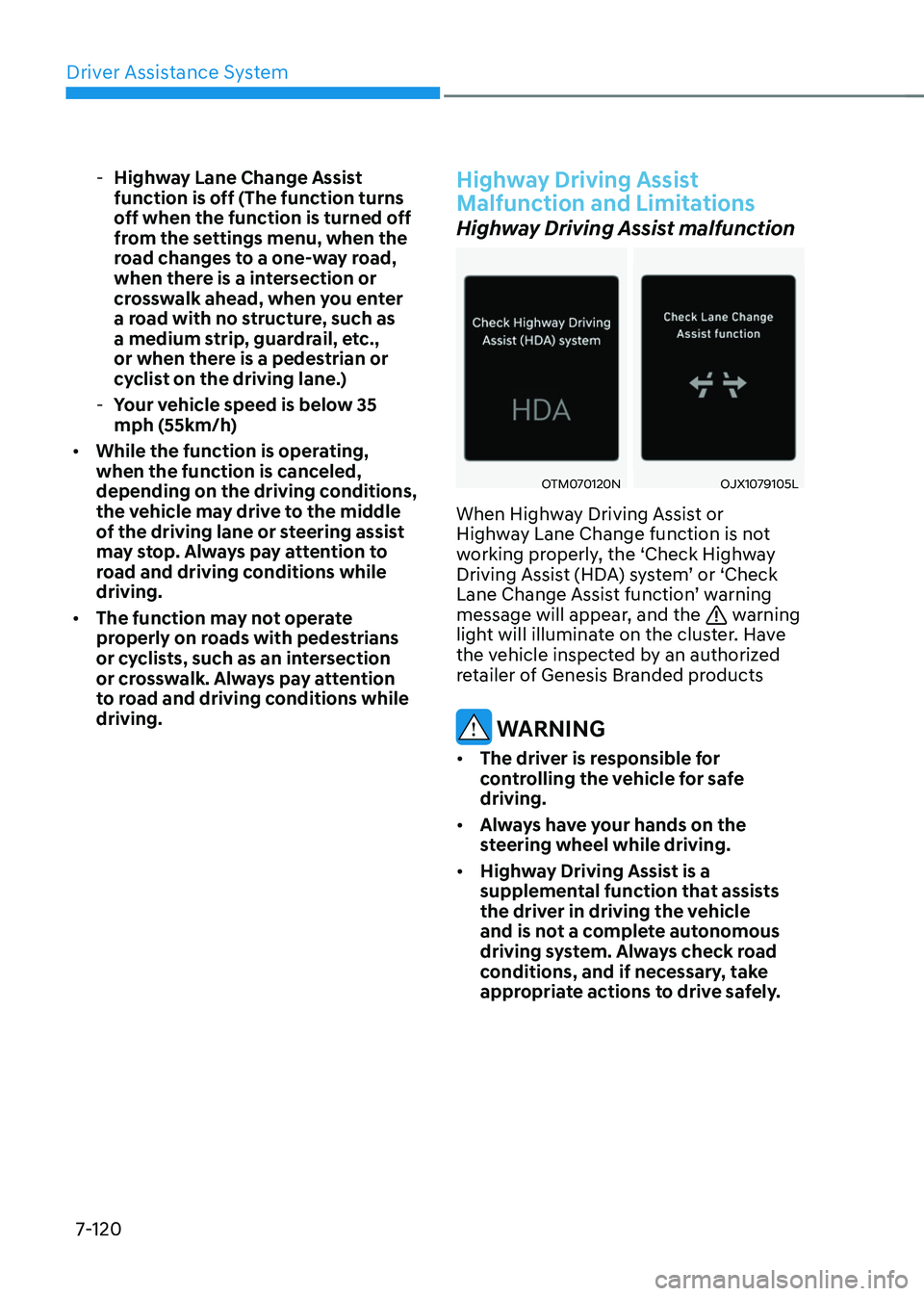
Highway Driving Assist malfunction
OTM070120NOTM070120NOJX1079105LOJX1079105L
When Highway Driving Assist or
Highway Lane Change function is not
working properly, the ‘Check Highway
Driving Assist (HDA) system’ or ‘Check
Lane Change Assist function’ warning
message will appear, and the
warning
light will illuminate on the cluster. Have
the vehicle inspected by an authorized
retailer of Genesis Branded products
WARNING
• The driver is responsible for
controlling the vehicle for safe
driving.
• Always have your hands on the
steering wheel while driving.
• Highway Driving Assist is a
supplemental function that assists
the driver in driving the vehicle
and is not a complete autonomous
driving system. Always check road
conditions, and if necessary, take
appropriate actions to drive safely.
Page 472 of 637
07
7-121
• Always have your eyes on the road,
and it is the responsibility of the
driver to avoid violating traffic laws.
The vehicle manufacturer is not
responsible for any traffic violation
or accidents caused by the driver.
• Highway Driving Assist may not
be able to recognize all traffic
situations. Highway Driving Assist
may not detect possible collisions
due to limitations of the function.
Always be aware of the limitations
of the function. Obstacles such as
vehicles, motorcycles, bicycles,
pedestrians, or unspecified objects
or structures such as guardrails,
tollgate, etc., that may collide with
the vehicle may not be detected.
• Highway Driving Assist will turn off
automatically under the following
situations:
-Driving on roads that Highway
Driving Assist does not operate,
such as a rest area, intersection,
junction, etc.
-The navigation does not operate
properly such as when the
navigation is being updated or
restarted
• Highway Driving Assist may
inadvertently operate or turn off
depending on road conditions
(navigation information) and
surroundings.
• Lane Following Assist function may
be temporarily disabled when the
front view camera cannot detect
lanes properly or the hands-off
warning is on.
• You may not hear the warning sound
of Highway Driving Assist if the
surrounding is noisy.
• If the vehicle is driven at high speed
above a certain speed at a curve,
your vehicle may drive to one side or
may depart from the driving lane.
• When you are towing a trailer or
another vehicle, turn off Highway
Driving Assist for safety reasons.
• The hands–off warning message
may appear early or late depending
on how the steering wheel is held or
road conditions. Always have your
hands on the steering wheel while
driving.
• For your safety, please read the
owner's manual before using the
Highway Driving Assist.
• Highway Driving Assist will not
operate when the engine is started,
or when the detecting sensors or
navigation is being initialized.
Page 473 of 637
Driver Assistance System7-122
Limitations of Highway Driving
Assist
Highway Driving Assist and Highway
Lane Change function may not operate
properly, or may not operate under the
following circumstances:
• The map information and the
actual road is different because the
navigation is not updated
• The map information and the actual
road is different because of real-time
GPS data or map information error
• The infotainment system is overloaded
by simultaneously performing
functions such as route search, video
playback, voice recognition, etc.
• GPS signals are blocked in areas such
as a tunnel
• The driver goes off course or the
route to the destination is changed or
canceled by resetting the navigation
• The vehicle enters a service station or
rest area
• Android Auto or Car Play is operating
• The navigation cannot detect the
current vehicle position (ex: elevated
roads including overpass adjacent to
general roads or nearby roads exist in
a parallel way)
• White single dotted lane line or road
edge cannot be detected
• The road is temporarily controlled due
to construction, etc.
• There is no structure, such as a
medium strip, guardrails, etc., on the
road
• There is a changeable lane in the
direction of lane change
Information
For more details on the limitations of
the front view camera, front radar, front
corner radar and rear corner radar, refer
to “Forward Collision-Avoidance Assist
(FCA)” section in this chapter.
Information
This device complies with Part 15 of the
FCC rules.
Operation is subject to the following three
conditions:
1. This device may not cause harmful
interference, and
2. This device must accept any
interference received, including
interference that may cause undesired
operation.
3. Changes or modifications not expressly
approved by the party responsible
for compliance could void the user's
authority to operate the device.
Information
Radio frequency radiation exposure
information:
This equipment complies with FCC
radiation exposure limits set forth for an
uncontrolled environment.
This equipment should be installed and
operated with minimum distance of 8 in.
(20 cm) between the radiator (antenna)
and your body.
This transmitter must not be co-located or
operating in conjunction with any other
antenna or transmitter.
Page 474 of 637
![GENESIS GV70 2023 Owners Manual 07
7-123
OJK1071250LOJK1071250L
OJK070053OJK070053
Rear View Monitor shows the area
behind the vehicle to assist you when
parking or backing up.
Detecting sensor
OJK1071251LOJK1071251L[1] : Rear vie](/img/46/58827/w960_58827-473.png "GENESIS GV70 2023 Owners Manual 07
7-123
OJK1071250LOJK1071250L
OJK070053OJK070053
Rear View Monitor shows the area
behind the vehicle to assist you when
parking or backing up.
Detecting sensor
OJK1071251LOJK1071251L[1] : Rear vie")
07
7-123
OJK1071250LOJK1071250L
OJK070053OJK070053
Rear View Monitor shows the area
behind the vehicle to assist you when
parking or backing up.
Detecting sensor
OJK1071251LOJK1071251L[1] : Rear view camera
Refer to the picture above for the
detailed location of the detecting sensor.
Rear View Monitor Settings
Camera settings
OJK071232NOJK071232N
You can change Rear View Monitor
‘Display Contents’ by touching the setup
icon (
) on the screen while Rear View
Monitor is operating, or selecting ‘Driver
Assistance → Parking Safety → Camera
Settings’ from the Settings menu while
the engine is on.
REAR VIEW MONITOR (RVM)
PARKING SAFETY
Page 475 of 637
Driver Assistance System
7-124
Rear View Monitor Operation
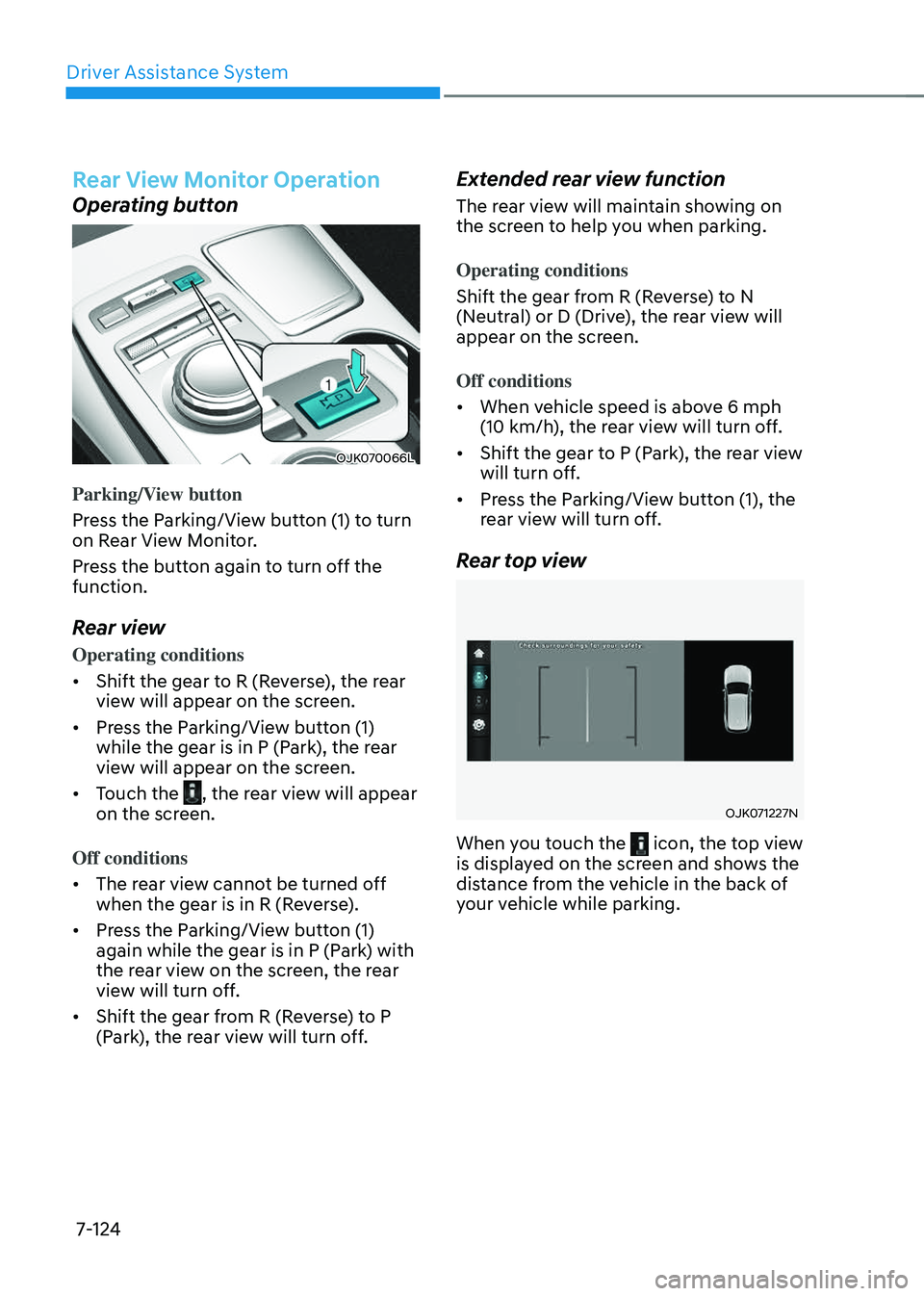
Operating button
OJK070066LOJK070066L
Parking/View button
Press the Parking/View button (1) to turn
on Rear View Monitor.
Press the button again to turn off the
function.
Rear view
Operating conditions
• Shift the gear to R (Reverse), the rear
view will appear on the screen.
• Press the Parking/View button (1)
while the gear is in P (Park), the rear
view will appear on the screen.
• Touch the , the rear view will appear on the screen.
Off conditions
• The rear view cannot be turned off
when the gear is in R (Reverse).
• Press the Parking/View button (1)
again while the gear is in P (Park) with
the rear view on the screen, the rear
view will turn off.
• Shift the gear from R (Reverse) to P
(Park), the rear view will turn off.
Extended rear view function
The rear view will maintain showing on
the screen to help you when parking.
Operating conditions
Shift the gear from R (Reverse) to N
(Neutral) or D (Drive), the rear view will
appear on the screen.
Off conditions
• When vehicle speed is above 6 mph
(10 km/h), the rear view will turn off.
• Shift the gear to P (Park), the rear view
will turn off.
• Press the Parking/View button (1), the
rear view will turn off.
Rear top view
OJK071227NOJK071227N
When you touch the icon, the top view is displayed on the screen and shows the
distance from the vehicle in the back of
your vehicle while parking.
Page 476 of 637
07
7-125
Rear View Monitor Malfunction
and Limitations
Rear View Monitor malfunction
When Rear View Monitor is not working
properly, or the screen flickers, or the
camera image does not display properly,
have the vehicle inspected by an
authorized retailer of Genesis Branded
products.
Limitations of Rear View Monitor
When the vehicle is stopped for a long
time in winter or when the vehicle is
parked in an indoor parking lot, the
exhaust fumes may temporarily blur the
image.
WARNING
• The rear view camera does not
cover the complete area behind the
vehicle. The driver should always
check the rear area directly through
the inside and side view mirror
before parking or backing up.
• The image shown on the screen may
differ from the actual distance of the
object. Make sure to directly check
the vehicle's surroundings for safety.
• Always keep the rear view camera
lens clean. If the lens is covered with
foreign material, it may adversely
affect camera performance and
Rear View Monitor may not operate
properly. However, do not use
chemical solvents such as strong
detergents containing high alkaline
or volatile organic solvents (gasoline,
acetone, etc.). This may damage the
camera lens.
Page 477 of 637
Driver Assistance System
7-126
OJK070163LOJK070163L
OJK071236NOJK071236N
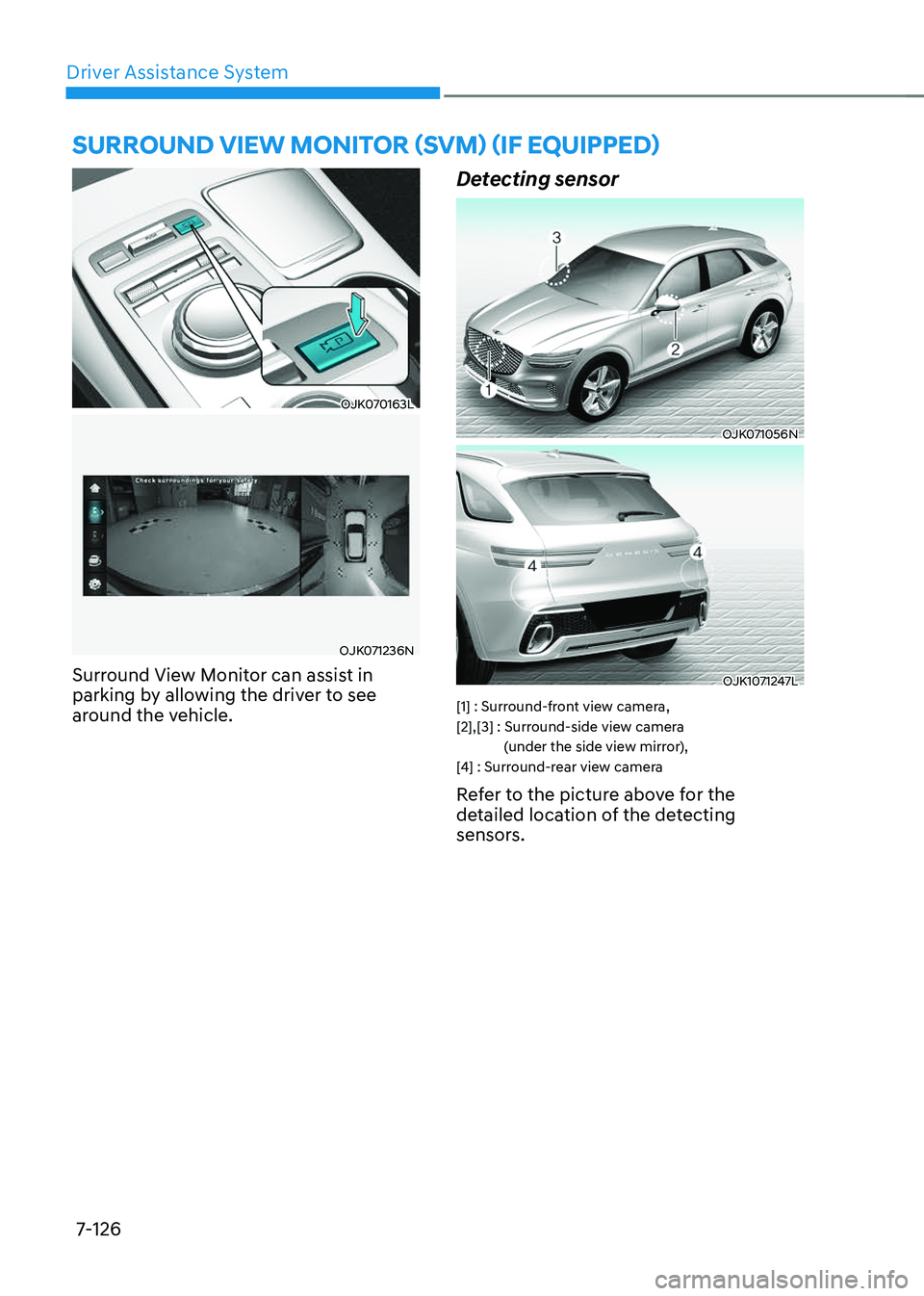
Surround View Monitor can assist in
parking by allowing the driver to see
around the vehicle.
Detecting sensor
OJK071056NOJK071056N
OJK1071247L OJK1071247L
[1] : Surround-front view camera,
[2],[3] : Surround-side view camera (under the side view mirror),
[4] : Surround-rear view camera
Refer to the picture above for the
detailed location of the detecting
sensors.
SURROUND VIEW MONITOR (SVM) (IF EQUIPPED)
Page 478 of 637
07
7-127
Surround View Monitor Settings
Camera settings
OJK071241NOJK071241N
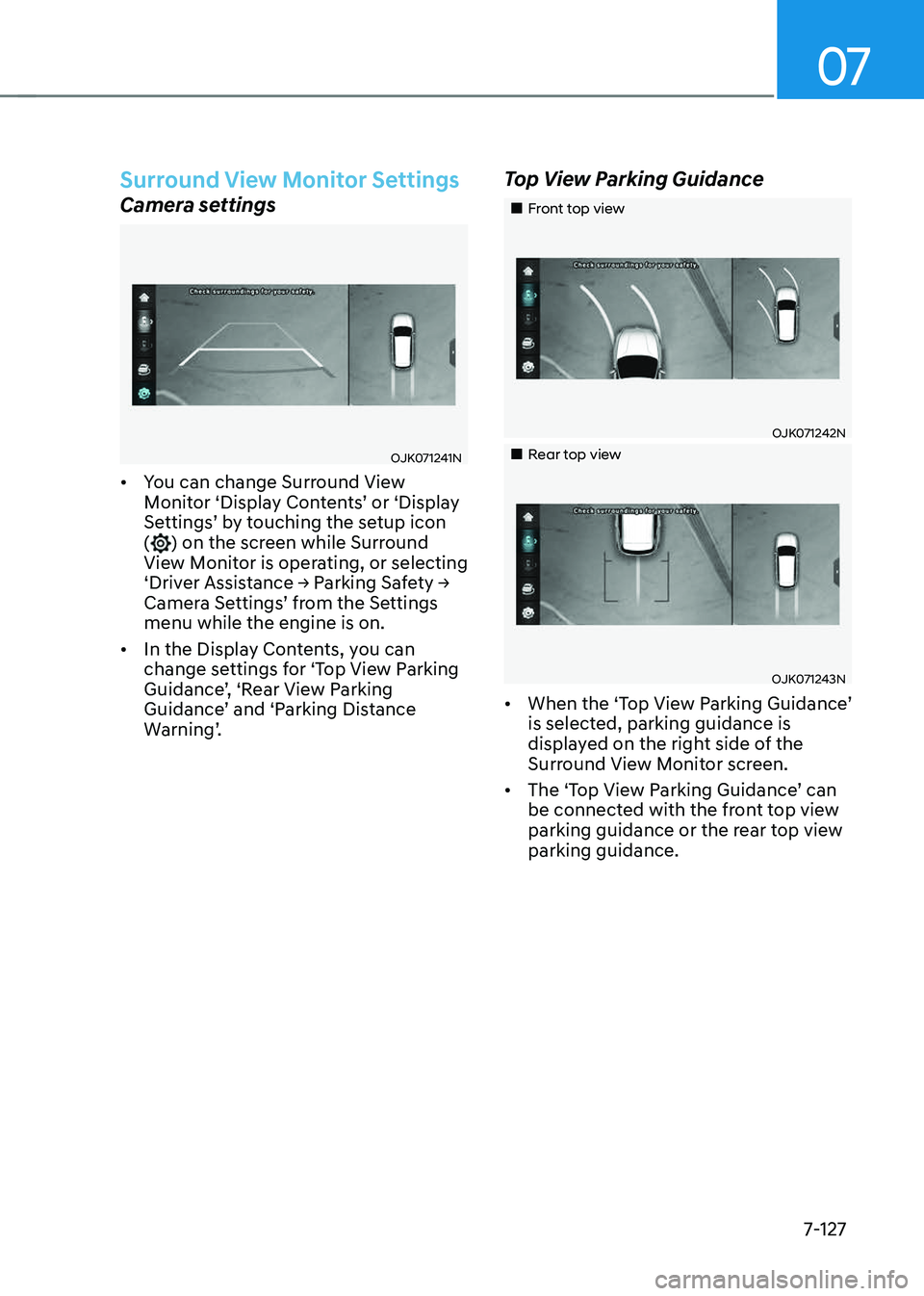
• You can change Surround View
Monitor ‘Display Contents’ or ‘Display
Settings’ by touching the setup icon
(
) on the screen while Surround
View Monitor is operating, or selecting
‘Driver Assistance → Parking Safety →
Camera Settings’ from the Settings
menu while the engine is on.
• In the Display Contents, you can
change settings for ‘Top View Parking
Guidance’, ‘Rear View Parking
Guidance’ and ‘Parking Distance
Warning’.
Top View Parking Guidance
Page 479 of 637
Driver Assistance System
7-128
Rear View Parking Guidance
OJK071126NOJK071126N
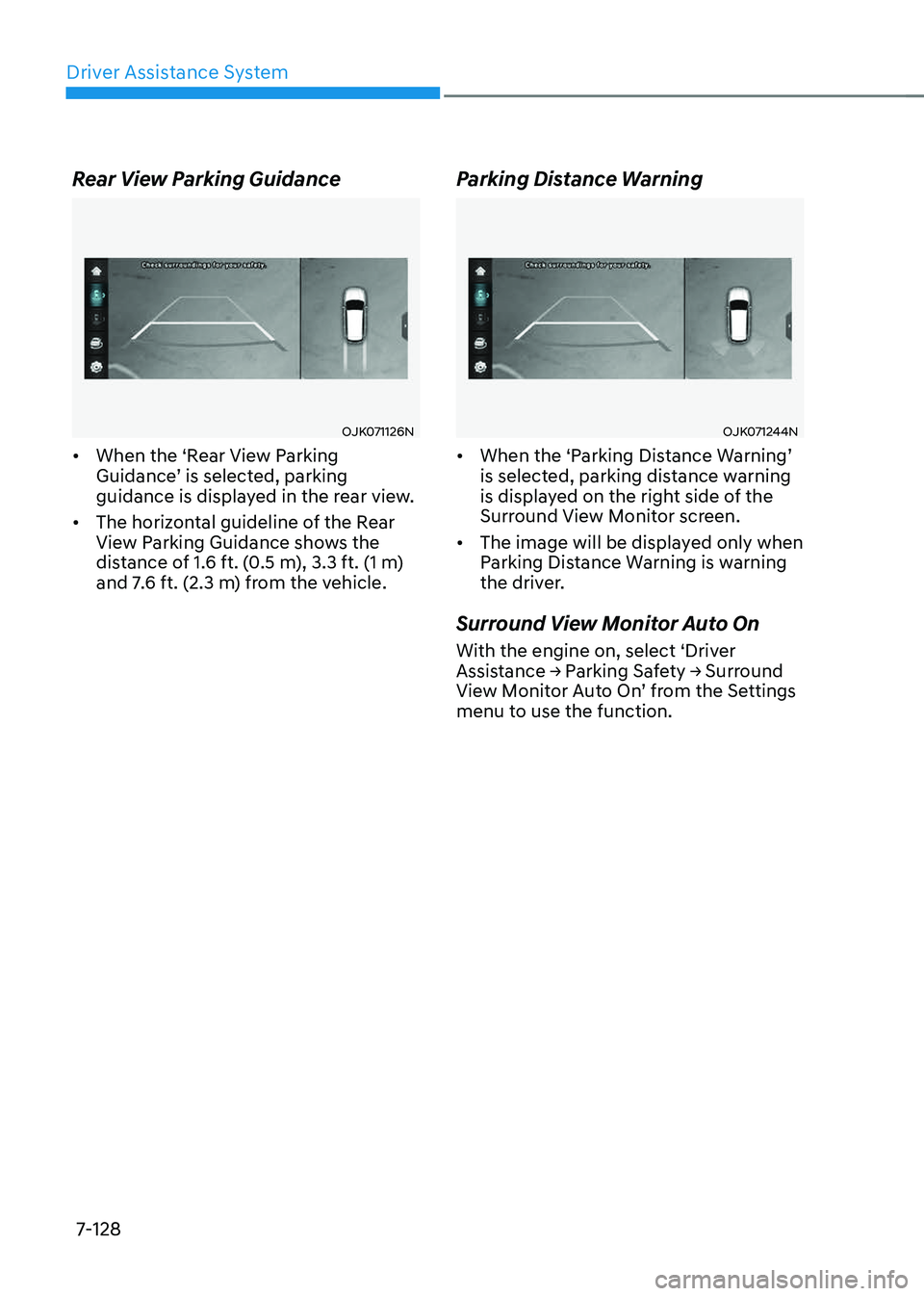
• When the ‘Rear View Parking
Guidance’ is selected, parking
guidance is displayed in the rear view.
• The horizontal guideline of the Rear
View Parking Guidance shows the
distance of 1.6 ft. (0.5 m), 3.3 ft. (1 m)
and 7.6 ft. (2.3 m) from the vehicle.
Parking Distance Warning
OJK071244NOJK071244N
• When the ‘Parking Distance Warning’
is selected, parking distance warning
is displayed on the right side of the
Surround View Monitor screen.
• The image will be displayed only when
Parking Distance Warning is warning
the driver.
Surround View Monitor Auto On
With the engine on, select ‘Driver
Assistance → Parking Safety → Surround
View Monitor Auto On’ from the Settings
menu to use the function.
Page 480 of 637
07
7-129
Surround View Monitor
Operation
Operating button
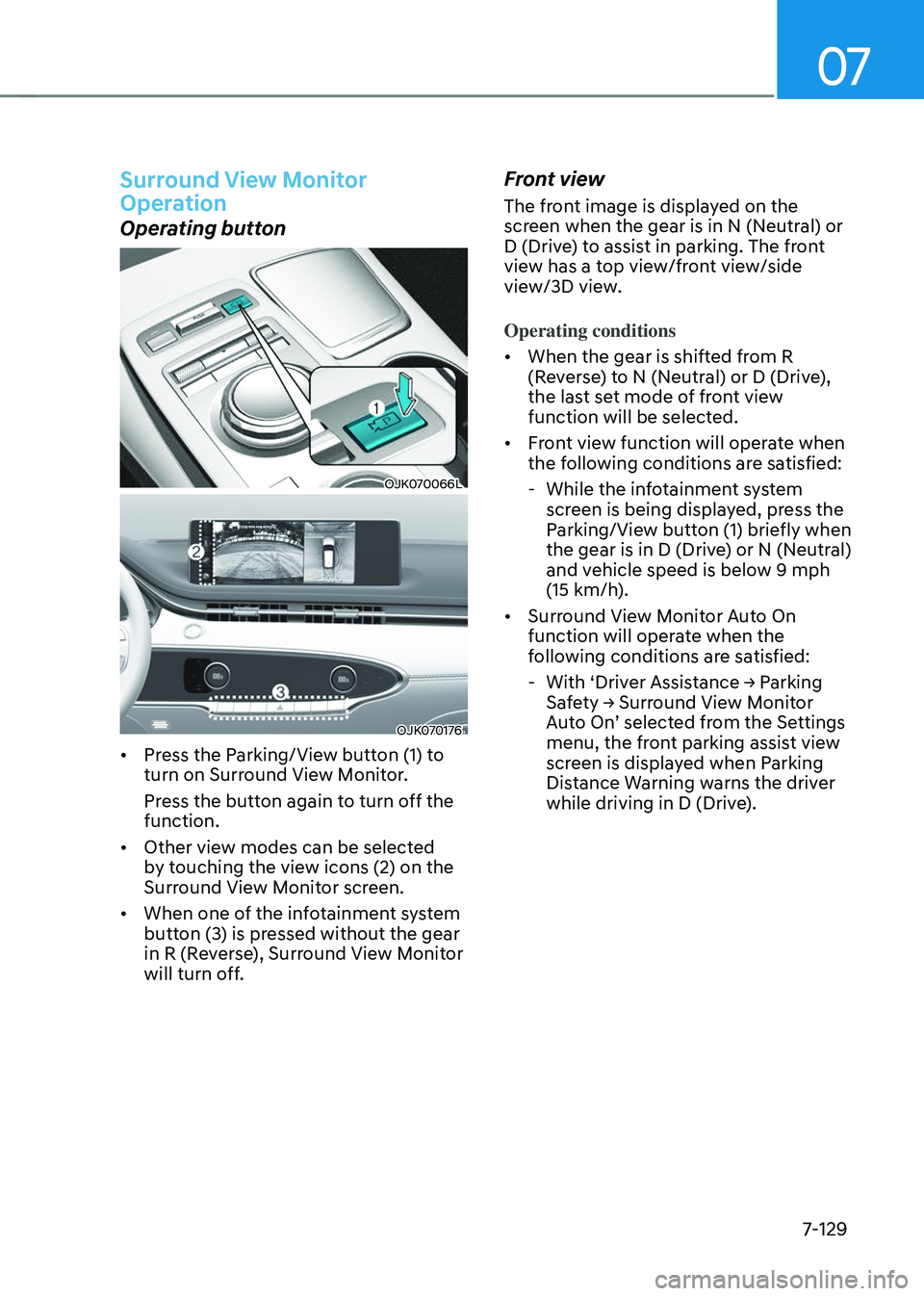
OJK070066LOJK070066L
OJK070176OJK070176
• Press the Parking/View button (1) to
turn on Surround View Monitor.
Press the button again to turn off the
function.
• Other view modes can be selected
by touching the view icons (2) on the
Surround View Monitor screen.
• When one of the infotainment system
button (3) is pressed without the gear
in R (Reverse), Surround View Monitor
will turn off.
Front view
The front image is displayed on the
screen when the gear is in N (Neutral) or
D (Drive) to assist in parking. The front
view has a top view/front view/side
view/3D view.
Operating conditions
• When the gear is shifted from R
(Reverse) to N (Neutral) or D (Drive),
the last set mode of front view
function will be selected.
• Front view function will operate when
the following conditions are satisfied:
-While the infotainment system
screen is being displayed, press the
Parking/View button (1) briefly when
the gear is in D (Drive) or N (Neutral)
and vehicle speed is below 9 mph
(15 km/h).
• Surround View Monitor Auto On
function will operate when the
following conditions are satisfied:
-With ‘Driver Assistance → Parking
Safety → Surround View Monitor
Auto On’ selected from the Settings
menu, the front parking assist view
screen is displayed when Parking
Distance Warning warns the driver
while driving in D (Drive).