steering GMC ACADIA 2007 Owner's Guide
[x] Cancel search | Manufacturer: GMC, Model Year: 2007, Model line: ACADIA, Model: GMC ACADIA 2007Pages: 554, PDF Size: 2.76 MB
Page 253 of 554
SERVICE TRANSMISSION
This message displays when there is a problem
with the transmission. See your dealer/retailer
for service.
SERVICE VEHICLE SOON
This message displays when a non-emissions
related malfunction occurs. Have the vehicle
serviced by your dealer/retailer as soon as
possible.
SPEED LIMITED TO XXX MPH (KM/H)
This message displays when your vehicle speed
is limited to 80 mph (128 km/h) because the
vehicle detects a problem in the speed variable
assist steering system. Have your vehicle serviced
by your dealer/retailer.
STARTING DISABLED SERVICE
THROTTLE
This message displays when your vehicle’s throttle
system is not functioning properly. Have your
vehicle serviced by your dealer/retailer.
THEFT ATTEMPTED
This message displays if the content theft-deterrent
system has detected a break-in attempt while
you were away from your vehicle. SeeContent
Theft-Deterrent on page 118for more information.
TIGHTEN GAS CAP
This message may display along with the check
engine light on the instrument panel cluster if
the vehicle’s fuel cap is not tightened properly.
SeeMalfunction Indicator Lamp on page 226.
Reinstall the fuel cap fully. SeeFilling the Tank
on page 390. The diagnostic system can determine
if the fuel cap has been left off or improperly
installed. A loose or missing fuel cap allows fuel
to evaporate into the atmosphere. A few driving
trips with the cap properly installed should turn
this light and message off.
253
Page 264 of 554
Choose one of the available settings and press
the set/reset button while it is displayed on the
DIC to select it.
EXIT FEATURE SETTINGS
This feature allows you to exit the feature
settings menu.
Press the customization button until FEATURE
SETTINGS PRESS
VTO EXIT appears in
the DIC display. Press the set/reset button once
to exit the menu.
If you do not exit, pressing the customization
button again will return you to the beginning of
the feature settings menu.
Exiting the Feature Settings Menu
The feature settings menu will be exited when any
of the following occurs:
The vehicle is shifted out of PARK (P).
The vehicle is no longer in ON.
The trip/fuel or vehicle information DIC buttons
are pressed.
The end of the feature settings menu is
reached and exited.
A 40 second time period has elapsed with
no selection made.
Audio System(s)
Determine which radio your vehicle has and then
read the pages following to familiarize yourself
with its features.
Driving without distraction is a necessity for a
safer driving experience. SeeDefensive Driving
on page 330. By taking a few moments to read
this manual and get familiar with your vehicle’s
audio system, you can use it with less effort,
as well as take advantage of its features.
While your vehicle is parked, set up your audio
system by presetting your favorite radio stations,
setting the tone and adjusting the speakers.
Then, when driving conditions permit, you can
tune to your favorite stations using the presets and
steering wheel controls if the vehicle has them.
264
Page 265 of 554
{CAUTION:
This system provides you with a far greater
access to audio stations and song listings.
Giving extended attention to entertainment
tasks while driving can cause a crash and
you or others can be injured or killed.
Always keep your eyes on the road and
your mind on the drive — avoid engaging
in extended searching while driving.
Keeping your mind on the drive is important for
safe driving. Here are some ways in which you
can help avoid distraction while driving.
While your vehicle is parked:
Familiarize yourself with all of its controls.
Familiarize yourself with its operation.
Set up your audio system by presetting your
favorite radio stations, setting the tone, and
adjusting the speakers. Then, when driving
conditions permit, you can tune to your favorite
radio stations using the presets and steering
wheel controls if the vehicle has them.Notice:Before adding any sound equipment
to your vehicle, such as an audio system,
CD player, CB radio, mobile telephone,
or two-way radio, make sure that it can be
added by checking with your dealer/retailer.
Also, check federal rules covering mobile radio
and telephone units. If sound equipment can
be added, it is very important to do it properly.
Added sound equipment may interfere with
the operation of your vehicle’s engine, radio,
or other systems, and even damage them.
Your vehicle’s systems may interfere with
the operation of sound equipment that
has been added.
Your vehicle has a feature called Retained
Accessory Power (RAP). With RAP, the audio
system can be played even after the ignition
is turned off. SeeRetained Accessory
Power (RAP) on page 125for more information.
265
Page 270 of 554
4(Information) (XM™ Satellite Radio Service,
MP3, and RDS Features):Press the information
button to display additional text information
related to the current FM-RDS or XM™ station,
or MP3 song. A choice of additional information
such as: Channel, Song, Artist, and CAT
(category) can appear. Continue pressing the
information button to highlight the desired label,
or press the pushbutton positioned under any
one of the labels and the information about that
label displays.
When information is not available, No Info
displays.
Storing a Radio Station as a Favorite
Drivers are encouraged to set up their radio
station favorites while the vehicle is parked.
Tune to your favorite stations using the presets,
favorites button, and steering wheel controls, if the
vehicle has this feature. SeeDefensive Driving
on page 330.FAV (Favorites):A maximum of 36 stations
can be programmed as favorites using the
six pushbuttons positioned below the radio station
frequency labels and by using the radio favorites
page button (FAV button). Press the FAV button
to go through up to six pages of favorites,
each having six favorite stations available per
page. Each page of favorites can contain any
combination of AM, FM, or XM™ (if equipped)
stations. To store a station as a favorite, perform
the following steps:
1. Tune to the desired radio station.
2. Press the FAV button to display the page
where you want the station stored.
3. Press and hold one of the six pushbuttons
until a beep sounds. When that pushbutton
is pressed and released, the station that was
set, returns.
4. Repeat the steps for each pushbutton radio
station you want stored as a favorite.
270
Page 281 of 554
4(Information) (XM™ Satellite Radio Service,
MP3, and RDS Features):Press the information
button to display additional text information
related to the current FM-RDS or XM™ station,
or MP3 song. A choice of additional information
such as: Channel, Song, Artist, and CAT
(category) can appear. Continue pressing the
information button to highlight the desired label,
or press the pushbutton positioned under any
one of the labels and the information about that
label displays.
When information is not available, No Info
displays.
Storing a Radio Station as a Favorite
Drivers are encouraged to set up their radio
station favorites while the vehicle is parked.
Tune to your favorite stations using the presets,
favorites button, and steering wheel controls,
if the vehicle has them. SeeDefensive Driving
on page 330.FAV (Favorites):A maximum of 36 stations
can be programmed as favorites using the
six pushbuttons positioned below the radio station
frequency labels and by using the radio favorites
page button (FAV button). Press the FAV button to
go through up to six pages of favorites, each
having six favorite stations available per page.
Each page of favorites can contain any
combination of AM, FM, or XM™ (if equipped)
stations. To store a station as a favorite, perform
the following steps:
1. Tune to the desired radio station.
2. Press the FAV button to display the page
where you want the station stored.
3. Press and hold one of the six pushbuttons
until a beep sounds. When that pushbutton
is pressed and released, the station that was
set, returns.
4. Repeat the steps for each pushbutton radio
station you want stored as a favorite.
281
Page 325 of 554
©SEEK¨:Press the SEEK arrows to go to the
previous or to the next radio station while in
AM, FM, or XM™ (if equipped). Press the SEEK
arrows to go to the previous or to the next track or
chapter while sourced to the DVD slot.
SRCE (Source):Press this button to switch
between the radio (AM, FM), XM™ (if equipped),
CD, and if your vehicle has these features,
DVD, front auxiliary, and rear auxiliary.
>(Mute):Press this button to silence the
system. Press this button again, or any other
radio button, to turn the sound on.
+/−
x(Volume):Press the plus or minus volume
buttons to increase or to decrease the volume.
Theft-Deterrent Feature
THEFTLOCK®is designed to discourage theft
of your vehicle’s radio. The feature works
automatically by learning a portion of the Vehicle
Identication Number (VIN). If the radio is moved
to a different vehicle, it does not operate and
LOCKED displays.
Audio Steering Wheel Controls
If your vehicle has audio
steering wheel controls,
they could differ
depending on your
vehicle’s options.
Some audio controls
can be adjusted at the
steering wheel. They
include the following:
xw(Next/Previous):Press the up or the down
arrow to go to the next or to the previous radio
station stored as a favorite.
When a CD/DVD is playing, press the up or the
down arrow to go to the next or previous track or
chapter.
325
Page 329 of 554
Your Driving, the Road, and
Your Vehicle............................................ 330
Defensive Driving...................................... 330
Drunken Driving........................................ 331
Control of a Vehicle.................................. 334
Braking...................................................... 334
Anti-Lock Brake System (ABS).................. 335
Braking in Emergencies............................. 336
StabiliTrak
®System................................... 337
All-Wheel Drive (AWD) System.................. 339
Steering.................................................... 340
Off-Road Recovery.................................... 342
Passing..................................................... 342
Loss of Control.......................................... 344
Driving at Night......................................... 346Driving in Rain and on Wet Roads............ 347
City Driving............................................... 350
Freeway Driving........................................ 351
Before Leaving on a Long Trip.................. 352
Highway Hypnosis..................................... 353
Hill and Mountain Roads........................... 354
Winter Driving........................................... 356
If Your Vehicle is Stuck in Sand, Mud,
Ice, or Snow.......................................... 360
Rocking Your Vehicle to Get It Out........... 361
Loading Your Vehicle................................ 361
Towing........................................................ 367
Towing Your Vehicle................................. 367
Recreational Vehicle Towing...................... 367
Towing a Trailer........................................ 371
Section 4 Driving Your Vehicle
329
Page 334 of 554
Control of a Vehicle
The following three systems help to control your
vehicle while driving — brakes, steering, and
accelerator. At times, as when driving on snow or
ice, it is easy to ask more of those control
systems than the tires and road can provide.
Meaning, you can lose control of your vehicle.
SeeStabiliTrak
®System on page 337.
Adding non-dealer/non-retailer accessories can
affect your vehicle’s performance. SeeAccessories
and Modifications on page 385.
Braking
SeeBrake System Warning Light on page 222.
Braking action involves perception time and
reaction time. First, you have to decide to push
on the brake pedal. That is perception time.
Then you have to bring up your foot and do it.
That is reaction time.
Average reaction time is about three-fourths of
a second. But that is only an average. It might
be less with one driver and as long as two or
three seconds or more with another. Age, physical
condition, alertness, coordination, and eyesight all
play a part. So do alcohol, drugs, and frustration.But even in three-fourths of a second, a vehicle
moving at 60 mph (100 km/h) travels 66 feet
(20 m). That could be a lot of distance in an
emergency, so keeping enough space between
your vehicle and others is important.
And, of course, actual stopping distances vary
greatly with the surface of the road, whether it is
pavement or gravel; the condition of the road,
whether it is wet, dry, or icy; tire tread; the condition
of the brakes; the weight of the vehicle; and the
amount of brake force applied.
Avoid needless heavy braking. Some people drive
in spurts — heavy acceleration followed by heavy
braking — rather than keeping pace with traffic.
This is a mistake. The brakes might not have time
to cool between hard stops. The brakes will
wear out much faster if you do a lot of heavy
braking. If you keep pace with the traffic and allow
realistic following distances, you will eliminate a
lot of unnecessary braking. That means better
braking and longer brake life.
If your vehicle’s engine ever stops while you
are driving, brake normally but do not pump
the brakes. If you do, the pedal could get
harder to push down. If the engine stops,
you will still have some power brake assist.
334
Page 336 of 554
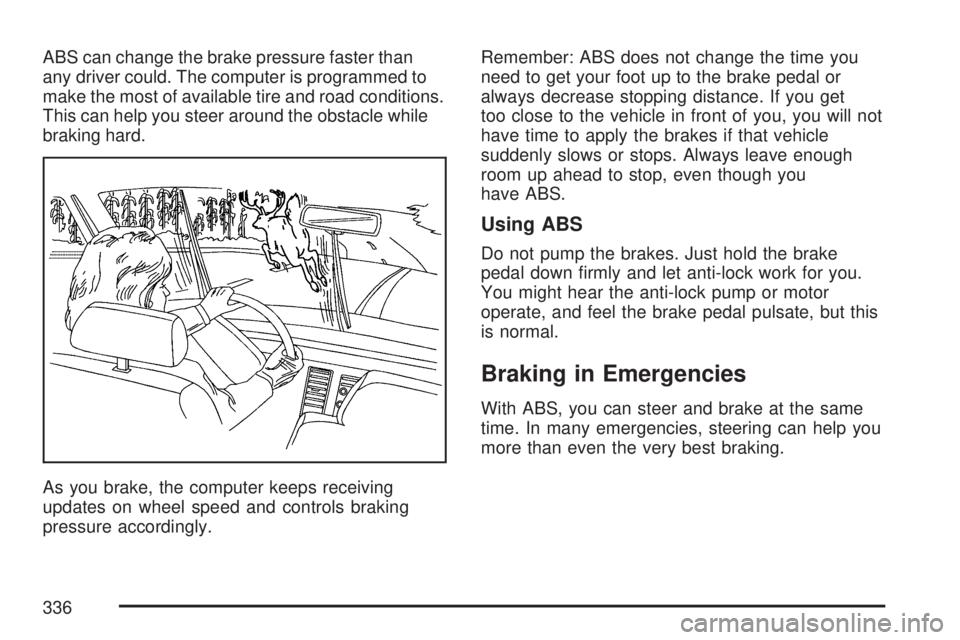
ABS can change the brake pressure faster than
any driver could. The computer is programmed to
make the most of available tire and road conditions.
This can help you steer around the obstacle while
braking hard.
As you brake, the computer keeps receiving
updates on wheel speed and controls braking
pressure accordingly.Remember: ABS does not change the time you
need to get your foot up to the brake pedal or
always decrease stopping distance. If you get
too close to the vehicle in front of you, you will not
have time to apply the brakes if that vehicle
suddenly slows or stops. Always leave enough
room up ahead to stop, even though you
have ABS.
Using ABS
Do not pump the brakes. Just hold the brake
pedal down rmly and let anti-lock work for you.
You might hear the anti-lock pump or motor
operate, and feel the brake pedal pulsate, but this
is normal.
Braking in Emergencies
With ABS, you can steer and brake at the same
time. In many emergencies, steering can help you
more than even the very best braking.
336
Page 340 of 554
Steering
Power Steering
If you lose power steering assist because the
engine stops or the system is not functioning,
you can steer but it will take much more effort.
Steering Tips
It is important to take curves at a reasonable
speed.
A lot of the “driver lost control” accidents
mentioned on the news happen on curves.
Here is why:
Experienced driver or beginner, each of us is
subject to the same laws of physics when driving
on curves. The traction of the tires against the
road surface makes it possible for the vehicle to
change its path when you turn the front wheels.
If there is no traction, inertia will keep the
vehicle going in the same direction. If you have
ever tried to steer a vehicle on wet ice, you
will understand this.The traction you can get in a curve depends on
the condition of the tires and the road surface,
the angle at which the curve is banked, and your
speed. While you are in a curve, speed is the
one factor you can control.
Suppose you are steering through a sharp curve.
Then you suddenly accelerate. Both control
systems — steering and acceleration — have to
do their work where the tires meet the road.
Adding the sudden acceleration can demand
too much of those places. You can lose control.
SeeStabiliTrak
®System on page 337.
What should you do if this ever happens? Ease up
on the accelerator pedal, steer the vehicle the
way you want it to go, and slow down.
Speed limit signs near curves warn that you should
adjust your speed. Of course, the posted speeds
are based on good weather and road conditions.
Under less favorable conditions you will want to go
slower.
If you need to reduce your speed as you approach
a curve, do it before you enter the curve, while
the front wheels are straight ahead.
340