ac controls GMC ACADIA 2008 Owner's Guide
[x] Cancel search | Manufacturer: GMC, Model Year: 2008, Model line: ACADIA, Model: GMC ACADIA 2008Pages: 472, PDF Size: 5.72 MB
Page 231 of 472
Finding a Station
BAND:Press to switch between AM, FM, or XM™
(if equipped). The selection displays.
f(Tune):Turn to select radio stations.
©SEEK¨:Press the arrows to go to the previous
or to the next station and stay there.
To scan stations, press and hold either arrow for a
few seconds until a beep sounds. The radio goes to
a station, plays for a few seconds, then goes to the
next station. Press either arrow again to stop scanning.
The radio only seeks and scans stations with a
strong signal that are in the selected band.
4(Information) (XM™ Satellite Radio Service,
MP3, and RDS Features):Press to display additional
text information related to the current FM-RDS or
XM™ station, or MP3 song. A choice of additional
information such as: Channel, Song, Artist, and
CAT (category) can display. Continue pressing to
highlight the desired label, or press the pushbutton
positioned under any one of the labels and the
information about that label displays.
When information is not available, No Info displays.
Storing a Radio Station as a Favorite
Drivers are encouraged to set up their radio station
favorites while the vehicle is in PARK (P). Tune to your
favorite stations using the presets, favorites button,
and steering wheel controls. SeeDefensive Driving
on page 4-2.
FAV (Favorites):A maximum of 36 stations can be
programmed as favorites using the six pushbuttons
positioned below the radio station frequency labels and
by using the radio favorites page button (FAV button).
Press to go through up to six pages of favorites,
each having six favorite stations available per page.
Each page of favorites can contain any combination of
AM, FM, or XM™ (if equipped) stations.
The balance/fade and tone settings that were previously
adjusted, are stored with the favorite stations.
To store a station as a favorite, perform the
following steps:
1. Tune to the desired radio station.
2. Press the FAV button to display the page where
you want the station stored.
3. Press and hold one of the six pushbuttons until a
beep sounds. When that pushbutton is pressed
and released, the station that was set, returns.
4. Repeat the steps for each pushbutton radio
station you want stored as a favorite.
3-89
Page 232 of 472
The number of favorites pages can be setup using
the MENU button. To setup the number of favorites
pages, perform the following steps:
1. Press the MENU button to display the radio
setup menu.
2. Press the pushbutton located below the
FAV 1-6 label.
3. Select the desired number of favorites pages by
pressing the pushbutton located below the
displayed page numbers.
4. Press the FAV button, or let the menu time out, to
return to the original main radio screen showing the
radio station frequency labels and to begin the
process of programming your favorites for the
chosen amount of numbered pages.
Setting the Tone
(Bass/Midrange/Treble)
BASS/MID/TREB (Bass, Midrange, or Treble):
To adjust bass, midrange, or treble, press the
fknob
until the tone control labels display. Continue pressing to
highlight the desired label, or press the pushbutton
positioned under the desired label. Turn the
fknobclockwise or counterclockwise to adjust the highlighted
setting. You can also adjust the highlighted setting
by pressing either SEEK arrow,
\FWD (forward),
or
sREV (reverse) button until the desired levels are
obtained. If a station’s frequency is weak or if there
is static, decrease the treble.
To quickly adjust bass, midrange, or treble to the middle
position, press the pushbutton positioned under the
BASS, MID, or TREB label for more than two seconds.
A beep sounds and the level adjusts to the middle
position.
To quickly adjust all tone and speaker controls to the
middle position, press the
fknob for more than
two seconds until a beep sounds.
EQ (Equalization):Press to choose bass and treble
equalization settings designed for different types
of music. The choices are pop, rock, country, talk, jazz,
and classical. Selecting MANUAL or changing bass
or treble, returns the EQ to the manual bass and treble
settings.
Unique EQ settings can be saved for each source.
If your radio has a Bose
®audio system, the EQ settings
are either MANUAL or TALK.
3-90
Page 233 of 472
Adjusting the Speakers (Balance/Fade)
BAL/FADE (Balance/Fade):To adjust balance or
fade, press the
fknob until the speaker control
labels display. Continue pressing to highlight the
desired label, or press the pushbutton positioned
under the desired label. Turn the
fknob clockwise or
counterclockwise to adjust the highlighted setting.
You can also adjust the highlighted setting by pressing
either SEEK arrow,
\FWD, orsREV button
until the desired levels are obtained.
To quickly adjust balance or fade to the middle position,
press the pushbutton positioned under the BAL or
FADE label for more than two seconds. A beep sounds
and the level adjusts to the middle position.
To quickly adjust all speaker and tone controls to
the middle position, press the
fknob for more than
two seconds until a beep sounds.
Radios with CD and DVD differ when using fade in
5.1 Surround. The left front and right front speakers fade
rearward, leaving the center front speaker unaffected
until the last fade step, then all front speakers mute.
If the Rear Seat Audio (RSA) is turned on, the
radio disables FADE and mutes the rear speakers.
Finding a Category (CAT) Station
CAT (Category):The CAT button is used to nd XM™
stations when the radio is in the XM™ mode. To nd
XM™ channels within a desired category, perform
the following:
1. Press the BAND button until the XM™ frequency
displays. Press the CAT button to display the
category labels. Continue pressing the CAT button
until the desired category name displays.
Radios with CD and DVD can also navigate the
category list by pressing the
sREV button
or the
\FWD button.
2. Press either of the two buttons below the desired
category label to immediately tune to the rst
XM™ station associated with that category.
3. Turn the
fknob, press the buttons below the
right or left arrows displayed, or press either
SEEK arrow to go to the previous or to the
next XM™ station within the selected category.
4. To exit the category search mode, press the
FAV button or BAND button to display your
favorites again.
3-91
Page 242 of 472
\FWD (Fast Forward):Press to fast forward the
CD or DVD. The radio displays the elapsed time and
fast forwards ve times the normal speed. To stop fast
forwarding, press again. This button might not work
when the DVD is playing the copyright information or
the previews.
Z(Eject):Press to eject a CD or DVD. If a CD
or DVD is ejected, but not removed, the player
automatically pulls it back in after 15 seconds.
If loading and reading of a CD cannot be completed,
because of an unknown format, etc., and the disc fails
to eject, press and hold for more than ve seconds
to force the disc to eject.
DVD-V (Video) Display Buttons
Once a DVD-V is inserted, the radio display menu
shows several tag options for DVD playing. Press
the pushbuttons located under any desired tag option
during DVD playback. See the tag options listed
after, for more information.
The rear seat passenger can navigate the DVD-V
menus and controls through the remote control. See
“Remote Control”, underRear Seat Entertainment (RSE)
System on page 3-115for more information. The
Video Screen automatically turns on when the DVD-V
is inserted into the DVD slot.
r/j(Play/Pause):Press either the play or pause
icon displayed on the radio system, to toggle between
pausing or restarting playback of a DVD. If the
forward arrow is showing on display, the system is in
pause mode. If the pause icon is showing on display,
the system is in playback mode. If the DVD screen
is off, press the play button to turn the screen on.
Some DVDs begin playing after the previews have
nished, although there could be a delay of up to
30 seconds. If the DVD does not begin playing the
movie automatically, press the pushbutton located
under the play/pause symbol tag displayed on the radio.
If the DVD still does not play, refer to the on-screen
instructions, if available.
c(Stop):Press to stop playing, rewinding, or fast
forwarding a DVD.
r(Enter):Press to select the choices that are
highlighted in any menu.
y(Menu):Press to access the DVD menu. The DVD
menu is different on every DVD. Use the pushbuttons
located under the navigation arrows to navigate
the cursor through the DVD menu. After making a
selection press this button. This button only operates
when using a DVD.
3-100
Page 243 of 472
Nav (Navigate):Press to display directional arrows
for navigating through the menus.
q(Return):Press to exit the current active menu
and return to the previous menu. This button operates
only when a DVD is playing and a menu is active.
DVD-A (Audio) Display Buttons
Once a DVD-A is inserted, radio display menu shows
several tag options for DVD playing. Press the
pushbuttons located under any desired tag option
during DVD playback. See the tag options listed after,
for more information.
The rear seat operator can navigate the DVD-A menus
and controls through the remote control. See “Remote
Control”, underRear Seat Entertainment (RSE)
System on page 3-115for more information. The
Video Screen does not automatically power on when
the DVD-A is inserted into the DVD slot. It must
be manually turned on by the rear seat occupant
through the remote control power button.
r/j(Play/Pause):Press either the play or pause
icon displayed on the radio system, to toggle between
pausing or restarting playback of a DVD. If the
forward arrow is showing on the display, the system
is in pause mode. If the pause icon is showing on
the display, the system is in playback mode.
qGroupr:Press to cycle through musical
groupings on the DVD-A disc.
Nav (Navigate):Press to display directional arrows
for navigating through the menus.
e(Audio Stream):Press to cycle through audio
stream formats located on the DVD-A disc. The video
screen shows the audio stream changing.
Inserting a Disc
To play a disc, gently insert the disc, with the label side
up, into the loading slot. The DVD player might not
accept some paper labeled media. The player starts
loading the disc into the system and show “Loading
Disc” on the radio display. At the same time, the radio
displays a softkey menu of option(s). Some discs
automatically play the movie while others default to
the softkey menu display, which requires the Play,
Enter, or Navigation softkeys to be pressed; either
by softkey or by the rear seat passenger using
the remote control.
Loading a disc into the system, depending on media
type and format, ranges from 5 to 20 seconds for
a CD, and up to 30 seconds for a DVD.
3-101
Page 267 of 472
Rear Seat Audio (RSA)
This feature allows rear seat passengers to listen to and
control any of the music sources: radio, CDs, DVDs,
or other auxiliary sources. However, the rear seat
passengers can only control the music sources the front
seat passengers are not listening to (except on some
radios where dual control is allowed). For example, rear
seat passengers can control a CD and listen to it through
the headphones, while the driver listens to the radio
through the front speakers. The rear seat passengers
have control of the volume for each set of headphones.
You can operate the RSA functions even when the
main radio is off. The front audio system will display
the headphone icon when the RSA is on, and will
disappear from the display when it is off.
Audio can be heard through wired headphones
(not included) plugged into the jacks on the RSA.
If your vehicle has this feature, audio can also be
heard on Channel 2 of the wireless headphones.
The audio system mutes the rear speakers when the
RSA audio is active through the headphones.
To listen to an iPod or portable audio device through
the RSA, attach the iPod or portable audio device to
the front auxiliary input (if available), located on the
front audio system. Turn the iPod on, then choose the
front auxiliary input with the RSA SRCE button.
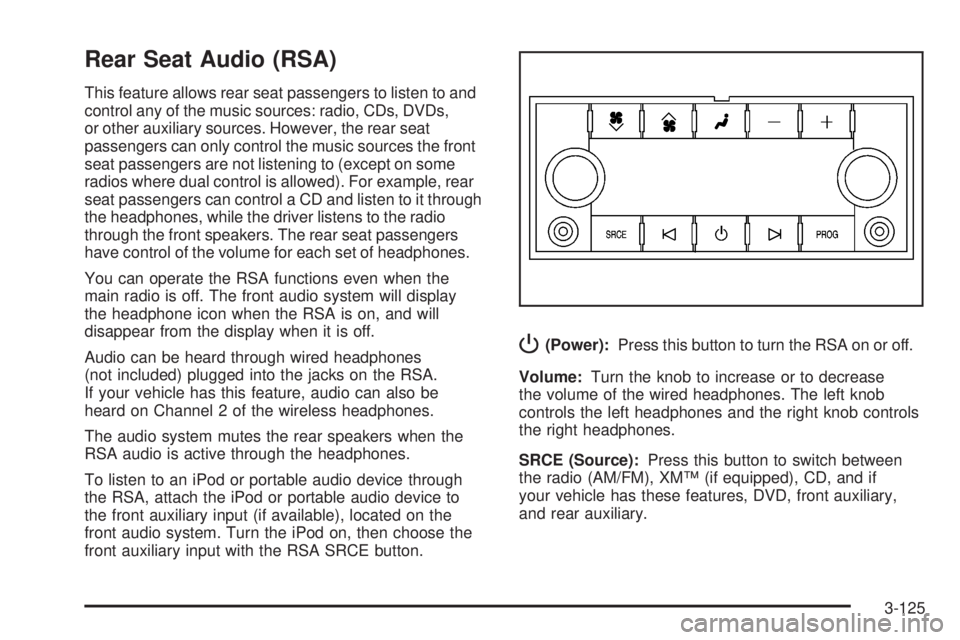
P(Power):Press this button to turn the RSA on or off.
Volume:Turn the knob to increase or to decrease
the volume of the wired headphones. The left knob
controls the left headphones and the right knob controls
the right headphones.
SRCE (Source):Press this button to switch between
the radio (AM/FM), XM™ (if equipped), CD, and if
your vehicle has these features, DVD, front auxiliary,
and rear auxiliary.
3-125
Page 270 of 472
Audio Steering Wheel Controls
Vehicles with audio
steering wheel controls
could differ depending on
your vehicle’s options.
Some audio controls
can be adjusted at the
steering wheel. They
include the following:
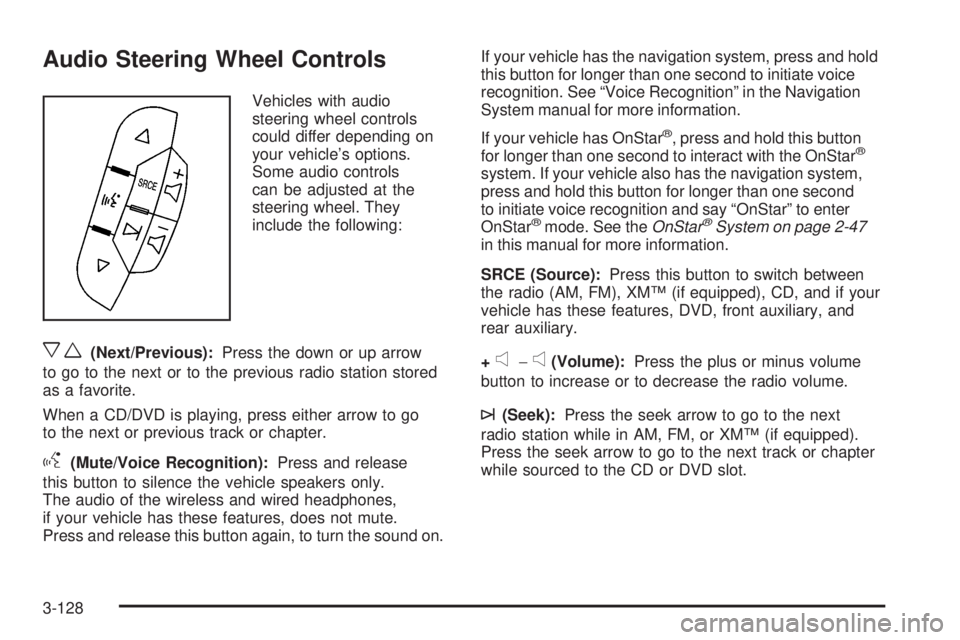
xw(Next/Previous):Press the down or up arrow
to go to the next or to the previous radio station stored
as a favorite.
When a CD/DVD is playing, press either arrow to go
to the next or previous track or chapter.
g(Mute/Voice Recognition):Press and release
this button to silence the vehicle speakers only.
The audio of the wireless and wired headphones,
if your vehicle has these features, does not mute.
Press and release this button again, to turn the sound on.If your vehicle has the navigation system, press and hold
this button for longer than one second to initiate voice
recognition. See “Voice Recognition” in the Navigation
System manual for more information.
If your vehicle has OnStar
®, press and hold this button
for longer than one second to interact with the OnStar®
system. If your vehicle also has the navigation system,
press and hold this button for longer than one second
to initiate voice recognition and say “OnStar” to enter
OnStar
®mode. See theOnStar®System on page 2-47
in this manual for more information.
SRCE (Source):Press this button to switch between
the radio (AM, FM), XM™ (if equipped), CD, and if your
vehicle has these features, DVD, front auxiliary, and
rear auxiliary.
+
e−e(Volume):Press the plus or minus volume
button to increase or to decrease the radio volume.
¨(Seek):Press the seek arrow to go to the next
radio station while in AM, FM, or XM™ (if equipped).
Press the seek arrow to go to the next track or chapter
while sourced to the CD or DVD slot.
3-128
Page 277 of 472
Antilock Brake System (ABS)
Your vehicle has the Antilock Brake System (ABS), an
advanced electronic braking system that will help
prevent a braking skid.
When you start the engine and begin to drive away,
ABS will check itself. You might hear a momentary
motor or clicking noise while this test is going on, and
you might even notice that the brake pedal moves
a little. This is normal.
If there is a problem with
ABS, this warning light will
stay on. SeeAntilock
Brake System Warning
Light on page 3-48.
Let us say the road is wet and you are driving safely.
Suddenly, an animal jumps out in front of you. You slam
on the brakes and continue braking. Here is what
happens with ABS:
A computer senses that wheels are slowing down. If
one of the wheels is about to stop rolling, the computer
will separately work the brakes at each wheel.ABS can change the brake pressure faster than any
driver could. The computer is programmed to make the
most of available tire and road conditions. This can
help you steer around the obstacle while braking hard.
As you brake, the computer keeps receiving updates
on wheel speed and controls braking pressure
accordingly.
Remember: ABS does not change the time you need to
get your foot up to the brake pedal or always decrease
stopping distance. If you get too close to the vehicle in
front of you, you will not have time to apply the brakes if
that vehicle suddenly slows or stops. Always leave
enough room up ahead to stop, even though you
have ABS.
Using ABS
Do not pump the brakes. Just hold the brake pedal
down rmly and let antilock work for you. You might hear
the antilock pump or motor operate, and feel the
brake pedal pulsate, but this is normal.
4-5
Page 279 of 472
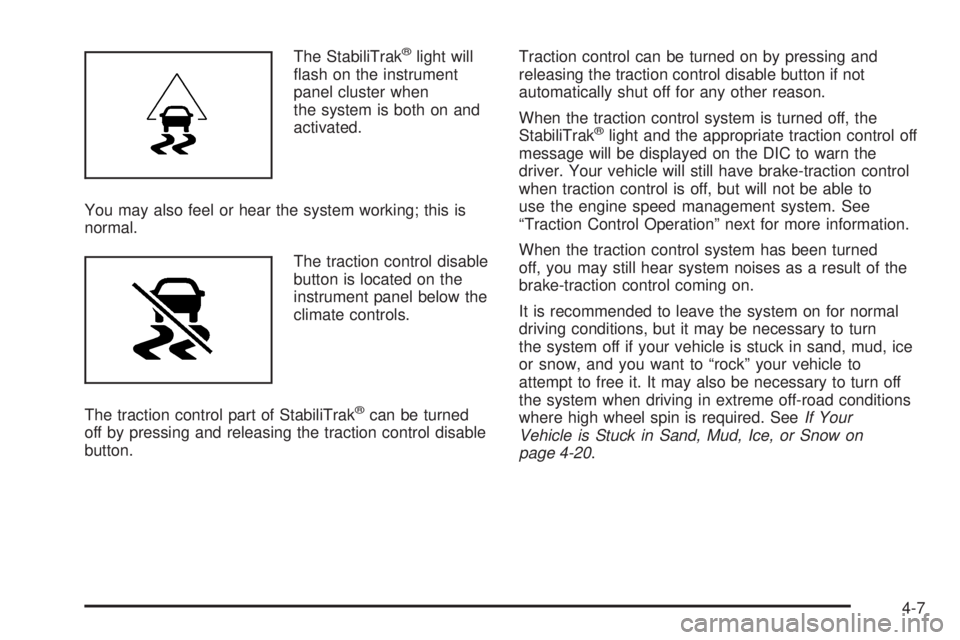
The StabiliTrak®light will
ash on the instrument
panel cluster when
the system is both on and
activated.
You may also feel or hear the system working; this is
normal.
The traction control disable
button is located on the
instrument panel below the
climate controls.
The traction control part of StabiliTrak
®can be turned
off by pressing and releasing the traction control disable
button.Traction control can be turned on by pressing and
releasing the traction control disable button if not
automatically shut off for any other reason.
When the traction control system is turned off, the
StabiliTrak
®light and the appropriate traction control off
message will be displayed on the DIC to warn the
driver. Your vehicle will still have brake-traction control
when traction control is off, but will not be able to
use the engine speed management system. See
“Traction Control Operation” next for more information.
When the traction control system has been turned
off, you may still hear system noises as a result of the
brake-traction control coming on.
It is recommended to leave the system on for normal
driving conditions, but it may be necessary to turn
the system off if your vehicle is stuck in sand, mud, ice
or snow, and you want to “rock” your vehicle to
attempt to free it. It may also be necessary to turn off
the system when driving in extreme off-road conditions
where high wheel spin is required. SeeIf Your
Vehicle is Stuck in Sand, Mud, Ice, or Snow on
page 4-20.
4-7
Page 303 of 472
That is the reason for this part. In it are many
time-tested, important trailering tips and safety rules.
Many of these are important for your safety and that of
your passengers. So please read this section carefully
before you pull a trailer.
Load-pulling components such as the engine,
transmission, rear axle, wheel assemblies and tires are
forced to work harder against the drag of the added
weight. The engine is required to operate at relatively
higher speeds and under greater loads, generating extra
heat. What’s more, the trailer adds considerably to
wind resistance, increasing the pulling requirements.
If You Do Decide to Pull a Trailer
If you do, here are some important points:
There are many different laws, including speed limit
restrictions, having to do with trailering. Make sure
your rig will be legal, not only where you live
but also where you’ll be driving. A good source for
this information can be state or provincial police.
Consider using a sway control. You can ask a hitch
dealer/retailer about sway controls.
Do not tow a trailer at all during the rst 500 miles
(805 km) your new vehicle is driven. Your engine,
axle or other parts could be damaged.
Then, during the rst 500 miles (805 km) that you
tow a trailer, do not drive over 50 mph (80 km/h)
and do not make starts at full throttle. This
helps your engine and other parts of your vehicle
wear in at the heavier loads.
Obey speed limit restrictions when towing a trailer.
Do not drive faster than the maximum posted
speed for trailers, or no more than 55 mph
(90 km/h), to save wear on your vehicle’s parts.
You can tow in DRIVE (D). You may want to shift
the transmission to THIRD (3) or, if necessary, a
lower gear selection if the transmission shifts
too often (e.g., under heavy loads and/or hilly
conditions). See “Tow/Haul Mode” later in
this section.
Three important considerations have to do with weight:
The weight of the trailer
The weight of the trailer tongue
And the total weight on your vehicle’s tires
4-31