fuel driver GMC ACADIA 2021 Owner's Manual
[x] Cancel search | Manufacturer: GMC, Model Year: 2021, Model line: ACADIA, Model: GMC ACADIA 2021Pages: 396, PDF Size: 7.87 MB
Page 90 of 396
GMC Acadia/Acadia Denali Owner Manual (GMNA-Localizing-U.S./Canada/
Mexico-14608671) - 2021 - CRC - 10/26/20
Instruments and Controls 89
Instruments and Controls
Controls
Steering Wheel Adjustment . . . . . . . . . . . . 90
Steering Wheel Controls . . . . . . . . . . . . . . . 90
Heated Steering Wheel . . . . . . . . . . . . . . . . 90
Horn . . . . . . . . . . . . . . . . . . . . . . . . . . . . . . . . . . . . 91
Windshield Wiper/Washer . . . . . . . . . . . . . . 91
Rear Window Wiper/Washer . . . . . . . . . . . 92
Compass . . . . . . . . . . . . . . . . . . . . . . . . . . . . . . . 92
Clock . . . . . . . . . . . . . . . . . . . . . . . . . . . . . . . . . . . 93
Power Outlets . . . . . . . . . . . . . . . . . . . . . . . . . . 93
Wireless Charging . . . . . . . . . . . . . . . . . . . . . . 94
Warning Lights, Gauges, and Indicators
Warning Lights, Gauges, andIndicators . . . . . . . . . . . . . . . . . . . . . . . . . . . . 96
Instrument Cluster (Base and Midlevel) . . . . . . . . . . . . . . . . . . . . . . . . . . . . . 97
Instrument Cluster (Uplevel) . . . . . . . . . . . 100
Speedometer . . . . . . . . . . . . . . . . . . . . . . . . . . 102
Odometer . . . . . . . . . . . . . . . . . . . . . . . . . . . . . 102
Trip Odometer . . . . . . . . . . . . . . . . . . . . . . . . . 102
Tachometer . . . . . . . . . . . . . . . . . . . . . . . . . . . . 102
Fuel Gauge . . . . . . . . . . . . . . . . . . . . . . . . . . . . 102
Engine Oil Temperature Gauge . . . . . . . . 103
Engine Coolant Temperature Gauge . . . 104
Voltmeter Gauge . . . . . . . . . . . . . . . . . . . . . . 104
Seat Belt Reminders . . . . . . . . . . . . . . . . . . . 105
Airbag Readiness Light . . . . . . . . . . . . . . . . 105 Passenger Airbag Status Indicator . . . . . 106
Charging System Light . . . . . . . . . . . . . . . . . 107
Malfunction Indicator Lamp (Check
Engine Light) . . . . . . . . . . . . . . . . . . . . . . . . 107
Brake System Warning Light . . . . . . . . . . 108
Electric Parking Brake Light . . . . . . . . . . . . 109
Service Electric Parking Brake Light
(Uplevel and Midlevel
Cluster Only) . . . . . . . . . . . . . . . . . . . . . . . . 109
Antilock Brake System (ABS) Warning Light . . . . . . . . . . . . . . . . . . . . . . . . . . . . . . . . . 110
Gear Shifting Light . . . . . . . . . . . . . . . . . . . . . 110
Tow/Haul Mode Light . . . . . . . . . . . . . . . . . 110
Hill Descent Control Light . . . . . . . . . . . . . . 110
Lane Keep Assist (LKA) Light . . . . . . . . . . . 110
Vehicle Ahead Indicator . . . . . . . . . . . . . . . . 111
Pedestrian Ahead Indicator . . . . . . . . . . . . . 111
Traction Off Light . . . . . . . . . . . . . . . . . . . . . . 111
StabiliTrak OFF Light . . . . . . . . . . . . . . . . . . . 112
Traction Control System (TCS)/ StabiliTrak Light . . . . . . . . . . . . . . . . . . . . . . 112
Engine Coolant Temperature Warning Light . . . . . . . . . . . . . . . . . . . . . . . . . . . . . . . . . 112
Tire Pressure Light . . . . . . . . . . . . . . . . . . . . . 113
Engine Oil Pressure Light . . . . . . . . . . . . . . . 113
Low Fuel Warning Light . . . . . . . . . . . . . . . . 114
Security Light . . . . . . . . . . . . . . . . . . . . . . . . . . 114
High-Beam On Light . . . . . . . . . . . . . . . . . . . 114
Front Fog Lamp Light . . . . . . . . . . . . . . . . . . 114
Lamps On Reminder . . . . . . . . . . . . . . . . . . . 114 Cruise Control Light . . . . . . . . . . . . . . . . . . . . 115
Door Ajar Light . . . . . . . . . . . . . . . . . . . . . . . . . 115
Information Displays
Driver Information Center
(DIC) (Base) . . . . . . . . . . . . . . . . . . . . . . . . . . 115
Driver Information Center (DIC) (Midlevel and Uplevel) . . . . . . . . . . . . . . . 117
Head-Up Display (HUD) . . . . . . . . . . . . . . . . 119
Vehicle Messages
Vehicle Messages . . . . . . . . . . . . . . . . . . . . . . 122
Engine Power Messages . . . . . . . . . . . . . . . 123
Vehicle Speed Messages . . . . . . . . . . . . . . . 123
Vehicle Personalization
Vehicle Personalization . . . . . . . . . . . . . . . . . 123
Universal Remote System
Universal Remote System . . . . . . . . . . . . . . 127
Universal Remote System Programming . . . . . . . . . . . . . . . . . . . . . . . . 127
Universal Remote System Operation . . . 129
Page 98 of 396
GMC Acadia/Acadia Denali Owner Manual (GMNA-Localizing-U.S./Canada/
Mexico-14608671) - 2021 - CRC - 10/26/20
Instruments and Controls 97
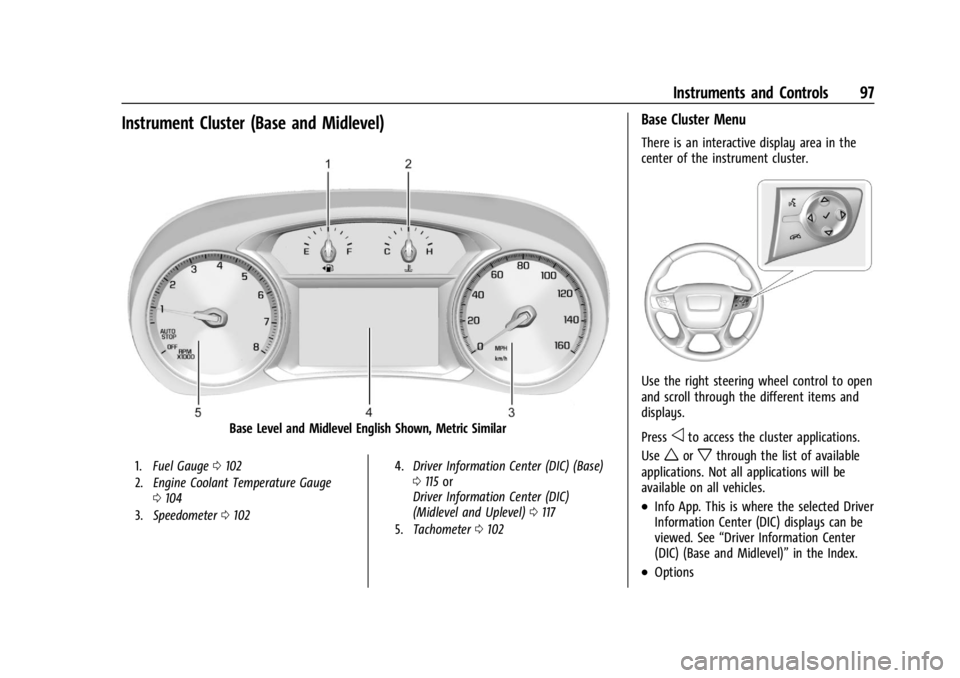
Instrument Cluster (Base and Midlevel)
Base Level and Midlevel English Shown, Metric Similar
1.Fuel Gauge 0102
2. Engine Coolant Temperature Gauge
0104
3. Speedometer 0102 4.
Driver Information Center (DIC) (Base)
0115 or
Driver Information Center (DIC)
(Midlevel and Uplevel) 0117
5. Tachometer 0102
Base Cluster Menu
There is an interactive display area in the
center of the instrument cluster.
Use the right steering wheel control to open
and scroll through the different items and
displays.
Press
oto access the cluster applications.
Use
worxthrough the list of available
applications. Not all applications will be
available on all vehicles.
.Info App. This is where the selected Driver
Information Center (DIC) displays can be
viewed. See “Driver Information Center
(DIC) (Base and Midlevel)” in the Index.
.Options
Page 101 of 396
GMC Acadia/Acadia Denali Owner Manual (GMNA-Localizing-U.S./Canada/
Mexico-14608671) - 2021 - CRC - 10/26/20
100 Instruments and Controls
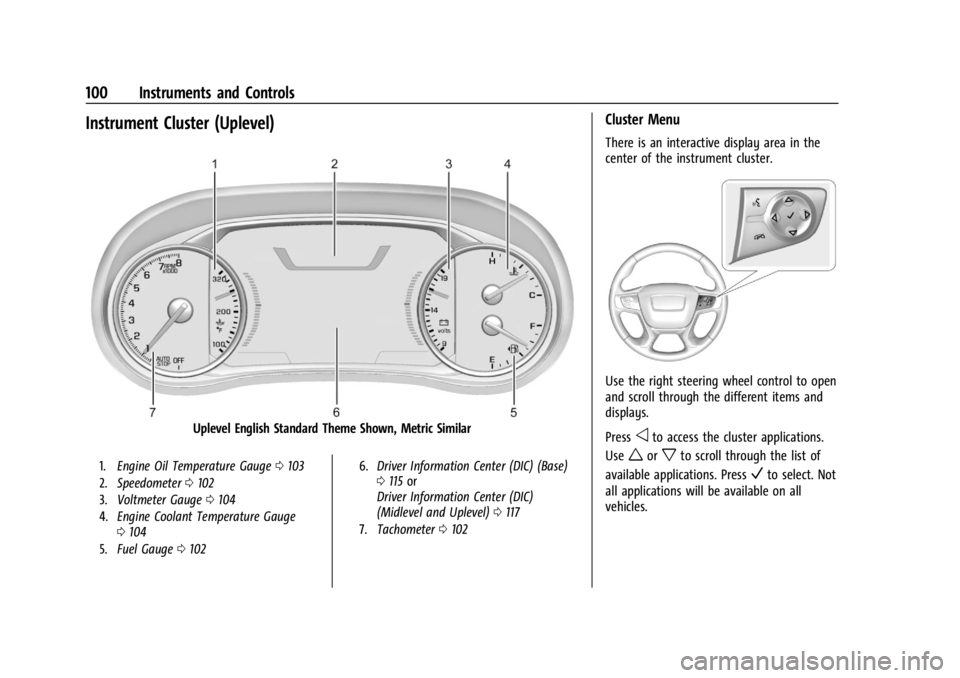
Instrument Cluster (Uplevel)
Uplevel English Standard Theme Shown, Metric Similar
1.Engine Oil Temperature Gauge 0103
2. Speedometer 0102
3. Voltmeter Gauge 0104
4. Engine Coolant Temperature Gauge
0104
5. Fuel Gauge 0102 6.
Driver Information Center (DIC) (Base)
0115 or
Driver Information Center (DIC)
(Midlevel and Uplevel) 0117
7. Tachometer 0102
Cluster Menu
There is an interactive display area in the
center of the instrument cluster.
Use the right steering wheel control to open
and scroll through the different items and
displays.
Press
oto access the cluster applications.
Use
worxto scroll through the list of
available applications. Press
Vto select. Not
all applications will be available on all
vehicles.
Page 103 of 396
GMC Acadia/Acadia Denali Owner Manual (GMNA-Localizing-U.S./Canada/
Mexico-14608671) - 2021 - CRC - 10/26/20
102 Instruments and Controls
Speedometer
The speedometer shows the vehicle's speed
in either kilometers per hour (km/h) or
miles per hour (mph).
Odometer
The odometer shows how far the vehicle has
been driven, in either kilometers or miles.
Trip Odometer
The trip odometer shows how far the
vehicle has been driven since the trip
odometer was last reset.
The trip odometer is accessed and reset
through the Driver Information Center (DIC).
SeeDriver Information Center (DIC) (Base)
0 115 or
Driver Information Center (DIC) (Midlevel and
Uplevel) 0117.
Tachometer
The tachometer displays the engine speed in
revolutions per minute (rpm). For vehicles with the Stop/Start system,
when the ignition is on, the tachometer
indicates the vehicle status. When pointing
to AUTO STOP, the engine is off but the
vehicle is on and can move. The engine
could auto start at any time. When the
indicator points to OFF, the vehicle is off.
When the engine is on, the tachometer will
indicate the engine’s revolutions per minute
(rpm). The tachometer may vary by several
hundred rpm, during Auto Stop mode, when
the engine is shutting off and restarting.
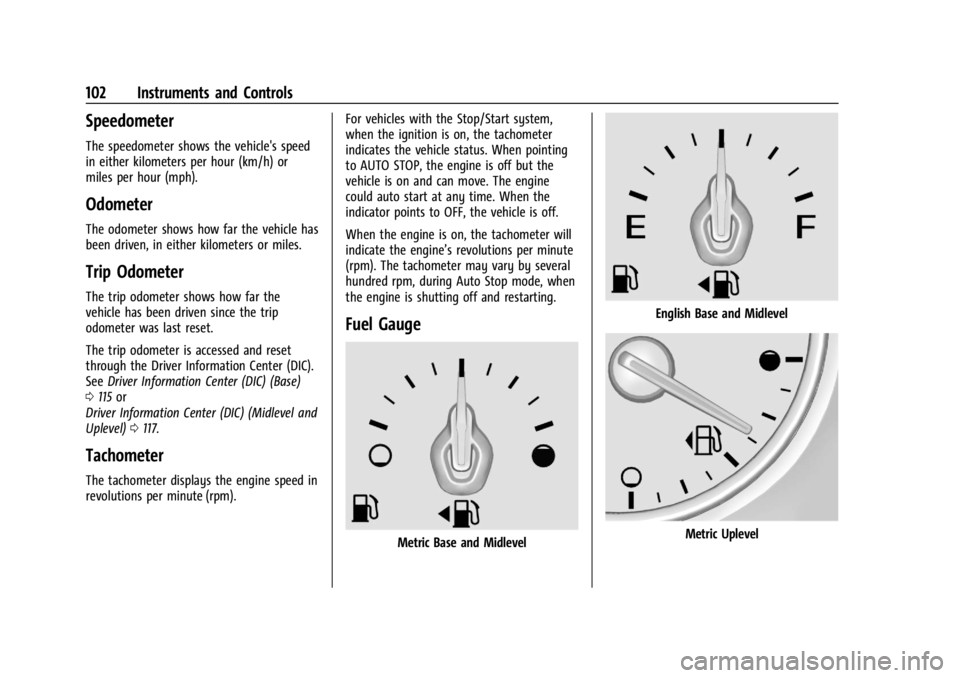
Fuel Gauge
Metric Base and Midlevel
English Base and Midlevel
Metric Uplevel
Page 108 of 396
GMC Acadia/Acadia Denali Owner Manual (GMNA-Localizing-U.S./Canada/
Mexico-14608671) - 2021 - CRC - 10/26/20
Instruments and Controls 107
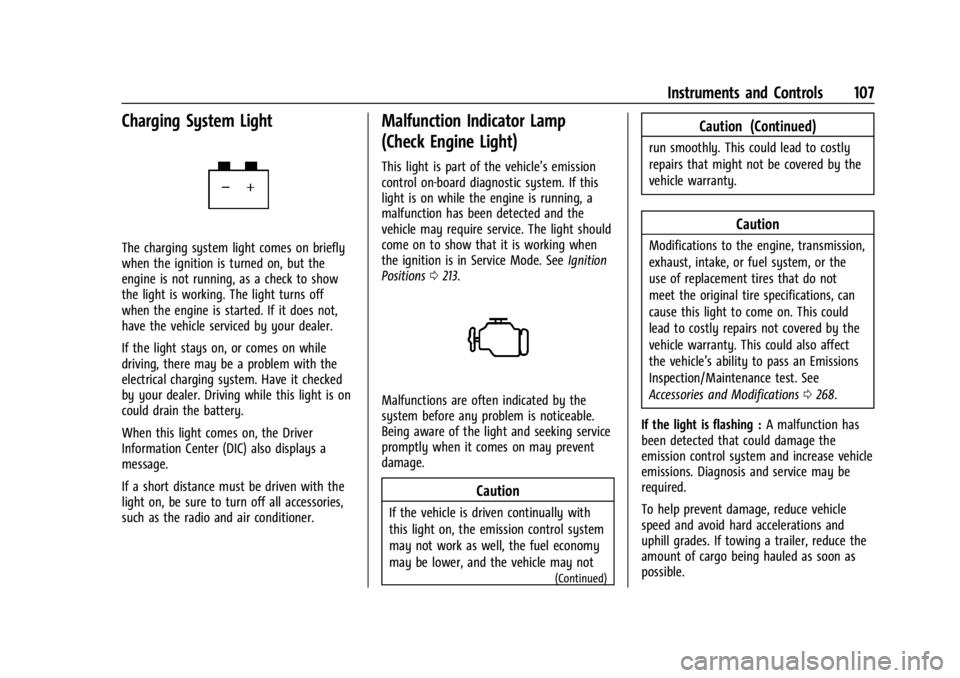
Charging System Light
The charging system light comes on briefly
when the ignition is turned on, but the
engine is not running, as a check to show
the light is working. The light turns off
when the engine is started. If it does not,
have the vehicle serviced by your dealer.
If the light stays on, or comes on while
driving, there may be a problem with the
electrical charging system. Have it checked
by your dealer. Driving while this light is on
could drain the battery.
When this light comes on, the Driver
Information Center (DIC) also displays a
message.
If a short distance must be driven with the
light on, be sure to turn off all accessories,
such as the radio and air conditioner.
Malfunction Indicator Lamp
(Check Engine Light)
This light is part of the vehicle’s emission
control on-board diagnostic system. If this
light is on while the engine is running, a
malfunction has been detected and the
vehicle may require service. The light should
come on to show that it is working when
the ignition is in Service Mode. SeeIgnition
Positions 0213.
Malfunctions are often indicated by the
system before any problem is noticeable.
Being aware of the light and seeking service
promptly when it comes on may prevent
damage.
Caution
If the vehicle is driven continually with
this light on, the emission control system
may not work as well, the fuel economy
may be lower, and the vehicle may not
(Continued)
Caution (Continued)
run smoothly. This could lead to costly
repairs that might not be covered by the
vehicle warranty.
Caution
Modifications to the engine, transmission,
exhaust, intake, or fuel system, or the
use of replacement tires that do not
meet the original tire specifications, can
cause this light to come on. This could
lead to costly repairs not covered by the
vehicle warranty. This could also affect
the vehicle’s ability to pass an Emissions
Inspection/Maintenance test. See
Accessories and Modifications 0268.
If the light is flashing : A malfunction has
been detected that could damage the
emission control system and increase vehicle
emissions. Diagnosis and service may be
required.
To help prevent damage, reduce vehicle
speed and avoid hard accelerations and
uphill grades. If towing a trailer, reduce the
amount of cargo being hauled as soon as
possible.
Page 118 of 396
GMC Acadia/Acadia Denali Owner Manual (GMNA-Localizing-U.S./Canada/
Mexico-14608671) - 2021 - CRC - 10/26/20
Instruments and Controls 117
Fuel Economy :The center displays the
approximate instantaneous fuel economy as
a number and bar graph. Displayed above
the bar graph is a running average of fuel
economy for the most recently traveled
selected distance. Displayed below the bar
graph is the best average fuel economy that
has been achieved for the selected distance.
The selected distance is displayed at the top
of the page as “last xxx mi/km.”
Press
Vto select the distance or reset best
value. Use
wandxto choose the
distance and press
V. Presswandxto
select “Reset Best Score.” Press
Vto reset
the best average fuel economy. After reset,
the best value displays “-,-”until the
selected distance has been traveled.
The display provides information on how
current driving behavior affects the running
average and how well recent driving
compares to the best that has been
achieved for the selected distance.
Economy Trend : Shows history of the
Average Fuel Economy from the last 50 km
(30 mi). Each bar represents about 5 km
(3 mi) of driving. During driving the bars will
shift to always reflect the most recent distance on the right side. Press and hold
V
to clear the graph or to reset through
the menu.
ECO Index :
Provides feedback on the
efficiency of current driving behavior. The
bar graph shows a value that is based on
current fuel consumption compared to what
is expected from the vehicle with good and
bad driving habits.
Timer : This display can be used as a timer.
To start the timer, press
Vwhile this
display is active. The display will show the
amount of time that has passed since the
timer was last reset. To stop the timer,
press
Vbriefly while this display is active
and the timer is running. To reset the timer
to zero, press and hold
Vwhile this display
is active, or press
pand select reset.
Battery Voltage : Displays the current
battery voltage, if equipped. Battery voltage
changes are normal while driving. See
Charging System Light 0107. If there is a
problem with the battery charging system,
the DIC will display a message. Transmission Fluid Temperature :
Shows the
temperature of the automatic transmission
fluid in either degrees Celsius (°C) or degrees
Fahrenheit (°F).
Blank Page : Shows no information.
Driver Information Center (DIC)
(Midlevel and Uplevel)
The DIC displays are shown in the center of
the instrument cluster in the Info app. See
Instrument Cluster (Base and Midlevel) 097
or
Instrument Cluster (Uplevel) 0100. The
displays show the status of many vehicle
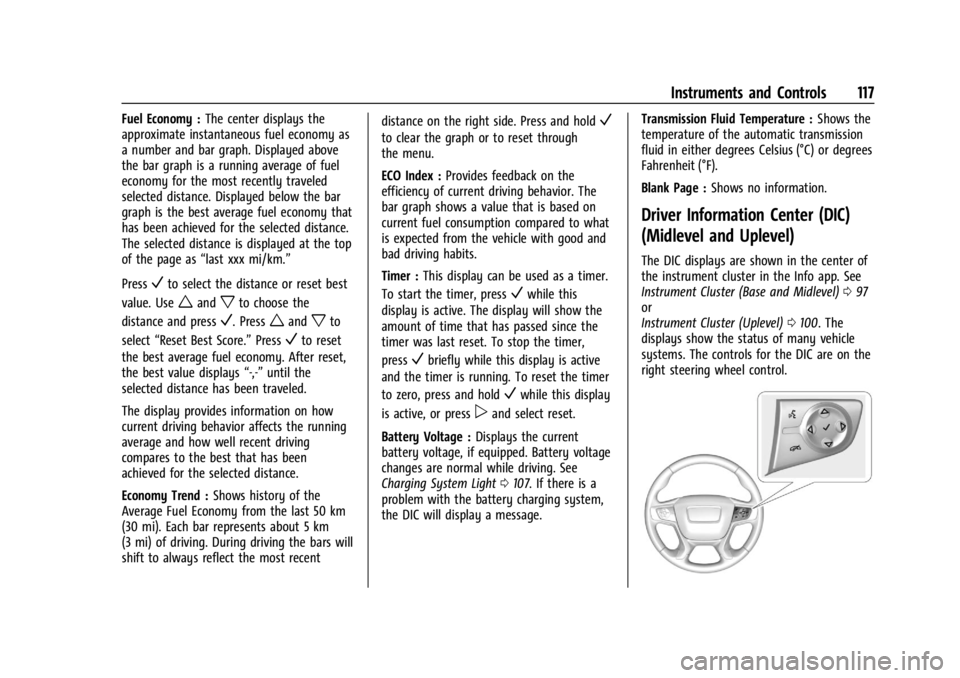
systems. The controls for the DIC are on the
right steering wheel control.
Page 121 of 396
GMC Acadia/Acadia Denali Owner Manual (GMNA-Localizing-U.S./Canada/
Mexico-14608671) - 2021 - CRC - 10/26/20
120 Instruments and Controls
If equipped with HUD, some information
concerning the operation of the vehicle is
projected onto the windshield. The
information is projected through the HUD
lens on the driver side of the instrument
panel and focused out toward the front of
the vehicle.
Caution
If you try to use the HUD image as a
parking aid, you may misjudge the
distance and damage your vehicle. Do not
use the HUD image as a parking aid.
The HUD information can be displayed in
various languages. The speedometer reading
and other numerical values can be displayed
in either English or metric units.
The language selection is changed through
the radio and the units of measurement is
changed through the instrument cluster. See
Vehicle Personalization 0123 and "Options"
under Instrument Cluster (Base and Midlevel)
0 97 or
Instrument Cluster (Uplevel) 0100.
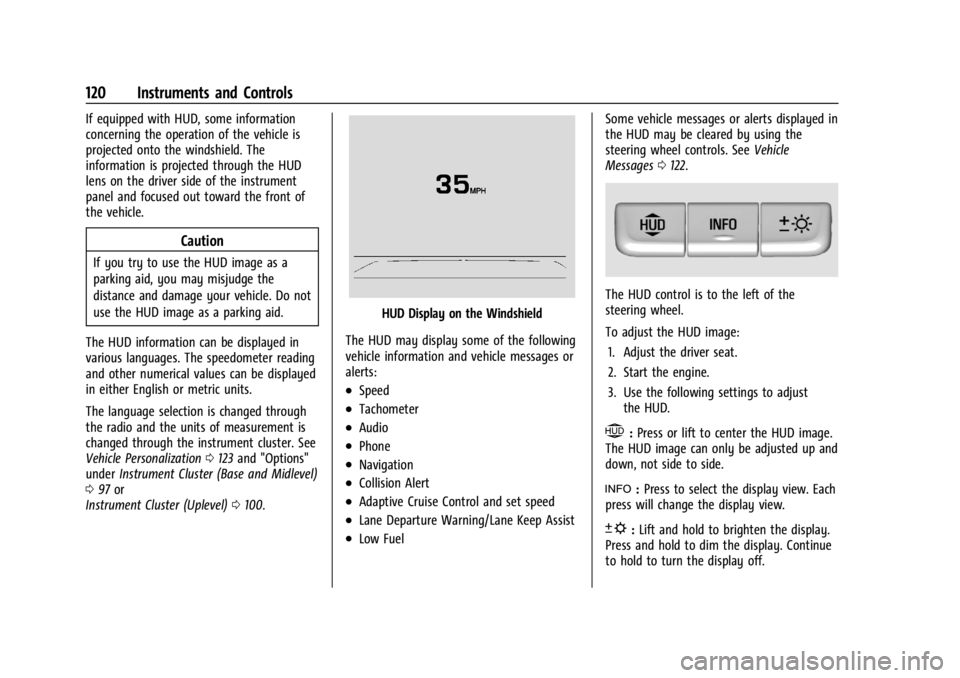
HUD Display on the Windshield
The HUD may display some of the following
vehicle information and vehicle messages or
alerts:
.Speed
.Tachometer
.Audio
.Phone
.Navigation
.Collision Alert
.Adaptive Cruise Control and set speed
.Lane Departure Warning/Lane Keep Assist
.Low Fuel Some vehicle messages or alerts displayed in
the HUD may be cleared by using the
steering wheel controls. See
Vehicle
Messages 0122.
The HUD control is to the left of the
steering wheel.
To adjust the HUD image:
1. Adjust the driver seat.
2. Start the engine.
3. Use the following settings to adjust the HUD.
$:Press or lift to center the HUD image.
The HUD image can only be adjusted up and
down, not side to side.
!: Press to select the display view. Each
press will change the display view.
D: Lift and hold to brighten the display.
Press and hold to dim the display. Continue
to hold to turn the display off.
Page 161 of 396
GMC Acadia/Acadia Denali Owner Manual (GMNA-Localizing-U.S./Canada/
Mexico-14608671) - 2021 - CRC - 10/26/20
160 Infotainment System
Accessing Favorites
In the Nav application, view the Favorites
list by touching
Hin the search bar along
the top of the Nav map view. If the search
bar is closed, touch
}and selectH.
Saving Favorites
Favorites can be added from a number of
the system’s applications. Touch the
favorites icon to save content as a favorite.
Renaming Navigation Favorites 1. Touch the Settings icon on the Home Page and touch the System tab.
2. Touch Favorites to access the Manage Favorites option.
3. Touch a saved Navigation favorite to access the edit icon. Touch the edit icon
to rename the favorite.
4. Touch Save to store the renamed favorite.
Recents
TouchHto access a list of recent
destinations. Recenter Position Icon
Touch the Recenter Position arrow in the
middle of the map view to reset the map to
the current location.
Last Parked Location
The Last Parked Location is the last location
the vehicle engine was turned off. That
location is displayed in the first row of the
Recents list. Touching the last Parked
Location shows the Address Details view to
either save the address or drive to it. The
Last Parked Location can be deleted by
entering the Edit display. Once the Last
Parked Location is deleted, it no longer
appears in the Recents list, unless the
vehicle is started at that location again.
Show POI Icons
To see the POI categories, touch Options,
then touch Show on Map. Up to eight
categories of icons can be selected.
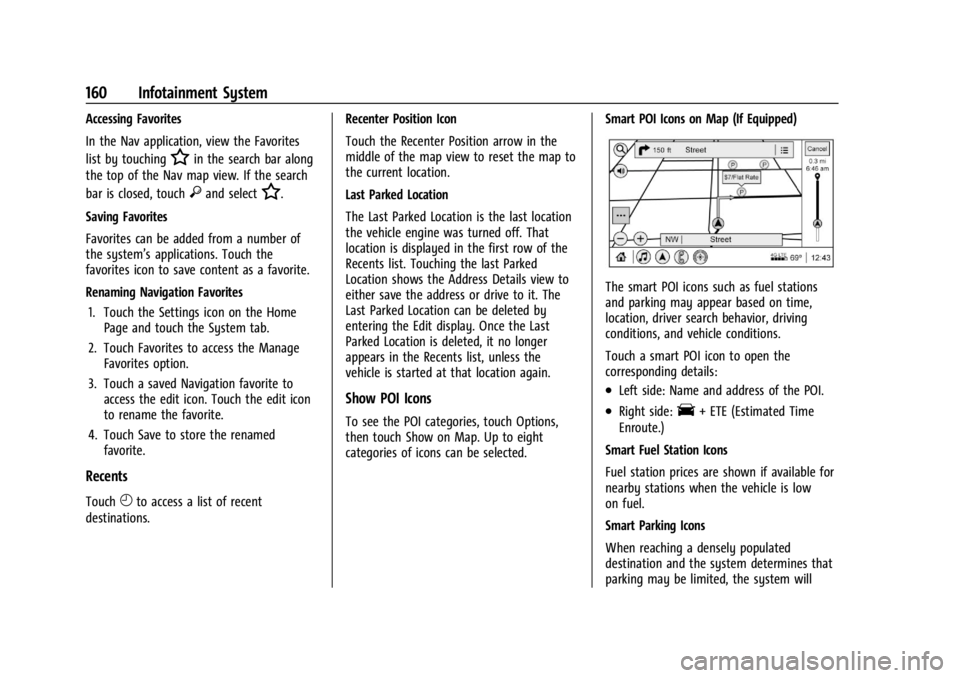
Smart POI Icons on Map (If Equipped)
The smart POI icons such as fuel stations
and parking may appear based on time,
location, driver search behavior, driving
conditions, and vehicle conditions.
Touch a smart POI icon to open the
corresponding details:
.Left side: Name and address of the POI.
.Right side:E+ ETE (Estimated Time
Enroute.)
Smart Fuel Station Icons
Fuel station prices are shown if available for
nearby stations when the vehicle is low
on fuel.
Smart Parking Icons
When reaching a densely populated
destination and the system determines that
parking may be limited, the system will
Page 183 of 396
GMC Acadia/Acadia Denali Owner Manual (GMNA-Localizing-U.S./Canada/
Mexico-14608671) - 2021 - CRC - 10/26/20
182 Infotainment System
Set Audio Volume Limit :Allows a
maximum radio volume to be set. Use the
arrows to choose the maximum allowable
level for the audio volume.
Teen Driver Speed Limiter : Limits the
maximum speed of the vehicle. When the
speed limiter is turned on and the vehicle is
started with a Teen Driver key, the DIC
displays a message that the top speed is
limited.
On certain vehicles, when the Speed Limiter
is turned ON, the vehicle’s maximum
acceleration will be limited. The DIC will
display a message that the acceleration is
limited.
Teen Driver Speed Warning : Allows the
speed warning to be turned on or off. Touch
Set Teen Driver Speed Warning to set the
warning speed.
Set Teen Driver Speed Warning : Displays a
warning in the DIC when exceeding a
selectable speed. Choose the desired speed
warning level. The speed warning does not
limit the speed of the vehicle.
SiriusXM Explicit Content Filter (if
equipped) : Allows the SiriusXM Explicit
Content Filter to be turned ON or OFF.
When ON, the teen driver will not be able to listen to SiriusXM stations that contain
explicit content, and the Explicit Content
Filter selection in the Audio Settings will be
unavailable for change.
When Teen Driver is Active:
.If equipped with Buckle to Drive, shifting
out of P (Park) will be prevented if the
driver seat belt, and in some vehicles the
front passenger seat belt, is not buckled.
.The radio will mute when the driver seat
belt, and in some vehicles the front
passenger seat belt, is not buckled. The
audio from any device paired to the
vehicle will also be muted.
.An object placed on the front passenger
seat, such as a briefcase, handbag,
grocery bag, laptop, or other electronic
device, could cause the passenger sensing
system to falsely sense an unbuckled
front passenger and mute the radio.
If this happens, remove the object from
the seat. See
Passenger Sensing System
0 59.
.Some safety systems, such as Forward
Collision Alert, if equipped, cannot be
turned off.
.The gap setting for the Forward Collision
Alert and Adaptive Cruise Control,
if equipped, cannot be changed.
.When trying to change a safety feature
that is not configurable in Teen Driver,
the DIC displays a message indicating
that Teen Driver is active and the action
is not available.
.Super Cruise, if equipped, is not available.
.Enhanced Low Fuel Warning (if equipped)
–When the vehicle is low on fuel, the
low fuel light on the instrument cluster
flashes and the DIC low fuel warning
cannot be dismissed.
.Do not tow a trailer.
Report Card
The vehicle owner must secure the driver’s
consent to record certain vehicle data when
the vehicle is driven with a registered Teen
Driver key. There is one Report Card per
vehicle. Data is only recorded when a
registered Teen Driver key is used to
operate the vehicle.
The Report Card data is collected from the
time Teen Driver is activated or the last
time the Report Card was reset. The
following items may be recorded:
.Distance Driven –the total distance
driven.
.Maximum Speed –the maximum vehicle
speed detected.
Page 195 of 396
GMC Acadia/Acadia Denali Owner Manual (GMNA-Localizing-U.S./Canada/
Mexico-14608671) - 2021 - CRC - 10/26/20
194 Climate Controls
To improve fuel efficiency and to cool the
vehicle faster, recirculation may be
automatically selected in warm weather.
The recirculation light will not come on
when automatically controlled. Press
@to
manually select recirculation; press it again
to select outside air.
Do not cover the solar sensor on the top of
the instrument panel near the windshield.
This sensor regulates air temperature based
on sun load. See “Sensors”later in this
section.
Manual Operation
O: Press to turn the climate control system
on or off. When the system is off, outside
air will be prevented from entering the
vehicle. When the system is on, a button is
pressed, or knob is turned, the climate
control system will turn on and deliver
airflow per the current setting.
9: Turn clockwise or counterclockwise to
increase or decrease the fan speed. Press the
knob to turn the fan off.
Press AUTO to return to automatic
operation. Driver and Passenger Temperature Control :
The temperature can be adjusted separately
for the driver and passenger.
Turn the knob clockwise or counterclockwise
to increase or decrease the driver or
passenger temperature setting.
SYNC :
Press to link the passenger and rear
climate temperature settings, if equipped, to
the driver setting. The SYNC indicator light
will turn on. When the passenger or rear
climate temperature settings are adjusted,
the SYNC indicator light is off.
The driver side or passenger side
temperature display shows the temperature
setting increasing or decreasing.
Air Delivery Mode Control : Press
Y,\,
[, or-to change the direction of the
airflow. An indicator light comes on in the
selected mode button.
Changing the mode cancels the automatic
operation and the system goes into manual
mode. Press AUTO to return to automatic
operation.
Y: Air is directed to the instrument panel
outlets.
\: Air is divided between the instrument
panel and floor outlets. Some air is directed
toward the windshield and side window
outlets.
[: Air is directed to the floor outlets,
with some to the windshield, side window
outlets, and second row floor outlets.
-: This mode clears the windows of fog or
moisture. Air is directed to the windshield,
floor outlets, and side window vents. The
system automatically forces outside air into
the vehicle and the air conditioning
compressor will run, unless the outside
temperature is close to freezing.
0: Press to clear the windshield of fog or
frost more quickly. Air is directed to the
windshield and the side window vents. The
air conditioning compressor also comes on,
unless the outside temperature is below
freezing.
Do not drive the vehicle until all windows
are clear.
See Air Vents 0197.