change time GMC CANYON 2008 User Guide
[x] Cancel search | Manufacturer: GMC, Model Year: 2008, Model line: CANYON, Model: GMC CANYON 2008Pages: 428, PDF Size: 5.82 MB
Page 182 of 428
Playing the Radio
PWR (Power):Press to turn the system on and off.
opVOL/VOLUME:Turn to increase or to decrease
the volume.
RCL (Recall) (AM-FM Radio):Press to switch the
display between the radio station frequency, band,
and the time. When the ignition is off, press to display
the time.
DISPL (Display) (Radio with CD):When the ignition is
turned off, press to display the time.
For RDS, press the DISPL knob to change what
displays while using RDS. The display options are
station name, RDS station frequency, PTY (program
type), and the name of the program (if available).
For XM™ (if equipped), press the DISPL knob while
in XM™ mode to retrieve four different categories of
information related to the current song or channel:
Artist, Song Title, Category or PTY, Channel Number/
Channel Name.
To change the default on the display, press the DISPL
knob until you see the desired display, then press and
hold this knob for two seconds. The radio produces
one beep. The selected display is now the default.INFO (Information) (XM™ Satellite Radio Service and
RDS Features) (Radio with Six-Disc CD):When the
ignition is off, press to display the time.
Press the INFO button to display additional text
information related to the current FM-RDS or XM™
station. A choice of additional information such as:
Channel, Song, Artist, and PTY (program type) may
appear. Continue pressing the information button to
highlight the desired label, and the information about
that label displays.
When information is not available, No Info displays.
To change the default on the display, press the INFO
knob until you see the desired display, then press and
hold the knob until a beep sounds. The selected display
becomes the default.
AUTO VOL (Automatic Volume):Automatic volume
automatically adjusts the audio system to make up
for road and wind noise as you drive.
Set the volume at the desired level. Depending on the
radio and displays, press to select MIN, MED, MAX
AUTO VOL, or LOW, MEDIUM, and HIGH. AVOL
displays. Each higher setting allows for more volume
compensation at faster vehicle speeds. Then as you
drive, automatic volume increases the volume, as
necessary, to overcome noise at any speed. The volume
level should always sound the same to you as you drive.
For the Radio with CD, NONE displays if the radio cannot
determine the vehicle speed. To turn automatic volume
off, press until OFF or AUTO VOL OFF displays.
3-50
Page 191 of 428
qSEEKr:Press the left arrow to go to the start of
the current or the previous track. Press the right arrow to
go to the start of the next track. Pressing either arrow for
more than two seconds scans the next tracks, playing
the rst eight seconds of each track until all of the tracks
have been previewed. Press either arrow again to stop
scanning and to play the track.
oTUNEp:Turning this knob fast tracks reverse or
advances through tracks. The track number displays
for each track.
DISPL (Display):Press to see how long the current
track has been playing. ET and the elapsed time of the
track displays. To change the default on the display (track
or elapsed time), press until you see the desired display,
then press and hold for two seconds. The radio produces
one beep. The selected display is now the default.
BAND:Press to listen to the radio when a CD is
playing. The inactive CD remains inside the radio for
future listening.
CD AUX (Auxiliary):Press to play a CD when listening
to the radio. The CD symbol displays when a CD is
loaded.
Z(Eject):Press to eject a CD. Eject can be activated
with either the ignition or radio off. CDs can be loaded
with the ignition and radio off if this button is pressed rst.
Playing a CD(s) (Radio with
Six-Disc CD Player)
LOAD:Press to load CDs into the CD player. This CD
player holds up to six CDs.
To insert one CD, do the following:
1. Turn the ignition on.
2. Press and release the LOAD button.
3. Wait for the indicator light, located to the right of the
slot, to turn green.
4. Load a CD. Insert the CD partway into the slot,
label side up. The player pulls the CD in.
To insert multiple CDs, do the following:
1. Turn the ignition on.
2. Press and hold the LOAD button for two seconds.
A beep sound and the indicator light, located to the
right of the slot, begins to ash and MULTI LOAD #
displays.
3. Once the light stops ashing and turns green,
INSERT CD # displays, load a CD. Insert
the CD partway into the slot, label side up.
The player pulls the CD in.
Once the CD is loaded, the indicator light begins
ashing again. Once the light stops ashing and
turns green, you can load another CD. The CD player
takes up to six CDs. Do not try to load more than six.
3-59
Page 193 of 428
To use repeat, do the following:
To repeat the track you are listening to, press
and release the RPT button. RPT displays.
Press again to turn off repeat play.
To repeat the CD you are listening to, press
and hold the RPT button for two seconds.
RPT displays. Press again to turn off repeat play.
RDM (Random):With the random setting, tracks
can be listened to in random, rather than sequential,
order, on one CD or on all of the CDs. To use random,
do one of the following:
To play the tracks on the CD you are listening to in
random order, press and release the RDM button.
RANDOM ONE displays. Press again to turn
off random play.
To play the tracks on all of the CDs that are loaded
in random order, press and hold RDM for more
than two seconds. A beep sounds and RANDOM
ALL displays. Press again to turn off random play.
AUTO EQ (Automatic Equalization):Press to
select the equalization setting while playing a CD.
The equalization is stored when a CD is played.
For more information on AUTO EQ, see “AUTO EQ”
listed previously in this section.
©SEEK¨:Press the left arrow to go to the start of
the current track (if more than 10 seconds have played),
or to go to the previous track (if less than 10 seconds
have played). Press the right arrow to go to the next
track. If either arrow is held or pressed more than once,
the player continues moving backward or forward through
the CD.
©SCAN¨:To scan one CD, press and hold either
arrow for more than two seconds until SCAN displays and
a beep sounds. The radio goes to the next track, plays for
10 seconds, then goes to the next track. Press either
arrow again, to stop scanning.
To scan all loaded CDs, press and hold either arrow for
more than four seconds until CD SCAN displays and a
beep sounds. Use this feature to listen to 10 seconds of
the rst track of each loaded CD. Press either arrow
again, to stop scanning.
INFO (Information):Press to see how long the current
track has been playing. To change the default on the
display, track or elapsed time, press until you see the
desired display, then press and hold until the radio beeps.
The selected display becomes the default.
BAND:Press to listen to the radio while a CD is
playing. The inactive CD(s) remains inside the radio
for future listening.
3-61
Page 199 of 428
6 RDM (Random):To play the tracks in random order
in the current folder or playlist, press and release this
button. FLDR RDM (folder random) displays. Once all of
the tracks in the current folder or playlist have played, the
system moves to the next folder or playlist and plays all of
the tracks in random order.
To play all the tracks in random order on the CD, press
and hold this button for two seconds. A beep sounds and
DISC RDM (disc random) displays. This feature does not
work with playlists.
When in random, pressing and releasing either SEEK
arrow takes the CD to the previous or to the next
random track.
Press and release this button again to turn off random
play. NO RDM (no random) displays.
qSEEKr:Press the left SEEK arrow to go to the
start of the previous track. Press the right SEEK arrow to
go to the start of the next track. Pressing either SEEK
arrow for more than two seconds searches the previous
or next tracks at two tracks per second. Release the
button to stop searching and to play the track.
oTUNEp:Turning this knob fast tracks reverse or
advances through the tracks in all folders or playlists.
The track number and le name displays for each track.
Turning this knob while in random fast tracks reverse
or advances the tracks in sequential order.DISPL (Display):Press this knob to switch between
track mode, folder/playlist mode, and time of day mode.
The display shows only eight characters, but there can
be up to four pages of text. If there are more than eight
characters in the song, folder, or playlist name, pressing
this knob within two seconds takes you to the next page
of text. If there are no other pages to be shown, pressing
this knob within two seconds takes you to the next
display mode.
Track mode displays the current track number and
the ID3 tag song name.
Folder/playlist mode displays the current folder or
playlist number and the folder/playlist name.
Time of day mode displays the time of day and the
ID3 tag song name.
To change the default on the display, press the
DISPL knob until you see the desired display, then
press and hold this knob for two seconds. The radio
produces one beep and the selected display is now
the default.
INFO (Information):INFO displays when a current
track has ID3 tag information. Press this button to
display the artist name and album contained in the tag.
INFO disappears from the display when the information
in the ID3 tag has nished being read.
BAND:Press this button to listen to the radio when a
CD is playing. The inactive CD remains inside the radio
for future listening.
3-67
Page 202 of 428
XM™ Satellite Radio Service
XM™ Satellite Radio Service gives digital radio
reception from coast-to-coast in the 48 contiguous
United States, and in Canada. Just as with FM,
tall buildings or hills can interfere with satellite radio
signals, causing the sound to fade in and out. In
addition, traveling or standing under heavy foliage,
bridges, garages, or tunnels may cause loss of the XM™
signal for a period of time. The radio may display No
Signl to indicate interference.
Fixed Mast Antenna
The xed mast antenna can withstand most car washes
without being damaged. If the mast should ever become
slightly bent, straighten it out by hand. If the mast is badly
bent, replace it.
Check occasionally to make sure the mast is still
tightened to its base. If tightening is required, tighten
by hand, then with a wrench one quarter turn.
XM™ Satellite Radio Antenna
System
The XM™ Satellite Radio antenna is located on the roof
of your vehicle. Keep this antenna clear of snow and
ice build up for clear radio reception.
If your vehicle has a sunroof, the performance of the
XM™ system may be affected if the sunroof is open.
Loading items onto the roof of your vehicle can interfere
with the performance of the XM™ system. Make sure
the XM™ Satellite Radio antenna is not obstructed.
Chime Level Adjustment
The radio is used to adjust the vehicle’s chime level.
To change the volume level of the chime, press and hold
pushbutton 6 with the ignition on and the radio power off.
The volume level will change from the normal level to
loud, and LOUD will appear on the radio display.
To change back to the default or normal setting, press
and hold pushbutton 6 again. The volume level will
change from the loud level to normal, and NORMAL will
appear on the radio display. Each time the chime volume
is changed, three chimes will sound to indicate the new
volume selected. Removing the radio and not replacing it
with a factory radio or chime module will disable vehicle
chimes.
3-70
Page 207 of 428
ABS can change the brake pressure faster than any
driver could. The computer is programmed to make the
most of available tire and road conditions. This can help
you steer around the obstacle while braking hard.
As you brake, the computer keeps receiving updates on
wheel speed and controls braking pressure accordingly.
Remember: ABS does not change the time you need
to get your foot up to the brake pedal or always
decrease stopping distance. If you get too close to the
vehicle in front of you, you will not have time to apply the
brakes if that vehicle suddenly slows or stops. Always
leave enough room up ahead to stop, even though you
have ABS.
Using ABS
Do not pump the brakes. Just hold the brake pedal
down rmly and let antilock work for you. You might
feel the brakes vibrate or notice some noise, but this
is normal.
Braking in Emergencies
With ABS, you can steer and brake at the same time.
In many emergencies, steering can help you more than
even the very best braking.
Traction Control System (TCS)
Your vehicle may have a Traction Control System (TCS)
that limits wheel spin. This is especially useful in
slippery road conditions. The system operates only if it
senses that one or both of the rear wheels are spinning
or beginning to lose traction. When this happens, the
system reduces engine power and may also upshift the
transmission to limit wheel spin.
You may feel or hear the system working, but this
is normal.
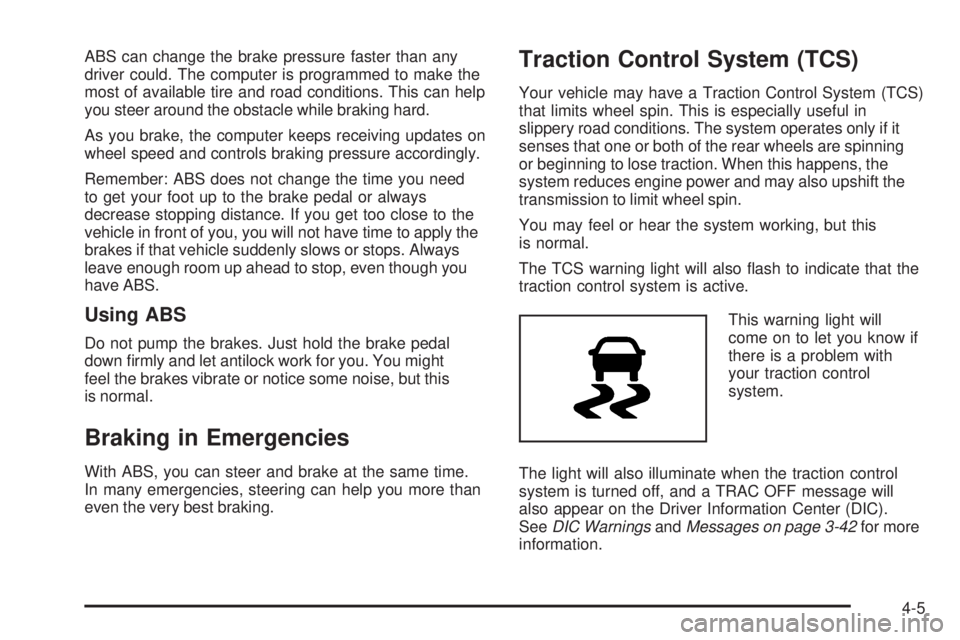
The TCS warning light will also ash to indicate that the
traction control system is active.
This warning light will
come on to let you know if
there is a problem with
your traction control
system.
The light will also illuminate when the traction control
system is turned off, and a TRAC OFF message will
also appear on the Driver Information Center (DIC).
SeeDIC WarningsandMessages on page 3-42for more
information.
4-5
Page 216 of 428
Controlling your vehicle is the key to successful off-road
driving. One of the best ways to control your vehicle
is to control your speed. Here are some things to keep
in mind. At higher speeds:
You approach things faster and you have less time
to scan the terrain for obstacles.
You have less time to react.
You have more vehicle bounce when you drive over
obstacles.
You will need more distance for braking, especially
since you are on an unpaved surface.
{CAUTION:
When you are driving off-road, bouncing and
quick changes in direction can easily throw
you out of position. This could cause you to
lose control and crash. So, whether you are
driving on or off the road, you and your
passengers should wear safety belts.
Scanning the Terrain
Off-road driving can take you over many different kinds
of terrain. You need to be familiar with the terrain
and its many different features. Here are some things
to consider.
Surface Conditions:Off-roading can take you over
hard-packed dirt, gravel, rocks, grass, sand, mud, snow,
or ice. Each of these surfaces affects the steering,
acceleration, and braking of your vehicle in different
ways. Depending upon the kind of surface you are on,
you may experience slipping, sliding, wheel spinning,
delayed acceleration, poor traction, and longer braking
distances.
Surface Obstacles:Unseen or hidden obstacles can
be hazardous. A rock, log, hole, rut, or bump can startle
you if you are not prepared for them. Often these
obstacles are hidden by grass, bushes, snow, or even the
rise and fall of the terrain itself. Here are some things to
consider:
Is the path ahead clear?
Will the surface texture change abruptly up ahead?
Does the travel take you uphill or downhill? There is
more discussion of these subjects later.
Will you have to stop suddenly or change direction
quickly?
4-14
Page 246 of 428
Towing a Trailer
{CAUTION:
If you do not use the correct equipment and
drive properly, you can lose control when you
pull a trailer. For example, if the trailer is too
heavy, the brakes may not work well — or even
at all. You and your passengers could be
seriously injured. You may also damage your
vehicle; the resulting repairs would not be
covered by your warranty. Pull a trailer only if
you have followed all the steps in this section.
Ask your dealer/retailer for advice and
information about towing a trailer with
your vehicle.Notice:Pulling a trailer improperly can damage
your vehicle and result in costly repairs that would
not be covered by your warranty. Always follow
the instructions in this section and check with your
dealer/retailer for more information about towing
a trailer with your vehicle.
To identify the trailering capacity of your vehicle, you
should read the information in “Weight of the Trailer” that
appears later in this section.
Trailering is different than just driving your vehicle
by itself. Trailering means changes in handling,
acceleration, braking, durability and fuel economy.
Successful, safe trailering takes correct equipment,
and it has to be used properly.
That’s the reason for this part. In it are many time-tested,
important trailering tips and safety rules. Many of
these are important for your safety and that of your
passengers. So please read this section carefully before
you pull a trailer.
4-44
Page 278 of 428
Engine Oil Additives
Do not add anything to the oil. The recommended
oils with the starburst symbol that meet GM Standard
GM6094M are all you need for good performance
and engine protection.
Engine Oil Life System
When to Change Engine Oil
Your vehicle has a computer system that lets you know
when to change the engine oil and lter. This is based
on engine revolutions and engine temperature, and
not on mileage. Based on driving conditions, the mileage
at which an oil change will be indicated can vary
considerably. For the oil life system to work properly,
you must reset the system every time the oil is changed.
When the system has calculated that oil life has been
diminished, it will indicate that an oil change is necessary.
A CHANGE OIL message will come on. SeeDIC
Warnings and Messages on page 3-42. Change the oil
as soon as possible within the next 600 miles (1 000 km).
It is possible that, if you are driving under the best
conditions, the oil life system might not indicate that
an oil change is necessary for over a year. However,
the engine oil and lter must be changed at least once
a year and at this time the system must be reset.Your dealer/retailer has trained people who will perform
this work using genuine parts and reset the system.
It is also important to check the oil regularly and keep
it at the proper level.
If the system is ever reset accidentally, you must
change the oil at 3,000 miles (5 000 km) since your
last oil change. Remember to reset the oil life system
whenever the oil is changed.
How to Reset the Engine Oil Life
System
The Engine Oil Life System calculates when to change
the engine oil and lter based on vehicle use. Whenever
the oil is changed, reset the system so it can calculate
when the next oil change is required. If a situation occurs
where you change the oil prior to a CHANGE OIL
message being turned on, reset the system.
To reset the Engine Oil Life system:
1. With the engine off, turn the ignition to ON/RUN.
2. Press and release the stem in the lower center
of the instrument cluster until the OIL LIFE
message is displayed.
3. Once the alternating OIL LIFE and RESET
messages appear, press and hold the stem
until several beeps sound. This conrms that
the oil life system has been reset.
4. Turn the key to LOCK/OFF.
5-18
Page 281 of 428
Automatic Transmission Fluid
When to Check and Change
Automatic Transmission Fluid
A good time to check your automatic transmission uid
level is when the engine oil is changed.
Change the uid and lter at the intervals listed in
Additional Required Services on page 6-6, and be sure
to use the transmission uid listed inRecommended
Fluids and Lubricants on page 6-12.
How to Check Automatic
Transmission Fluid
Because this operation can be a little difficult, you may
choose to have this done at the dealer/retailer service
department.
If you do it yourself, be sure to follow all the instructions
here, or you could get a false reading on the dipstick.
Notice:Too much or too little uid can damage
your transmission. Too much can mean that some
of the uid could come out and fall on hot engine
parts or exhaust system parts, starting a re.
Too little uid could cause the transmission to
overheat. Be sure to get an accurate reading if
you check your transmission uid.Wait at least 30 minutes before checking the
transmission uid level if you have been driving:
When outside temperatures are above 90°F (32°C).
At high speed for quite a while.
In heavy traffic — especially in hot weather.
While pulling a trailer.
To get the right reading, the uid should be at
normal operating temperature, which is 180°F to 200°F
(82°C to 93°C).
Get the vehicle warmed up by driving about 15 miles
(24 km) when outside temperatures are above
50°F (10°C). If it is colder than 50°F (10°C), drive
the vehicle in THIRD (3) until the engine temperature
gage moves and then remains steady for 10 minutes.
A cold uid check can be made after the vehicle
has been sitting for eight hours or more with the
engine off, but this is used only as a reference.
Let the engine run at idle for ve minutes if outside
temperatures are 50°F (10°C) or more. If it is colder than
50°F (10°C), you may have to idle the engine longer.
Should the uid level be low during this cold check,
you must check the uid hot before adding uid.
Checking the uid hot will give you a more accurate
reading of the uid level.
5-21