stop GMC ENVOY DENALI 2007 Workshop Manual
[x] Cancel search | Manufacturer: GMC, Model Year: 2007, Model line: ENVOY DENALI, Model: GMC ENVOY DENALI 2007Pages: 562, PDF Size: 2.87 MB
Page 266 of 562
To insert multiple CDs, do the following:
1. Turn the ignition on.
2. Press and hold the LOAD button for
two seconds.
A beep sounds and the indicator light, located
to the right of the slot, begins to ash and
MULTI LOAD # displays.
3. Once the light stops ashing and turns green,
INSERT CD # displays, load a CD. Insert the
CD part way into the slot, label side up.
The player pulls the CD in.
Once the CD is loaded, the indicator light
begins ashing again. Once the light stops
ashing and turns green, you can load another
CD. The CD player takes up to six CDs.
Do not try to load more than six.
To load more than one CD but less than six,
complete Steps 1 through 3. When nished loading
CDs, press the LOAD button to cancel the
loading function. The radio begins to play the last
CD loaded.
If more than one CD has been loaded, a number
for each CD displays.Playing a Specic Loaded CD
For every CD loaded, a number displays. To play
a specic CD, rst press the CD AUX button
(if not already in CD mode), then press the
numbered pushbutton that corresponds to the CD.
A small bar displays under the CD number that
is playing and the track number displays.
If an error displays, see “CD Messages” later in
this section.
CD
Z(Eject):Press this button to eject CD(s).
To eject the CD that is currently playing, press
and release this button.
To eject multiple CDs, do the following:
1. Press and hold the CD eject button for
two seconds.
A beep sounds and the indicator light, located
to the right of the slot, begins to ash and
EJECT ALL displays.
2. Once the light stops ashing, REMOVE CD #
displays. The CD ejects and can be removed.
Once the CD is removed, the indicator light
begins ashing again and another CD ejects.
To stop ejecting the CDs, press the eject
button.
266
Page 267 of 562
If the CD is not removed, after 25 seconds, the
CD automatically pulls back into the player. If CD
is pushed back into the player, before the
25-second time period is complete, the player
senses an error and tries to eject the CD several
times before stopping.
Do not repeatedly press the CD eject button to eject
a CD after you have tried to push it in manually. The
player’s 25-second eject timer resets at each press
of eject, causing the player to not eject the CD until
the 25-second time period has elapsed.
{REV (Reverse):Press and hold this button to
reverse quickly within a track. You will hear sound
at a reduced volume. Release the button to play the
passage. The elapsed time of the track displays.
FWD
|(Forward):Press and hold this button to
advance quickly within a track. You will hear
sound at a reduced volume. Release the button to
play the passage. The elapsed time of the track
displays.
RPT (Repeat):With the repeat setting, one track
or an entire CD can be repeated.To use repeat, do the following:
To repeat the track you are listening to, press
and release the RPT button. RPT displays.
Press RPT again to turn off repeat play.
To repeat the CD you are listening to, press
and hold the RPT button for two seconds.
RPT displays. Press RPT again to turn
off repeat play.
RDM (Random):With the random setting, you
can listen to the tracks in random, rather than
sequential, order, on one CD or on all of the CDs.
To use random, do one of the following:
To play the tracks on the CD you are listening
to in random order, press and release the
RDM button. RANDOM ONE displays. Press
RDM again to turn off random play.
To play the tracks on all of the CDs that are
loaded in random order, press and hold
RDM for more than two seconds. A beep
sounds and RANDOM ALL displays. Press
RDM again to turn off random play.
267
Page 268 of 562
AUTO EQ (Automatic Equalization):Press
AUTO EQ to select the equalization setting while
playing a CD. The equalization is stored
whenever a CD is played. For more information on
AUTO EQ, see “AUTO EQ” listed previously in
this section.
©SEEK¨:Press the left arrow to go to the
start of the current track, if more than ten seconds
have played. Press the right arrow to go to the
next track. If either arrow is pressed more
than once, the player continues moving backward
or forward through the CD.
©SCAN¨:To scan one CD, press and hold
either SCAN arrow for more than two seconds until
TRACK SCAN displays and a beep sounds. The
radio goes to the next track, plays for 10 seconds,
then goes to the next track. Press either SCAN
arrow again, to stop scanning.
To scan all loaded CDs, press and hold either
SCAN arrow for more than four seconds until ALL
CD SCAN displays and a beep sounds. Use
this feature to listen to 10 seconds of the rst track
of each loaded CD. Press either SCAN arrow
again, to stop scanning.INFO (Information):Press this knob to see how
long the current track has been playing. To change
the default on the display, track or elapsed time,
press the knob until you see the desired display,
then press and hold the knob until a beep sounds.
The selected display becomes the default.
BAND:Press this button to listen to the radio
when a CD is playing. The inactive CD(s) remains
inside the radio for future listening.
Using Song List Mode
The six-disc CD changer has a feature called
song list. This feature is capable of saving
20 track selections.
To save tracks into the song list feature, perform
the following steps:
1. Turn the CD player on and load it with at least
one CD. See “LOAD CD” listed previously in
this section for more information.
2. Check to see that the CD changer is not in
song list mode. S-LIST should not appear on
the display. If S-LIST is displayed, press
the SONG LIST button to turn it off.
268
Page 271 of 562
Listening to a DVD
If your vehicle has the Rear Seat
Entertainment (RSE) system and a DVD
is playing, the DVD symbol displays indicating
that the DVD is available and can be listened to
through your vehicle’s speakers.
To listen to the DVD, press the CD AUX button
until RSE displays. The current radio source stops
and the DVD sound comes through the speakers.
To stop listening to the DVD, press the CD
AUX button, if a CD is loaded, or press the BAND
button to select a different source.
When the RSE system is turned off, the DVD
symbol goes off of the radio display and RSE OFF
displays. The radio returns to the last radio
source that you were listening to.
SeeRear Seat Entertainment System on page 280
for more information.
Using an MP3
MP3 CD-R Disc
MP3 Format
If you burn your own MP3 disc on a personal
computer:
Make sure the MP3 les are recorded on a
CD-R disc.
Do not mix standard audio and MP3 les on
one disc.
Make sure playlists have a .m3u or .wpl
extension, other le extensions may not work.
Files can be recorded with a variety of xed or
variable bit rates. Song title, artist name, and
album is available for display by the radio
when recorded using ID3 tags version 1 and 2.
Create a folder structure that makes it easy
to nd songs while driving. Organize songs
by albums using one folder for each album.
Each folder or album should contain 18 songs
or less.
Make sure to nalize the disc when burning
an MP3 disc, using multiple sessions. It is
usually better to burn the disc all at once.
271
Page 274 of 562
If the ignition or radio is turned off with a CD in the
player it stays in the player. When the ignition or
radio is turned on, the CD starts to play where it
stopped, if it was the last selected audio source.
As each new track starts to play, the track
number displays.
The CD player can play the smaller 3 inch (8 cm)
single CDs with an adapter ring. Full-size CDs
and the smaller CDs are loaded in the same
manner.
If playing a CD-R, the sound quality can be
reduced due to CD-R quality, the method of
recording, the quality of the music that has been
recorded, and the way the CD-R has been
handled. There can be an increase in skipping,
difficulty in nding tracks, and/or difficulty in loading
and ejecting. If these problems occur, check the
bottom surface of the CD. If the surface of the CD
is damaged, such as cracked, broken, or
scratched, the CD will not play properly. If the
surface of the CD is soiled, seeCare of Your CDs
and DVDs on page 299for more information.
If there is no apparent damage, try a known
good CD.Do not add any label to a CD, it could get caught
in the CD player. If a CD is recorded on a
personal computer and a description label is
needed, try labeling the top of the recorded CD
with a marking pen.
Notice:If you add any label to a CD, insert
more than one CD into the slot at a time, or
attempt to play scratched or damaged CDs, you
could damage the CD player. When using the
CD player, use only CDs in good condition
without any label, load one CD at a time, and
keep the CD player and the loading slot free of
foreign materials, liquids, and debris.
If an error displays, see “CD Messages” later in
this section.
1 FLD
x(Previous Folder):Press this
pushbutton to go to the rst track in the previous
folder. Press this button while in folder random
to go to the rst track in the previous folder
and random the tracks in that folder.
274
Page 275 of 562
2 FLDw(Next Folder):Press this pushbutton to
go to the rst track in the next folder. Press this
button while in folder random to go to the rst track
in the next folder and random the tracks in that
folder.
3 REV (Reverse):Press and hold this pushbutton
to reverse quickly within a track. Press and hold
this pushbutton for less than two seconds to
reverse at 10 times the normal playing speed.
Press and hold it for more than two seconds
to reverse at 20 times the normal playing speed.
Release this pushbutton to play the passage.
REV and the elapsed time of the track displays.
4 FWD (Forward):Press and hold this pushbutton
to advance quickly within a track. Press and
hold this pushbutton for less than two seconds to
advance at 10 times the normal playing speed.
Press and hold it for more than two seconds
to advance at 20 times the normal playing speed.
Release this pushbutton to play the passage.
FWD and the elapsed time of the track displays.6 RDM (Random):Press and release this
pushbutton to play the tracks of a current folder or
playlist, in random order. FLDR RDM displays.
Once all of the tracks a current folder or playlist
have played the system moves on to the next
folder or playlist and play all of the tracks in
random order.
To random all the tracks on the CD, press and
hold this pushbutton for two seconds. A beep
sounds and DISC RDM displays. This feature does
not work with playlists.
When in random, pressing and releasing either
SEEK arrow takes you to the next or previous
random track.
Press and release this pushbutton again to turn off
random play. NO RDM displays.
oSEEKp:Press the left arrow to go to the
start of the previous track. Press the right arrow to
go to the start of the next track. Pressing either
arrow for more than two seconds searches
the previous or next tracks at two tracks per
second. Release the button to stop searching and
to play the track.
275
Page 286 of 562
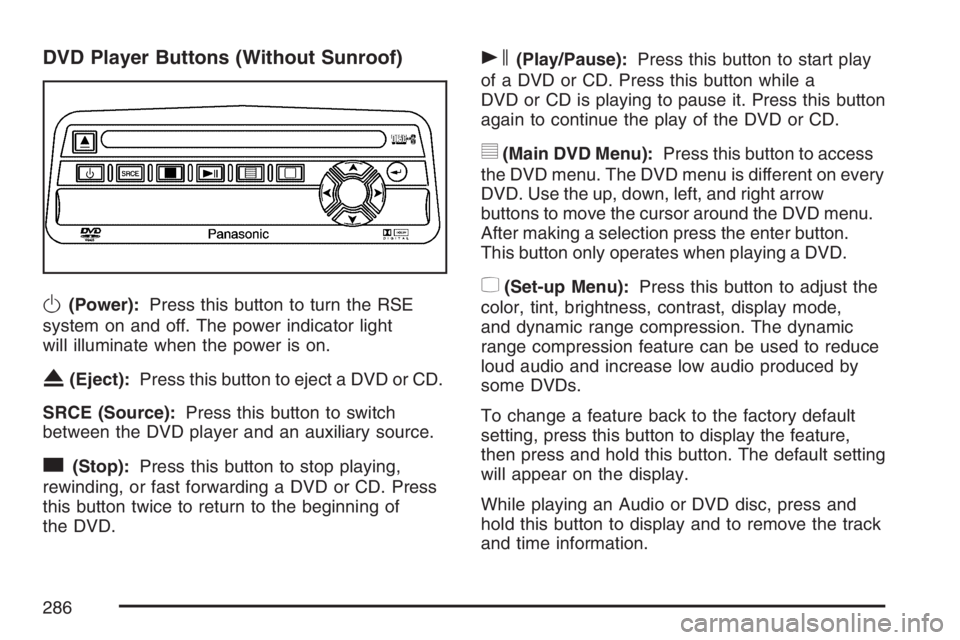
DVD Player Buttons (Without Sunroof)
O(Power):Press this button to turn the RSE
system on and off. The power indicator light
will illuminate when the power is on.
X(Eject):Press this button to eject a DVD or CD.
SRCE (Source):Press this button to switch
between the DVD player and an auxiliary source.
c(Stop):Press this button to stop playing,
rewinding, or fast forwarding a DVD or CD. Press
this button twice to return to the beginning of
the DVD.
s(Play/Pause):Press this button to start play
of a DVD or CD. Press this button while a
DVD or CD is playing to pause it. Press this button
again to continue the play of the DVD or CD.
y(Main DVD Menu):Press this button to access
the DVD menu. The DVD menu is different on every
DVD. Use the up, down, left, and right arrow
buttons to move the cursor around the DVD menu.
After making a selection press the enter button.
This button only operates when playing a DVD.
z(Set-up Menu):Press this button to adjust the
color, tint, brightness, contrast, display mode,
and dynamic range compression. The dynamic
range compression feature can be used to reduce
loud audio and increase low audio produced by
some DVDs.
To change a feature back to the factory default
setting, press this button to display the feature,
then press and hold this button. The default setting
will appear on the display.
While playing an Audio or DVD disc, press and
hold this button to display and to remove the track
and time information.
286
Page 287 of 562
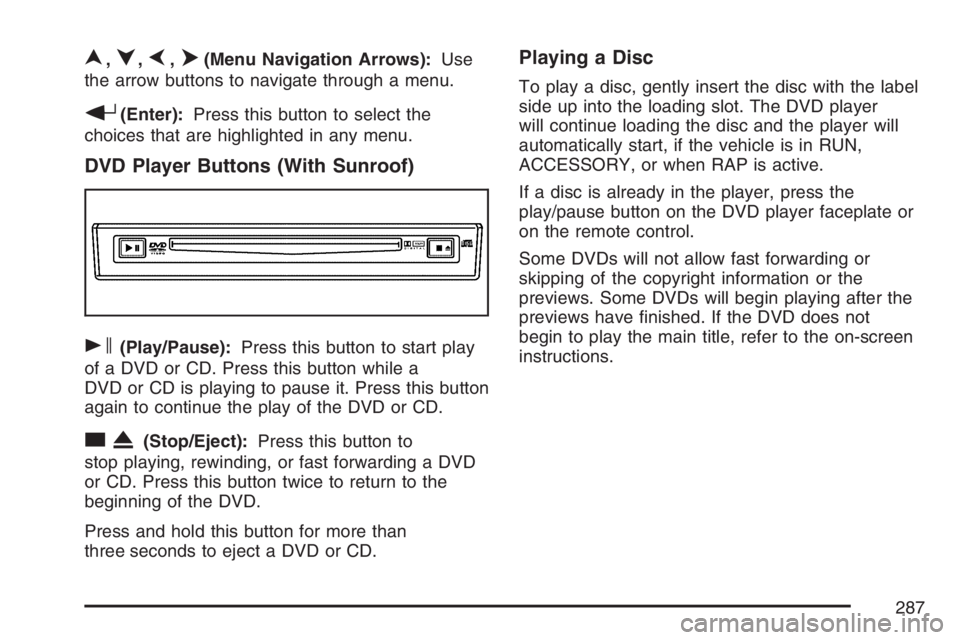
n,q,p,o(Menu Navigation Arrows):Use
the arrow buttons to navigate through a menu.
r(Enter):Press this button to select the
choices that are highlighted in any menu.
DVD Player Buttons (With Sunroof)
s(Play/Pause):Press this button to start play
of a DVD or CD. Press this button while a
DVD or CD is playing to pause it. Press this button
again to continue the play of the DVD or CD.
cX(Stop/Eject):Press this button to
stop playing, rewinding, or fast forwarding a DVD
or CD. Press this button twice to return to the
beginning of the DVD.
Press and hold this button for more than
three seconds to eject a DVD or CD.
Playing a Disc
To play a disc, gently insert the disc with the label
side up into the loading slot. The DVD player
will continue loading the disc and the player will
automatically start, if the vehicle is in RUN,
ACCESSORY, or when RAP is active.
If a disc is already in the player, press the
play/pause button on the DVD player faceplate or
on the remote control.
Some DVDs will not allow fast forwarding or
skipping of the copyright information or the
previews. Some DVDs will begin playing after the
previews have nished. If the DVD does not
begin to play the main title, refer to the on-screen
instructions.
287
Page 288 of 562
Stopping and Resuming Playback
To stop playing a disc, press and release the stop
button on the DVD player faceplate or the
remote control.
To resume playback, press the play/pause button
on the DVD player faceplate or the remote
control. The movie should resume play from where
it was last stopped, if the disc has not been
ejected and the stop button has not been pressed
twice. If the disc has been ejected or if the stop
button has been pressed twice, the disc will
resume play at the beginning.
Ejecting a Disc (DVD Player
without Sunroof)
Press the eject button on the DVD player faceplate
to eject the disc. There is not an eject button on
the remote control.
If a disc is ejected from the player, but is not
removed, the DVD player will reload the disc after
a short period of time. The disc will be stored
in the DVD player. The DVD player will not resume
play of the disc automatically.
Ejecting a Disc (DVD Player with Sunroof)
Press and hold the stop/eject button for more
than two seconds on the DVD player faceplate to
eject the disc. There is not an eject button on
the remote control.
If a disc is ejected from the player, but is not
removed, the DVD player will reload the disc after
a short period of time. The disc will be stored
in the DVD player. The DVD player will not resume
play of the disc automatically.
Remote Control
To use the remote control, aim it at the transmitter
window below the video screen and press the
desired button. Direct sunlight or very bright light
may affect the ability of the RSE system to
receive signals from the remote control. If the
remote control does not seem to be working, the
batteries may need to be replaced. See “Battery
Replacement” later in this section.
Objects blocking the line of sight may also affect
the function of the remote control.
288
Page 289 of 562
Notice:Storing the remote control in a hot
area or in direct sunlight may damage it,
and the repairs will not be covered by your
warranty. Keep the remote control stored in a
cool, dry place.
To extend the life of the batteries, the remote
control does not have a press and hold feature.
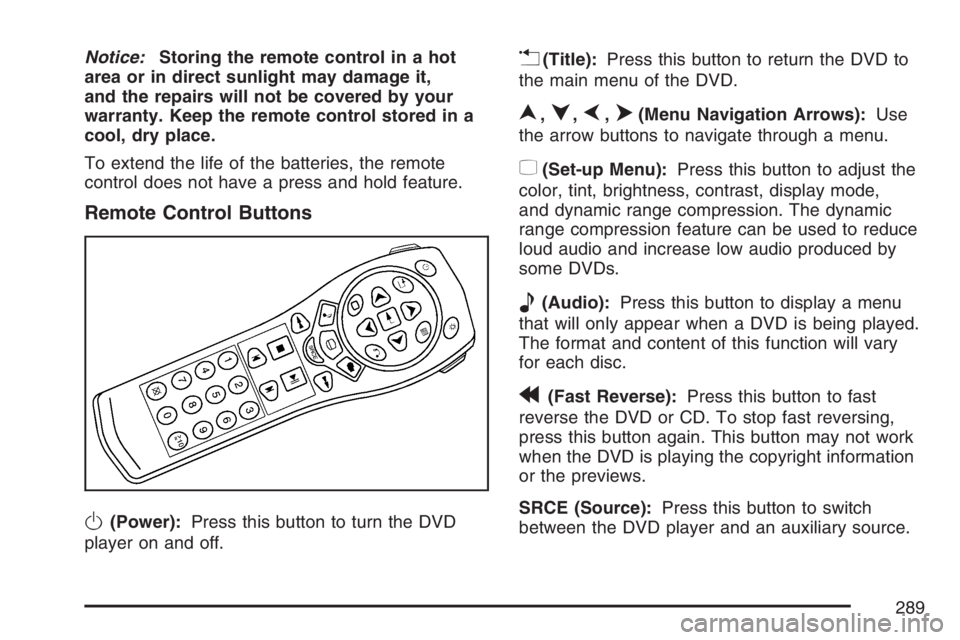
Remote Control Buttons
O(Power):Press this button to turn the DVD
player on and off.
v(Title):Press this button to return the DVD to
the main menu of the DVD.
n,q,p,o(Menu Navigation Arrows):Use
the arrow buttons to navigate through a menu.
z(Set-up Menu):Press this button to adjust the
color, tint, brightness, contrast, display mode,
and dynamic range compression. The dynamic
range compression feature can be used to reduce
loud audio and increase low audio produced by
some DVDs.
e(Audio):Press this button to display a menu
that will only appear when a DVD is being played.
The format and content of this function will vary
for each disc.
r(Fast Reverse):Press this button to fast
reverse the DVD or CD. To stop fast reversing,
press this button again. This button may not work
when the DVD is playing the copyright information
or the previews.
SRCE (Source):Press this button to switch
between the DVD player and an auxiliary source.
289