stop GMC ENVOY DENALI 2007 Repair Manual
[x] Cancel search | Manufacturer: GMC, Model Year: 2007, Model line: ENVOY DENALI, Model: GMC ENVOY DENALI 2007Pages: 562, PDF Size: 2.87 MB
Page 290 of 562
c(Stop):Press this button to stop playing,
rewinding, or fast forwarding a DVD or CD. Press
this button twice to return to the beginning of
the DVD.
t(Previous Track/Chapter):Press this button
to return to the start of the current track or chapter.
Press this button again to return to the previous
track or chapter. This button may not work
when the DVD is playing the copyright information
or the previews.
1 through 0 (Numeric Keypad):The numeric
keypad provides you with the capability of
direct chapter, title, and track number selection.
}10 (Double Digit Entries):Press this button to
select chapter, title, and track numbers greater
than 9. Press this button before inputting the
number.
\(Clear):Press this button within three seconds
after inputting a number to clear the number(s).
P(Illumination):Press this button to turn
the remote control backlight on. The backlight will
time out after about 7 to 10 seconds if no other
button is pressed while the backlight is on.
y(Main DVD Menu):Press this button to access
the DVD menu. The DVD menu is different on every
DVD. Use the up, down, left, and right arrow
buttons to move the cursor around the DVD menu.
After making a selection press the enter button.
This button only operates when playing a DVD.
r(Enter):Press this button to select the
choices that are highlighted in any menu.
q(Return):Press this button to exit the current
active menu and return to the previous menu.
This button will operate only when a DVD is
playing and a menu is active.
|(Camera Angle):Press this button to change
camera angles on DVDs that have this feature
when a DVD is playing. The format and content of
this function will vary for each disc.
{(Subtitle):Press this button to turn on subtitles
and to move through subtitle options when a
DVD is playing. The format and content of this
function will vary for each disc.
290
Page 291 of 562
[(Fast Forward):Press this button to fast
forward the DVD or CD. To stop fast forwarding,
press this button again. This button may not
work when the DVD is playing the copyright
information or the previews.
s(Play/Pause):Press this button to start play
of a DVD or CD. Press this button while a
DVD or CD is playing to pause it. Press this button
again to continue the play of the DVD or CD.
When the DVD is playing, press the pause button
then press the fast forward button. The DVD will
continue playing in a slow play mode. To cancel
slow play mode, press the play/pause button.
u(Next Track/Chapter):Press this button to
advance to the beginning of the next track
or chapter. This button may not work when the
DVD is playing the copyright information or
the previews.
Battery Replacement
To change the batteries, do the following:
1. Remove the battery compartment door located
on the bottom of the remote control.
2. Replace the two AA batteries in the
compartment. Make sure that they are
installed correctly, using the diagram on the
inside of the battery compartment.
3. Close the battery door securely.
If the remote control is to be stored for a long
period of time, remove the batteries and keep them
in a cool, dry place.
291
Page 293 of 562
Problem Recommended Action
After stopping the player,
I push Play but
sometimes the DVD
starts where I left off and
sometimes at the
beginning.If the stop button was
pressed one time, the
DVD player will resume
playing where the DVD
was stopped. If the stop
button was pressed two
times the DVD player will
begin to play from the
beginning of the DVD.
The auxiliary source is
running but there is no
picture or sound.Check that the DVD
player is in the auxiliary
source mode.
Check the auxiliary input
connections at both
devices.
My disc is stuck in the
player. The Load/Eject
button does not work.Turn the DVD power off,
then on, then press the
load/eject button on the
DVD player.
Do not attempt to forcibly
remove the disc from the
DVD player. This could
permanently damage the
disc and DVD player.Problem Recommended Action
Sometimes the wireless
headphone audio cuts
out or buzzes.Check for obstructions,
low batteries, reception
range, and interference
from cellular telephone
towers or by using your
cellular telephone in the
vehicle.
Check that the
headphones are facing
the front of the vehicle.
I lost the remote and/or
the headphones.See your dealer for
assistance.
The DVD is playing,
but there is no picture
or sound.Check that the DVD
player is in DVD mode.
The audio/video skips
or jumps.The DVD or CD could be
dirty, scratched, or
damaged.
The audio from the radio
for the Radio with
Six-Disc CD and XM™
has taken over the audio
from the DVD or CD
when using the wired
headphones.The RSE is working
correctly.
Use the wireless
headphones or have the
front seat passengers
listen to another audio
source.
293
Page 306 of 562
Control of a Vehicle
You have three systems that make your
vehicle go where you want it to go. They are
the brakes, the steering, and the accelerator.
All three systems have to do their work at
the places where the tires meet the road.
Sometimes, as when you are driving on snow or
ice, it is easy to ask more of those control systems
than the tires and road can provide. That means
you can lose control of your vehicle.
Adding non-GM accessories can affect your
vehicle’s performance. SeeAccessories and
Modications on page 380.
Braking
SeeBrake System Warning Light on page 206.
Braking action involves perception time and
reaction time.
First, you have to decide to push on the brake
pedal. That is perception time. Then you have to
bring up your foot and do it. That is reaction time.
Average reaction time is about three-fourths of a
second. But that is only an average. It might be less
with one driver and as long as two or three seconds
or more with another. Age, physical condition,
alertness, coordination, and eyesight all play a part.
So do alcohol, drugs, and frustration. But even in
three-fourths of a second, a vehicle moving at
60 mph (100 km/h) travels 66 feet (20 m). That
could be a lot of distance in an emergency, so
keeping enough space between your vehicle and
others is important.
And, of course, actual stopping distances vary
greatly with the surface of the road, whether it is
pavement or gravel; the condition of the road,
whether it is wet, dry, or icy; tire tread; the
condition of the brakes; the weight of the vehicle;
and the amount of brake force applied.
306
Page 307 of 562
Avoid needless heavy braking. Some people drive
in spurts — heavy acceleration followed by heavy
braking — rather than keeping pace with traffic.
This is a mistake. The brakes may not have time to
cool between hard stops. The brakes will wear out
much faster if you do a lot of heavy braking. If you
keep pace with the traffic and allow realistic
following distances, you will eliminate a lot of
unnecessary braking. That means better braking
and longer brake life.
If your vehicle’s engine ever stops while you are
driving, brake normally but do not pump the
brakes. If you do, the pedal may get harder to
push down. If the engine stops, you will still have
some power brake assist. But you will use it
when you brake. Once the power assist is used
up, it may take longer to stop and the brake pedal
will be harder to push.
Adding non-GM accessories can affect your
vehicle’s performance. SeeAccessories and
Modications on page 380.Anti-Lock Brake System (ABS)
Your vehicle has the Anti-Lock Brake System
(ABS), an advanced electronic braking system that
will help prevent a braking skid.
When you start your engine and begin to drive
away, ABS will check itself. You may hear a
momentary motor or clicking noise while this test
is going on. This is normal.
If there is a problem
with ABS, this warning
light will stay on.
SeeAnti-Lock Brake
System Warning
Light on page 207.
Along with ABS, your vehicle has a Dynamic Rear
Proportioning (DRP) system. If there is a DRP
problem, both the brake and ABS warning lights will
come on accompanied by a 10-second chime.
The lights and chime will come on each time the
ignition is turned on until the problem is repaired.
See your dealer for service.
307
Page 308 of 562
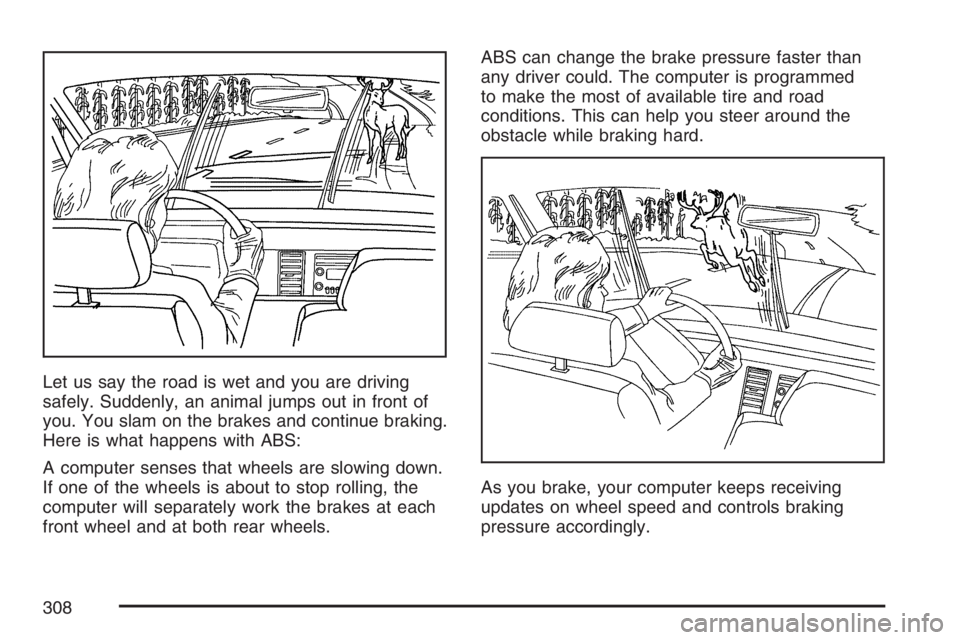
Let us say the road is wet and you are driving
safely. Suddenly, an animal jumps out in front of
you. You slam on the brakes and continue braking.
Here is what happens with ABS:
A computer senses that wheels are slowing down.
If one of the wheels is about to stop rolling, the
computer will separately work the brakes at each
front wheel and at both rear wheels.ABS can change the brake pressure faster than
any driver could. The computer is programmed
to make the most of available tire and road
conditions. This can help you steer around the
obstacle while braking hard.
As you brake, your computer keeps receiving
updates on wheel speed and controls braking
pressure accordingly.
308
Page 309 of 562
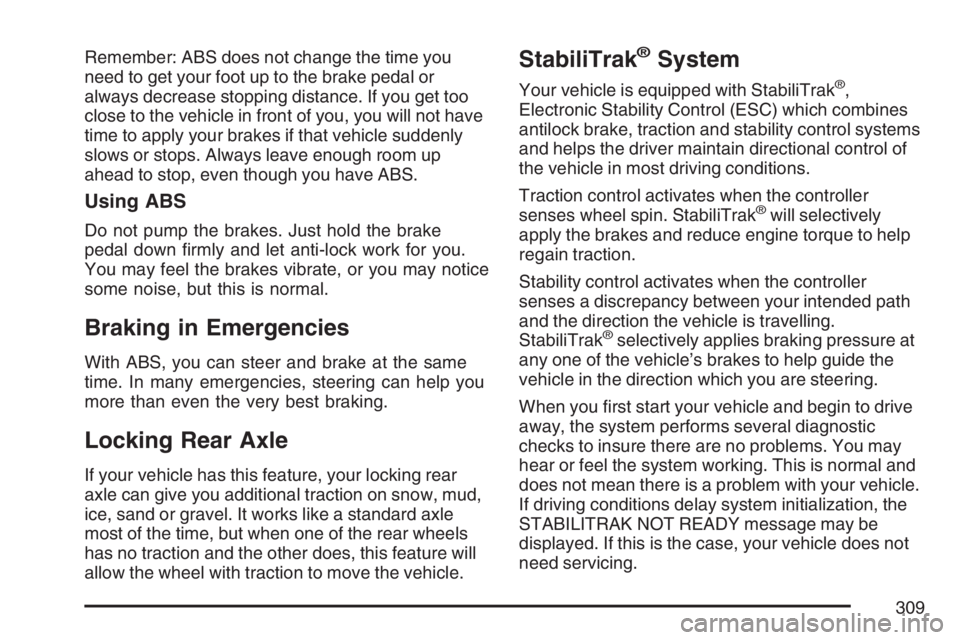
Remember: ABS does not change the time you
need to get your foot up to the brake pedal or
always decrease stopping distance. If you get too
close to the vehicle in front of you, you will not have
time to apply your brakes if that vehicle suddenly
slows or stops. Always leave enough room up
ahead to stop, even though you have ABS.
Using ABS
Do not pump the brakes. Just hold the brake
pedal down rmly and let anti-lock work for you.
You may feel the brakes vibrate, or you may notice
some noise, but this is normal.
Braking in Emergencies
With ABS, you can steer and brake at the same
time. In many emergencies, steering can help you
more than even the very best braking.
Locking Rear Axle
If your vehicle has this feature, your locking rear
axle can give you additional traction on snow, mud,
ice, sand or gravel. It works like a standard axle
most of the time, but when one of the rear wheels
has no traction and the other does, this feature will
allow the wheel with traction to move the vehicle.
StabiliTrak®System
Your vehicle is equipped with StabiliTrak®,
Electronic Stability Control (ESC) which combines
antilock brake, traction and stability control systems
and helps the driver maintain directional control of
the vehicle in most driving conditions.
Traction control activates when the controller
senses wheel spin. StabiliTrak
®will selectively
apply the brakes and reduce engine torque to help
regain traction.
Stability control activates when the controller
senses a discrepancy between your intended path
and the direction the vehicle is travelling.
StabiliTrak
®selectively applies braking pressure at
any one of the vehicle’s brakes to help guide the
vehicle in the direction which you are steering.
When you rst start your vehicle and begin to drive
away, the system performs several diagnostic
checks to insure there are no problems. You may
hear or feel the system working. This is normal and
does not mean there is a problem with your vehicle.
If driving conditions delay system initialization, the
STABILITRAK NOT READY message may be
displayed. If this is the case, your vehicle does not
need servicing.
309
Page 314 of 562
Steering
Power Steering
If you lose power steering assist because the
engine stops or the system is not functioning,
you can steer but it will take much more effort.
Steering Tips
It is important to take curves at a reasonable speed.
A lot of the “driver lost control” accidents mentioned
on the news happen on curves. Here is why:
Experienced driver or beginner, each of us is
subject to the same laws of physics when driving on
curves. The traction of the tires against the road
surface makes it possible for the vehicle to change
its path when you turn the front wheels. If there is
no traction, inertia will keep the vehicle going in the
same direction. If you have ever tried to steer a
vehicle on wet ice, you will understand this.
The traction you can get in a curve depends on
the condition of your tires and the road surface,
the angle at which the curve is banked, and
your speed. While you are in a curve, speed is
the one factor you can control.Suppose you are steering through a sharp curve.
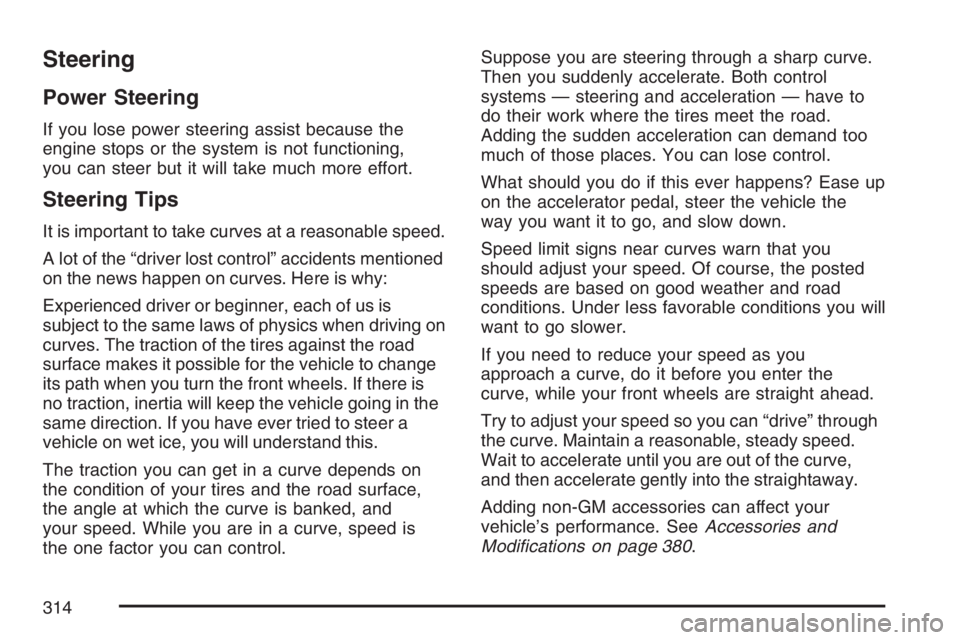
Then you suddenly accelerate. Both control
systems — steering and acceleration — have to
do their work where the tires meet the road.
Adding the sudden acceleration can demand too
much of those places. You can lose control.
What should you do if this ever happens? Ease up
on the accelerator pedal, steer the vehicle the
way you want it to go, and slow down.
Speed limit signs near curves warn that you
should adjust your speed. Of course, the posted
speeds are based on good weather and road
conditions. Under less favorable conditions you will
want to go slower.
If you need to reduce your speed as you
approach a curve, do it before you enter the
curve, while your front wheels are straight ahead.
Try to adjust your speed so you can “drive” through
the curve. Maintain a reasonable, steady speed.
Wait to accelerate until you are out of the curve,
and then accelerate gently into the straightaway.
Adding non-GM accessories can affect your
vehicle’s performance. SeeAccessories and
Modications on page 380.
314
Page 315 of 562
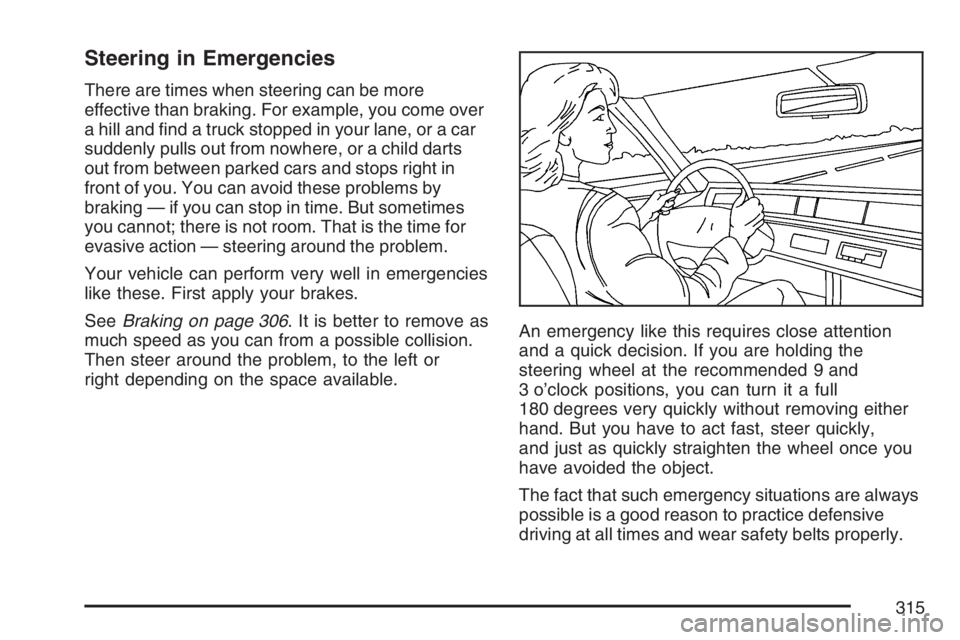
Steering in Emergencies
There are times when steering can be more
effective than braking. For example, you come over
a hill and nd a truck stopped in your lane, or a car
suddenly pulls out from nowhere, or a child darts
out from between parked cars and stops right in
front of you. You can avoid these problems by
braking — if you can stop in time. But sometimes
you cannot; there is not room. That is the time for
evasive action — steering around the problem.
Your vehicle can perform very well in emergencies
like these. First apply your brakes.
SeeBraking on page 306. It is better to remove as
much speed as you can from a possible collision.
Then steer around the problem, to the left or
right depending on the space available.An emergency like this requires close attention
and a quick decision. If you are holding the
steering wheel at the recommended 9 and
3 o’clock positions, you can turn it a full
180 degrees very quickly without removing either
hand. But you have to act fast, steer quickly,
and just as quickly straighten the wheel once you
have avoided the object.
The fact that such emergency situations are always
possible is a good reason to practice defensive
driving at all times and wear safety belts properly.
315
Page 317 of 562
Watch for traffic signs, pavement markings, and
lines. If you can see a sign up ahead that might
indicate a turn or an intersection, delay your
pass. A broken center line usually indicates it is
all right to pass, providing the road ahead is
clear. Never cross a solid line on your side of
the lane or a double solid line, even if the road
seems empty of approaching traffic.
Do not get too close to the vehicle you want to
pass while you are awaiting an opportunity. For
one thing, following too closely reduces your
area of vision, especially if you are following a
larger vehicle. Also, you will not have adequate
space if the vehicle ahead suddenly slows or
stops. Keep back a reasonable distance.
When it looks like a chance to pass is coming
up, start to accelerate but stay in the right lane
and do not get too close. Time your move so
you will be increasing speed as the time comes
to move into the other lane. If the way is clear to
pass, you will have a running start that more
than makes up for the distance you would lose
by dropping back. And if something happens to
cause you to cancel your pass, you need only
slow down and drop back again and wait for
another opportunity.
If other vehicles are lined up to pass a slow
vehicle, wait your turn. But take care that
someone is not trying to pass you as you pull
out to pass the slow vehicle. Remember to
glance over your shoulder and check the
blind spot.
Check your vehicle’s mirrors, glance over your
shoulder, and start your left lane change signal
before moving out of the right lane to pass.
When you are far enough ahead of the passed
vehicle to see its front in your vehicle’s inside
mirror, activate the right lane change signal and
move back into the right lane. Remember that
your vehicle’s passenger side outside mirror is
convex. The vehicle you just passed may seem
to be farther away from you than it really is.
Try not to pass more than one vehicle at a time
on two-lane roads. Reconsider before passing
the next vehicle.
Do not overtake a slowly moving vehicle too
rapidly. Even though the brake lamps are not
ashing, it may be slowing down or starting
to turn.
If you are being passed, make it easy for the
following driver to get ahead of you. Perhaps
you can ease a little to the right.
317