seat GMC ENVOY XUV 2004 Workshop Manual
[x] Cancel search | Manufacturer: GMC, Model Year: 2004, Model line: ENVOY XUV, Model: GMC ENVOY XUV 2004Pages: 460, PDF Size: 2.99 MB
Page 151 of 460
Outlet Adjustment
Use the air outlets located in the center and on the side
of your instrument panel to direct the air¯ow.
Ventilation System
For mild outside temperatures when little heating or
cooling is needed, use the vent setting to direct outside
air through your vehicle.
Your vehicle's ventilation system supplies outside air to
the inside of your vehicle when it is moving. With the
side windows closed, air will ¯ow into the front air inlet
grilles, through the vehicle and out the air exhaust
valves.
Outside air will also enter the vehicle when the heater
or the air conditioning compressor is running, unless you
have pressed the recirculation button.
Operation Tips
·
Keep the hood and front air inlets free of ice, snow,
or any other obstruction (such as leaves). The
heater and defroster will work far better, reducing
the chance of fogging the inside of your windows.
·When you enter a vehicle in cold weather, turn the
fan knob all the way to the right for a few moments
before driving. This helps clear the intake ducts
of snow and moisture, and reduces the chance of
fogging the inside of your window.
·Keep the air path under the front seats clear of
objects. This helps air to circulate throughout
your vehicle.
·Adding outside equipment to the front of your
vehicle, such as hood-air de¯ectors, may affect the
performance of the heating and air conditioning
system. Check with your dealer before adding
equipment to the outside of your vehicle.
3-27
Page 152 of 460

Rear Climate Control System
Your vehicle has one of the following rear climate
control systems. With either system, the rear climate
controls will be disabled when the front climate control
system is in defrost. This occurs to provide maximum
air¯ow to clear the windshield.
The temperature of the air coming through the rear
outlets is determined by the front passenger's
temperature setting. Press the PWR button to turn the
rear climate controls on and off. Use the mode knob
to change the direction of air¯ow (upper, bi-level or ¯oor)
to the rear seat area.If your vehicle has the rear seat audio system, the lower
buttons are used to adjust the rear seat climate
controls. The temperature of the air coming through the
rear outlets is determined by the front passenger's
temperature setting.
If the front climate control is on and not in defrost mode,
the rear climate control can be enabled by pressing
the lower power button (center button) on the control
face. If the front is off or is in defrost mode, the
rear climate control will ¯ash ªOFFº if the power button
is pressed, indicating the function is unavailable at
this point.
The fan speed is controlled by the fan speed toggle
button. The mode button, on the right, controls where
the air is vented.
3-28
Page 153 of 460
Outlet Adjustment
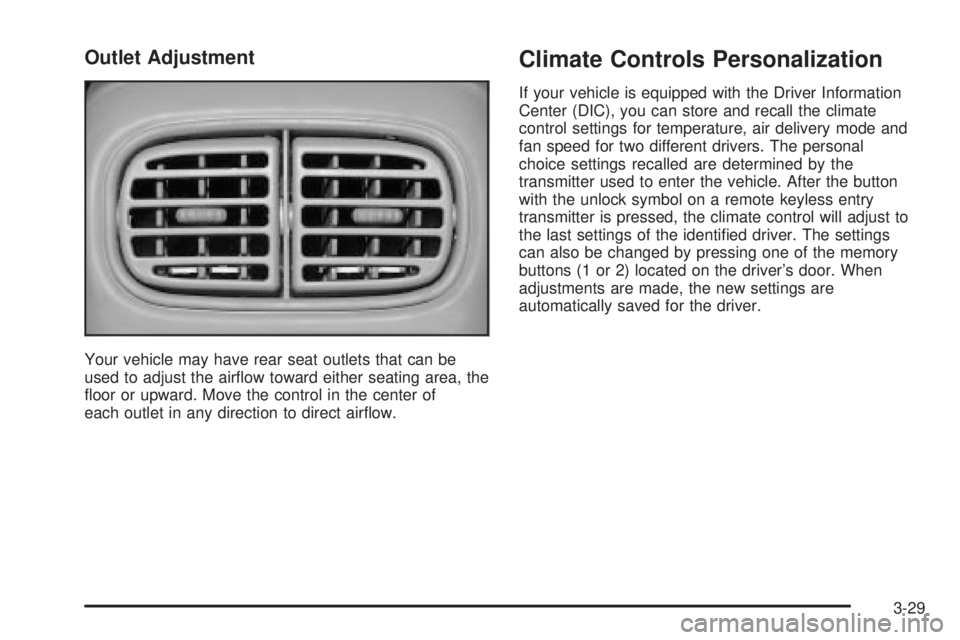
Your vehicle may have rear seat outlets that can be
used to adjust the air¯ow toward either seating area, the
¯oor or upward. Move the control in the center of
each outlet in any direction to direct air¯ow.
Climate Controls Personalization
If your vehicle is equipped with the Driver Information
Center (DIC), you can store and recall the climate
control settings for temperature, air delivery mode and
fan speed for two different drivers. The personal
choice settings recalled are determined by the
transmitter used to enter the vehicle. After the button
with the unlock symbol on a remote keyless entry
transmitter is pressed, the climate control will adjust to
the last settings of the identi®ed driver. The settings
can also be changed by pressing one of the memory
buttons (1 or 2) located on the driver's door. When
adjustments are made, the new settings are
automatically saved for the driver.
3-29
Page 173 of 460
Personalization
You can program certain features to a preferred setting
for up to two people. Press the personalization button
to scroll through the following personalization features.
All of the personalization options may not be available
on your vehicle. Only the options available will be
displayed on your DIC.
·ALARM WARNING TYPE
·AUTOMATIC LOCKING
·AUTOMATIC UNLOCKING
·SEAT POSITION RECALL
·PERIMETER LIGHTING
·REMOTE LOCK FEEDBACK
·REMOTE UNLOCK FEEDBACK
·HEADLAMPS ON AT EXIT
·MIRROR CURB VIEW ASSIST
·EASY EXIT DRIVER SEAT
·DISPLAY UNITS Ð U.S./MET
·DISPLAY LANGUAGE
The driver's preferences are recalled by pressing the
unlock button on the remote keyless entry transmitter or
by pressing the appropriate memory button 1 or 2
located on the driver's door.
Alarm Warning Type
Press the personalization button until ALARM
WARNING TYPE appears in the display. To select your
personalization for alarm warning type, press the
select button while ALARM WARNING TYPE is
displayed on the DIC. Pressing the select button will
scroll through the following choices:
·ALARM WARNING: BOTH (default): If you choose
BOTH, the headlamps will ¯ash and the horn will
chirp when the alarm is active.
·ALARM WARNING: OFF: If you choose OFF, there
will be no alarm warning on activation.
·ALARM WARNING: HORN: If you choose HORN,
the horn will chirp when the alarm is active.
·ALARM WARNING: LAMPS: If you choose LAMPS,
the headlamps will ¯ash when the alarm is active.
Choose one of the four settings and press the
personalization button while it is displayed on the DIC to
select it and move on to the next feature. For more
information on alarm warning type see
Content
Theft-Deterrent on page 2-22.
3-49
Page 175 of 460
Seat Position Recall
Press the personalization button until SEAT POSITION
RECALL appears in the display. To select your
personalization for seat position recall, press the select
button while SEAT POSITION RECALL is displayed
on the DIC. Pressing the select button will scroll through
the following choices:
·SEAT POSITION RECALL OFF (default): If you
choose seat recall off, the memory seat position
you saved will only be recalled when the memory
button1 or 2 is pressed.
·SEAT POSITION RECALL AT KEY IN: If you
choose seat recall at key in, the memory seat
position you saved will be recalled when you put
the key in the ignition.
·SEAT POSITION RECALL ON REMOTE: If you
choose seat recall on remote, the memory seat
position you saved will be recalled when you unlock
the vehicle with the remote keyless entry
transmitter.
Choose one of the three settings and press the
personalization button while it is displayed on the DIC to
select it and move on to the next feature. For more
information on seat position recall see
Memory Seat on
page 2-54.
Perimeter Lighting
Press the personalization button until PERIMETER
LIGHTING appears in the display. To select your
personalization for perimeter lighting, press the select
button while PERIMETER LIGHTING is displayed on the
DIC. Pressing the select button will scroll through the
following choices:
·PERIMETER LIGHTING ON (default)
·PERIMETER LIGHTING OFF
If you choose for perimeter lighting to be on, the
headlamps and back-up lamps will come on for
40 seconds, if it is dark enough outside, when you
unlock the vehicle with the remote keyless entry
transmitter.
Choose one of the two settings and press the
personalization button while it is displayed on the DIC to
select it and move on to the next feature.
3-51
Page 178 of 460
When the vehicle is placed in PARK (P) or in any
forward gear, the mirror(s) will return to normal driving
position, following a short delay.
Choose one of the four settings and press the
personalization button while it is displayed on the DIC to
select it and move on to the next feature.
Easy Exit Driver Seat
Press the personalization button until EASY EXIT
DRIVER SEAT appears in the display. To select your
personalization for seat position exit, press the
select button while EASY EXIT DRIVER SEAT is
displayed on the DIC. Pressing the select button will
scroll through the following choices:
·EASY EXIT SEAT: OFF (default): If you choose for
the easy exit seat feature to be on, the driver's seat
will move to the exit position when the key is
removed from the ignition.
·EASY EXIT SEAT: ON: If you choose for this
feature to be off, no seat exit recall will occur.
Choose one of the two settings and press the
personalization button while it is displayed on the DIC to
select it and move on to the next feature. For more
information on seat position exit, see
Memory Seat on
page 2-54.
Display Units -U.S./MET
Press the personalization button until DISPLAY UNITS
-U.S./METappears in the display. To select English
or metric, press the select button while DISPLAY
UNITS- U.S./MET is displayed on the DIC. Pressing the
select button will scroll through the following choices:
·UNITS: U.S. (ENGLISH): If you choose U.S.
(English), all information will be displayed in U.S.
units. For example, distance in miles and fuel
economy in miles per gallon (U.S. gallon).
·UNITS: METRIC KM/L: If you choose metric KM/L,
all information will be displayed in metric units. For
example, distance in kilometers and fuel economy
in KM/L.
·UNITS: METRIC L/100KM: If you choose metric
L/100KM, all information will be displayed in
metric units. For example, distance in kilometers
and fuel economy in L/100KM.
Choose one of the three settings and press the
personalization button while it is displayed on the DIC to
select it and end out of the personalization options.
3-54
Page 212 of 460
CD Messages
If the CD comes out, it could be for one of the following
reasons:
·It is very hot. When the temperature returns to
normal, the CD should play.
·You are driving on a very rough road. When the
road becomes smoother, the CD should play.
·The CD is dirty, scratched, wet, or upside down.
·The air is very humid. If so, wait about an hour and
try again.
·There may have been a problem while burning
the CD.
·The label may be caught in the CD player.
If the CD is not playing correctly, for any other reason,
try a known good CD.
If any error occurs repeatedly or if an error cannot be
corrected, contact your dealer. If your radio displays an
error message, write it down and provide it to your
dealer when reporting the problem.
Listening to a DVD
If your vehicle has the Rear Seat Entertainment (RSE)
system and a DVD is playing, the DVD symbol will
appear on the radio display indicating that the DVD is
available and can be listened to through your vehicle's
speakers. To listen to the DVD, press the TAPE
DISC button until RSE appears on the radio display.
The current radio source will stop and the DVD sound
will come through the speakers. To stop listening to
the DVD, press the TAPE DISC button, if a cassette
tape or a CD is loaded, or press the BAND button
to select a different source.
When the RSE system is turned off, the DVD symbol
will go off of the radio display and RSE OFF will appear
on the radio display. The radio will return to the last
radio source that you were listening to.
3-88
Page 227 of 460
CD Messages
CHECK CD:If this message appears on the display, it
could be for one of the following reasons:
·It is very hot. When the temperature returns to
normal, the CD should play.
·You are driving on a very rough road. When the
road becomes smooth, the CD should play.
·The CD is dirty, scratched, wet, or upside down.
·The air is very humid. If so, wait about an hour and
try again.
·There may have been a problem while burning
the CD.
·The label may be caught in the CD player.
If the CD is not playing correctly, for any other reason,
try a known good CD.
If any error occurs repeatedly or if an error cannot be
corrected, contact your dealer. If your radio displays an
error message, write it down and provide it to your
dealer when reporting the problem.
Listening to a DVD
If your vehicle has Rear Seat Entertainment (RSE)
system and a DVD is playing, the DVD symbol
will appear on the radio display indicating that the DVD
is available and can be listened to through your
vehicles speakers. To listen to the DVD, press the CD
AUX button until RSE appears on the radio display.
The current radio source will stop and the DVD sound
will come through the speakers. To stop listening to
the DVD, press the CD AUX button, if a CD is loaded,
or press the BAND button to select a different source.
When the RSE system is turned off, the DVD symbol will
go off of the radio display and RSE OFF will appear
on the radio display. The radio will return to the
last radio source that you were listening to.
3-103
Page 228 of 460
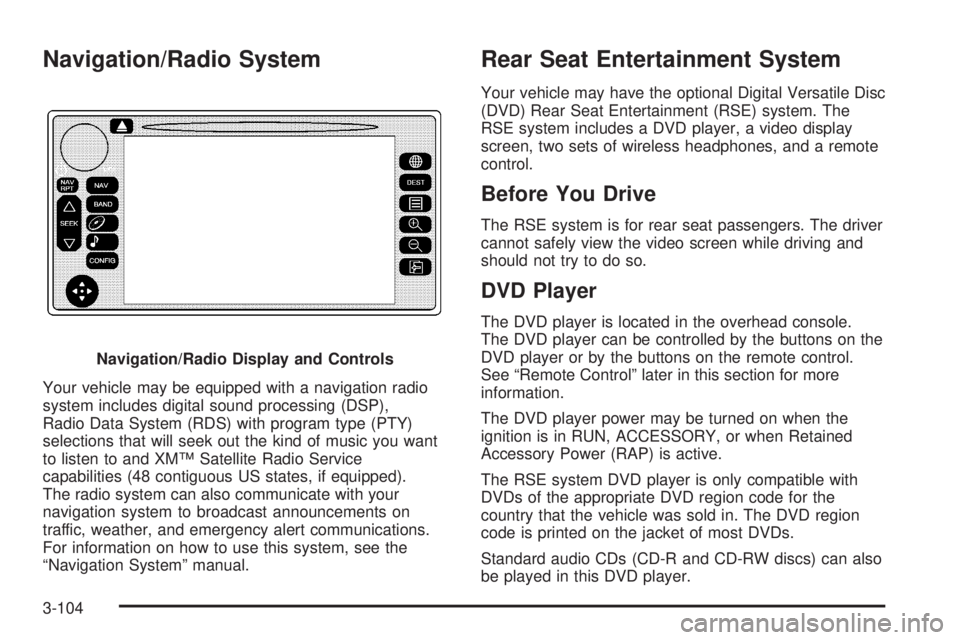
Navigation/Radio System
Your vehicle may be equipped with a navigation radio
system includes digital sound processing (DSP),
Radio Data System (RDS) with program type (PTY)
selections that will seek out the kind of music you want
to listen to and XMŸ Satellite Radio Service
capabilities (48 contiguous US states, if equipped).
The radio system can also communicate with your
navigation system to broadcast announcements on
traffic, weather, and emergency alert communications.
For information on how to use this system, see the
ªNavigation Systemº manual.
Rear Seat Entertainment System
Your vehicle may have the optional Digital Versatile Disc
(DVD) Rear Seat Entertainment (RSE) system. The
RSE system includes a DVD player, a video display
screen, two sets of wireless headphones, and a remote
control.
Before You Drive
The RSE system is for rear seat passengers. The driver
cannot safely view the video screen while driving and
should not try to do so.
DVD Player
The DVD player is located in the overhead console.
The DVD player can be controlled by the buttons on the
DVD player or by the buttons on the remote control.
See ªRemote Controlº later in this section for more
information.
The DVD player power may be turned on when the
ignition is in RUN, ACCESSORY, or when Retained
Accessory Power (RAP) is active.
The RSE system DVD player is only compatible with
DVDs of the appropriate DVD region code for the
country that the vehicle was sold in. The DVD region
code is printed on the jacket of most DVDs.
Standard audio CDs (CD-R and CD-RW discs) can also
be played in this DVD player. Navigation/Radio Display and Controls
3-104
Page 229 of 460
When using the wired headphones, if the front seat
passengers play a CD in the Radio with Six-Disc CD
(if equipped) or use XMŸ Satellite Radio Service
(48 contiguous US states, if equipped), you will hear the
audio for these sources, instead of the DVD or CD
that is currently playing through the RSE.
If an error message appears on the video screen, see
ªDVD Messagesº later in this section.
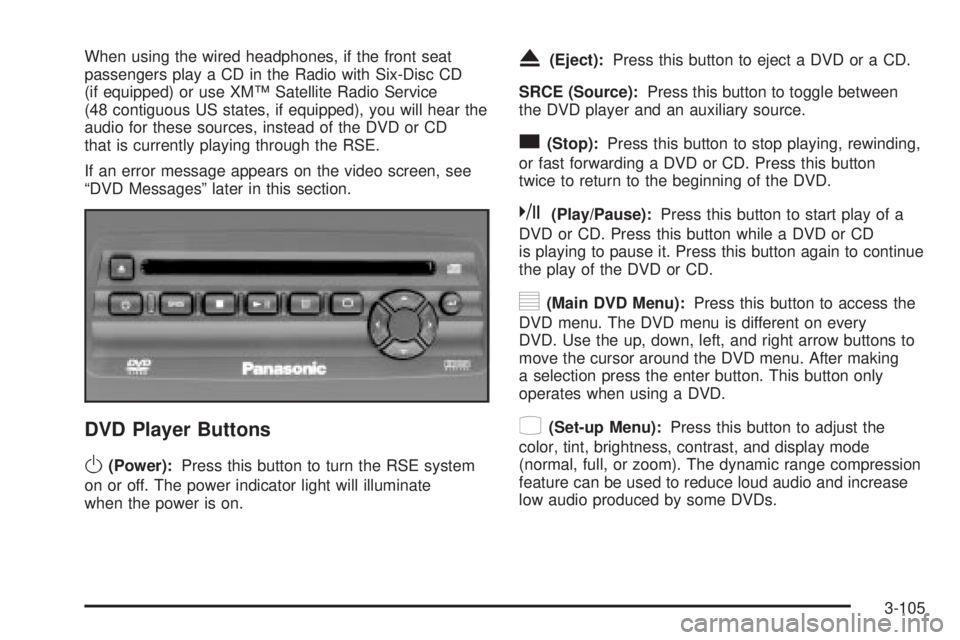
DVD Player Buttons
O(Power):Press this button to turn the RSE system
on or off. The power indicator light will illuminate
when the power is on.
X(Eject):Press this button to eject a DVD or a CD.
SRCE (Source):Press this button to toggle between
the DVD player and an auxiliary source.
c(Stop):Press this button to stop playing, rewinding,
or fast forwarding a DVD or CD. Press this button
twice to return to the beginning of the DVD.
k(Play/Pause):Press this button to start play of a
DVD or CD. Press this button while a DVD or CD
is playing to pause it. Press this button again to continue
the play of the DVD or CD.
y(Main DVD Menu):Press this button to access the
DVD menu. The DVD menu is different on every
DVD. Use the up, down, left, and right arrow buttons to
move the cursor around the DVD menu. After making
a selection press the enter button. This button only
operates when using a DVD.
z(Set-up Menu):Press this button to adjust the
color, tint, brightness, contrast, and display mode
(normal, full, or zoom). The dynamic range compression
feature can be used to reduce loud audio and increase
low audio produced by some DVDs.
3-105