lock GMC SIERRA 2004 Repair Manual
[x] Cancel search | Manufacturer: GMC, Model Year: 2004, Model line: SIERRA, Model: GMC SIERRA 2004Pages: 588, PDF Size: 3.74 MB
Page 225 of 588
LOCK DOORS OUT OF PARK (default):The doors
will lock when the vehicle is shifted out of PARK (P).
Choose one of the three options and press the
personalization button while it is displayed on the DIC to
select it and move on to the next feature. For more
information on automatic door locks see
Programmable
Automatic Door Locks on page 2-10.
Automatic Unlocking
Press the personalization button until AUTOMATIC
UNLOCKING appears in the display. To select
your personalization for automatic unlocking, press the
select button while AUTOMATIC UNLOCKING is
displayed on the DIC. Pressing the select button will
scroll through the following choices:
UNLOCK ALL IN PARK (default):All of the doors will
unlock when the vehicle is shifted into PARK (P).
UNLOCK ALL AT KEY OUT:All of the doors will
unlock when the key is taken out of the ignition.
UNLOCK DOORS MANUALLY:The doors will not be
unlocked automatically.
UNLOCK DRIVER IN PARK:The driver's door will be
unlocked when the vehicle is shifted into PARK (P).Choose one of the four options and press the
personalization button while it is displayed on the DIC to
select it and move on to the next feature. For more
information on automatic door locks see
Programmable
Automatic Door Locks on page 2-10.
Delayed Locking
If your DIC does not have this feature, you can still
program the delayed locking feature. SeeDelayed
Locking on page 2-10for more information.
When locking the doors with the power lock switch or
the keyless entry transmitter and a door or the liftgate is
open, the delayed locking feature will delay locking
the doors and tailgate until ®ve seconds after the last
door is closed.
Press the personalization button until DELAYED
LOCKING appears in the display. To select your
personalization for delayed locking, press the select
button while DELAYED LOCKING is displayed on the
DIC. Pressing the select button will scroll through
the following choices:
DELAYED LOCKING ON:The doors will not lock until
®ve seconds after the last door or the liftgate is
closed. You will hear three chimes to signal that the
delayed locking feature is in use. You can temporarily
override delayed locking by pressing the lock button
on the door or keyless entry transmitter a second time.
3-61
Page 226 of 588
DELAYED LOCKING OFF:The doors will lock
immediately when pressing the power lock switch or the
lock button on the keyless entry transmitter.
Choose one of the two options and press the
personalization button while it is displayed on the DIC to
select it and move on to the next feature. For more
information on automatic door locks see
Programmable
Automatic Door Locks on page 2-10.
This feature will not operate if the key is in the ignition.
Seat Position Recall
Press the personalization button until SEAT POSITION
RECALL appears in the display. To select your
personalization for seat position recall, press the select
button while SEAT POSITION RECALL is displayed
on the DIC. Pressing the select button will scroll through
the following choices:
SEAT POSITION RECALL OFF (default):The memory
seat position you saved will only be recalled when the
memory button 1 or 2 is pressed.
SEAT POSITION RECALL AT KEY IN:The memory
seat position you saved will be recalled when you
put the key in the ignition.SEAT POSITION RECALL ON REMOTE:The memory
seat position you saved will be recalled when you
unlock the vehicle with the remote keyless entry
transmitter.
Choose one of the three options and press the
personalization button while it is displayed on the DIC to
select it and move on to the next feature. For more
information on seat position recall see
Memory Seat on
page 2-69.
Perimeter Lighting
Press the personalization button until PERIMETER
LIGHTING appears in the display. To select your
personalization for perimeter lighting, press the select
button while PERIMETER LIGHTING is displayed on the
DIC. Pressing the select button will scroll through the
following choices:
PERIMETER LIGHTING ON (default):The headlamps
and back-up lamps will come on for 40 seconds, if it
is dark enough outside, when you unlock the vehicle
with the remote keyless entry transmitter.
PERIMETER LIGHTING OFF:The perimeter lights will
not come on when you unlock the vehicle with the
remote keyless entry transmitter.
Choose one of the two options and press the
personalization button while it is displayed on the DIC to
select it and move on to the next feature.
3-62
Page 227 of 588
Remote Lock Feedback
Press the personalization button until REMOTE LOCK
FEEDBACK appears in the display. To select your
personalization for the feedback you will receive when
locking the vehicle with the remote keyless entry
transmitter, press the select button while REMOTE
LOCK FEEDBACK is displayed on the DIC. Pressing
the select button will scroll through the following choices:
LOCK FEEDBACK: BOTH (default):The parking
lamps will ¯ash each time you press the button with the
lock symbol on the remote keyless entry transmitter
and the horn will chirp the second time you press the
lock button.
LOCK FEEDBACK: OFF:There will be no feedback
when locking the vehicle.
LOCK FEEDBACK: HORN:The horn will chirp the
second time you press the button with the lock symbol
on the remote keyless entry transmitter.
LOCK FEEDBACK: LAMPS:The parking lamps will
¯ash each time you press the button with the lock
symbol on the remote keyless entry transmitter.
Choose one of the four options and press the
personalization button while it is displayed on the DIC to
select it and move on to the next feature.
Remote Unlock Feedback
Press the personalization button until REMOTE
UNLOCK FEEDBACK appears in the display. To select
your personalization for the feedback you will receive
when unlocking the vehicle with the remote keyless
entry transmitter, press the select button while REMOTE
UNLOCK FEEDBACK is displayed on the DIC.
Pressing the select button will scroll through the
following choices:
UNLOCK FEEDBACK: LAMPS (default):The parking
lamps will ¯ash each time you press the button with
the unlock symbol on the remote keyless entry
transmitter.
UNLOCK FEEDBACK: BOTH:The parking lamps will
¯ash each time you press the button with the unlock
symbol on the remote keyless entry transmitter and the
horn will chirp the second time you press the unlock
button.
UNLOCK FEEDBACK: OFF:There will be no feedback
when unlocking the vehicle.
UNLOCK FEEDBACK: HORN:The horn will chirp the
second time you press the button with the unlock
symbol on the remote keyless entry transmitter.
Choose one of the four options and press the
personalization button while it is displayed on the DIC to
select it and move on to the next feature.
3-63
Page 240 of 588
To adjust both tone controls and both speaker controls
to the middle position, end out of audio by waiting
for the display to change to the time display. Then press
and hold AUDIO for more than two seconds until you
hear a beep. CEN will appear on the display.
Adjusting the Speakers (Balance/Fade)
AUDIO:To adjust the balance between the right
and the left speakers, press and release AUDIO until
BAL appears on the display. Then press and hold the up
or the down arrow to move the sound toward the right
or the left speakers.
To adjust the fade between the front and the rear
speakers, press and release AUDIO until FAD appears
on the display. Then press and hold the up or the
down arrow to move the sound toward the front or the
rear speakers.
To adjust balance or fade to the middle position, select
BAL or FAD. Then press and hold AUDIO for more
than two seconds until you hear a beep. L and a zero
or F and a zero will appear on the display.To adjust both tone controls and both speaker controls
to the middle position, end out of audio by waiting
for the display to change to the time display. Then press
and hold AUDIO for more than two seconds until you
hear a beep. CEN will appear on the display.
Fade may not be available if you have a regular cab
model.Radio Messages
CAL (Calibrated):Your audio system has been
calibrated for your vehicle from the factory. If CAL
appears on the display it means that your radio has not
been con®gured properly for your vehicle and must
be returned to the dealer for service.
LOC (Locked):This message is displayed when the
Theftlock
žsystem has locked up. Your vehicle must be
returned to the dealer for service.
3-76
Page 247 of 588
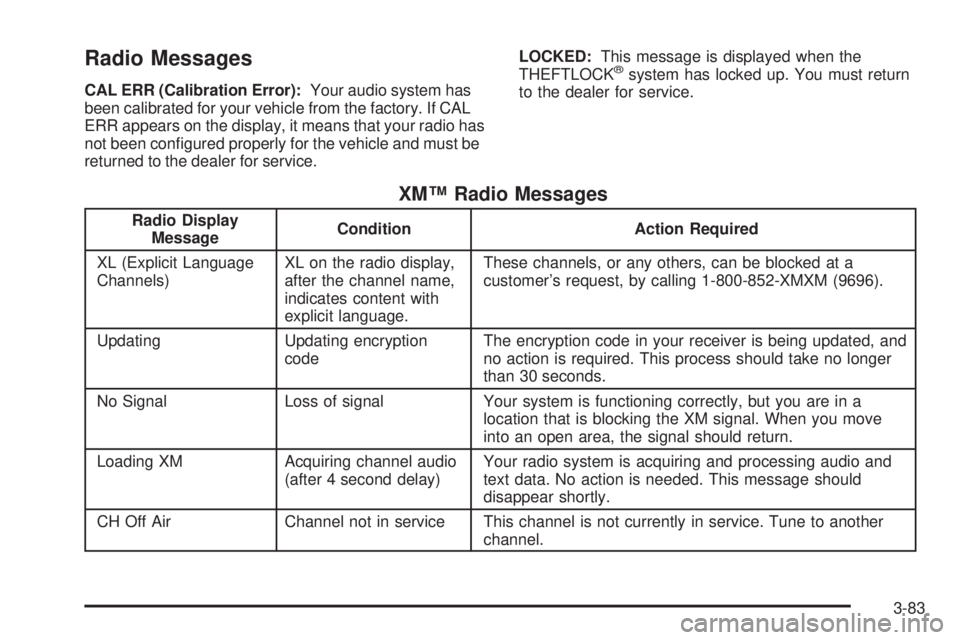
Radio Messages
CAL ERR (Calibration Error):Your audio system has
been calibrated for your vehicle from the factory. If CAL
ERR appears on the display, it means that your radio has
not been con®gured properly for the vehicle and must be
returned to the dealer for service.LOCKED:This message is displayed when the
THEFTLOCK
žsystem has locked up. You must return
to the dealer for service.
XMŸ Radio Messages
Radio Display
MessageCondition Action Required
XL (Explicit Language
Channels)XL on the radio display,
after the channel name,
indicates content with
explicit language.These channels, or any others, can be blocked at a
customer's request, by calling 1-800-852-XMXM (9696).
Updating Updating encryption
codeThe encryption code in your receiver is being updated, and
no action is required. This process should take no longer
than 30 seconds.
No Signal Loss of signal Your system is functioning correctly, but you are in a
location that is blocking the XM signal. When you move
into an open area, the signal should return.
Loading XM Acquiring channel audio
(after 4 second delay)Your radio system is acquiring and processing audio and
text data. No action is needed. This message should
disappear shortly.
CH Off Air Channel not in service This channel is not currently in service. Tune to another
channel.
3-83
Page 248 of 588
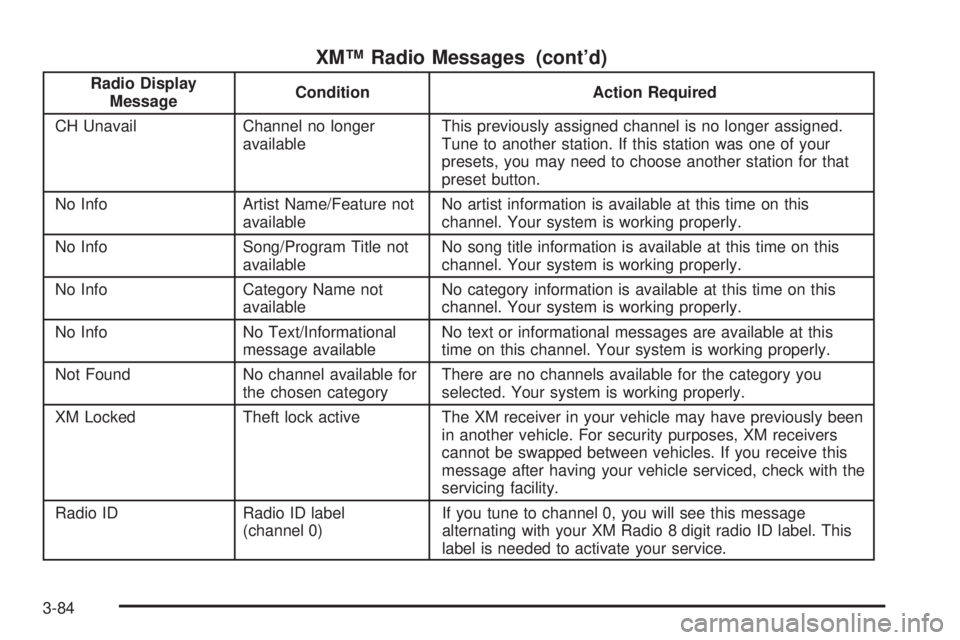
XMŸ Radio Messages (cont'd)
Radio Display
MessageCondition Action Required
CH Unavail Channel no longer
availableThis previously assigned channel is no longer assigned.
Tune to another station. If this station was one of your
presets, you may need to choose another station for that
preset button.
No Info Artist Name/Feature not
availableNo artist information is available at this time on this
channel. Your system is working properly.
No Info Song/Program Title not
availableNo song title information is available at this time on this
channel. Your system is working properly.
No Info Category Name not
availableNo category information is available at this time on this
channel. Your system is working properly.
No Info No Text/Informational
message availableNo text or informational messages are available at this
time on this channel. Your system is working properly.
Not Found No channel available for
the chosen categoryThere are no channels available for the category you
selected. Your system is working properly.
XM Locked Theft lock active The XM receiver in your vehicle may have previously been
in another vehicle. For security purposes, XM receivers
cannot be swapped between vehicles. If you receive this
message after having your vehicle serviced, check with the
servicing facility.
Radio ID Radio ID label
(channel 0)If you tune to channel 0, you will see this message
alternating with your XM Radio 8 digit radio ID label. This
label is needed to activate your service.
3-84
Page 258 of 588
If the current tuned station does not broadcast traffic
announcements, press this button and the radio will seek
to a station that does. When the radio ®nds a station that
broadcasts traffic announcements, it will stop and TRAF
will be displayed. When a traffic announcement comes on
the tuned radio station you will hear it. If no station is
found, NO TRAFFIC will appear on the display.
If TRAF is on the display you can press the TRAF button
to turn off the traffic announcements.
Your radio will play the traffic announcement even if the
volume is low. Your radio will interrupt the play of a
cassette tape or CD if the last tuned station broadcasts
traffic announcements.This function does not apply to XMŸ Satellite Radio
Service.
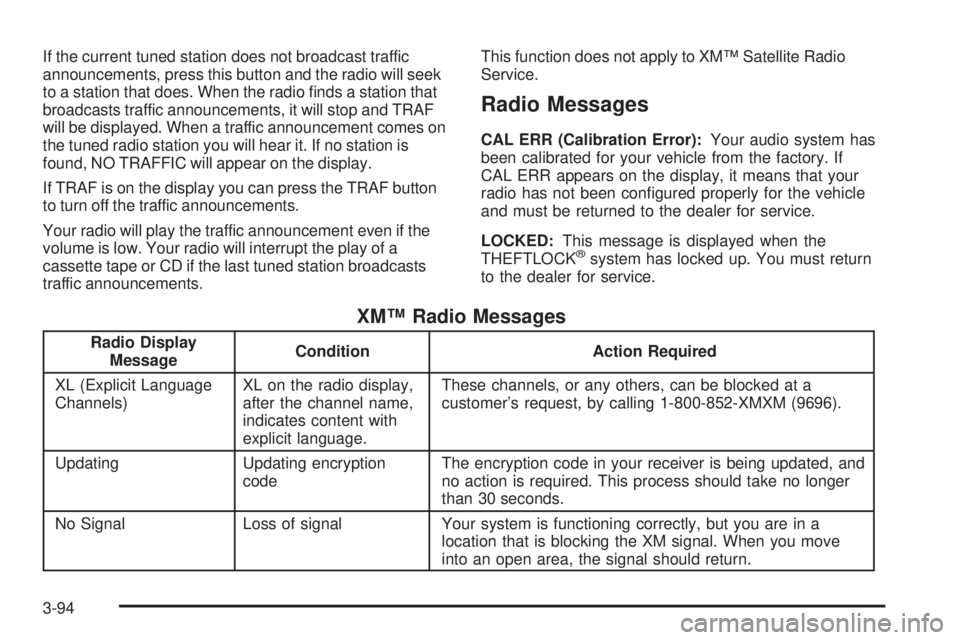
Radio Messages
CAL ERR (Calibration Error):Your audio system has
been calibrated for your vehicle from the factory. If
CAL ERR appears on the display, it means that your
radio has not been con®gured properly for the vehicle
and must be returned to the dealer for service.
LOCKED:This message is displayed when the
THEFTLOCK
žsystem has locked up. You must return
to the dealer for service.
XMŸ Radio Messages
Radio Display
MessageCondition Action Required
XL (Explicit Language
Channels)XL on the radio display,
after the channel name,
indicates content with
explicit language.These channels, or any others, can be blocked at a
customer's request, by calling 1-800-852-XMXM (9696).
Updating Updating encryption
codeThe encryption code in your receiver is being updated, and
no action is required. This process should take no longer
than 30 seconds.
No Signal Loss of signal Your system is functioning correctly, but you are in a
location that is blocking the XM signal. When you move
into an open area, the signal should return.
3-94
Page 260 of 588
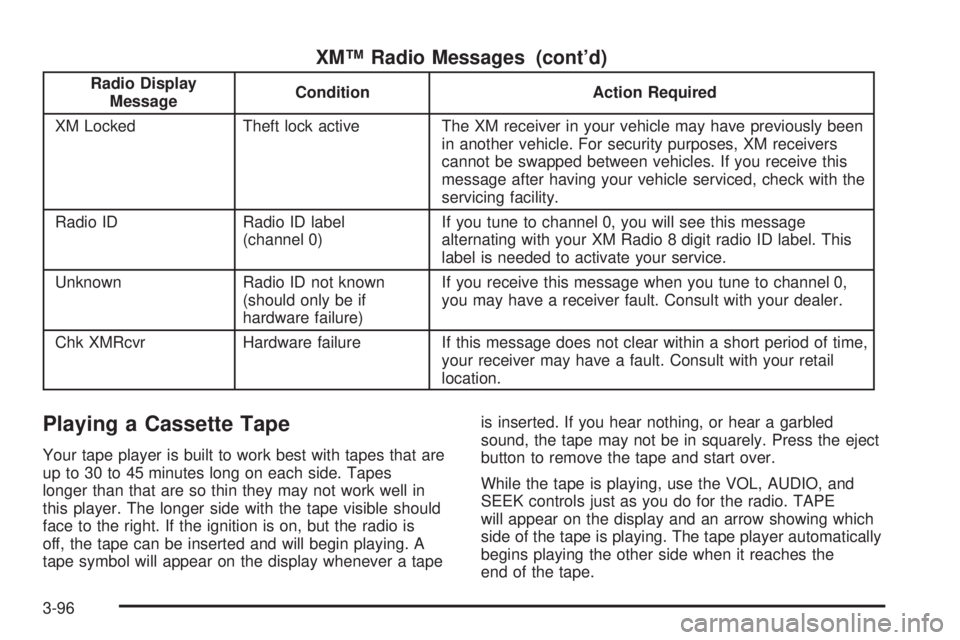
XMŸ Radio Messages (cont'd)
Radio Display
MessageCondition Action Required
XM Locked Theft lock active The XM receiver in your vehicle may have previously been
in another vehicle. For security purposes, XM receivers
cannot be swapped between vehicles. If you receive this
message after having your vehicle serviced, check with the
servicing facility.
Radio ID Radio ID label
(channel 0)If you tune to channel 0, you will see this message
alternating with your XM Radio 8 digit radio ID label. This
label is needed to activate your service.
Unknown Radio ID not known
(should only be if
hardware failure)If you receive this message when you tune to channel 0,
you may have a receiver fault. Consult with your dealer.
Chk XMRcvr Hardware failure If this message does not clear within a short period of time,
your receiver may have a fault. Consult with your retail
location.
Playing a Cassette Tape
Your tape player is built to work best with tapes that are
up to 30 to 45 minutes long on each side. Tapes
longer than that are so thin they may not work well in
this player. The longer side with the tape visible should
face to the right. If the ignition is on, but the radio is
off, the tape can be inserted and will begin playing. A
tape symbol will appear on the display whenever a tapeis inserted. If you hear nothing, or hear a garbled
sound, the tape may not be in squarely. Press the eject
button to remove the tape and start over.
While the tape is playing, use the VOL, AUDIO, and
SEEK controls just as you do for the radio. TAPE
will appear on the display and an arrow showing which
side of the tape is playing. The tape player automatically
begins playing the other side when it reaches the
end of the tape.
3-96
Page 262 of 588
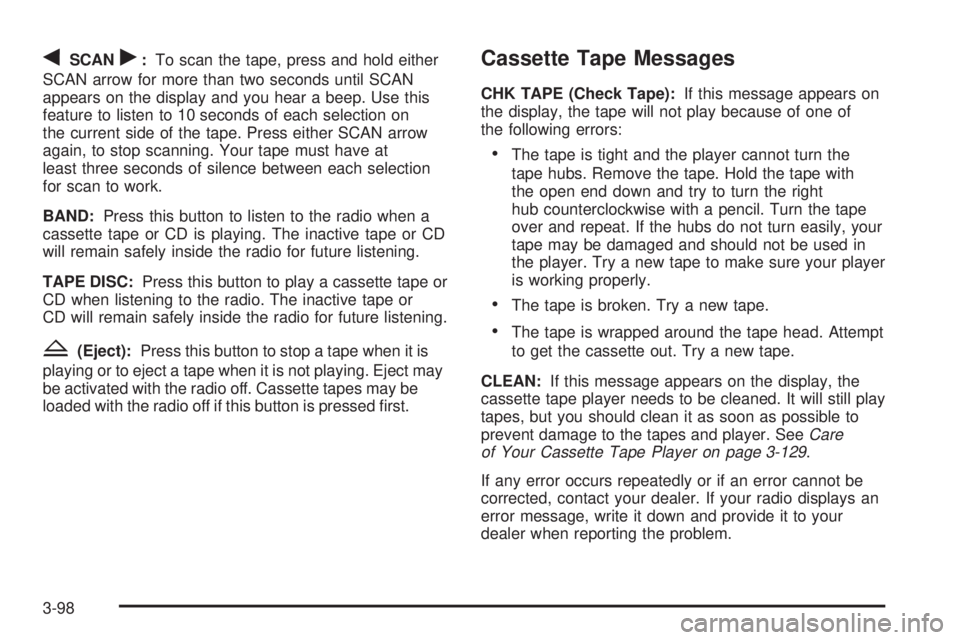
qSCANr:To scan the tape, press and hold either
SCAN arrow for more than two seconds until SCAN
appears on the display and you hear a beep. Use this
feature to listen to 10 seconds of each selection on
the current side of the tape. Press either SCAN arrow
again, to stop scanning. Your tape must have at
least three seconds of silence between each selection
for scan to work.
BAND:Press this button to listen to the radio when a
cassette tape or CD is playing. The inactive tape or CD
will remain safely inside the radio for future listening.
TAPE DISC:Press this button to play a cassette tape or
CD when listening to the radio. The inactive tape or
CD will remain safely inside the radio for future listening.
Z(Eject):Press this button to stop a tape when it is
playing or to eject a tape when it is not playing. Eject may
be activated with the radio off. Cassette tapes may be
loaded with the radio off if this button is pressed ®rst.
Cassette Tape Messages
CHK TAPE (Check Tape):If this message appears on
the display, the tape will not play because of one of
the following errors:
·The tape is tight and the player cannot turn the
tape hubs. Remove the tape. Hold the tape with
the open end down and try to turn the right
hub counterclockwise with a pencil. Turn the tape
over and repeat. If the hubs do not turn easily, your
tape may be damaged and should not be used in
the player. Try a new tape to make sure your player
is working properly.
·The tape is broken. Try a new tape.
·The tape is wrapped around the tape head. Attempt
to get the cassette out. Try a new tape.
CLEAN:If this message appears on the display, the
cassette tape player needs to be cleaned. It will still play
tapes, but you should clean it as soon as possible to
prevent damage to the tapes and player. See
Care
of Your Cassette Tape Player on page 3-129.
If any error occurs repeatedly or if an error cannot be
corrected, contact your dealer. If your radio displays an
error message, write it down and provide it to your
dealer when reporting the problem.
3-98
Page 272 of 588
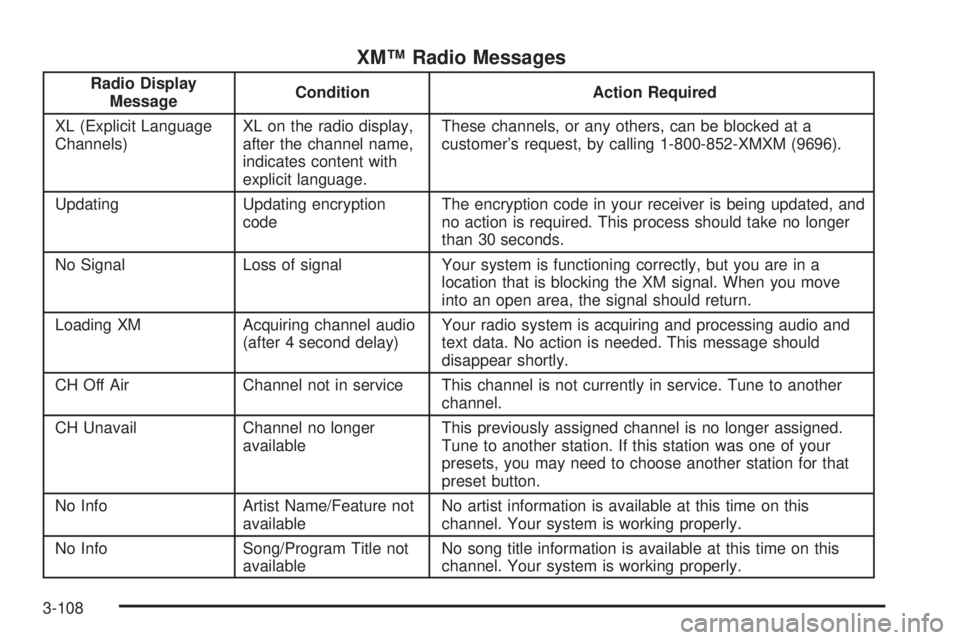
XMŸ Radio Messages
Radio Display
MessageCondition Action Required
XL (Explicit Language
Channels)XL on the radio display,
after the channel name,
indicates content with
explicit language.These channels, or any others, can be blocked at a
customer's request, by calling 1-800-852-XMXM (9696).
Updating Updating encryption
codeThe encryption code in your receiver is being updated, and
no action is required. This process should take no longer
than 30 seconds.
No Signal Loss of signal Your system is functioning correctly, but you are in a
location that is blocking the XM signal. When you move
into an open area, the signal should return.
Loading XM Acquiring channel audio
(after 4 second delay)Your radio system is acquiring and processing audio and
text data. No action is needed. This message should
disappear shortly.
CH Off Air Channel not in service This channel is not currently in service. Tune to another
channel.
CH Unavail Channel no longer
availableThis previously assigned channel is no longer assigned.
Tune to another station. If this station was one of your
presets, you may need to choose another station for that
preset button.
No Info Artist Name/Feature not
availableNo artist information is available at this time on this
channel. Your system is working properly.
No Info Song/Program Title not
availableNo song title information is available at this time on this
channel. Your system is working properly.
3-108