steering GMC SIERRA 2008 Owner's Guide
[x] Cancel search | Manufacturer: GMC, Model Year: 2008, Model line: SIERRA, Model: GMC SIERRA 2008Pages: 578, PDF Size: 6.47 MB
Page 188 of 578
Resuming a Set Speed
If you apply the brakes while the cruise control is set,
the cruise control is disengaged. But it does not need to
be reset.
Once the vehicle speed reaches about 25 mph
(40 km/h) or more, press the +RES button on the
steering wheel. The vehicle will go back to the previous
set speed and stay there.
Increasing Speed While Using Cruise
Control
To increase the cruise speed while using cruise control:
Press and hold the +RES button on the steering
wheel until you reach your new desired speed,
then release it.
To increase vehicle speed in small increments,
press the +RES button. Each time this is done,
the vehicle will go about 1 mph (1.6 km/h) faster.
Reducing Speed While Using Cruise
Control
To reduce the vehicle speed while using cruise control:
Press and hold the SET– button on the steering
wheel until the desired lower speed is reached,
then release it.
To slow down in very small amounts, press the
SET– button on the steering wheel briey. Each
time this is done, the vehicle will go about 1 mph
(1.6 km/h) slower.
Passing Another Vehicle While Using
Cruise Control
Use the accelerator pedal to increase the vehicle speed.
When you take your foot off the pedal, the vehicle will
slow down to the previous set cruise speed.
Using Cruise Control on Hills
How well the cruise control will work on hills depends
upon the vehicle speed, load, and the steepness of the
hills. While going up steep hills, you might have to
step on the accelerator pedal to maintain the vehicle’s
speed. While going downhill, you might have to brake or
shift to a lower gear to keep the vehicle’s speed
down. Of course, applying the brake turns off the cruise
control. Many drivers nd this to be too much trouble
and do not use cruise control on steep hills.
Ending Cruise Control
There are three ways to end cruise control:
Step lightly on the brake pedal.
Press the cancel button on the steering wheel.
Press the On/Off button on the steering wheel.
3-16
Page 189 of 578
Erasing Speed Memory
When the cruise control or the ignition is turned off, the
cruise control set speed memory is erased.
Exterior Lamps
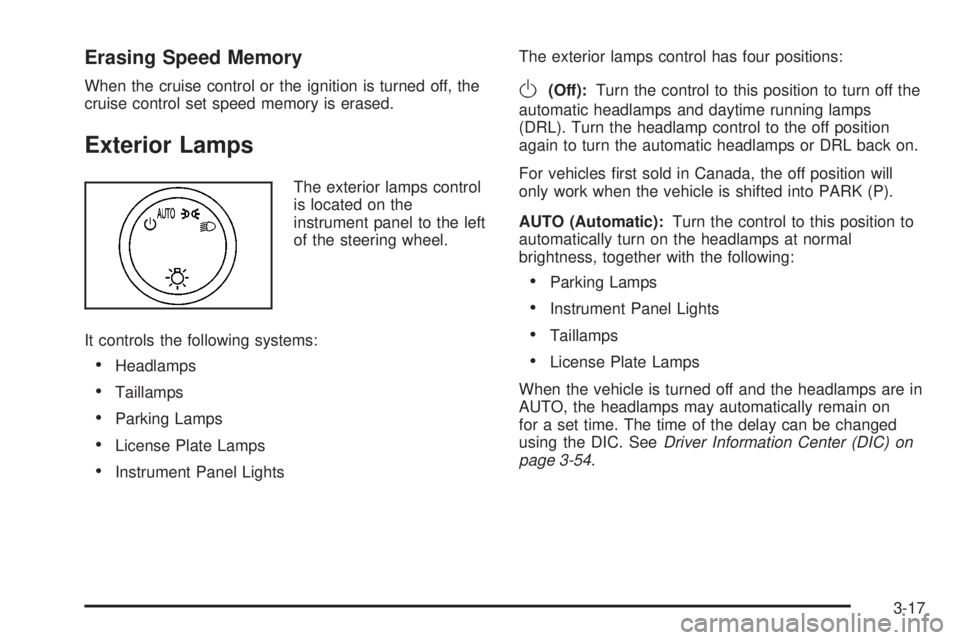
The exterior lamps control
is located on the
instrument panel to the left
of the steering wheel.
It controls the following systems:
Headlamps
Taillamps
Parking Lamps
License Plate Lamps
Instrument Panel LightsThe exterior lamps control has four positions:
O(Off):Turn the control to this position to turn off the
automatic headlamps and daytime running lamps
(DRL). Turn the headlamp control to the off position
again to turn the automatic headlamps or DRL back on.
For vehicles rst sold in Canada, the off position will
only work when the vehicle is shifted into PARK (P).
AUTO (Automatic):Turn the control to this position to
automatically turn on the headlamps at normal
brightness, together with the following:
Parking Lamps
Instrument Panel Lights
Taillamps
License Plate Lamps
When the vehicle is turned off and the headlamps are in
AUTO, the headlamps may automatically remain on
for a set time. The time of the delay can be changed
using the DIC. SeeDriver Information Center (DIC) on
page 3-54.
3-17
Page 192 of 578
Puddle Lamps
If your vehicle has puddle lamps, they come on when
the unlock button on the Remote Keyless Entry
(RKE) Transmitter is pressed. The lamps time out or
turn off once the engine is started.
Fog Lamps
-(Fog Lamps):If your vehicle has fog lamps, the
control is located next to the exterior lamps control
on the instrument panel, to the left of the steering
column.
The ignition must be in the ON/RUN position for the fog
lamps to come on.
Press the button to turn the fog lamps on or off. A light
will come on in the instrument panel cluster.
When the fog lamps are turned on, the parking lamps
automatically turn on.
When the headlamps are changed to high-beam, the
fog lamps also go off. When the high-beam headlamps
are turned off, the fog lamps will come on again.
Some localities have laws that require the headlamps to
be on along with the fog lamps.
Auxiliary Roof Mounted Lamp
If your vehicle has this feature, this button includes
wiring provisions for a dealer or a qualied service
center to install an auxiliary roof lamp.
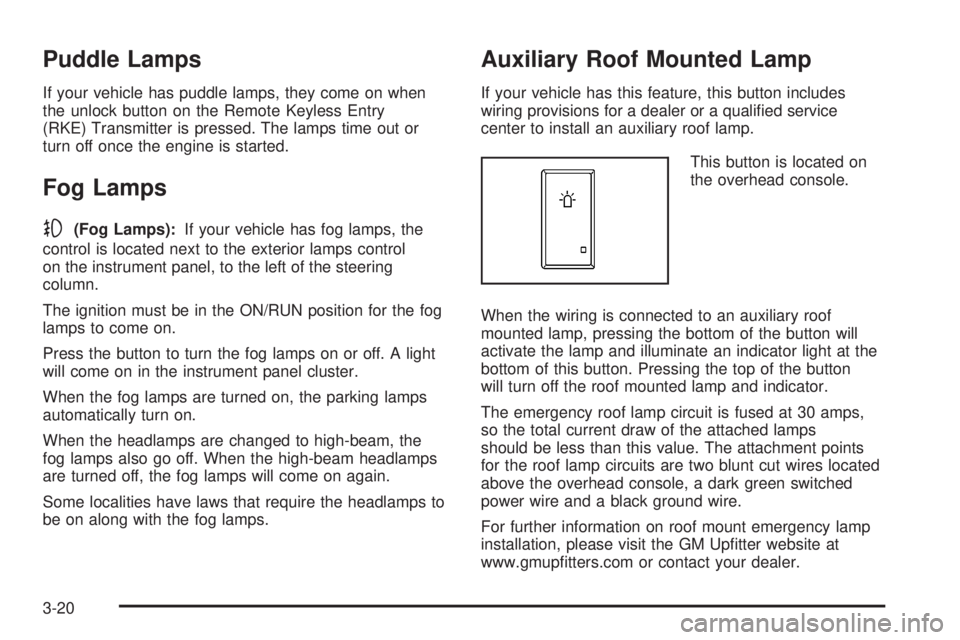
This button is located on
the overhead console.
When the wiring is connected to an auxiliary roof
mounted lamp, pressing the bottom of the button will
activate the lamp and illuminate an indicator light at the
bottom of this button. Pressing the top of the button
will turn off the roof mounted lamp and indicator.
The emergency roof lamp circuit is fused at 30 amps,
so the total current draw of the attached lamps
should be less than this value. The attachment points
for the roof lamp circuits are two blunt cut wires located
above the overhead console, a dark green switched
power wire and a black ground wire.
For further information on roof mount emergency lamp
installation, please visit the GM Uptter website at
www.gmuptters.com or contact your dealer.
3-20
Page 227 of 578
DIC Operation and Displays (With
DIC Buttons)
If your vehicle has DIC buttons, the information below
explains the operation of this system.
The DIC has different displays which can be accessed
by pressing the DIC buttons located on the instrument
panel, next to the steering wheel.
The DIC displays trip, fuel, and vehicle system
information, and warning messages if a system problem
is detected.
The DIC also allows some features to be customized.
SeeDIC Vehicle Customization (With DIC Buttons)
on page 3-72for more information.
If your vehicle has DIC buttons, you can also use the
trip odometer reset stem to view some of the DIC
displays. See “DIC Operation and Displays (Without DIC
Buttons)” later in this section.
DIC Buttons
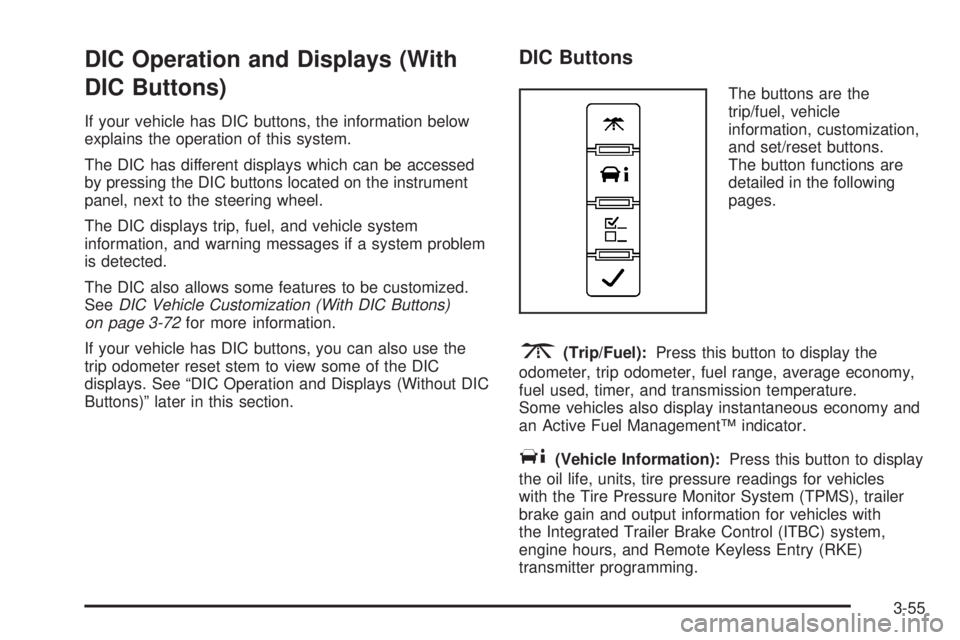
The buttons are the
trip/fuel, vehicle
information, customization,
and set/reset buttons.
The button functions are
detailed in the following
pages.
3(Trip/Fuel):Press this button to display the
odometer, trip odometer, fuel range, average economy,
fuel used, timer, and transmission temperature.
Some vehicles also display instantaneous economy and
an Active Fuel Management™ indicator.
T(Vehicle Information):Press this button to display
the oil life, units, tire pressure readings for vehicles
with the Tire Pressure Monitor System (TPMS), trailer
brake gain and output information for vehicles with
the Integrated Trailer Brake Control (ITBC) system,
engine hours, and Remote Keyless Entry (RKE)
transmitter programming.
3-55
Page 252 of 578
Exiting the Feature Settings Menu
The feature settings menu will be exited when any of
the following occurs:
The vehicle is no longer in ON/RUN.
The trip/fuel or vehicle information DIC buttons are
pressed.
The end of the feature settings menu is reached
and exited.
A 40 second time period has elapsed with no
selection made.
Audio System(s)
Determine which radio your vehicle has and then read
the pages following to familiarize yourself with its
features.
{CAUTION:
This system provides you with far greater
access to audio stations and song listings.
Giving extended attention to entertainment
tasks while driving can cause a crash and you
or others can be injured or killed. Always keep
your eyes on the road and your mind on the
drive — avoid engaging in extended searching
while driving.
Keeping your mind on the drive is important for safe
driving. SeeDefensive Driving on page 4-2. Here
are some ways in which you can help avoid distraction
while driving.
While your vehicle is parked:
Familiarize yourself with all of its controls.
Familiarize yourself with its operation.
Set up your audio system by presetting your
favorite radio stations, setting the tone, and
adjusting the speakers. Then, when driving
conditions permit, you can tune to your favorite
radio stations using the presets and steering wheel
controls if the vehicle has them.
3-80
Page 259 of 578
To scan stations, press and hold either arrow for a
few seconds until a beep sounds. The radio goes to a
station, plays for a few seconds, then goes to the
next station.
For AM-FM Radio, the station frequency ashes while
the radio is in the scan mode.
Press either arrow again to stop scanning.
The radio only seeks and scans stations with a strong
signal that are in the selected band.
For the AM-FM Radio, scan presets within the current
selected band by pressing and holding either seek arrow
for four seconds until a double beep sounds. The
radio goes to a stored preset, plays for a few seconds if
a strong signal is present, then goes to the next
stored preset. The station frequency ashes while the
radio is in the scan mode.
4(Information) (XM™ Satellite Radio Service, MP3,
and RDS Features):Press to display additional
text information related to the current FM-RDS or XM™
station, or MP3 song. A choice of additional information
such as: Channel, Song, Artist, and CAT (category)
can display. Continue pressing to highlight the desired
label, or press the pushbutton positioned under any one
of the labels and the information about that label
displays.
When information is not available, No Info displays.
Setting Preset Stations (AM-FM Radio)
If your radio does not have XM™, up to 18 stations
(six FM1, six FM2, and six AM), can be programmed on
the six numbered pushbuttons, by performing the
following steps:
1. Turn the radio on.
2. Press BAND to select FM1, FM2, or AM.
3. Tune in the desired station.
4. Press and hold one of the six numbered
pushbuttons for three seconds until a beep sounds.
Whenever that pushbutton is pressed and
released, the station that was set, returns.
5. Repeat the Steps 2 through 4 for each pushbutton.
Storing a Radio Station as a Favorite
Drivers are encouraged to set up their radio station
favorites while the vehicle is parked. Tune to your
favorite stations using the presets, favorites button, and
steering wheel controls, if the vehicle has this feature.
SeeDefensive Driving on page 4-2.
FAV (Favorites):If your vehicle has XM™ and has a
FAV button, a maximum of 36 stations can be
programmed as favorites using the six pushbuttons
positioned below the radio station frequency labels and
by using the radio favorites page button (FAV button).
3-87
Page 296 of 578
Audio Steering Wheel Controls
Vehicles with audio
steering wheel controls
could differ depending on
your vehicle’s options.
Some audio controls can
be adjusted at the steering
wheel. They include the
following:
xw(Next/Previous):Press the down or up arrow to
go to the next or to the previous radio station stored
as a favorite.
When a CD/DVD is playing, press the down or up arrow
to go to the next or to the previous track or chapter.
g(Mute/Voice Recognition):Press and release this
button to silence the vehicle speakers only. The
audio of the wireless and wired headphones, if your
vehicle has these features, does not mute. Press and
release this button again, to turn the sound on.If your vehicle has the navigation system, press and
hold this button for longer than one second to initiate
voice recognition. See “Voice Recognition” in the
Navigation System manual for more information.
If your vehicle has OnStar
®, press and hold this button
for longer than one second to interact with the
OnStar
®system. If your vehicle also has the navigation
system, press and hold this button for longer than
one second to initiate voice recognition and say “OnStar”
to enter OnStar
®mode. See theOnStar®System on
page 2-65in this manual for more information.
SRCE (Source):Press this button to switch between
the radio (AM, FM), XM™ (if equipped), CD, and if your
vehicle has these features, DVD, front auxiliary, and
rear auxiliary.
+
e−e(Volume):Press the plus or minus volume
button to increase or to decrease the radio volume.
¨(Seek):Press the seek arrow to go to the next radio
station while in AM, FM, or XM™ (if equipped). Press
the seek arrow to go to the next track or chapter
while sourced to the CD or DVD slot.
Press the seek arrow to go to the next disc while
sourced to a six-disc CD player, if multiple discs
are loaded.
3-124
Page 299 of 578
Your Driving, the Road, and Your Vehicle..........4-2
Defensive Driving...........................................4-2
Drunk Driving.................................................4-2
Control of a Vehicle........................................4-3
Braking.........................................................4-3
Antilock Brake System (ABS)...........................4-4
Braking in Emergencies...................................4-5
Locking Rear Axle..........................................4-5
StabiliTrak
®System........................................4-6
Steering........................................................4-8
Off-Road Recovery.......................................4-10
Passing.......................................................4-11
Loss of Control.............................................4-11
Off-Road Driving...........................................4-12
Driving at Night............................................4-27
Driving in Rain and on Wet Roads..................4-28
Before Leaving on a Long Trip.......................4-29Highway Hypnosis........................................4-29
Hill and Mountain Roads................................4-30
Winter Driving..............................................4-31
If Your Vehicle is Stuck in Sand, Mud,
Ice, or Snow.............................................4-34
Rocking Your Vehicle to Get It Out.................4-34
Recovery Hooks...........................................4-35
Loading Your Vehicle....................................4-36
Adding a Snow Plow or Similar Equipment.......4-43
Truck-Camper Loading Information..................4-47
Pickup Conversion to Chassis Cab..................4-50
Towing..........................................................4-50
Towing Your Vehicle.....................................4-50
Recreational Vehicle Towing...........................4-50
Towing a Trailer...........................................4-55
Trailer Recommendations...............................4-94
Section 4 Driving Your Vehicle
4-1
Page 301 of 578
For persons under 21, it is against the law in every
U.S. state to drink alcohol. There are good medical,
psychological, and developmental reasons for
these laws.
The obvious way to eliminate the leading highway
safety problem is for people never to drink alcohol and
then drive.
Medical research shows that alcohol in a person’s
system can make crash injuries worse, especially
injuries to the brain, spinal cord, or heart. This means
that when anyone who has been drinking — driver
or passenger — is in a crash, that person’s chance of
being killed or permanently disabled is higher than if the
person had not been drinking.
Control of a Vehicle
The following three systems help to control your vehicle
while driving — brakes, steering, and accelerator. At
times, as when driving on snow or ice, it is easy to ask
more of those control systems than the tires and
road can provide. Meaning, you can lose control of your
vehicle. SeeStabiliTrak
®System on page 4-6.
Adding non-dealer/non-retailer accessories can affect
your vehicle’s performance. SeeAccessories and
Modifications on page 5-4.
Braking
SeeBrake System Warning Light on page 3-44.
Braking action involves perception time and reaction
time. First, you have to decide to push on the brake
pedal. That is perception time. Then you have to bring
up your foot and do it. That is reaction time.
Average reaction time is about three-fourths of a
second. But that is only an average. It might be less
with one driver and as long as two or three seconds or
more with another. Age, physical condition, alertness,
coordination, and eyesight all play a part. So do alcohol,
drugs, and frustration. But even in three-fourths of a
second, a vehicle moving at 60 mph (100 km/h) travels
66 feet (20 m). That could be a lot of distance in an
emergency, so keeping enough space between
your vehicle and others is important.
And, of course, actual stopping distances vary greatly
with the surface of the road, whether it is pavement
or gravel; the condition of the road, whether it is
wet, dry, or icy; tire tread; the condition of the brakes;
the weight of the vehicle; and the amount of brake
force applied.
4-3
Page 303 of 578
Let us say the road is wet and you are driving safely.
Suddenly, an animal jumps out in front of you. You slam
on the brakes and continue braking. Here is what
happens with ABS:
A computer senses that wheels are slowing down. If
one of the wheels is about to stop rolling, the computer
will separately work the brakes at each front wheel
and at both rear wheels.
ABS can change the brake pressure faster than any
driver could. The computer is programmed to make the
most of available tire and road conditions. This can
help you steer around the obstacle while braking hard.
As you brake, the computer keeps receiving updates
on wheel speed and controls braking pressure
accordingly.
Remember: ABS does not change the time you need to
get your foot up to the brake pedal or always decrease
stopping distance. If you get too close to the vehicle
in front of you, you will not have time to apply the brakes
if that vehicle suddenly slows or stops. Always leave
enough room up ahead to stop, even though you
have ABS.Using ABS
Do not pump the brakes. Just hold the brake pedal
down rmly and let antilock work for you. You might
feel the brakes vibrate or notice some noise, but this
is normal.
Braking in Emergencies
With ABS, you can steer and brake at the same time.
In many emergencies, steering can help you more than
even the very best braking.
Locking Rear Axle
If your vehicle has this feature, your locking rear axle
can give you additional traction on snow, mud, ice, sand
or gravel. It works like a standard axle most of the
time, but when one of the rear wheels has no traction
and the other does, this feature will allow the wheel with
traction to move the vehicle.
4-5