ECO mode GMC SIERRA 2016 User Guide
[x] Cancel search | Manufacturer: GMC, Model Year: 2016, Model line: SIERRA, Model: GMC SIERRA 2016Pages: 509, PDF Size: 6.51 MB
Page 100 of 509
GMC Sierra Owner Manual (GMNA-Localizing-U.S./Canada/Mexico-
9234758) - 2016 - crc - 11/9/15
Seats and Restraints 99
secure the restraints. Some
restraints also use another vehicle
anchor to secure a top tether.
Regular Cab Models1. For models without a rear seat, forward-facing child restraints
should only be installed in the
right front seating position with
safety belts and a top tether.
See Securing Child Restraints
(Center Front Seat) 0105 or
Securing Child Restraints
(Rear Seat) 0105 orSecuring
Child Restraints (Front
Passenger Seat) 0108.
If the child restraint
manufacturer recommends that
the top tether be attached,
attach and tighten the top
tether to the top tether anchor,
if your vehicle has one. Refer
to the child restraint
instructions and the following
steps:
1.1. Fold the passenger seatback forward to
access the top tether
anchor. See Reclining
Seatbacks 059. 1.2. Find the top tether anchor.
1.3. Remove the cover to
expose the anchor.
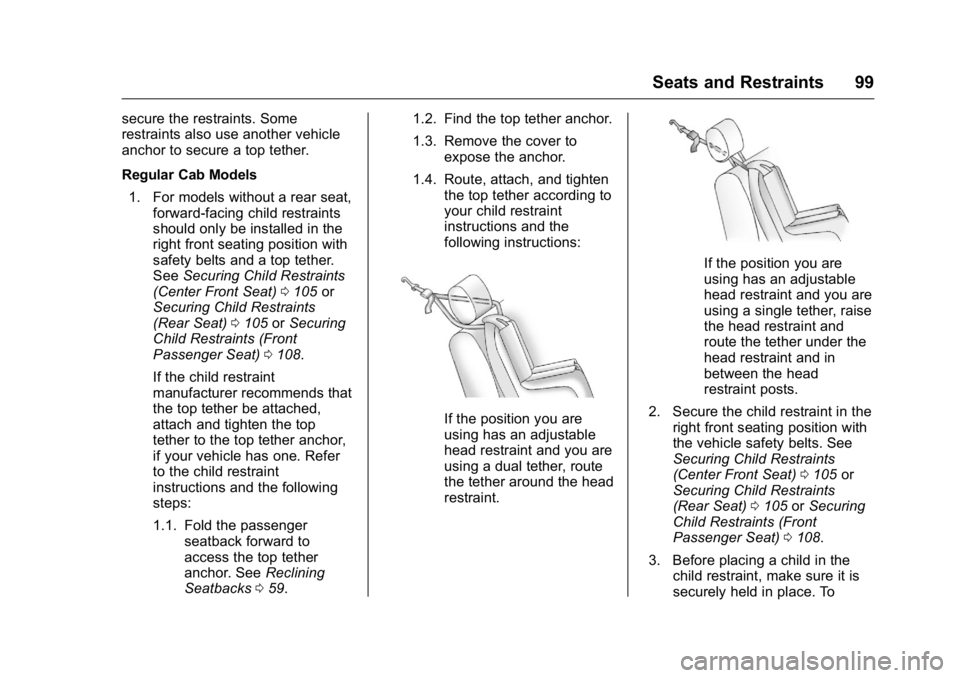
1.4. Route, attach, and tighten the top tether according to
your child restraint
instructions and the
following instructions:
If the position you are
using has an adjustable
head restraint and you are
using a dual tether, route
the tether around the head
restraint.
If the position you are
using has an adjustable
head restraint and you are
using a single tether, raise
the head restraint and
route the tether under the
head restraint and in
between the head
restraint posts.
2. Secure the child restraint in the right front seating position with
the vehicle safety belts. See
Securing Child Restraints
(Center Front Seat) 0105 or
Securing Child Restraints
(Rear Seat) 0105 orSecuring
Child Restraints (Front
Passenger Seat) 0108.
3. Before placing a child in the child restraint, make sure it is
securely held in place. To
Page 137 of 509
GMC Sierra Owner Manual (GMNA-Localizing-U.S./Canada/Mexico-
9234758) - 2016 - crc - 11/9/15
136 Instruments and Controls
English
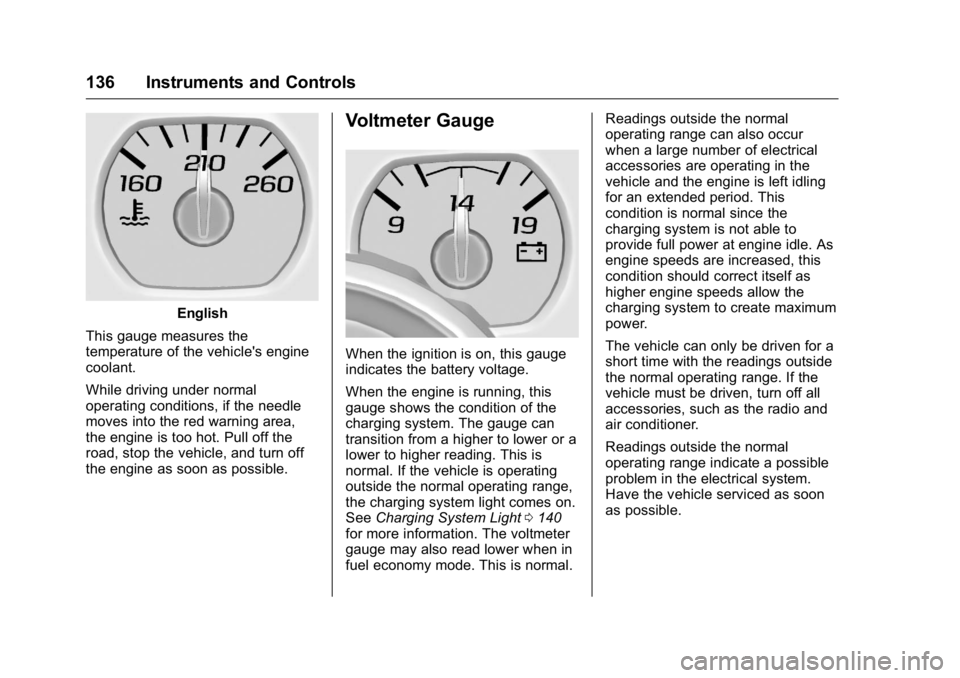
This gauge measures the
temperature of the vehicle's engine
coolant.
While driving under normal
operating conditions, if the needle
moves into the red warning area,
the engine is too hot. Pull off the
road, stop the vehicle, and turn off
the engine as soon as possible.
Voltmeter Gauge
When the ignition is on, this gauge
indicates the battery voltage.
When the engine is running, this
gauge shows the condition of the
charging system. The gauge can
transition from a higher to lower or a
lower to higher reading. This is
normal. If the vehicle is operating
outside the normal operating range,
the charging system light comes on.
See Charging System Light 0140
for more information. The voltmeter
gauge may also read lower when in
fuel economy mode. This is normal. Readings outside the normal
operating range can also occur
when a large number of electrical
accessories are operating in the
vehicle and the engine is left idling
for an extended period. This
condition is normal since the
charging system is not able to
provide full power at engine idle. As
engine speeds are increased, this
condition should correct itself as
higher engine speeds allow the
charging system to create maximum
power.
The vehicle can only be driven for a
short time with the readings outside
the normal operating range. If the
vehicle must be driven, turn off all
accessories, such as the radio and
air conditioner.
Readings outside the normal
operating range indicate a possible
problem in the electrical system.
Have the vehicle serviced as soon
as possible.
Page 156 of 509
GMC Sierra Owner Manual (GMNA-Localizing-U.S./Canada/Mexico-
9234758) - 2016 - crc - 11/9/15
Instruments and Controls 155
If this message continues to appear,
have the system repaired by your
dealer as soon as possible to avoid
damage to the engine.
ENGINE OVERHEATING IDLE
ENGINE
This message displays when the
engine coolant temperature is too
hot. Stop and allow the vehicle to
idle until it cools down. SeeEngine
Coolant Temperature Gauge 0135.
When towing, use Tow/Haul mode
to prevent damage to the engine or
transmission. See Tow/Haul
Mode 0292.
ENGINE OVERHEATED STOP
ENGINE
This message displays and a chime
may sound if the engine cooling
system reaches unsafe
temperatures for operation. Stop
and turn off the vehicle as soon as it
is safe to do so to avoid severe
damage. This message clears when
the engine has cooled to a safe
operating temperature.
Engine Oil Messages
CHANGE ENGINE OIL SOON
This message displays when the
engine oil needs to be changed.
When you change the engine oil, be
sure to reset the CHANGE ENGINE
OIL SOON message. See Engine
Oil Life System 0366 for
information on how to reset the
message. See Engine Oil0363 and
Maintenance Schedule 0454.
ENGINE OIL LOW ADD OIL
On some vehicles, this message
displays when the engine oil level
may be too low. Check the oil level
before filling to the recommended
level. If the oil is not low and this
message remains on, take the
vehicle to your dealer for service.
See Engine Oil 0363.
ENGINE OIL HOT IDLE
ENGINE
This message displays when the
engine oil becomes hotter than the
normal operating temperature. Stop and allow the vehicle to idle until it
cools down. See
Engine Coolant
Temperature Gauge 0135.
OIL PRESSURE LOW STOP
ENGINE
This message displays if low oil
pressure levels occur. Stop the
vehicle as soon as safely possible
and do not operate it until the cause
of the low oil pressure has been
corrected. Check the oil as soon as
possible and have the vehicle
serviced by your dealer. See Engine
Oil 0363.
Engine Power Messages
ENGINE POWER IS REDUCED
This message displays and a chime
may sound when the cooling system
temperature gets too hot and the
engine further enters the engine
coolant protection mode. See
Engine Overheating 0375 for more
information.
This message also displays when
the vehicle's engine power is
reduced. Reduced engine power
can affect the vehicle's ability to
Page 160 of 509
GMC Sierra Owner Manual (GMNA-Localizing-U.S./Canada/Mexico-
9234758) - 2016 - crc - 11/9/15
Instruments and Controls 159
SHIFTER UNLOCKED. BRAKE
TO SHIFT
This message displays when the
Safety Belt Assurance System times
out and allows the vehicle to be
shifted out of P (Park) after
30 seconds following brake apply.
See“Safety Belts” and“Child
Restraints” in the Index for
information about the importance of
proper restraint use.
This system may not function
properly if the airbag readiness light
is on. See Airbag Readiness
Light 0137.
Security Messages
SERVICE THEFT DETERRENT
SYSTEM
This message displays when there
is a problem with the theft-deterrent
system. The vehicle may or may not
restart, so you may want to take the
vehicle to your dealer before turning
off the engine. See Immobilizer
Operation 044.
Steering System
Messages
STEERING ASSIST IS
REDUCED DRIVE WITH CARE
This message may display if a
problem occurs with the electric
power steering system. If this
message appears, steering effort
may be slightly higher than normal.
The vehicle is still safe to drive. Use
caution while in reduced assist
mode. If this message is persistent
or appears repeatedly, take the
vehicle to your dealer for service.
See Steering 0259.
SERVICE POWER STEERING
(1500 Series)
This message displays when there
is a problem with electric power
steering. If this message displays
and a reduction in steering
performance or loss of power
steering assistance is noticed. See
your dealer. See Steering0259.
SERVICE POWER STEERING
(2500/3500 Series)
This message displays when there
is a problem with the power steering
assist system. If this message
displays the vehicle can be driven
but should be repaired as soon as
possible. See your dealer. See
Steering 0259.
Tire Messages
SERVICE TIRE MONITOR
SYSTEM
If equipped with the Tire Pressure
Monitor System (TPMS), this
message displays if a part on the
system is not working properly. The
tire pressure light also flashes and
then remains on during the same
ignition cycle. See Tire Pressure
Light 0146. Several conditions may
cause this message to appear. See
Tire Pressure Monitor Operation
0 410. If the warning comes on and
stays on, there may be a problem
with the TPMS. See your dealer.
Page 165 of 509
GMC Sierra Owner Manual (GMNA-Localizing-U.S./Canada/Mexico-
9234758) - 2016 - crc - 11/9/15
164 Instruments and Controls
.Apple CarPlay
. Android Auto
. USB Auto Launch
. Voice
. Display
. Rear Camera
. Return to Factory Settings
. Software Information
Detailed information for each menu
follows.
Time and Date
Manually set the time and date. See
Clock 0125.
Language (Language)
Select Language, then select from
the available language(s).
The selected language will display
on the system, and voice
recognition will reflect the selected
language.
Valet Mode (If Equipped)
This will lock the infotainment
system and steering wheel controls.
It may also limit access to vehicle
storage locations (if equipped).
To enable valet mode:
1. Enter a four-digit code on the keypad.
2. Select Enter to go to the confirmation screen.
3. Re-enter the four-digit code.
Press LOCK or UNLOCK to lock or
unlock the system. Press Back to go
back to the previous menu.
Radio
Press to display the Radio menu
and the following may display:
. Manage Favorites
. Number of Favorites Shown
. Audible Touch Feedback
. Text Scroll
. Tone Settings
. Auto Volume
. Maximum Startup Volume .
Audio Cue Volume
Manage Favorites
This allows favorites to be edited.
See “Manage Favorites” in“Radio
Setup” underHome Page (Base
Radio) 0190 orHome Page (Base
Radio with Touchscreen) 0192 or
“Manage Favorites” in“Settings”
under “Radio” in the infotainment
manual.
Number of Favorites Shown
Press to set the number of favorites
to display.
Select the desired number or select
Auto and the infotainment system
will automatically adjust the number
of favorites shown.
Audible Touch Feedback
This allows Audible Touch
Feedback to be turned on or off.
Select Off or On.
Text Scroll
Select to see text scroll on the
screen.
Select Off or On.
Page 180 of 509
GMC Sierra Owner Manual (GMNA-Localizing-U.S./Canada/Mexico-
9234758) - 2016 - crc - 11/9/15
Lighting 179
Turn and Lane-Change
Signals
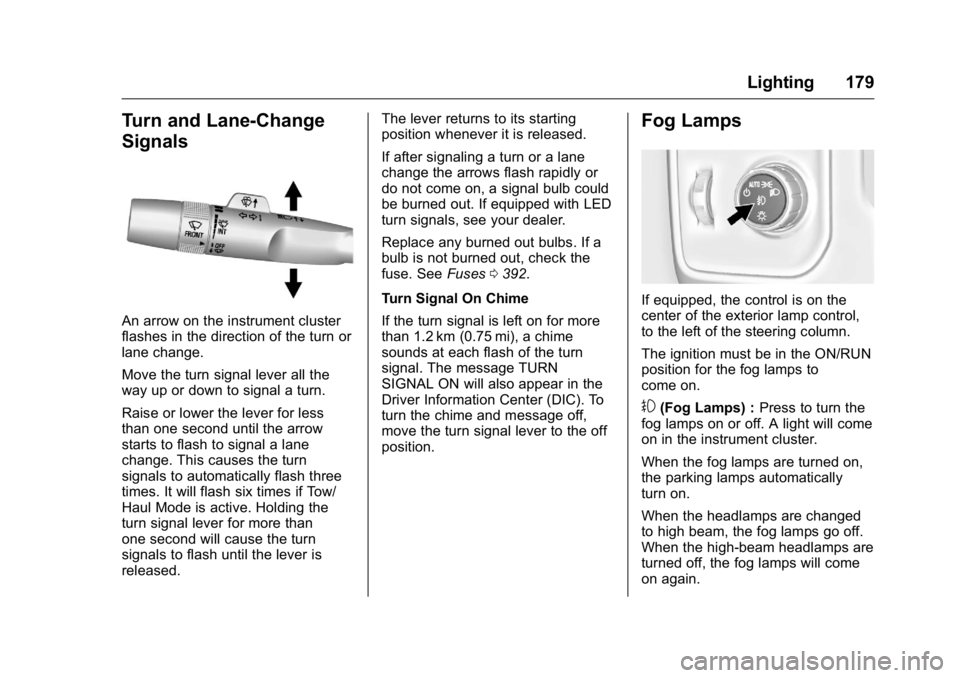
An arrow on the instrument cluster
flashes in the direction of the turn or
lane change.
Move the turn signal lever all the
way up or down to signal a turn.
Raise or lower the lever for less
than one second until the arrow
starts to flash to signal a lane
change. This causes the turn
signals to automatically flash three
times. It will flash six times if Tow/
Haul Mode is active. Holding the
turn signal lever for more than
one second will cause the turn
signals to flash until the lever is
released.The lever returns to its starting
position whenever it is released.
If after signaling a turn or a lane
change the arrows flash rapidly or
do not come on, a signal bulb could
be burned out. If equipped with LED
turn signals, see your dealer.
Replace any burned out bulbs. If a
bulb is not burned out, check the
fuse. See
Fuses0392.
Turn Signal On Chime
If the turn signal is left on for more
than 1.2 km (0.75 mi), a chime
sounds at each flash of the turn
signal. The message TURN
SIGNAL ON will also appear in the
Driver Information Center (DIC). To
turn the chime and message off,
move the turn signal lever to the off
position.
Fog Lamps
If equipped, the control is on the
center of the exterior lamp control,
to the left of the steering column.
The ignition must be in the ON/RUN
position for the fog lamps to
come on.
#(Fog Lamps) : Press to turn the
fog lamps on or off. A light will come
on in the instrument cluster.
When the fog lamps are turned on,
the parking lamps automatically
turn on.
When the headlamps are changed
to high beam, the fog lamps go off.
When the high-beam headlamps are
turned off, the fog lamps will come
on again.
Page 213 of 509
GMC Sierra Owner Manual (GMNA-Localizing-U.S./Canada/Mexico-
9234758) - 2016 - crc - 11/9/15
212 Infotainment System
destination entry and voice keypad,
can be completed in a single
command. If the task takes more
than one command to complete, the
first command would be to indicate
the kind of task that is to be
performed. The system replies with
prompts that lead through a dialog
to enter the necessary information.
Voice recognition can be used when
the ignition is on or when Retained
Accessory Power (RAP) is active.
SeeRetained Accessory Power
(RAP) 0281.
Using Voice Recognition
Voice recognition becomes available
once the system has been
initialized. This begins when the
ignition is turned on. Initialization
may take a few moments.
1. Press
gon the steering wheel
control to activate voice
recognition, or select
gon the
infotainment screen on the
center stack.
. If voice recognition is
started from the steering
wheel control, the instrument cluster displays
the selections and visual
dialog content.
. If voice recognition is
started from the
infotainment screen, the
selections and visual dialog
content are displayed on
both the center stack
display and the instrument
cluster display.
2. The audio system mutes and the system plays a prompt
followed by a beep.
3. Wait until after the beep completes, then clearly speak
one of the commands
described in this section.
Press
gto interrupt any voice
recognition system prompt. For
example, if the prompt seems
to be taking too long to finish,
press
gagain and the beep
should happen right away. There are two voice prompt modes
supported:
.
Long verbal prompts: The longer
prompts provide more
information regarding the
supported actions.
. Short prompts: The short
prompts provide simple
instructions about what can be
stated.
If a command is not spoken, the
voice recognition system says a
help prompt.
Prompts and Screen Displays
While a voice recognition session is
active, there will be corresponding
buttons on screens displayed.
Manual interaction in the voice
recognition session is permitted.
Interaction during a voice session
may be completed entirely using
voice commands, or some
selections may expedite a session.
If a selection is made using a
manual control, the dialog will
progress in the same way as if the
selection was made through a voice
command. Once the system is able
Page 219 of 509
GMC Sierra Owner Manual (GMNA-Localizing-U.S./Canada/Mexico-
9234758) - 2016 - crc - 11/9/15
218 Infotainment System
Phone
Bluetooth (Overview)
Instructions for using the cell phone
may differ between infotainment
systems. The base radio and base
radio with touchscreen instructions
are included in this manual. See the
infotainment manual for instructions
on the uplevel radios.
Bluetooth-capable systems can
interact with many cell phones,
allowing:
.Placement and receipt of calls in
a hands-free mode.
. Sharing of the cell phone’s
address book or contact list with
the vehicle.
To minimize driver distraction,
before driving, and with the vehicle
parked:
. Become familiar with the
features of the cell phone.
Organize the phone book and
contact lists clearly and delete duplicate or rarely used entries.
If possible, program speed dial
or other shortcuts.
. Review the controls and
operation of the infotainment
system.
. Pair cell phone(s) to the vehicle.
The system may not work with
all cell phones. See “Pairing”in
this section.
. If the cell phone has voice
dialing capability, learn to use
that feature to access the
address book or contact list.
. See “Deleting a Paired Phone”
and/or “Deleting a Bluetooth
Device” in this section.
{Warning
When using a cell phone, it can
be distracting to look too long or
too often at the screen of the
phone or the infotainment system.
Taking your eyes off the road too
long or too often could cause a
crash resulting in injury or death.
Focus your attention on driving. Vehicles with a Bluetooth system
can use a Bluetooth-capable cell
phone with a Hands-Free Profile to
make and receive phone calls. The
infotainment system and voice
recognition are used to control the
system. The system can be used
while in ON/RUN or ACC/
ACCESSORY. The range of the
Bluetooth system can be up to 9.1 m
(30 ft). Not all phones support all
functions and not all phones work
with the Bluetooth system. See
www.gm.com/bluetooth for more
information about compatible
phones.
Bluetooth Controls
Use the buttons on the instrument
panel, faceplate, and the steering
wheel to operate the Bluetooth
system.
Steering Wheel Controls
g:
Press to answer incoming calls,
confirm system information, and
start voice recognition.
Page 220 of 509
GMC Sierra Owner Manual (GMNA-Localizing-U.S./Canada/Mexico-
9234758) - 2016 - crc - 11/9/15
Infotainment System 219
i:Press to end a call, reject a
call, or cancel an operation. Press
to mute or unmute the infotainment
system.
Infotainment System Controls
For information about how to
navigate the menu system using the
infotainment controls, see Overview
(Base Radio) 0186 orOverview
(Base Radio with
Touchscreen) 0189.
MENU : Turn to scroll through a list.
Press to select the highlighted list
option.
{: Press to go to the Home Page.
See Home Page (Base Radio)
0 190 orHome Page (Base Radio
with Touchscreen) 0192.
PHONE or
#: Select to enter the
phone main menu. See Bluetooth
(Voice Recognition - Base Radio)
0 223 orBluetooth (Infotainment
Controls - Base Radio) 0219 or
Bluetooth (Overview) 0218 or
Bluetooth (Infotainment Controls -
Base Radio with
Touchscreen) 0228.
Voice Recognition
If equipped, the voice recognition
system uses commands to control
the system and dial phone numbers.
Noise : The system may not
recognize voice commands if there
is too much background noise, such
as noise from open windows or loud
talking inside the vehicle.
When to Speak : A tone sounds to
indicate that the system is ready for
a voice command. Wait for the tone
and then speak.
How to Speak : Speak clearly in a
calm and natural voice.
Audio System
When using the Bluetooth system,
sound comes through the vehicle's
front audio system speakers and
overrides the audio system. Use the
Oknob during a call to change the
volume level. The system maintains
a minimum volume level.
Bluetooth Audio Quality
Turn off the Echo and Noise
cancellation feature on your phone,
if supported, for the best hands-free
performance.
See www.gm.com/bluetooth.
Bluetooth (Infotainment
Controls - Base Radio)
For information about how to
navigate the menu system using the
infotainment controls, see Overview
(Base Radio) 0186 orOverview
(Base Radio with
Touchscreen) 0189.
Switching to Handset or
Hands-Free Mode
To switch between handset mode
and hands-free mode, use the
OnStar command, “transfer call.”
Pairing
A Bluetooth-enabled cell phone
must be paired to the Bluetooth
system and then connected to the
vehicle before it can be used. See
your cell phone manufacturer's user
Page 233 of 509
GMC Sierra Owner Manual (GMNA-Localizing-U.S./Canada/Mexico-
9234758) - 2016 - crc - 11/9/15
232 Infotainment System
Returning to the Beginning of the
Current Song
Touch
gafter two seconds of
playback time.
Search
Touch and hold
gorlto rewind
or fast forward.
Playing Music Randomly
Touch
Zduring playback. Touch
again to return to normal play.
This function may not be supported
depending on the bluetooth device.
Do not change the track too quickly
when playing Bluetooth music.
Conditions that may occur when
playing Bluetooth music:
. It takes time to transmit data
from the bluetooth device to the
infotainment system.
. If the cell phone or Bluetooth
device is not in the waiting
screen mode, it may not
automatically play. .
The infotainment system
transmits the order to play from
the bluetooth device in the
Bluetooth music play mode.
If this is done in a different
mode, then the device transmits
the order to stop. Depending on
the bluetooth device options, this
order to play/stop may take time
to activate.
. If the Bluetooth music playback
is not functioning, then check to
see if the bluetooth device is in
the waiting screen mode.
. Sounds may be cut off during
the Bluetooth music playback.
. The infotainment system outputs
the audio from the cell phone or
Bluetooth device as it is
transmitted.
Apple CarPlay and
Android Auto
If equipped, Android Auto™ and/or
Apple CarPlay™ capability may be
available through a compatible
smartphone. If available, a PROJECTION icon will appear on
the Home Page of the infotainment
display.
To use Android Auto and/or Apple
CarPlay:
1. Download the Android Auto app to your phone from the
Google™ Play store. There is
no app required for Apple
CarPlay.
2. Connect your Android phone or Apple iPhone by using the
compatible phone USB cable
and plugging into a USB data
port. For best performance, use
the device’ s factory-provided
USB cable. Aftermarket or
third-party cables may
not work.
The PROJECTION icon on the
Home Page will change to Android
Auto or Apple CarPlay depending
on the phone. Android Auto and/or
Apple CarPlay may automatically
launch upon USB connection. If not,
press the ANDROID AUTO and/or
APPLE CARPLAY icon on the
Home Page to launch.