sim GMC SIERRA 2021 User Guide
[x] Cancel search | Manufacturer: GMC, Model Year: 2021, Model line: SIERRA, Model: GMC SIERRA 2021Pages: 461, PDF Size: 11.84 MB
Page 113 of 461
GMC Sierra/Sierra Denali 1500 Owner Manual (GMNA-Localizing-U.S./
Canada/Mexico-14632426) - 2021 - CRC - 11/5/20
112 Instruments and Controls
indicates oil pressure outside the normal
operating range, check the vehicle's oil as
soon as possible.
SeeEngine Oil 0330.
Caution
Lack of proper engine oil maintenance
can damage the engine. Driving with the
engine oil low can also damage the
engine. The repairs would not be covered
by the vehicle warranty. Check the oil
level as soon as possible. Add oil if
required, but if the oil level is within the
operating range and the oil pressure is
still low, have the vehicle serviced.
Always follow the maintenance schedule
for changing engine oil.
If the vehicle has a diesel engine, see the
Duramax diesel supplement.
Engine Coolant Temperature
Gauge
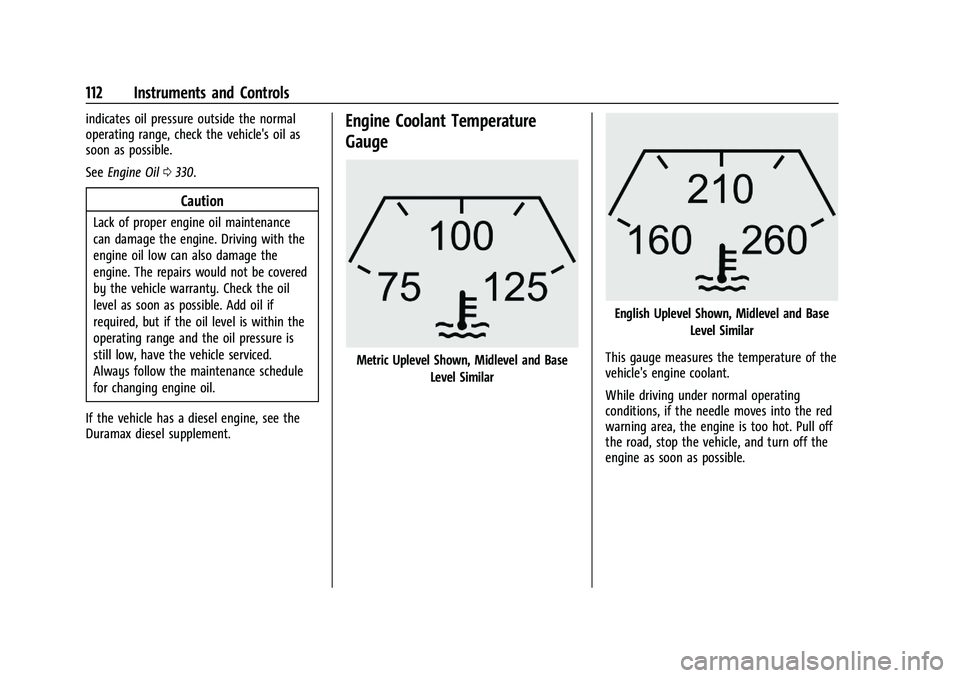
Metric Uplevel Shown, Midlevel and Base Level Similar
English Uplevel Shown, Midlevel and Base Level Similar
This gauge measures the temperature of the
vehicle's engine coolant.
While driving under normal operating
conditions, if the needle moves into the red
warning area, the engine is too hot. Pull off
the road, stop the vehicle, and turn off the
engine as soon as possible.
Page 114 of 461
GMC Sierra/Sierra Denali 1500 Owner Manual (GMNA-Localizing-U.S./
Canada/Mexico-14632426) - 2021 - CRC - 11/5/20
Instruments and Controls 113
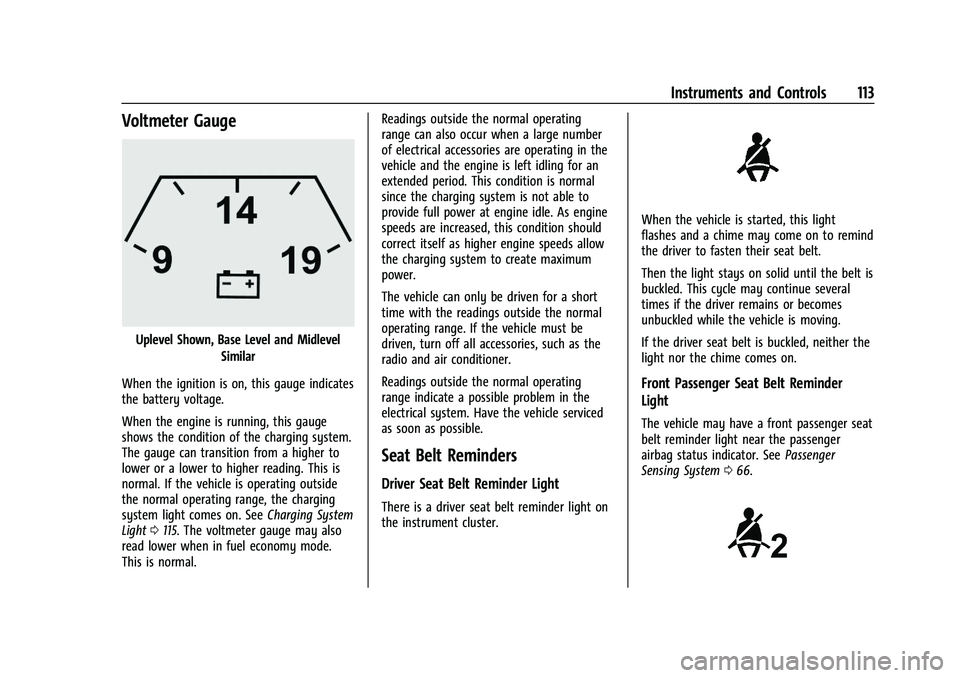
Voltmeter Gauge
Uplevel Shown, Base Level and MidlevelSimilar
When the ignition is on, this gauge indicates
the battery voltage.
When the engine is running, this gauge
shows the condition of the charging system.
The gauge can transition from a higher to
lower or a lower to higher reading. This is
normal. If the vehicle is operating outside
the normal operating range, the charging
system light comes on. See Charging System
Light 0115. The voltmeter gauge may also
read lower when in fuel economy mode.
This is normal. Readings outside the normal operating
range can also occur when a large number
of electrical accessories are operating in the
vehicle and the engine is left idling for an
extended period. This condition is normal
since the charging system is not able to
provide full power at engine idle. As engine
speeds are increased, this condition should
correct itself as higher engine speeds allow
the charging system to create maximum
power.
The vehicle can only be driven for a short
time with the readings outside the normal
operating range. If the vehicle must be
driven, turn off all accessories, such as the
radio and air conditioner.
Readings outside the normal operating
range indicate a possible problem in the
electrical system. Have the vehicle serviced
as soon as possible.
Seat Belt Reminders
Driver Seat Belt Reminder Light
There is a driver seat belt reminder light on
the instrument cluster.
When the vehicle is started, this light
flashes and a chime may come on to remind
the driver to fasten their seat belt.
Then the light stays on solid until the belt is
buckled. This cycle may continue several
times if the driver remains or becomes
unbuckled while the vehicle is moving.
If the driver seat belt is buckled, neither the
light nor the chime comes on.
Front Passenger Seat Belt Reminder
Light
The vehicle may have a front passenger seat
belt reminder light near the passenger
airbag status indicator. See
Passenger
Sensing System 066.
Page 119 of 461
GMC Sierra/Sierra Denali 1500 Owner Manual (GMNA-Localizing-U.S./
Canada/Mexico-14632426) - 2021 - CRC - 11/5/20
118 Instruments and Controls
Service Electric Parking Brake
Light
This light should come on briefly when
starting the vehicle. If it does not come on,
have it fixed so it will be ready to warn if
there is a problem.
If this light stays on, take the vehicle to
your dealer as soon as possible. See the
information for the Electric Parking Brake
underElectric Parking Brake 0247.
A message may also display in the Driver
Information Center (DIC).
Antilock Brake System (ABS)
Warning Light
This warning light should come on briefly
when the vehicle is turned on. If the light
does not come on, have it fixed so it will be
ready to warn if there is a problem.
If the light comes on while driving, safely
stop as soon as it is possible and turn off
the vehicle. Then turn on the vehicle again
to reset the system.
If the ABS warning light stays on, or comes
on again while driving, the vehicle needs
service. A chime may also sound when the
light stays on.
If the ABS warning light is the only light on,
the vehicle has regular brakes, but ABS is
not functioning. If both the ABS warning light and the brake
system warning light are on, ABS is not
functioning and there is a problem with the
regular brakes. See your dealer for service.
See
Brake System Warning Light 0117.
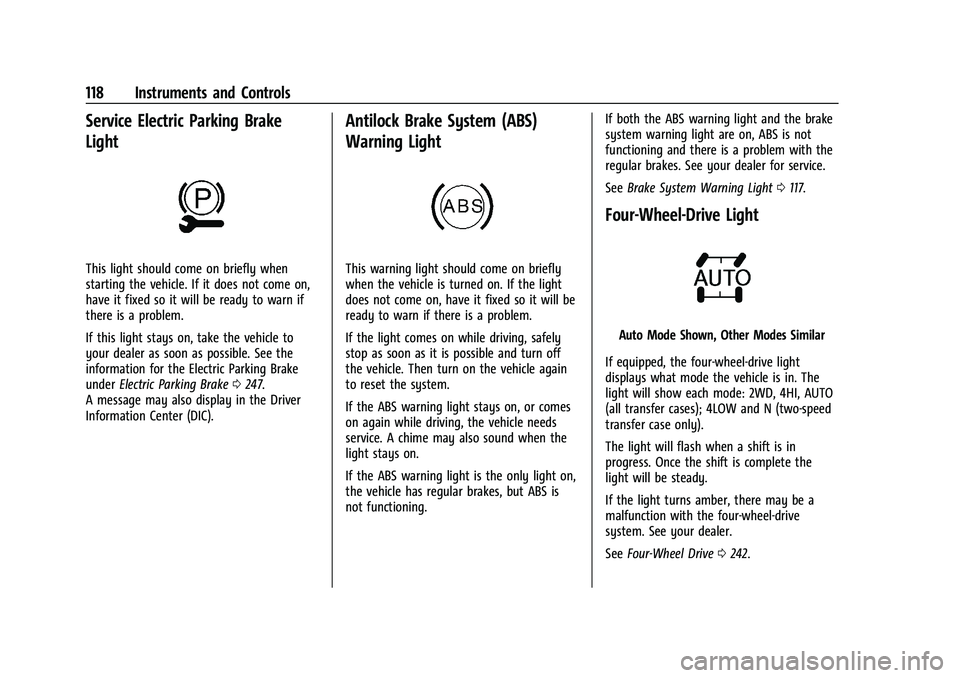
Four-Wheel-Drive Light
Auto Mode Shown, Other Modes Similar
If equipped, the four-wheel-drive light
displays what mode the vehicle is in. The
light will show each mode: 2WD, 4HI, AUTO
(all transfer cases); 4LOW and N (two-speed
transfer case only).
The light will flash when a shift is in
progress. Once the shift is complete the
light will be steady.
If the light turns amber, there may be a
malfunction with the four-wheel-drive
system. See your dealer.
See Four-Wheel Drive 0242.
Page 130 of 461
GMC Sierra/Sierra Denali 1500 Owner Manual (GMNA-Localizing-U.S./
Canada/Mexico-14632426) - 2021 - CRC - 11/5/20
Instruments and Controls 129
D:Pull and hold to brighten the display.
Press and hold to dim the display. Continue
to hold to turn the display off.
The HUD image will automatically dim and
brighten to compensate for outside lighting.
Use
Dto adjust as needed.
The HUD image can temporarily light up
depending on the angle and position of
sunlight on the HUD display. This is normal.
Polarized sunglasses could make the HUD
image harder to see.
Head-Up Display (HUD) Rotation Option
If equipped, this feature under the Options
menu of the instrument cluster allows for
adjusting the angle of the HUD image and
changing or turning off the Speed
Limit Sign.
HUD Rotation: Press the thumbwheel while
Adjust Rotation is highlighted to enter
Adjust Mode. Scroll to adjust the angle of
the HUD display. Press the thumbwheel to
confirm and save the setting. This feature
may only be available in P (Park). Speed Limit Style Adjustment
If equipped, the speed limit style can be
changed to a speed limit bar or speed limit
sign from the Options menu in the
instrument cluster. Press the thumbwheel
while Speed Limit Style is highlighted to
change the speed sign style or to turn it off.
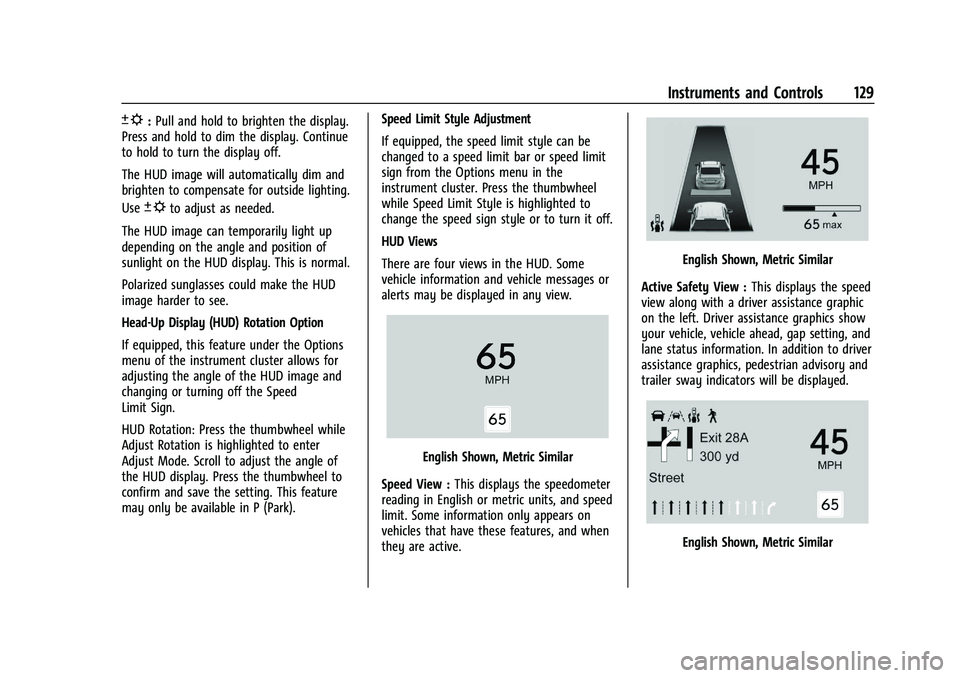
HUD Views
There are four views in the HUD. Some
vehicle information and vehicle messages or
alerts may be displayed in any view.
English Shown, Metric Similar
Speed View : This displays the speedometer
reading in English or metric units, and speed
limit. Some information only appears on
vehicles that have these features, and when
they are active.
English Shown, Metric Similar
Active Safety View : This displays the speed
view along with a driver assistance graphic
on the left. Driver assistance graphics show
your vehicle, vehicle ahead, gap setting, and
lane status information. In addition to driver
assistance graphics, pedestrian advisory and
trailer sway indicators will be displayed.
English Shown, Metric Similar
Page 131 of 461

GMC Sierra/Sierra Denali 1500 Owner Manual (GMNA-Localizing-U.S./
Canada/Mexico-14632426) - 2021 - CRC - 11/5/20
130 Instruments and Controls
Navigation/Active OnStar View :This
displays the speed view along with
indicators for vehicle ahead, Lane Departure
Warning/Lane Keep Assist, trailer sway, and
pedestrian advisory. Turn-by-Turn navigation
information is shown during active route.
The compass heading is displayed when
navigation routing is not active.
Navigation Turn-by-Turn Alerts shown in the
instrument cluster may also be displayed in
any HUD view.
English Shown, Metric Similar
Off Road View : This displays the speed
view along with indicators for vehicle ahead,
Lane Departure Warning/Lane Keep Assist,
trailer sway, four-wheel drive status, and
pedestrian advisory. Off-road information
such as pitch angle, steering angle, and
rolling angle is also shown.
Care of the HUD
Clean the inside of the windshield to remove
any dirt or film that could reduce the
sharpness or clarity of the HUD image.
Clean the HUD lens with a soft cloth
sprayed with glass cleaner. Wipe the lens
gently, then dry it.
HUD Troubleshooting
Check that:
.Nothing is covering the HUD lens.
.The HUD brightness setting is not too
dim or too bright.
.The HUD is adjusted to the proper height.
.Polarized sunglasses are not worn.
.The windshield and HUD lens are clean.
If the HUD image is not correct, contact
your dealer.
The windshield is part of the HUD system.
See Windshield Replacement 0348.
Vehicle Messages
Messages displayed on the Driver
Information Center (DIC) indicate the status
of the vehicle or some action that may be
needed to correct a condition. Multiple
messages may appear one after another.
The messages that do not require
immediate action can be acknowledged and
cleared by pressing the thumbwheel. The
messages that require immediate action
cannot be cleared until that action is
performed.
All messages should be taken seriously;
clearing the message does not correct the
problem.
If a SERVICE message appears, see your
dealer.
Follow the instructions given in the
messages. The system displays messages
regarding the following topics:
.Service Messages
.Fluid Levels
.Vehicle Security
.Brakes
.Steering
.Ride Control Systems
Page 153 of 461

GMC Sierra/Sierra Denali 1500 Owner Manual (GMNA-Localizing-U.S./
Canada/Mexico-14632426) - 2021 - CRC - 11/5/20
152 Infotainment System
The favorites and volume switches are on
the back of the steering wheel.1. Favorite: When on a radio source, press to select the next or previous audio
broadcast favorite. When listening to a
media device, press to select the next or
previous track.
2. Volume: Press to increase or decrease the volume.
Using the System
Audio
Touch the Audio icon to display the active
audio source page. Examples of available
sources may include AM, FM, SXM (if
equipped), USB, AUX, and Bluetooth.
Phone
Touch the Phone icon to display the Phone
main page. See Bluetooth (Pairing and Using
a Phone) 0181 or
Bluetooth (Overview) 0180.
Nav
If equipped, touch the Nav icon to display
the navigation map. See Using the
Navigation System 0163.
Users
If equipped, touch the Users icon to sign in
or create a new user profile, and follow the
on-screen instructions.
Only four user profiles can be active at one
time in the vehicle. It may be necessary to
remove a profile from the menu before
creating or signing into an existing profile.
The removed profile can be logged into at a
later time.
Settings
Touch the Settings icon to display the
Settings menu. See Settings0186.
Apple CarPlay
Touch the Apple CarPlay icon to activate
Apple CarPlay (if equipped) after a
supported device is connected. See Apple
CarPlay and Android Auto 0185.
Android Auto
Touch the Android Auto icon to activate
Android Auto (if equipped) after a supported
device is connected. See Apple CarPlay and
Android Auto 0185.
Apps
If equipped, in-vehicle apps are available for
download. Touch the Apps icon on the
Home Page to begin.
Downloading and using in-vehicle apps
requires Internet connectivity which can be
accessed with a data plan through the
vehicle’s built-in 4G LTE Wi-Fi hotspot,
if equipped, or a compatible mobile device
hotspot. On most mobile devices, activation
of the Wi-Fi hotspot is in the device’s
Settings menu under Mobile Network
Sharing, Personal Hotspot, Mobile Hotspot,
or similar.
Page 162 of 461

GMC Sierra/Sierra Denali 1500 Owner Manual (GMNA-Localizing-U.S./
Canada/Mexico-14632426) - 2021 - CRC - 11/5/20
Infotainment System 161
When a list of songs, albums, artists,
or other types of media display, a vertical
keyboard appears on one side of the list and
a scroll bar on the other side. When using
the vertical keyboard, touch the beginning
character of the desired name to display the
zoom bubble of that character. Release the
finger from the infotainment display and
the zoom bubble disappears.
Touch the scroll bar to move the list up
and down.
File System and Naming
The songs, artists, albums, and genres are
taken from the file’s song information and
are only displayed if present. The radio
displays the file name as the track name if
the song information is not available.Supported Apple Devices
To view supported devices in USA, see
my.gmc.com\learned.
Loss of Audio
If a phone currently paired over Bluetooth is
plugged in with a USB cable, the system will
automatically mute the phone audio.
Playback can be resumed by changing the
audio source from Bluetooth to USB cable.
Source USB from the Media icon on the
infotainment display to resume playback.
Other phones such as Android phones may
have a similar reaction.
Bluetooth Streaming Audio and Voice
Recognition
See
Bluetooth Audio 0162 for information
using voice recognition with Bluetooth
streaming audio.
Make sure all devices have the latest
software downloaded.
Auxiliary Jack
If equipped, this vehicle may have an
auxiliary input jack. This may be located in
the center stack or center console under the
armrest. Possible auxiliary audio sources
include:
.Laptop computer
.Audio music player
This jack is not an audio output. Do not
plug headphones into the auxiliary input
jack. Set up an auxiliary device while the
vehicle is in P (Park).
Connect a 3.5 mm (1/8 in) cable from the
auxiliary device to the auxiliary input jack.
When a device is connected, the system can
play audio from the device over the vehicle
speakers.
If an auxiliary device has already been
connected, but a different source is currently
active, press MEDIA on the center stack or
touch the Media icon on the infotainment
display to scroll through audio source
menus, until the AUX Input source appears.
Playing from the AUX Port
An auxiliary device is played through the
audio system and controlled through the
device itself.
Page 177 of 461
GMC Sierra/Sierra Denali 1500 Owner Manual (GMNA-Localizing-U.S./
Canada/Mexico-14632426) - 2021 - CRC - 11/5/20
176 Infotainment System
command. Another example of a one-shot
Destination Entry command is,“Directions to
Place of Interest at
commands do not work, try saying, “Take
me to Place of Interest” or“Find address”
and the system will walk you through by
asking additional questions.
Hybrid Speech Recognition
If equipped, this feature helps distinguish
words by using Internet-based information
along with the system’s voice recognition
database. This allows you to speak more
naturally when using voice recognition.
Using Voice Recognition
Voice recognition becomes available once
the system has been initialized. This begins
when the ignition is turned on. Initialization
may take a few moments.
1. Press
gon the steering wheel controls
to activate voice recognition.
2. The audio system mutes and the system plays a prompt.
3. Clearly speak one of the commands described in this section.
A voice recognition system prompt can
be interrupted while it is playing by
pressing
gagain. Once voice recognition is started, both the
infotainment display and instrument cluster
show the selections and visual dialog
content. These displays can be turned on or
off in the Tutorial Mode under
Settings
0 186.
There are three voice prompt modes
supported:
.Informative verbal prompts: This type of
prompt will provide more information
regarding the supported actions.
.Short prompts: This type of prompt will
provide simple instructions about what
can be stated.
.Auto informative prompts: This type of
prompt plays during the first few speech
sessions, then automatically switches to
the short prompt after some experience
has been gained through using the
system.
If a command is not spoken, the voice
recognition system says a help prompt.
Prompts and Infotainment Displays
While a voice recognition session is active,
there may be corresponding options
showing on the displays. A selection can be
made by manually touching the option,
or by speaking the number for the option to select. Manual interaction in the voice
recognition session is permitted. Interaction
during a voice session may be completed
entirely using voice commands while some
manual commands may expedite a task. If a
selection is made using a manual control,
the voice recognition dialog will progress in
the same way as if the selection were made
using a voice command. Once the system
completes the task, or the session is
terminated, the voice recognition dialog
stops.
An example of this type of manual
intervention is touching an entry of a
displayed number list instead of speaking
the number associated with the entry
desired.
Canceling Voice Recognition
.Touch or say
“Cancel”or“Exit” to
terminate the voice recognition session
and show the display where voice
recognition was initiated.
.Pression the steering wheel controls
to terminate the voice recognition session
and show the display where voice
recognition was initiated.
Page 180 of 461
GMC Sierra/Sierra Denali 1500 Owner Manual (GMNA-Localizing-U.S./
Canada/Mexico-14632426) - 2021 - CRC - 11/5/20
Infotainment System 179
“Play Chapter
playback of a specific chapter.
“Play Audiobook” :Begin a dialog to enter
a specific audiobook.
“Play Audiobook
Begin playback of a specific audiobook.
“Play Episode” :Begin a dialog to enter a
specific name.
“Play Episode
playback of a specific episode.
“Play Podcast” :Begin a dialog to enter a
specific podcast.
“Play Podcast
playback of a specific podcast.
“My Media” :Begin a dialog to enter the
desired media content.
Handling Large Amounts of Media Content
It is expected that large amounts of media
content will be brought into the vehicle.
It may be necessary to handle large
amounts of media content in a different
way than smaller amounts of media. The
system may limit the options of voice
recognition by not allowing selection of files
by voice at the highest level if the number
of files exceeds the maximum limit. Changes to voice commands due to media
content limits are:
.Files including other individual files of all
media types such as songs, audiobook
chapters, podcast episodes, and videos.
.Album type folders including types such
as albums and audiobooks.
There are no restrictions if the number of
files and albums is fewer than 12,000. When
the number of files connected to the system
is between 12,000 and 24,000, the content
cannot be accessed directly with one
command like “Play
The restriction is that the command “Play
Song” must be spoken first; the system will
then ask for the song name. The reply
command would be to say the name of the
song to play.
Similar limits exist for album content.
If there are more than 12,000 albums, but
fewer than 24,000, the content cannot be
accessed directly with one command like,
“Play
Album” must first be spoken; the system
will then ask for the album name. The reply
would be to say the name of the album
to play. Once the number of files has exceeded
approximately 24,000, there is no support
for accessing the songs directly through
voice commands. There will still be access to
the media content by using commands for
playlists, artists, and genres.
The access commands for playlists, artists,
and genres are prohibited after the number
of this type of media exceeds 12,000.
The system will provide feedback the first
time voice recognition is initiated if it has
become apparent that any of these limits
are reached during a device initializing
process.
Voice recognition performance will degrade
to some extent based on many factors when
adding large amounts of data to recognize.
If this is the case, perhaps accessing songs
through playlists or artist name would work
better.
Voice Recognition for Navigation (If
Equipped)
“Navigation”
:Begin a dialog to enter
specific destination information.
“Navigation Commands” :Begin a dialog to
enter specific destination information.
Page 183 of 461
GMC Sierra/Sierra Denali 1500 Owner Manual (GMNA-Localizing-U.S./
Canada/Mexico-14632426) - 2021 - CRC - 11/5/20
182 Infotainment System
cell phone which was used last. To link to
a different paired cell phone, see“Linking
to a Different Phone” later in this section.
Pairing a Phone 1. Make sure Bluetooth has been enabled on the cell phone before the pairing
process is started.
2. Touch the Phone icon on the Home Page or the phone icon on the shortcut tray
near the bottom of the display.
3. Touch Phones at the top of the infotainment display. There is also a
Connect Phones option in the middle of
the Phone display which will shortcut to
the Phone List menu.
4. Touch Add Phone.
5. Select the vehicle name shown on the infotainment display from your cell
phone’s Bluetooth Settings list.
6. Follow the instructions on the cell phone to confirm the six-digit code showing on
the infotainment display and touch Pair.
The code on the cell phone and
infotainment display will need to be
acknowledged for a successful pair.
7. Start the pairing process on the cell phone to be paired to the vehicle. See
the cell phone manufacturer's user guide for information on this process. Once the
cell phone is paired, it will show under
Connected.
8. If the vehicle name does not appear on your cell phone, there are a few ways to
start the pairing process over:
.Turn the cell phone off and then
back on.
.Go back to the beginning of the
Phone menus on the infotainment
display and restart the pairing
process.
.Reset the cell phone, but this step
should be done as a last effort.
9. If the cell phone prompts to accept connection or allow phone book
download, touch Always Accept and
Allow. The phone book may not be
available if not accepted.
10. Repeat Steps 1−8 to pair additional cell phones.
First to Connect Paired Phones
If multiple paired cell phones are within
range of the system, the system connects to
the paired cell phone that is set as First to
Connect. To enable a paired cell phone as
the First to Connect phone: 1. Make sure the cell phone is turned on. 2. Touch Settings, then touch System.
3. Touch Phones to access all paired and all
connected cell phones and mobile
devices.
4. Touch the information icon to the right of the cell phone to open the cell
phone’s settings menu.
5. Touch the First to Connect option, to enable the setting for that device.
Cell phones and mobile devices can be
added, removed, connected, and
disconnected. A sub-menu will display
whenever a request is made to add or
manage cell phones and mobile devices.
Secondary Phone
A cell phone can be enabled as a Secondary
Phone by touching the information icon to
the right of the paired cell phone name to
open the phone settings menu. If a cell
phone is enabled as a Secondary Phone, it
can connect simultaneously alongside
another Bluetooth mobile device. In doing
so, the Secondary Phone will be labeled as
Incoming Calls. This means the mobile
device can only receive calls. The Address
Book of a Secondary Phone will not be
available and hands-free outgoing calls
cannot be placed using this cell phone.