lock GMC SIERRA DENALI 2003 Service Manual
[x] Cancel search | Manufacturer: GMC, Model Year: 2003, Model line: SIERRA DENALI, Model: GMC SIERRA DENALI 2003Pages: 428, PDF Size: 20.35 MB
Page 144 of 428
Display: In the full AUTO mode, the automatic dual
climate control system display will show the driver set
temperature and an arrow pointing to the driver’s side. An
arrow pointing to the passenger’s side will display
if both
sides are set to the same temperature.
If the temperature
settings are not the same, the opposite side temperature
setting will be displayed for an additional five seconds.
During the five second status display the current mode
and blower speed will be displayed.
Driver’s Side Temperature Knob: Turn this knob
clockwise or counterclockwise to manually raise or lower
the temperature on the driver’s side of the vehicle.
The display will show the temperature setting decreasing
or increasing and an arrow pointing to the driver. The
temperature can be adjusted even
if the system is
turned
off. If the passenger’s set temperature has not
been adjusted this knob controls both the driver’s
and passenger’s air temperature. The temperature to
the rear seat area is controlled by using this knob.
Passenger’s Side Temperature Knob: Turn this knob
clockwise or counterclockwise to manually raise or
lower the temperature on the passenger’s side of the
vehicle. The display will show the temperature
setting decreasing or increasing and an arrow pointing
to the passenger. The temperature can be adjusted
even
if the system is turned off. Once this knob is used,
the passenger’s temperature will remain independent
of the driver’s until the AUTO button is pressed and held
for approximately four seconds.
Automatic Operation
AUTO (Automatic): When automatic operation is
active the system will control the inside temperature, the
air delivery, and the fan speed.
Use the steps below to place the entire system in
automatic mode:
1. Press the AUTO button.
When AUTO is selected, the display will change to
show the current driver’s set temperature,
delivery mode and fan speed. Press the AUTO
button again within five seconds to display
the passenger’s set temperature.
If the driver and passenger’s temperature settings
are not the same, the opposite side temperature
setting will be displayed for an additional five
seconds. To make the passenger’s temperature the
same as the driver’s press and hold the AUTO
button for approximately four seconds.
When auto is selected, the air conditioning
operation and air inlet will be automatically
controlled. The air conditioning compressor will run
when the outside temperature is over approximately
40°F (4°C). The air inlet will normally be set to
outside air. If it’s hot outside, the air inlet may
automatically switch to recirculate inside air to help
quickly cool down your vehicle. The light on the
button will illuminate in recirculation.
3-1 9
Page 160 of 428
Your brake system may not be working
properly
if the brake system warning light is
on. Driving with the brake system warning light
on can lead to an accident.
If the light is still
on after you’ve pulled
off the road and stopped
carefully, have the vehicle towed for service.
~
Anti-Lock Brake System Warning
Light
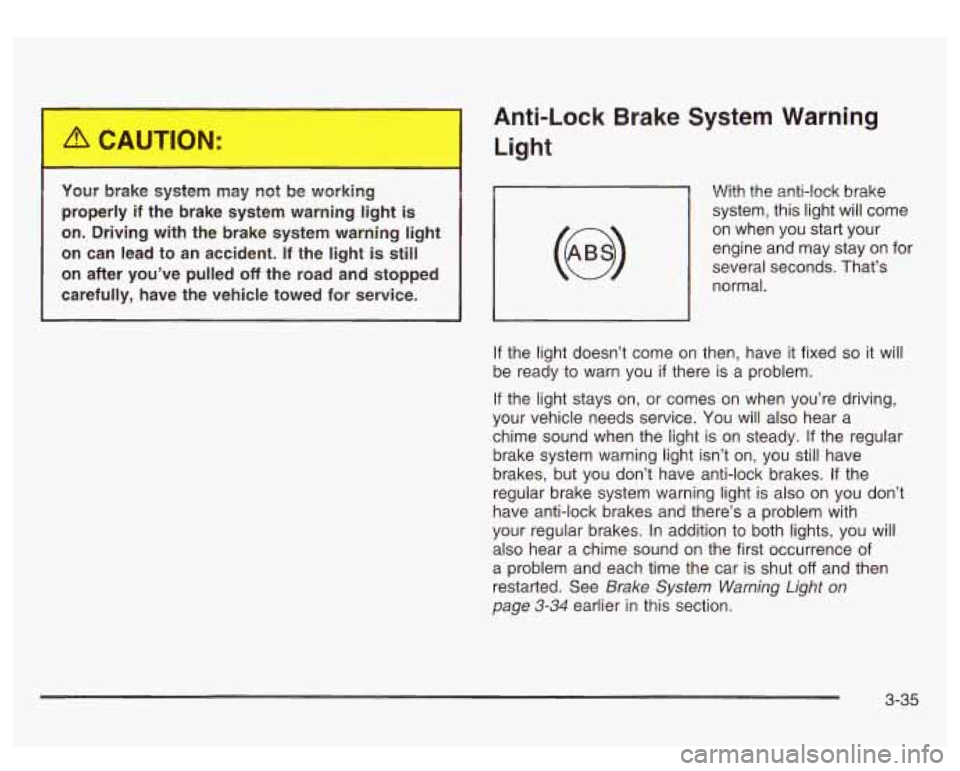
With the anti-lock brake
system, this light will come
on when you start your
engine and may stay on for
several seconds. That’s
normal.
, I
If the light doesn’t come on then, have it fixed so it will
be ready to warn you
if there is a problem.
If the light stays on, or comes on when you’re driving,
your vehicle needs service.
You will also hear a
chime sound when the light
is on steady. If the regular
brake system warning light isn’t on, you still have
brakes, but you don’t have anti-lock brakes. If the
regular brake system warning light is also on you don’t
have anti-lock brakes and there’s a problem with
your regular brakes.
In addition to both lights, you will
also hear a chime sound on the first occurrence of
a problem and each time the car is shut
off and then
restarted. See
Brake System Warning Light on
page 3-34 earlier in this section.
3-35
Page 172 of 428
Personalization Button
You can program certain features to a preferred setting
for up to two people. Press the personalization button
to scroll through the following personalization features.
All of the personalization options may not be available
on your vehicle. only the options available will be
displayed on your DIC.
If your vehicle is not equipped with the DIC steering
wheel buttons you will not have any of these
personalization options except for DISPLAY LANGUAGE. See DISPLAY LANGUAGE later in this
section for more information.
ALARM WARNING TYPE
AUTOMATIC LOCKING
0 AUTOMATIC UNLOCKING
SEAT POSITION RECALL
PERIMETER LIGHTING
REMOTE LOCK FEEDBACK
REMOTE UNLOCK FEEDBACK
HEADLAMPS ON AT EXIT
CURB VIEW ASSIST
EASY EXIT SEAT
DISPLAY UNITS (E/M)
DISPLAY LANGUAGE The driver’s
preferences are recalled by pressing the
unlock button on the remote keyless entry transmitter or
by pressing the appropriate memory button
1 or 2
located on the driver’s door.
Alarm Warning Type
Press the personalization button until ALARM
WARNING TYPE appears in the display. To select your
personalization for alarm warning type, press the
select button while ALARM WARNING TYPE is
displayed on the DIC. Pressing the select button will
scroll through the following choices:
ALARM WARNING: BOTH
(default): The headlamps
will flash and the horn will chirp when the alarm is
active.
ALARM WARNING:
OFF: There will be no alarm
warning on activation.
ALARM WARNING: HORN: The horn will chirp when
the alarm is active.
ALARM WARNING: LAMPS: The headlamps will flash
when the alarm is active.
Choose one of the four options and press the
personalization button while it is displayed on the DIC to
select it and move on to the next feature. For more
information on alarm warning type, see
Content
Theft-Deterrent
on page 2- 13.
3-47
Page 173 of 428
Automatic Locking
Press the personalization button until AUTOMATIC
LOCKING appears in the display. To select your
personalization for automatic locking, press the select
button while AUTOMATIC LOCKING is displayed on the
DIC. Pressing the select button will scroll through the
following choices:
LOCK DOORS OUT
OF PARK (default): The doors
will lock when the vehicle is shifted out of PARK (P).
LOCK DOORS MANUALLY: The doors will not
be locked automatically.
LOCK DOORS WITH SPEED: The doors will lock
when the vehicle speed is above
8 mph (13 km/h) for
three seconds.
Choose one of the three options and press the
personalization button while it is displayed on the DIC to
select it and move on to the next feature. For more
information on automatic door locks see
Programmable
Automatic Doors Locks.
Automatic Unlocking
Press the personalization button until AUTOMATIC
UNLOCKING appears in the display. To select
your personalization for automatic unlocking, press the
select button while AUTOMATIC UNLOCKING is
displayed on the DIC. Pressing the select button will
scroll through the following choices:
UNLOCK ALL IN PARK (default): All of the doors will
unlock when the vehicle is shifted into PARK (P).
UNLOCK ALL AT KEY OUT:
All of the doors will
unlock when the key is taken out of the ignition.
UNLOCK DOORS MANUALLY: The doors will not be
unlocked automatically.
UNLOCK DRIVER IN PARK: The driver’s door will be
unlocked when the vehicle is shifted in PARK (P).
Choose one
of the four options and press the
personalization button while it is displayed on the DIC to
select it and move on to the next feature. For more
information on automatic door locks see
Programmable
Automatic Door Locks.
3-48
Page 174 of 428
Seat Position Recall Perimeter Lighting
Press the personalization button until SEAT POSITION
RECALL appears on the display. To select your
personalization for seat position recall, press the select
button while SEAT POSITION RECALL is displayed
on the DIC. Pressing the select button will scroll through
the following choices:
SEAT POSITION RECALL
OFF (default): The memory
seat position you saved will only be recalled when the
memory button
1 or 2 is pressed on the driver’s
door panel.
SEAT POSITION RECALL AT KEY IN: The memory
seat position you saved will be recalled when you
put the key in the ignition.
SEAT POSITION RECALL ON REMOTE: The memory
seat position you saved will be recalled when you
unlock the vehicle with the remote keyless entry
transmitter.
Choose one of the three options and press the
personalization button while it is displayed on the DIC to
select it and move on to the next feature. For more
information on seat position recall see
Memory Seat on
page 2-42.
Press the personalization button until PERIMETER
LIGHTING appears in the display. To select your
personalization for perimeter lighting, press the select
button while PERIMETER LIGHTING is displayed on the
DIC. Pressing the select button will scroll through the
following choices:
PERIMETER LIGHTING ON
(default): The headlamps
and back-up lamps will come on for
40 seconds, if it
is dark enough outside, when you unlock the vehicle
with the remote keyless entry transmitter.
PERIMETER LIGHTING
OFF: The perimeter lights will
not come on when you unlock the vehicle with the
remote keyless entry transmitter.
Choose on
of the two options and press the
personalization button while it is displayed on the DIC to
select it and move on to the next feature.
3-49
Page 175 of 428
Remote Lock Feedback
Press the personalization button until REMOTE LOCK
FEEDBACK appears in the display. To select your
personalization for the feedback you will receive when
locking the vehicle with the remote keyless entry
transmitter, press the select button while REMOTE
LOCK FEEDBACK is displayed on the DIC. Pressing
the select button will scroll through the following choices:
LOCK FEEDBACK:
BOTH (default): The parking
lamps will flash each time you press the button with the
lock symbol on the remote keyless entry transmitter
and the horn will chirp the second time you press the
lock button.
LOCK FEEDBACK: OFF: There will be no feedback
when locking the vehicle.
LOCK FEEDBACK: HORN: The horn will chirp the
second time you press the button with the lock symbol
on the remote keyless entry transmitter.
LOCK FEEDBACK: LAMPS: The parking lamps will
flash each time you press the button with the lock
symbol on the remote keyless entry transmitter.
Choose one of the four options and press the
personalization button while it is displayed on the DIC to
select it and move
on to the next feature.
Remote Unlock Feedback
Press the personalization button until REMOTE
UNLOCK FEEDBACK appears in the display. To select
your personalization for the feedback you will receive
when unlocking the vehicle with the remote keyless
entry transmitter, press the select button while REMOTE
UNLOCK FEEDBACK is displayed on the
DIC.
Pressing the select button will scroll through the
following choices:
UNLOCK FEEDBACK: LAMPS: The parking lamps will
flash each time you press the button with the unlock
symbol on the remote keyless entry transmitter.
UNLOCK FEEDBACK: BOTH (default): The parking
lamps will flash each time you press the button with the
unlock symbol on the remote keyless entry transmitter
and the horn will chirp the second time you press
the unlock button.
UNLOCK FEEDBACK: OFF: There will be no feedback
when unlocking the vehicle.
UNLOCK FEEDBACK: HORN: The horn will chirp the
second time you press the button with the unlock
symbol on the remote keyless entry transmitter.
Choose one of the four options and press the
personalization button while it
is displayed on the DIC to
select it and move on to the next feature.
3-50
Page 194 of 428
When a traffic announcement comes on the current
station or on a related network station, you will hear
it,
even if the volume is muted or a compact disc is
playing. The traffic symbol and TRAF will appear on the
display while the announcement plays.
If the compact
disc player was being used, play will stop during
the announcement.
For DAB (Canada only,
if your radio is equipped with
DAB), when the TRAF button
is pressed, DAB does not
seek to a station that broadcasts traffic. DAB only
checks the current frequency for traffic support.
This function does not apply to XMTM Satellite Radio
Service. Traffic
Interrupt Feature: Your radio can interrupt the
play of a cassette, CD, or XMTM, or DAB station.
Press the TRAF button. The radio will seek to a station
that broadcasts traffic announcements. When the
radio finds a station that broadcasts traffic
announcements, it will stop. TRAF will appear on the
display. When a traffic announcement comes on
the station that was found, you will hear it. When the
traffic announcement is over, the radio will resume play of the cassette, CD, or XMTM, or DAB station. If no
station is found,
NO TRAF will appear on the display.
Radio Messages
CAL ERR (Calibration Error): This message is
displayed when the radio has not been calibrated
properly for the vehicle. You must return to the
dealership for service.
LOCKED: This message
is displayed when the
THEFTLOCK@ system has locked up. You must return
to the dealership for service.
3-69
Page 196 of 428
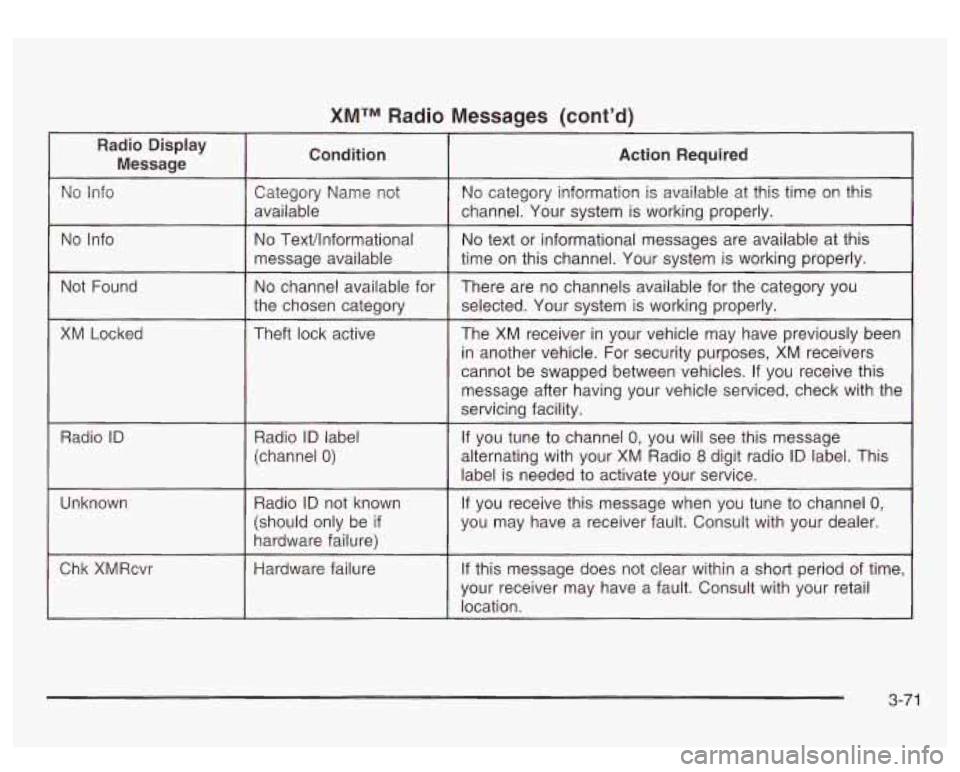
XMTM Radio Messages (cont’d)
No Info
Not Found
XM Locked
Radio
ID
Unknown
Chk XMRcvr
No Text/lnformational
message available
No channel available for
the chosen category
Theft lock active
Radio
ID label
(channel
0)
Radio ID not known
(should only be
if
hardware failure)
Hardware failure
No text or informational messages are available at this
time
on this channel. Your system is working properly.
There are no channels available for the category you
selected. Your system is working properly.
The XM receiver in your vehicle may have previously been
in another vehicle. For security purposes, XM receivers
cannot be swapped between vehicles. If you receive this
message after having your vehicle serviced, check with the
servicing facility.
If you tune to channel
0, you will see this message
alternating with your
XM Radio 8 digit radio ID label. This
label is needed to activate your service.
If you receive this message when you tune to channel 0,
you may have a receiver fault. Consult with your dealer.
If this message does not clear within a short period of time,
your receiver may have a fault. Consult with your retail
location.
3-71
Page 198 of 428
4 FWD (Forward): Press this pushbutton to advance
quickly to another part of the tape. Press this pushbutton
again to return to playing speed. The radio will play
while the tape advances. The station frequency
and FWD will appear on the display. You may select
stations during forward operation by using TUNE
and SEEK.
5 SIDE: Press this pushbutton to play the other side of
the tape.
4 SEEK b : The right arrow is the same as the
NEXT pushbutton, and the left arrow is the same as the
PREV pushbutton.
If the arrow is held or pressed
more than once, the player will continue moving forward
or backward through the tape. SEEK and a positive
or negative number will appear on the display.
4 SCAN b : To scan the tape, press and hold either
SCAN arrow for more than two seconds until SCAN
appears on the display and you hear a beep. Use this
feature to listen to
10 seconds of each selection on
the current side of the tape. Press either SCAN arrow
again, to stop scanning. Your tape must have at
least three seconds
of silence between each selection
for scan to work.
BAND: Press this button to listen to the radio when
a
tape is playing. The tape will stop but remain in the
player.
TAPE DISC: Press this button to play a tape when
listening to the radio. Press this button to switch
between the tape and compact disc
if both are loaded.
The inactive tape or CD will remain safely inside the
radio for future listening.
A (Eject): Press this button to stop a tape when it is
playing or to eject a tape when it is not playing. Eject
may be activated with the radio
off. Cassette tapes may
be loaded with the radio
off if this button is pressed
first.
Cassette Tape Messages
CHK TAPE (Check Tape): If CHK TAPE appears on
the radio display, the tape won’t play because of one of
the following errors.
9 The tape is tight and the player can’t turn the tape
hubs. Remove the tape. Hold the tape with the
open end down and try to turn the right hub
counterclockwise with a pencil. Turn the tape over
and repeat.
If the hubs do not turn easily, your
tape may be damaged and should not be used in
the player.
Try a new tape to make sure your player
is working properly.
The tape is broken. Try a new tape.
The tape is wrapped around the tape head. Attempt
to get the cassette out. Try a new tape.
3-73
Page 206 of 428
Theft-Deterrent Feature
THEFTLOCK@ is designed to discourage theft of your
radio. The feature works automatically by learning
a portion of the Vehicle Identification Number (VIN).
If
the radio is moved to a different vehicle, it will not
operate and LOCKED will be displayed.
When the radio and vehicle are turned
off, the blinking
red light indicates that THEFTLOCK@ is armed.
With THEFTLOCK@ activated, your radio will not operate
if stolen.
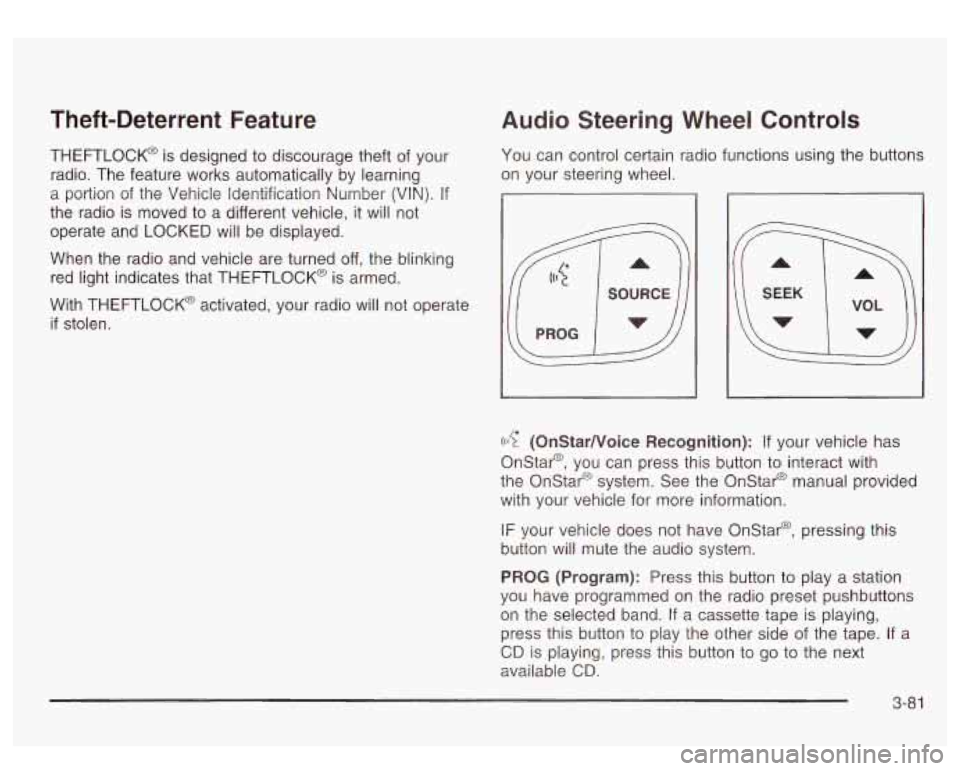
Audio Steering Wheel Controls
You can control certain radio functions using the buttons
on your steering wheel.
((17 (OnStarNoice Recognition): If your vehicle has
Onstar@, you can press this button to interact with
the Onstar@ system. See the Onstar@ manual provided
with your vehicle for more information.
IF your vehicle does not have Onstar@, pressing this
button will mute the audio system.
PROG (Program): Press this button to play a station
you have programmed on the radio preset pushbuttons
on the selected band.
If a cassette tape is playing,
press this button to play the other side of the tape. If a
CD is playing, press this button to go to the next
available
CD.
3-8 1