reset GMC YUKON DENALI 2003 Owners Manual
[x] Cancel search | Manufacturer: GMC, Model Year: 2003, Model line: YUKON DENALI, Model: GMC YUKON DENALI 2003Pages: 447, PDF Size: 21.97 MB
Page 136 of 447
Using HomeLink@
Press and hold the appropriate HomeLink@ button for at
least half of a second. The indicator light will come
on while the signal is being transmitted.
Erasing HomeLink@ Buttons
To erase programming from the three buttons do the
following:
1. Press and hold down the two outside buttons until
the indicator light begins
to flash, after 20 seconds.
2. Release both buttons. Do not hold for longer than
HomeLink@ is now in the train (learning) mode and can
be programmed at any time beginning with Step
2
under “Programming HomeLink@.”
30 seconds.
Individual buttons can not be erased, but they can be
reprogrammed. See “Reprogramming a Single
HomeLink@ Button” next.
Reprogramming a Single HomeLinkO
Button
To program a device to HomeLink@ using a HomeLink@
button previously trained, follow these steps:
1. Press and hold the desired HomeLink@ button. Do
not release the button.
2. The indicator light will begin to flash after
20 seconds. While still holding the HomeLink@
button, proceed with Step
2 under “Programming
HomeLink@.”
Resetting Defaults
To reset HomeLink@ to default settings do the following:
1. Hold down the two outside buttons for about
20 seconds until the indicator light begins to flash.
2. Continue to hold both buttons until the HomeLink@
indicator light turns
off.
3. Release both buttons.
For questions or comments, contact HomeLinkO at
1-800-355-351 5, or on the internet at
www.homelink.com.
2-41
Page 141 of 447
Sunroof
Your vehicle may be equipped with a power sliding
sunroof. To open or close your sunroof, the ignition
needs
to be on or RAP needs to be active. See
“Retained Accessory Power” under Ignition Positions on
page 2- 18.
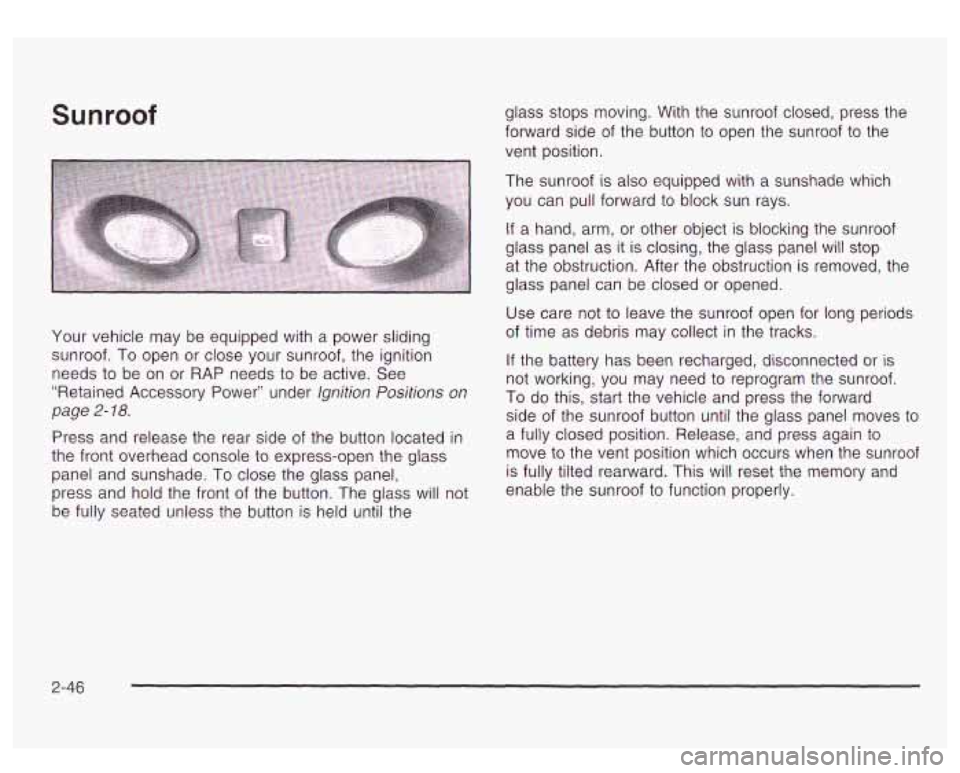
Press and release the rear side of the button located in
the front overhead console to express-open the glass
panel and sunshade.
To close the glass panel,
press and hold the front of the button. The glass will not
be fully seated unless the button is held until the glass stops moving.
With the sunroof closed, press the
forward side of the button to open the sunroof
to the
vent position.
The sunroof
is also equipped with a sunshade which
you can pull forward to block sun rays.
If a hand, arm, or other object is blocking the sunroof
glass panel as
it is closing, the glass panel will stop
at the obstruction. After the obstruction
is removed, the
glass panel can be closed or opened.
Use care not to leave the sunroof open for long periods
of time as debris may collect in the tracks.
If the battery has been recharged, disconnected or is
not working, you may need to reprogram the sunroof.
To do this, start the vehicle and press the forward
side of the sunroof button until the glass panel moves
to
a fully closed position. Release, and press again to
move to the vent position which occurs when the sunroof
is fully tilted rearward. This will reset the memory and
enable the sunroof to function properly.
2-46
Page 142 of 447
Vehicle Personalization
Memory Seat
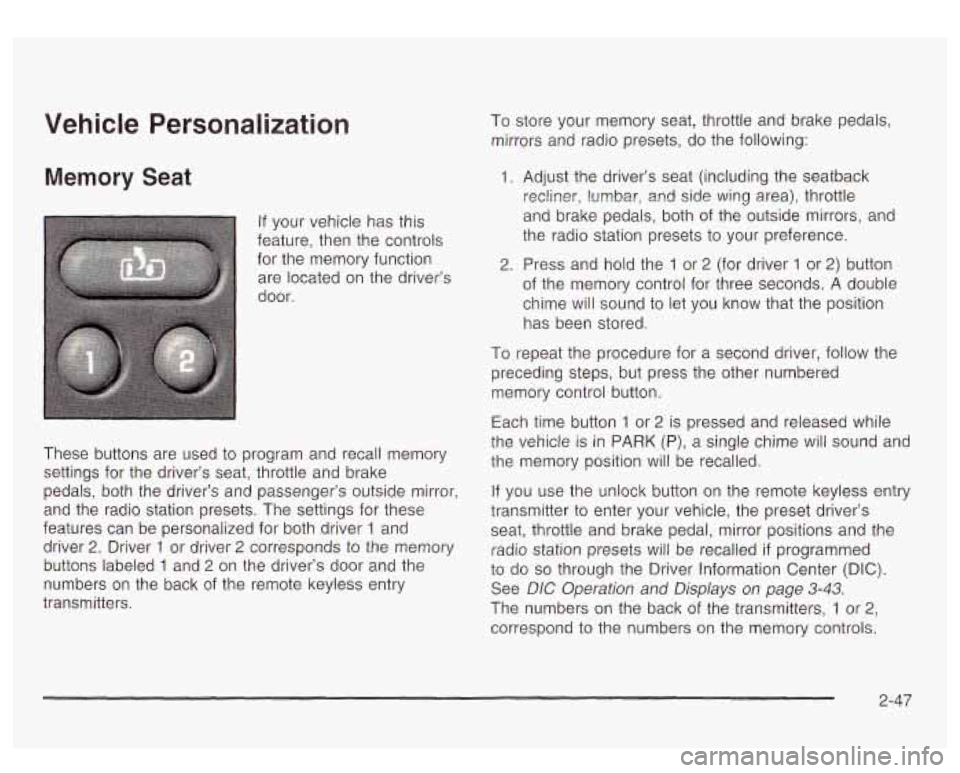
If your vehicle has this
feature, then the controls
for the memory function
are located on the driver’s
door.
These buttons are used
to program and recall memory
settings for the driver’s seat, throttle and brake
pedals, both the driver’s and passenger’s outside mirror,
and the radio station presets. The settings for these
features can be personalized for both driver
1 and
driver
2. Driver 1 or driver 2 corresponds to the memory
buttons labeled
1 and 2 on the driver’s door and the
numbers on the back of the remote keyless entry
transmitters. To store your memory seat, throttle and brake pedals,
mirrors and radio presets, do the following:
1. Adjust the driver’s seat (including the seatback
recliner, lumbar,
and side wing area), throttle
and brake pedals, both of the outside mirrors, and
the radio station presets to your preference.
2. Press and hold the 1 or 2 (for driver 1 or 2) button
of the memory control for three seconds. A double
chime will sound
to let you know that the position
has been stored.
To repeat the procedure for a second driver, follow the
preceding steps, but press the other numbered
memory control button.
Each time button
1 or 2 is pressed and released while
the vehicle
is in PARK (P), a single chime will sound and
the memory position will be recalled.
If you use the unlock button on the remote keyless entry
transmitter to enter your vehicle, the preset driver’s
seat, throttle and brake pedal, mirror positions and the
radio station presets will be recalled
if programmed
to do so through the Driver Information Center (DIC).
See DIC Operation and Displays on page
3-43.
The numbers on the back of the transmitters, 1 or 2,
correspond to the numbers on the memory controls.
2-47
Page 152 of 447
(High Speed): For high-speed wiping, turn the
band further, to the second solid band past the
delay settings.
0 (Off): To stop the wipers, move the band to off.
Be sure to clear ice and snow from the wiper blades
before using them. If they're frozen to the windshield,
carefully loosen or thaw them. If your blades do become
worn or damaged, get new blades or blade inserts.
Windshield Washer
(Washer Fluid): There is a paddle marked with the
windshield washer symbol at the top
of the multifunction
lever. To spray washer fluid on the windshield, push
the paddle. The wipers will clear the window and then
either stop or return to your preset speed.
In
freezing weatt.-., dl_-.'t use your washer
until the windshield
is warmed. Otherwise the
washer fluid can form ice
on the windshield,
blocking your vision.
Rear Window WasherNViper
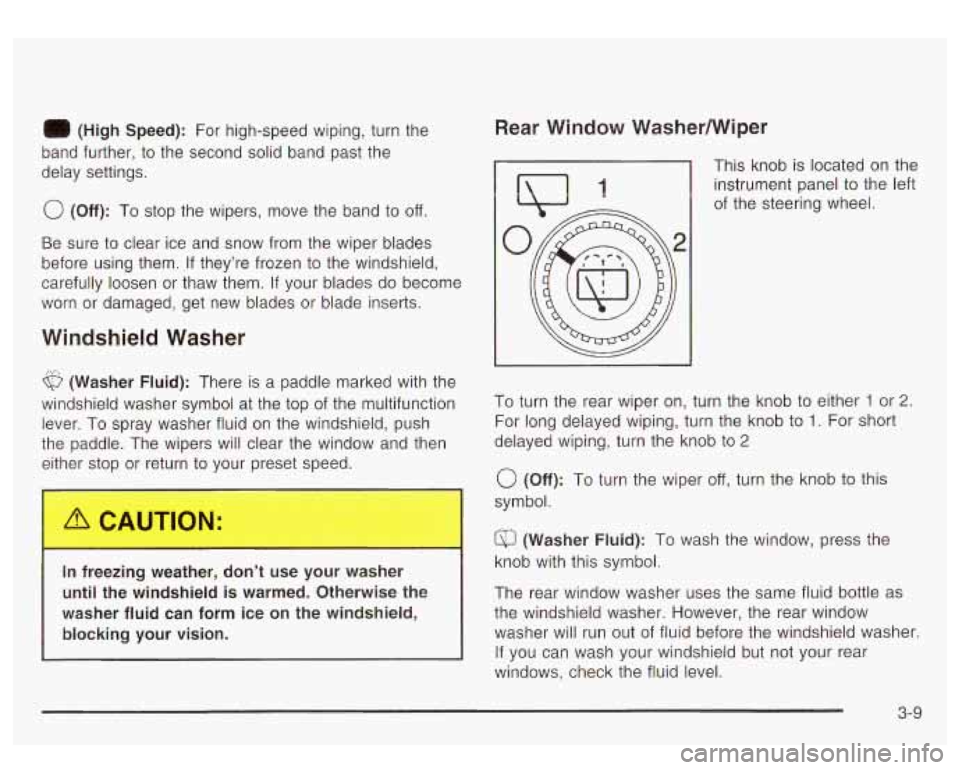
This knob is located on the
instrument panel to the left
of the steering wheel.
To turn the rear wiper on, turn the knob to either
1 or 2.
For long delayed wiping, turn the knob to 1. For short
delayed wiping, turn the knob
to 2
0 (Off): To turn the wiper off, turn the knob to this
symbol.
a (Washer Fluid): To wash the window, press the
knob with this symbol.
The rear window washer uses the same fluid bottle
as
the windshield washer. However, the rear window
washer will run out
of fluid before the windshield washer.
If you can wash your windshield but not your rear
windows, check the fluid level.
3-9
Page 154 of 447
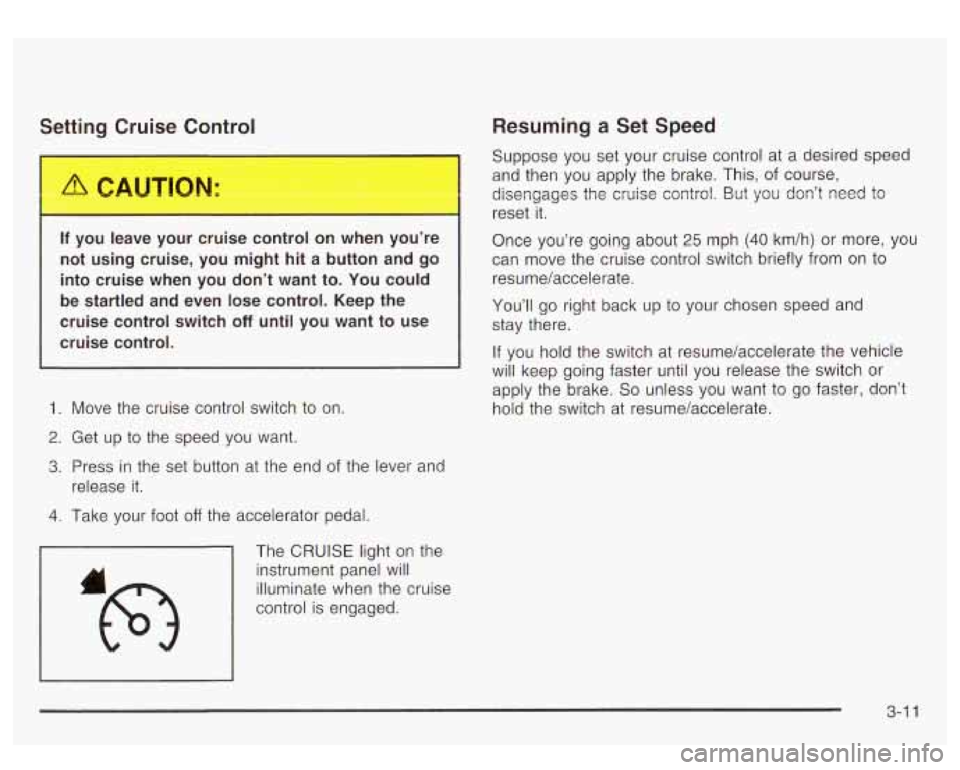
Settirn Cruise Cor+poI
If you leave your cruise control on when you’re
not using cruise, you might hit a button and go
into cruise when you don’t want to. You could
be startled and even lose control. Keep the
cruise control switch
off until you want to use
cruise control.
1. Move the cruise control switch to on.
2. Get up to the speed you want.
3. Press in the set button at the end of the lever and
release it.
4. Take your foot off the accelerator pedal.
The
CRUISE light on the
instrument panel will
illuminate when the cruise
control is engaged.
Resuming a Set Speed
Suppose you set your cruise control at a desired speed
and then you apply the brake. This, of course,
dismgages
the cruise cor;trol. But ~OLI dcn’t need to
reset it.
Once you’re going about
25 mph (40 km/h) or more, you
can move the cruise control switch briefly from on to
resume/accelerate.
You’ll go right back up
to your chosen speed and
stay there.
If you hold the switch at resume/accelerate the vehicle
will keep going faster until you release the switch or
apply the brake.
So unless you want to go faster, don’t
hold the switch at resume/accelerate.
3-1 1
Page 186 of 447
Driver Information Center (DIC)
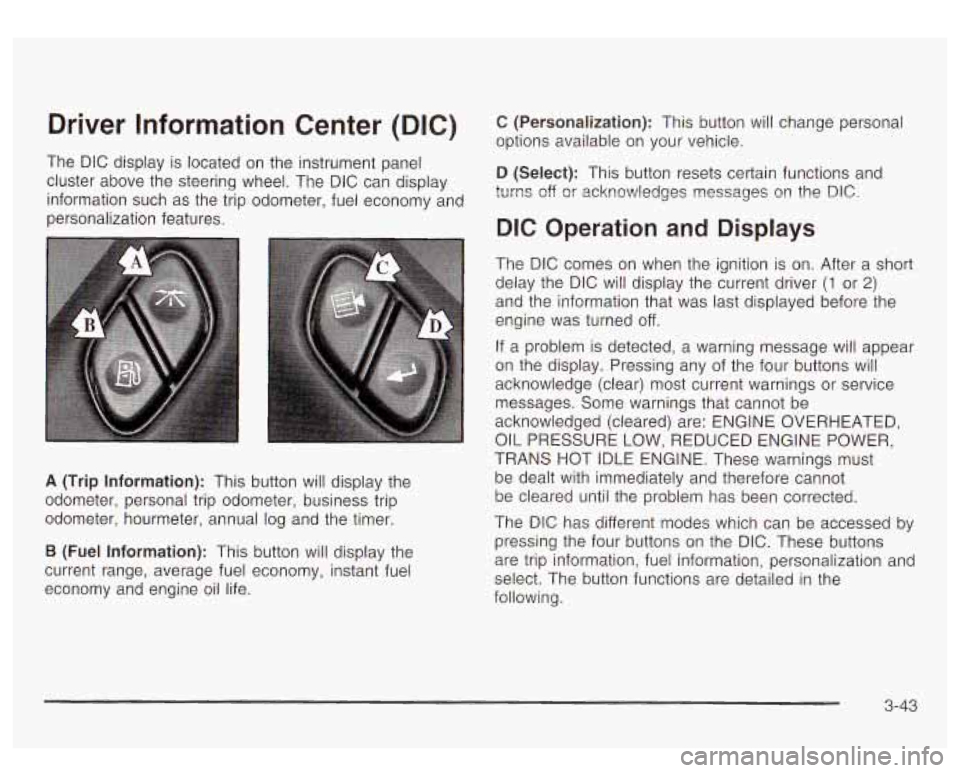
The DIC display is located on the instrument panel
cluster above the steering wheel. The DIC can display
information such as the trip odometer, fuel economy and
personalization features.
A (Trip Information): This button will display the
odometer, personal trip odometer, business trip
odometer, hourmeter, annual log and the timer.
B (Fuel Information): This button will display the
current range, average fuel economy, instant fuel
economy and engine oil life.
C (Personalization): This button will change personal
options available on your vehicle.
D (Select): This button resets certain functions and
turns off
or acknowledges nessages on the DIC.
DIC Operation and Displays
The DIC comes on when the ignition is on. After a short
delay the DIC will display the current driver
(1 or 2)
and the information that was last displayed before the
engine was turned off.
If a problem is detected, a warning message will appear
on the display. Pressing any of the four buttons will
acknowledge (clear) most current warnings or service
messages. Some warnings that cannot be
acknowledged (cleared) are: ENGINE OVERHEATED,
OIL PRESSURE LOW, REDUCED ENGINE POWER,
TRANS HOT IDLE ENGINE. These warnings must
be dealt with immediately and therefore cannot
be cleared until the problem has been corrected.
The DIC has different modes which can be accessed
by
pressing the four buttons on the DIC. These buttons
are trip information, fuel information, personalization and
select. The button functions are detailed in the
following.
3-43
Page 187 of 447
Select Button
The select button is used to reset certain functions and
turn
off or acknowledge messages on the DIC display.
The select button also toggles through the options available in each personalization menu. For example, this
button will reset the trip odometers, turn
off the FUEL
LEVEL LOW message, and toggle through the languages
you can select the DIC
to display information in.
Trip Information Button
Use the trip information button to scroll through the
SEASON ODOMETER, PERSONAL TRIP ON/OFF,
BUSINESS TRIP ON/OFF, HOURMETER, ANNUAL
LOG and TIMER.
If the personal trip and/or the business
trip are set
to ON, you will also be able to scroll
through more messages. See Personal Trip and
Business Trip next for more information.
Personal Trip
If the PERSONAL TRIP is on (turn it on or off by
pressing the select button) you will also be able to scroll
through the following:
e PERSONAL: XX MI - This shows the current
distance traveled since the last reset for the
personal trip odometer in either miles or kilometers.
PERSONAL: XX.X MPG - This shows the amount
of fuel used for the personal trip.
3-44
PERSONAL: AVG ECONOMY - This shows how
many miles per gallon of fuel your vehicle
is
getting for the personal trip based on current and
past driving conditions.
PERSONAL: AVG MPH - This shows the vehicle’s
average speed for the personal trip.
PERSONAL: % ANNUAL - This shows the ratio of
personal trip miles
to annual miles as a percent.
You can also reset the PERSONAL:
XX MI while it is
displayed by pressing the reset stem on the cluster.
If you press and hold the reset stem or select button for
four seconds, the display will show the distance
traveled since the last ignition cycle for the personal trip.
Business Trip
If the BUSINESS TRIP is on (turn it on or off by
pressing the select button) you will also
be able to scroll
through the following:
BUSINESS: XX MI - This shows the current
distance traveled since the last reset for the
business trip odometer in either miles or kilometers.
of fuel used for the business trip.
BUSINESS: AVG ECONOMY - This shows how
many miles per gallon of fuel your vehicle
is
getting for the business trip based on current and
past driving conditions.
BUSINESS: XX.X MPG - This shows the amount
Page 188 of 447
BUSINESS: AVG MPH - This shows the vehicle’s
average speed for the business trip.
BUSINESS: Yo ANNUAL - This shows the ratio GI
busifless trip miles to ar,nual miles as a percent.
To reset the personal or business trip information, do
the following: press and hold the select button for
two seconds while in one of the personal or business
trip modes. This will reset all of the information for
the personal or business trip.
You can also reset the BUSINESS:
XX MI while it is
displayed by pressing the reset stem on the cluster. If
you press and hold the reset stem or select button
for four seconds, the display will show the distance
traveled since the last ignition cycle for the business trip.
Season Odometer
Press the trip information button until SEASON
ODOMETER appears on the display. This shows the
total distance the vehicle has been driven in either miles
or kilometers. Pressing the reset stem located on the
instrument cluster with the vehicle
off will also display
the season odometer.
Hourmeter
Press the trip button to scroll to the hourmeter. The
hourmeter shows the total number of hours the engine
has run. Pressing the reset stem on the instrument
cluster will also display the hourmeter after the season
odometer is displayed.
Annual Log
Press the trip button to scroll to the annual log. The
annual log shows the mileage accumulated since it was
iasi reset. io reset the anntial log, press and hold
the select button for two seconds.
Timer
The DIC can be used as a stopwatch. Press the select
button while TIMER is displayed
to start the timer.
The display will show the amount of time that has
passed since the timer was last reset (not including time
the ignition is
off). Time will continue to be counted as
long as the ignition is on, even
if another display is being
shown on the DIC. The timer will record up
to 99 hours,
59 minutes and 59 seconds (99:59:59) after which
the display will roll back to zero.
To stop the counting of time, press the select button
briefly while TIMER is displayed.
To reset the timer to zero, press and hold the select
button while TIMER is displayed.
Fuel Information Button
Use the fuel information button to scroll through the
range, average fuel economy, instant fuel economy and
the
GM Oil Life System.
3-45
Page 189 of 447
Fuel Range GM Oil Life System
Press the fuel information button until RANGE appears
to display the remaining distance you can drive
without refueling. It’s based on fuel economy and the
fuel remaining in the tank. The display will show LOW
if
the fuel level is low.
The fuel economy data used
to determine fuel range is
an average of recent driving conditions. As your
driving conditions change, this data is gradually updated. Fuel range cannot be reset.
Average Fuel Economy
Press the fuel information button until AVG ECON
appears in the display. Average fuel economy is how
many miles per gallon your vehicle is getting based on
current and past driving conditions.
Press and hold the select button for two seconds while
AVG ECON is displayed to reset the average fuel
economy. Average fuel economy will then be calculated
starting from that point. If the average fuel economy is not
reset, it will be continually updated each time you drive.
Instant Fuel Economy
Press the fuel information button until INST ECON
appears in the display. Instant fuel economy is how
many miles per gallon your vehicle is getting at
the particular moment in time. The instant fuel economy
cannot be reset. Press the fuel information button until
ENGINE OIL LIFE
appears in the display. The GM Oil Life System shows
an estimate of the oil’s remaining useful life.
It will show
100% when the system is reset after an oil change.
It will alert you to change your oil on a schedule
consistent with your driving conditions.
Always reset the engine oil life after an oil change.
To reset the Oil Life System press and hold the select
button for five seconds while ENGINE OIL LIFE is
displayed. OIL LIFE RESET will appear on the display
for
10 seconds to let you know the system is reset.
The DIC does not replace the need
to maintain
your vehicle as recommended in the Maintenance
Schedule in this manual.
Also, the oil change reminder
will not detect dusty conditions or engine malfunctions
that may affect the oil.
Also, the oil change reminder
does not measure how much oil you have in your
engine.
So, be sure to check your oil level often.
See
Engine Oil on page 5- 13.
3-46
Page 195 of 447
If you choose English, all information will be displayed
in English units. For example, distance in miles and fuel
economy in miles per gallon.
Choose one of the two options and press the
personalization button while it is displayed on the DIC
to
select it and move on to the next feature.
Display Language
To select your personalization for display language,
press the select button while DISPLAY LANGUAGE is
displayed on the DIC. Pressing the select button
will scroll through the following languages:
English
French
Spanish
Choose one of the three options and press the
personalization button while it is displayed on the DIC
to
select it.
If you accidentally choose a language that you don’t
want or understand, press and hold the personalization
button and the trip information button at the same
time. The DIC will begin scrolling through the languages
in their particular language. English will be in English,
French will be in French and
so on. When you see
the language that you would like, release both buttons.
The
DIC will then display the information in the
language you chose. You can also scroll
through the different languages by
pressing and holding the trip reset stem for four seconds,
as long as you are in the season odometer mode.
DIC Warnings and Messages
Warning messages are displayed on the DIC to notify
the driver that the status of the vehicle has changed and
that some action may be needed by the driver
to
correct the condition. If there is more than one message
that needs to be displayed they will appear one after
another. Some messages may not require immediate
action but you should press the select button to
acknowledge that you received the message and clear it
from the display. Some messages cannot be cleared
from the display because they are more urgent;
these messages require action before they can be
removed from the DIC display. The following are the
possible messages that can be displayed and some
information about them.
CHANGE ENGINE OIL
This message is displayed when the engine oil needs to
be changed. See GM Oil Life System previously in
this section for information on how
to reset the message.
This message will clear itself after
10 seconds until
the next igntion cycle.
3-52