navigation system GMC YUKON DENALI 2009 User Guide
[x] Cancel search | Manufacturer: GMC, Model Year: 2009, Model line: YUKON DENALI, Model: GMC YUKON DENALI 2009Pages: 100, PDF Size: 1.41 MB
Page 18 of 100
Features and Controls
Using the Navigation System
This section presents basic information needed to
operate the navigation system.
Use the hard keys located on the navigation system
along with the available touch-sensitive screen buttons
on the navigation screen to operate the system.
SeeNavigation System Overview on page 1-2for more
information.
Once the vehicle is moving, various functions will be
disabled to reduce driver distractions.
Hard Keys
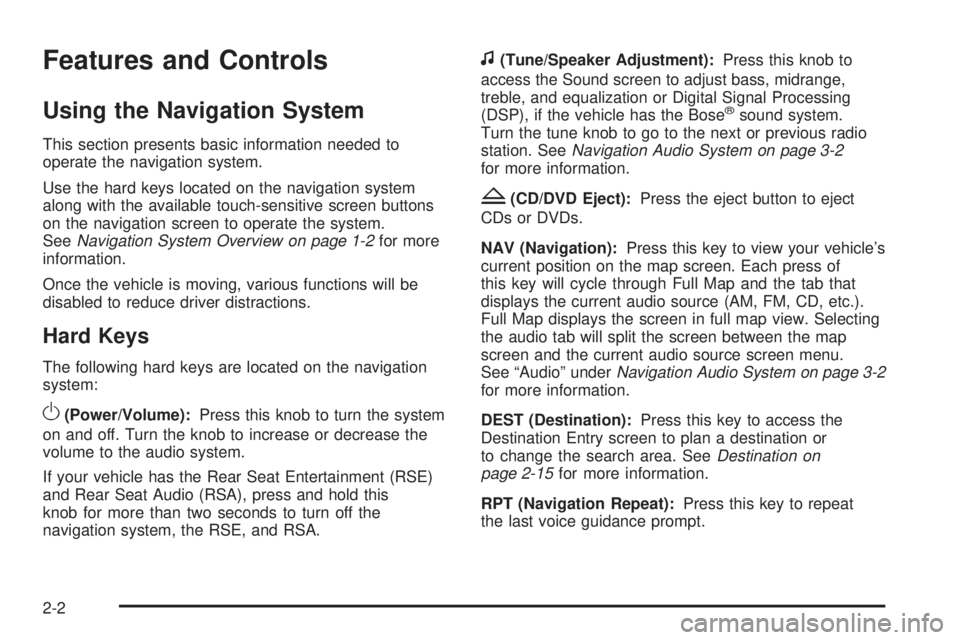
The following hard keys are located on the navigation
system:
O(Power/Volume):Press this knob to turn the system
on and off. Turn the knob to increase or decrease the
volume to the audio system.
If your vehicle has the Rear Seat Entertainment (RSE)
and Rear Seat Audio (RSA), press and hold this
knob for more than two seconds to turn off the
navigation system, the RSE, and RSA.
f(Tune/Speaker Adjustment):Press this knob to
access the Sound screen to adjust bass, midrange,
treble, and equalization or Digital Signal Processing
(DSP), if the vehicle has the Bose
®sound system.
Turn the tune knob to go to the next or previous radio
station. SeeNavigation Audio System on page 3-2
for more information.
Z(CD/DVD Eject):Press the eject button to eject
CDs or DVDs.
NAV (Navigation):Press this key to view your vehicle’s
current position on the map screen. Each press of
this key will cycle through Full Map and the tab that
displays the current audio source (AM, FM, CD, etc.).
Full Map displays the screen in full map view. Selecting
the audio tab will split the screen between the map
screen and the current audio source screen menu.
See “Audio” underNavigation Audio System on page 3-2
for more information.
DEST (Destination):Press this key to access the
Destination Entry screen to plan a destination or
to change the search area. SeeDestination on
page 2-15for more information.
RPT (Navigation Repeat):Press this key to repeat
the last voice guidance prompt.
2-2
Page 19 of 100
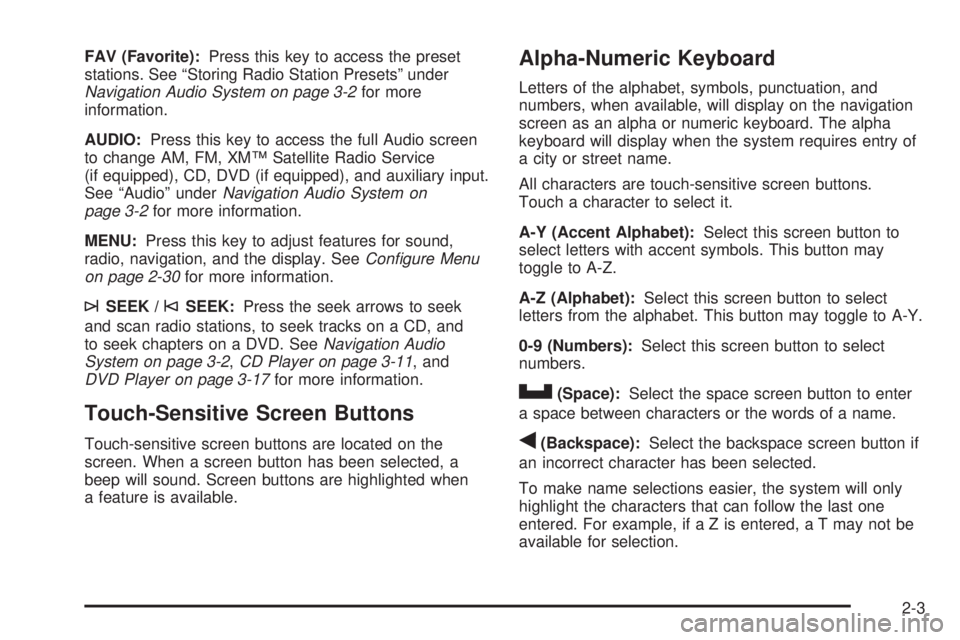
FAV (Favorite):Press this key to access the preset
stations. See “Storing Radio Station Presets” under
Navigation Audio System on page 3-2for more
information.
AUDIO:Press this key to access the full Audio screen
to change AM, FM, XM™ Satellite Radio Service
(if equipped), CD, DVD (if equipped), and auxiliary input.
See “Audio” underNavigation Audio System on
page 3-2for more information.
MENU:Press this key to adjust features for sound,
radio, navigation, and the display. SeeConfigure Menu
on page 2-30for more information.
¨SEEK /©SEEK:Press the seek arrows to seek
and scan radio stations, to seek tracks on a CD, and
to seek chapters on a DVD. SeeNavigation Audio
System on page 3-2,CD Player on page 3-11, and
DVD Player on page 3-17for more information.
Touch-Sensitive Screen Buttons
Touch-sensitive screen buttons are located on the
screen. When a screen button has been selected, a
beep will sound. Screen buttons are highlighted when
a feature is available.
Alpha-Numeric Keyboard
Letters of the alphabet, symbols, punctuation, and
numbers, when available, will display on the navigation
screen as an alpha or numeric keyboard. The alpha
keyboard will display when the system requires entry of
a city or street name.
All characters are touch-sensitive screen buttons.
Touch a character to select it.
A-Y (Accent Alphabet):Select this screen button to
select letters with accent symbols. This button may
toggle to A-Z.
A-Z (Alphabet):Select this screen button to select
letters from the alphabet. This button may toggle to A-Y.
0-9 (Numbers):Select this screen button to select
numbers.
U(Space):Select the space screen button to enter
a space between characters or the words of a name.
q(Backspace):Select the backspace screen button if
an incorrect character has been selected.
To make name selections easier, the system will only
highlight the characters that can follow the last one
entered. For example, if a Z is entered, a T may not be
available for selection.
2-3
Page 20 of 100
If a name does not display after entry, it may need to be
entered differently, the map DVD disc may not contain
that information, or the correct search area has not been
selected. SeeDatabase Coverage Explanations on
page 2-49for more information orDestination on
page 2-15to change the search area.
Maps
This section includes basic information needed to know
about the map database.
Map Coverage
The maps are stored on a DVD. The 48 contiguous
United States, along with Hawaii, Alaska, and portions
of Canada are contained on one disc.
Refer to the “Navigation System Map Disc” manual to
view a detailed explanation of map coverage and
detailed city lists in each region. This manual will be in
the map DVD case when the vehicle is delivered
from the factory.
Installing the DVD Map Disc
When a DVD Map Disc is installed, noise from the disc
may occur, this is normal system operation.
The navigation system in this vehicle uses a DVD to
store map information. When the system loads data from
the disc, you may hear a very slight buzz sound from
the navigation system. The sound is similar to that of a
CD player seeking through different tracks. This is
normal operation and may occur more frequently with
the use of XM NavTraffic.
Your dealer/retailer may have installed the map DVD.
If the map DVD was not installed, do the following
to load it:
1. Turn the ignition on.
2. Press the
O(power) knob to turn the navigation
system on or press the NAV, DEST, or MENU
hard keys. If the MENU hard key is selected, press
and hold until the NAV screen is active, or select
the NAV tab manually.
3. Touch the OK screen button to agree to the
Caution screen, if it appears. If the map is in
split screen mode, you must push the NAV tab
button to get the full map screen.
2-4
Page 21 of 100
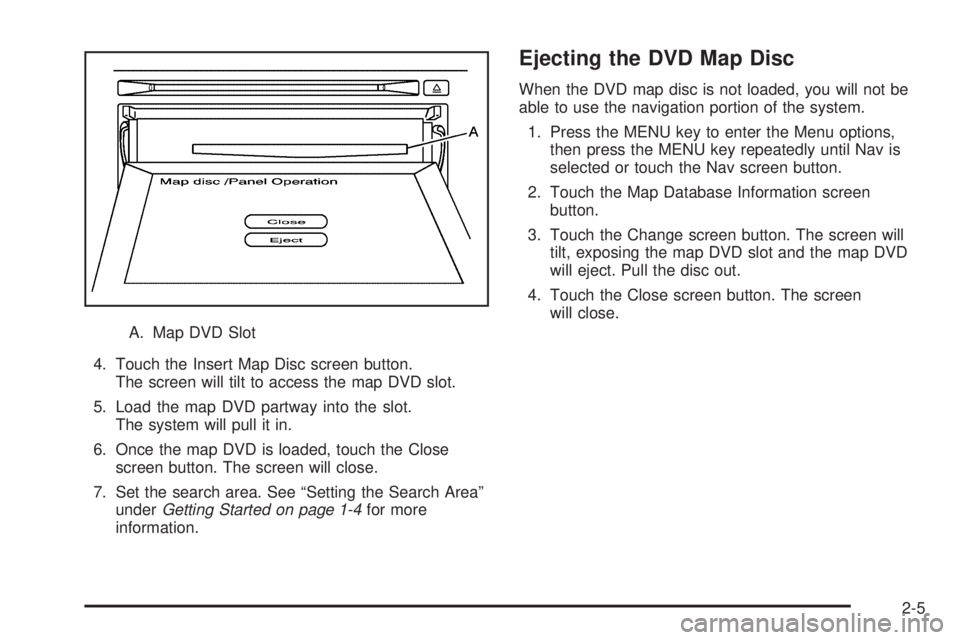
A. Map DVD Slot
4. Touch the Insert Map Disc screen button.
The screen will tilt to access the map DVD slot.
5. Load the map DVD partway into the slot.
The system will pull it in.
6. Once the map DVD is loaded, touch the Close
screen button. The screen will close.
7. Set the search area. See “Setting the Search Area”
underGetting Started on page 1-4for more
information.
Ejecting the DVD Map Disc
When the DVD map disc is not loaded, you will not be
able to use the navigation portion of the system.
1. Press the MENU key to enter the Menu options,
then press the MENU key repeatedly until Nav is
selected or touch the Nav screen button.
2. Touch the Map Database Information screen
button.
3. Touch the Change screen button. The screen will
tilt, exposing the map DVD slot and the map DVD
will eject. Pull the disc out.
4. Touch the Close screen button. The screen
will close.
2-5
Page 23 of 100
Map Scales
V
/U(Zoom In/Zoom Out):Touch the zoom in or
out screen buttons or the scale on the bar to change
the level of map detail. The scale will appear on the
screen once the zoom in or zoom out screen buttons are
selected. The system will adjust the map accordingly.
The scale of a map can range from 150 ft. (50 m) to
250 mi. (400 km). To change from English or metric,
see “Driver Information Center, DIC Operation and
Displays” in the Index of your vehicle’s owner manual.
Scrolling the Map
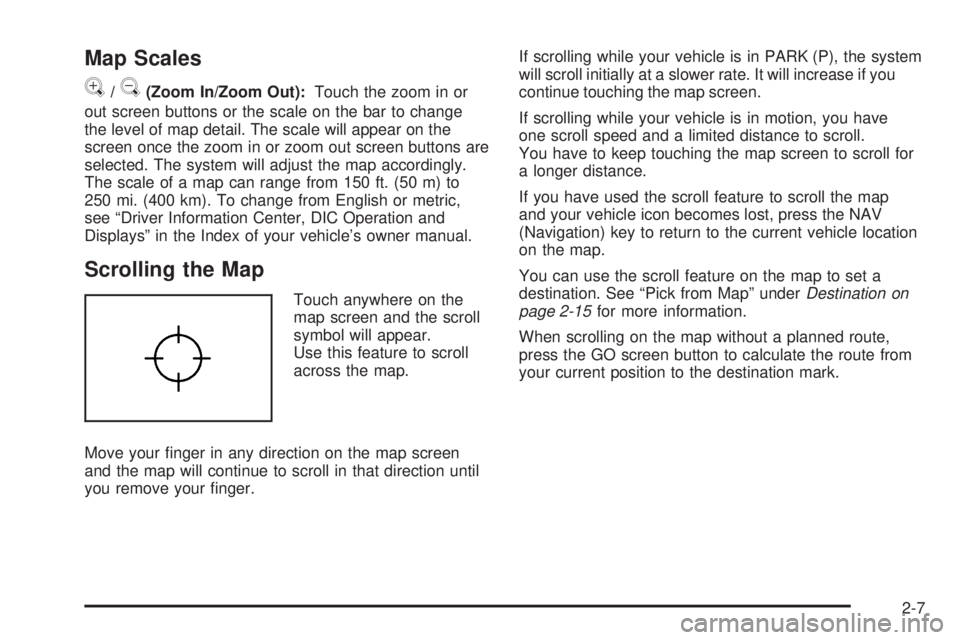
Touch anywhere on the
map screen and the scroll
symbol will appear.
Use this feature to scroll
across the map.
Move your nger in any direction on the map screen
and the map will continue to scroll in that direction until
you remove your nger.If scrolling while your vehicle is in PARK (P), the system
will scroll initially at a slower rate. It will increase if you
continue touching the map screen.
If scrolling while your vehicle is in motion, you have
one scroll speed and a limited distance to scroll.
You have to keep touching the map screen to scroll for
a longer distance.
If you have used the scroll feature to scroll the map
and your vehicle icon becomes lost, press the NAV
(Navigation) key to return to the current vehicle location
on the map.
You can use the scroll feature on the map to set a
destination. See “Pick from Map” underDestination on
page 2-15for more information.
When scrolling on the map without a planned route,
press the GO screen button to calculate the route from
your current position to the destination mark.
2-7
Page 38 of 100
OnStar®Destination Download
OnStar®Destination Download (if equipped) is a service
available for OnStar* subscribers that makes operating
your navigation system much simpler. It allows
subscribers to request and receive navigation assistance
on-the-go.
Using OnStar®Destination Download
Press the blue OnStar button and an Advisor can locate
a point-of-interest or an address and download the
necessary information or coordinates to your navigation
system. Once the destination is downloaded, the
navigation system will search for the address in the
mapping disc’s database. When the address is found,
it will be shown on your navigation system’s screen
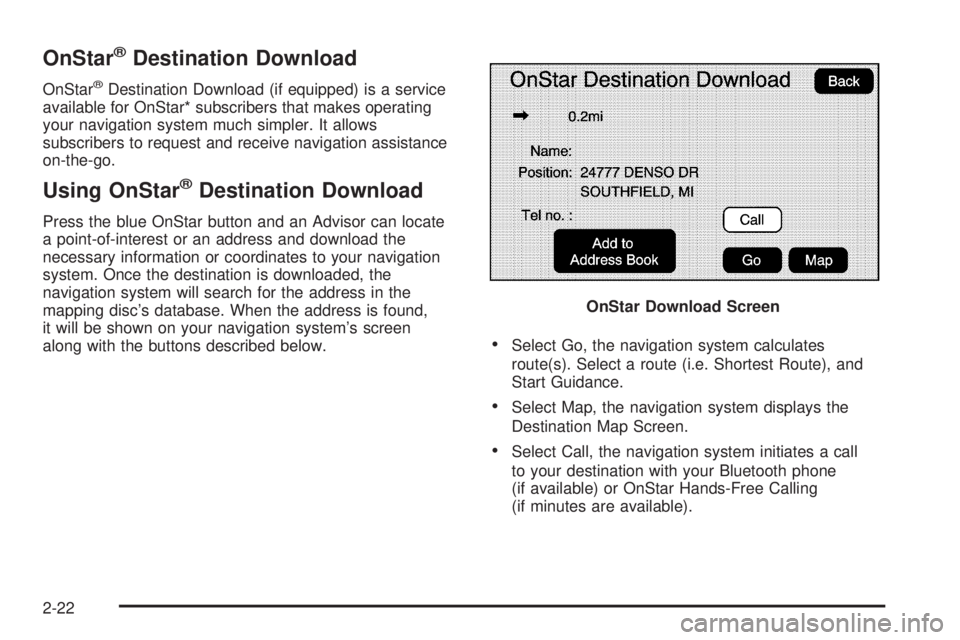
along with the buttons described below.
Select Go, the navigation system calculates
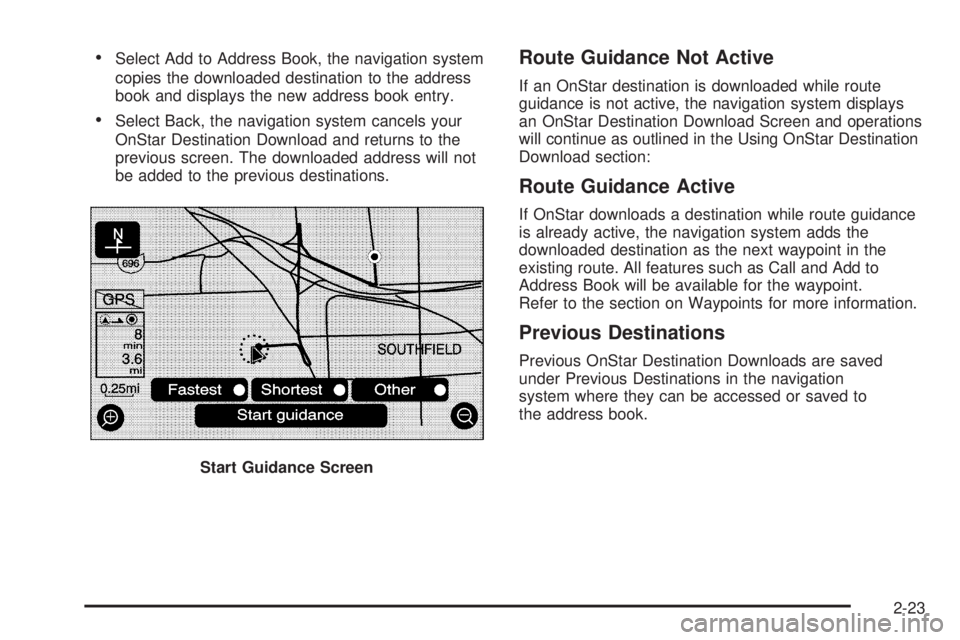
route(s). Select a route (i.e. Shortest Route), and
Start Guidance.
Select Map, the navigation system displays the
Destination Map Screen.
Select Call, the navigation system initiates a call
to your destination with your Bluetooth phone
(if available) or OnStar Hands-Free Calling
(if minutes are available).OnStar Download Screen
2-22
Page 39 of 100
Select Add to Address Book, the navigation system
copies the downloaded destination to the address
book and displays the new address book entry.
Select Back, the navigation system cancels your
OnStar Destination Download and returns to the
previous screen. The downloaded address will not
be added to the previous destinations.
Route Guidance Not Active
If an OnStar destination is downloaded while route
guidance is not active, the navigation system displays
an OnStar Destination Download Screen and operations
will continue as outlined in the Using OnStar Destination
Download section:
Route Guidance Active
If OnStar downloads a destination while route guidance
is already active, the navigation system adds the
downloaded destination as the next waypoint in the
existing route. All features such as Call and Add to
Address Book will be available for the waypoint.
Refer to the section on Waypoints for more information.
Previous Destinations
Previous OnStar Destination Downloads are saved
under Previous Destinations in the navigation
system where they can be accessed or saved to
the address book.
Start Guidance Screen
2-23
Page 40 of 100
Important Notes regarding OnStar Destination Download:
The map disc must be installed in the radio for
OnStar Destination Download to function.
If the navigation system is turned off when the
destination download is attempted, the navigation
system will automatically turn on and display the
OnStar Destination Download Screen. The radio will
remain on after the download occurs.
If the navigation system is turned off when the
destination download is attempted, the navigation
system will automatically turn on and display the
OnStar Destination Download Screen. The radio
remains on after the download occurs.
If OnStar downloads a destination and the address is
not found in the mapping disc’s database and routing
by coordinates is not available, the Go and Map
buttons gray out and routing will not be available.
Press the blue OnStar button for further assistance.
The Call button grays out when there is no phone
number available for your destination and while
connected to OnStar.
Map Destination Screen Functions
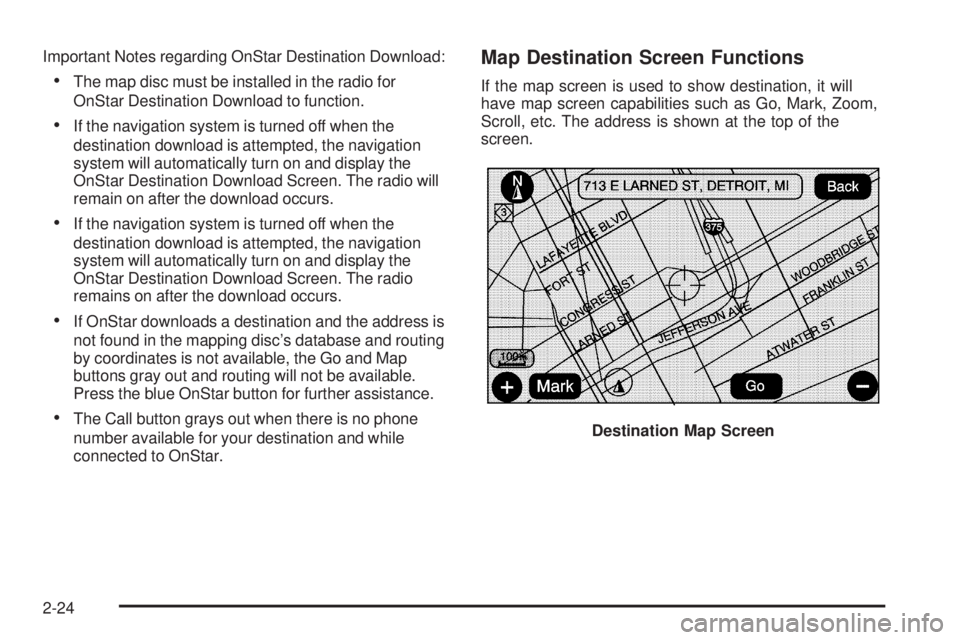
If the map screen is used to show destination, it will
have map screen capabilities such as Go, Mark, Zoom,
Scroll, etc. The address is shown at the top of the
screen.
Destination Map Screen
2-24
Page 46 of 100
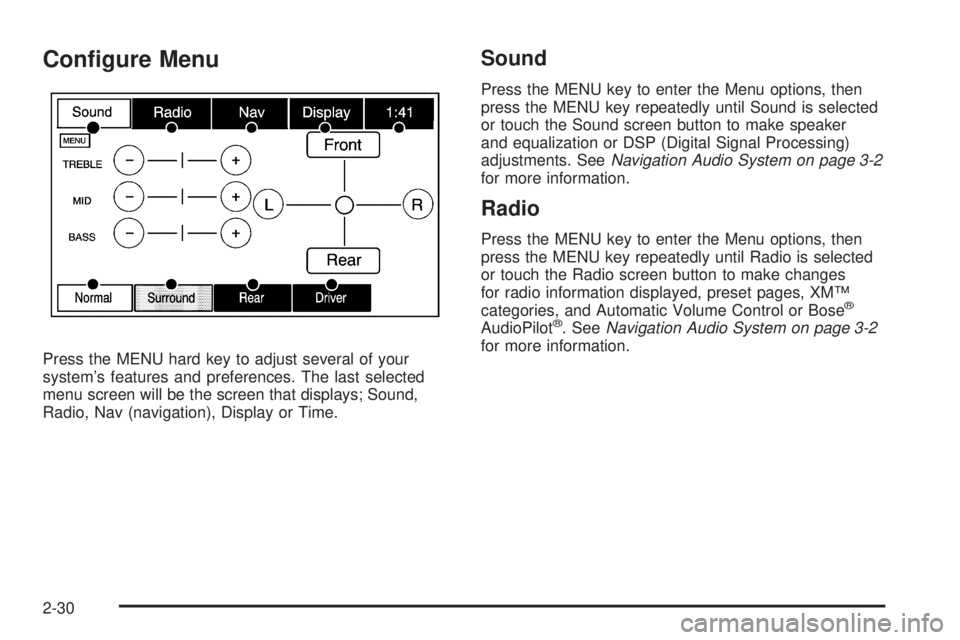
Congure Menu
Press the MENU hard key to adjust several of your
system’s features and preferences. The last selected
menu screen will be the screen that displays; Sound,
Radio, Nav (navigation), Display or Time.
Sound
Press the MENU key to enter the Menu options, then
press the MENU key repeatedly until Sound is selected
or touch the Sound screen button to make speaker
and equalization or DSP (Digital Signal Processing)
adjustments. SeeNavigation Audio System on page 3-2
for more information.
Radio
Press the MENU key to enter the Menu options, then
press the MENU key repeatedly until Radio is selected
or touch the Radio screen button to make changes
for radio information displayed, preset pages, XM™
categories, and Automatic Volume Control or Bose
®
AudioPilot®. SeeNavigation Audio System on page 3-2
for more information.
2-30
Page 47 of 100
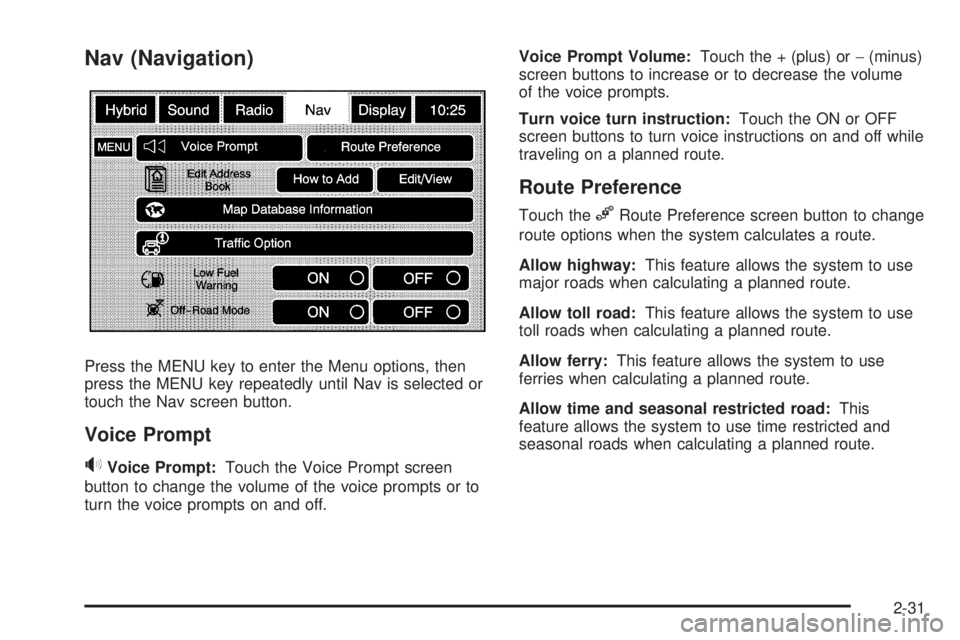
Nav (Navigation)
Press the MENU key to enter the Menu options, then
press the MENU key repeatedly until Nav is selected or
touch the Nav screen button.
Voice Prompt
>Voice Prompt:Touch the Voice Prompt screen
button to change the volume of the voice prompts or to
turn the voice prompts on and off.Voice Prompt Volume:Touch the + (plus) or−(minus)
screen buttons to increase or to decrease the volume
of the voice prompts.
Turn voice turn instruction:Touch the ON or OFF
screen buttons to turn voice instructions on and off while
traveling on a planned route.
Route Preference
Touch the%Route Preference screen button to change
route options when the system calculates a route.
Allow highway:This feature allows the system to use
major roads when calculating a planned route.
Allow toll road:This feature allows the system to use
toll roads when calculating a planned route.
Allow ferry:This feature allows the system to use
ferries when calculating a planned route.
Allow time and seasonal restricted road:This
feature allows the system to use time restricted and
seasonal roads when calculating a planned route.
2-31