navigation system GMC YUKON DENALI 2009 Owner's Manual
[x] Cancel search | Manufacturer: GMC, Model Year: 2009, Model line: YUKON DENALI, Model: GMC YUKON DENALI 2009Pages: 100, PDF Size: 1.41 MB
Page 50 of 100
Map Database Information
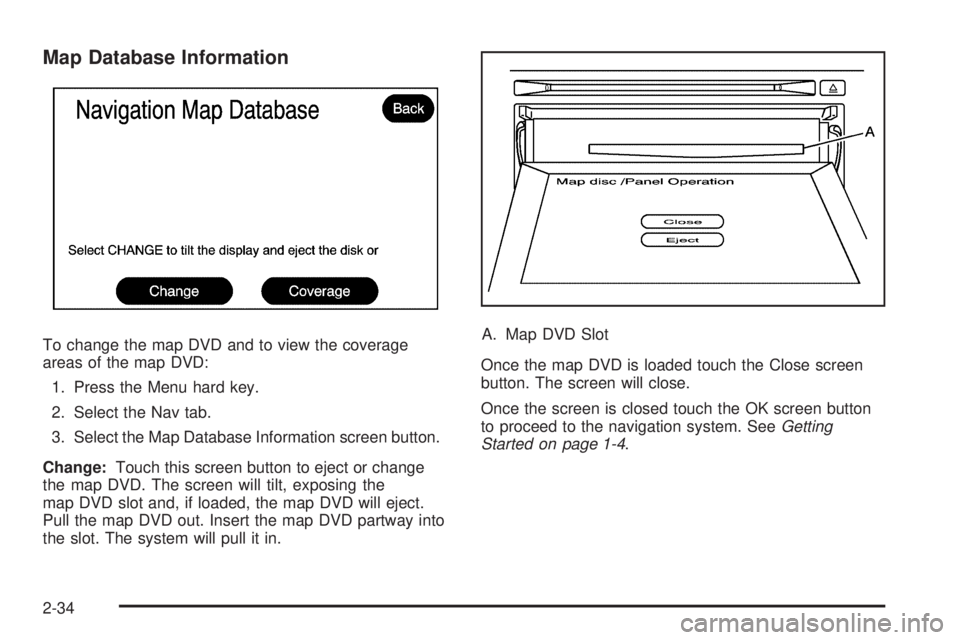
To change the map DVD and to view the coverage
areas of the map DVD:
1. Press the Menu hard key.
2. Select the Nav tab.
3. Select the Map Database Information screen button.
Change:Touch this screen button to eject or change
the map DVD. The screen will tilt, exposing the
map DVD slot and, if loaded, the map DVD will eject.
Pull the map DVD out. Insert the map DVD partway into
the slot. The system will pull it in.A. Map DVD Slot
Once the map DVD is loaded touch the Close screen
button. The screen will close.
Once the screen is closed touch the OK screen button
to proceed to the navigation system. SeeGetting
Started on page 1-4.
2-34
Page 51 of 100
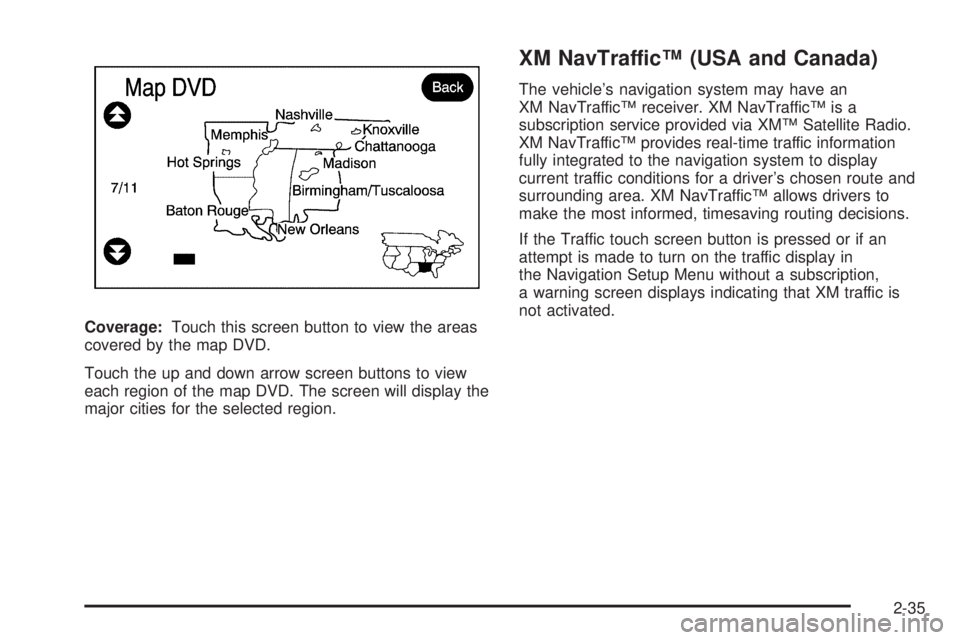
Coverage:Touch this screen button to view the areas
covered by the map DVD.
Touch the up and down arrow screen buttons to view
each region of the map DVD. The screen will display the
major cities for the selected region.
XM NavTraffic™ (USA and Canada)
The vehicle’s navigation system may have an
XM NavTraffic™ receiver. XM NavTraffic™ is a
subscription service provided via XM™ Satellite Radio.
XM NavTraffic™ provides real-time traffic information
fully integrated to the navigation system to display
current traffic conditions for a driver’s chosen route and
surrounding area. XM NavTraffic™ allows drivers to
make the most informed, timesaving routing decisions.
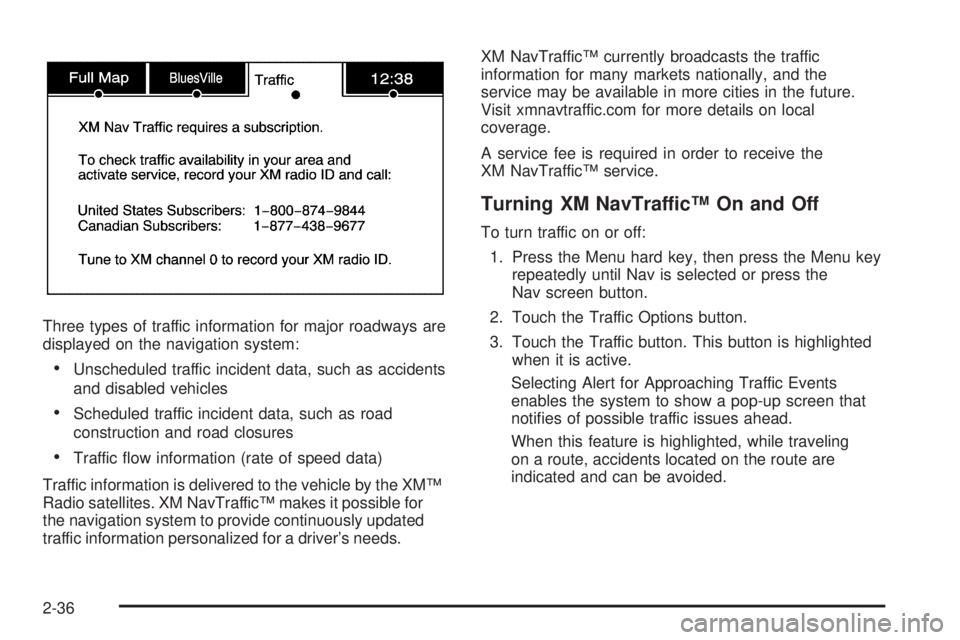
If the Traffic touch screen button is pressed or if an
attempt is made to turn on the traffic display in
the Navigation Setup Menu without a subscription,
a warning screen displays indicating that XM traffic is
not activated.
2-35
Page 52 of 100
Three types of traffic information for major roadways are
displayed on the navigation system:
Unscheduled traffic incident data, such as accidents
and disabled vehicles
Scheduled traffic incident data, such as road
construction and road closures
Traffic ow information (rate of speed data)
Traffic information is delivered to the vehicle by the XM™
Radio satellites. XM NavTraffic™ makes it possible for
the navigation system to provide continuously updated
traffic information personalized for a driver’s needs.XM NavTraffic™ currently broadcasts the traffic
information for many markets nationally, and the
service may be available in more cities in the future.
Visit xmnavtraffic.com for more details on local
coverage.
A service fee is required in order to receive the
XM NavTraffic™ service.
Turning XM NavTraffic™ On and Off
To turn traffic on or off:
1. Press the Menu hard key, then press the Menu key
repeatedly until Nav is selected or press the
Nav screen button.
2. Touch the Traffic Options button.
3. Touch the Traffic button. This button is highlighted
when it is active.
Selecting Alert for Approaching Traffic Events
enables the system to show a pop-up screen that
noties of possible traffic issues ahead.
When this feature is highlighted, while traveling
on a route, accidents located on the route are
indicated and can be avoided.
2-36
Page 59 of 100
Back, Map, More, and Avoid
These buttons have common functions across all three
Detailed Traffic Event screens.
Back:Press to return to the previous screen.
Map:Press to show the related traffic event on the
map. If selected, the Map Traffic Event Icon screen
displays.
More:Press to display more of the traffic event
description.
Avoid:This button is used to avoid the location of an
event on the route. If selected, a new route is calculated
and the related traffic event is avoided. After the new
route has been calculated, the navigation system
goes to the full map screen and shows the new route.
The Avoid button is only available if the route ahead and
in the Traffic On Route List.
Traffic Voice Prompts
If the voice prompts are on, whenever an Alert for
Approaching Traffic is displayed, the system gives
the related voice prompt. The content of the voice
prompt depends on actual traffic event data.
The RPT (Repeat) hard key is for navigation traffic
maneuvers only. It is not used to repeat traffic prompts.
During a traffic voice prompt, if RPT is pressed, the
current prompt playback cancels.
Anything that cancels the Alert for Approaching Traffic,
also cancels the related voice prompt.
Traffic prompts are disabled during OnStar
®or Voice
Recognition activity.
2-43
Page 62 of 100
Global Positioning System (GPS)
The navigation system determines the position of the
vehicle by using satellite signals, various vehicle signals,
and map data.
At times, other interferences such as the satellite
condition, road conguration, the condition of the vehicle
and/or other circumstances can interfere with the
navigation system’s ability to determine the accurate
position of the vehicle.
The GPS shows the current position of the vehicle using
signals sent by the GPS Satellites of the United States
Department of Defense. When the vehicle is not
receiving signals from the satellites, a symbol appears
on the map screen. Refer toSymbols on page 2-8.This system may not be available or interferences may
occur if:Signals are obstructed by tall buildings, trees, large
trucks, or a tunnel.
Objects that are placed on top of or near the
instrument panel.
Satellites are being repaired or improved.
After-market glass tinting has been applied to the
vehicle’s windshield.
Notice:Do not apply after-market glass tinting to
the vehicle’s windows. Glass tinting interferes
with the system’s ability to receive GPS signals and
causes the system to malfunction. The window
might have to be replaced to correct the problem.
This would not be covered by the warranty.
For more information if the GPS is not functioning
properly, seeIf the System Needs Service on page 2-48
andProblems with Route Guidance on page 2-48.
2-46
Page 63 of 100
Vehicle Positioning
At times, the position of the vehicle on the map may be
inaccurate due to one or more of the following reasons:
The road system has changed.
The vehicle is driving on slippery road surfaces such
as in sand, gravel, and/or snow.
The vehicle is traveling on winding roads.
The vehicle is on a long straight road.
The vehicle is approaching a tall building or a large
vehicle.
The surface streets run parallel to a freeway.
The vehicle has just been transferred by a vehicle
carrier or a ferry.
The current position calibration is set incorrectly.
The vehicle is traveling at high speed.
The vehicle changes directions more than once, or
when the vehicle is turning on a turn table in a
parking lot.
The vehicle is entering and/or exiting a parking lot,
garage, or a lot with a roof.
The GPS signal is not received.
A roof carrier is installed on your vehicle.
The vehicle is being driven with tire chains.
The tires are replaced.
The tire pressure for your tires is incorrect.
The tires are worn.
The rst time the map DVD is inserted.
The battery is disconnected for several days.
The vehicle is driving in heavy traffic where driving is
at low speeds, and the vehicle is stopped and started
repeatedly.
If problems are experienced with the navigation system,
see your dealer/retailer.
2-47
Page 64 of 100
Problems with Route Guidance
Inappropriate route guidance may occur under one or
more of the following conditions:
You have not turned onto the road indicated.
Route guidance may not be available when using
automatic rerouting for the next right or left turn.
The route may not be changed when using
automatic rerouting.
There is no route guidance when turning at an
intersection.
Plural names of places may be announced
occasionally.
It may take a long time to operate automatic
rerouting during high-speed driving.
Automatic rerouting may display a route returning to
the set waypoint if you are heading for a destination
without passing through a set waypoint.
The route prohibits the entry of a vehicle due to a
regulation by time or season or any other regulation
which may be given.
Some routes may not be searched.
The route to the destination may not be shown if
there are new roads, if roads have recently
changed, or if certain roads are not listed on the
map DVD. SeeOrdering Map DVDs on page 2-49.
To recalibrate the vehicle’s position on the map, see
your dealer/retailer.
If the System Needs Service
If the navigation system needs service and the steps
listed here have been followed but there are still
problems, see your dealer/retailer for assistance.
2-48
Page 65 of 100
Ordering Map DVDs
The map DVD in the vehicle is the most up-to-date
information available when the vehicle was produced.
The map DVD is updated periodically, provided that the
map information has changed.
For any questions about the operation of the navigation
system or the update process, contact the GM Nav
Disc Center toll-free phone number, 1-877-NAV-DISC
(1-877-628-3472) or go to the center’s website,
gmnavdisc.com. For any updates or replacements,
call the GM Nav Disc Center or order a new disc online.
Have the Vehicle Identication Number (VIN) available
when ordering to ensure the correct and most up-to-date
DVD map disc for the vehicle is sent. See “Vehicle
Identication Number (VIN)” in the Index of the vehicle’s
owner manual for more information.After receiving the updated disc, replace the old disc in
the navigation system. See “Installing the DVD Map
Disc” and “Ejecting the DVD Map Disc” underMaps on
page 2-4. Dispose of the old disc to avoid confusion
about which disc is the most current.
Database Coverage Explanations
Coverage area depends upon the map detail available.
Some areas have greater map detail than others.
The navigation system works only as well as the
information provided on the map disc. SeeOrdering
Map DVDs on page 2-49on how to obtain updated
map information.
2-49
Page 67 of 100
Navigation Audio System..................................3-2
CD Player...................................................3-11
DVD Player.................................................3-17Care of Your CDs and DVDs.........................3-22
Auxiliary Devices..........................................3-23
Section 3 Navigation Audio System
3-1
Page 68 of 100
Navigation Audio System
Notice:Before adding any sound equipment to
the vehicle, such as an audio system, CD player,
CB radio, mobile telephone, or two-way radio,
make sure that it can be added by checking with
your dealer/retailer. Also, check federal rules
covering mobile radio and telephone units. If sound
equipment can be added, it is very important to
do it properly. Added sound equipment can interfere
with the operation of the vehicle’s engine, radio,
or other systems, and even damage them.
The vehicle’s systems can interfere with the
operation of sound equipment that has been added.
Notice:The chime signals related to safety belts,
parking brake, and other functions of the vehicle
operate through the navigation system. If that
equipment is replaced or additional equipment is
added to the vehicle, the chimes may not work.
Make sure that replacement or additional equipment
is compatible with the vehicle before installing it.
See “Accessories and Modications” in the Index of
the vehicle’s owner manual.
Playing the Radio
O
(Power/Volume):Press this knob to turn the audio
system on and off. Turn the knob to increase or to
decrease the volume.
f(Tuning/Sound Knob):Turn this knob to go to the
next or previous frequency.
Press this knob to display the Sound menu. See “Sound
Menu” later in this section.
AUDIO:Press this key to display the audio screen.
Press the key to switch between AM, FM, or XM,
if equipped, DISC, or AUX (Auxiliary), or touch the
screen button. SeeCD Player on page 3-11,DVD
Player on page 3-17, andAuxiliary Devices on
page 3-23for more information.
3-2