key GMC YUKON DENALI 2009 Owner's Guide
[x] Cancel search | Manufacturer: GMC, Model Year: 2009, Model line: YUKON DENALI, Model: GMC YUKON DENALI 2009Pages: 100, PDF Size: 1.41 MB
Page 54 of 100
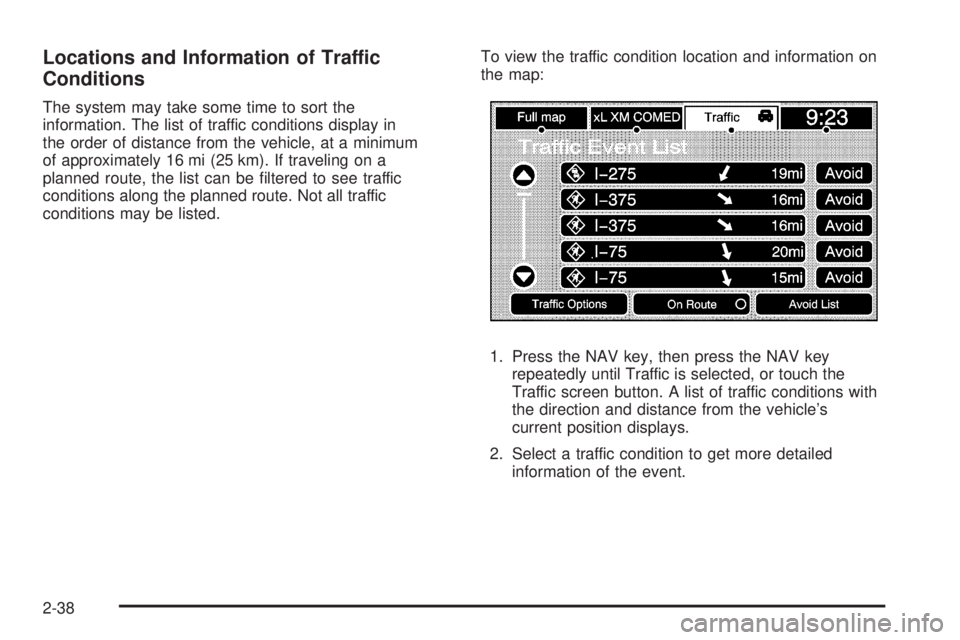
Locations and Information of Traffic
Conditions
The system may take some time to sort the
information. The list of traffic conditions display in
the order of distance from the vehicle, at a minimum
of approximately 16 mi (25 km). If traveling on a
planned route, the list can be ltered to see traffic
conditions along the planned route. Not all traffic
conditions may be listed.To view the traffic condition location and information on
the map:
1. Press the NAV key, then press the NAV key
repeatedly until Traffic is selected, or touch the
Traffic screen button. A list of traffic conditions with
the direction and distance from the vehicle’s
current position displays.
2. Select a traffic condition to get more detailed
information of the event.
2-38
Page 58 of 100
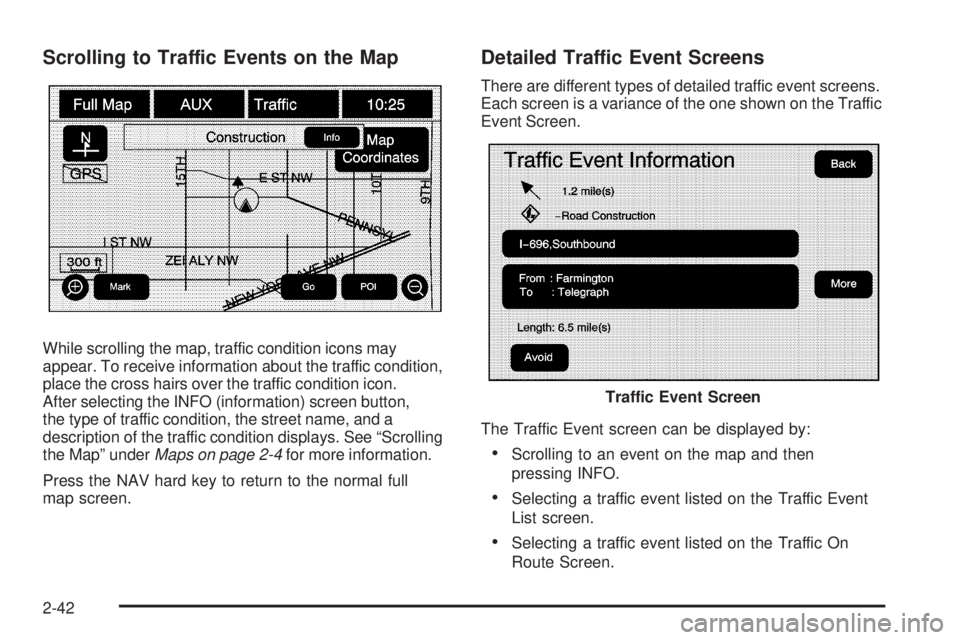
Scrolling to Traffic Events on the Map
While scrolling the map, traffic condition icons may
appear. To receive information about the traffic condition,
place the cross hairs over the traffic condition icon.
After selecting the INFO (information) screen button,
the type of traffic condition, the street name, and a
description of the traffic condition displays. See “Scrolling
the Map” underMaps on page 2-4for more information.
Press the NAV hard key to return to the normal full
map screen.
Detailed Traffic Event Screens
There are different types of detailed traffic event screens.
Each screen is a variance of the one shown on the Traffic
Event Screen.
The Traffic Event screen can be displayed by:
Scrolling to an event on the map and then
pressing INFO.
Selecting a traffic event listed on the Traffic Event
List screen.
Selecting a traffic event listed on the Traffic On
Route Screen.
Traffic Event Screen
2-42
Page 59 of 100
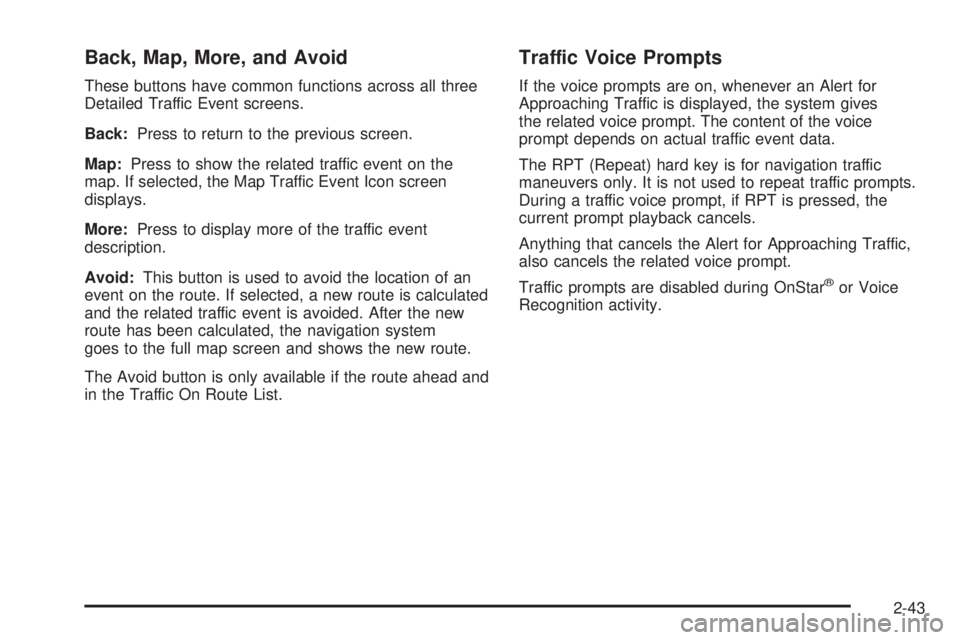
Back, Map, More, and Avoid
These buttons have common functions across all three
Detailed Traffic Event screens.
Back:Press to return to the previous screen.
Map:Press to show the related traffic event on the
map. If selected, the Map Traffic Event Icon screen
displays.
More:Press to display more of the traffic event
description.
Avoid:This button is used to avoid the location of an
event on the route. If selected, a new route is calculated
and the related traffic event is avoided. After the new
route has been calculated, the navigation system
goes to the full map screen and shows the new route.
The Avoid button is only available if the route ahead and
in the Traffic On Route List.
Traffic Voice Prompts
If the voice prompts are on, whenever an Alert for
Approaching Traffic is displayed, the system gives
the related voice prompt. The content of the voice
prompt depends on actual traffic event data.
The RPT (Repeat) hard key is for navigation traffic
maneuvers only. It is not used to repeat traffic prompts.
During a traffic voice prompt, if RPT is pressed, the
current prompt playback cancels.
Anything that cancels the Alert for Approaching Traffic,
also cancels the related voice prompt.
Traffic prompts are disabled during OnStar
®or Voice
Recognition activity.
2-43
Page 60 of 100
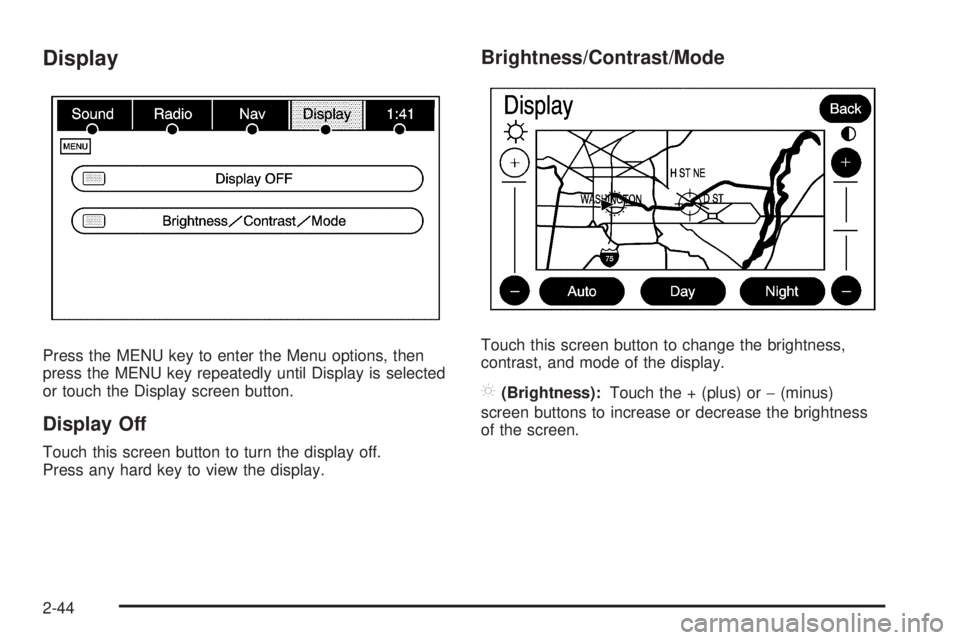
Display
Press the MENU key to enter the Menu options, then
press the MENU key repeatedly until Display is selected
or touch the Display screen button.
Display Off
Touch this screen button to turn the display off.
Press any hard key to view the display.
Brightness/Contrast/Mode
Touch this screen button to change the brightness,
contrast, and mode of the display.
](Brightness):Touch the + (plus) or−(minus)
screen buttons to increase or decrease the brightness
of the screen.
2-44
Page 61 of 100
_(Contrast):Touch the + (plus) or−(minus) screen
buttons to increase or decrease the contrast of the
screen.
Auto (Automatic):Touch this screen button for the
system to automatically adjust the screen background
depending on exterior lighting conditions.
At night, the brightness can be adjusted with the vehicle
dimming knob near the headlamp switch.
Night:Touch this screen button and the system will
make the map background darker.
Day:Touch this screen button and the system will
make the map background brighter.Setting the Clock
Press the MENU key to enter the menu options,
then press the MENU key repeatedly until the time is
selected or touch the time screen button, then press
the Set screen button.
Hours:Press the−(minus) or + (plus) signs to
decrease or increase the hours.
Minutes:Press the−(minus) or + (plus) signs to
decrease or increase the minutes.
12/24 Format:Select the 12 screen button for standard
time; select the 24 screen button for military time.
2-45
Page 68 of 100
Navigation Audio System
Notice:Before adding any sound equipment to
the vehicle, such as an audio system, CD player,
CB radio, mobile telephone, or two-way radio,
make sure that it can be added by checking with
your dealer/retailer. Also, check federal rules
covering mobile radio and telephone units. If sound
equipment can be added, it is very important to
do it properly. Added sound equipment can interfere
with the operation of the vehicle’s engine, radio,
or other systems, and even damage them.
The vehicle’s systems can interfere with the
operation of sound equipment that has been added.
Notice:The chime signals related to safety belts,
parking brake, and other functions of the vehicle
operate through the navigation system. If that
equipment is replaced or additional equipment is
added to the vehicle, the chimes may not work.
Make sure that replacement or additional equipment
is compatible with the vehicle before installing it.
See “Accessories and Modications” in the Index of
the vehicle’s owner manual.
Playing the Radio
O
(Power/Volume):Press this knob to turn the audio
system on and off. Turn the knob to increase or to
decrease the volume.
f(Tuning/Sound Knob):Turn this knob to go to the
next or previous frequency.
Press this knob to display the Sound menu. See “Sound
Menu” later in this section.
AUDIO:Press this key to display the audio screen.
Press the key to switch between AM, FM, or XM,
if equipped, DISC, or AUX (Auxiliary), or touch the
screen button. SeeCD Player on page 3-11,DVD
Player on page 3-17, andAuxiliary Devices on
page 3-23for more information.
3-2
Page 69 of 100
Finding a Station
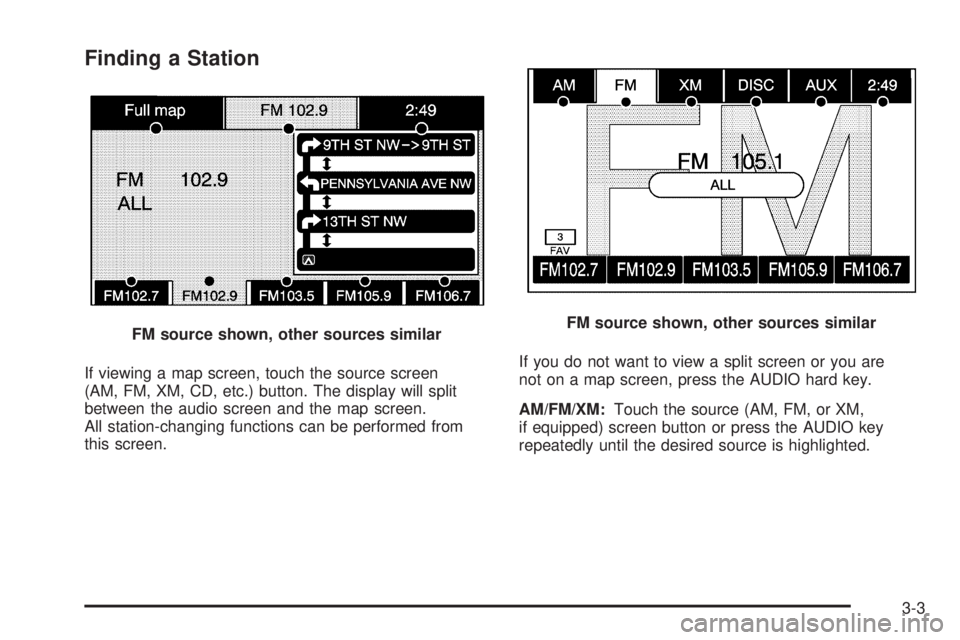
If viewing a map screen, touch the source screen
(AM, FM, XM, CD, etc.) button. The display will split
between the audio screen and the map screen.
All station-changing functions can be performed from
this screen.If you do not want to view a split screen or you are
not on a map screen, press the AUDIO hard key.
AM/FM/XM:Touch the source (AM, FM, or XM,
if equipped) screen button or press the AUDIO key
repeatedly until the desired source is highlighted. FM source shown, other sources similar
FM source shown, other sources similar
3-3
Page 70 of 100
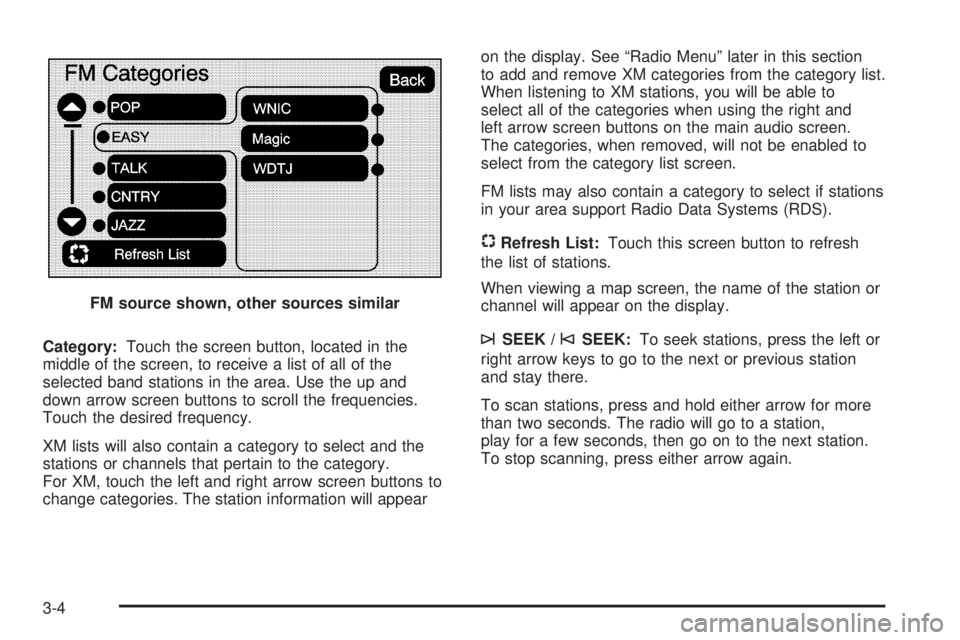
Category:Touch the screen button, located in the
middle of the screen, to receive a list of all of the
selected band stations in the area. Use the up and
down arrow screen buttons to scroll the frequencies.
Touch the desired frequency.
XM lists will also contain a category to select and the
stations or channels that pertain to the category.
For XM, touch the left and right arrow screen buttons to
change categories. The station information will appearon the display. See “Radio Menu” later in this section
to add and remove XM categories from the category list.
When listening to XM stations, you will be able to
select all of the categories when using the right and
left arrow screen buttons on the main audio screen.
The categories, when removed, will not be enabled to
select from the category list screen.
FM lists may also contain a category to select if stations
in your area support Radio Data Systems (RDS).
$Refresh List:Touch this screen button to refresh
the list of stations.
When viewing a map screen, the name of the station or
channel will appear on the display.
¨SEEK /©SEEK:To seek stations, press the left or
right arrow keys to go to the next or previous station
and stay there.
To scan stations, press and hold either arrow for more
than two seconds. The radio will go to a station,
play for a few seconds, then go on to the next station.
To stop scanning, press either arrow again. FM source shown, other sources similar
3-4
Page 71 of 100
Storing Radio Station Presets
This feature allows you to store up to 30 preset stations.
See “Number of Preset Pages” under “Radio Menu”
later in this section for more information. You can mix
AM, FM, and XM (if equipped). To store presets, do the
following:
1. Press the
O(power) knob to turn the system on.
2. If viewing a map screen, touch the source
screen button, press the AUDIO key, or press the
FAV (favorite) key.
3. Select the band.
4. Seek, scan, or tune to the desired station, to select
the station.
5. Press and hold one of the preset screen buttons for
more than two seconds or until you hear a beep.
6. Repeat the steps for each preset.
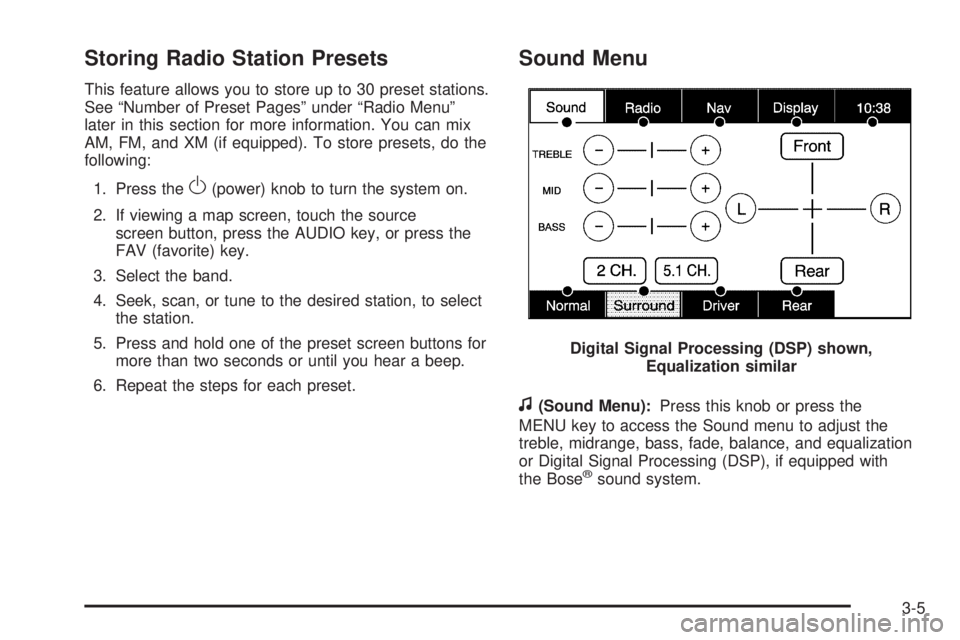
Sound Menu
f
(Sound Menu):Press this knob or press the
MENU key to access the Sound menu to adjust the
treble, midrange, bass, fade, balance, and equalization
or Digital Signal Processing (DSP), if equipped with
the Bose
®sound system. Digital Signal Processing (DSP) shown,
Equalization similar
3-5
Page 73 of 100
Driver:Select this screen button to adjust the audio to
give the driver the best possible sound quality.
Rear:Select this screen button to adjust the audio to
give the rear seat occupants the best possible sound
quality.
The 2 CH and 5.1 CH buttons are available only when a
5.1 CH disk is available and RSA is off.
2 CH (Channel):Select this screen button to enhance
surround sound. The Surround screen button must
be selected to select the 2 CH screen button.
5.1 CH (Channel):Select this screen button, when
listening to a DVD, to give a full affect of surround sound
listening. The Surround screen button must be selected
to select the 5.1 CH screen button.
Downmix:If a 5.1CH disk is playing, and the 2 CH
screen button is selected or RSA is turned on, the
system will downmix the audio from 5.1 CH to 2 CH if
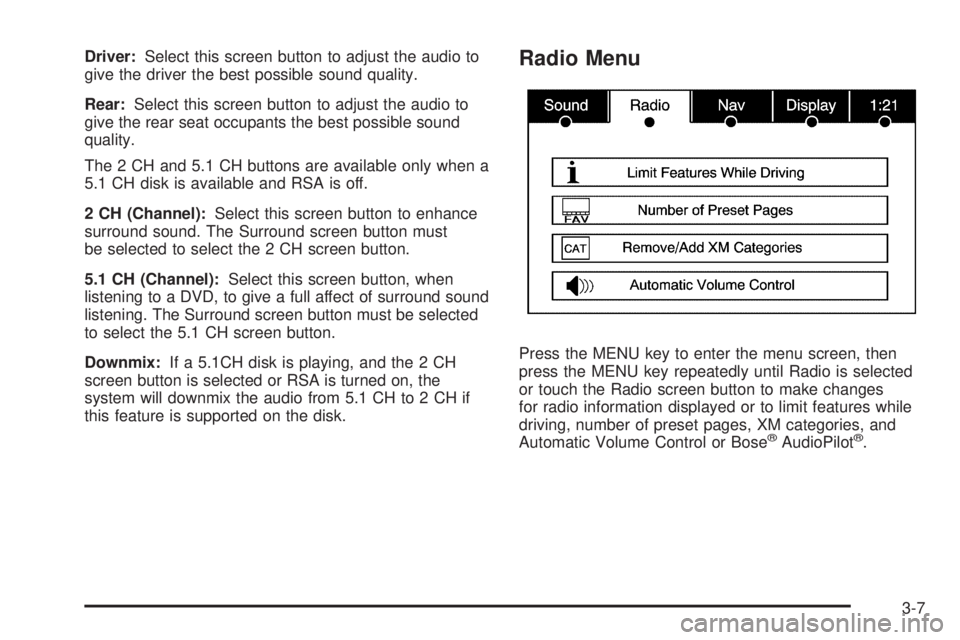
this feature is supported on the disk.Radio Menu
Press the MENU key to enter the menu screen, then
press the MENU key repeatedly until Radio is selected
or touch the Radio screen button to make changes
for radio information displayed or to limit features while
driving, number of preset pages, XM categories, and
Automatic Volume Control or Bose
®AudioPilot®.
3-7