key GMC YUKON DENALI 2009 User Guide
[x] Cancel search | Manufacturer: GMC, Model Year: 2009, Model line: YUKON DENALI, Model: GMC YUKON DENALI 2009Pages: 100, PDF Size: 1.41 MB
Page 20 of 100
If a name does not display after entry, it may need to be
entered differently, the map DVD disc may not contain
that information, or the correct search area has not been
selected. SeeDatabase Coverage Explanations on
page 2-49for more information orDestination on
page 2-15to change the search area.
Maps
This section includes basic information needed to know
about the map database.
Map Coverage
The maps are stored on a DVD. The 48 contiguous
United States, along with Hawaii, Alaska, and portions
of Canada are contained on one disc.
Refer to the “Navigation System Map Disc” manual to
view a detailed explanation of map coverage and
detailed city lists in each region. This manual will be in
the map DVD case when the vehicle is delivered
from the factory.
Installing the DVD Map Disc
When a DVD Map Disc is installed, noise from the disc
may occur, this is normal system operation.
The navigation system in this vehicle uses a DVD to
store map information. When the system loads data from
the disc, you may hear a very slight buzz sound from
the navigation system. The sound is similar to that of a
CD player seeking through different tracks. This is
normal operation and may occur more frequently with
the use of XM NavTraffic.
Your dealer/retailer may have installed the map DVD.
If the map DVD was not installed, do the following
to load it:
1. Turn the ignition on.
2. Press the
O(power) knob to turn the navigation
system on or press the NAV, DEST, or MENU
hard keys. If the MENU hard key is selected, press
and hold until the NAV screen is active, or select
the NAV tab manually.
3. Touch the OK screen button to agree to the
Caution screen, if it appears. If the map is in
split screen mode, you must push the NAV tab
button to get the full map screen.
2-4
Page 21 of 100
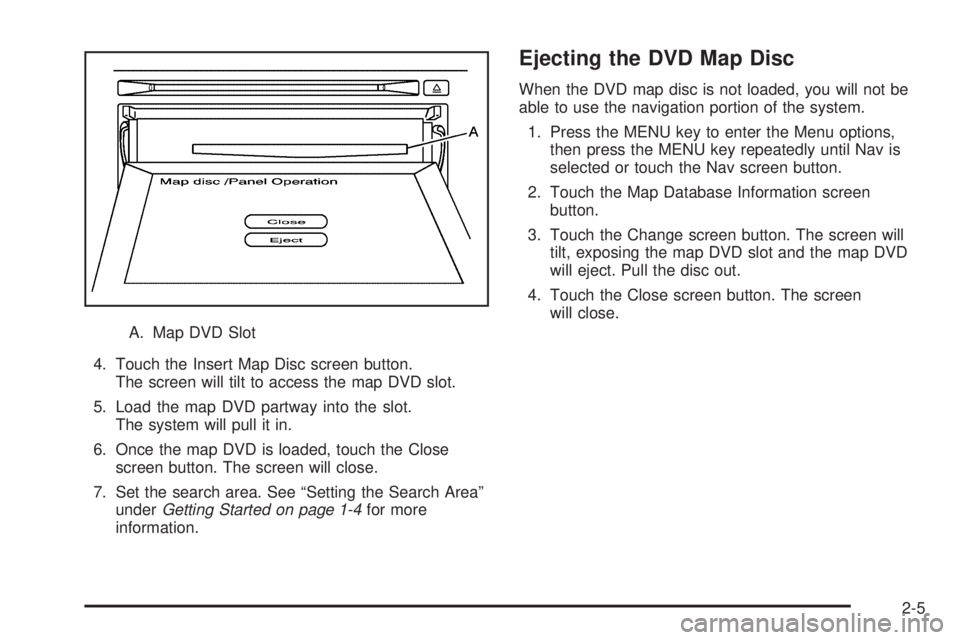
A. Map DVD Slot
4. Touch the Insert Map Disc screen button.
The screen will tilt to access the map DVD slot.
5. Load the map DVD partway into the slot.
The system will pull it in.
6. Once the map DVD is loaded, touch the Close
screen button. The screen will close.
7. Set the search area. See “Setting the Search Area”
underGetting Started on page 1-4for more
information.
Ejecting the DVD Map Disc
When the DVD map disc is not loaded, you will not be
able to use the navigation portion of the system.
1. Press the MENU key to enter the Menu options,
then press the MENU key repeatedly until Nav is
selected or touch the Nav screen button.
2. Touch the Map Database Information screen
button.
3. Touch the Change screen button. The screen will
tilt, exposing the map DVD slot and the map DVD
will eject. Pull the disc out.
4. Touch the Close screen button. The screen
will close.
2-5
Page 23 of 100
Map Scales
V
/U(Zoom In/Zoom Out):Touch the zoom in or
out screen buttons or the scale on the bar to change
the level of map detail. The scale will appear on the
screen once the zoom in or zoom out screen buttons are
selected. The system will adjust the map accordingly.
The scale of a map can range from 150 ft. (50 m) to
250 mi. (400 km). To change from English or metric,
see “Driver Information Center, DIC Operation and
Displays” in the Index of your vehicle’s owner manual.
Scrolling the Map
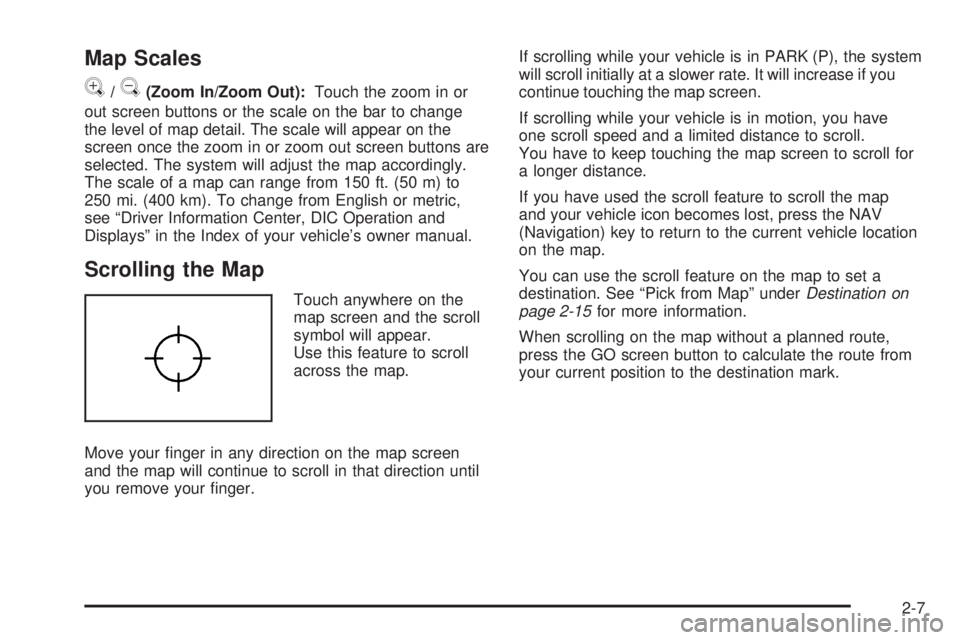
Touch anywhere on the
map screen and the scroll
symbol will appear.
Use this feature to scroll
across the map.
Move your nger in any direction on the map screen
and the map will continue to scroll in that direction until
you remove your nger.If scrolling while your vehicle is in PARK (P), the system
will scroll initially at a slower rate. It will increase if you
continue touching the map screen.
If scrolling while your vehicle is in motion, you have
one scroll speed and a limited distance to scroll.
You have to keep touching the map screen to scroll for
a longer distance.
If you have used the scroll feature to scroll the map
and your vehicle icon becomes lost, press the NAV
(Navigation) key to return to the current vehicle location
on the map.
You can use the scroll feature on the map to set a
destination. See “Pick from Map” underDestination on
page 2-15for more information.
When scrolling on the map without a planned route,
press the GO screen button to calculate the route from
your current position to the destination mark.
2-7
Page 31 of 100
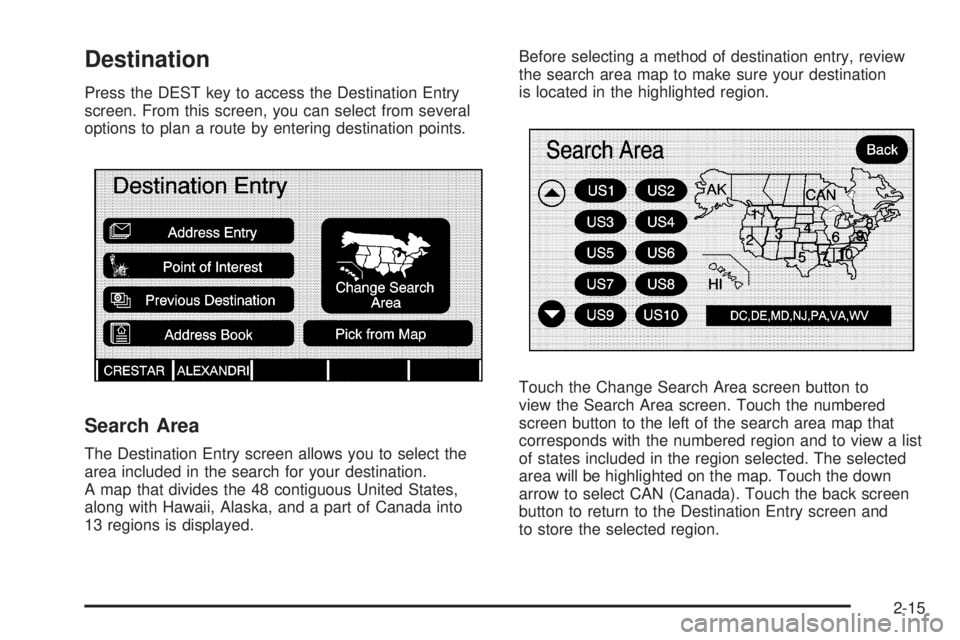
Destination
Press the DEST key to access the Destination Entry
screen. From this screen, you can select from several
options to plan a route by entering destination points.
Search Area
The Destination Entry screen allows you to select the
area included in the search for your destination.
A map that divides the 48 contiguous United States,
along with Hawaii, Alaska, and a part of Canada into
13 regions is displayed.Before selecting a method of destination entry, review
the search area map to make sure your destination
is located in the highlighted region.
Touch the Change Search Area screen button to
view the Search Area screen. Touch the numbered
screen button to the left of the search area map that
corresponds with the numbered region and to view a list
of states included in the region selected. The selected
area will be highlighted on the map. Touch the down
arrow to select CAN (Canada). Touch the back screen
button to return to the Destination Entry screen and
to store the selected region.
2-15
Page 32 of 100
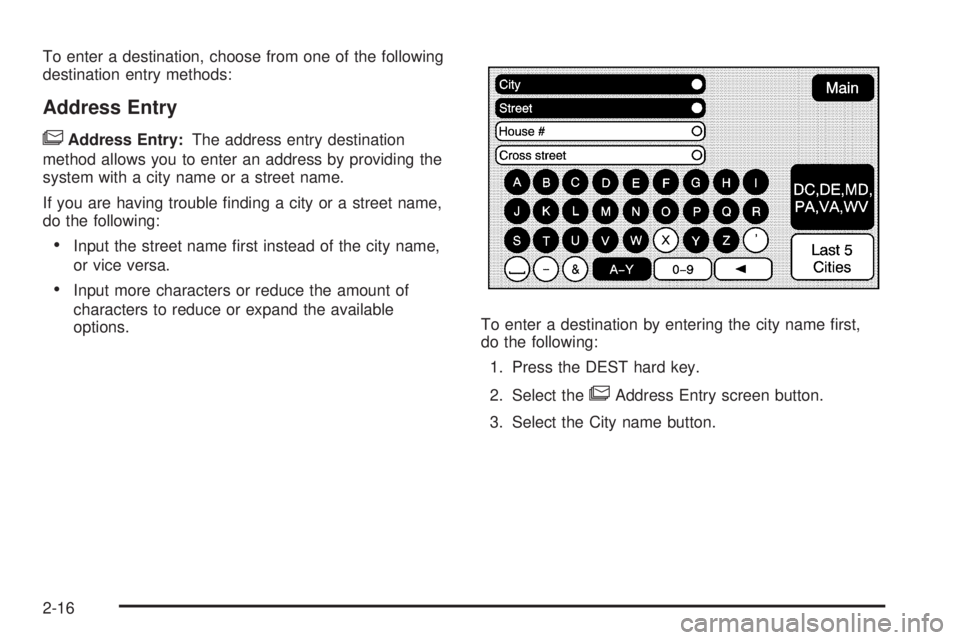
To enter a destination, choose from one of the following
destination entry methods:
Address Entry
6Address Entry:The address entry destination
method allows you to enter an address by providing the
system with a city name or a street name.
If you are having trouble nding a city or a street name,
do the following:
Input the street name rst instead of the city name,
or vice versa.
Input more characters or reduce the amount of
characters to reduce or expand the available
options.To enter a destination by entering the city name rst,
do the following:
1. Press the DEST hard key.
2. Select the
6Address Entry screen button.
3. Select the City name button.
2-16
Page 33 of 100
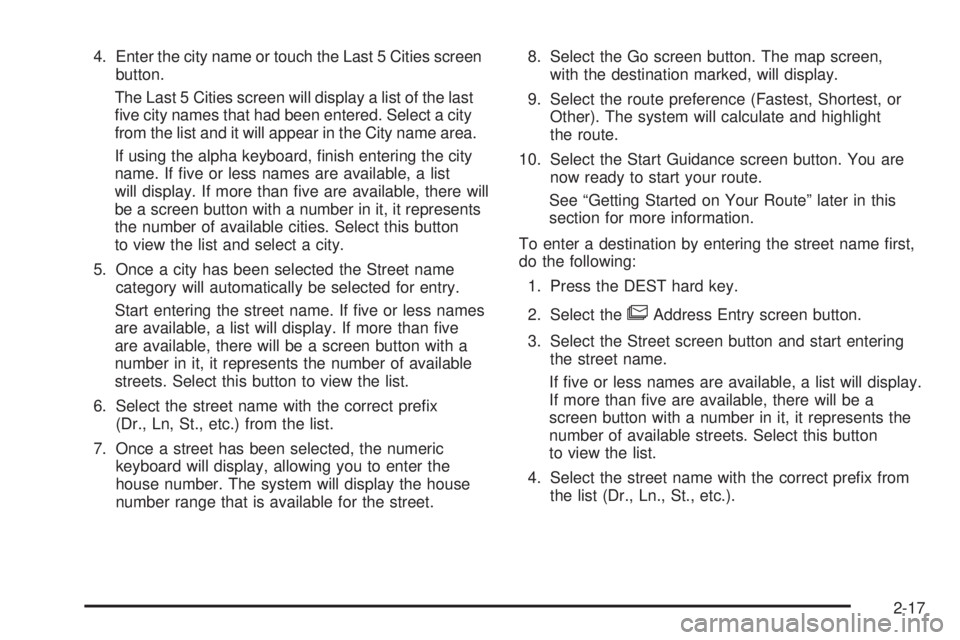
4. Enter the city name or touch the Last 5 Cities screen
button.
The Last 5 Cities screen will display a list of the last
ve city names that had been entered. Select a city
from the list and it will appear in the City name area.
If using the alpha keyboard, nish entering the city
name. If ve or less names are available, a list
will display. If more than ve are available, there will
be a screen button with a number in it, it represents
the number of available cities. Select this button
to view the list and select a city.
5. Once a city has been selected the Street name
category will automatically be selected for entry.
Start entering the street name. If ve or less names
are available, a list will display. If more than ve
are available, there will be a screen button with a
number in it, it represents the number of available
streets. Select this button to view the list.
6. Select the street name with the correct prex
(Dr., Ln, St., etc.) from the list.
7. Once a street has been selected, the numeric
keyboard will display, allowing you to enter the
house number. The system will display the house
number range that is available for the street.8. Select the Go screen button. The map screen,
with the destination marked, will display.
9. Select the route preference (Fastest, Shortest, or
Other). The system will calculate and highlight
the route.
10. Select the Start Guidance screen button. You are
now ready to start your route.
See “Getting Started on Your Route” later in this
section for more information.
To enter a destination by entering the street name rst,
do the following:
1. Press the DEST hard key.
2. Select the
6Address Entry screen button.
3. Select the Street screen button and start entering
the street name.
If ve or less names are available, a list will display.
If more than ve are available, there will be a
screen button with a number in it, it represents the
number of available streets. Select this button
to view the list.
4. Select the street name with the correct prex from
the list (Dr., Ln., St., etc.).
2-17
Page 34 of 100
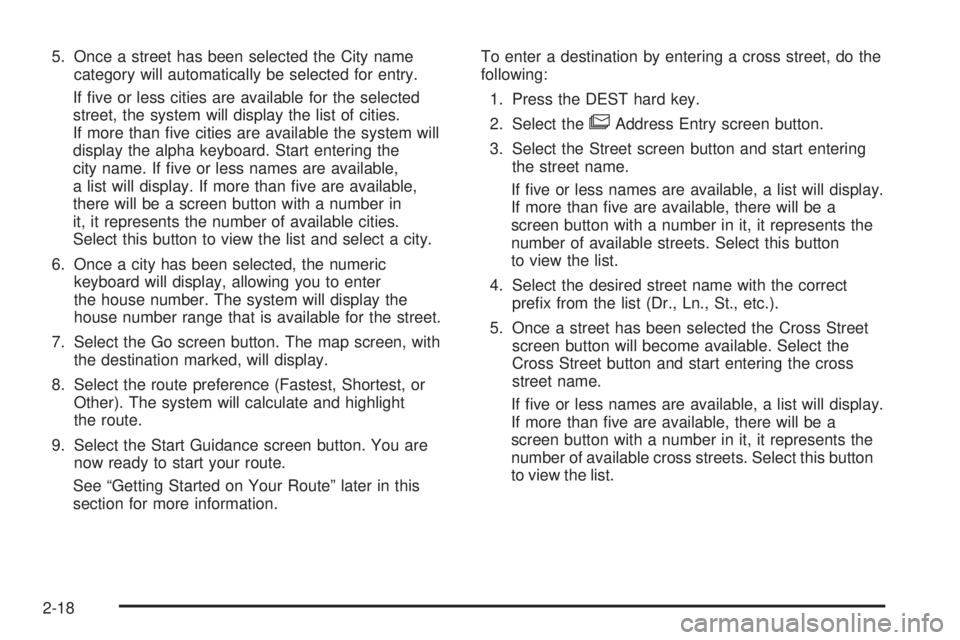
5. Once a street has been selected the City name
category will automatically be selected for entry.
If ve or less cities are available for the selected
street, the system will display the list of cities.
If more than ve cities are available the system will
display the alpha keyboard. Start entering the
city name. If ve or less names are available,
a list will display. If more than ve are available,
there will be a screen button with a number in
it, it represents the number of available cities.
Select this button to view the list and select a city.
6. Once a city has been selected, the numeric
keyboard will display, allowing you to enter
the house number. The system will display the
house number range that is available for the street.
7. Select the Go screen button. The map screen, with
the destination marked, will display.
8. Select the route preference (Fastest, Shortest, or
Other). The system will calculate and highlight
the route.
9. Select the Start Guidance screen button. You are
now ready to start your route.
See “Getting Started on Your Route” later in this
section for more information.To enter a destination by entering a cross street, do the
following:
1. Press the DEST hard key.
2. Select the
6Address Entry screen button.
3. Select the Street screen button and start entering
the street name.
If ve or less names are available, a list will display.
If more than ve are available, there will be a
screen button with a number in it, it represents the
number of available streets. Select this button
to view the list.
4. Select the desired street name with the correct
prex from the list (Dr., Ln., St., etc.).
5. Once a street has been selected the Cross Street
screen button will become available. Select the
Cross Street button and start entering the cross
street name.
If ve or less names are available, a list will display.
If more than ve are available, there will be a
screen button with a number in it, it represents the
number of available cross streets. Select this button
to view the list.
2-18
Page 35 of 100
6. Select the street name with the correct prex from
the list (Dr., Ln., St., etc.). An Information screen
will automatically display.
7. Select the Go screen button. The map screen,
with the destination marked, will display.
8. Select the route preference (Fastest, Shortest, or
Other). The system will calculate and highlight
the route.
9. Select the Start Guidance screen button. You are
now ready to start your route.
See “Getting Started on Your Route” later in this
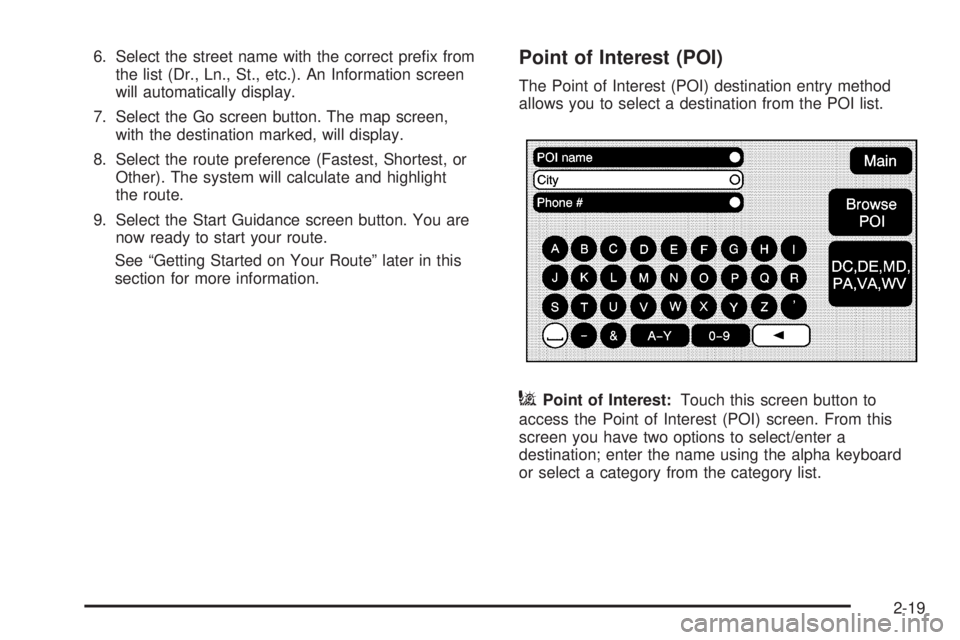
section for more information.Point of Interest (POI)
The Point of Interest (POI) destination entry method
allows you to select a destination from the POI list.
iPoint of Interest:Touch this screen button to
access the Point of Interest (POI) screen. From this
screen you have two options to select/enter a
destination; enter the name using the alpha keyboard
or select a category from the category list.
2-19
Page 36 of 100
To use the point of interest destination entry method by
entering the name, do the following:
1. Press the DEST hard key.
2. Select the
iPoint of Interest screen button.
3. Enter the POI name.
If ve or less names are available, a list will display.
If more than ve are available, there will be a
screen button with a number in it, it represents the
number of available POIs. Select this button to
view the list.
4. Select the Go screen button next to the POI.
The map screen, with the destination marked,
will display.
5. Select the route preference (Fastest, Shortest, or
Other). The system will calculate and highlight the
route.
6. Select the Start Guidance screen button. You are
now ready to start your route.
See “Getting Started on Your Route” later in this
section for more information.To use the point of interest destination entry method by
selecting a category, do the following:
1. Press the DEST hard key.
2. Select theiPoint of Interest screen button.
3. Select the Browse POI screen button to view the
list of POI categories.
4. Select a category, and then a sub-category.
The system will display available POI names in the
selected sub-category or if the list is too long the
system will display the alpha keyboard.
If the alpha keyboard is displayed, enter the POI
name until a list of available POIs appear. There is
a screen button with a number in it, it represents
the number of available POIs. Select this button to
view the list and select the POI.
5. Select the Go screen button next to the POI.
The map screen, with the destination marked,
will display.
6. Select the route preference (Fastest, Shortest, or
Other). The system will calculate and highlight
the route.
7. Select the Start Guidance screen button. You are
now ready to start your route.
See “Getting Started on Your Route” later in this
section for more information.
2-20
Page 37 of 100
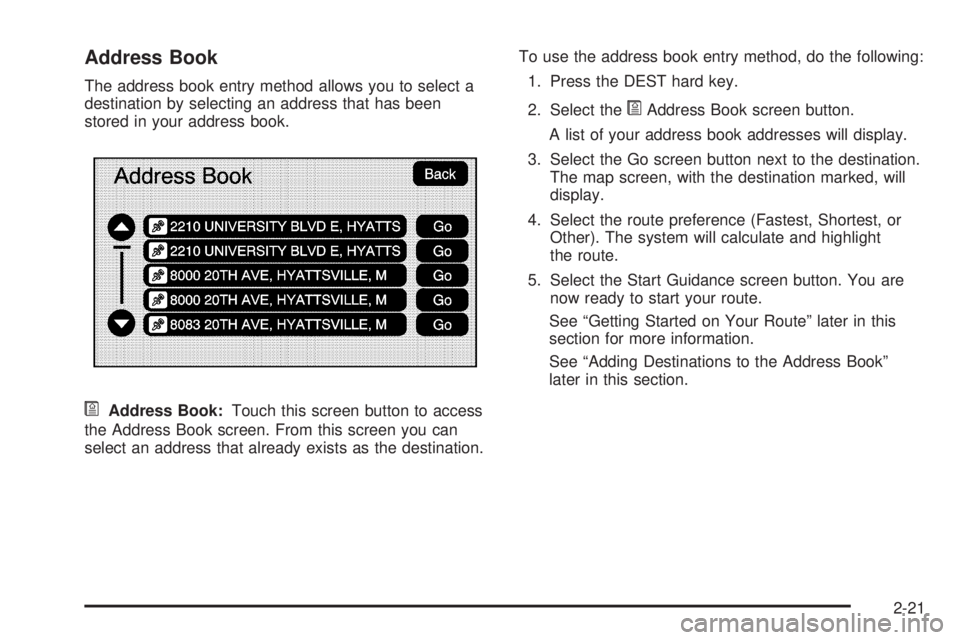
Address Book
The address book entry method allows you to select a
destination by selecting an address that has been
stored in your address book.
*Address Book:Touch this screen button to access
the Address Book screen. From this screen you can
select an address that already exists as the destination.To use the address book entry method, do the following:
1. Press the DEST hard key.
2. Select the
*Address Book screen button.
A list of your address book addresses will display.
3. Select the Go screen button next to the destination.
The map screen, with the destination marked, will
display.
4. Select the route preference (Fastest, Shortest, or
Other). The system will calculate and highlight
the route.
5. Select the Start Guidance screen button. You are
now ready to start your route.
See “Getting Started on Your Route” later in this
section for more information.
See “Adding Destinations to the Address Book”
later in this section.
2-21