key GMC YUKON DENALI 2009 Service Manual
[x] Cancel search | Manufacturer: GMC, Model Year: 2009, Model line: YUKON DENALI, Model: GMC YUKON DENALI 2009Pages: 100, PDF Size: 1.41 MB
Page 75 of 100
Automatic Volume Control or Bose
AudioPilot®
>Automatic Volume Control:With automatic volume
control, your audio system adjusts automatically to
make up for road and wind noise as you drive.
To use Automatic Volume Control:
1. Set the volume at the desired level.
2. Press the MENU key to enter the menu screen,
then press the MENU key repeatedly until Radio
is selected or touch the Radio screen button
3. Press the
>Automatic Volume Control screen
button to access the Speed Compensated Volume
screen.
4. Touch the Low, Medium, or High screen buttons.
Each higher setting allows for more compensation
at faster vehicle speeds.
Then, as you drive, automatic volume control
automatically increases the volume, as necessary,
to overcome noise at any speed. The volume level
should always sound the same to you as you drive.
To turn automatic volume control off, touch the
OFF screen button.AudioPilot:If the system has the Bose
®sound system
it may include Bose AudioPilot®noise compensation
technology.
To use AudioPilot
®:
1. Press the MENU key to enter the menu screen,
then press the MENU key repeatedly until Radio
is selected or touch the Radio screen button
2. Press the
>Automatic Volume Control screen.
button to access the AudioPilot menu.
3. Press the ON screen button.
To turn it off, touch the OFF screen button.
When on, AudioPilot
®continuously adjusts the audio
system equalization, to compensate for background
noise, so that your music always sounds the same at the
set volume level.
This feature is most effective at lower volume settings
where background noise can affect how well you
hear the music being played through your vehicle’s
audio system. At higher volume settings, where
the music is much louder than the background noise,
there may be little or no adjustments by AudioPilot
®.
For more information on AudioPilot®, please visit
bose.com/audiopilot.
3-9
Page 77 of 100
CD Player
The player can be used for CD and MP3. If your vehicle
has RSE, the player can be used for CD, MP3, DVD
audio, and as a DVD video player. SeeDVD Player on
page 3-17for more information about DVD audio
and video.
With the ignition on, insert a CD partway into the slot,
label side up. The player will pull it in and the CD should
begin playing. While playing a CD, the navigation
system is available. If you insert a CD with the system
off and the ignition on, it will start to play.
When you insert a CD, the CD tab will display.
If you turn off the ignition or radio with a CD in the
player, it will stay in the player. When you turn on the
ignition or radio, the CD will start playing where it
stopped, if it was the last selected audio source.As each new track starts to play, the track number will
appear on the display.
The CD player can play the smaller 3 inch (8cm)
single CDs with an adapter ring. Full-size CDs and the
smaller CDs are loaded in the same manner.
If an error appears on the display, see “CD Messages”
later in this section.
If viewing a map screen, touch the CD screen button.
The display will split between the audio screen and
the map screen. If you do not want to view a split screen
or you are not on a map screen, press the AUDIO
key then press the AUDIO key until CD is selected or
touch the CD screen button.
3-11
Page 81 of 100
Playing an MP3
With the ignition on, insert a CD partway into the slot,
label side up. The player will pull it in. The system may
take some time to read the MP3 disc. While playing
a CD, the navigation system is available. If you insert a
CD with the system off and the ignition on, it will start
to play.
When you insert a CD, the CD tab will display.
If you turn off the ignition or radio with a CD in the
player, it will stay in the player. When you turn on the
ignition or radio, the CD will start playing where it
stopped, if it was the last selected audio source.
As each new track starts to play, the track number will
appear on the display.
If an error appears on the display, see “CD Messages”
later in this section.
If viewing a map screen, touch the CD screen button.
The display will split between the audio screen and
the map screen. If you do not want to view a split screen
or you are not on a map screen, press the AUDIO
key, then press the AUDIO key until CD is selected or
touch the CD screen button.
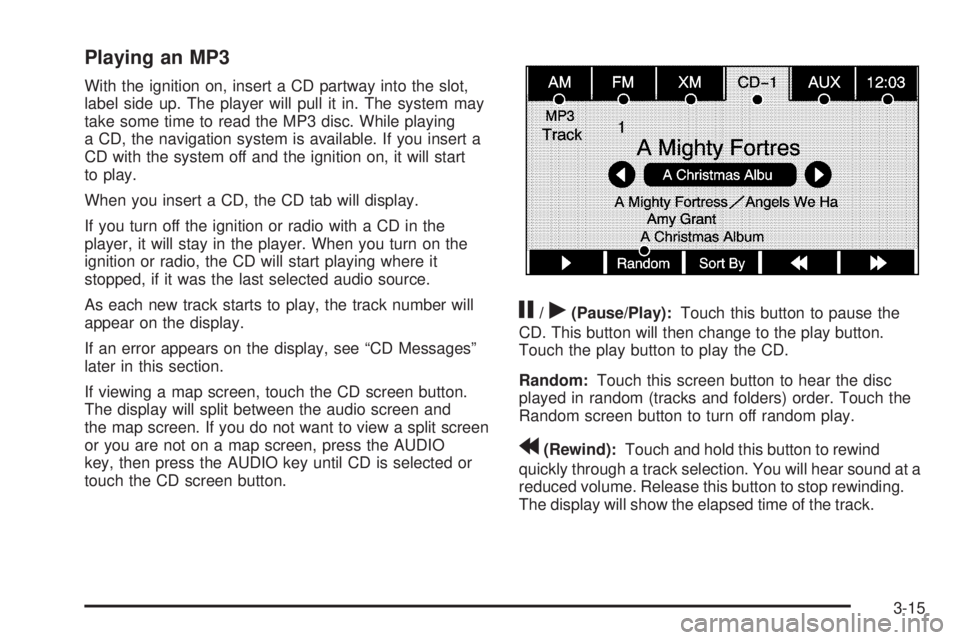
j/r(Pause/Play):Touch this button to pause the
CD. This button will then change to the play button.
Touch the play button to play the CD.
Random:Touch this screen button to hear the disc
played in random (tracks and folders) order. Touch the
Random screen button to turn off random play.
r(Rewind):Touch and hold this button to rewind
quickly through a track selection. You will hear sound at a
reduced volume. Release this button to stop rewinding.
The display will show the elapsed time of the track.
3-15
Page 84 of 100
Playing a DVD
There are three ways to play a DVD:
Once a DVD is inserted, the system will
automatically start play of the DVD.
If you are on a map screen, touch the DVD screen
button.
Press the AUDIO hard key, then touch the DVD
screen button.
When a DVD is loaded in the DVD player, the rear seat
operator can power on the RSE video screen and
use the remote control to navigate through the DVD.
O(Power/Volume):Press this knob to turn the system
on and off. Turn the knob to increase or decrease the
volume of the audio system.
Press and hold this knob for more than two seconds to
turn the navigation system, RSE, and RSA off.
DVD Menu Options
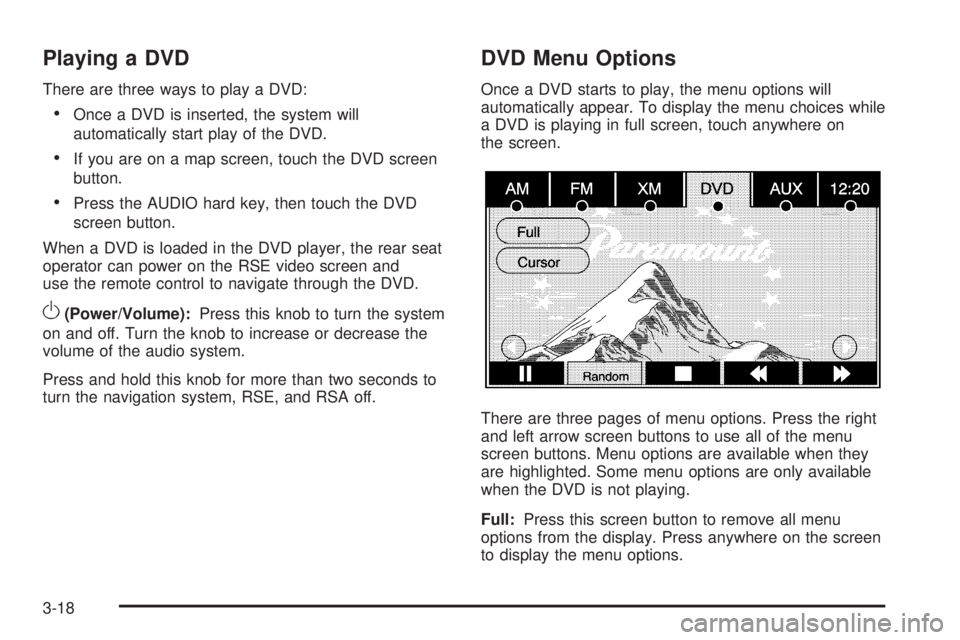
Once a DVD starts to play, the menu options will
automatically appear. To display the menu choices while
a DVD is playing in full screen, touch anywhere on
the screen.
There are three pages of menu options. Press the right
and left arrow screen buttons to use all of the menu
screen buttons. Menu options are available when they
are highlighted. Some menu options are only available
when the DVD is not playing.
Full:Press this screen button to remove all menu
options from the display. Press anywhere on the screen
to display the menu options.
3-18
Page 85 of 100
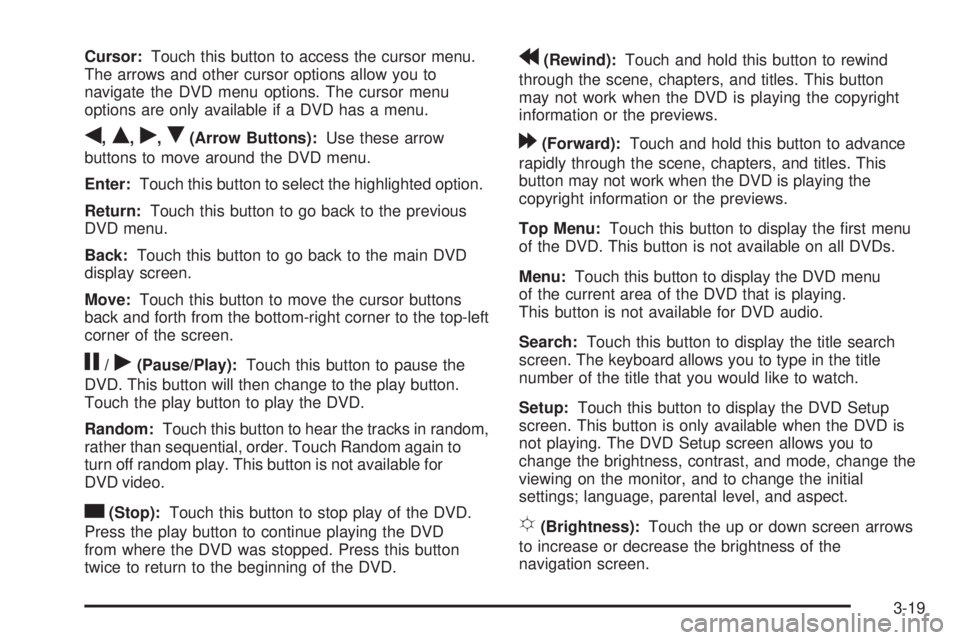
Cursor:Touch this button to access the cursor menu.
The arrows and other cursor options allow you to
navigate the DVD menu options. The cursor menu
options are only available if a DVD has a menu.
q,Q,r,R(Arrow Buttons):Use these arrow
buttons to move around the DVD menu.
Enter:Touch this button to select the highlighted option.
Return:Touch this button to go back to the previous
DVD menu.
Back:Touch this button to go back to the main DVD
display screen.
Move:Touch this button to move the cursor buttons
back and forth from the bottom-right corner to the top-left
corner of the screen.
j/r(Pause/Play):Touch this button to pause the
DVD. This button will then change to the play button.
Touch the play button to play the DVD.
Random:Touch this button to hear the tracks in random,
rather than sequential, order. Touch Random again to
turn off random play. This button is not available for
DVD video.
c(Stop):Touch this button to stop play of the DVD.
Press the play button to continue playing the DVD
from where the DVD was stopped. Press this button
twice to return to the beginning of the DVD.
r(Rewind):Touch and hold this button to rewind
through the scene, chapters, and titles. This button
may not work when the DVD is playing the copyright
information or the previews.
[(Forward):Touch and hold this button to advance
rapidly through the scene, chapters, and titles. This
button may not work when the DVD is playing the
copyright information or the previews.
Top Menu:Touch this button to display the rst menu
of the DVD. This button is not available on all DVDs.
Menu:Touch this button to display the DVD menu
of the current area of the DVD that is playing.
This button is not available for DVD audio.
Search:Touch this button to display the title search
screen. The keyboard allows you to type in the title
number of the title that you would like to watch.
Setup:Touch this button to display the DVD Setup
screen. This button is only available when the DVD is
not playing. The DVD Setup screen allows you to
change the brightness, contrast, and mode, change the
viewing on the monitor, and to change the initial
settings; language, parental level, and aspect.
!(Brightness):Touch the up or down screen arrows
to increase or decrease the brightness of the
navigation screen.
3-19
Page 87 of 100
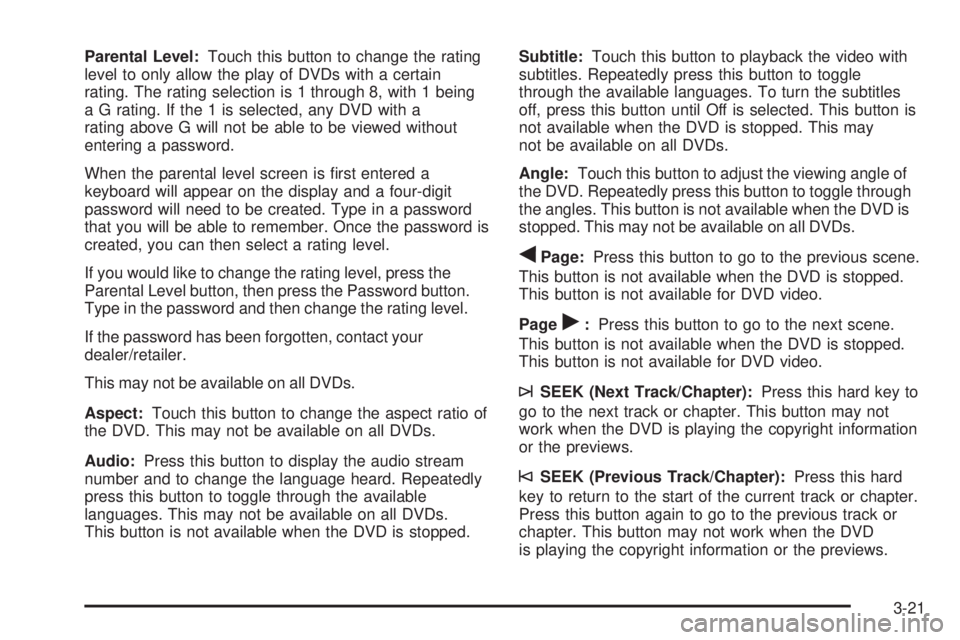
Parental Level:Touch this button to change the rating
level to only allow the play of DVDs with a certain
rating. The rating selection is 1 through 8, with 1 being
a G rating. If the 1 is selected, any DVD with a
rating above G will not be able to be viewed without
entering a password.
When the parental level screen is rst entered a
keyboard will appear on the display and a four-digit
password will need to be created. Type in a password
that you will be able to remember. Once the password is
created, you can then select a rating level.
If you would like to change the rating level, press the
Parental Level button, then press the Password button.
Type in the password and then change the rating level.
If the password has been forgotten, contact your
dealer/retailer.
This may not be available on all DVDs.
Aspect:Touch this button to change the aspect ratio of
the DVD. This may not be available on all DVDs.
Audio:Press this button to display the audio stream
number and to change the language heard. Repeatedly
press this button to toggle through the available
languages. This may not be available on all DVDs.
This button is not available when the DVD is stopped.Subtitle:Touch this button to playback the video with
subtitles. Repeatedly press this button to toggle
through the available languages. To turn the subtitles
off, press this button until Off is selected. This button is
not available when the DVD is stopped. This may
not be available on all DVDs.
Angle:Touch this button to adjust the viewing angle of
the DVD. Repeatedly press this button to toggle through
the angles. This button is not available when the DVD is
stopped. This may not be available on all DVDs.
qPage:Press this button to go to the previous scene.
This button is not available when the DVD is stopped.
This button is not available for DVD video.
Page
r:Press this button to go to the next scene.
This button is not available when the DVD is stopped.
This button is not available for DVD video.
¨SEEK (Next Track/Chapter):Press this hard key to
go to the next track or chapter. This button may not
work when the DVD is playing the copyright information
or the previews.
©SEEK (Previous Track/Chapter):Press this hard
key to return to the start of the current track or chapter.
Press this button again to go to the previous track or
chapter. This button may not work when the DVD
is playing the copyright information or the previews.
3-21
Page 89 of 100
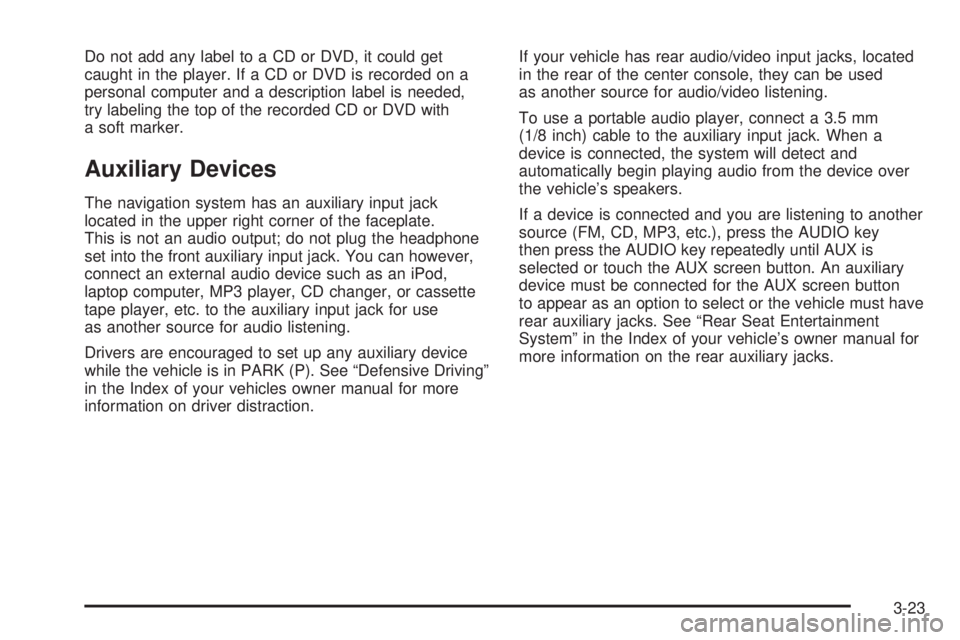
Do not add any label to a CD or DVD, it could get
caught in the player. If a CD or DVD is recorded on a
personal computer and a description label is needed,
try labeling the top of the recorded CD or DVD with
a soft marker.
Auxiliary Devices
The navigation system has an auxiliary input jack
located in the upper right corner of the faceplate.
This is not an audio output; do not plug the headphone
set into the front auxiliary input jack. You can however,
connect an external audio device such as an iPod,
laptop computer, MP3 player, CD changer, or cassette
tape player, etc. to the auxiliary input jack for use
as another source for audio listening.
Drivers are encouraged to set up any auxiliary device
while the vehicle is in PARK (P). See “Defensive Driving”
in the Index of your vehicles owner manual for more
information on driver distraction.If your vehicle has rear audio/video input jacks, located
in the rear of the center console, they can be used
as another source for audio/video listening.
To use a portable audio player, connect a 3.5 mm
(1/8 inch) cable to the auxiliary input jack. When a
device is connected, the system will detect and
automatically begin playing audio from the device over
the vehicle’s speakers.
If a device is connected and you are listening to another
source (FM, CD, MP3, etc.), press the AUDIO key
then press the AUDIO key repeatedly until AUX is
selected or touch the AUX screen button. An auxiliary
device must be connected for the AUX screen button
to appear as an option to select or the vehicle must have
rear auxiliary jacks. See “Rear Seat Entertainment
System” in the Index of your vehicle’s owner manual for
more information on the rear auxiliary jacks.
3-23
Page 97 of 100
A
Adding Destinations to the Address Book...........2-28
Adding or Changing Preset Destinations.............2-29
Alpha-Numeric Keyboard................................... 2-3
Audio Players.................................................3-11
CD ............................................................3-11
Audio System
Radio.......................................................... 3-2
Auto Reroute..................................................2-14
Auxiliary Devices............................................3-23
C
Canadian Owners............................................... iii
Canadian Owners (Propriétaires Canadiens)........... iii
Canceling Guidance........................................1-12
Care of Your CDs and DVDs ............................3-22
CD Messages................................................3-16
CD Player......................................................3-11
CDs
Care ..........................................................3-22
Cleaning the Video Screen...............................1-12
Congure Menu..............................................2-30
D
Database Coverage Explanations......................2-49
Deleting Personal Information............................. 1-7
Destination,Navigation......................................2-15
Devices, Auxiliary............................................3-23
Display..........................................................2-44
Driving on a Route..........................................2-13
DVD Map Disc Messages.................................. 2-6
DVD Menu Options.........................................3-18
DVD Messages..............................................3-22
DVD Player....................................................3-17
DVDs
Care ..........................................................3-22
E
Ejecting the DVD Map Disc............................... 2-5
F
Finding a Station.............................................. 3-3
1
Page 98 of 100
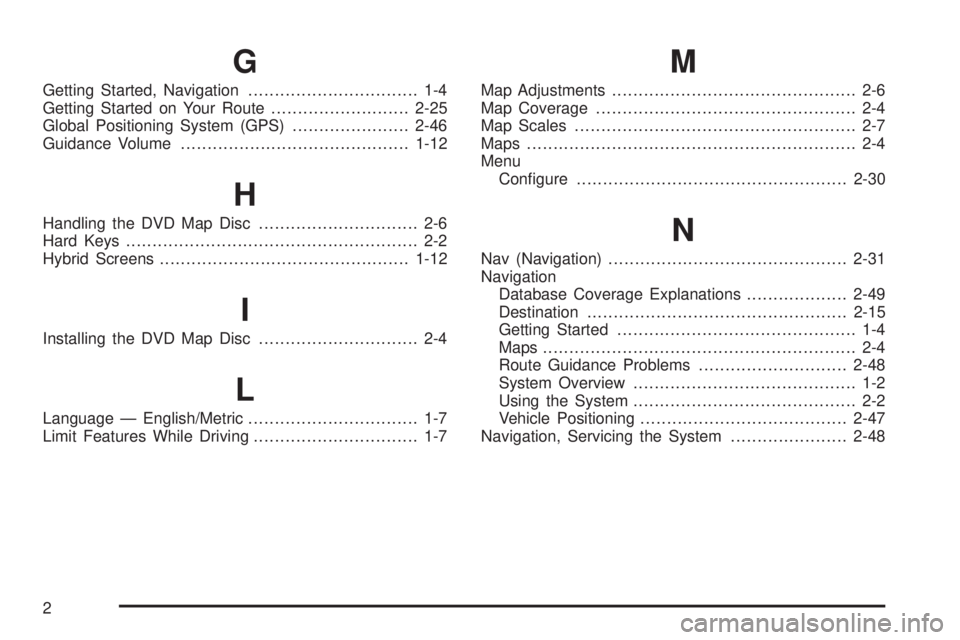
G
Getting Started, Navigation................................ 1-4
Getting Started on Your Route..........................2-25
Global Positioning System (GPS)......................2-46
Guidance Volume...........................................1-12
H
Handling the DVD Map Disc.............................. 2-6
Hard Keys....................................................... 2-2
Hybrid Screens...............................................1-12
I
Installing the DVD Map Disc.............................. 2-4
L
Language — English/Metric................................ 1-7
Limit Features While Driving............................... 1-7
M
Map Adjustments.............................................. 2-6
Map Coverage................................................. 2-4
Map Scales..................................................... 2-7
Maps .............................................................. 2-4
Menu
Congure...................................................2-30
N
Nav (Navigation).............................................2-31
Navigation
Database Coverage Explanations...................2-49
Destination.................................................2-15
Getting Started............................................. 1-4
Maps ........................................................... 2-4
Route Guidance Problems............................2-48
System Overview.......................................... 1-2
Using the System.......................................... 2-2
Vehicle Positioning.......................................2-47
Navigation, Servicing the System......................2-48
2