VIN HONDA ACCORD 2015 9.G Owners Manual
[x] Cancel search | Manufacturer: HONDA, Model Year: 2015, Model line: ACCORD, Model: HONDA ACCORD 2015 9.GPages: 593
Page 367 of 593
uuBluetooth ® HandsFreeLink ®u HFL Menus
366Features
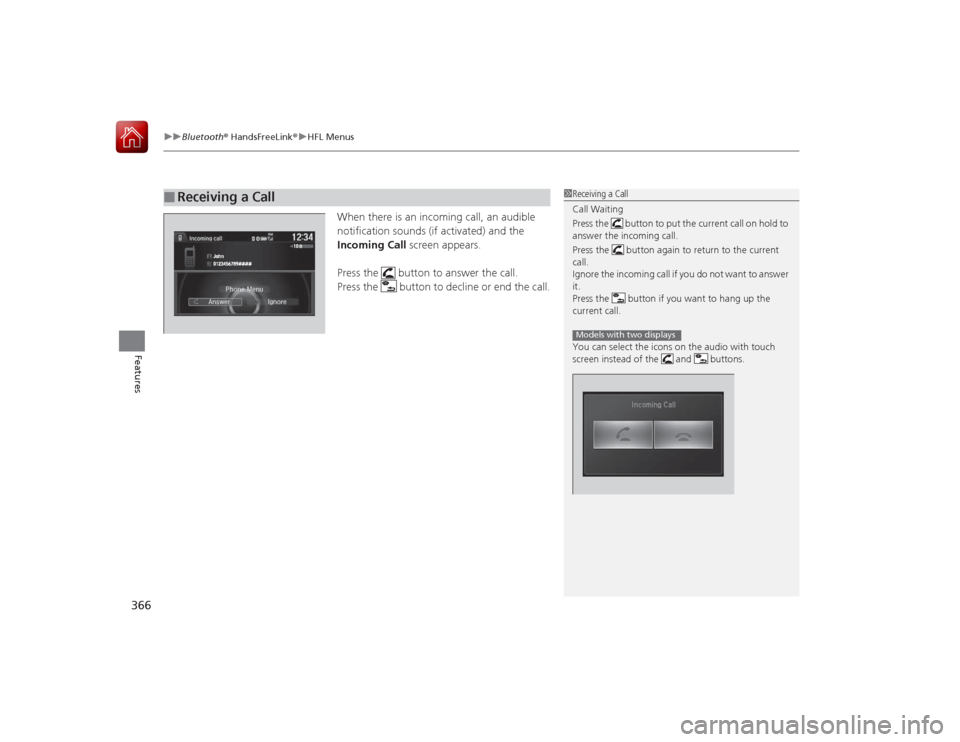
When there is an incoming call, an audible
notification sounds (if activated) and the
Incoming Call screen appears.
Press the button to answer the call.
Press the button to decline or end the call.
■
Receiving a Call
1 Receiving a Call
Call Waiting
Press the button to put the current call on hold to
answer the incoming call.
Press the button again to return to the current
call.
Ignore the incoming call if you do not want to answer
it.
Press the button if you want to hang up the
current call.
You can select the icons on the audio with touch
screen instead of the and buttons.Models with two displays
Page 369 of 593
uuBluetooth ® HandsFreeLink ®u HFL Menus
368Features
HFL can display newly received text messag es as well as 20 of the most recently
received messages on a linked cell phone. Each received message can be read aloud
and replied to using a fixed common phrase.
HFL can also display e-mail messages.
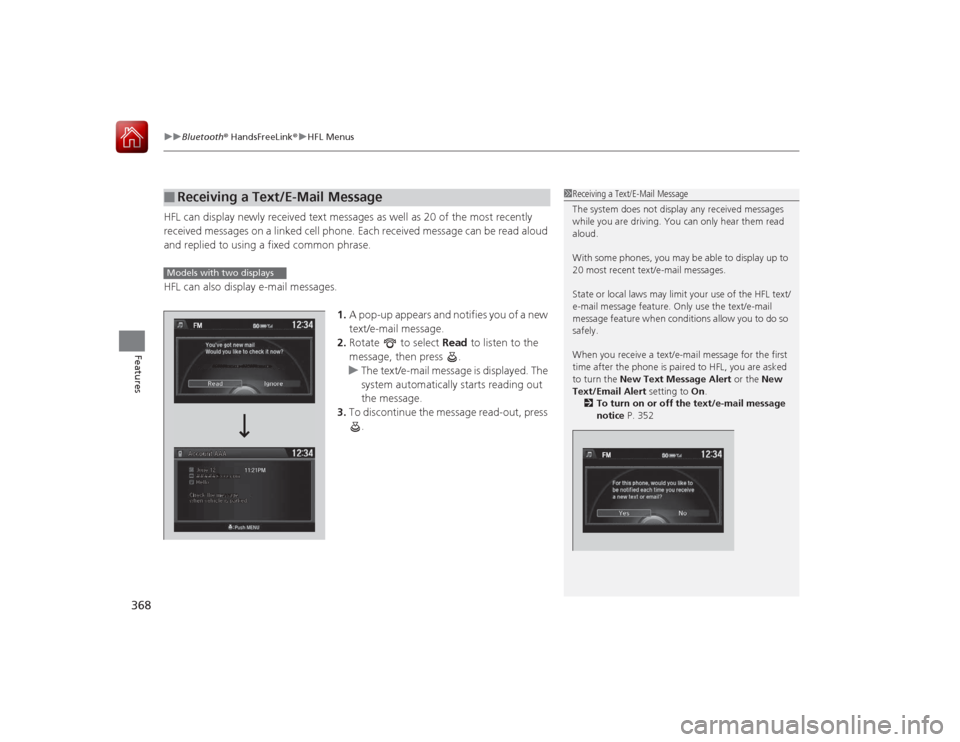
1.A pop-up appears and notifies you of a new
text/e-mail message.
2. Rotate to select Read to listen to the
message, then press .
u The text/e-mail message is displayed. The
system automatically starts reading out
the message.
3. To discontinue the message read-out, press
.■
Receiving a Text/E-Mail Message
1Receiving a Text/E-Mail Message
The system does not display any received messages
while you are driving. You can only hear them read
aloud.
With some phones, you may be able to display up to
20 most recent text/e-mail messages.
State or local laws may limit your use of the HFL text/
e-mail message feature. Only use the text/e-mail
message feature when conditions allow you to do so
safely.
When you receive a text/e-mai l message for the first
time after the phone is paired to HFL, you are asked
to turn the New Text Message Alert or the New
Text/Email Alert setting to On.
2 To turn on or off the text/e-mail message
notice P. 352
Models with two displays
Page 374 of 593
Continued
373
uuBluetooth ® HandsFreeLink ®u HFL Menus
Features
■Reply to a message
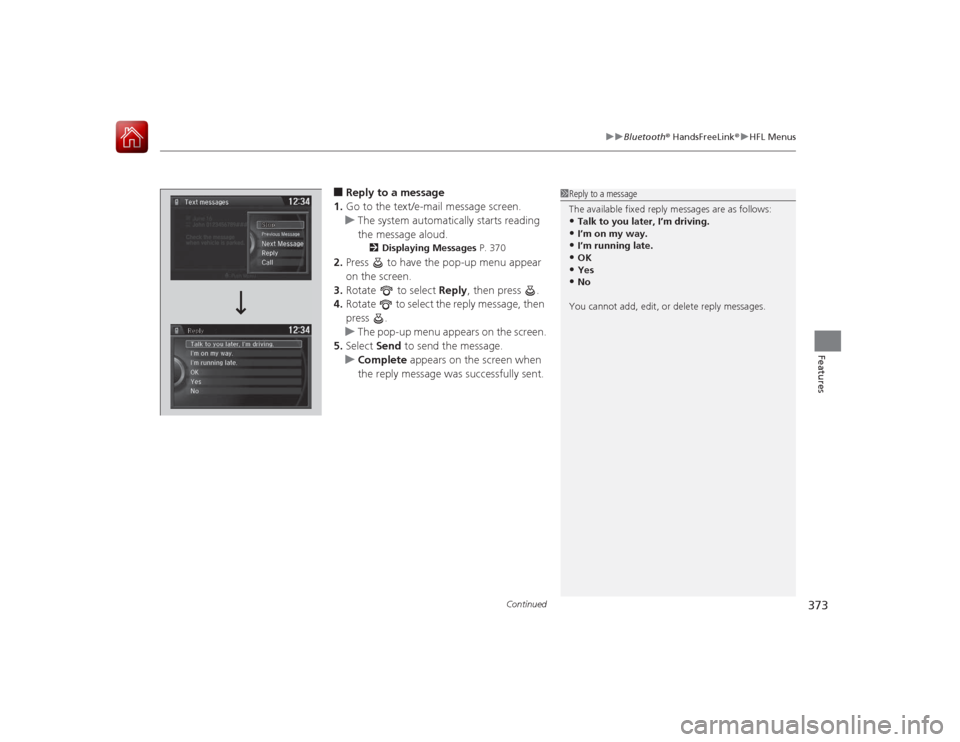
1. Go to the text/e-mail message screen.
u The system automatically starts reading
the message aloud.
2 Displaying Messages P. 370
2.Press to have the pop-up menu appear
on the screen.
3. Rotate to select Reply, then press .
4. Rotate to select the reply message, then
press .
u The pop-up menu appears on the screen.
5. Select Send to send the message.
u Complete appears on the screen when
the reply message was successfully sent.
1 Reply to a message
The available fixed reply messages are as follows:•Talk to you later, I’m driving.•I’m on my way.•I’m running late.•OK•Yes•No
You cannot add, edit, or delete reply messages.
Page 378 of 593
377
uuBluetooth ® HandsFreeLink ®u HFL Menus
Continued
Features
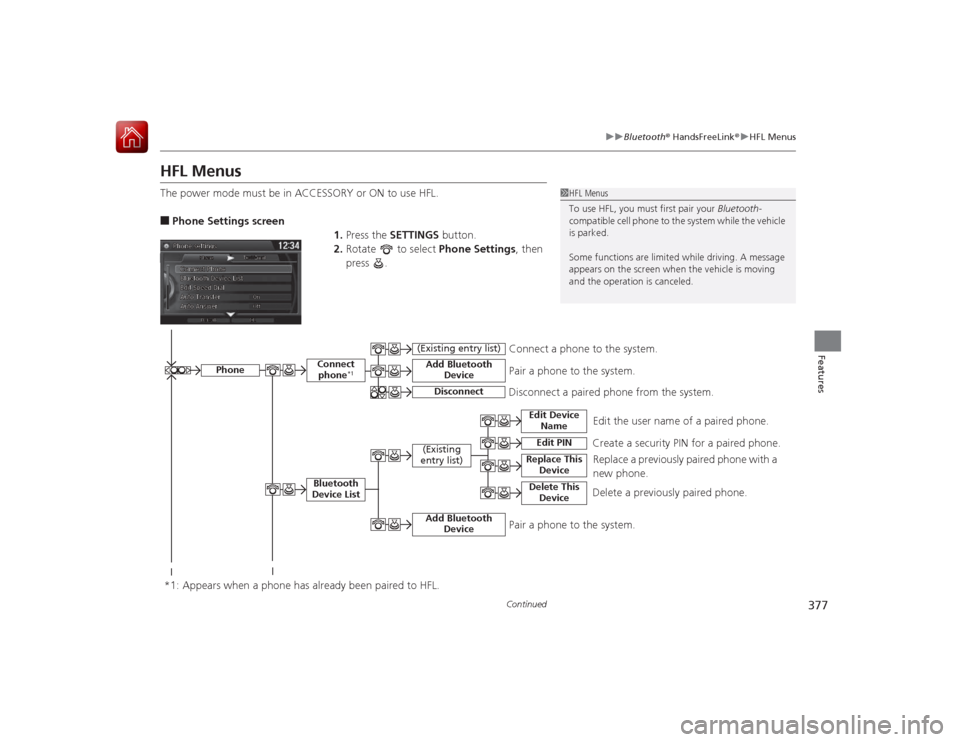
HFL MenusThe power mode must be in ACCESSORY or ON to use HFL.■Phone Settings screen
1.Press the SETTINGS button.
2. Rotate to select Phone Settings, then
press .
1 HFL Menus
To use HFL, you must first pair your Bluetooth-
compatible cell phone to the system while the vehicle
is parked.
Some functions are limit ed while driving. A message
appears on the screen when the vehicle is moving
and the operation is canceled.
Edit the user name of a paired phone.
Phone
Edit Device Name
Connect phone
*1
Bluetooth
Device List
(Existing
entry list)
Replace This Device
Add Bluetooth Device
Disconnect a paired pho ne from the system.
Connect a phone to the system.
*1: Appears when a phone has already been paired to HFL.
Disconnect
(Existing entry list)
Pair a phone to the system.
Edit PIN
Create a security PIN for a paired phone. Replace a previously paired phone with a
new phone.
Delete This Device
Delete a previously paired phone.
Add Bluetooth Device
Pair a phone to the system.
Page 382 of 593
Continued
381
uuBluetooth ® HandsFreeLink ®u HFL Menus
Features
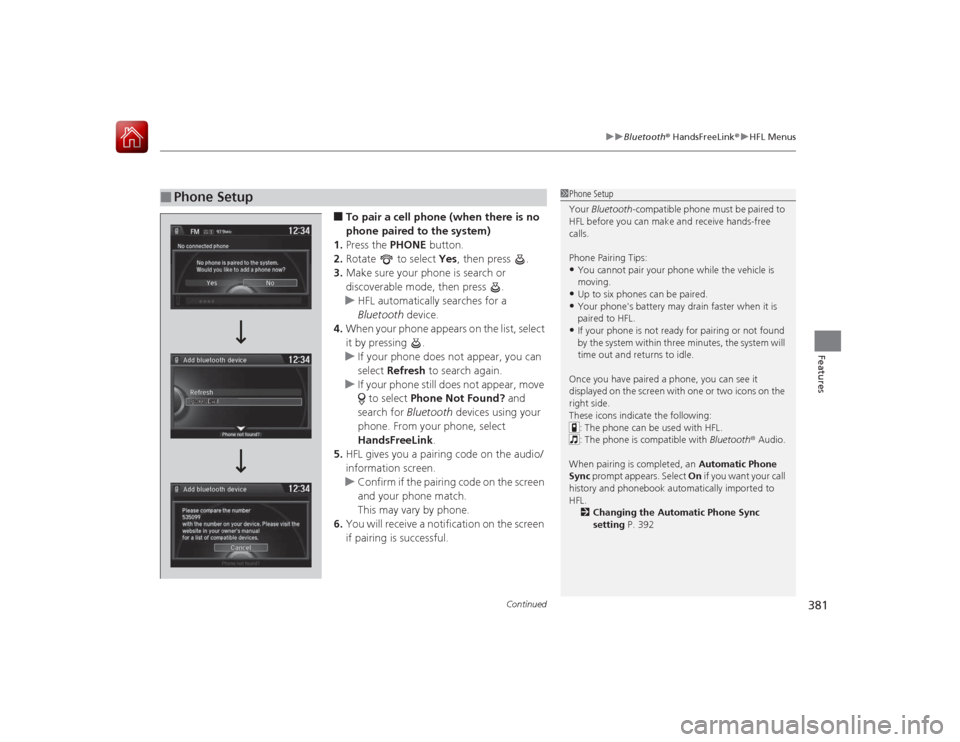
■To pair a cell phone (when there is no
phone paired to the system)
1. Press the PHONE button.
2. Rotate to select Yes, then press .
3. Make sure your phone is search or
discoverable mode, then press .
u HFL automatically searches for a
Bluetooth device.
4. When your phone appears on the list, select
it by pressing .
u If your phone does not appear, you can
select Refresh to search again.
u If your phone still does not appear, move
to select Phone Not Found? and
search for Bluetooth devices using your
phone. From your phone, select
HandsFreeLink .
5. HFL gives you a pairing code on the audio/
information screen.
u Confirm if the pairing code on the screen
and your phone match.
This may vary by phone.
6. You will receive a notification on the screen
if pairing is successful.
■
Phone Setup
1Phone Setup
Your Bluetooth -compatible phone must be paired to
HFL before you can make and receive hands-free
calls.
Phone Pairing Tips:•You cannot pair your phone while the vehicle is
moving.•Up to six phones can be paired.•Your phone's battery may drain faster when it is
paired to HFL.•If your phone is not ready for pairing or not found
by the system within three minutes, the system will
time out and returns to idle.
Once you have paired a phone, you can see it
displayed on the screen with one or two icons on the
right side.
These icons indicate the following: : The phone can be used with HFL.
: The phone is compatible with Bluetooth ® Audio.
When pairing is completed, an Automatic Phone
Sync prompt appears. Select On if you want your call
history and phonebook automatically imported to
HFL.
2 Changing the Automatic Phone Sync
setting P. 392
Page 388 of 593
Continued
387
uuBluetooth ® HandsFreeLink ®u HFL Menus
Features
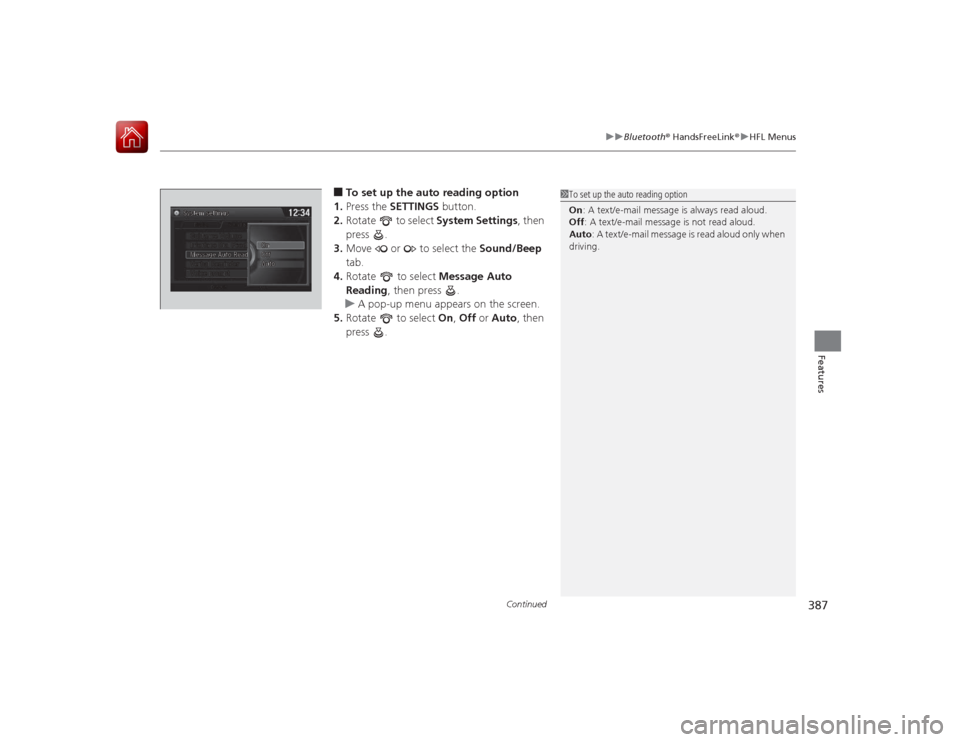
■To set up the auto reading option
1. Press the SETTINGS button.
2. Rotate to select System Settings, then
press .
3. Move or to select the Sound/Beep
tab.
4. Rotate to select Message Auto
Reading , then press .
u A pop-up menu appears on the screen.
5. Rotate to select On, Off or Auto, then
press .
1 To set up the auto reading option
On : A text/e-mail message is always read aloud.
Off : A text/e-mail message is not read aloud.
Auto : A text/e-mail message is read aloud only when
driving.
Page 403 of 593
uuBluetooth ® HandsFreeLink ®u HFL Menus
402Features
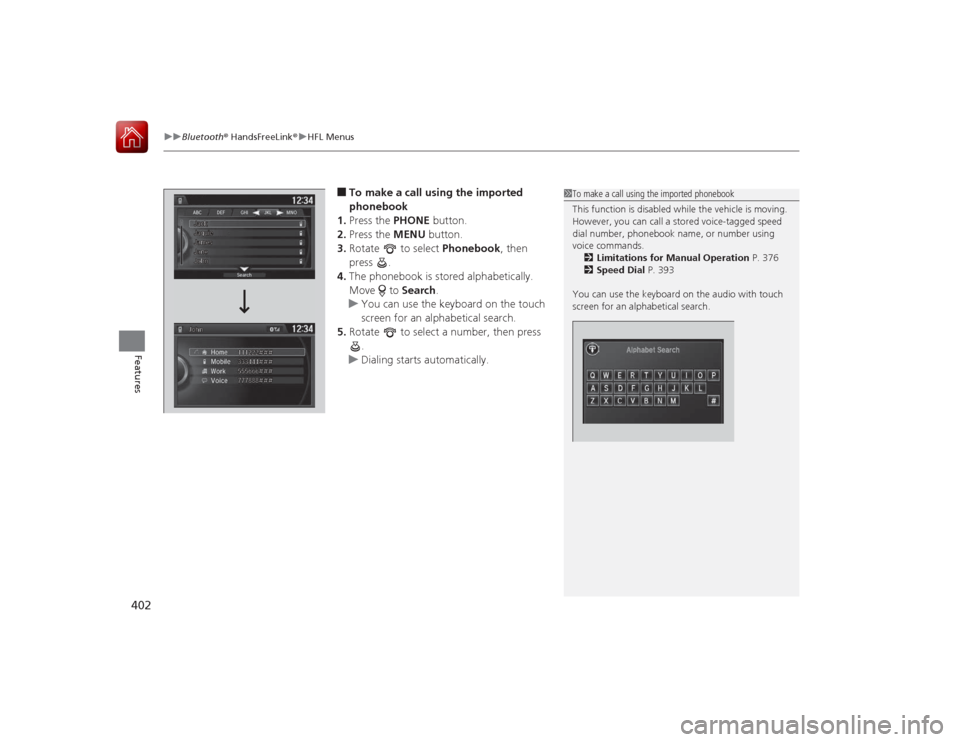
■To make a call usin g the imported
phonebook
1. Press the PHONE button.
2. Press the MENU button.
3. Rotate to select Phonebook, then
press .
4. The phonebook is stored alphabetically.
Move to Search.
u You can use the keyboard on the touch
screen for an alphabetical search.
5. Rotate to select a number, then press
.
u Dialing starts automatically.
1To make a call using the imported phonebook
This function is disabled while the vehicle is moving.
However, you can call a stored voice-tagged speed
dial number, phonebook name, or number using
voice commands.
2 Limitations for Manual Operation P. 376
2 Speed Dial P. 393
You can use the keyboard on the audio with touch
screen for an alphabetical search.
Page 404 of 593
Continued
403
uuBluetooth ® HandsFreeLink ®u HFL Menus
Features
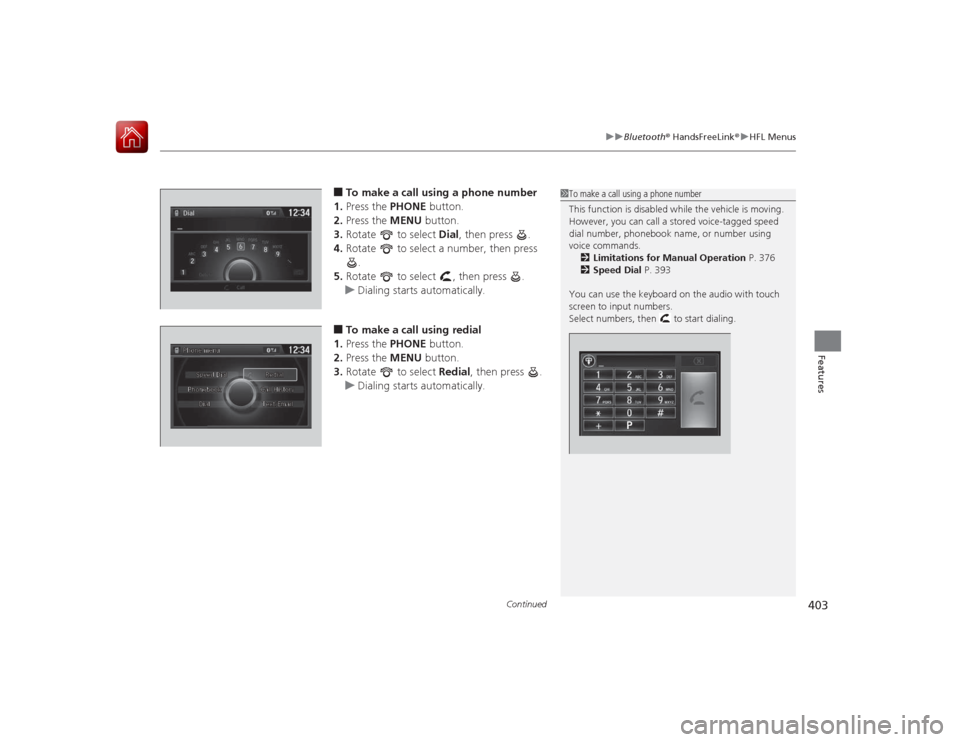
■To make a call using a phone number
1. Press the PHONE button.
2. Press the MENU button.
3. Rotate to select Dial, then press .
4. Rotate to select a number, then press
.
5. Rotate to select , then press .
u Dialing starts automatically.■To make a call using redial
1. Press the PHONE button.
2. Press the MENU button.
3. Rotate to select Redial, then press .
u Dialing starts automatically.
1To make a call using a phone number
This function is disabled while the vehicle is moving.
However, you can call a stored voice-tagged speed
dial number, phonebook name, or number using
voice commands.
2 Limitations for Manual Operation P. 376
2 Speed Dial P. 393
You can use the keyboard on the audio with touch
screen to input numbers.
Select numbers, then to start dialing.
Page 406 of 593
Continued
405
uuBluetooth ® HandsFreeLink ®u HFL Menus
Features
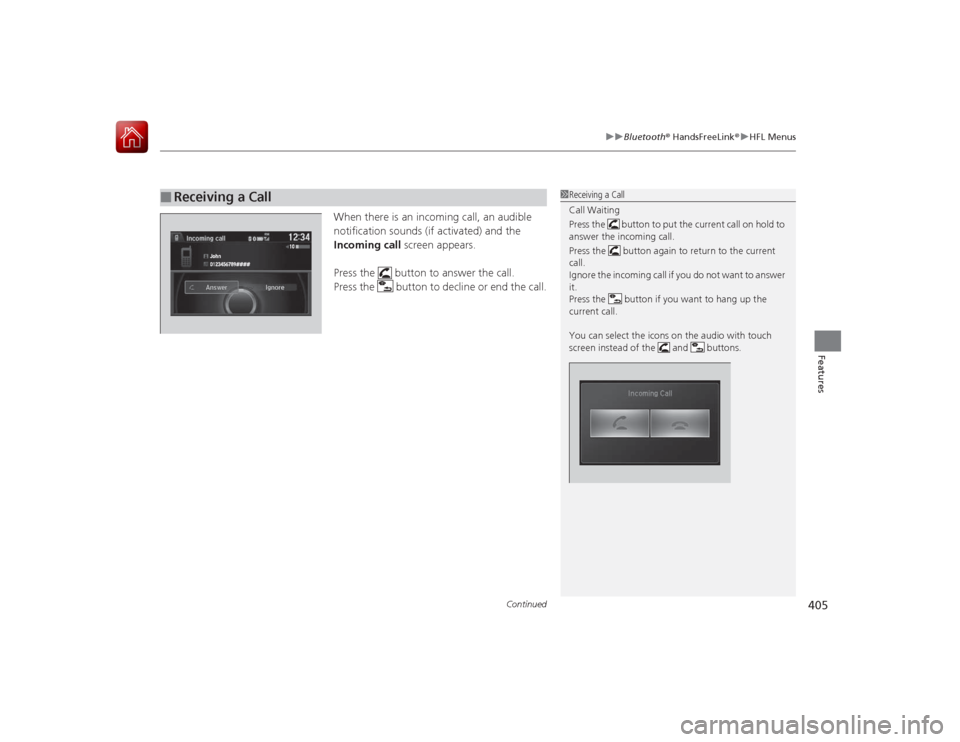
When there is an incoming call, an audible
notification sounds (if activated) and the
Incoming call screen appears.
Press the button to answer the call.
Press the button to decline or end the call.
■
Receiving a Call
1Receiving a Call
Call Waiting
Press the button to put the current call on hold to
answer the incoming call.
Press the button again to return to the current
call.
Ignore the incoming call if you do not want to answer
it.
Press the button if you want to hang up the
current call.
You can select the icons on the audio with touch
screen instead of the and buttons.
Page 408 of 593
Continued
407
uuBluetooth ® HandsFreeLink ®u HFL Menus
Features
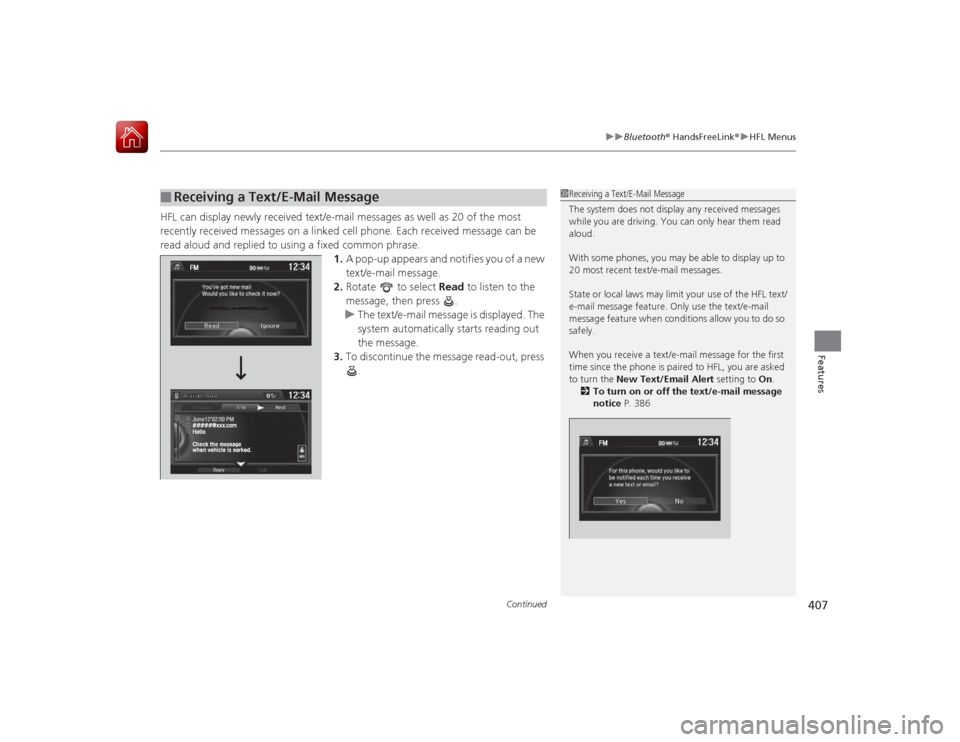
HFL can display newly received text/e-mail messages as well as 20 of the most
recently received messages on a li nked cell phone. Each received message can be
read aloud and replied to using a fixed common phrase. 1.A pop-up appears and notifies you of a new
text/e-mail message.
2. Rotate to select Read to listen to the
message, then press .
u The text/e-mail message is displayed. The
system automatically starts reading out
the message.
3. To discontinue the message read-out, press
.■
Receiving a Text/E-Mail Message
1Receiving a Text/E-Mail Message
The system does not display any received messages
while you are driving. You can only hear them read
aloud.
With some phones, you may be able to display up to
20 most recent text/e-mail messages.
State or local laws may limit your use of the HFL text/
e-mail message feature. Only use the text/e-mail
message feature when conditions allow you to do so
safely.
When you receive a text/e-mai l message for the first
time since the phone is paired to HFL, you are asked
to turn the New Text/Email Alert setting to On.
2 To turn on or off the text/e-mail message
notice P. 386