VIN HONDA ACCORD 2015 9.G Owners Manual
[x] Cancel search | Manufacturer: HONDA, Model Year: 2015, Model line: ACCORD, Model: HONDA ACCORD 2015 9.GPages: 593
Page 319 of 593
318
uuCustomized Features u
Features
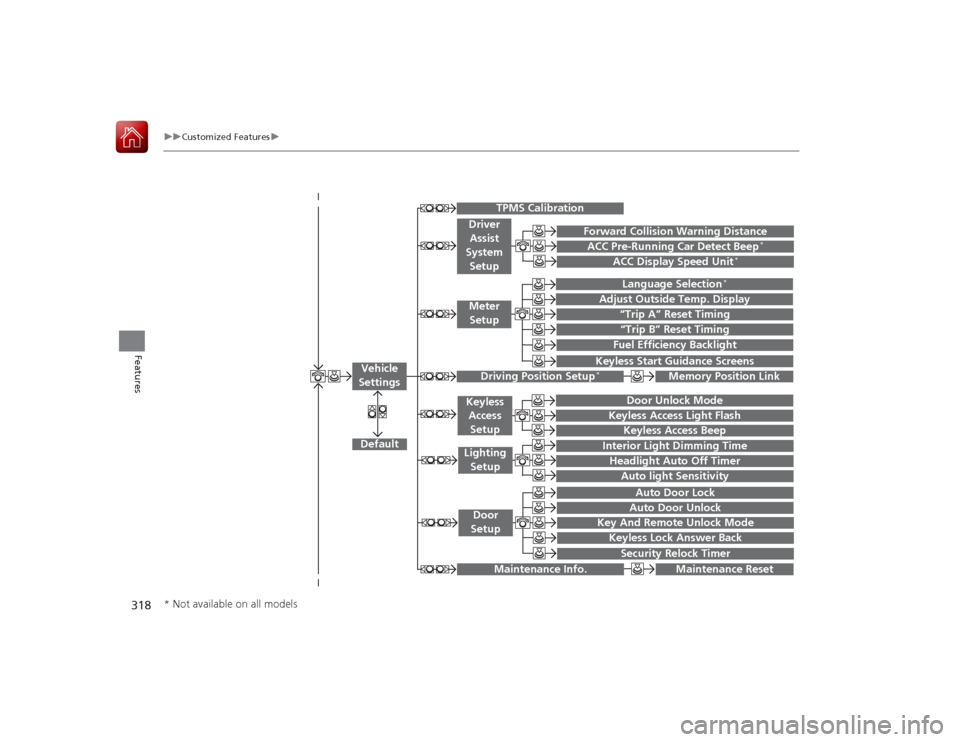
“Trip A” Reset Timing“Trip B” Reset TimingFuel Efficiency Backlight
Language Selection
*
Adjust Outside Temp. Display
Forward Collision Warning DistanceACC Pre-Running Car Detect Beep
*
ACC Display Speed Unit
*
Keyless Start Guidance Screens
Default
Memory Position Link
Door Unlock Mode
Keyless Access Light Flash
Interior Light Dimming TimeHeadlight Auto Off TimerAuto light Sensitivity
Key And Remote Unlock ModeKeyless Lock Answer BackSecurity Relock Timer
Auto Door LockAuto Door Unlock
Maintenance Reset
TPMS Calibration
Vehicle
Settings
Meter SetupDriver Assist
System
Setup
Driving Position Setup
*
Keyless Access
SetupLighting SetupDoor
Setup
Maintenance Info.
Keyless Access Beep
* Not available on all models
Page 323 of 593
322
uuCustomized Features u
Features
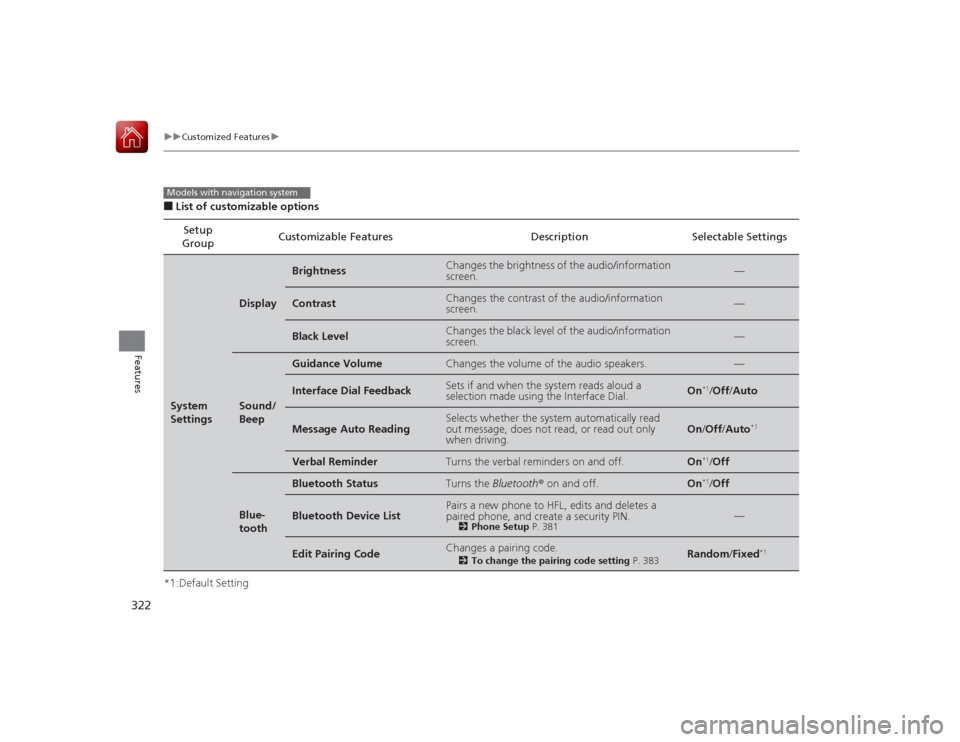
■List of customizable options
*1:Default Setting Setup
Group Customizable Features Description Selectable SettingsSystem
Settings
Display
Brightness
Changes the brightness of the audio/information
screen.
—
Contrast
Changes the contrast of the audio/information
screen.
—
Black Level
Changes the black level of the audio/information
screen.
—
Sound/
Beep
Guidance Volume
Changes the volume of the audio speakers.
—
Interface Dial Feedback
Sets if and when the system reads aloud a
selection made using the Interface Dial.
On
*1/
Off /Auto
Message Auto Reading
Selects whether the system automatically read
out message, does not read, or read out only
when driving.
On /Off /Auto
*1
Verbal Reminder
Turns the verbal reminders on and off.
On
*1/Off
Blue-
tooth
Bluetooth Status
Turns the Bluetooth ® on and off.
On
*1/Off
Bluetooth Device List
Pairs a new phone to HFL , edits and deletes a
paired phone, and create a security PIN.
2 Phone Setup P. 381
—
Edit Pairing Code
Changes a pairing code.
2To change the pairing code setting P. 383
Random/Fixed
*1
Models with navigation system
Page 324 of 593
323
uuCustomized Features u
Continued
Features
*1:Default SettingSetup
Group Customizable Features Description Selectable SettingsSystem
Settings
Voice
Reco
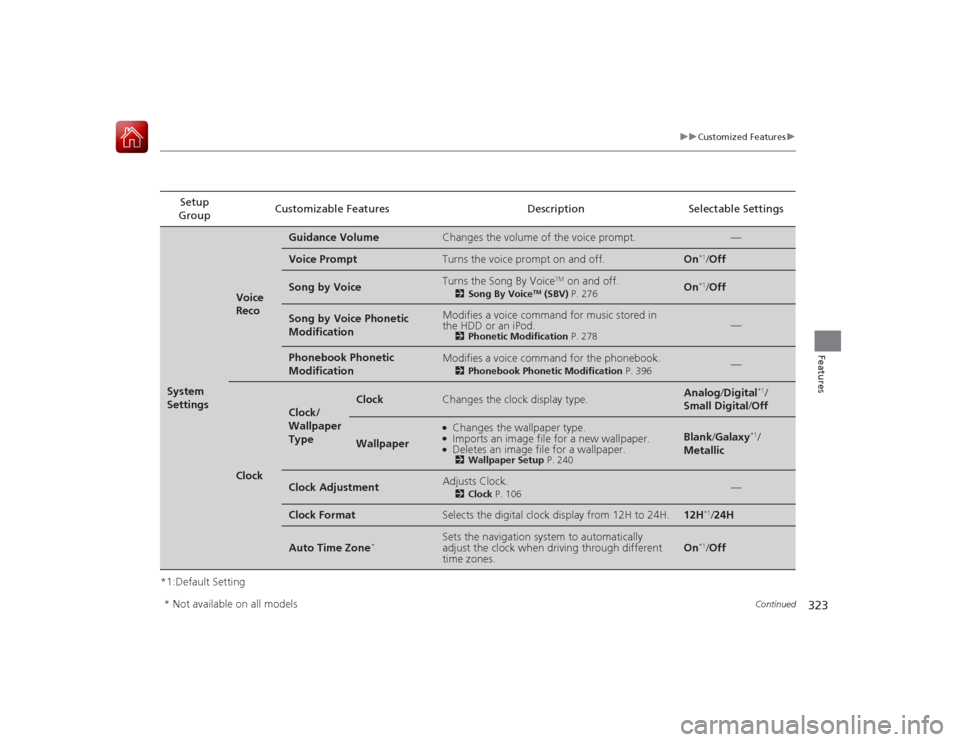
Guidance Volume
Changes the volume of the voice prompt.
—
Voice Prompt
Turns the voice prompt on and off.
On
*1/
Off
Song by Voice
Turns the Song By Voice
TM on and off.
2 Song By Voice
TM (SBV) P. 276
On
*1/Off
Song by Voice Phonetic
Modification
Modifies a voice command for music stored in
the HDD or an iPod.
2 Phonetic Modification P. 278
—
Phonebook Phonetic
Modification
Modifies a voice command for the phonebook.
2Phonebook Phonetic Modification P. 396
—
Clock
Clock/
Wallpaper
Type
Clock
Changes the clock display type.
Analog/Digital
*1/
Small Digital /Off
Wallpaper
●Changes the wallpaper type.●Imports an image file for a new wallpaper.●Deletes an image file for a wallpaper.2 Wallpaper Setup P. 240
Blank/Galaxy
*1/
Metallic
Clock Adjustment
Adjusts Clock.
2 Clock P. 106
—
Clock Format
Selects the digital clock display from 12H to 24H.
12H
*1/24H
Auto Time Zone
*
Sets the navigation system to automatically
adjust the clock when driving through different
time zones.
On
*1/Off
* Not available on all models
Page 325 of 593
324
uuCustomized Features u
Features
*1:Default SettingSetup
Group Customizable Features Description Selectable SettingsSystem
Settings
Clock
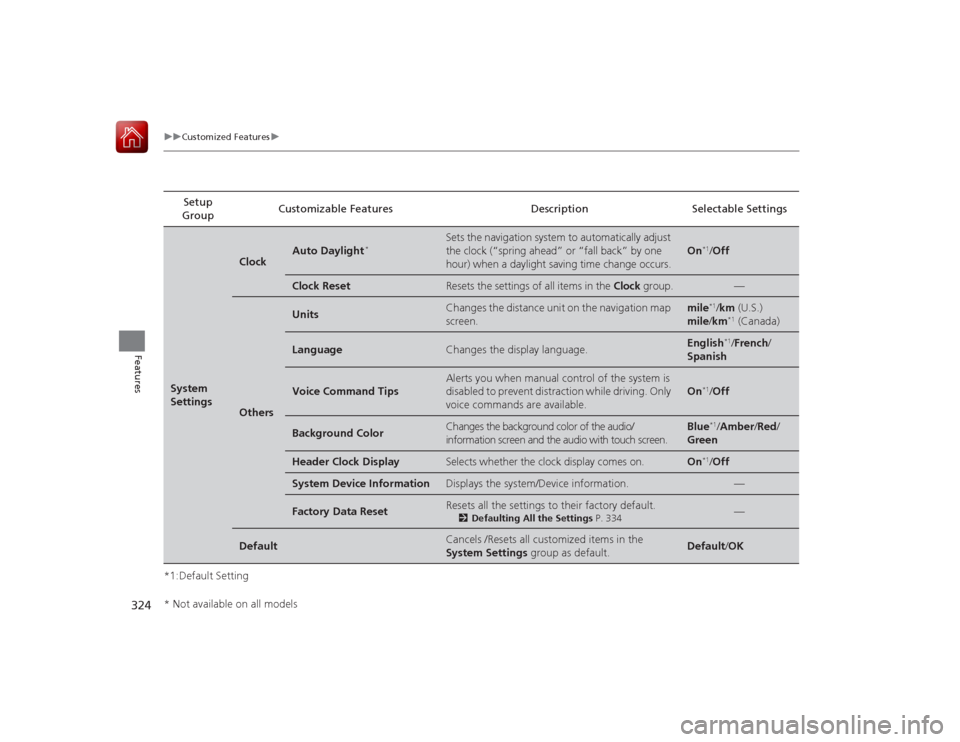
Auto Daylight
*
Sets the navigation system to automatically adjust
the clock (“spring ahead” or “fall back” by one
hour) when a daylight saving time change occurs.
On
*1/
Off
Clock Reset
Resets the settings of all items in the Clock group.
—
Others
Units
Changes the distance unit on the navigation map
screen.
mile
*1/km (U.S.)
mile /km*1 (Canada)
Language
Changes the display language.
English
*1/French /
Spanish
Voice Command Tips
Alerts you when manual control of the system is
disabled to prevent distraction while driving. Only
voice commands are available.
On
*1/ Off
Background Color
Changes the background color of the audio/
information screen and the audio with touch screen.
Blue
*1/Amber /Red/
Green
Header Clock Display
Selects whether the clock display comes on.
On
*1/ Off
System Device Information
Displays the system/Device information.
—
Factory Data Reset
Resets all the settings to their factory default.
2 Defaulting All the Settings P. 334
—
Default
Cancels /Resets all customized items in the
System Settings group as default.
Default/OK
* Not available on all models
Page 327 of 593
326
uuCustomized Features u
Features
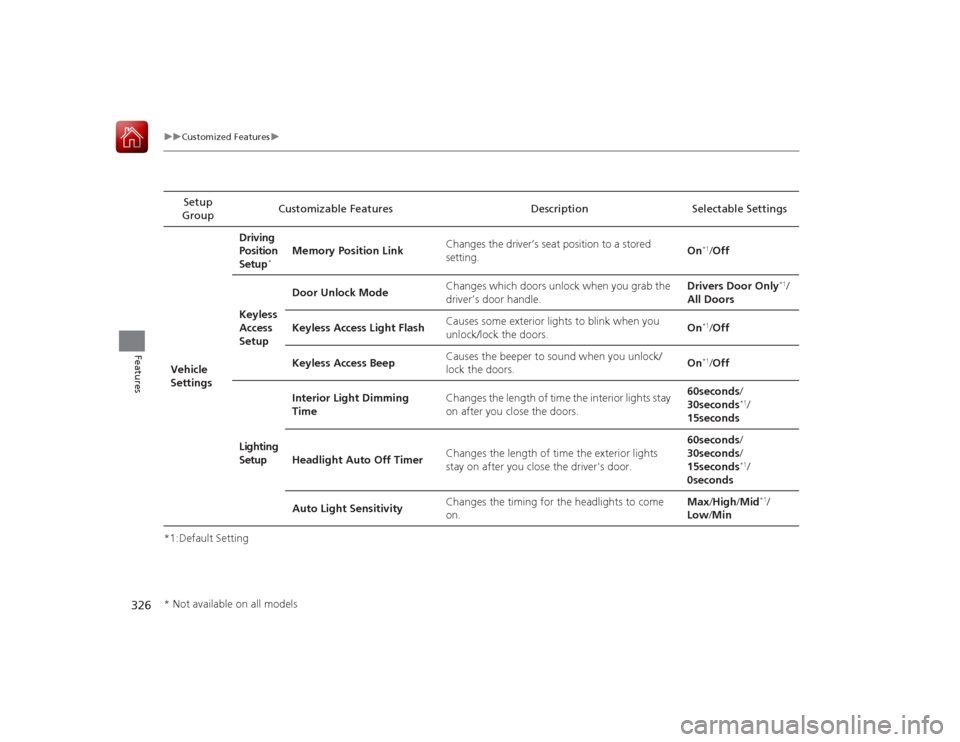
*1:Default SettingSetup
Group Customizable Features Description Selectable Settings
Vehicle
Settings Driving
Position
Setup
*
Memory Position Link
Changes the driver’s seat position to a stored
setting. On
*1/
Off
Keyless
Access
Setup Door Unlock Mode
Changes which doors unlock when you grab the
driver’s door handle. Drivers Door Only
*1/
All Doors
Keyless Access Light Flash Causes some exterior lights to blink when you
unlock/lock the doors. On
*1/
Off
Keyless Access Beep Causes the beeper to so
und when you unlock/
lock the doors. On*1/
Off
Lighting
Setup Interior Light Dimming
Time
Changes the length of time the interior lights stay
on after you close the doors. 60seconds/
30seconds
*1/
15seconds
Headlight Auto Off Timer Changes the length of time the exterior lights
stay on after you close the driver's door. 60seconds/
30seconds/
15seconds*1/
0seconds
Auto Light Sensitivity Changes the timing for the headlights to come
on. Max
/High /Mid
*1/
Low /Min
* Not available on all models
Page 342 of 593
341
uuBluetooth ® HandsFreeLink ®u HFL Menus
Continued
Features
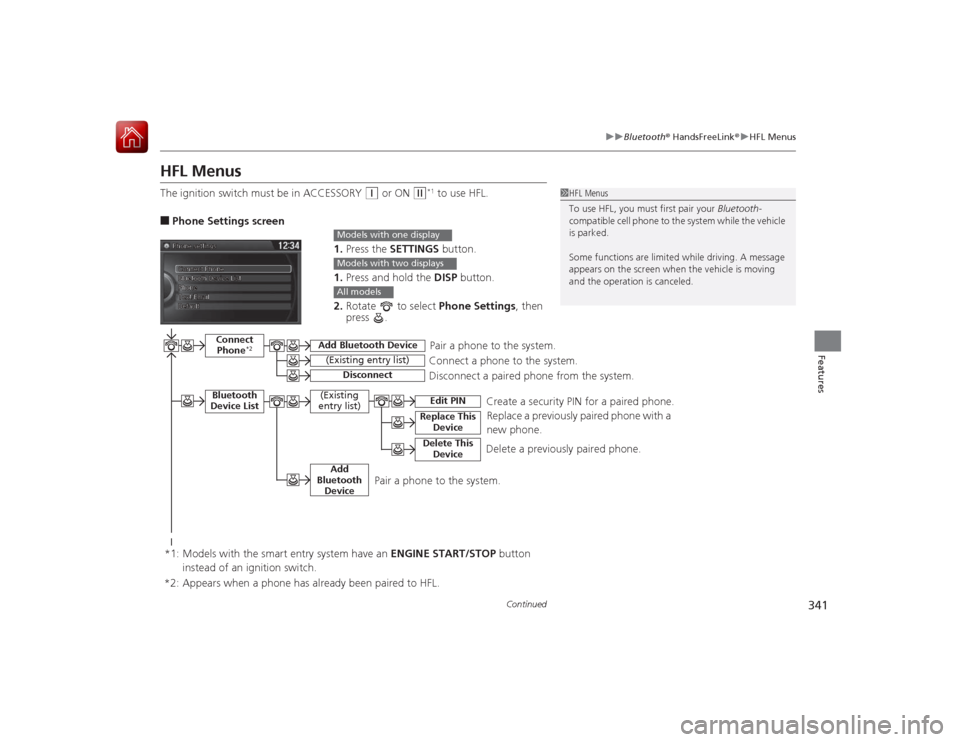
HFL MenusThe ignition switch must be in ACCESSORY
(q
or ON
(w
*1 to use HFL.
■Phone Settings screen
1.Press the SETTINGS button.
1. Press and hold the DISP button.
2. Rotate to select Phone Settings, then
press .
1 HFL Menus
To use HFL, you must first pair your Bluetooth-
compatible cell phone to the system while the vehicle
is parked.
Some functions are limit ed while driving. A message
appears on the screen when the vehicle is moving
and the operation is canceled.
Models with one displayModels with two displaysAll models
Pair a phone to the system.
Replace a previously paired phone with a
new phone.
Connect Phone
*2
Bluetooth
Device List
Add Bluetooth Device
Edit PIN
(Existing entry list)
Disconnect
Connect a phone to the system.
Disconnect a paired phone from the system.
(Existing
entry list)
Replace This DeviceDelete This Device
Delete a previously paired phone.Create a security PIN for a paired phone.
Add
Bluetooth Device
Pair a phone to the system.
*1: Models with the smart entry system have an ENGINE START/STOP button
instead of an ignition switch.
*2: Appears when a phone has already been paired to HFL.
Page 347 of 593
uuBluetooth ® HandsFreeLink ®u HFL Menus
346Features
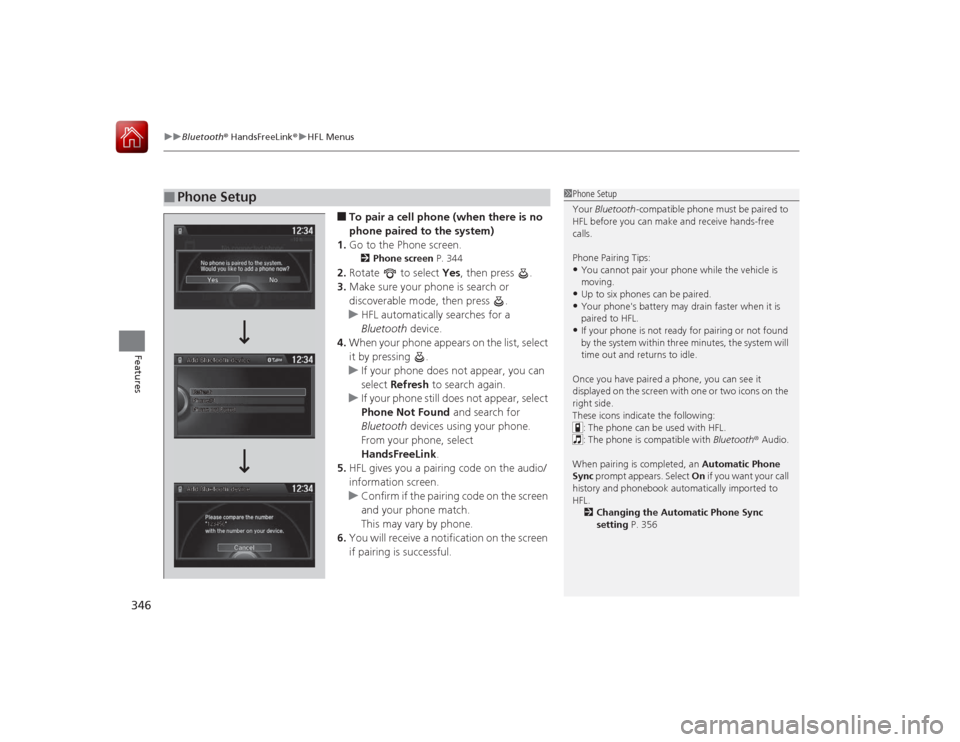
■To pair a cell phone (when there is no
phone paired to the system)
1. Go to the Phone screen.2 Phone screen P. 344
2.Rotate to select Yes, then press .
3. Make sure your phone is search or
discoverable mode, then press .
u HFL automatically searches for a
Bluetooth device.
4. When your phone appears on the list, select
it by pressing .
u If your phone does not appear, you can
select Refresh to search again.
u If your phone still does not appear, select
Phone Not Found and search for
Bluetooth devices using your phone.
From your phone, select
HandsFreeLink .
5. HFL gives you a pairing code on the audio/
information screen.
u Confirm if the pairing code on the screen
and your phone match.
This may vary by phone.
6. You will receive a notification on the screen
if pairing is successful.
■
Phone Setup
1Phone Setup
Your Bluetooth -compatible phone must be paired to
HFL before you can make and receive hands-free
calls.
Phone Pairing Tips:•You cannot pair your phone while the vehicle is
moving.•Up to six phones can be paired.•Your phone's battery may drain faster when it is
paired to HFL.•If your phone is not ready for pairing or not found
by the system within three minutes, the system will
time out and returns to idle.
Once you have paired a phone, you can see it
displayed on the screen with one or two icons on the
right side.
These icons indicate the following: : The phone can be used with HFL.
: The phone is compatible with Bluetooth ® Audio.
When pairing is completed, an Automatic Phone
Sync prompt appears. Select On if you want your call
history and phonebook automatically imported to
HFL.
2 Changing the Automatic Phone Sync
setting P. 356
Page 353 of 593
uuBluetooth ® HandsFreeLink ®u HFL Menus
352Features
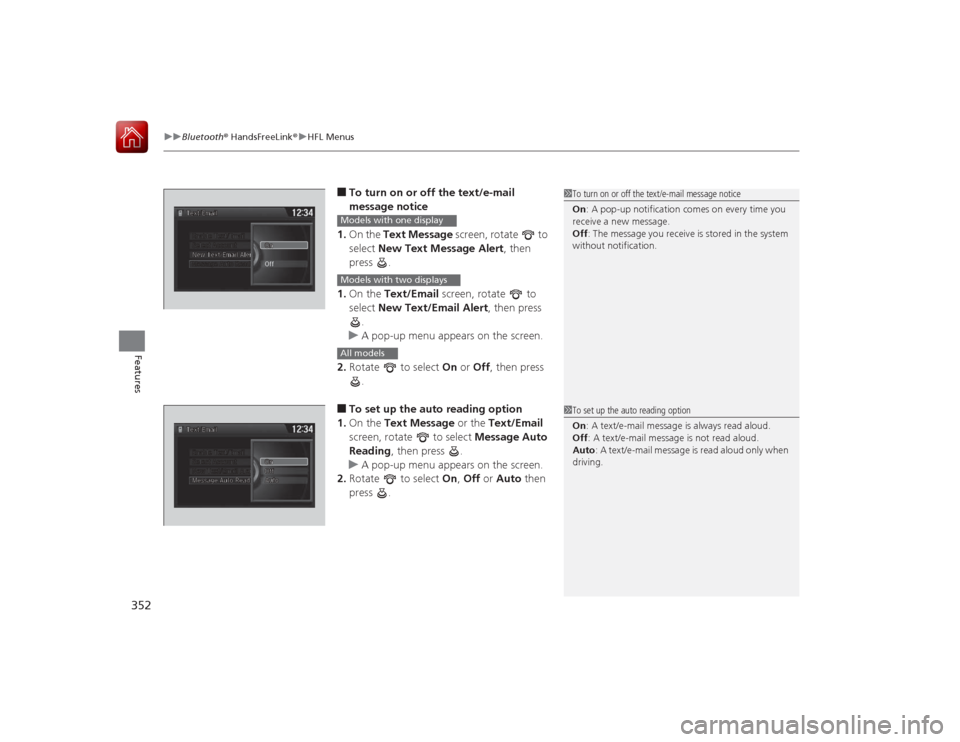
■To turn on or off the text/e-mail
message notice
1. On the Text Message screen, rotate to
select New Text Message Alert , then
press .
1. On the Text/Email screen, rotate to
select New Text/Email Alert , then press
.
u A pop-up menu appears on the screen.
2. Rotate to select On or Off , then press
.■To set up the auto reading option
1. On the Text Message or the Text/Email
screen, rotate to select Message Auto
Reading , then press .
u A pop-up menu appears on the screen.
2. Rotate to select On, Off or Auto then
press .
1 To turn on or off the text/e-mail message notice
On : A pop-up notification comes on every time you
receive a new message.
Off : The message you receive is stored in the system
without notification.
Models with one displayModels with two displaysAll models
1 To set up the auto reading option
On : A text/e-mail message is always read aloud.
Off : A text/e-mail message is not read aloud.
Auto : A text/e-mail message is read aloud only when
driving.
Page 362 of 593
Continued
361
uuBluetooth ® HandsFreeLink ®u HFL Menus
Features
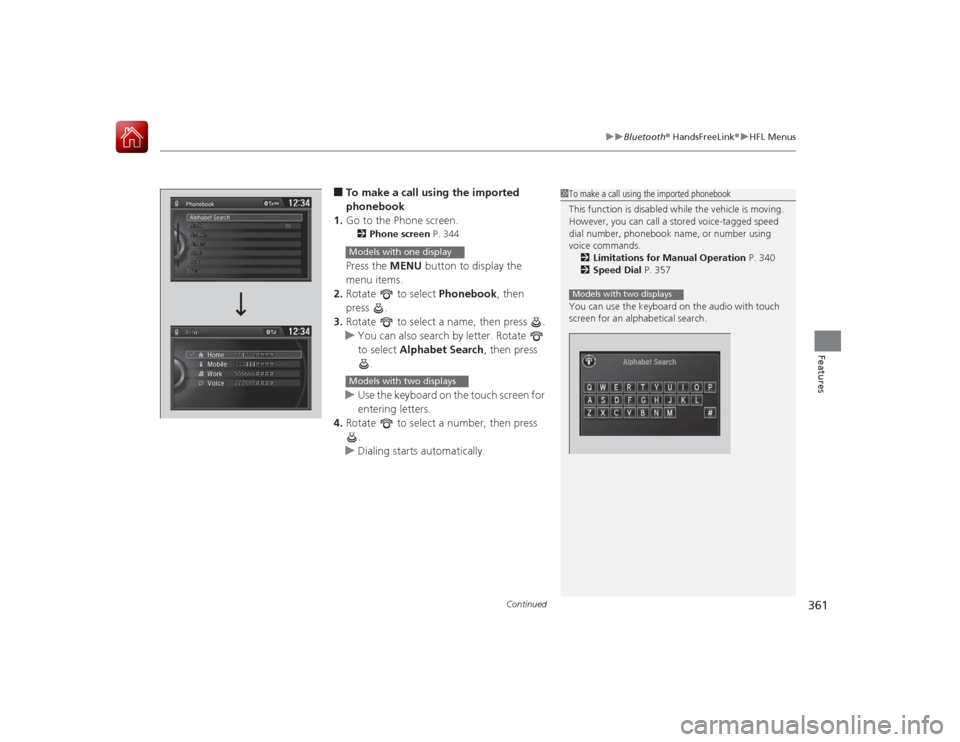
■To make a call using the imported
phonebook
1. Go to the Phone screen.2 Phone screen P. 344Press the MENU button to display the
menu items.
2. Rotate to select Phonebook, then
press .
3. Rotate to select a name, then press .
u You can also search by letter. Rotate
to select Alphabet Search , then press
.
u Use the keyboard on the touch screen for
entering letters.
4. Rotate to select a number, then press
.
u Dialing starts automatically.
1To make a call using the imported phonebook
This function is disabled while the vehicle is moving.
However, you can call a stored voice-tagged speed
dial number, phonebook name, or number using
voice commands.
2 Limitations for Manual Operation P. 340
2 Speed Dial P. 357
You can use the keyboard on the audio with touch
screen for an alphabetical search.Models with two displays
Models with one displayModels with two displays
Page 363 of 593
uuBluetooth ® HandsFreeLink ®u HFL Menus
362Features
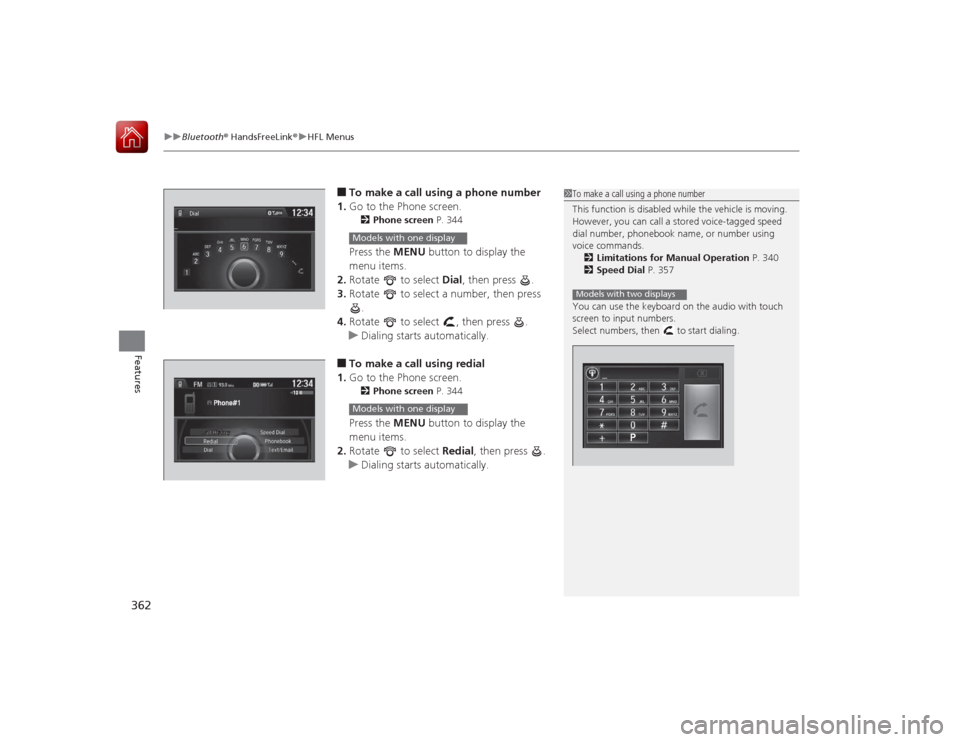
■To make a call using a phone number
1. Go to the Phone screen.2 Phone screen P. 344Press the MENU button to display the
menu items.
2. Rotate to select Dial, then press .
3. Rotate to select a number, then press
.
4. Rotate to select , then press .
u Dialing starts automatically.■To make a call using redial
1. Go to the Phone screen.2 Phone screen P. 344Press the MENU button to display the
menu items.
2. Rotate to select Redial, then press .
u Dialing starts automatically.
1To make a call using a phone number
This function is disabled while the vehicle is moving.
However, you can call a stored voice-tagged speed
dial number, phonebook name, or number using
voice commands.
2 Limitations for Manual Operation P. 340
2 Speed Dial P. 357
You can use the keyboard on the audio with touch
screen to input numbers.
Select numbers, then to start dialing.Models with two displays
Models with one displayModels with one display